# Tattile LPR Camera

# Powering a Tattile Mobile LPR Camera

### Standard Hardware

There are several pieces of gear that comprise the OPSCOM LPR system. A typical system includes the following items:

- 2-Tattile Mobile LPR Cameras with one connector cable per camera
- 1-PL8RDR Device 4G/LTE
- 1-4G/LTE Tablet
- 1-3” Bluetooth printer
- 1-RAM Universal No-Drill Tablet Vehicle Mount &amp; Accessories

Each Mobile LPR camera will need a cable built to accommodate communication between the PL8RDR device and the camera.  
Cables are best to be custom built in order to suit the logistics of what vehicle is being used and where the camera is located on the vehicle.  
**Note:** *It is best practice to have the proper amount of cable so no coiling or stretching of the cable is required.*

### Standard Power Cable

Used to supply power to the camera. The camera will connect to the PL8RDR computer wirelessly.

**Parts Required for Each Cable**

- BINDER M16 99-5672-19-08 series 423 connector (part code T18654)
- Power cable - RED/BLACK cable 0.50 mm cut to the proper length to accommodate the distance from the cable to the power source
    
    
    - *an inline fuse is suggested*

[![image.png](https://opscom.wiki/uploads/images/gallery/2024-06/scaled-1680-/gG2image.png)](https://opscom.wiki/uploads/images/gallery/2024-06/gG2image.png)

  
*This is the front view; holding the connector by the wires and viewing the terminals.

### Advanced Cable For Troubleshooting

The following diagram represents how the cable should be wired in an advanced setup where the camera communicates with the PL8RDR through a standard ethernet cable.

This is more likely to be used in troubleshooting rather than typical operation.  
  
**Parts Required for Each Cable**

- BINDER M16 99-5672-19-08 series 423 connector (part code T18654)
- Ethernet CAT5 cable cut the proper length to accommodate the distance from the PL8RDR to each Camera
- Power cable - RED/BLACK cable 0.50 mm cut to the proper length to accommodate the distance from the cable to the power source
    
    
    - NOTE: CAT cable can supply power on unused pair

[![image.png](https://opscom.wiki/uploads/images/gallery/2024-06/scaled-1680-/4J0image.png)](https://opscom.wiki/uploads/images/gallery/2024-06/4J0image.png)

  
*This is the front view; holding the connector by the wires and viewing the terminals.*

# Configure Tattile LPR Camera

<p class="callout warning"><span data-colorid="mawr3qgyu3">For the Survision LPR Camera configuration, go to [Survision LPR Camera Configuration](https://opscom.wiki/books/lpr-installation-manual/page/part-3-handheld-set-up)</span></p>

## <span data-colorid="mawr3qgyu3">Connecting Wirelessly</span>

The first step is to connect to your **PL8RDR** device via wireless connection. To do so bring up your systems **Network Settings** by following the steps below

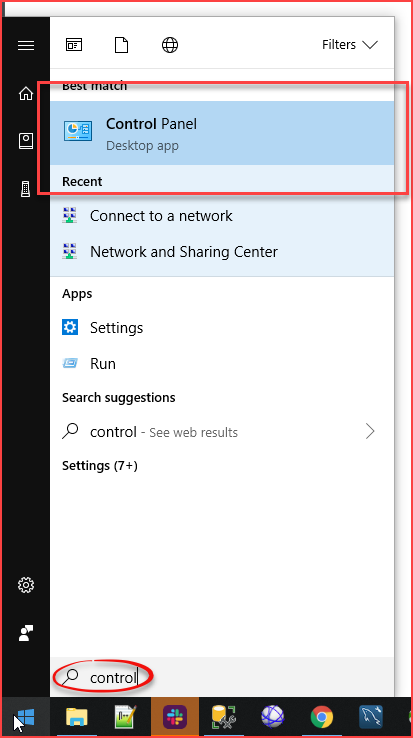
Click on the **Windows Home Button** and start typing **Control Panel**. It should pop up under Best **Match** as you are typing.

[![image.png](https://opscom.wiki/uploads/images/gallery/2024-06/scaled-1680-/ljlimage.png)](https://opscom.wiki/uploads/images/gallery/2024-06/ljlimage.png)

Click on **Control Panel** to access your **Computer's Settings**.

[![image.png](https://opscom.wiki/uploads/images/gallery/2024-06/scaled-1680-/72jimage.png)](https://opscom.wiki/uploads/images/gallery/2024-06/72jimage.png)
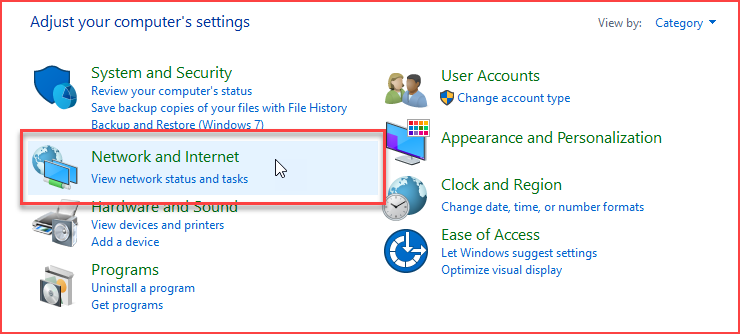
A list of all available configuration items will appear. Click on **Network and Internet.**

[![image.png](https://opscom.wiki/uploads/images/gallery/2024-06/scaled-1680-/Fn0image.png)](https://opscom.wiki/uploads/images/gallery/2024-06/Fn0image.png)
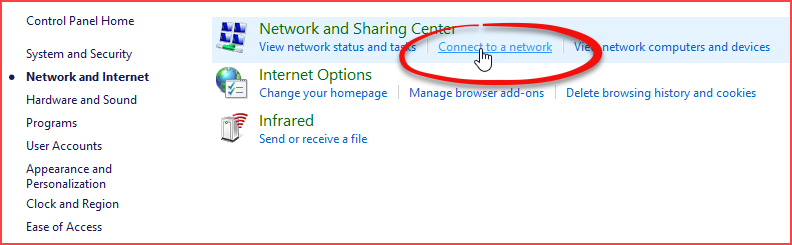
In **Network and Sharing Center** settings click on **Connect to a Network**.

[![image.png](https://opscom.wiki/uploads/images/gallery/2024-06/scaled-1680-/zIjimage.png)](https://opscom.wiki/uploads/images/gallery/2024-06/zIjimage.png)
### Connect to pl8rdr.opscom

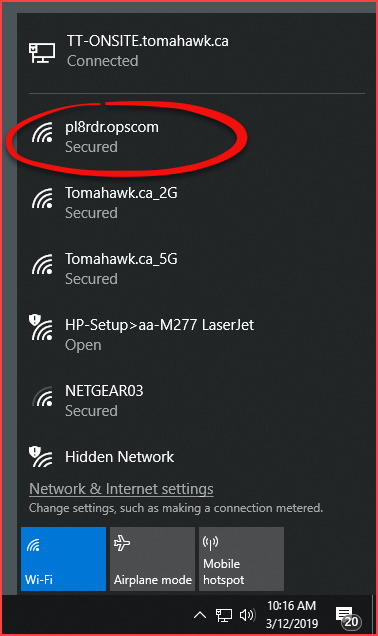
First make sure **Wi-Fi** is turned on by clicking the network icon at the bottom right of your screen. You will see a list of networks available to you. In this case we are looking for the **pl8rdr.opscom** network.

[![image.png](https://opscom.wiki/uploads/images/gallery/2024-06/scaled-1680-/nDzimage.png)](https://opscom.wiki/uploads/images/gallery/2024-06/nDzimage.png)
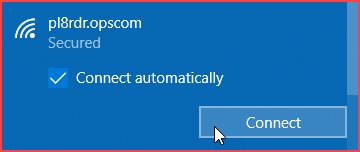
Clicking the **pl8rdr.opsom** network will open a screen where you can click on **Connect** to join the network. You can also utilize the **Connect automatically** check box do avoid having to connect manually each time.

[![image.png](https://opscom.wiki/uploads/images/gallery/2024-06/scaled-1680-/kNtimage.png)](https://opscom.wiki/uploads/images/gallery/2024-06/kNtimage.png)
Since the network is secured a password/PIN is required to connect. Click on **Connect using a secure key instead** to bring up a seperate password entry field.

[![image.png](https://opscom.wiki/uploads/images/gallery/2024-06/scaled-1680-/6VNimage.png)](https://opscom.wiki/uploads/images/gallery/2024-06/6VNimage.png)
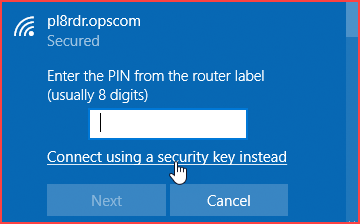
Enter the password into the empty field and click on **Next**.

<p class="callout warning">**Note:** The password is provided by OPSCOM. If you do not know your password please contact <support@ops-com.com>  
</p>

[![image.png](https://opscom.wiki/uploads/images/gallery/2024-06/scaled-1680-/5VQimage.png)](https://opscom.wiki/uploads/images/gallery/2024-06/5VQimage.png)

You will be prompted to allow your PC to be discoverable by other PCs on this network. Click **No** as you do not want this connection to be open to other PC's.

[![image.png](https://opscom.wiki/uploads/images/gallery/2024-06/scaled-1680-/ekpimage.png)](https://opscom.wiki/uploads/images/gallery/2024-06/ekpimage.png)

You will see the connection status below the **pl8rdr.opscom** network appear as **Connected**.

[![image.png](https://opscom.wiki/uploads/images/gallery/2024-06/scaled-1680-/67oimage.png)](https://opscom.wiki/uploads/images/gallery/2024-06/67oimage.png)

## Connect to the Camera

Now you can open a browser and enter the IP address of your camera in the go to field.

You will also need to follow the IP address with a port number. For mobile cameras the port number is 1080 therefore the URL would look like this:  
`http://[IPAddress][colon][port number]` as in the example below you can see the URL as `<strong>http://10.42.0.140:1080</strong>`

If you do not know the IP address of your camera see **How to Find the IP Address of your Camera** found below.

You will be prompted for a **Username** and **Password**.

<div class="table-wrap" id="bkmrk-username-password-su"><table class="wrapped confluenceTable tablesorter tablesorter-default" role="grid"><colgroup><col></col><col></col></colgroup><thead><tr class="tablesorter-headerRow" role="row"><th aria-disabled="false" aria-label="Username: No sort applied, activate to apply an ascending sort" aria-sort="none" class="confluenceTh tablesorter-header sortableHeader tablesorter-headerUnSorted" data-column="0" role="columnheader" scope="col" tabindex="0">Username</th><th aria-disabled="false" aria-label="Password: No sort applied, activate to apply an ascending sort" aria-sort="none" class="confluenceTh tablesorter-header sortableHeader tablesorter-headerUnSorted" data-column="1" role="columnheader" scope="col" tabindex="0">Password</th></tr></thead><tbody aria-live="polite" aria-relevant="all"><tr role="row"><td class="confluenceTd">superuser</td><td class="confluenceTd">superuser</td></tr></tbody></table>

</div>[![image.png](https://opscom.wiki/uploads/images/gallery/2024-06/scaled-1680-/iDAimage.png)](https://opscom.wiki/uploads/images/gallery/2024-06/iDAimage.png)

The main **Number Plate Reader Configurations** page will appear. Note the IP address and port number in the browser as well as the rest of the URL that will resolve automatically.

[![image.png](https://opscom.wiki/uploads/images/gallery/2024-06/scaled-1680-/p8eimage.png)](https://opscom.wiki/uploads/images/gallery/2024-06/p8eimage.png)

## Naming Mobile Cameras

Under System → Network you can name the camera(s) appropriately.

- Mobile-L = Drivers side
- Mobile-R = Passenger side

## How to Find the IP Address of your Camera

On the handheld unit go to main menu and tap on **LPR Scanning**.

[![image.png](https://opscom.wiki/uploads/images/gallery/2024-06/scaled-1680-/0gTimage.png)](https://opscom.wiki/uploads/images/gallery/2024-06/0gTimage.png)

Once in the LPR screen tap on **Status** near the top right of the screen.

[![image.png](https://opscom.wiki/uploads/images/gallery/2024-06/scaled-1680-/jPgimage.png)](https://opscom.wiki/uploads/images/gallery/2024-06/jPgimage.png)

You will see a list of connected devices. The device **Type** should be **Tattile camera wifi.**

Please note that due to new cameras coming onto the market, your PL8RDR may list a camera as an unknown device.

[![image.png](https://opscom.wiki/uploads/images/gallery/2024-06/scaled-1680-/5igimage.png)](https://opscom.wiki/uploads/images/gallery/2024-06/5igimage.png)

In this case the cameras IP address was **10.42.0.140**. Enter the IP address for your device with port **:1080** into the browsers URL and hit **Enter**.

[![image.png](https://opscom.wiki/uploads/images/gallery/2024-06/scaled-1680-/3Pwimage.png)](https://opscom.wiki/uploads/images/gallery/2024-06/3Pwimage.png)

The below screen shot is taken after the cameras have read some plates.

Notice the "stats" entry which clearly lists the camera IP addresses.

Also note that sometimes the system is not able to determine which device is a camera.

[![image.png](https://opscom.wiki/uploads/images/gallery/2024-06/scaled-1680-/mlpimage.png)](https://opscom.wiki/uploads/images/gallery/2024-06/mlpimage.png)

# Connect to a Tattile Mobile Camera

## First Time Connection

Power up the camera and give it a few minutes to fully boot up.

At that point you will see the camera in your network connections list.  
Note the network name reflects the serial number of the camera In this case ANPR-2010011339  
Click connect to establish a connection between your computer and the camera's hotspot.

[![image.png](https://opscom.wiki/uploads/images/gallery/2024-06/scaled-1680-/BZHimage.png)](https://opscom.wiki/uploads/images/gallery/2024-06/BZHimage.png)

The standard IP address for the camera coming from the factory is set at 192.168.150.1  
You will also have to put the port number in your URL when trying to connect through your browser.  
  
Open a browser and enter the camera IP and port into the address bar. In this case it will be 192.168.150.1:1080 (Where 192.168.150.1 is the camera IP and 1080 is the port number)

You will be prompted to enter a user name and password.   
Username superuser  
Password superuser

[![image.png](https://opscom.wiki/uploads/images/gallery/2024-06/scaled-1680-/GYRimage.png)](https://opscom.wiki/uploads/images/gallery/2024-06/GYRimage.png)

  
You will then be directed to the Plate Reader Tab of the camera configuration.

[![image.png](https://opscom.wiki/uploads/images/gallery/2024-06/scaled-1680-/BK8image.png)](https://opscom.wiki/uploads/images/gallery/2024-06/BK8image.png)

There are Specific areas that you will need to configure.  
**On the Plate Reader tab you will edit:**

General Settings  
Event Actions Also known as TCP Events  
JPEG Image Header Configuration  
Plate Reader Settings

**On the System tab you will edit:**

Network Settings   
It is very important to edit the network settings properly and in a proper sequence. If for example you configure the camera to connect to the PL8RDR but forget to set it to assign an IP (DHCP) and save the changes. You will not be able to log in to the camera wirelessly.

## Related Video

This video shows the process described above as to how to log in to the camera for the first time.

<iframe class="youtube-player conf-macro output-block" data-hasbody="false" data-macro-id="605f3e8b-228f-4e2f-b1ff-f0bd09119537" data-macro-name="widget" frameborder="0" height="304" src="https://www.youtube.com/embed/rZHMVAMb7yk?wmode=opaque" style="width: 608px; height: 304px;" width="608"></iframe>

# ANPR Setup Checklist -Tattile

## Initial Setup

<div class="columnLayout single" data-layout="single" id="bkmrk-wired-wireless-port-"><div class="cell normal" data-type="normal"><div class="innerCell"><div class="table-wrap"><table class="relative-table wrapped confluenceTable tablesorter tablesorter-default" role="grid"><colgroup><col></col><col></col><col></col></colgroup><thead><tr class="tablesorter-headerRow" role="row"><th aria-disabled="false" aria-label="Wired: No sort applied, activate to apply an ascending sort" aria-sort="none" class="confluenceTh tablesorter-header sortableHeader tablesorter-headerUnSorted" data-column="0" role="columnheader" scope="col" tabindex="0">Wired</th><th aria-disabled="false" aria-label="Wireless: No sort applied, activate to apply an ascending sort" aria-sort="none" class="confluenceTh tablesorter-header sortableHeader tablesorter-headerUnSorted" data-column="1" role="columnheader" scope="col" tabindex="0">Wireless</th><th aria-disabled="false" aria-label="Port: No sort applied, activate to apply an ascending sort" aria-sort="none" class="confluenceTh tablesorter-header sortableHeader tablesorter-headerUnSorted" colspan="1" data-column="2" role="columnheader" scope="col" tabindex="0">Port</th></tr></thead><tbody aria-live="polite" aria-relevant="all"><tr role="row"><td class="confluenceTd">192.168.0.21  
255.255.0.0

</td><td class="confluenceTd">SSID: Anpr-######  
192.168.150.1

</td><td class="confluenceTd" colspan="1">1080 or  
8081</td></tr></tbody></table>

</div></div></div></div>### Initial Access to the Camera

<iframe class="youtube-player conf-macro output-block" data-hasbody="false" data-macro-id="b97b6704-b5af-4162-83c3-c0b777b2b3c4" data-macro-name="widget" frameborder="0" height="320" src="https://www.youtube.com/embed/rZHMVAMb7yk?wmode=opaque" style="width: 640px; height: 320px;" width="640"></iframe>

Yet another setup trick is to login to the device initially using WIFI.

The device will need to be plugged into a network hub that is connected to a DHCP server

<div class="columnLayout single" data-layout="single" id="bkmrk-change-the-wired-ip-"><div class="cell normal" data-type="normal"><div class="innerCell"><div class="confluence-information-macro confluence-information-macro-note conf-macro output-block" data-hasbody="true" data-macro-id="78407daf-3cba-42ee-b86d-1c45bd41965e" data-macro-name="note"><div class="confluence-information-macro-body">- change the wired IP to Obtain Automatically 
    - later in the process we do this anyways
- device will reboot
- reconnect using WIFI and record the wired IP that was assigned to the device 
    - generally a device will be assigned the same IP each time it boots
    - you should now be able to connect to the listed wired IP
    - disconnect your wifi connection

</div></div></div></div></div>This is useful since often your computer will become confused about where to send packets. Using the wifi connection is good for configuration, but accessing other online resources may be problematic with the second connection. Once the wifi is disconnected all configuration can be performed through the wired IP.

Connecting to PL8RDR from tablet or camera

```
WIFI: pl8rdr.opscom / T0maha3k   [10.42.0.1]
```

<div class="columnLayout single" data-layout="single" id="bkmrk--1"><div class="cell normal" data-type="normal"><div class="innerCell">---

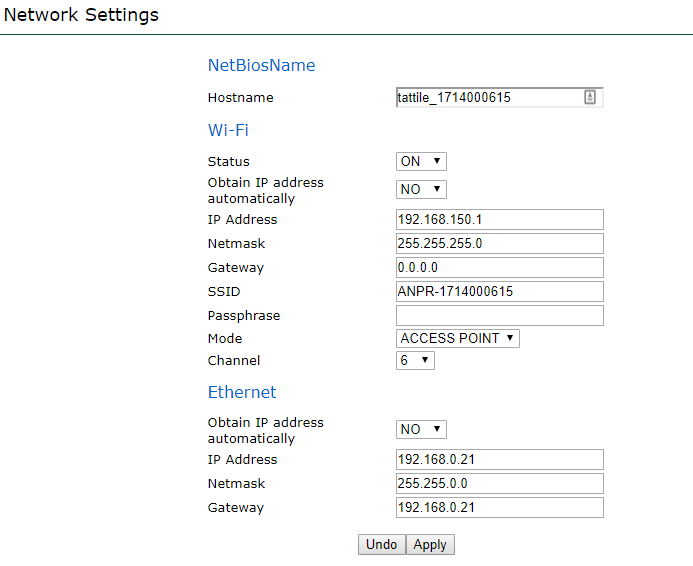
</div></div></div>## System - Network Settings

*Changes on this panel will reboot the device.*

This work is usually done by OPSCOM support.   
Details are here to help those clients that are doing initial configuration themselves.

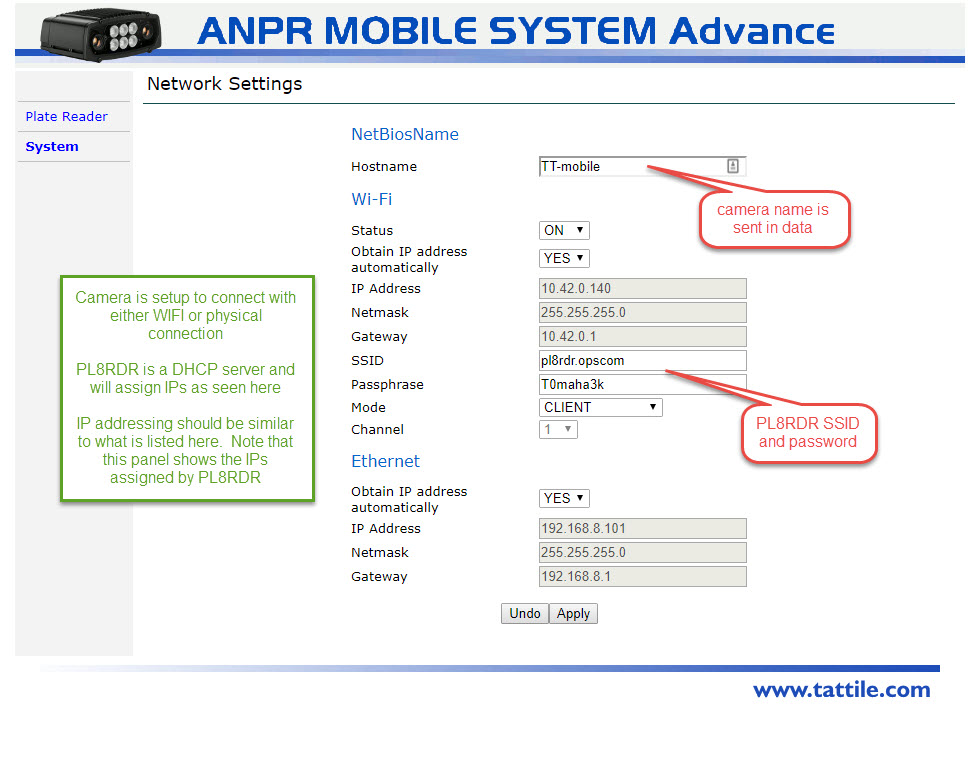
<span class="legacy-color-text-red2">\* </span>Suggested that WIFI settings be changed last unless you have a local DHCP server setup.

During setup the device reboots several times, any changes to WIFI settings may make it more difficult to connect to complete configuration.

<div class="columnLayout single" data-layout="single" id="bkmrk-%2A%C2%A0connect-wireless-a"><div class="cell normal" data-type="normal"><div class="innerCell"><div class="confluence-information-macro confluence-information-macro-information conf-macro output-block" data-hasbody="true" data-macro-id="16cba10c-8d54-4a85-a6f7-a7fa6c9e4b23" data-macro-name="info"><div class="confluence-information-macro-body"><div class="confluence-information-macro confluence-information-macro-note conf-macro output-block" data-hasbody="true" data-macro-id="e392aac7-6da2-456c-9ad0-c7b63c1028e3" data-macro-name="note"><div class="confluence-information-macro-body">  
</div></div>- <span class="legacy-color-text-red2">\* </span>connect wireless and setup wired connection first, then connection may be easier 
    - device reboots numerous times during setup
    - DHCP server software: [http://www.dhcpserver.de](http://www.dhcpserver.de/) - [dhcpsrv2.5.2.zip](https://OPSCOM.atlassian.net/wiki/download/attachments/758735/dhcpsrv2.5.2.zip?version=1&modificationDate=1593217256000&cacheVersion=1&api=v2) (*extract to C:* ) 
        - setup computer with LAN 192.168.8.1 and use that for IP assignment
        - camera will connect to computer to obtain IP address

</div></div></div></div></div><div class="columnLayout single" data-layout="single" id="bkmrk-hostname%3A-mobile-r-%7C"><div class="cell normal" data-type="normal"><div class="innerCell">- Hostname: Mobile-R | Mobile-L (that way we know which is the Right / Left camera)

</div></div></div>[![image.png](https://opscom.wiki/uploads/images/gallery/2024-06/scaled-1680-/UEJimage.png)](https://opscom.wiki/uploads/images/gallery/2024-06/UEJimage.png)

## System - Time Sync

*Changes on this panel will reboot the device.*

<div class="columnLayout single" data-layout="single" id="bkmrk-not-terribly-importa"><div class="cell normal" data-type="normal"><div class="innerCell">- not terribly important as the PL8RDR records the time of the event not the values sent by the camera
- Time Server (use your own or one of these)
    
    
    - [0.us.pool.ntp.org](http://0.us.pool.ntp.org/)
    - [1.us.pool.ntp.org](http://1.us.pool.ntp.org/)
    - [2.us.pool.ntp.org](http://2.us.pool.ntp.org/)
    - [3.us.pool.ntp.org](http://3.us.pool.ntp.org/)

</div></div></div>[![image.png](https://opscom.wiki/uploads/images/gallery/2024-06/scaled-1680-/sc8image.png)](https://opscom.wiki/uploads/images/gallery/2024-06/sc8image.png)

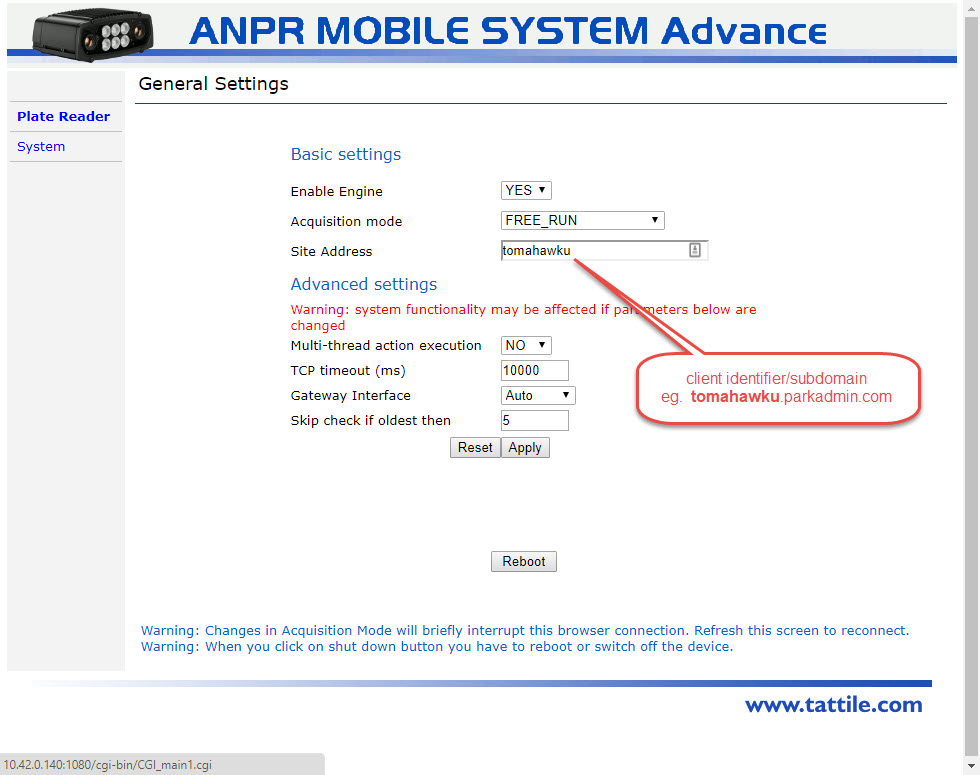
## Plate Reader - General Settings

<div class="columnLayout single" data-layout="single" id="bkmrk-should-always-be-the"><div class="cell normal" data-type="normal"><div class="innerCell">- should always be the **CLIENT\_ID** (no spaces) 
    - ```
        eg. OC_TOMA
        ```

</div></div></div>**NOTE:** This graphic shows and old implementation. The text in this sample should be only: OC\_LIONS

[![image.png](https://opscom.wiki/uploads/images/gallery/2024-06/scaled-1680-/VnBimage.png)](https://opscom.wiki/uploads/images/gallery/2024-06/VnBimage.png)

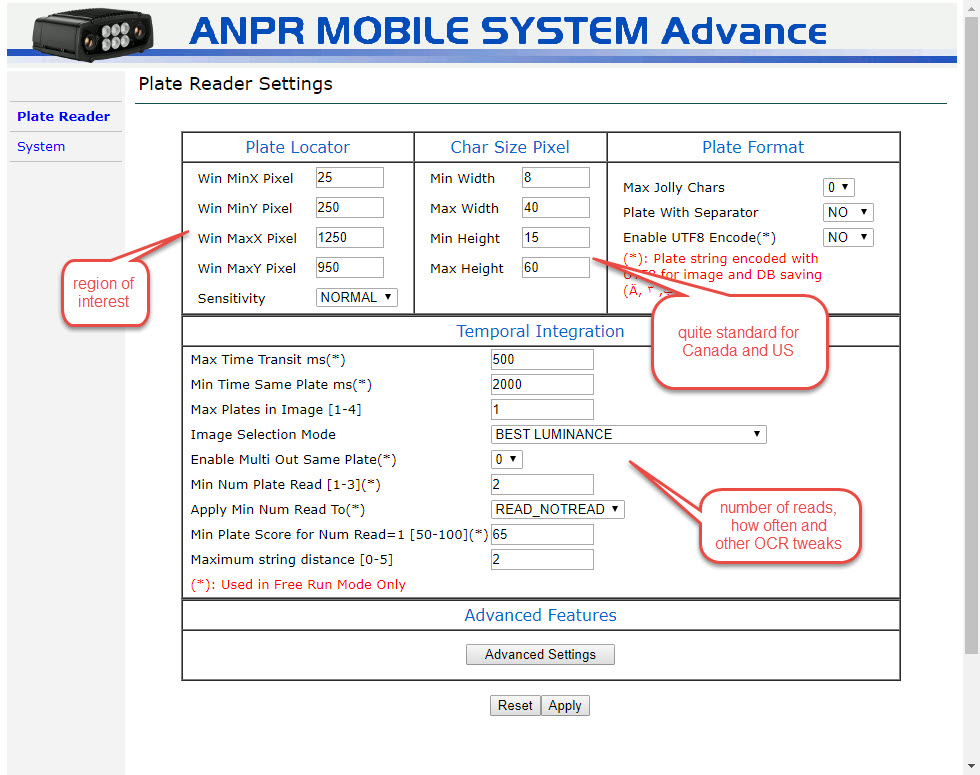
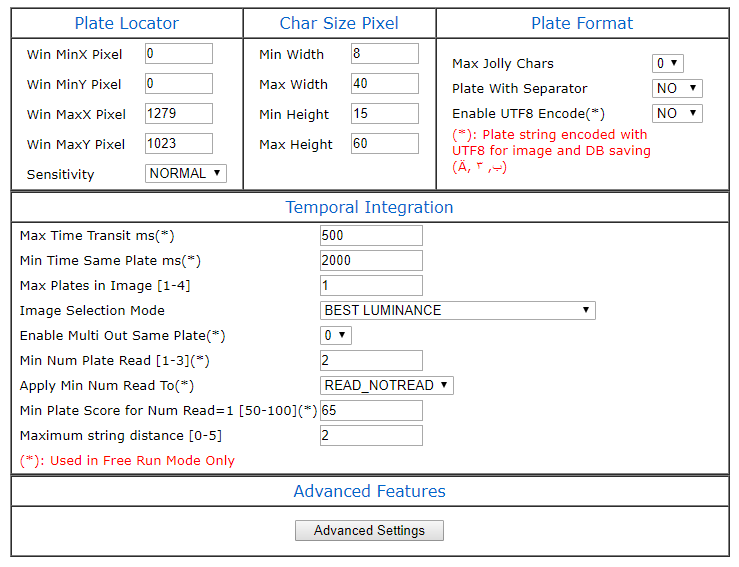
## Plate Reader - Plate Reader

*Changes on this panel will reboot the device.*

<div class="columnLayout single" data-layout="single" id="bkmrk-create-a-buffer-arou"><div class="cell normal" data-type="normal"><div class="innerCell">- create a buffer around the capture area
- the listed settings are factory defaults (except Locator) and should work with minimal issues
- for mobile bounding region should be set to a lower area since plates will rarely be at the top of the image 
    - leave a gutter around the bounding area of at least 30 pixels

</div></div></div>[![image.png](https://opscom.wiki/uploads/images/gallery/2024-06/scaled-1680-/6kRimage.png)](https://opscom.wiki/uploads/images/gallery/2024-06/6kRimage.png)

## Plate Reader - Events Actions

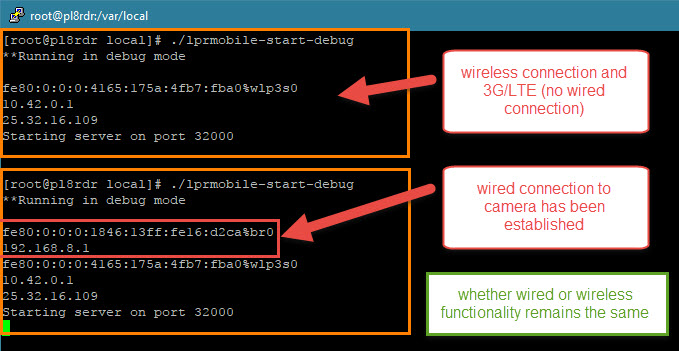
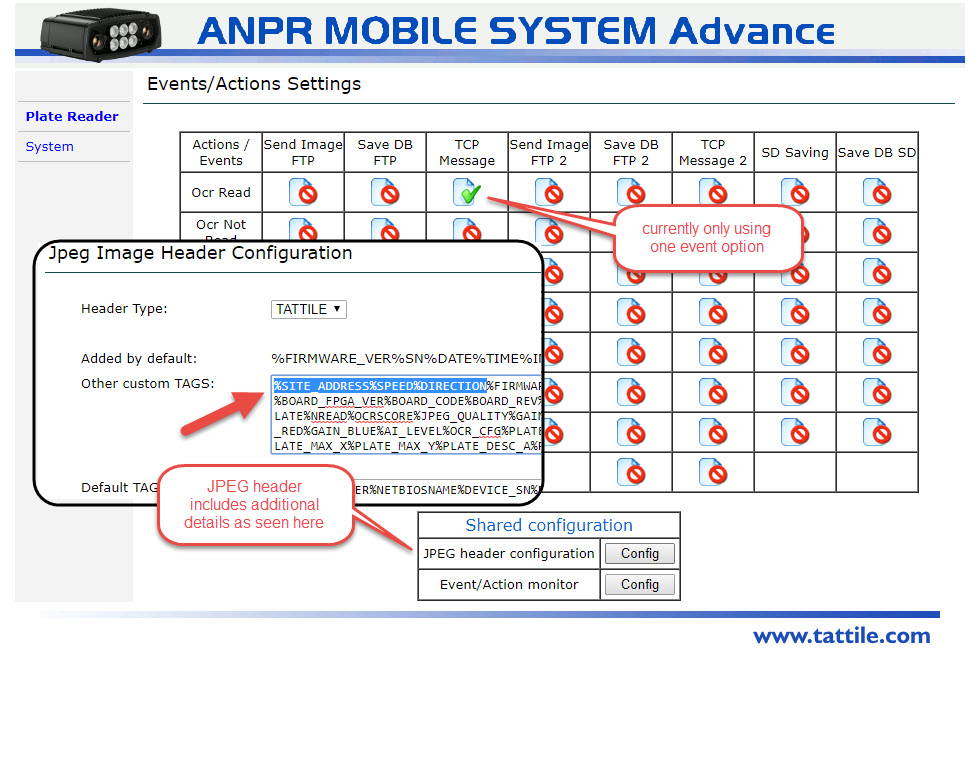
<div class="columnLayout single" data-layout="single" id="bkmrk-%28mobile%29-there-are-4"><div class="cell normal" data-type="normal"><div class="innerCell">- (Mobile) there are 4 options; 2 for wired and 2 for wireless 
    - 1 each are READ results; 1 each are NO\_READ results (vanity plates)
- %SITE\_ADDRESS is not important for Mobile but listed here for standardization

</div></div></div>[![image.png](https://opscom.wiki/uploads/images/gallery/2024-06/scaled-1680-/0eMimage.png)](https://opscom.wiki/uploads/images/gallery/2024-06/0eMimage.png)

During configuration set **wired** *TCP Message* connection as **Enable=No**

Cameras leaving Tomahawk's office will be setup to use wireless only. Configuring wired settings can help with troubleshooting in the future.

Events - Specific

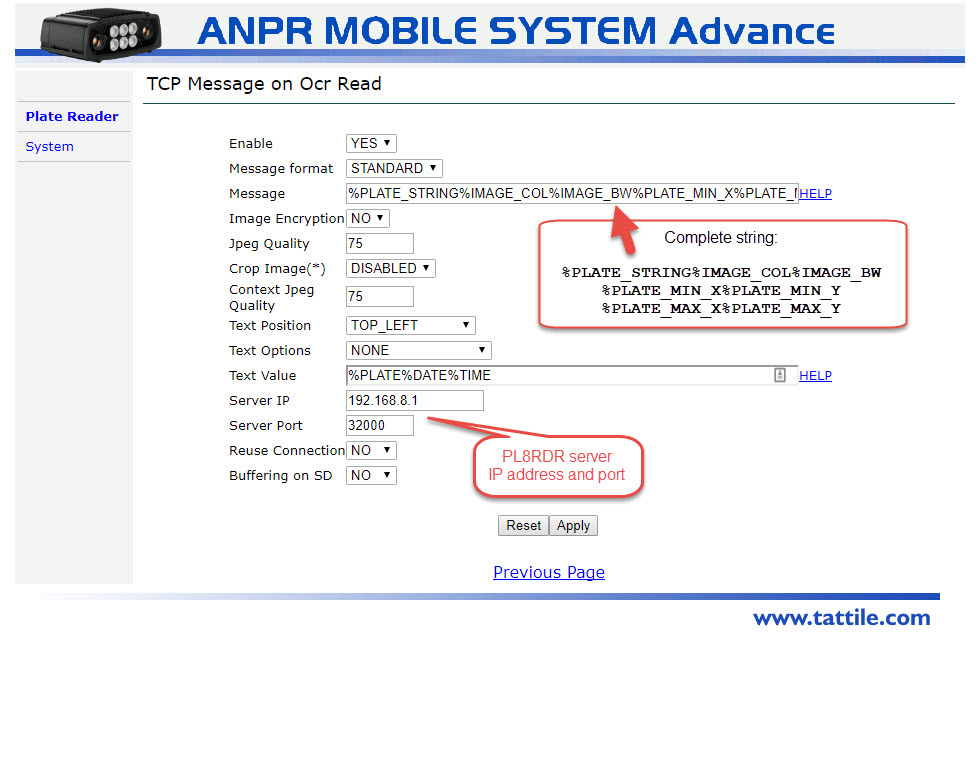
<div class="columnLayout single" data-layout="single" id="bkmrk-2-x%C2%A0read%C2%A0--wired-%2819"><div class="cell normal" data-type="normal"><div class="innerCell">- 2 x **<span class="legacy-color-text-red2">READ</span>** - wired (192.168.8.1) &amp; wireless (10.42.0.1)
    
    
    - %PLATE\_STRING%IMAGE\_BW%IMAGE\_COL%PLATE\_MIN\_X%PLATE\_MIN\_Y%PLATE\_MAX\_X%PLATE\_MAX\_Y
    - Server IP: 192.168.8.1 Server Port: 32000

<div class="confluence-information-macro confluence-information-macro-note conf-macro output-block" data-hasbody="true" data-macro-id="6a0197f5-1fa9-4eca-9d71-d9c2e385a078" data-macro-name="note"><div class="confluence-information-macro-body">  
</div></div></div></div></div><span class="legacy-color-text-blue3">%IMAGE\_BW sends the thumbnail image (*required*)</span>  
<span class="legacy-color-text-blue3">%IMAGE\_COL sends the context image (*not required*)</span>

[![image.png](https://opscom.wiki/uploads/images/gallery/2024-06/scaled-1680-/8wyimage.png)](https://opscom.wiki/uploads/images/gallery/2024-06/8wyimage.png)

<div class="columnLayout single" data-layout="single" id="bkmrk-2-x%C2%A0no_read%C2%A0--wired-"><div class="cell normal" data-type="normal"><div class="innerCell">- 2 x **<span class="legacy-color-text-red2">NO\_READ</span>** - wired (192.168.8.1) &amp; wireless (10.42.0.1)
    
    
    - %PLATE\_NOT\_READ%IMAGE\_BW%IMAGE\_COL%PLATE\_MIN\_X%PLATE\_MIN\_Y%PLATE\_MAX\_X%PLATE\_MAX\_Y
    - Server IP: 10.42.0.1 Server Port: 32000

</div></div></div>[![image.png](https://opscom.wiki/uploads/images/gallery/2024-06/scaled-1680-/Pd6image.png)](https://opscom.wiki/uploads/images/gallery/2024-06/Pd6image.png)

### Wireless Only with Wired Disabled

The final screen should look as shown below. "TCP Message" is setup (disabled) for 192.168.8.1 and "TCP Message 2" is setup (enabled) for 10.42.0.1

We are shipping cameras with wireless configured and wired ready to be enabled if needed; *as of spring 2020*

[![image.png](https://opscom.wiki/uploads/images/gallery/2024-06/scaled-1680-/g6fimage.png)](https://opscom.wiki/uploads/images/gallery/2024-06/g6fimage.png)

## Camera Context

<div class="columnLayout single" data-layout="single" id="bkmrk-likely-not-necessary"><div class="cell normal" data-type="normal"><div class="innerCell">- likely not necessary to make changes in this area 
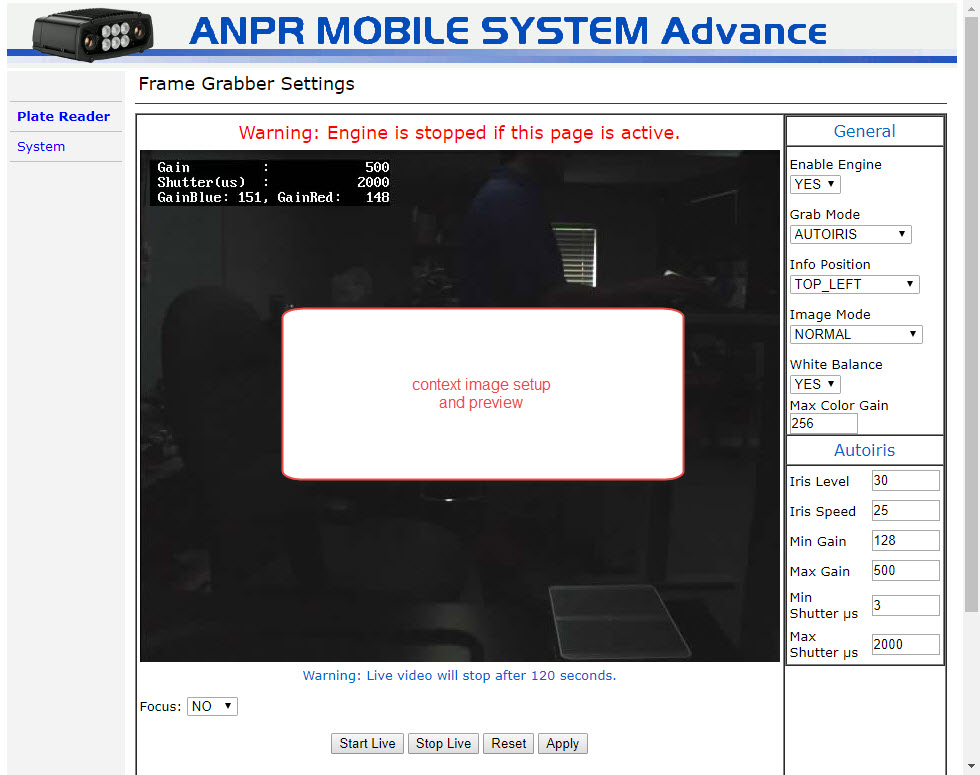
    - adjust; iris, gain, shutter

</div></div></div><div class="columnLayout single" data-layout="single" id="bkmrk-sample-device-info-o"><div class="cell normal" data-type="normal"><div class="innerCell"><div class="expand-container conf-macro output-block" data-hasbody="true" data-macro-id="69168dc1-3f82-47cb-97cd-1077fdf8e849" data-macro-name="expand" id="bkmrk-sample-device-info-o-1" resolved=""><div class="expand-control" id="bkmrk-sample-device-info"><span class="expand-control-text">Sample Device Info</span></div><div class="expand-content" id="bkmrk-organization-name-%C2%A0-"><div class="code panel pdl conf-macro output-block" data-hasbody="true" data-macro-id="b27de287-5d2a-458c-8a03-04f7f7b1996a" data-macro-name="code"><div class="codeContent panelContent pdl"><div><div class="syntaxhighlighter sh-midnight nogutter  text" id="bkmrk-organization-name-%C2%A0--1"><table border="0" cellpadding="0" cellspacing="0"><tbody><tr><td class="code"><div class="container" title="Hint: double-click to select code"><div class="line number1 index0 alt2" data-bidi-marker="true">`Organization name`</div><div class="line number2 index1 alt1" data-bidi-marker="true"> </div><div class="line number3 index2 alt2" data-bidi-marker="true">`VERSION`</div><div class="line number4 index3 alt1" data-bidi-marker="true">`Firmware version       = ANPR Mobile Ver.3.12.19 CAN-ON Dec 20 2019 13:41:34`</div><div class="line number5 index4 alt2" data-bidi-marker="true">`OCR lib version        = Tattile Plate Reader Ver.3.156.000`</div><div class="line number6 index5 alt1" data-bidi-marker="true">`Traffic Interface lib  = 1.112`</div><div class="line number7 index6 alt2" data-bidi-marker="true">`TOS version            = 4.34.73`</div><div class="line number8 index7 alt1" data-bidi-marker="true">`TatExt OCR lib         = TatExt 2.8 TatExt OCR 2.13.16 - Pr 2.1 - Lib 6.0.29805 - May  7 2020`</div><div class="line number9 index8 alt2" data-bidi-marker="true">`BOOTLOADER version     = 3.0`</div><div class="line number10 index9 alt1" data-bidi-marker="true">`KERNEL version         = 3.0.35-tattile #1 SMP PREEMPT Wed Oct 23 17:25:48 CEST 2019`</div><div class="line number11 index10 alt2" data-bidi-marker="true">`DRIVER version         = 2.2.2`</div><div class="line number12 index11 alt1" data-bidi-marker="true">`FILESYSTEM version     = 3.13`</div><div class="line number13 index12 alt2" data-bidi-marker="true">`UPDATE version         = 3.13`</div><div class="line number14 index13 alt1" data-bidi-marker="true">`FPGA Version           = 2045`</div><div class="line number15 index14 alt2" data-bidi-marker="true"> </div><div class="line number16 index15 alt1" data-bidi-marker="true">`DEVICE STATUS`</div><div class="line number17 index16 alt2" data-bidi-marker="true">`Image Sensor OCR       = CMOS_1280x1024_BW (151) (50)`</div><div class="line number18 index17 alt1" data-bidi-marker="true">`Image Sensor CTX       = CMOS_1280x1024_COL (154)`</div><div class="line number19 index18 alt2" data-bidi-marker="true">`Board Serial Number    = 4294967295`</div><div class="line number20 index19 alt1" data-bidi-marker="true">`Board code             = 696`</div><div class="line number21 index20 alt2" data-bidi-marker="true">`Board revision         = 2`</div><div class="line number22 index21 alt1" data-bidi-marker="true">`MAC Address            = 0x00C008934BB5`</div><div class="line number23 index22 alt2" data-bidi-marker="true">`Hostname               = Mobile-L`</div><div class="line number24 index23 alt1" data-bidi-marker="true">`GMT Time & Date        = 17.44.14, 02/07/2020, GMT offset: -300min, DST status: OFF`</div><div class="line number25 index24 alt2" data-bidi-marker="true">`LOCAL Time & Date      = 13.44.14, 02/07/2020`</div><div class="line number26 index25 alt1" data-bidi-marker="true">`Application time       = 00:00:47`</div><div class="line number27 index26 alt2" data-bidi-marker="true">`Device uptime          = 00:01:32`</div><div class="line number28 index27 alt1" data-bidi-marker="true">`CPU Temperature        = 27.0 °C`</div><div class="line number29 index28 alt2" data-bidi-marker="true">`Temperature            = 35.2 °C`</div><div class="line number30 index29 alt1" data-bidi-marker="true">`Humidity               = 6.6 %`</div><div class="line number31 index30 alt2" data-bidi-marker="true">`Pointing Angles        = Tilt: -0.1° Roll: 0.1°`</div><div class="line number32 index31 alt1" data-bidi-marker="true">`Current                = 904mA`</div><div class="line number33 index32 alt2" data-bidi-marker="true">`Voltage                = 10.0V`</div><div class="line number34 index33 alt1" data-bidi-marker="true">`Flash file system size = 3442040 KByte`</div><div class="line number35 index34 alt2" data-bidi-marker="true"> </div><div class="line number36 index35 alt1" data-bidi-marker="true">`DIAGNOSTIC STATUS`</div><div class="line number37 index36 alt2" data-bidi-marker="true">`Status                    = WARNING`</div><div class="line number38 index37 alt1" data-bidi-marker="true">`Internal parameters       = M:0x09bf8f C:0x09bf8f A:0x000000 W:0x001000 R:0x000000`</div><div class="line number39 index38 alt2" data-bidi-marker="true">`Last check time           = 02/07/2020 13:43:40,978`</div><div class="line number40 index39 alt1" data-bidi-marker="true">`Boot time                 = 02/07/2020 13:43:40,978`</div><div class="line number41 index40 alt2" data-bidi-marker="true">`Status Temperature        = OK`</div><div class="line number42 index41 alt1" data-bidi-marker="true">`Status Humidity           = OK`</div><div class="line number43 index42 alt2" data-bidi-marker="true">`Status Secure Digital     = OK`</div><div class="line number44 index43 alt1" data-bidi-marker="true">`Status Current Consumption= OK`</div><div class="line number45 index44 alt2" data-bidi-marker="true">`Status Time Synchro       = DISABLED`</div><div class="line number46 index45 alt1" data-bidi-marker="true">`Status OCR Camera         = OK`</div><div class="line number47 index46 alt2" data-bidi-marker="true">`Status Context Camera     = OK`</div><div class="line number48 index47 alt1" data-bidi-marker="true">`Status Plate Reader       = OK`</div><div class="line number49 index48 alt2" data-bidi-marker="true">`Status WiFi               = OK`</div><div class="line number50 index49 alt1" data-bidi-marker="true">`Status Crypto             = OK`</div><div class="line number51 index50 alt2" data-bidi-marker="true">`Status GPS                = WARNING`</div><div class="line number52 index51 alt1" data-bidi-marker="true">`Status TatExt             = OK`</div><div class="line number53 index52 alt2" data-bidi-marker="true"> </div><div class="line number54 index53 alt1" data-bidi-marker="true">`DEVICE DESCRIPTION`</div><div class="line number55 index54 alt2" data-bidi-marker="true">`Device serial number   = 1910033218`</div><div class="line number56 index55 alt1" data-bidi-marker="true">`Device type            = F01710`</div><div class="line number57 index56 alt2" data-bidi-marker="true">`Number of heads        = 2`</div><div class="line number58 index57 alt1" data-bidi-marker="true">`Channel 0 lens         = T18523 - 6.0mm`</div><div class="line number59 index58 alt2" data-bidi-marker="true">`Channel 0 best focus   = 3.00m`</div><div class="line number60 index59 alt1" data-bidi-marker="true">`Channel 0 F number     = 4.0`</div><div class="line number61 index60 alt2" data-bidi-marker="true">`Channel 1 lens         = T18523 - 6.0mm`</div><div class="line number62 index61 alt1" data-bidi-marker="true">`Channel 1 best focus   = 3.00m`</div><div class="line number63 index62 alt2" data-bidi-marker="true">`Channel 1 F number     = 2.8`</div></div></td></tr></tbody></table>

</div></div></div></div></div></div></div></div></div>## Plate Reading Quick Test

You should now be able to go to **Plate Reader - Text Result** and hold a plate in front of the camera to confirm operation.

Further testing is suggested with a PL8RDR system.

# ANPR Tattile Camera Screenshots

<div class="gallery conf-macro output-block" data-hasbody="false" data-macro-id="fe58567c-c2fb-486e-a2fe-9ca17053f8ca" data-macro-name="gallery" id="bkmrk-%C2%A0-%C2%A0-%C2%A0-%C2%A0-%C2%A0-%C2%A0-%C2%A0-%C2%A0-%C2%A0-%C2%A0-"><table><tbody><tr><td class="gallery-image">[![image.png](https://opscom.wiki/uploads/images/gallery/2024-06/scaled-1680-/P0Jimage.png)](https://opscom.wiki/uploads/images/gallery/2024-06/P0Jimage.png)

</td><td class="gallery-image">[![image.png](https://opscom.wiki/uploads/images/gallery/2024-06/scaled-1680-/5cNimage.png)](https://opscom.wiki/uploads/images/gallery/2024-06/5cNimage.png)

</td><td class="gallery-image">[![image.png](https://opscom.wiki/uploads/images/gallery/2024-06/scaled-1680-/KL9image.png)](https://opscom.wiki/uploads/images/gallery/2024-06/KL9image.png)

</td></tr><tr><td> </td><td> </td><td> </td></tr><tr><td class="gallery-image">[![image.png](https://opscom.wiki/uploads/images/gallery/2024-06/scaled-1680-/cgsimage.png)](https://opscom.wiki/uploads/images/gallery/2024-06/cgsimage.png)

</td><td class="gallery-image">[![image.png](https://opscom.wiki/uploads/images/gallery/2024-06/scaled-1680-/OAvimage.png)](https://opscom.wiki/uploads/images/gallery/2024-06/OAvimage.png)

</td><td class="gallery-image">[![image.png](https://opscom.wiki/uploads/images/gallery/2024-06/scaled-1680-/VCKimage.png)](https://opscom.wiki/uploads/images/gallery/2024-06/VCKimage.png)

</td></tr><tr><td> </td><td> </td><td> </td></tr><tr><td class="gallery-image">[![image.png](https://opscom.wiki/uploads/images/gallery/2024-06/scaled-1680-/RQZimage.png)](https://opscom.wiki/uploads/images/gallery/2024-06/RQZimage.png)

</td><td class="gallery-image">[![image.png](https://opscom.wiki/uploads/images/gallery/2024-06/scaled-1680-/iibimage.png)](https://opscom.wiki/uploads/images/gallery/2024-06/iibimage.png)

</td><td class="gallery-image">[![image.png](https://opscom.wiki/uploads/images/gallery/2024-06/scaled-1680-/TIBimage.png)](https://opscom.wiki/uploads/images/gallery/2024-06/TIBimage.png)

</td></tr><tr><td> </td><td> </td><td> </td></tr><tr><td class="gallery-image">[![image.png](https://opscom.wiki/uploads/images/gallery/2024-06/scaled-1680-/zvgimage.png)](https://opscom.wiki/uploads/images/gallery/2024-06/zvgimage.png)

</td><td class="gallery-image">[![image.png](https://opscom.wiki/uploads/images/gallery/2024-06/scaled-1680-/nXiimage.png)](https://opscom.wiki/uploads/images/gallery/2024-06/nXiimage.png)

</td><td class="gallery-image">[![image.png](https://opscom.wiki/uploads/images/gallery/2024-06/scaled-1680-/qLnimage.png)](https://opscom.wiki/uploads/images/gallery/2024-06/qLnimage.png)

</td></tr><tr><td> </td><td> </td><td> </td></tr></tbody></table>

</div><div class="plugin_attachments_container conf-macro output-block" data-hasbody="false" data-macro-id="7840a315-ba64-4631-928a-b80976b7c66b" data-macro-name="attachments" id="bkmrk-%C2%A0-jpeg-file%C2%A02017-08-" resolved=""><div class="plugin_attachments_table_container"><table class="attachments aui tablesorter tablesorter-default" data-sort-by="date" data-sort-order="" data-tablesorter-headers="{"0": {"sorter": false}}" role="grid"><tbody aria-live="polite" aria-relevant="all"><tr class="attachment-row" data-attachment-id="775113" data-attachment-idx="1" id="bkmrk-%C2%A0-jpeg-file%C2%A02017-08--1" role="row"><td class="attachment-summary-toggle"> </td><td class="filename-column"><span class="aui-icon content-type-attachment-image hide-icons" role="img" title="JPEG File">JPEG File</span> [2017-08-17\_9-21-50.jpg](https://OPSCOM.atlassian.net/wiki/download/attachments/758687/2017-08-17_9-21-50.jpg?api=v2 "Download")

</td><td class="attachment-created modified-column" data-sort-value="1502963491000"><span class="hide-icons">Aug 17, 2017</span> <span class="hide-icons">by</span> Robin Mulloy</td></tr><tr class="attachment-row" data-attachment-id="775114" data-attachment-idx="2" id="bkmrk-%C2%A0-jpeg-file%C2%A02017-08--2" role="row"><td class="attachment-summary-toggle"> </td><td class="filename-column"><span class="aui-icon content-type-attachment-image hide-icons" role="img" title="JPEG File">JPEG File</span> [2017-08-17\_9-23-06.jpg](https://OPSCOM.atlassian.net/wiki/download/attachments/758687/2017-08-17_9-23-06.jpg?api=v2 "Download")

</td><td class="attachment-created modified-column" data-sort-value="1502963491000"><span class="hide-icons">Aug 17, 2017</span> <span class="hide-icons">by</span> Robin Mulloy</td></tr><tr class="attachment-row" data-attachment-id="775118" data-attachment-idx="3" id="bkmrk-%C2%A0-jpeg-file%C2%A02017-08--3" role="row"><td class="attachment-summary-toggle"> </td><td class="filename-column"><span class="aui-icon content-type-attachment-image" role="img" title="JPEG File">JPEG File</span> [2017-08-17\_11-29-02.jpg](https://OPSCOM.atlassian.net/wiki/download/attachments/758687/2017-08-17_11-29-02.jpg?api=v2 "Download")

</td><td class="attachment-created modified-column" data-sort-value="1502969627000">Aug 17, 2017 by Robin Mulloy</td></tr><tr class="attachment-row" data-attachment-id="775140" data-attachment-idx="4" id="bkmrk-%C2%A0-png-file%C2%A0default-p" role="row"><td class="attachment-summary-toggle"> </td><td class="filename-column"><span class="aui-icon content-type-attachment-image" role="img" title="PNG File">PNG File</span> [DEFAULT-PlateReader.png](https://OPSCOM.atlassian.net/wiki/download/attachments/758687/DEFAULT-PlateReader.png?api=v2 "Download")

</td><td class="attachment-created modified-column" data-sort-value="1503310212000">Aug 21, 2017 by Robin Mulloy</td></tr><tr class="attachment-row" data-attachment-id="775141" data-attachment-idx="5" id="bkmrk-%C2%A0-png-file%C2%A0default-n" role="row"><td class="attachment-summary-toggle"> </td><td class="filename-column"><span class="aui-icon content-type-attachment-image" role="img" title="PNG File">PNG File</span> [DEFAULT-Network.png](https://OPSCOM.atlassian.net/wiki/download/attachments/758687/DEFAULT-Network.png?api=v2 "Download")

</td><td class="attachment-created modified-column" data-sort-value="1503310233000">Aug 21, 2017 by Robin Mulloy</td></tr><tr class="attachment-row" data-attachment-id="775142" data-attachment-idx="6" id="bkmrk-%C2%A0-png-file%C2%A0default-c" role="row"><td class="attachment-summary-toggle"> </td><td class="filename-column"><span class="aui-icon content-type-attachment-image" role="img" title="PNG File">PNG File</span> [DEFAULT-CameraOCR.png](https://OPSCOM.atlassian.net/wiki/download/attachments/758687/DEFAULT-CameraOCR.png?api=v2 "Download")

</td><td class="attachment-created modified-column" data-sort-value="1503310252000">Aug 21, 2017 by Robin Mulloy</td></tr><tr class="attachment-row" data-attachment-id="775143" data-attachment-idx="7" id="bkmrk-%C2%A0-png-file%C2%A0default-c-1" role="row"><td class="attachment-summary-toggle"> </td><td class="filename-column"><span class="aui-icon content-type-attachment-image" role="img" title="PNG File">PNG File</span> [DEFAULT-CameraContext.png](https://OPSCOM.atlassian.net/wiki/download/attachments/758687/DEFAULT-CameraContext.png?api=v2 "Download")

</td><td class="attachment-created modified-column" data-sort-value="1503310267000">Aug 21, 2017 by Robin Mulloy</td></tr><tr class="attachment-row" data-attachment-id="775111" data-attachment-idx="8" id="bkmrk-%C2%A0-jpeg-file%C2%A0platerea" role="row"><td class="attachment-summary-toggle"> </td><td class="filename-column"><span class="aui-icon content-type-attachment-image" role="img" title="JPEG File">JPEG File</span> [PlateReader-General-2017-08-17\_9-15-08.jpg](https://OPSCOM.atlassian.net/wiki/download/attachments/758687/PlateReader-General-2017-08-17_9-15-08.jpg?api=v2 "Download")

</td><td class="attachment-created modified-column" data-sort-value="1534178748000">Aug 13, 2018 by Robin Mulloy</td></tr><tr class="attachment-row" data-attachment-id="775116" data-attachment-idx="9" id="bkmrk-%C2%A0-jpeg-file%C2%A0events-t" role="row"><td class="attachment-summary-toggle"> </td><td class="filename-column"><span class="aui-icon content-type-attachment-image" role="img" title="JPEG File">JPEG File</span> [Events-TCP-message-2017-08-17\_9-31-27.jpg](https://OPSCOM.atlassian.net/wiki/download/attachments/758687/Events-TCP-message-2017-08-17_9-31-27.jpg?api=v2 "Download")

</td><td class="attachment-created modified-column" data-sort-value="1534178820000">Aug 13, 2018 by Robin Mulloy</td></tr><tr class="attachment-row" data-attachment-id="775115" data-attachment-idx="10" id="bkmrk-%C2%A0-jpeg-file%C2%A0eventlis" role="row"><td class="attachment-summary-toggle"> </td><td class="filename-column"><span class="aui-icon content-type-attachment-image" role="img" title="JPEG File">JPEG File</span> [EventList-2017-08-17\_9-25-45.jpg](https://OPSCOM.atlassian.net/wiki/download/attachments/758687/EventList-2017-08-17_9-25-45.jpg?api=v2 "Download")

</td><td class="attachment-created modified-column" data-sort-value="1534178867000">Aug 13, 2018 by Robin Mulloy</td></tr><tr class="attachment-row" data-attachment-id="775117" data-attachment-idx="11" id="bkmrk-%C2%A0-jpeg-file%C2%A0network-" role="row"><td class="attachment-summary-toggle"> </td><td class="filename-column"><span class="aui-icon content-type-attachment-image" role="img" title="JPEG File">JPEG File</span> [network-settings-2017-08-17\_9-36-00.jpg](https://OPSCOM.atlassian.net/wiki/download/attachments/758687/network-settings-2017-08-17_9-36-00.jpg?api=v2 "Download")

</td><td class="attachment-created modified-column" data-sort-value="1534178937000">Aug 13, 2018 by Robin Mulloy</td></tr><tr class="attachment-row" data-attachment-id="775112" data-attachment-idx="12" id="bkmrk-%C2%A0-jpeg-file%C2%A0frame-gr" role="row"><td class="attachment-summary-toggle"> </td><td class="filename-column"><span class="aui-icon content-type-attachment-image" role="img" title="JPEG File">JPEG File</span> [Frame-Grabber-2017-08-17\_9-16-50.jpg](https://OPSCOM.atlassian.net/wiki/download/attachments/758687/Frame-Grabber-2017-08-17_9-16-50.jpg?api=v2 "Download")

</td><td class="attachment-created modified-column" data-sort-value="1534179088000">Aug 13, 2018 by Robin Mulloy</td></tr></tbody><thead><tr class="header-row tablesorter-headerRow" role="row"><th aria-disabled="true" aria-sort="none" class="expand-column attachment-summary-toggle tablesorter-header sortableHeader sorter-false tablesorter-headerUnSorted" data-column="0" role="columnheader" scope="col" tabindex="0"> </th><th aria-disabled="false" aria-label="
            File
        : No sort applied, activate to apply an ascending sort" aria-sort="none" class="filename-column tablesorter-header sortableHeader tablesorter-headerUnSorted" data-column="1" role="columnheader" scope="col" tabindex="0">File</th><th aria-disabled="false" aria-label="
            Modified
        : No sort applied, activate to apply an ascending sort" aria-sort="none" class="modified-column tablesorter-header sortableHeader tablesorter-headerUnSorted" data-column="2" role="columnheader" scope="col" tabindex="0">Modified</th></tr></thead></table>

</div><div class="plugin_attachments_upload_container">  
</div><div>[Download All](https://OPSCOM.atlassian.net/wiki/download/all_attachments?pageId=758687 "Download all the latest versions of attachments on this page as single zip file.")</div></div>

# Static LPR Checklist - Tattile

Required fields are:

- IP Address
- NetMask
- Gateway
- DNS Server (8.8.8.8 can be used)

Time Server (use your own or one of these)

- 0.us.pool.ntp.org
- 1.us.pool.ntp.org
- 2.us.pool.ntp.org
- 3.us.pool.ntp.org

[![image.png](https://opscom.wiki/uploads/images/gallery/2024-06/scaled-1680-/WmCimage.png)](https://opscom.wiki/uploads/images/gallery/2024-06/WmCimage.png)

## System - Time Sync

*Changes on this panel will reboot the device.*

[![image.png](https://opscom.wiki/uploads/images/gallery/2024-06/scaled-1680-/V8Pimage.png)](https://opscom.wiki/uploads/images/gallery/2024-06/V8Pimage.png)

## <span data-colorid="nh1q5z9ub2">Plate Reader</span>

### <span data-colorid="si7uxa25ih">General Settings</span>

Configure the site address which should be **client\_subdomain : CLIENT\_ID** (no spaces)

Your subdomain is the first part of your OPSCOM.com web portal address.

As an example, the demo Tomahawk University is located on the web at **tomahawku***.OPSCOM.com* and the entry here would be tomahawku:OC\_TOMA

*If you are unsure of the client\_subdomain or CLIENT\_ID please contact [OPSCOM support](mailto:support@ops-com.comcom)*

[![image.png](https://opscom.wiki/uploads/images/gallery/2024-06/scaled-1680-/SLpimage.png)](https://opscom.wiki/uploads/images/gallery/2024-06/SLpimage.png)

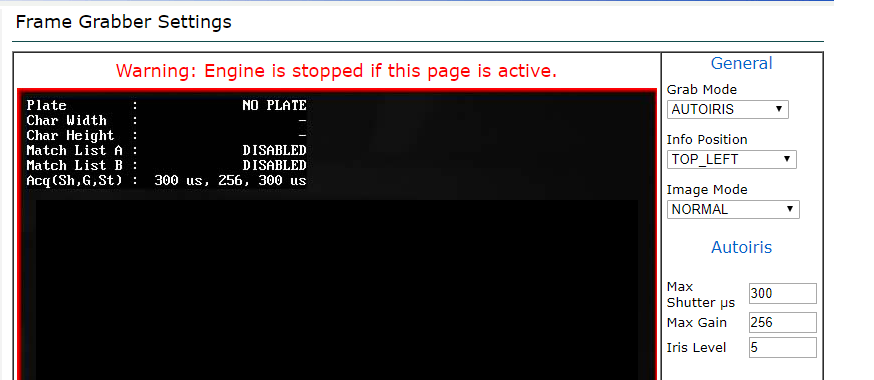
### <span data-colorid="ru8q6qw5n7">Frame Grabber Settings</span>

<div class="confluence-information-macro confluence-information-macro-note conf-macro output-block" data-hasbody="true" data-macro-id="3d7f3b3a-732c-4c1e-b272-d6e145a48042" data-macro-name="note" id="bkmrk-changes-on-this-pane-1"><div class="confluence-information-macro-body">Changes on this panel will reboot the device.</div></div>### Iris Bounding Region

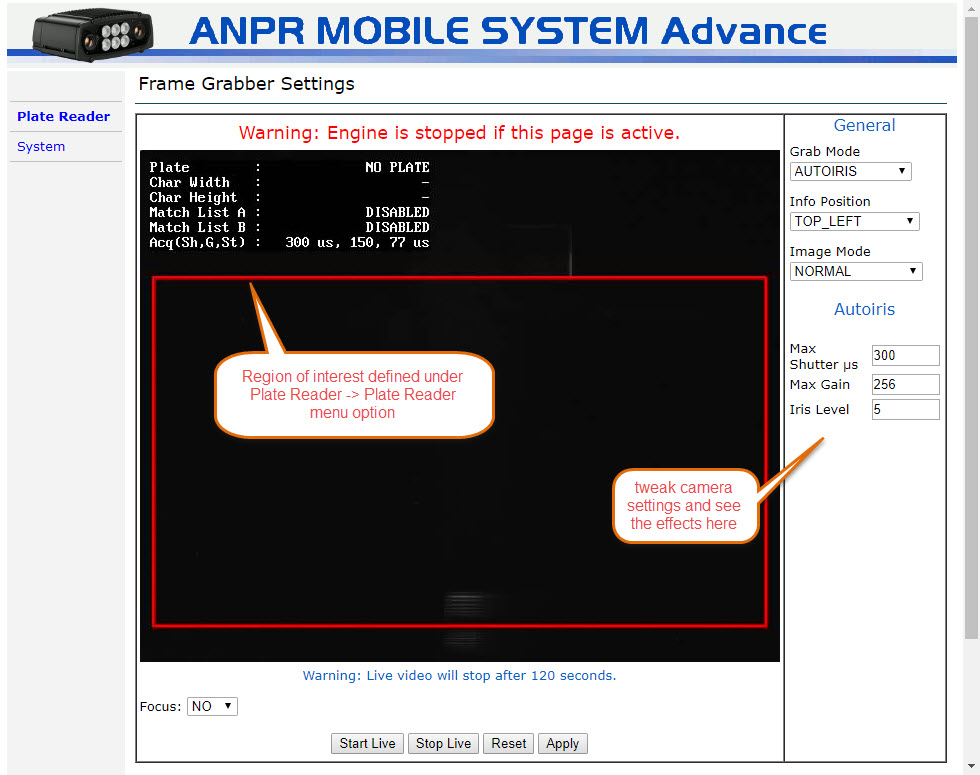
- For faster plate reads you can adjust the capture area
- Typically factory defaults to full frame
- For PL8RDR, it is necessary to create padding around the capture area (*minimum 30 pixels*) 
    - In this example we have modified the factory defaults by 10% all around
- Click on **Show Iris Window** to see the bounding box

[![image.png](https://opscom.wiki/uploads/images/gallery/2024-06/scaled-1680-/vbbimage.png)](https://opscom.wiki/uploads/images/gallery/2024-06/vbbimage.png)

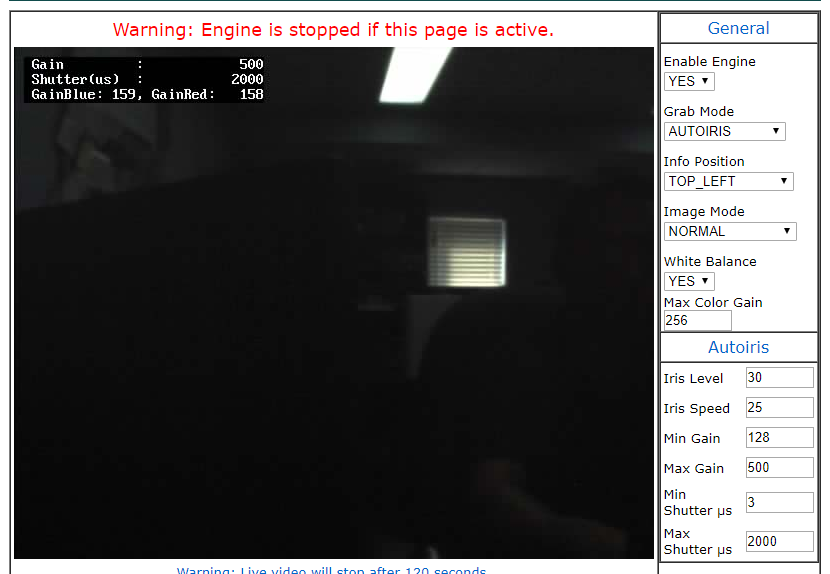
### Camera Auto Iris *(advanced)*

<div class="confluence-information-macro confluence-information-macro-note conf-macro output-block" data-hasbody="true" data-macro-id="f463036f-6a91-4e79-9780-30524d85ebc3" data-macro-name="note" id="bkmrk-usually-unnecessary-"><div class="confluence-information-macro-body">Usually unnecessary to make changes in this advanced area.</div></div>As directed by OPSCOM support staff adjustments may be made to specific camera properties.

- iris
- gain
- shutter speed

[![image.png](https://opscom.wiki/uploads/images/gallery/2024-06/scaled-1680-/M0Cimage.png)](https://opscom.wiki/uploads/images/gallery/2024-06/M0Cimage.png)

## <span data-colorid="s6de3fxzxn">Events Actions</span>

- There are 2 TCP Message options: 
    - Ocr Read
    - Ocr Not Read (vanity plates)

[![image.png](https://opscom.wiki/uploads/images/gallery/2024-06/scaled-1680-/2mkimage.png)](https://opscom.wiki/uploads/images/gallery/2024-06/2mkimage.png)

### Ocr Read Events

- **<span class="legacy-color-text-red2">READ</span>***<span class="legacy-color-text-red2"><span class="legacy-color-text-default"> (key fields)</span></span>*
    
    
    - Enabled = Yes
    - Server IP = 159.203.51.51
    - Server Port = 32000
    - Message = %PLATE\_STRING%IMAGE\_BW%IMAGE\_COL%PLATE\_MIN\_X%PLATE\_MIN\_Y%PLATE\_MAX\_X%PLATE\_MAX\_Y

[![image.png](https://opscom.wiki/uploads/images/gallery/2024-06/scaled-1680-/RdHimage.png)](https://opscom.wiki/uploads/images/gallery/2024-06/RdHimage.png)

|

### Ocr No Read Events

- **<span class="legacy-color-text-red2">NO\_READ</span>**<span class="legacy-color-text-red2">*<span class="legacy-color-text-default"> (key fields)</span>*</span>
    
    
    - Enabled = Yes
    - Server IP = 159.203.51.51
    - Server Port = 32000
    - Message = %PLATE\_NOT\_READ%IMAGE\_BW%IMAGE\_COL%PLATE\_MIN\_X%PLATE\_MIN\_Y%PLATE\_MAX\_X%PLATE\_MAX\_Y

[![image.png](https://opscom.wiki/uploads/images/gallery/2024-06/scaled-1680-/A1kimage.png)](https://opscom.wiki/uploads/images/gallery/2024-06/A1kimage.png)

### JPEG Image Header

Select to edit the configuration by selecting the Config button

[![image.png](https://opscom.wiki/uploads/images/gallery/2024-06/scaled-1680-/xTgimage.png)](https://opscom.wiki/uploads/images/gallery/2024-06/xTgimage.png)

Add %SITE\_ADDRESS to the field **Other custom TAGS**

[![image.png](https://opscom.wiki/uploads/images/gallery/2024-06/scaled-1680-/XrYimage.png)](https://opscom.wiki/uploads/images/gallery/2024-06/XrYimage.png)

# Updating Tattile Camera Firmware

## Justification for Firmware Updates

There are two purposes behind updating the firmware of the LPR camera. One would be to simply update the existing firmware. The other is changing the firmware based on your specific region. There is specific firmware tailored to the region in which you are using the camera. There would be firmware specific to the state of California and it's surrounding states that would be optimized for reading plates in those states as opposed to plates in Florida for example, Firmware updates allow you to update the entire system. This instruction applies to ANPR Mobile cameras.

## How to Update

Two updating methods are available:

1. **Upgrade firmware keeping current settings:** in this section, the update is carried out without changing the previously configured parameters.  
    Press the Browse button and select the update file from the PC file list. Once this file has been selected, press the Upload button and confirm the operation. When update completes, the User is asked to reboot the ANPR Mobile machine by pressing the Reset button displayed on screen.
2. **Upgrade firmware with default settings:** in this section, the upgrade is carried out by deleting all user-defined parameters and reloading the default settings of the new .BIN file just loaded using the Browse and Upload command sequence.  
    This procedure is the same as the one previously described.

## How do I find my current firmware version?

1. Go to the **System** tab of the camera configuration screens. Look for **Device Info.**  
      
    [![image.png](https://opscom.wiki/uploads/images/gallery/2024-06/scaled-1680-/UCPimage.png)](https://opscom.wiki/uploads/images/gallery/2024-06/UCPimage.png)
2. Click on **Device Info** to bring up the Device Info screen. The firmware version is the first line in the information list.  
      
    [![image.png](https://opscom.wiki/uploads/images/gallery/2024-06/scaled-1680-/ILQimage.png)](https://opscom.wiki/uploads/images/gallery/2024-06/ILQimage.png)
3. If it is established that the firmware is out of date, go back to the system tab and look for the **Firmware** menu item.  
      
    [![image.png](https://opscom.wiki/uploads/images/gallery/2024-06/scaled-1680-/K5Himage.png)](https://opscom.wiki/uploads/images/gallery/2024-06/K5Himage.png)
4. Click on **Firmware** to bring yo to the update page.  
      
    [![image.png](https://opscom.wiki/uploads/images/gallery/2024-06/scaled-1680-/U9Rimage.png)](https://opscom.wiki/uploads/images/gallery/2024-06/U9Rimage.png)
5. If you are in the process of upgrading the firmware there are two main factors to consider.  
    You are either starting with a new camera in which case you will upgrade with default settings or, if you have a previously configured camera you will be upgrading the firmware keeping current settings.  
      
    [![image.png](https://opscom.wiki/uploads/images/gallery/2024-06/scaled-1680-/gKVimage.png)](https://opscom.wiki/uploads/images/gallery/2024-06/gKVimage.png)
6. Navigate to the location of the firmware update file to select it for upload. This will be a .gpg file.  
      
    [![image.png](https://opscom.wiki/uploads/images/gallery/2024-06/scaled-1680-/28Qimage.png)](https://opscom.wiki/uploads/images/gallery/2024-06/28Qimage.png)
7. The file will be staged for upload. Notice the file name appears in the upgrade interface.  
      
    [![image.png](https://opscom.wiki/uploads/images/gallery/2024-06/scaled-1680-/m4Yimage.png)](https://opscom.wiki/uploads/images/gallery/2024-06/m4Yimage.png)
8. Click on Upload to complete the upgrade process. This may take a little time.   
      
    [![image.png](https://opscom.wiki/uploads/images/gallery/2024-06/scaled-1680-/bzAimage.png)](https://opscom.wiki/uploads/images/gallery/2024-06/bzAimage.png)

# Trobleshooting Tips

## Powering the Camera

If the camera is not connecting to the PL8RDR there may be issues with power. Ensure that the connections are sturdy and follow the guide to Powering the Camera.  
One way to check a camera to ensure it is powered on is to power up the unit and view the front of the camera using a cell phone camera. The use of the camera viewfinder does two things. It shields you from looking directly into the infrared light as well as allow you to see a slight flicker in the 6 lights on the front of the camera.

## Checking Firmware updates.

You should always ensure you have the latest firmware installed.

## Adjusting the Camera's View

Depending on the application of your camera, whether it be fixed or mobile, there are adjustments that can be made to improve accuracy and speed of reads.  
Adjusting the angle, height and width of camera's read area can improve performance by simply defining the camera's sweet spot so to speak.