# LPR Trial Program

**OPSCOM Trial Kit Set-Up Guide**

This guide is meant to help with the set-up and understanding of our LPR-based trial kit for added parking management efficiency.

# Contents of your LPR Trial Kit

[![PXL_20250730_181242447.jpeg](https://opscom.wiki/uploads/images/gallery/2025-08/scaled-1680-/pxl-20250730-181242447.jpeg)](https://opscom.wiki/uploads/images/gallery/2025-08/pxl-20250730-181242447.jpeg)[![PXL_20250730_181242447.jpg](https://opscom.wiki/uploads/images/gallery/2025-08/scaled-1680-/pxl-20250730-181242447.jpg)](https://opscom.wiki/uploads/images/gallery/2025-08/pxl-20250730-181242447.jpg)

[![PXL_20250730_181556505_1.jpg](https://opscom.wiki/uploads/images/gallery/2025-08/scaled-1680-/pxl-20250730-181556505-1.jpg)](https://opscom.wiki/uploads/images/gallery/2025-08/pxl-20250730-181556505-1.jpg)

##### **INVENTORY CONTENTS**

<table border="1" id="bkmrk-tablet-pl8rdr-comput" style="font-family: -apple-system, BlinkMacSystemFont, 'Segoe UI', Oxygen, Ubuntu, Roboto, Cantarell, 'Fira Sans', 'Droid Sans', 'Helvetica Neue', sans-serif; font-size: 14px; width: 51.7857%; border-width: 0px; height: 462.969px; border-style: hidden;"><colgroup><col style="width: 31.725%;"></col><col style="width: 68.2786%;"></col></colgroup><tbody><tr style="height: 50.7969px;"><td class="align-right" style="border-width: 0px; height: 50.7969px;"><div drawio-diagram="2572"><img src="https://opscom.wiki/uploads/images/drawio/2025-08/drawing-17-1755200129.png" alt=""/></div>

</td><td style="border-width: 0px; height: 50.7969px;">Tablet (Handheld)

</td></tr><tr style="height: 45.7969px;"><td class="align-right" style="border-width: 0px; height: 45.7969px;"><div drawio-diagram="2573"><img src="https://opscom.wiki/uploads/images/drawio/2025-08/drawing-17-1755200136.png" alt=""/></div>

</td><td style="border-width: 0px; height: 45.7969px;">PL8RDR Computer

</td></tr><tr style="height: 45.7969px;"><td class="align-right" style="border-width: 0px; height: 45.7969px;"><div drawio-diagram="2574"><img src="https://opscom.wiki/uploads/images/drawio/2025-08/drawing-17-1755200143.png" alt=""/></div>

</td><td style="border-width: 0px; height: 45.7969px;">SurVision Picopak Camera

</td></tr><tr style="height: 45.7969px;"><td class="align-right" style="border-width: 0px; height: 45.7969px;"><div drawio-diagram="2575"><img src="https://opscom.wiki/uploads/images/drawio/2025-08/drawing-17-1755200150.png" alt=""/></div>

</td><td style="border-width: 0px; height: 45.7969px;">LAN Antennas

</td></tr><tr style="height: 45.7969px;"><td class="align-right" style="border-width: 0px; height: 45.7969px;"><div drawio-diagram="2576"><img src="https://opscom.wiki/uploads/images/drawio/2025-08/drawing-17-1755200160.png" alt=""/></div>

</td><td style="border-width: 0px; height: 45.7969px;">OPSCOM Wireless Connection Antennas

</td></tr><tr style="height: 45.7969px;"><td class="align-right" style="border-width: 0px; height: 45.7969px;"><div drawio-diagram="2577"><img src="https://opscom.wiki/uploads/images/drawio/2025-08/drawing-17-1755200188.png" alt=""/></div>

</td><td style="border-width: 0px; height: 45.7969px;">LPR Power/Data Cord

</td></tr><tr style="height: 45.7969px;"><td class="align-right" style="border-width: 0px; height: 45.7969px;"><div drawio-diagram="2571"><img src="https://opscom.wiki/uploads/images/drawio/2025-08/drawing-17-1755200116.png" alt=""/></div>

</td><td style="border-width: 0px; height: 45.7969px;">Mobile Printer

</td></tr><tr style="height: 45.7969px;"><td class="align-right" style="border-width: 0px; height: 45.7969px;"><div drawio-diagram="2570"><img src="https://opscom.wiki/uploads/images/drawio/2025-08/drawing-17-1755200091.png" alt=""/></div>

</td><td style="border-width: 0px; height: 45.7969px;">Wall Power Cord

</td></tr><tr style="height: 45.7969px;"><td class="align-right" style="border-width: 0px; height: 45.7969px;"><div drawio-diagram="2569"><img src="https://opscom.wiki/uploads/images/drawio/2025-08/drawing-17-1755200060.png" alt=""/></div>

</td><td style="border-width: 0px; height: 45.7969px;">Vehicle Power Cord

</td></tr><tr style="height: 45.7969px;"><td class="align-right" style="border-width: 0px; height: 45.7969px;"><div drawio-diagram="2567"><img src="https://opscom.wiki/uploads/images/drawio/2025-08/drawing-17-1755199986.png" alt=""/></div>

</td><td style="border-width: 0px; height: 45.7969px;">Printer Power Cord

</td></tr></tbody></table>

# Part 1: Equipment Set-Up

#### The PL8RDR - (license plate reader computer)

[![PXL_20250730_181653253.jpg](https://opscom.wiki/uploads/images/gallery/2025-08/scaled-1680-/pxl-20250730-181653253.jpg)](https://opscom.wiki/uploads/images/gallery/2025-08/pxl-20250730-181653253.jpg)

[![PXL_20250730_181637428.jpg](https://opscom.wiki/uploads/images/gallery/2025-08/scaled-1680-/pxl-20250730-181637428.jpg)](https://opscom.wiki/uploads/images/gallery/2025-08/pxl-20250730-181637428.jpg)

##### <span style="text-decoration: underline;">Powering the PL8RDR</span>

There are two options for powering the PL8RDR.

- **Option #1:**  Using the vehicle power adapter.

[![PXL_20250730_181745814.jpg](https://opscom.wiki/uploads/images/gallery/2025-08/scaled-1680-/pxl-20250730-181745814.jpg)](https://opscom.wiki/uploads/images/gallery/2025-08/pxl-20250730-181745814.jpg)

- **Option #2:** Using a wall plug.

[![PXL_20250730_182123734.jpg](https://opscom.wiki/uploads/images/gallery/2025-08/scaled-1680-/pxl-20250730-182123734.jpg)](https://opscom.wiki/uploads/images/gallery/2025-08/pxl-20250730-182123734.jpg)

The set-up instructions are the same between options 1 and 2. The only point of difference is whether you will draw electrical power from an automobile socket, or from a socket in the wall.

<p class="callout warning">In this guide and pictured below, we are using *Option #2: Using a wall plug.* If you are setting this up in a vehicle, follow the exact same set-up steps but use the vehicle plug power adapter instead. The rest of the connections remain the same.</p>

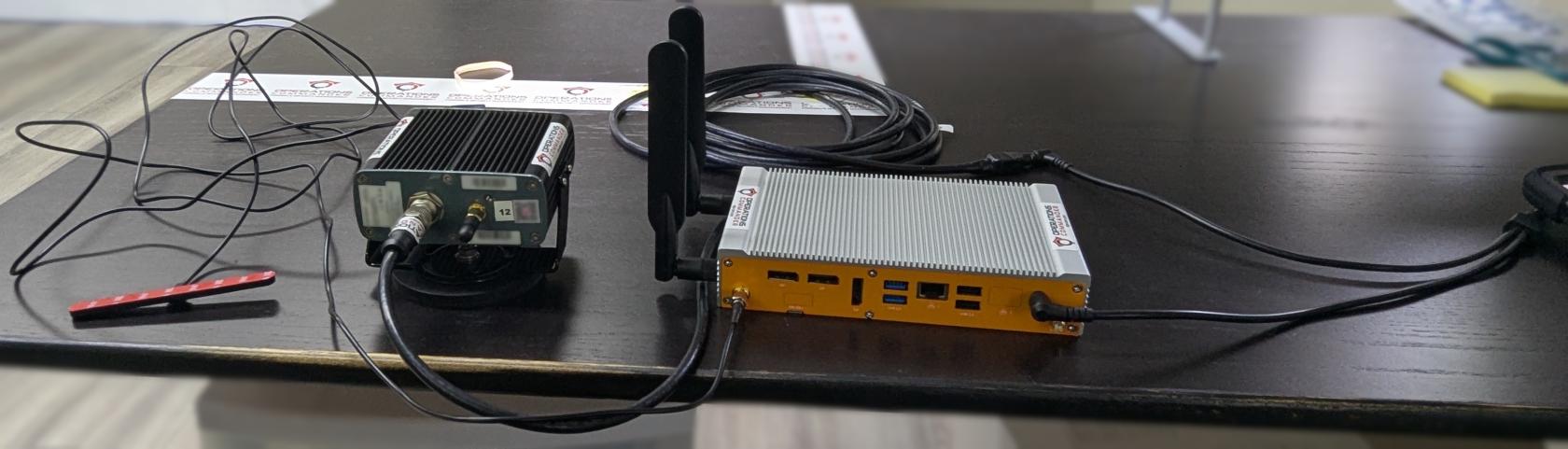
This is what you should have when you’re done:

[![PXL_20250730_183742139.jpg](https://opscom.wiki/uploads/images/gallery/2025-08/scaled-1680-/JRfpxl-20250730-183742139.jpg)](https://opscom.wiki/uploads/images/gallery/2025-08/JRfpxl-20250730-183742139.jpg)
---

### Step-by-Step

#### The Wall Power Cord

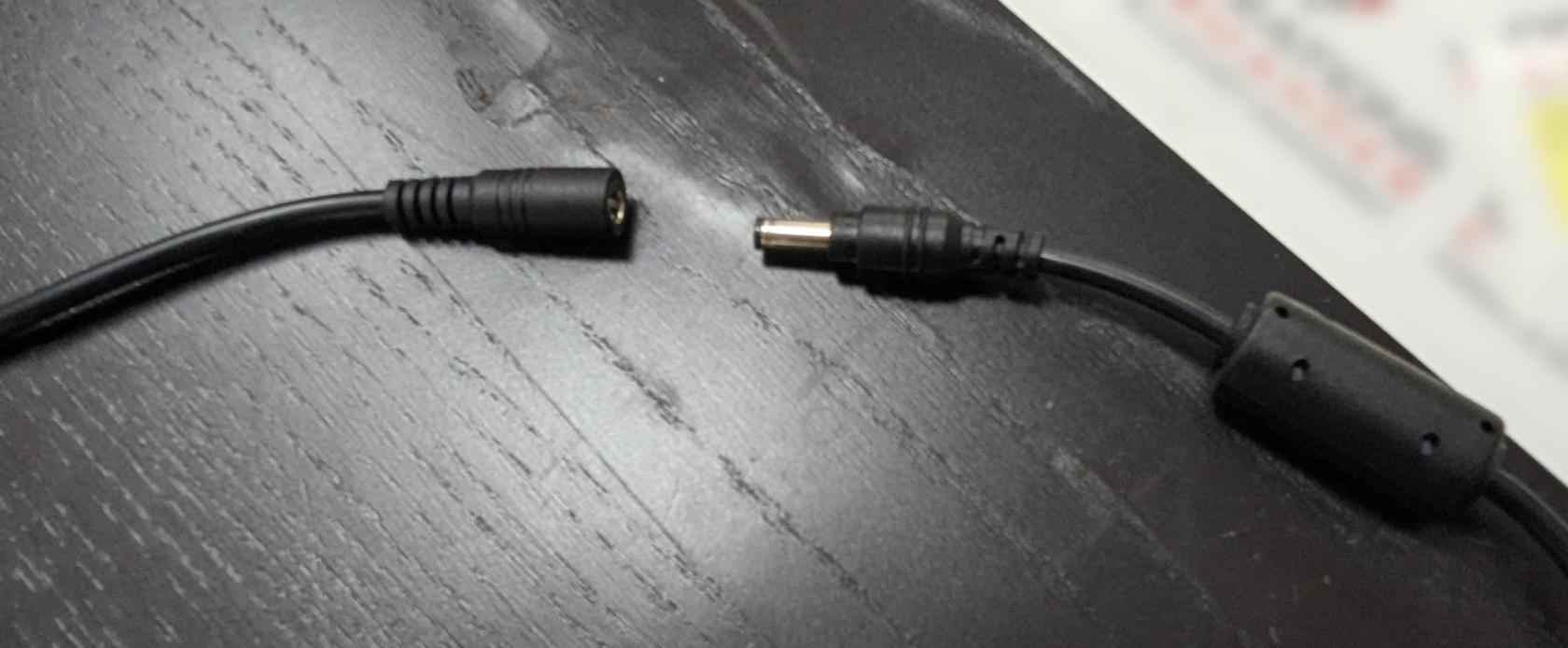
- Connect the splitter to the rest of the power cord, as shown below:

[![PXL_20250730_182154868.jpg](https://opscom.wiki/uploads/images/gallery/2025-08/scaled-1680-/pxl-20250730-182154868.jpg)](https://opscom.wiki/uploads/images/gallery/2025-08/pxl-20250730-182154868.jpg)
[![PXL_20250730_182208515.jpg](https://opscom.wiki/uploads/images/gallery/2025-08/scaled-1680-/pxl-20250730-182208515.jpg)](https://opscom.wiki/uploads/images/gallery/2025-08/pxl-20250730-182208515.jpg)
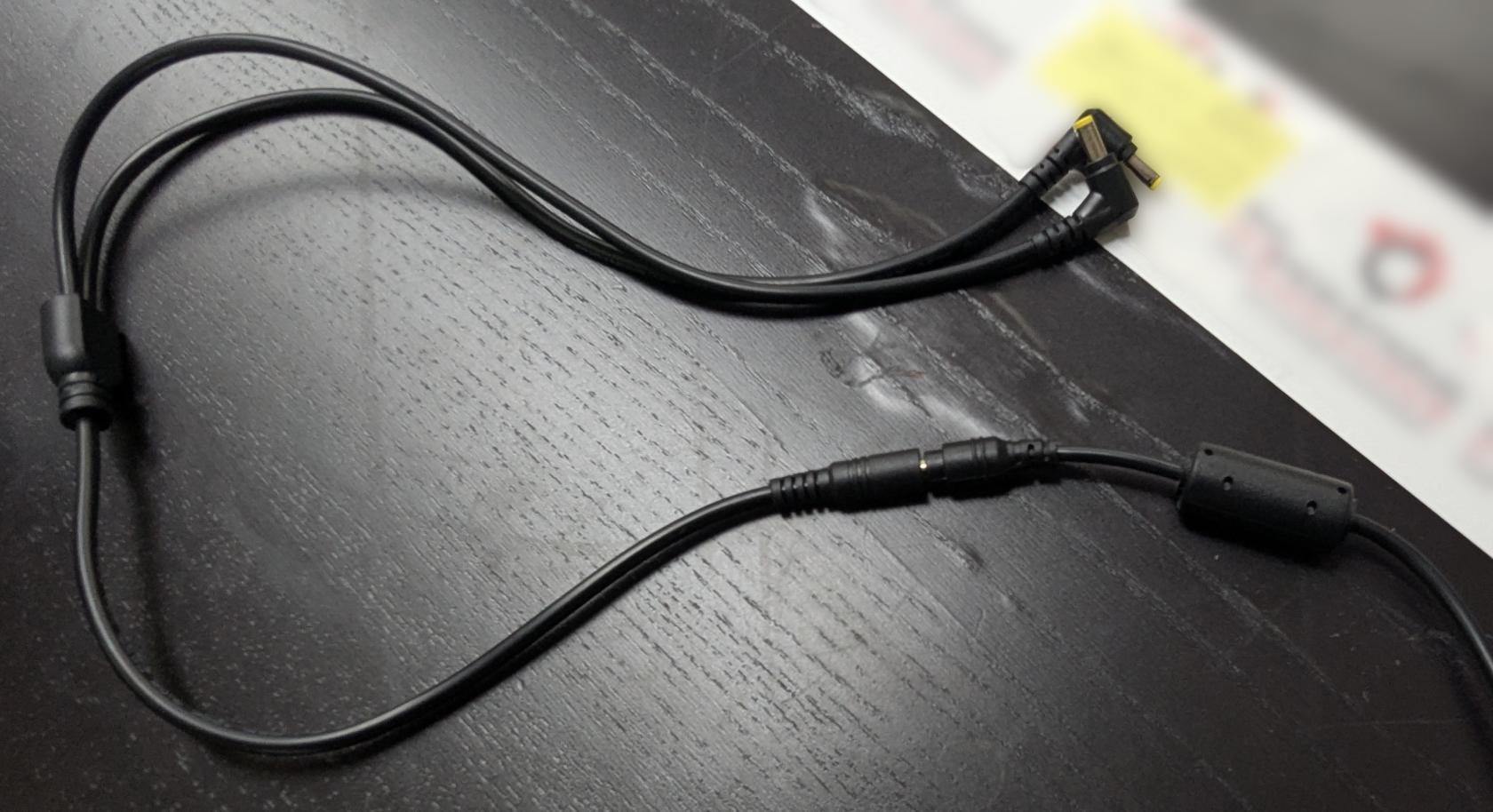
- Plug in the other side to the wall socket or the vehicle power adapter, depending on your setup.

Next, get these 3 items ready:

1. LPR power/data cord
2. camera
3. PL8RDR computer

[![PXL_20250730_182446172.jpg](https://opscom.wiki/uploads/images/gallery/2025-08/scaled-1680-/pxl-20250730-182446172.jpg)](https://opscom.wiki/uploads/images/gallery/2025-08/pxl-20250730-182446172.jpg)
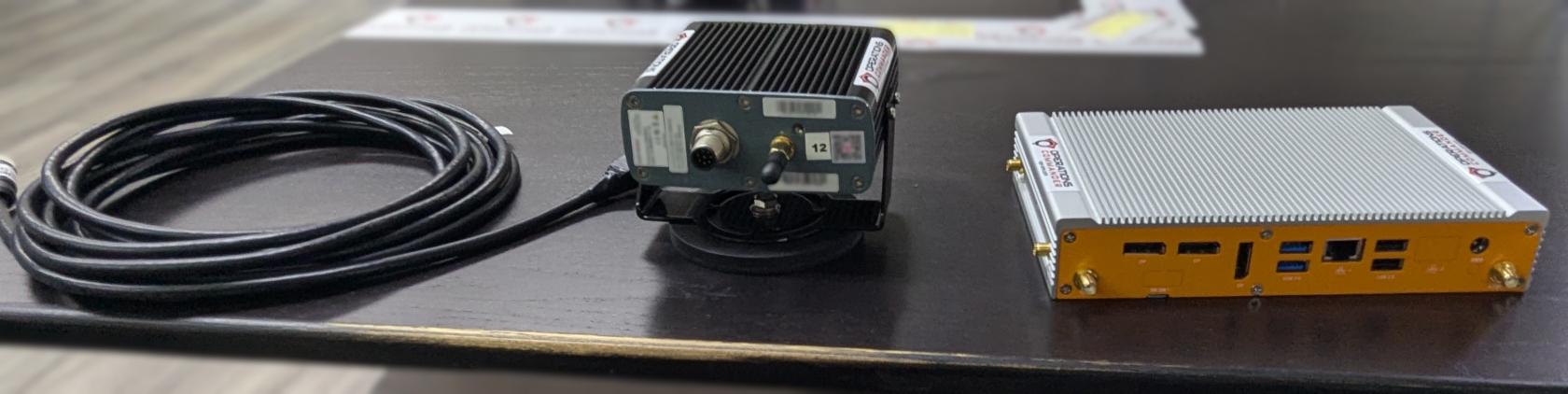
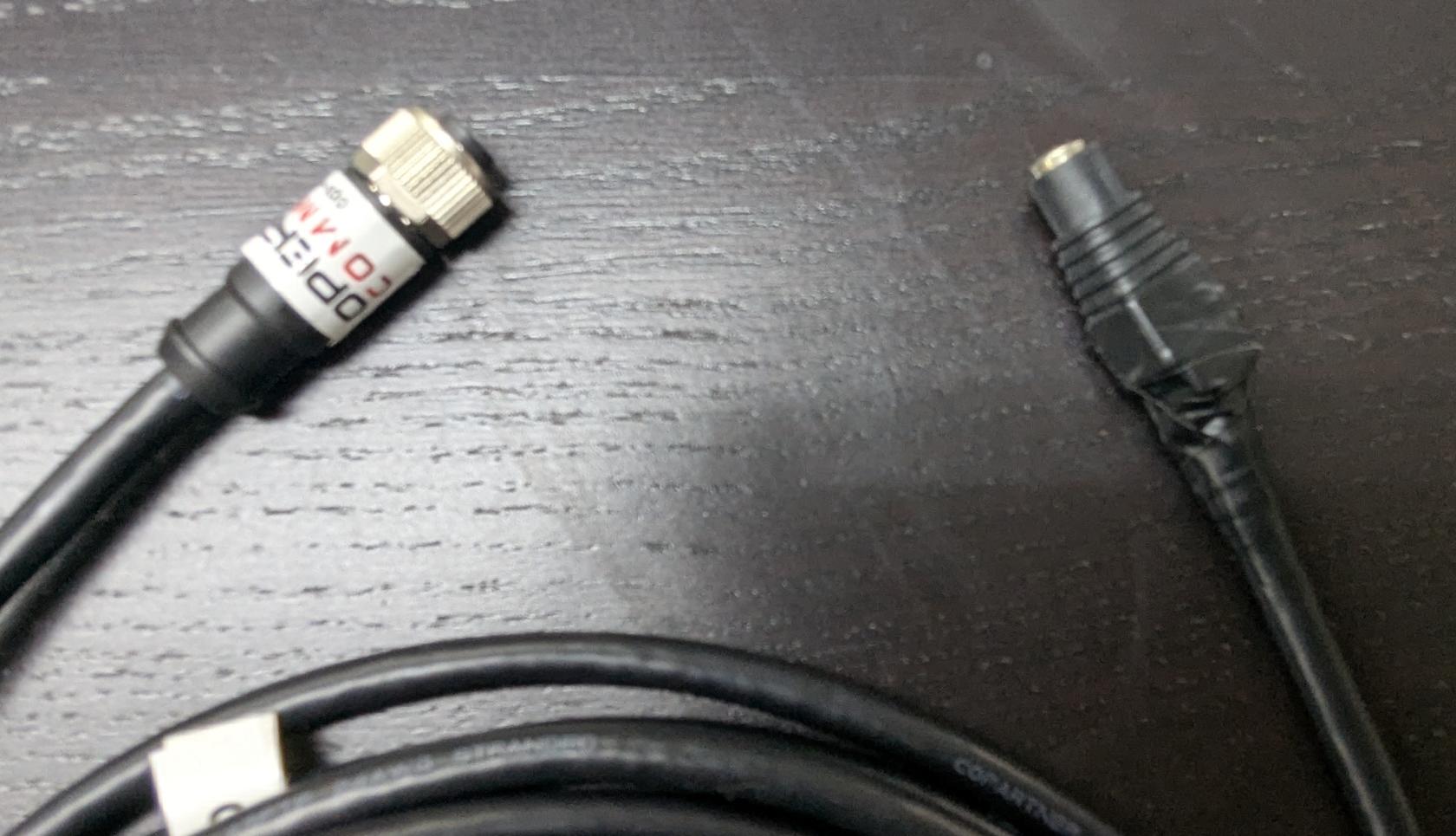
<p class="callout info">Notice the two different ends on the LPR power/data cord. Pictured below:</p>

[![PXL_20250730_182612558.jpg](https://opscom.wiki/uploads/images/gallery/2025-08/scaled-1680-/pxl-20250730-182612558.jpg)](https://opscom.wiki/uploads/images/gallery/2025-08/pxl-20250730-182612558.jpg)

- Connect one of the power cords to the LPR data/power cord, as shown below:

[![PXL_20250730_182629557.jpg](https://opscom.wiki/uploads/images/gallery/2025-08/scaled-1680-/pxl-20250730-182629557.jpg)](https://opscom.wiki/uploads/images/gallery/2025-08/pxl-20250730-182629557.jpg)
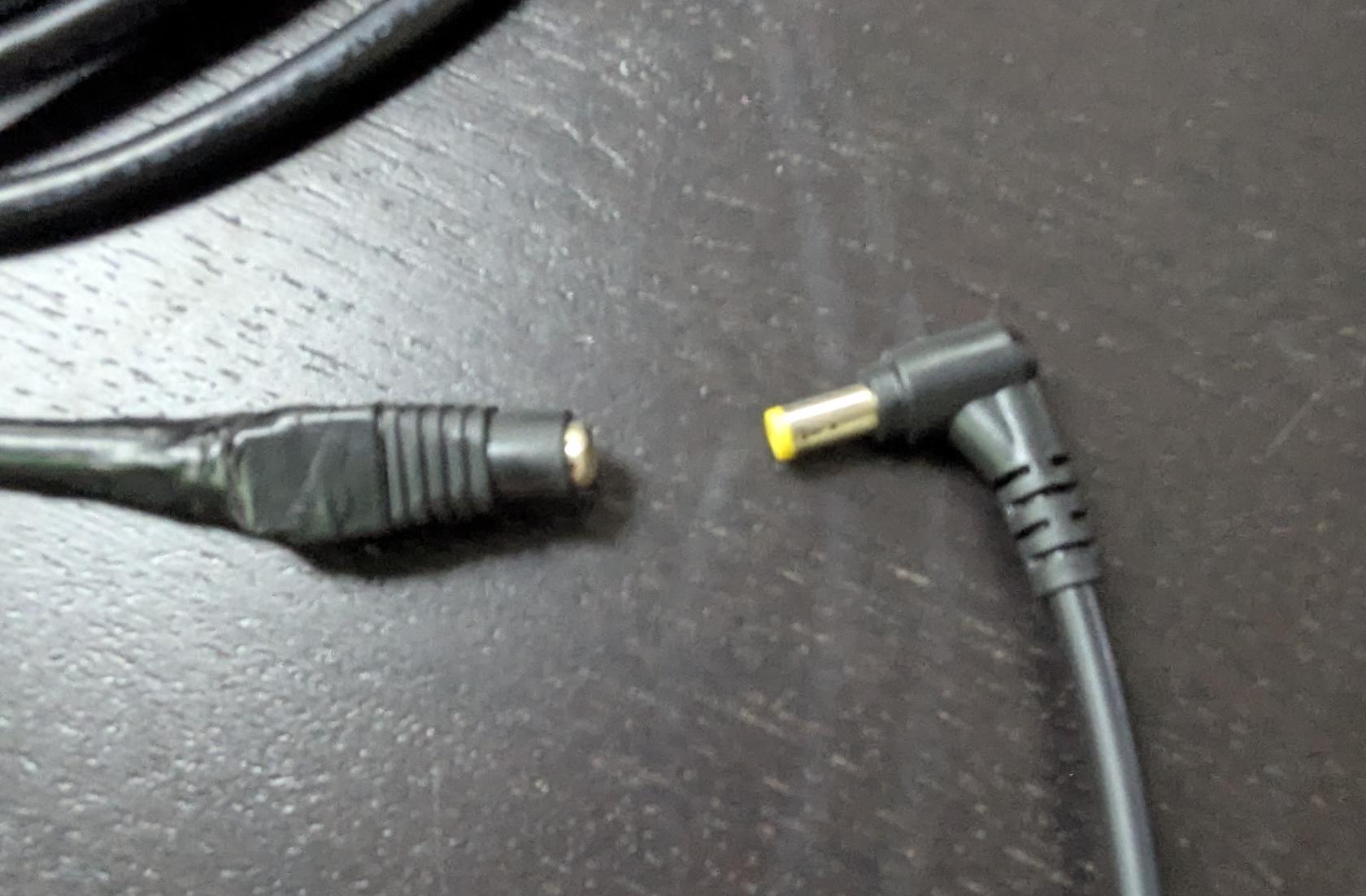
- Align pins and attach the cord to the camera, as shown below:

[![PXL_20250730_182722145.jpg](https://opscom.wiki/uploads/images/gallery/2025-08/scaled-1680-/pxl-20250730-182722145.jpg)](https://opscom.wiki/uploads/images/gallery/2025-08/pxl-20250730-182722145.jpg)
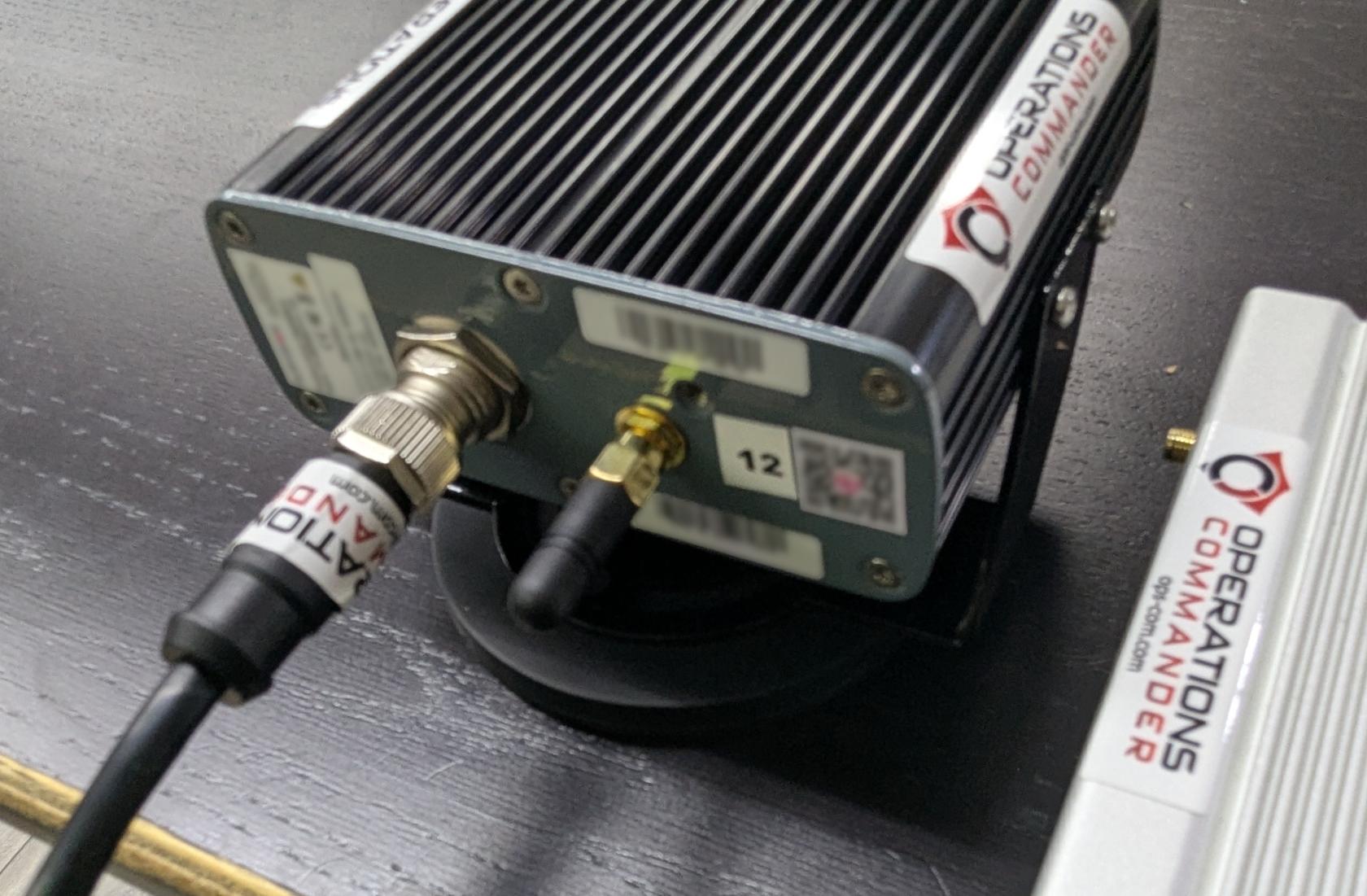
- Plug in the other power source into the PL8RDR. Your setup should look like the picture below:

[![PXL_20250730_182948033.jpg](https://opscom.wiki/uploads/images/gallery/2025-08/scaled-1680-/pxl-20250730-182948033.jpg)](https://opscom.wiki/uploads/images/gallery/2025-08/pxl-20250730-182948033.jpg)
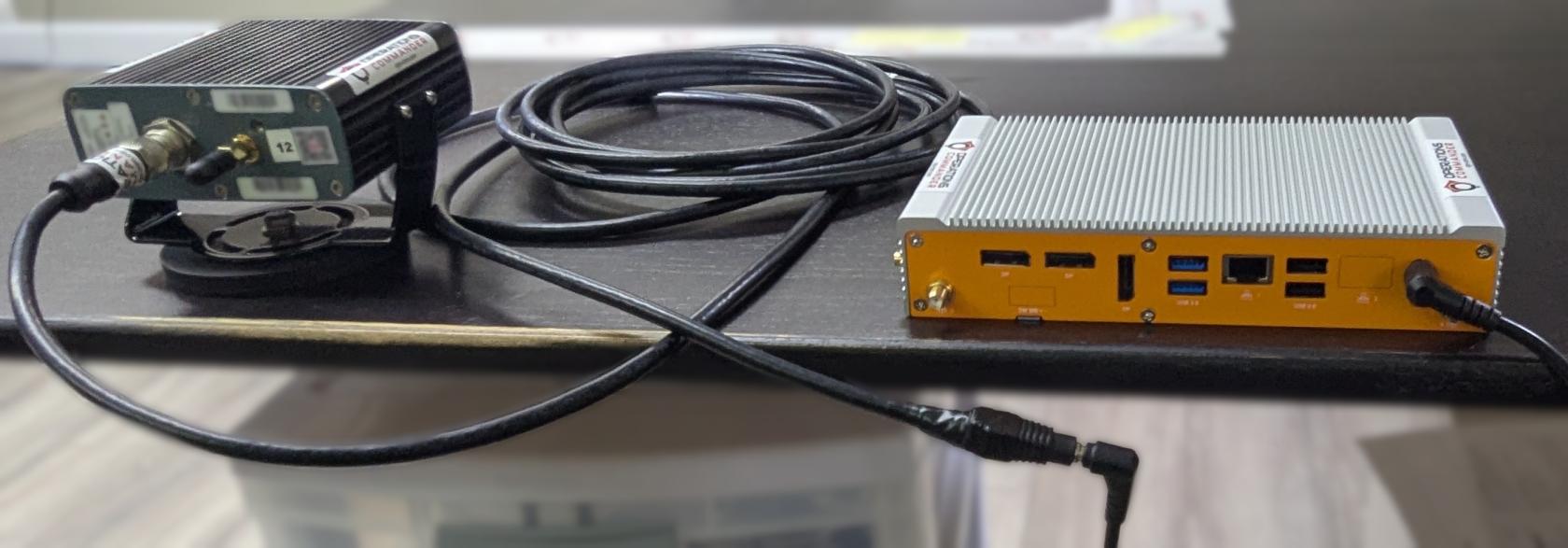
<p class="callout info">You will know that you have succeeded once you see the camera emit a strong light.</p>

Now you'll need to attach the antennas to the PL8RDR. This establishes a connection to the OPSCOM servers.

<p class="callout warning">All antennas need to be attached as shown or the device will not function as intended.</p>

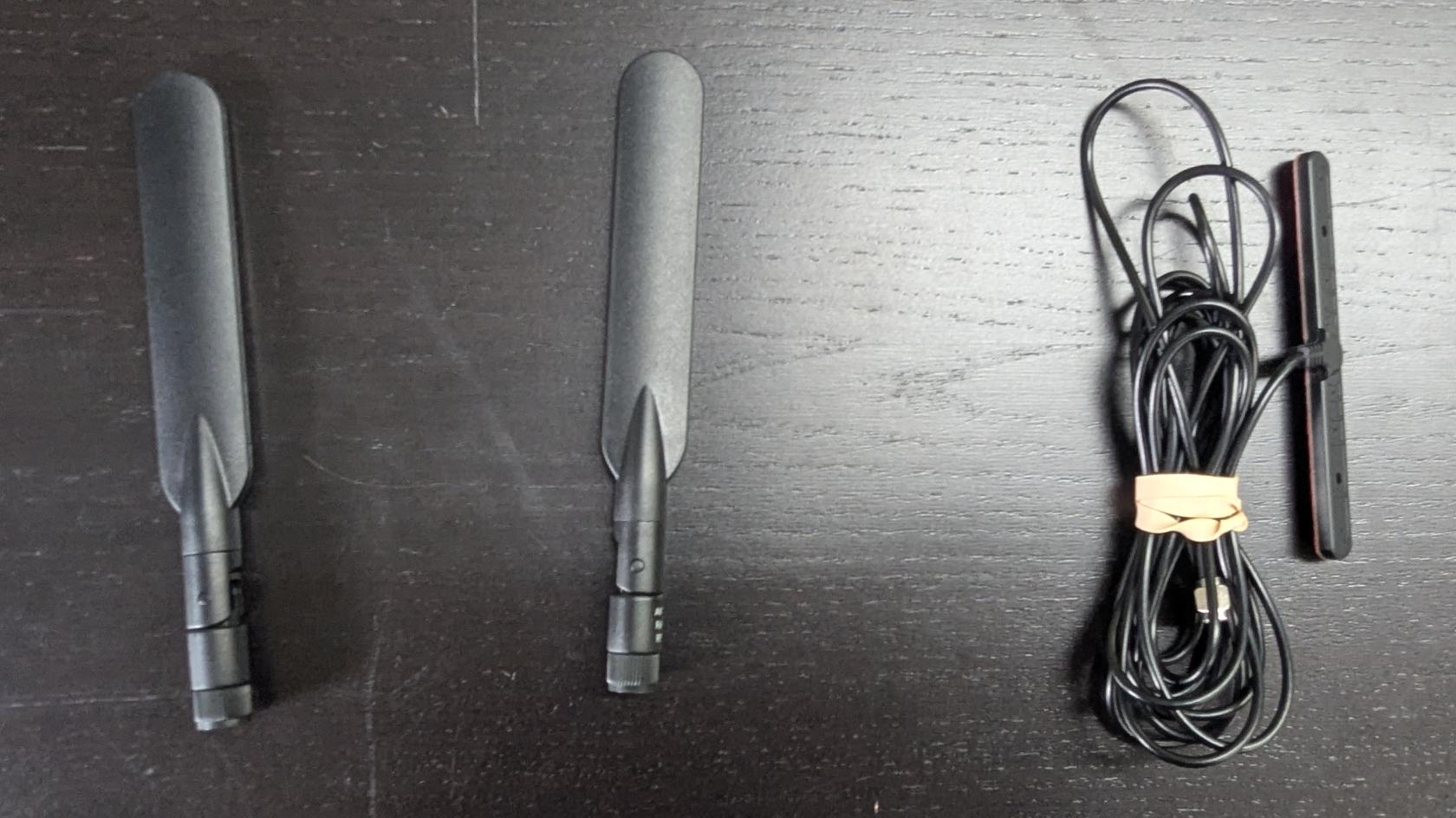
Here are the 3 antennas that you will need, as pictured below:

- 2 x LAN Antennas
- 1 x OPSCOM Wireless Connection Antennas

[![PXL_20250730_183059617.jpg](https://opscom.wiki/uploads/images/gallery/2025-08/scaled-1680-/pxl-20250730-183059617.jpg)](https://opscom.wiki/uploads/images/gallery/2025-08/pxl-20250730-183059617.jpg)
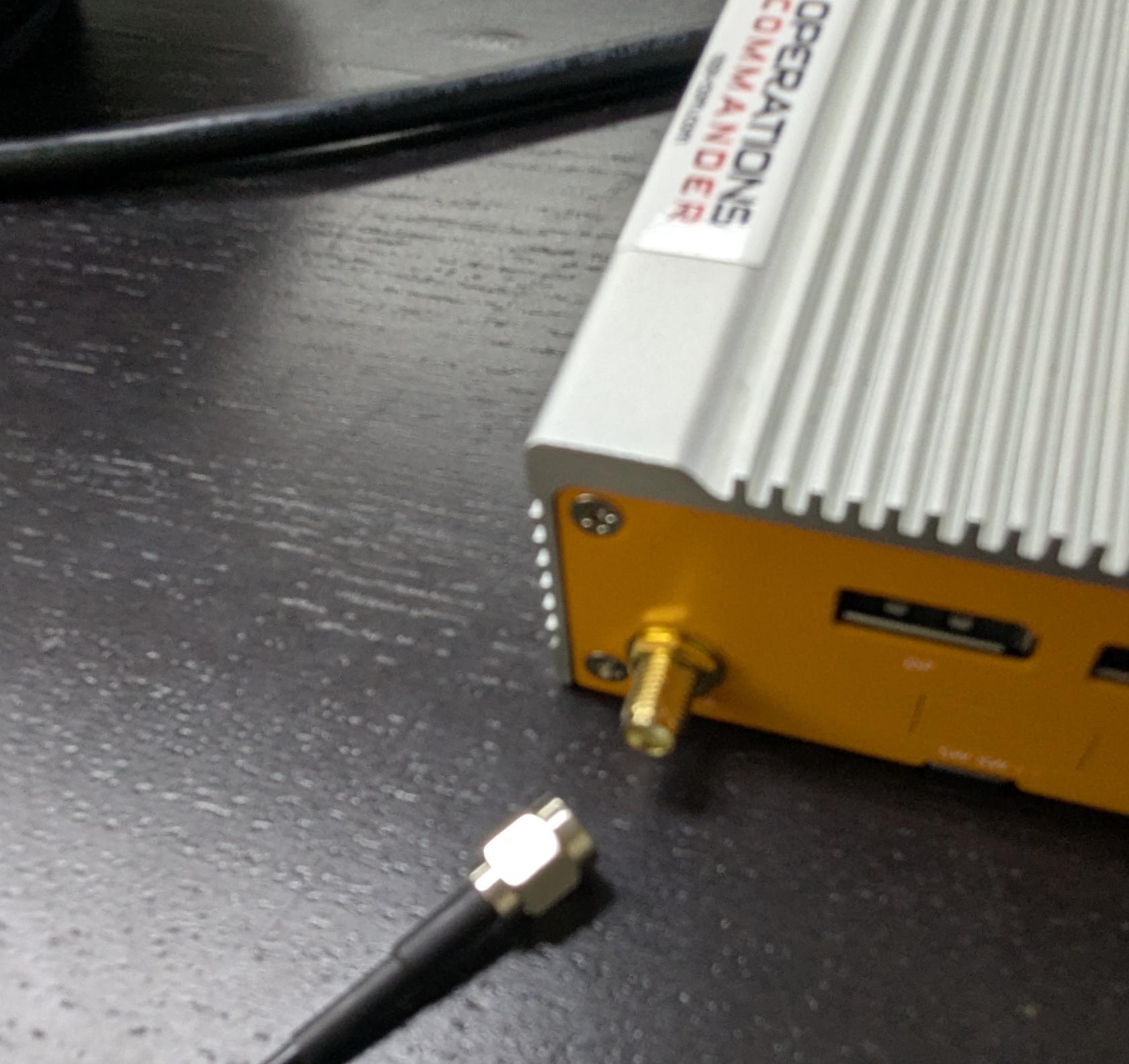
- Attach the cable antennas to the port on the back left of the PL8RDR, as shown below:

[![PXL_20250730_183236060.jpg](https://opscom.wiki/uploads/images/gallery/2025-08/scaled-1680-/pxl-20250730-183236060.jpg)](https://opscom.wiki/uploads/images/gallery/2025-08/pxl-20250730-183236060.jpg)
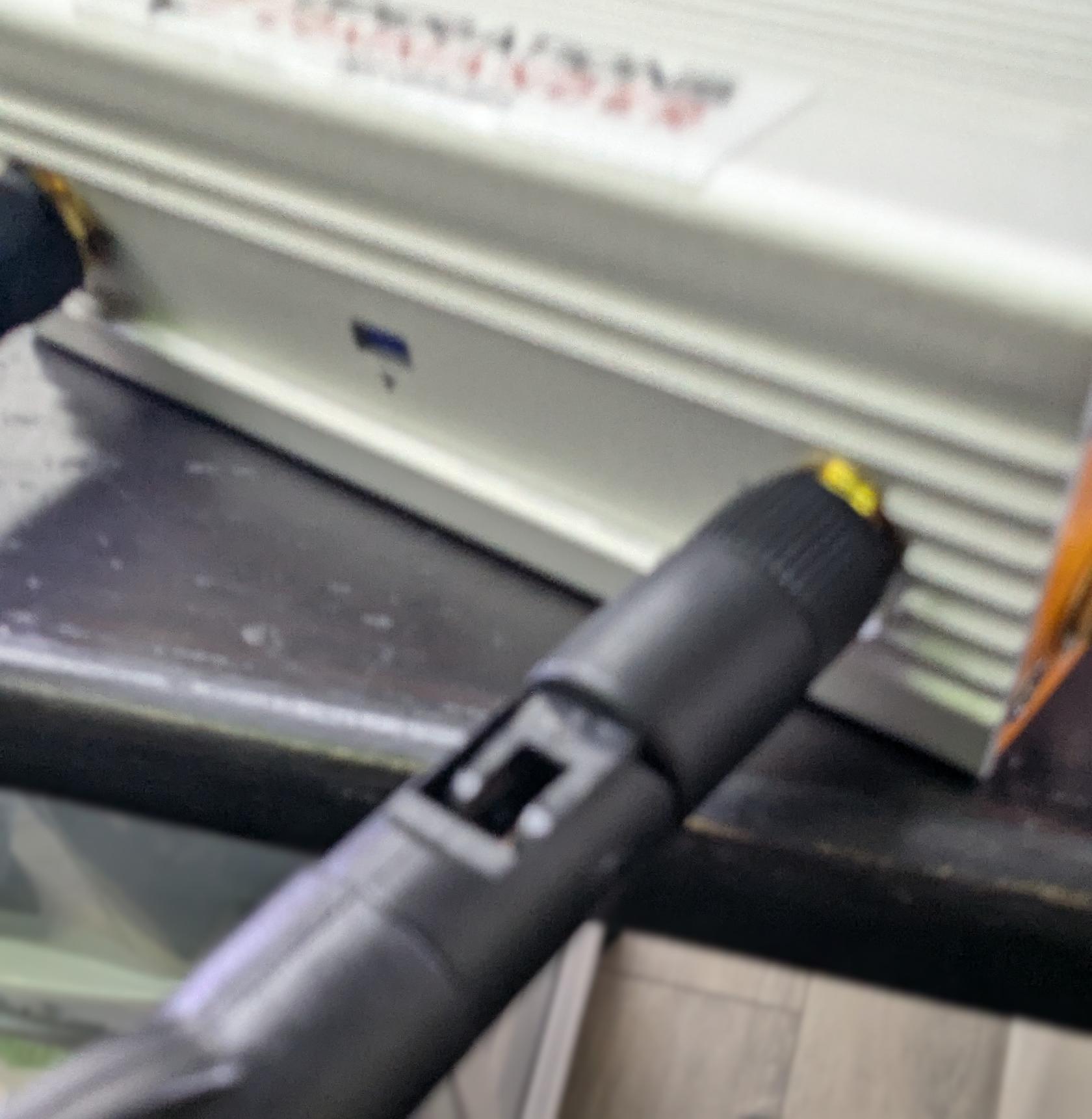
- Lightly screw in the antennas on the side of the PL8RDR, as shown below.

[![PXL_20250730_183623099.jpg](https://opscom.wiki/uploads/images/gallery/2025-08/scaled-1680-/pxl-20250730-183623099.jpg)](https://opscom.wiki/uploads/images/gallery/2025-08/pxl-20250730-183623099.jpg)
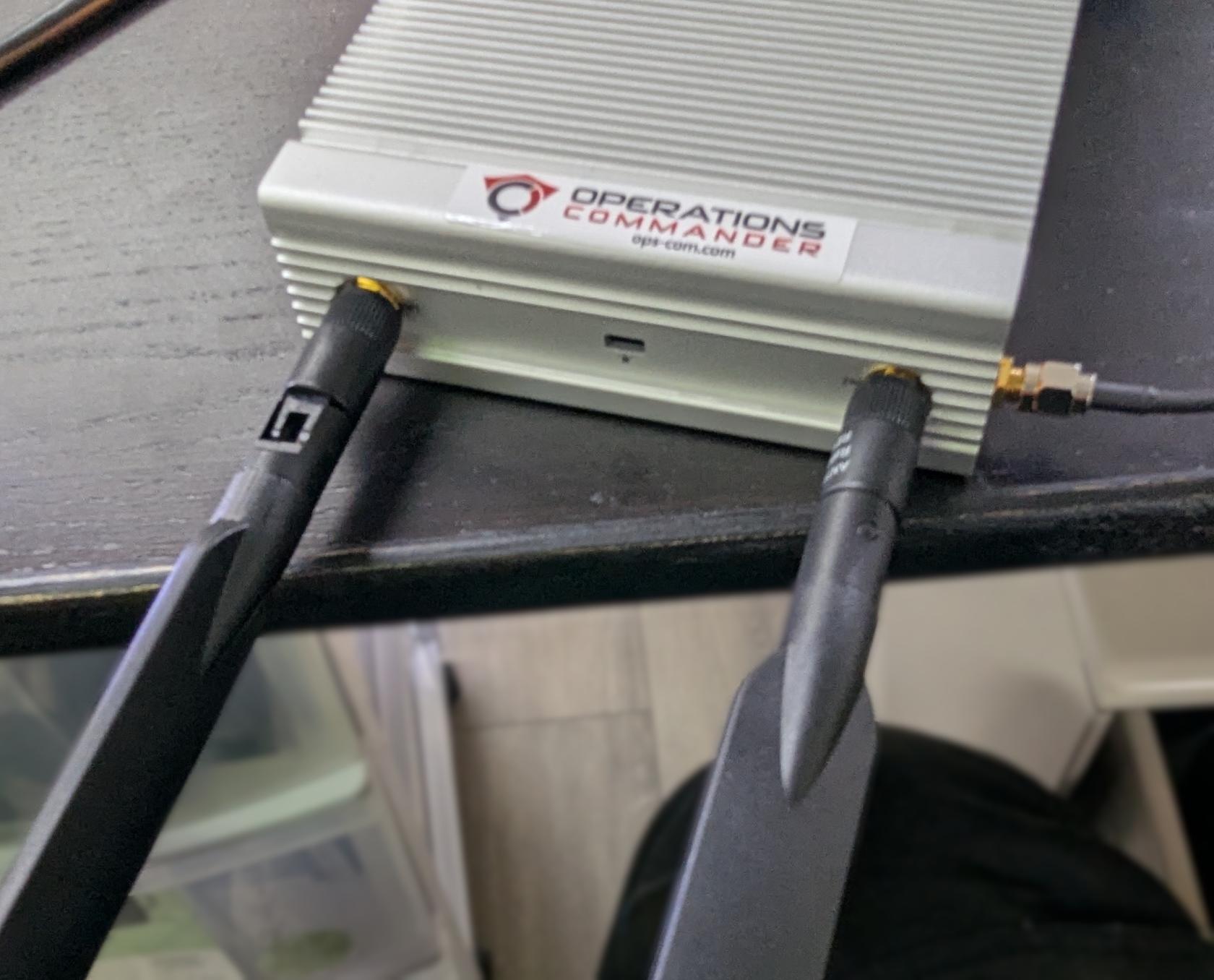
- Make sure that the hinge is facing in the correct direction, as shown below, and gently fold the antennas into the upright position.

[![PXL_20250730_183632241.jpg](https://opscom.wiki/uploads/images/gallery/2025-08/scaled-1680-/pxl-20250730-183632241.jpg)](https://opscom.wiki/uploads/images/gallery/2025-08/pxl-20250730-183632241.jpg)
- Make sure to place the corded antennas in an elevated location with a good data signal to ensure proper connectivity. This is what you should have when you’re done:

[![PXL_20250730_183742139.jpg](https://opscom.wiki/uploads/images/gallery/2025-08/scaled-1680-/JRfpxl-20250730-183742139.jpg)](https://opscom.wiki/uploads/images/gallery/2025-08/JRfpxl-20250730-183742139.jpg)

# Part 2: Handheld Set-Up

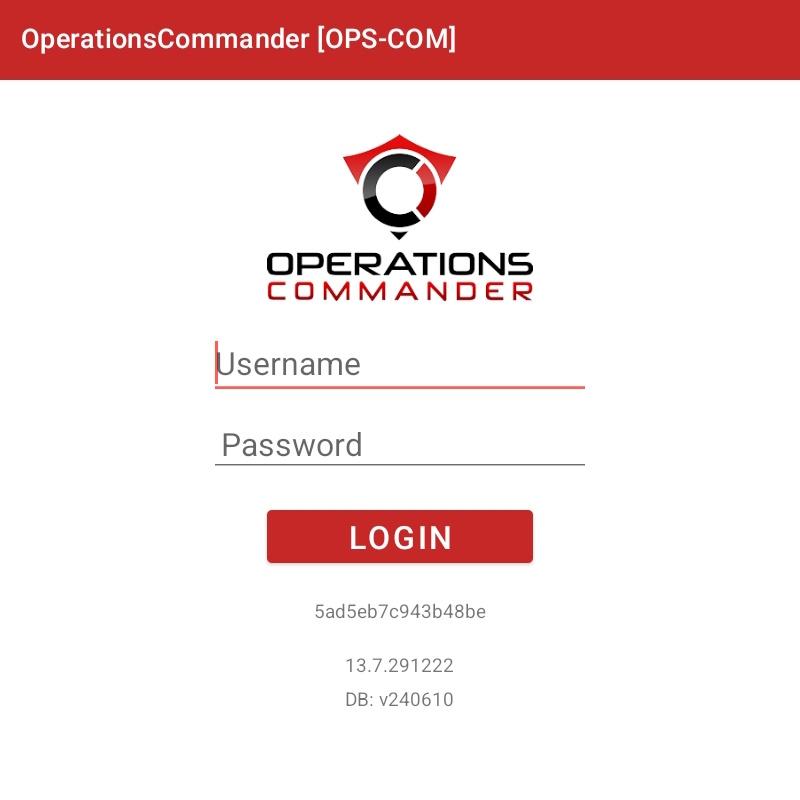
- Select the OPSCOM app on your device.
- Log in with your OPSCOM admin username and password. 
    - For this demo, use: 
        - **Username:** `trial-demo-user`
        - **Password:** `hC8~1H0o`

[![Screenshot_20250806_141803_OperationsCommander.jpg](https://opscom.wiki/uploads/images/gallery/2025-09/scaled-1680-/screenshot-20250806-141803-operationscommander.jpg)](https://opscom.wiki/uploads/images/gallery/2025-09/screenshot-20250806-141803-operationscommander.jpg)