Part 3: Handheld Set-Up
The Mobile LPR Handheld Setup process guides administrators through configuring Android tablets to successfully communicate with the LPR camera and the PL8RDR network. Its primary purpose is to establish the secure data link required for scanning license plates, processing vehicle data, and issuing violations in the field. This article is intended for OPSCOM administrators and field deployment staff.
Setup and Configuration
This process requires a compatible Android handheld unit and the OPSCOM Parking Enforcement app.
Admin Side: Administrators must ensure the correct network configurations and IP addresses are applied to the handheld device so it can communicate seamlessly with the vehicle's LPR hardware.
User Side: Field officers will connect their devices to the vehicle's local Wi-Fi network and log into the enforcement app to begin scanning plates during their patrol.
If you purchased a fully configured tablet directly from OPSCOM, the enforcement app is pre-installed, the printer is already paired, and the camera IP is pre-configured. You can skip the IP configuration steps below and proceed directly to connecting to the PL8RDR network.
Configuring the Camera IP (Bring Your Own Device)
If you are using your own Android tablet, you must configure the camera IP address so the handheld can establish a direct data transfer link with the Survision camera.
-
Open the OPSCOM Parking Enforcement app on your device.
-
Tap System Settings.
-
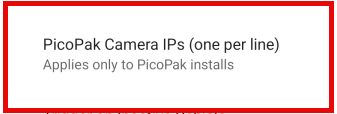
Locate the PicoPak Camera IPs text box.
-
Enter the required IP address 10.42.0.11.
Using this Feature
Field officers and administrators can use the following instructions to connect the handheld device to the vehicle's hardware and test the system's core functionality.
Connecting to the PL8RDR Network
The PL8RDR computer acts as a mobile router, broadcasting a local Wi-Fi network that the handheld device uses to communicate with external systems.
-
Open the Wi-Fi settings menu on your Android device.
-
Tap the pl8rdr.opscom network from the list of available connections.
-
Enter the network password T0maha3k.
-
Tap the Connect button to establish the link.
Accessing the Enforcement App
-
Tap the OPSCOM Parking Enforcement app icon to launch the software.
-
Enter your standard OPSCOM admin username and password.
-
Tap the Login button.
Testing Core Functionalities
Once logged in and connected to the hardware, you are ready to test the LPR system. The app offers several key features for active enforcement:
-
Searching for Vehicles: You can search for vehicles using three methods: tapping the search field to type the plate number manually, using voice commands, or utilizing the LPR camera with OCR technology for automated scanning.
-
E-Chalking (Virtual Chalking): This feature electronically tracks how long a vehicle has been parked. It creates a time-stamped image of the license plate and the entire car, which can be attached directly to a violation.
-
Issuing Violations: You can issue violations directly to a person or a vehicle profile. The system will automatically perform a secondary check and issue a warning prompt if a scanned plate has a valid permit, though it will still allow you to proceed with the violation at your discretion.
Best Practices and Considerations
-
Verify printer pairing: Ensure your Bluetooth printer is properly paired with the tablet before beginning a patrol. If your printer was not purchased through OPSCOM and requires manual setup, refer to the relevant printer setup wiki article for detailed Bluetooth pairing instructions.
-
Manage chalked images: Remember that the e-chalked image is permanently saved with the violation record unless you explicitly delete it. This provides excellent visual evidence for dispute resolution.
-
Monitor connectivity: Ensure the handheld remains connected to the pl8rdr.opscom network during patrols. If the device drops this specific Wi-Fi connection, it will lose the ability to communicate with the LPR hardware.
-
Consult troubleshooting guides: If you experience any connectivity or software issues, refer to the Troubleshooting Tips. Detailed steps are available to help resolve common hardware handshakes or app login errors.