The OPSCOM Enforce App can be downloaded from the Apple Store or the Google Play Store.
If in doubt you can search for the "OPSCOM Enforce" app in the Google Play or Apple Store and when viewing the details of the application you will see the button that is typically labeled "Install" will instead show "Update". This indicates that the handheld is running an older version of the application which can be updated. ### Locate the Version Details ##### Login Screen Under the login box the version details and handheld identifier are clearly listed. [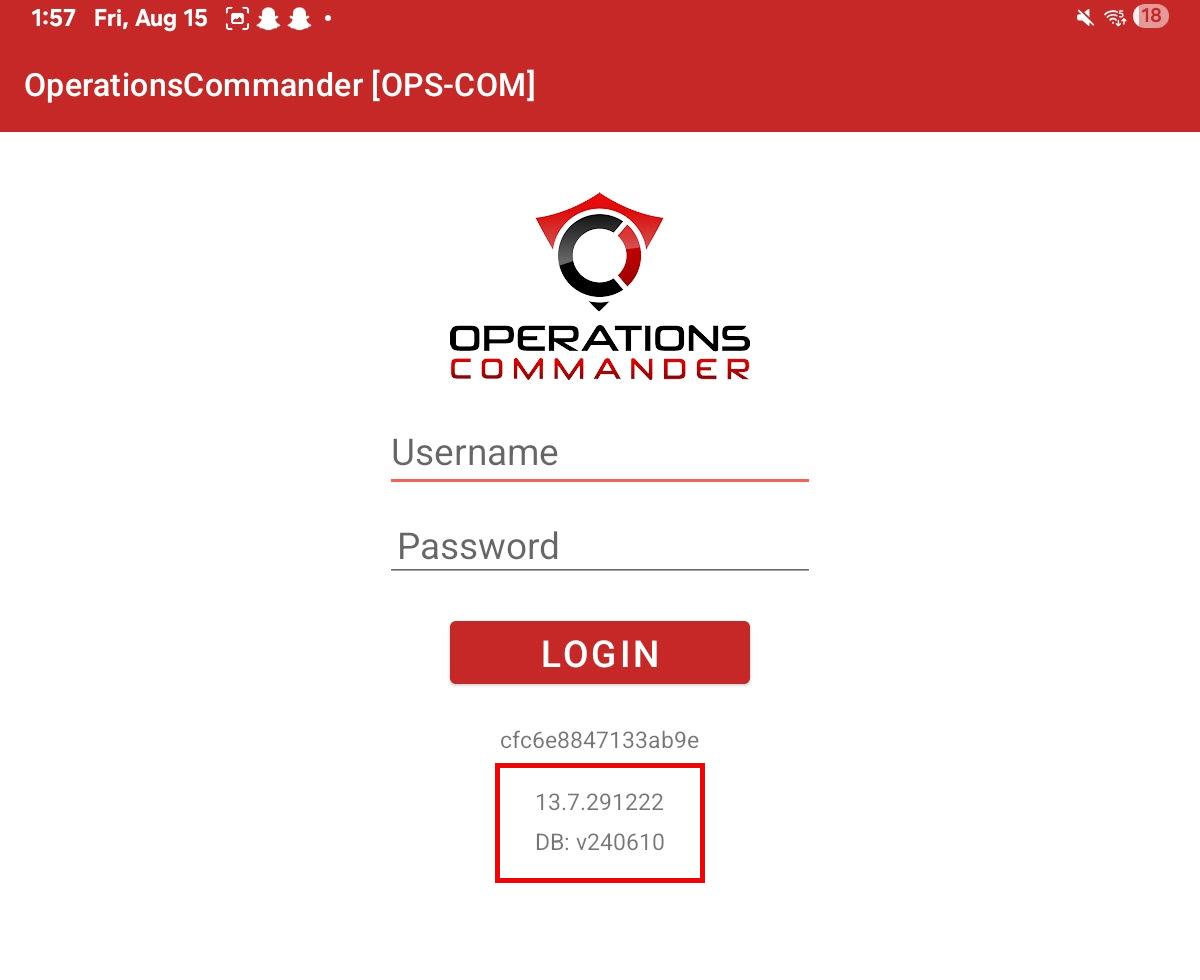](https://opscom.wiki/uploads/images/gallery/2025-08/image.png) (This article will be combined with a similar relevant article in the future) # Testing Your WIFI Connection [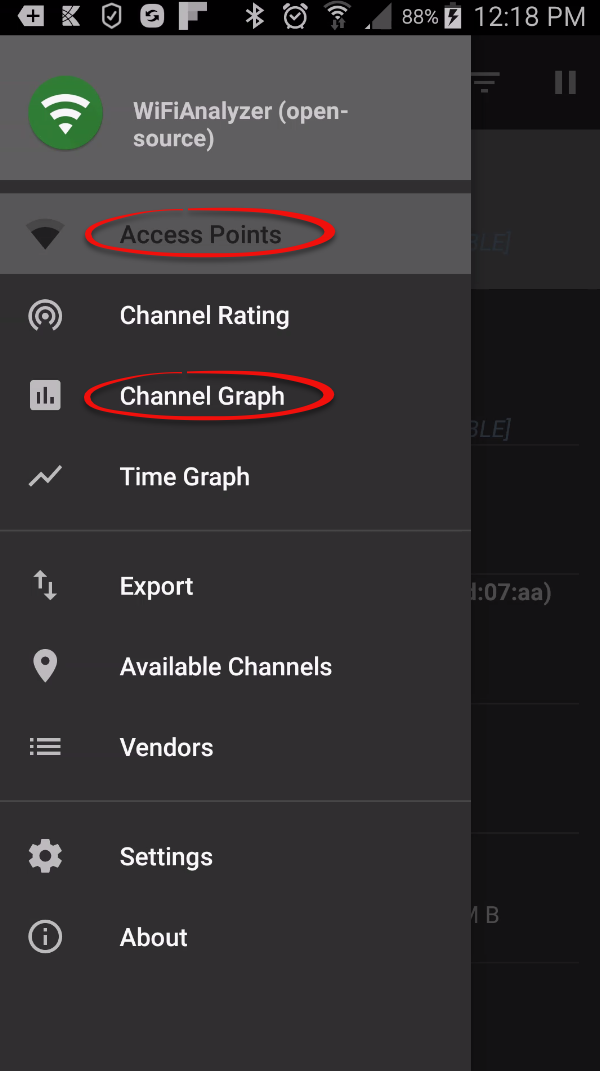](https://opscom.wiki/uploads/images/gallery/2024-05/Oxlimage.png)The Replication Status screen displays all database table data on your unit and whether or not the tables/data are synchronized with the server.
- Tap on the **Replication Status** option. - This will bring you to the **Record Counts and Data Table Tools**. - Tap and hold an option to open a pop-up message with additional options. #### Status Report #### Status Icons The following icons are used to indicate status: - **Green Checkmark:** Table data is synchronized with the server. - **Red X:** Table data is NOT synchronized with the server.**Note:** During normal use (i.e., when issuing violations), it's expected that tables like VehicleTransfer and ViolationsTransfer may become temporarily out of sync. This indicates that new data (e.g., violations or vehicles) has been captured on your device and will need to be synced to the server.
- **Blue Exclamation Point:** This indicates there is no table data that needs to be synchronized between the handheld and the server. #### Replication Actions There are a number of actions that can be performed in the Replication Status area by holding down with your finger on an individual table:**PLEASE NOTE:** None of these options should have to be used if your unit is working correctly. We suggest logging in and out of the application as needed for proper synchronization. **Please contact [OPSCOM Support](mailto:support@ops-com.comcom) if there are any issues before performing any replication status functions as detailed below.**
- **Push table data to the server** - This will attempt to upload the local devices table data to the server (i.e. synchronize) and is generally safe to do as nothing is overwritten or removed, though if you do push table data make sure all tables marked with a red X are synchronized. - **Rebuild and retrieve table data****Warning:** This option will delete/drop the local table data and retrieve the newest available table data from the server. This could result in violations and/or vehicle data that hasn't yet been synchronized to the server and is still only on the local handheld from being lost. If a table is showing as out of sync never rebuild and retrieve table data unless instructed to by us.
- **Delete local table data****Warning:** This will delete the local table data but has no effect on the server. Similar to the above this could result in the loss of local table data if not synchronized to the server first. Never select this function unless told to by us.
- **Email debug details to Tomahawk** - This will send an email log file to us containing helpful information for debugging/troubleshooting issues. Select if requested to by us, or notify us first before sending if possible. #### Replication Options There are additional options available in the Replication Status area accessible by selecting your devices options/menu button ( icon in the top right-hand corner): - **Rebuild database:****WARNING:** This will delete ALL local table data but has no effect on the server. This could result in the loss of local table data if not synchronized to the server first. **Never select this function unless instructed by OPSCOM Support.**
- **Synchronize all:** - This function is safe to select and is similar, if not the same as logging in or out of the device. The device will attempt to synchronize ALL table data with the server. We still recommend logging in and out instead of using this function in case another option is selected by accident. - **Send config to Tomahawk:** - This will send an email log file to us containing helpful information for debugging/troubleshooting issues. Select if requested to by us, or notify us first before sending if possible. - **Download new config:** - When selected the device will re-download all relevant system settings on next startup (organization, device name, ticket footer, etc.). # Ionic - Handheld Training (Coming Soon) ### Slides Presentation (Slideshow Coming Soon) ### Videos Linked in the Presentation (New Videos Coming Soon)