Only tickets marked **Critical** will trigger the **after hours notification** process. Please note, **Critical** is defined as a system outage or impact that threatens immediate work stoppage or production is proceeding in a significantly impaired fashion. If your issue is not deemed critical by our support staff, because it does not meet the criteria, it will be downgraded and a reply will be sent during the next business day.
To launch a Critical ticket, please follow the steps below: - Visit [http://support.OPSCOM.com](http://support.OPSCOM.com/ "http://support.OPSCOM.com"). - Click on Tickets. - Sign In (or Sign Up if necessary). - Click Add Ticket. - Fill out Ticket Information. Make sure to complete Priority at bottom of the form. Click down arrow to choose Critical. - Add attachments, if required. - Click **Submit** to complete the process. [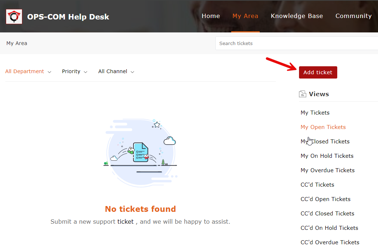](https://opscom.wiki/uploads/images/gallery/2025-08/oPJimage.png) [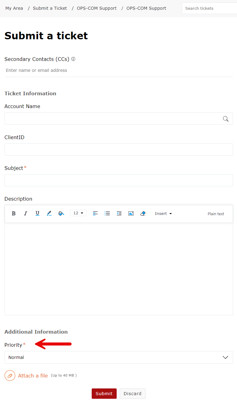](https://opscom.wiki/uploads/images/gallery/2025-08/ddeimage.png)