The System Settings feature provides administrators with comprehensive control over the core functionalities and behaviors of the application. Its primary purpose is to allow for the centralized configuration and fine-tuning of various components, including security protocols, parking modules, and payment processing, ensuring the system operates according to organizational needs. This article is intended for OPSCOM administrators responsible for managing backend system configurations.
## Setup and Configuration This feature is a core administrative tool that dictates global system behavior. **Admin Side:** Administrators must have the **Manage System Configuration** permission enabled within their user role to view and edit the system settings. ## Using this Feature Administrators can use the following instructions to navigate the system settings and configure global application parameters. ### Accessing System Settings 1. Hover over **System Configuration** and click **System Settings** to access the centralized configuration area. 2. Explore the available configuration menus to locate the specific module or parameter you wish to adjust. 3. Hover your cursor over any specific menu item label to view a tooltip explaining exactly what that setting controls. 4. Modify the required settings to align with your organizational workflows. ### Visual Cues and Status Indicators - **Blue Text:** Settings displayed in a blue font are read-only to standard administrators. These represent core system parameters that only a Tomahawk User can enable or disable. - **Tooltips:** Hovering over setting names will display a helpful tooltip detailing the function and impact of that specific toggle or field.If your organization requires a change to a setting displayed in blue text, please communicate your needs clearly and contact
The Configuring SAML SSO with OPSCOM feature simplifies user access by allowing them to securely authenticate using their existing, managed corporate accounts. Its primary purpose is to eliminate the need for separate usernames and passwords, significantly enhancing user convenience and overall system security through automated synchronization. This article is intended for OPSCOM administrators.
## Setup and Configuration Implementing Security Assertion Markup Language (SAML) requires coordination between your organization's Identity Provider (IdP) and OPSCOM as the Service Provider (SP).Single Sign-On (SSO) is a premium paid feature. You must have the setup and recurring fees negotiated with your Sales Representative before proceeding. You must also configure your baseline login sources prior to completing this setup.
**Admin Side:** ### Configuring the Login Source 1. Hover over **System Configuration**, hover over **Users**, and click **Login Sources**. 2. Click the pencil icon to edit your previously created SSO login source. 3. Fill out the Service Provider and Identity Provider fields detailed below. 4. Click the **Save Changes** button to reveal the required configuration tabs. ### Service Provider Fields (OPSCOM) These fields define exactly how OPSCOM will interact with your Identity Provider. - **Unique ID:** This required field is a crucial part of the XML communication. It is supplied by your SAML system and is the exact value OPSCOM uses to match against its internal unique identifier. - **Entity ID for Service Provider:** This required value defines the unique SAML integration path. Supply only the specific entity ID name, not the entire URL. - **SP x509 Certificate:** This optional certificate is used to sign or decrypt SAML messages. Configure this field only if you are enabling signed logout requests or encrypted assertions. - **Private Key:** This field is only required if the SP certificate above is actively in use. ### Identity Provider Fields (External SAML) You must input values from your external SAML system's metadata into OPSCOM. This typically includes the Identity Provider's **Entity ID**, **Single Sign-On URL**, and **IdP x509 Certificate**.The **IdP x509 Certificate** field must contain the specific certificate issued by your Identity Provider (e.g., the certificate embedded in Azure's Federation Metadata). Do not copy the OPSCOM SP certificate into this field. Entering the wrong certificate will cause validation to silently fail.
### Synchronization Tab Configuration 1. Click the **Synchronization** tab. 2. Enable the **Auto Create/Update User** checkbox to allow the system to automatically create or update user profiles upon their first SAML login. 3. Map the user attributes from your SSO system directly to the corresponding fields in OPSCOM (e.g., mapping your IdP's "email" attribute to the OPSCOM email field). 4. Click the **Save Changes** button.Do not rename your Login Source after users have been associated with it. The Login Source value is permanently stored against every user record created via SSO. Changing it will immediately lock out those users on their next attempt.
### Translations Tab Configuration 1. Click the **Translations** tab. 2. Customize the text displayed on the login button for the user portal to ensure the experience is localized for your specific audiences. **User Side:** End-users do not interact with the SAML setup. Once configured, they simply navigate to the User Portal and click the newly customized login button to seamlessly authenticate with their corporate credentials. ## Using this Feature Administrators interact with this feature primarily by establishing the initial metadata handshake and monitoring the system for synchronization errors. ### Exchanging Metadata To establish the connection, you must provide your Identity Provider with the OPSCOM Service Provider metadata. 1. Click the **Metadata** tab to view your system's XML code and integration URL. 2. Copy the live metadata URL (e.g., `https://[your-domain]/auth/saml2/[ENTITY_ID]/metadata`). 3. Provide this live URL directly to your Identity Provider.We strongly recommend providing your Identity Provider with the live URL rather than a downloaded, static XML file. When an IdP pulls from a live URL, it automatically fetches fresh metadata, ensuring the integration stays current and bypasses strict expiration timestamps.
### Troubleshooting Synchronization If users encounter issues logging in, administrators should review the following common causes: - **User not found:** Verify that the **Unique ID** field in OPSCOM perfectly matches the attribute name being sent by the IdP. - **Assertion validation failure:** Check the **IdP x509 Certificate** field to ensure it contains the correct external certificate, not the OPSCOM SP certificate. - **InvalidNameIDPolicy error:** Disable the **Require Name ID Policy** setting within the login source configuration (this is highly common with Microsoft ADFS integrations). - **Incorrect auto-created data:** Use your IdP's debug tool to confirm the exact claim names in the assertion, and adjust your **Synchronization** tab mapping to match. --- ## Best Practices and Considerations - **Coordinate with IT administrators:** **Successful SSO implementation requires close collaboration with your organization's IT department or the administrator of your SAML Identity Provider.** They must provide the necessary metadata and accurate attribute names. - **Keep your certificates separated:** **Never enter the SP certificate in the IdP certificate field, or vice versa.** The SP certificate is generated by OPSCOM, while the IdP certificate comes from your external Identity Provider's metadata. Treating them as identical will break the integration. - **Map Azure AD attributes carefully:** **Azure AD does not send a combined "full name" attribute by default.** If using Azure, always map the First Name and Last Name to completely separate attributes (e.g., givenname and surname) to prevent the entire display name from being stuffed into a single field. - **Use true unique identifiers:** **Ensure the Unique Identifier chosen for matching users is truly unique and persistent within your SSO system.** Incorrect or changing identifiers will rapidly lead to duplicate accounts or widespread login failures.This article outlines the process for identifying and resolving email server communication errors within the system. Its primary purpose is to help administrators fix incorrect or missing "From" and "Reply-to" email addresses so that automated system communications, such as password reset confirmations, are dispatched successfully. This guide is intended for OPSCOM administrators responsible for system configuration and troubleshooting.
## Setup and Configuration Resolving communication errors requires access to the global system settings. **Admin Side:** Administrators must have the appropriate system role permissions enabled to access the configuration menus and modify global email parameters. **User Side:** End-users cannot configure these settings. However, users typically surface these errors when attempting to trigger automated emails through portal actions, such as submitting a password reset request. ## Resolving the Error Administrators can use the following instructions to identify the root cause of the communication failure and apply the necessary email configurations to resolve it. ### Identifying a Communication Error When a user attempts an action that triggers an automated email (such as using the forgot password form), the system relies on predefined sender addresses. If these addresses are missing, the system will fail to send the message, and the user will see a popup stating that the system could not communicate with the email server. This error explicitly indicates that the system lacks a defined "From" or "Reply-to" address. [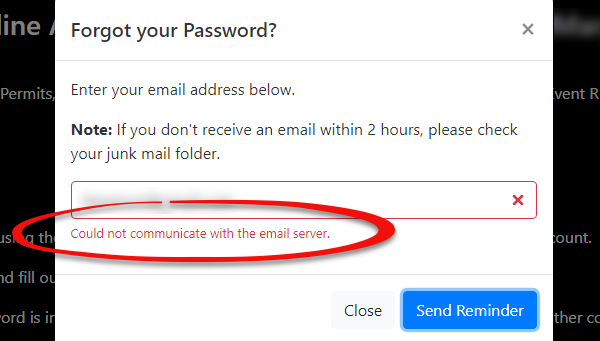](https://opscom.wiki/uploads/images/gallery/2026-07/preimage.png) ### Fixing Communication Errors 1. Hover over **System Configuration** and click **System Settings**. 2. Navigate to the **General System Settings** tab. 3. Locate the **Reply-to Admin Email Address** field. 4. Enter a valid, active email address into this field to serve as the system's sender address for automated communications. 5. Click **Save** to apply the configuration changes. 6. Re-attempt the user action that previously triggered the error (e.g., submitting the forgot password form) to verify the issue is resolved.Communication errors are almost always symptomatic of missing or incorrectly configured email parameters. If a user reports an email delivery failure or a communication error popup, verifying your global email settings should always be your first troubleshooting step.
--- ## Best Practices and Considerations - **Maintain crucial email fields:** **The Reply-to Admin Email Address and other sender settings found within the system settings are critical for all automated communications.** Ensure these fields are always populated with valid, actively monitored email addresses to prevent widespread delivery failures. - **Monitor system notifications:** **Regularly check the inbox of the email address configured as the Default Notification Email.** Proactively monitoring this inbox helps administrators catch any internal system alerts regarding failed communications or server errors before end-users report them. - **Escalate persistent issues:** **If the issue is still not resolved after configuring these fields, please contactThe Alarms System Settings feature allows administrators to configure and manage automated system alerts. Its primary purpose is to notify administrative and field enforcement staff of critical information regarding specific users, vehicles, or general events, thereby improving operational awareness and security. This article is intended for OPS-COM administrators responsible for backend configuration and enforcement operations.
## Setup and Configuration This feature is a core administrative tool used to define the active alerts that trigger within the system and on field enforcement devices. **Admin Side:** Administrators must have the appropriate system role permissions enabled to access and configure these settings. 1. Hover over **System Configuration** and click **Alarms System Settings**. 2. Review the active alarm categories and select the specific type you wish to configure or manage. 3. Save any modifications to ensure they immediately propagate to the database and sync with active handheld devices. ## Using this Feature Administrators can use this feature to categorize and manage three distinct types of system alarms. ### Available Alarm Types - **[People](https://opscom.wiki/books/the-opscom-admin-portal/page/people-alarms "People Alarms"):** Configure alarms that are tied directly to user profiles. This is commonly used to flag banned individuals, VIPs, or users with a history of severe parking infractions or unpaid violations. - **[Plate/Vehicle](https://opscom.wiki/books/the-opscom-admin-portal/page/plate-and-vehicle-alarms "Plate and Vehicle Alarms"):** Configure alarms that are tied directly to specific license plates or registered vehicles. This ensures that field enforcement officers are immediately alerted if they scan a scofflaw, a stolen vehicle, or a plate associated with a suspended permit. - **[Generic](https://opscom.wiki/books/the-opscom-admin-portal/page/generic-alarms "Generic Alarms"):** Configure general alarms for broader system use that do not strictly tie to a single user profile or specific vehicle record.Alarms configured in the backend sync directly to the handheld units used by enforcement staff. When an officer searches a flagged plate or user profile, the Android device will prominently display the alert on the screen so the officer can take immediate action.
--- ## Best Practices and Considerations - **Standardize alarm descriptions:** **Ensure that all configured alarms include clear, concise instructions for responding staff.** Field officers need to know exactly what action to take when an alarm triggers (e.g., "Do not approach, call dispatch immediately" versus "Issue a standard warning"). - **Prevent alert fatigue:** **Regularly review active alarms and remove those that are no longer applicable.** Keeping hotlists and active alarm triggers clean ensures that enforcement officers take alerts seriously when they do appear, rather than habitually dismissing them. - **Restrict configuration access:** **Organizations should strictly limit which administrators have the permission to create or modify system alarms.** Tightly controlling this backend access prevents the system from becoming cluttered with unnecessary, duplicate, or poorly defined alerts. # Defining User Profile SettingsThe User Profile Settings feature enables administrators to customize the specific information collected from users on their profile forms. Its primary purpose is to allow organizations to tailor the registration experience by controlling the visibility and mandatory status of data fields, ensuring that all necessary information is captured efficiently. This article is intended for OPS-COM administrators responsible for system configuration and user management.
## Setup and Configuration This feature is a core administrative tool used to dictate the fields presented to users during registration and profile updates. **Admin Side:** Administrators must have the appropriate system role permissions enabled to access the global system settings menu and modify user profile requirements. **User Side:** The configurations applied here directly dictate the fields end-users see and must complete when creating or updating their portal accounts. ## Using this Feature Administrators can use the following instructions to navigate to the settings menu and manage the visibility of various user profile fields. ### Configuring Field States 1. Hover over **System Configuration** and click **System Settings**. 2. Click **User Profile** on the **Manage System Settings** screen. 3. Select the desired display state for each available profile item from the provided list. ### Available Field States The state selected for each field is highlighted in black, with a checkmark indicating the active selection. Items can be set to one of three states: - **Hidden:** The field is not visible on the user-side profile form. - **Visible:** The field is seen on the user-side form, but entering information is optional. - **Required:** The field is seen on the user-side form and is mandatory. Required fields are indicated by a red asterisk. The system will not allow the user to save their profile if any required information is missing. ### Customizing Profile Sections The settings page allows you to customize several specific categories of user information: - **User Name:** A user name is an essential unique identifier for system access. While a bare minimum typically includes a username, first name, and last name, any of these items can be toggled based on your needs. - **Address Information:** This section is critical if your organization plans to mail physical permits or other correspondence to end-users. - **Phone Information:** Allows for the collection of various personal and primary phone numbers. - **License Information:** This field specifically refers to a driver's license number, not a vehicle license plate. You may opt to record this information if your organization is connected with local law enforcement. - **Student Information:** Controls fields relevant to student identification, such as student numbers and maximum/minimum digit limits. - **Employee Information:** Controls fields relevant to employee identification, such as staff numbers.By default, the username field is not editable by administrators. If your organization requires the ability to manually change user account names, you must contact
If any credit card information is entered by the user via the Text2ParkMe tab, the system automatically switches all other credit card information fields to a required state for that specific transaction to ensure payment processing succeeds.
--- ## Best Practices and Considerations - **Balance data collection and the user experience:** **Avoid making too many fields required, as this can create friction and deter users from successfully completing their profiles.** Prioritize truly essential information to streamline the registration process. - **Understand underlying system overrides:** **Be aware that the system may still require certain fundamental pieces of information even if you attempt to hide them.** For example, core identifiers like a username or email address are essential for basic functionality and may override your hidden settings. - **Configure student address requirements:** **If you require students to provide both a mailing and local address, ensure you enable the Require Both Addresses for Students setting.** Once filled out, admins can view both locations under the **Active Addresses** section of the user profile. Do not forget to also enable the **Using Student Second Address** setting so these fields are visible on the admin side. - **Review hidden fields periodically:** **Ensure that fields marked as hidden truly remain irrelevant to your current processes.** Organizational needs can change rapidly, making previously hidden data suddenly important for enforcement or reporting. - **Tailor requirements to specific user types:** **Consider which information is truly necessary for different user classifications.** You can configure the system to ask for different identifying details depending on whether the registering user is a student or an employee. # Account Creation PreferencesThe Account Creation Preferences feature allows administrators to choose between granting users immediate portal access or requiring explicit email verification upon registration. Its primary purpose is to balance user convenience with system security and data integrity by controlling the onboarding flow. This article is intended for OPS-COM administrators responsible for managing the user registration experience.
## Setup and Configuration This feature is a global system setting that immediately dictates the onboarding workflow for all new users. **Admin Side:** Administrators must have the appropriate system role permissions to access the configuration menus and modify the registration parameters. **User Side:** Depending on the configured preference, new users will either be logged in immediately after creating an account or prompted to check their email for a verification link before they can access the portal. For complete user-side documentation, please refer to the *[Registering as a User with OPSCOM-Go!](https://opscom.wiki/books/opscom-go-user-portal/page/registering-as-a-user-with-opscom-go "Registering as a User with OPSCOM-Go!")* article. ## Using this Feature Administrators can use the following instructions to locate the registration setting and toggle the desired onboarding workflow. ### Configuring the Account Creation Flow 1. Hover over **System Configuration**, click **System Settings**, and click the **User Profile** tab. 2. Locate the **Auto Login After Register** setting. 3. Enable the **Auto Login After Register** toggle to allow immediate login, or disable it to require email verification. ### Available Configuration States The **Auto Login After Register** setting has two distinct states, each with specific implications for user experience and system security: - **Immediate Login (Enabled):** This configuration allows users to instantly access their account immediately upon completing registration, bypassing email verification entirely. This method reduces friction and provides a quicker onboarding experience. It is ideal for scenarios where users might not have immediate access to their email, such as dedicated lobby kiosk setups. - **Email Verification (Disabled):** This configuration requires users to click a unique verification link sent to their registered email address before they can fully access their account. This is generally the preferred method, as it immediately confirms the registration originates from a real user with a valid email address, significantly reducing bot registrations and fake accounts.While immediate login reduces friction, requiring email verification establishes a reliable communication channel from day one. This is crucial for securely processing future password resets, executing account recovery procedures, and delivering important system notifications.
--- ## Best Practices and Considerations - **Balance security and convenience:** **Carefully weigh the trade-offs between user convenience (immediate login) and enhanced security (email verification) based on your organization's risk tolerance.** Consider the technical literacy and typical access methods of your target audience when deciding on the preferred setting. - **Ensure robust email deliverability:** **If you require email verification, verify that your system's global email sending configurations are properly established.** This guarantees that verification emails are delivered promptly and reliably, preventing users from getting stuck during registration. - **Communicate the registration process:** **Clearly inform users about the account creation process on your portal homepage.** If email verification is required, provide explicit instructions reminding users to check their spam or junk folders for the activation link. - **Maintain regulatory compliance:** **Consider that data privacy regulations often implicitly favor email verification.** Forcing users to verify their email contributes to better data quality and acts as a verifiable record of user consent. # Configuring Multi-Factor Authentication on the User PortalMulti-Factor Authentication (MFA) adds a crucial second layer of security to user accounts by requiring one-time passwords (OTPs) sent via email. Its primary purpose is to significantly enhance protection against unauthorized access to the system. This article is intended for OPS-COM administrators responsible for configuring global security settings and managing the user login experience.
## Setup and Configuration Implementing MFA involves administrator-side configuration within the system settings and customizing the associated email template. ### Admin Side Configuration One-time passwords will not be available on the user portal until enabled within the global settings. 1. Hover over **System Configuration** and click **System Settings**. 2. Navigate to the **User Profile** tab. 3. Configure the **Enable Multi-Factor Authentication** setting to your desired state.If the MFA setting is not available for you to change, please have your primary administrator contact
The state of a user's one-time password verification is stored in the local storage of their session data. If a user clears their browser cache, or attempts to log in using a different web browser or device, the MFA verification will not persist and they will be forced to enter a new one-time password.
--- ## Best Practices and Considerations - **Execute a gradual rollout:** **When introducing MFA, consider starting with the Visible setting to allow users to opt-in voluntarily.** Once your user base is accustomed to the feature, transition the setting to the **Required** state for all users if your organizational security policy mandates it. - **Verify email deliverability:** **Ensure that your system's email settings are correctly configured and that OTP emails are not being blocked by institutional spam filters.** Users must receive these emails promptly to successfully log in. - **Communicate OTP expiry limits:** **Remind users that one-time passwords are time-sensitive and permanently expire after 15 minutes.** Generating a new password will automatically invalidate any previous ones, and this system default cannot be changed. - **Provide clear communication and training:** **Inform users about the MFA requirement, how to set it up, and how to log in using OTPs.** Providing clear instructions and troubleshooting tips on your portal homepage reduces support tickets during the initial rollout. # Password and Security SettingsThe Password and Security Settings feature provides administrators with critical tools to enforce robust password policies and manage login security for all backend administrative accounts. Its primary purpose is to protect sensitive system data, prevent unauthorized access, and ensure organizational compliance with modern security standards. This article is intended for OPSCOM administrators responsible for managing backend system configuration and access security.
## Setup and Configuration This feature requires high-level administrative access to view and manage global security protocols. **Admin Side:** Administrators must have the appropriate system role permissions enabled to access the centralized system settings menu. 1. Hover over **System Configuration** and click **System Settings**. 2. Click **Security** to open the management window and view all available security configurations. **User Side:** This feature dictates backend administrative security and does not directly configure the end-user parking portal login policies. ## Using this Feature Administrators can use the configuration window to define various aspects of password management, strength requirements, and automated account lockout policies. ### Password Security Settings - **Salted Password Hashing:** Adds an essential layer of security by irreversibly converting passwords into unique, short hash values with a randomized "salt" string. This ensures that even if two users share the same password, their stored hash values remain completely different. It prevents reverse engineering, meaning forgotten passwords must be reset rather than retrieved. - **Require Password Update:** Forces administrators to change their passwords upon their next successful login. This is ideal for ensuring compliance after a manual password reset. - **Toggle Password Expiry:** Mandates regular password changes. When enabled, enter a numerical value into the **Password Expiry in days** field to define the exact lifecycle of an active password (e.g., 90 days). - **Enable Password History:** Remembers passwords previously used by an administrator to prevent immediate reuse. When enabled, set the **How long to remember old passwords** field (in days) to define the restriction duration. ### Password Strength Requirements These settings allow you to enforce complexity rules for all new administrator passwords: - **Minimum Password Length:** Sets the absolute minimum number of characters required for a valid password. - **Enable password strength requirements:** Toggles specific complexity rules on or off. When enabled, you can set a minimum required character count for **Numerical Characters**, **Lower Case Characters**, **Upper Case Characters**, and **Non-Alpha Numeric** characters (e.g., !, &, #). ### Admin Account Lockout Settings These settings provide an automated layer of security by locking an administrator out of their account after repeated incorrect password attempts: - **Enable Admin Lockouts:** Toggles the automated account lockout feature on or off. - **Lockout after X Attempts:** Sets the threshold for failed login attempts with an incorrect password before the system actively locks out the administrator. - **Login attempt timeframe:** Sets the timeframe (in minutes) during which incorrect login attempts are counted. For example, if an administrator fails 3 times within a 5-minute period, their account will be locked out. - **Lock the admin out for X minutes:** Sets the duration (in minutes) that the administrator's account will remain locked. For example, setting it to 120 minutes means the administrator is completely locked out for 2 hours before another login attempt is permitted.Several major security settings (such as Salted Password Hashing, password expiry, and lockouts) are visible to administrators but can only be changed by the OPSCOM Team. For modifications to these restricted, read-only settings, please contact
The Manage Files feature provides a centralized repository for all files used across your application, primarily focusing on images for user and admin dashboards. Its primary purpose is to allow administrators to easily upload, view, organize, and manipulate visual content to ensure consistent branding throughout the system. This article is intended for OPS-COM administrators responsible for managing system content and visual assets.
## Setup and Configuration This feature is a core administrative tool used to store and manage system-wide assets. **Admin Side:** Administrators must have the appropriate system role permissions enabled to access the configuration menus and modify system files. **User Side:** This file manager is strictly a backend administrative tool; however, the uploaded files (such as logos, banners, and permit images) are ultimately visible to end-users on the parking portal. ## Using this Feature Administrators can use the following instructions to navigate the file manager, upload new assets, manipulate existing files, and embed images directly onto custom pages. ### Accessing and Viewing Files 1. Hover over **System Configuration** and click **Manage Files**. 2. Select your preferred viewing layout from the interface: - **Grid Mode:** Displays a visual thumbnail preview of each image, which is highly useful for quickly identifying visual content. - **Table Mode:** Provides a detailed list view, displaying file names, sizes, and other relevant information. ### Adding Files to the Repository 1. Click the **Upload** tool to open the file upload interface. 2. Click **Select files** and choose the desired images from your local device. 3. Click **Submit** to upload the files directly to your site's storage.Once an image is successfully uploaded, it cannot be moved to a different folder. To maintain proper organization, ensure you navigate to and open the intended destination folder before you upload the image.
### Managing Existing Files 1. Right-click on a specific image or file to open a contextual menu. 2. Click **Download** to save a copy of the file to your local device, **Rename** to change the file name, or **Delete** to permanently remove the file from the system. 3. Click **View** on an image, then click the **Cropping** icon to open a tool that allows you to resize or adjust the visible dimensions to focus on a specific area. ### Adding Images to a Page 1. Click **Insert** in the text editor toolbar when editing a custom page or content area. 2. Select **Image** from the dropdown menu. 3. Click the **search folder** icon next to the source field to open the file manager. 4. Locate and double-click the specific image you wish to insert. The image will immediately be added to the page at the location of your cursor. --- ## Best Practices and Considerations - **Organize files using sub-folders:** **Consider creating sub-folders within the file manager to keep your assets organized and easy to locate.** Because uploaded files cannot be moved once added, establishing a clean folder structure early prevents repository clutter. - **Use descriptive file names:** **Always use clear and descriptive file names to simplify identification and referencing.** For example, naming an asset *company-logo-header.png* is significantly better than a generic name like *image1.png*. - **Optimize image sizes:** **Before uploading, optimize large images for web use.** Smaller file sizes will drastically improve page load times for both the administrative backend and the end-user interfaces. - **Backup critical assets:** **Consider maintaining local backups of critical branding assets as a best practice.** While the system securely manages these files, having local copies of standard organizational logos and banners is always recommended. - **Ensure path accuracy:** **When manually linking images to pages via HTML, ensure the URL path is exactly correct.** File paths are often case-sensitive, so capitalization and spelling must perfectly match the uploaded file name. # Admin Dashboard Setup (Quick Start)The OPSCOM Dashboard is a fully customizable, widget-based analytics interface built directly into the admin portal. Its primary purpose is to allow administrators to create tailored data views, arrange widgets freely on a drag-and-drop grid, and configure specific metrics to monitor daily operations. This article is intended for OPSCOM administrators seeking a brief overview of dashboard capabilities.
## Setup and Configuration Configuring personal dashboards and setting up widget layouts requires specific backend access. **Admin Side:** Administrators must have the appropriate administrative permissions enabled within their user role to access, configure, and save dashboard layouts. ## Using this Feature Administrators can use the dashboard interface to construct personalized, real-time views of system data. ### Customizing the Dashboard 1. Navigate to the main dashboard interface within the admin portal. 2. Create multiple personal dashboards to separate different types of data. 3. Arrange widgets freely on the provided drag-and-drop grid. 4. Configure each widget individually to show exactly the data you need for your daily workflows.Dashboard layouts and widget configuration are fully documented in our comprehensive feature guide. For detailed instructions on available widgets, deep customization, and advanced layout options, please refer to the *[Using the OPSCOM-ARC System Dashboard & Widgets](https://opscom.wiki/books/the-opscom-admin-portal/page/using-the-opscom-arc-system-dashboard-widgets "Using the OPSCOM-ARC System Dashboard & Widgets")* article.
--- ## Best Practices and Considerations - **Utilize automatic refreshing:** **Set your dashboards and widgets to automatically refresh on a configurable schedule.** This ensures your analytics are consistently up-to-date without requiring you to manually reload the page. - **Design for mobile responsiveness:** **Take advantage of the system's responsive design.** Dashboards and widgets are fully responsive down to mobile widths, allowing you to easily monitor system metrics and enforcement operations from a smartphone or tablet. - **Organize with multiple dashboards:** **Create multiple personal dashboards tailored to specific operational tasks.** Instead of cluttering a single screen with too much information, separate your widgets logically (e.g., maintaining one dashboard for financial metrics and another for daily enforcement activities).