The Data Maintenance tools and processes allow administrators to clean, merge, and archive system records. The primary purpose of these features is to ensure optimal system performance, data accuracy, and ongoing regulatory compliance by eliminating redundancies and outdated information. This article is intended for OPSCOM administrators who are responsible for maintaining overall system health and data integrity.
## Setup and Configuration These maintenance activities do not require a specific initial setup, but they do require high-level administrative access to execute. **Admin Side:** Administrators must be granted the appropriate user role permissions within the system settings to access sensitive data management tools, such as purging records, merging accounts, or importing bulk user data. **User Side:** These features are strictly backend administrative tools and are not accessible to end-users on the portal. ## Using this Feature Administrators can utilize a variety of tools to maintain their system data. Because data maintenance is a broad category, the specific steps will vary based on the task you are trying to accomplish. ### Benefits of Routine Data Maintenance Keeping your system data well-organized provides several key operational benefits: - **Improve Data Accuracy:** Identifying and correcting errors, inconsistencies, and redundancies ensures that the information your staff relies on is trustworthy and precise. - **Enhance System Performance:** Clean data leads to faster processing, quicker searches, and more efficient operations within the system, preventing slowdowns during peak usage times. - **Facilitate Informed Decision-Making:** Accurate and up-to-date data provides a clear and reliable foundation for financial analysis, reporting, and strategic planning. - **Ensure Compliance and Security:** Maintaining data integrity helps your organization meet regulatory compliance requirements and reduces the risk of security vulnerabilities associated with outdated information. - **Reduce Operational Costs:** Minimizing errors improves administrative efficiency, helping to avoid costly reworks and resource waste. ### Available Data Maintenance Workflows To perform specific maintenance tasks, please review the step-by-step instructions in the following detailed guides: - *[Preparing to Import Your User Data](https://opscom.wiki/books/new-client-onboarding/page/preparing-to-import-your-user-data "Preparing to Import Your User Data")* - *[Purge Old - Explained](https://opscom.wiki/books/setup-configuration-for-admins/page/purge-old-explained "Purge Old - Explained")* - *[Purging Incidents](https://opscom.wiki/books/setup-configuration-for-admins/page/purging-incidents "Purging Incidents")* - *[Resolve Duplicate Options](https://opscom.wiki/books/setup-configuration-for-admins/page/resolve-duplicate-options "Resolve Duplicate Options")* - *[Merge Vehicles](https://opscom.wiki/books/the-opscom-admin-portal/page/merge-vehicles "Merge Vehicles")* - *[Merge User](https://opscom.wiki/books/the-opscom-admin-portal/page/merge-user "Merge User")* - *[Archiving or Disabling a User](https://opscom.wiki/books/the-opscom-admin-portal/page/archiving-or-disabling-a-user "Archiving or Disabling a User")* - *[Archiving and Restoring Permits](https://opscom.wiki/books/the-opscom-admin-portal/page/archiving-and-restoring-permits "Archiving and Restoring Permits")*Exercise extreme caution when using data maintenance tools like the system purge or user merge functions. These actions are often irreversible. If you are unsure about the impact of a specific maintenance task, contact OPSCOM support for guidance before proceeding.
--- ## Best Practices and Considerations - **Establish a regular maintenance schedule:** **Organizations should establish a routine schedule for data maintenance activities.** Performing routine cleanups, such as purging old records or merging duplicate users, prevents the database from becoming bloated and keeps the system running smoothly. - **Verify data before executing permanent actions:** **Always verify your data and adhere to local retention policies before executing a permanent merge or purge.** Because many data maintenance actions permanently alter or remove records from the database, administrators must ensure they are not accidentally deleting active user data or historical financial records required for compliance. # Using the Database Importer (Beta)The Database Importer provides administrators with a powerful tool to import bulk data into the system using CSV files. Its primary purpose is to facilitate initial data migrations, execute mass record updates, and integrate data from external systems to ensure your database is populated efficiently. This article is intended for OPSCOM administrators responsible for backend data management.
## Setup and Configuration This feature requires specific administrative permissions to access and operate the import tools. **Admin Side:** Administrators must have the appropriate permissions enabled under the **Systems** tab of the permissions management page. For complete instructions on modifying user access, refer to the *[Manage Roles and Permissions](https://opscom.wiki/books/setup-configuration-for-admins/page/manage-roles-and-permissions "Manage Roles and Permissions")* wiki article. - **Manage tables:** Enables the user to view the manage tables page and utilize the upload functionality for importing data. It does not grant the ability to reset or purge tables. - **Reset tables:** Grants the ability to empty or reset tables. This requires the **Manage tables** permission to be enabled as well so the user can access the page. ## Using this Feature Administrators can use the following instructions to upload CSV files, match data columns, and initiate the import process. ### Accessing the Importer 1. Hover over **Tools** and click **Data Importer - BETA** to access the main management screen. ### Importing Data into a Table 1. Click the **Upload** button next to the desired destination table. 2. Select your comma-differentiated or semi-colon-differentiated CSV file from the modal window. 3. Click the **Submit** button to begin the file upload and proceed to the table import screen. 4. Match the columns from your imported CSV file to the corresponding destination columns within the system. The system will automatically pre-select matches if your CSV contains recognized column names. 5. Click the **Process** button to initiate the background import process.The importer has a strict limit of 10,000 records per batch import. This maximum count includes your CSV header row.
### Resetting a Table The Database Importer also allows administrators to completely purge an entire table's contents. 1. Click the **Reset** button next to the specific table you wish to empty. 2. Type DELETE into the confirmation text field in the modal window. 3. Click the **Delete** button to permanently purge all records from the selected table.Resetting a table is an irreversible, permanent action. Once the data is deleted, it cannot be recovered. Additionally, purging primary tables (like vehicles or permits) will automatically purge closely connected join tables (like vehicle joins or permit joins).
### Order of Operations for Related Imports Imports that contain related information must generally be executed in a specific order to ensure dependencies are met and records associate correctly.| **Table to Import** | **Requires Prior Import** | **Notes** |
| **UserProfile** | None | This should generally be the first table imported. |
| **Vehicles** | UserProfile | Ensures the user record exists so the vehicle can associate via a join record. |
| **OffenceLocations** | None | Must be imported prior to violations for proper location marking. |
| **Permits** | Vehicles, UserProfile | Ensures vehicle and user records exist for permit associations and automated payment marking. |
| **Violations** | Vehicles, UserProfile, OffenceLocations | A violation requires an existing vehicle record to be created, and an existing location to be marked properly. |
| **Inserting Into Table** | **Column Inserting Into** | **Sourced From Table** |
| **UserProfile** | prov | Provinces |
| **UserProfile** | UserTypeID | UserTypes |
| **Vehicle** | ProvID | Provinces |
| **Vehicle** | ColourID | VehicleColours |
| **Vehicle** | MakeID | VehicleMake |
| **Vehicle** | TypeID | VehicleType |
| **Vehicle** | PlateTypeID | VehiclePlateType |
| **Permits** | LotNameID | LotName |
| **Permits** | StateID | PermitState |
| **Violations** | VehicleID | Vehicle |
| **Violations** | TicketType | TicketCategory |
| **Violations** | LocationID | OffenceLocations |
The Importer Field Descriptions article provides a comprehensive reference guide to the data fields used within the [Using the Database Importer (Beta)](https://opscom.wiki/books/setup-configuration-for-admins/page/using-the-database-importer-beta) tool. Its primary purpose is to help administrators successfully prepare CSV files by detailing column names, internal system names, requirement levels, and data types for each supported table. This article is intended for OPSCOM administrators responsible for large-scale data migrations or updates.
## Setup and Configuration Preparing for a successful data import requires formatting your CSV files to match the system's exact specifications and understanding the strict requirements for different data fields. **Admin Side:** Before formatting your CSV file, it is essential to understand the different levels of field requirements: - **Unique ID Fields:** These fields are required and are absolutely crucial for identifying a record as a unique entity in the system before it is assigned an internal ID. They represent the bare minimum information needed to import a distinct record. - **Recommended Fields:** While not technically mandatory for a record to be created, these fields contain information that makes the record a genuinely useful entity within the system (e.g., a user's first and last names or the fine value on a violation). A record can exist without them, but its administrative utility will be severely limited. - **Optional Fields:** These fields are not required, and a record without them can still function normally. They contain supplemental information that can be filled in later or isn't essential for basic functionality (e.g., a vehicle's manufacturing year). **User Side:** End-users do not interact with the database importer or its CSV formatting requirements. ## Using this Feature Administrators reference the tables below to map their external data columns to the corresponding OPSCOM internal names and data types. ### UserProfile Table| **Column Name** | **Internal Name** | **Requirement** | **Type** | **Description** |
| **User Unique ID (UUID)** | UserUUID | Unique ID | Standard | The primary identifier. If UUID is not supplied, email is used as the key identifier instead. Either this or the email is required. |
| **Email Address** | Unique ID | Standard | The secondary identifier. Either this or the UUID is required to import a record. | |
| **Username** | username | Recommended | Standard | The username of the user. |
| **First Name** | firstName | Recommended | Standard | The first name of the user. |
| **Middle Name** | middleName | Optional | Standard | The middle name of the user. |
| **Last Name** | lastName | Recommended | Standard | The last name of the user. |
| **Password** | password | Optional | Standard | The password of the user. |
| **User Type** | UserTypeID | Recommended | Foreign Key | Attaches to the UserTypes table. Values must exactly match the TypeName column (case, spelling, and spacing). Blank if no match is found. |
| **Street Address** | street | Optional | Standard | The street address of the user. |
| **City** | city | Optional | Standard | The city of the user. |
| **Province/State** | prov | Optional | Foreign Key | Attaches to the Provinces table. Values must exactly match the ProvName column (long names, not abbreviations like ON). |
| **Postal Code** | postal | Optional | Standard | The postal or ZIP code of the user. |
| **Cellphone Number** | phonecell | Optional | Standard | The cellphone number of the user. |
| **Employee Number** | employNo | Optional | Standard | The employee number of the user. |
| **Student Number** | studentNo | Optional | Standard | The student number of the user. |
| **Secondary Phone** | sPhone | Optional | Standard | The secondary phone number of the user. |
| **Date of Birth** | DOB | Optional | Standard | The date of birth of the user. |
| **Preferred Name** | preferredname | Optional | Standard | The preferred name of the user. |
| **Public Comment** | publicComment | Optional | Standard | Public comment for the user. Visible to the user. |
| **Private Comment** | privateComment | Optional | Standard | Private comment for the user. Not visible to the user. |
| **Login Source** | loginSource | Optional | Standard | The method by which the user logs into the system. Defaults to OPSCOM if not supplied. |
| **Column Name** | **Internal Name** | **Requirement** | **Type** | **Description** |
| **Location Name** | LocationName | Unique ID | Standard | The name of the location being imported. Required to import a record. |
| **Writer Visible** | WriterVisible | Optional | Standard | Indicates whether the writer of a violation ticket made in the location is visible to the user. |
| **GIS Number** | GisNo | Optional | Standard | Geographic location code used by certain clients for GIS maps integration. |
| **Column Name** | **Internal Name** | **Requirement** | **Type** | **Description** |
| **Licence Plate** | Plate | Unique ID | Standard | The license plate number of the vehicle. Required to import a record. |
| **Vehicle Year** | Year | Optional | Standard | The manufacturing year of the vehicle. |
| **Active Vehicle** | active | Optional | Standard | Indicates whether the vehicle is active. Defaults to active if not supplied. |
| **Plate Type Name** | PlateTypeID | Optional | Foreign Key | Attaches to the VehiclePlateType table. Must be an exact match to the TypeName column. |
| **Province/State** | ProvID | Optional | Foreign Key | Attaches to the Provinces table. Must be an exact match to the ProvName column (long names only). |
| **Vehicle Make Name** | MakeID | Optional | Foreign Key | Attaches to the VehicleMake table. Must be an exact match to the MakeName column. |
| **Vehicle Type Name** | TypeID | Optional | Foreign Key | Attaches to the VehicleType table. Must be an exact match to the TypeName column. |
| **Vehicle Colour Name** | ColourID | Optional | Foreign Key | Attaches to the VehicleColours table. Must be an exact match to the ColourName column. |
| **VIN Number** | vin | Optional | Standard | The Vehicle Identification Number (VIN). |
| **Column Name** | **Internal Name** | **Requirement** | **Type** | **Description** |
| **Permit Number** | PermitNo | Unique ID | Standard | First primary identifier. Both this and LotNameID must be provided to create a new permit. |
| **Lot Name (Long)** | LotNameID | Unique ID | Foreign Key | Second primary identifier. Attaches to the LotNames table. Must be an exact match to the long-form LotName column. |
| **Visible** | visible | Optional | Standard | Indicates whether the permit is visible or not. |
| **Permit Status** | status | Optional | Standard | The administrative status of the permit. |
| **Permit State** | StateID | Optional | Foreign Key | Attaches to the PermitState table. |
| **Column Name** | **Internal Name** | **Requirement** | **Type** | **Description** |
| **Ticket Number** | Ticket | Unique ID | Standard | The unique identifier for the violation. Required to import a record. |
| **Licence Plate** | VehicleID | Recommended | Foreign Key | Attaches to the Vehicle table. Must be an exact match to the Plate column. |
| **Ticket Type Name** | TicketType | Recommended | Foreign Key | Attaches to the TicketCategory table. Must be an exact match to the TicketTypeName column. |
| **Fine Amount** | Fine | Recommended | Standard | The amount of the fine associated with the ticket. |
| **Towing Amount** | Towing | Optional | Standard | The amount of towing charges associated with the ticket. |
| **Tax Amount** | taxAmount | Optional | Standard | The amount of tax associated with the ticket. |
| **Issued Date** | Issued | Recommended | Standard | The date the ticket was issued. |
| **Due Date** | Due | Recommended | Standard | The due date for payment of the ticket. |
| **Ticket Writer** | Writer | Optional | Standard | The administrator who wrote the ticket. |
| **Violation Location Name** | LocationID | Recommended | Foreign Key | Attaches to the OffenceLocations table. Must be an exact match to the LocationName column. |
The Preview Space feature allows administrators to generate a secure, isolated testing environment that mirrors their live production system data. Its primary purpose is to provide a safe sandbox for testing new features, staging system changes, and conducting training without impacting operational data or actual end-users. This article is intended for OPSCOM administrators responsible for managing system testing and training environments.
## Setup and Configuration Preview spaces are generated on demand directly from your live production environment. **Admin Side:** Administrators require high-level system access to push data from the live database to a preview environment. No user-side configuration is required, as this is strictly an administrative testing tool. ## Using this Feature Administrators can use the following instructions to generate, access, and manage the active state of their preview database. ### Creating or Refreshing a Preview Space 1. Hover over **Tools** and click **Database to Preview** in your live production system. 2. Select **Backup Production Database** to capture up-to-date information, or select a specific date from the drop-down menu to use an older historical backup. 3. Wait for the manual backup process to complete, if applicable. 4. Click the **Refresh Preview Database** button to push the data to the testing environment.The database refresh process typically takes 1 to 2 minutes, but it can take up to 15 minutes depending on the total size of your organization's database. A notification message will display along the top of the screen to alert you when the refresh is officially complete.
### Accessing the Preview Space 1. Open your web browser's address bar. 2. Insert `.preview` immediately after your organization's subdomain name and before the main OPSCOM domain (e.g., `[https://yourorganization.preview.OPS-COM.com](https://yourorganization.preview.OPS-COM.com)`). 3. Press Enter to navigate to the isolated sandbox environment. ### Locking and Unlocking the Database Administrators can lock the preview database to prevent other staff members from accidentally refreshing the system and overwriting active testing or development work. 1. Log in to your preview site. 2. Hover over **Tools** and click **Reset Database**. 3. Toggle the lock or unlock setting as needed. 4. Enter a justification in the provided reason field when prompted by the system. ### Visual Cues and Status Indicators - **Amber Warning Banner:** To clearly distinguish a preview space from your live production system, the preview environment prominently displays an amber warning banner across the top of every page. - **Lock Action History:** The **Reset Database** page displays a historical log of the previous 10 lock and unlock actions, providing a reference trail for the administrative team. --- ## Best Practices and Considerations - **Understand email suppression rules:** **All email notifications are automatically captured and suppressed in the preview environment.** This is a deliberate security measure to prevent accidental communications—such as test citations or training receipts—from reaching actual clients or external recipients. - **Plan for automatic deletion:** **Preview sites are automatically deleted after 7 days of no login activity.** If your team requires a preview site for an extended training period or a long-term staging project, you must contact OPSCOM support staff so a custom expiry date can be set. - **Utilize daily data backups:** **Production data is backed up daily at 2 AM EST and is available to push to the testing environment at any time.** If you perform a refresh of your preview site without initiating a brand new manual backup, the system will automatically pull the data captured from the night before. # Resolve Duplicate OptionsThe Resolve Duplicates feature allows administrators to identify and merge duplicate records by email, student number, staff number, and vehicle plate. Its primary purpose is to maintain data accuracy, prevent operational errors, and ensure that enforcement and permit management processes rely on clean, unique data. This article is intended for OPSCOM administrators responsible for system data maintenance and focuses specifically on resolving vehicle duplicates.
## Setup and Configuration This feature is a core administrative data maintenance tool and requires no specialized initial setup. **Admin Side:** Administrators must have the appropriate system permissions enabled to access the data maintenance tools and execute merges. **User Side:** This feature is strictly a backend administrative tool and is not accessible to end-users on the portal. ## Using this Feature Administrators can use the following instructions to generate a list of duplicate vehicles, select the appropriate retention data, and merge the records. ### Resolving Duplicates By Vehicle 1. Hover over **Tools** and select **Resolve Duplicates**, then click **By Vehicle**. 2. Select your desired duplicate identification option to generate a list of potential duplicates. 3. Review the generated list carefully, paying close attention to vehicle descriptions and other details to confirm they are actual duplicates. 4. Click the **Merge** button next to the specific pair of duplicate records you wish to consolidate. 5. Select which specific data fields you wish to retain from the duplicate records in the merge function window. 6. Finalize the merge to permanently combine the records. ### Available Actions and Buttons - **Strict Duplicate:** Select this option to generate a list of vehicles where all three primary unique identifiers (**Plate**, **State/Province**, and **Plate Type**) are identical. This is used for finding exact, unambiguous duplicates. - **Include Different Plate Types:** Select this option to generate a list of vehicles where the **Plate** and **State/Province** are identical, but the **Plate Type** may differ. - **Merge:** Click this button next to a pair of duplicate entries to open the data retention window and begin the consolidation process.The **Include Different Plate Types** option is highly useful for identifying input errors. For example, if a vehicle was entered once with an unspecified plate type and a second time as a passenger plate, this search criteria will flag them as potential duplicates so you can compare the make, model, and color to confirm.
--- ## Best Practices and Considerations - **Understand core vehicle identification:** **In OPSCOM, vehicles are uniquely identified by three key pieces of information: License Plate, Province / State, and Plate Type.** All three details are essential for a vehicle to be considered unique within the system, as the exact same plate number could theoretically exist as both a passenger and commercial plate in the same province. - **Perform careful reviews before merging:** **Always thoroughly review potential duplicates before finalizing a merge, as merging incorrect records can lead to permanent data loss or inaccuracies.** Ensure you are selecting the most accurate and complete data fields to retain during the final step. - **Establish regular data maintenance routines:** **Periodically run the Resolve Duplicates report to maintain a clean and accurate vehicle database.** This is especially important after periods of high user registration or manual data entry. Duplicate vehicles can cause significant confusion, particularly when multiple drivers are associated with the same vehicle. - **Encourage proactive data entry:** **The more information included when adding a vehicle to the system, the better the system can recognize potential duplicates.** It is highly recommended to always include the vehicle's color, make, model, and year to clearly identify specific vehicles and reduce errors. - **Investigate common duplicate causes:** **Be aware of common scenarios that lead to duplicates, such as manual data entry typos, slight variations in state entry, or orphaned violations.** Identifying these root causes can help you improve user training and refine data entry procedures to minimize future occurrences. # History SearchThe History Search feature allows administrators to quickly locate and review historical system activities and events. Its primary purpose is to provide a comprehensive log of system interactions, making it an invaluable tool for auditing, troubleshooting, and investigating specific actions related to users, vehicles, or violations. This article is intended for OPSCOM administrators.
## Setup and Configuration This feature is a core administrative auditing tool and does not require specific module configuration to begin logging data. **Admin Side:** Administrators must have the appropriate system role permissions enabled to access the **Tools** menu and view the system history logs. **User Side:** This feature is strictly a backend administrative tool and is not accessible to end-users on the portal. ## Using this Feature Administrators can use the following instructions to navigate to the search page and locate specific historical records. ### Performing a History Search 1. Hover over **Tools** and click **History Search** to open the **History Dump** page. 2. Enter the desired search criteria into one or more of the available fields. 3. Click the **Submit** button. 4. Review the generated list of all system history records that match your entered search criteria. ### Available Search Criteria - **Student/Employee Number:** Enter the specific identification number associated with a student or employee to pull all historical actions related to that account. - **Violation Ticket:** Enter the specific citation number to track the lifecycle of a ticket. - **History Description:** Enter keywords or phrases from the description of the historical event. This field allows for broad searches based on the recorded action rather than a specific ID.You can perform a search using a single identifier (such as just a ticket number) or a combination of multiple fields to carefully narrow down your results on the **History Dump** page.
### Available Actions and Buttons - **Submit:** Click this button to execute the search query and refresh the page with the relevant historical data. --- ## Best Practices and Considerations - **Combine criteria for precision:** **To achieve more accurate and manageable results, especially in systems with extensive history logs, combine search criteria.** For example, you can enter a specific **Student/Employee Number** along with a targeted **History Description** keyword to find exactly when a user's address was changed. - **Balance broad versus specific searches:** **Start with specific criteria if you know exactly what you are looking for.** If you are unsure of the exact record, use broader terms in the **History Description** field and then refine your search as you gather more context. - **Utilize for auditing and troubleshooting:** **This tool is excellent for auditing user actions, tracking changes, and troubleshooting issues.** It allows administrators to review the exact sequence of events, which is critical for resolving disputes or tracking down data entry errors. - **Integrate into daily operations:** **Familiarize yourself with this feature for daily operations.** It can quickly answer questions about past system interactions without needing to navigate through multiple individual user profiles or vehicle records. # Purge Old - ExplainedThe Purge Old Data feature allows administrators to remove inactive historical records that have not had any activity associated with them for more than seven years. Its primary purpose is to maintain database efficiency, improve system performance, and ensure data remains relevant by clearing out old, unused information. This article is intended for OPS-COM administrators responsible for system maintenance and data retention.
## Setup and Configuration This feature is a core administrative data maintenance tool and requires no specialized initial setup to enable. **Admin Side:** Administrators must have the appropriate system permissions enabled to access the data maintenance tools and execute a system purge. **User Side:** This feature is strictly a backend administrative tool and is not accessible to end-users on the portal. ## Using this Feature Administrators can use the following instructions to generate a list of inactive records and execute the system purge. ### Executing a Data Purge 1. Hover over **Tools** and click **Purge Old Data** to initiate the identification process. 2. Wait for the progress bar to complete as the system compiles a list of any user activity and associated record updates that have occurred within the last seven years. 3. Review the system prompt indicating the number of inactive records identified for potential purging. 4. Click the **Purge these records** button to complete the process and execute the deletion of any data not found on the active list.Any small update or activity on a record will automatically restart its seven-year clock. This business rule ensures that the record is excluded from purging and preserved for another seven years from that last activity date.
### Purged Record Types The following record types will be permanently purged if they have had no activity in the last seven years: - User profiles - Vehicles - Violations - Permits - Appeals - Temp Permits - Payments - Lockers - Access Cards - Gate Events - Refunds - Waitlist Records - User History ### Retained Record Types The following record types will NOT be purged, regardless of their last updated date, ensuring the retention of critical long-term information: - Incident Users - Contact History --- ## Best Practices and Considerations - **Review data retention policies:** **Administrators should ensure this purge process aligns with their organization's data retention policies and legal compliance requirements.** Because purged data is permanently deleted, it is critical to confirm that your organization does not legally require records older than seven years to be held on file. - **Schedule appropriately:** **Consider running this purge during off-peak hours to minimize any potential impact on system performance.** Although the process is designed to be efficient, scanning and deleting large volumes of historical data can temporarily draw system resources. - **Acknowledge historical context:** **Be aware that while purged records are removed, essential incident and contact history data remains intact for long-term reference.** This ensures that major historical interactions are preserved even if the associated user profile or vehicle has been cleared out. # Purging IncidentsThe Incident Purging feature allows administrators to permanently remove outdated incident records from the system. Its primary purpose is to maintain data relevance, comply with organizational data retention policies, and optimize overall database performance. This article is intended for OPSCOM administrators responsible for system maintenance and data lifecycle management.
## Setup and Configuration This feature requires specific administrative permissions to access the deletion tools. **Admin Side:** Administrators must have the **Delete Incidents** permission enabled within their specific user role to purge records. Consult your system administrator or review the *[Manage Roles and Permissions](https://opscom.wiki/books/setup-configuration-for-admins/page/manage-roles-and-permissions "Manage Roles and Permissions")* page for detailed instructions on modifying access levels. **User Side:** This feature is strictly a backend administrative tool and is not accessible to end-users on the portal. ## Using this Feature Administrators can use the following instructions to purge outdated incidents either individually through a standard search or in bulk using the dedicated purging utility.Purging incidents is a permanent and irreversible action. Once an incident is successfully purged from the system, its data cannot be recovered. Exercise extreme caution and verify your selections before confirming any deletion.
### Purging Individual Incidents 1. Search for the specific incident you wish to purge using the standard incident search functionality. 2. Review the incident details on the screen and locate the **Delete Incident** button. 3. Click the **Delete Incident** button to initiate the removal. 4. Follow the on-screen prompts and confirmation messages to finalize the deletion.The **Delete Incident** button will only be active and clickable if the incident record is strictly older than 7 years. If the incident is less than 7 years old, the button will display as **Delete Not Available** and remain disabled to enforce retention policies.
### Purging Incidents in Bulk 1. Hover over **Tools** and click **Purge Incidents** to open the search screen. 2. Enter your search criteria into the available fields, such as specific date ranges or incident types. 3. Review the generated list, which is limited to displaying the oldest 300 records that match your criteria. 4. Enable the **Delete** checkbox next to each specific incident you wish to purge. 5. Click the **Purge Records** button. 6. Click the **Delete** button within the confirmation prompt to finalize the action.When entering a value into the Number of Instances field on the bulk search screen, the system treats it as a "greater than or equal to" variable. For example, supplying the number 1 may still display incidents that have multiple instances attached to them.
### Available Actions and Buttons - **Delete Incident:** Click this button on an individual incident page to permanently remove that specific record from the database. - **Purge Records:** Click this button during a bulk search to simultaneously delete all selected records. --- ## Best Practices and Considerations - **Conduct pre-purge reviews:** **It is highly recommended to perform a thorough review of all search results before executing a bulk purge.** Because bulk deletions process multiple records at once, carefully verifying your selections ensures that no critical data is inadvertently removed. - **Adhere to the 7-year retention rule:** **Administrators must be aware of the system's built-in 7-year data retention policy.** Incidents cannot be purged using the individual button method if they are newer than 7 years, and the bulk purge tool prioritizes older records to prevent premature data loss. - **Restrict deletion permissions:** **Carefully manage the Delete Incidents permission.** Only grant this access level to trusted, senior administrators who fully understand the irreversible nature of database purging. - **Establish a comprehensive audit trail:** **Ensure your organization has an appropriate backup strategy if long-term historical access to incident data is required for legal compliance.** While the active record is cleared from the database to optimize performance, you may still need offline archives for future reference. # Handheld Devices and CommonsThe Handheld Devices and Commons section allows OPSCOM administrators to manage and configure the mobile devices used for field enforcement and data collection. Its primary purpose is to centralize device registration, facilitate message broadcasting to field personnel, and manage device-specific settings to ensure accurate and seamless data synchronization.
## Setup and Configuration This feature is a core administrative tool for managing your organization's physical enforcement hardware. **Admin Side:** Administrators must have the appropriate system role permissions enabled to access the device management tools. Furthermore, field devices must have the OPSCOM Android application installed and maintain an active network connection to receive configuration updates and pushed messages from the system. ## Using this Feature Administrators can use the device management interface to oversee their fleet of enforcement handhelds, push updates, and register new hardware. ### Managing Devices 1. Navigate to the **Handheld Devices** section within your administrative tools. 2. Review the displayed list of currently registered enforcement devices. 3. Select a specific device from the list to view its current synchronization status and configuration details. ### Available Actions and Buttons - **Register Device:** Allows administrators to securely add a new handheld unit to the operational system. - **Push Message:** Enables administrators to send direct communications, alerts, or system updates to active field personnel. - **Update Settings:** Allows for the modification of device-specific configurations to ensure seamless operation and data accuracy.This page serves as a high-level overview of the Handheld Devices module. For detailed, step-by-step instructions on configuring specific handheld models, installing the application, or troubleshooting synchronization issues, please refer to the [Handhelds Devices Settings (Handheld Commons)](https://opscom.wiki/books/setup-configuration-for-admins/page/handhelds-devices-settings-handheld-commons "Handhelds Devices Settings (Handheld Commons)") wiki article.
--- ## Best Practices and Considerations - **Maintain active device lists:** **Administrators should routinely review the list of registered handhelds and deactivate devices that are lost, broken, or no longer in use.** Keeping a clean device list ensures system security and prevents unauthorized hardware from syncing with your live database. - **Verify network connectivity:** **Remind field personnel that devices must be connected to a reliable Wi-Fi or cellular data network to receive pushed messages and settings updates.** If a device is offline, any settings updated in the admin portal will not take effect until the device reconnects and syncs. # Managing Recurring and Onetime System TasksThe Scheduled Tasks feature utilizes both recurring and onetime system tasks to automate various backend processes, such as data synchronization, report generation, and system clean-up. Its primary purpose is to allow administrators to monitor, enable, and disable these critical automated functions, ensuring the efficient operation of the environment. This article is intended for OPSCOM administrators responsible for backend system maintenance.
## Setup and Configuration This feature is a core administrative tool and does not require complex initial configuration to access. **Admin Side:** Administrators must have the appropriate system role permissions enabled to access the **Tools** menu and view system task logs. ## Using this Feature Administrators can use the following instructions to access task logs, monitor execution times, and toggle automated tasks on or off. ### Accessing System Tasks 1. Hover over **Tools** and click **View System Task Logs**. 2. Review the **Scheduled Tasks** page, which is divided into two main sections: **Recurring tasks** and **Onetime tasks**. ### Key Information Displayed For each task listed on the page, the system provides several key metrics to help administrators monitor backend performance: - **Task Name:** The name of the automated system task. - **Last Run:** The timestamp indicating the last time the task was executed. - **Next Run:** The scheduled timestamp for the next planned execution of the task. - **Average Duration:** The average amount of time it takes for the task to complete its execution. - **Enabled Status:** Indicates whether the task is currently active and configured to run automatically. ### Available Actions and Buttons - **Enabled Checkbox:** Enable the **Enabled** checkbox next to a specific task to allow it to run according to its schedule, or disable the checkbox to prevent it from running. - **Logs:** Click this button next to any task to view a pop-up window containing detailed information and historical logs about the task's past executions, including success/failure statuses and specific output details.Please be aware that there are often other module-specific settings that must be configured correctly before enabling a related system task. Ensure you have fully set up the feature before toggling its automated task to active.
--- ## Best Practices and Considerations - **Monitor task logs regularly:** **Administrators should periodically review the logs for critical system tasks to ensure they are completing without errors.** Proactive monitoring helps identify and resolve potential backend data issues before they impact daily operations. - **Understand task impact before enabling:** **Always familiarize yourself with the purpose and function of each system task before enabling or disabling it.** These tasks can significantly affect data integrity, system performance, or other automated processes. - **Schedule maintenance appropriately:** **Coordinate the scheduling of heavy onetime tasks with periods of low system activity.** Running resource-intensive automated processes during off-peak hours minimizes any potential impact on the end-user experience. # Admin Management Tools Accessed from the System Configuration menu, this is where you create/edit roles and permission as well as Admin User Accounts. # Manage Roles and PermissionsThe Roles and Permissions feature provides granular control over what administrative users can access and do within the system. Its primary purpose is to allow administrators to define specific responsibilities, enhance security, and streamline operations by ensuring users only have appropriate access levels. This article is intended for OPSCOM administrators responsible for managing backend system security and administrative access.
## Setup and Configuration This feature dictates backend access and requires a high-level administrator to set it up initially. **Admin Side:** Administrators must have the pre-defined System Administrator (Primary) role, or equivalent high-level permissions, to create new roles and assign them to other staff members. ## Using this Feature Administrators can use the following instructions to create new role templates, edit existing ones, assign granular permissions, and apply these roles to administrative staff. ### Creating a New Role 1. Click **System Configuration**, then **Admin Management**, and click **Manage Roles**. 2. Click the **Add New Role** button at the bottom of the page. 3. Enter a descriptive name in the **Role Name** field and provide a detailed summary in the **Description** field. 4. Click the **Save Role** button to save the new role template. ### Editing an Existing Role 1. Click the **Edit Role** button next to the specific role you wish to update on the Manage Administrator Roles screen. 2. Make the desired changes to the **Role Name** and **Description** fields. 3. Click the **Save Role** button to save your edits. ### Assigning Permissions to a Role 1. Click the **Permissions** button next to the role you want to configure to open the Editing Permissions screen. 2. Click a specific module icon (e.g., Permit, Violations) from the top bar to display the permissions available within that category. 3. Enable the checkbox next to a permission's name to grant that specific access level to the role. 4. Click the **Save Permissions** button once you have navigated through each icon and selected all necessary permissions. ### Assigning Roles to Admin Users 1. Click **System Configuration**, then **Admin Management**, and click **Edit Admin Users** to open the Manage Active Administrators page. 2. Select an existing user you wish to modify, or choose to create a new user. 3. Add or confirm the details in the **User Information** section on the left side of the screen. 4. Select the specific role or roles you wish to apply to the user from the available options on the right side. 5. Enter any relevant notes about the user's role or status in the **Comment** field. 6. Click the **Update User** button to finalize the changes.On the Editing Permissions screen, the top bar displays various icons mirroring the system menu structure. The number next to each icon indicates exactly how many permissions within that category have been selected for the current role. Additionally, the role description will appear as a helpful rollover tooltip when you mouse over the **Edit Role** button.
### Available Actions and Buttons - **Add New Role:** Click this button at the bottom of the management page to create a new, blank role template. - **Edit Role:** Click this button next to an existing role to modify its name or description. Note that the primary System Administrator role cannot be edited. - **Permissions:** Click this button next to a role to open the granular matrix where individual system actions are enabled or disabled. - **Save Permissions:** Click this button to finalize the selected access levels for a given role. - **Update User:** Click this button to save any changes made to a specific administrator's profile, including their newly assigned roles. --- ## Best Practices and Considerations - **Adhere to the principle of least privilege:** **Always grant users only the permissions absolutely necessary for them to perform their job functions.** This minimizes security risks and reduces the potential for accidental system errors. - **Utilize role-based access control:** **Instead of assigning individual permissions to each user manually, create template roles (e.g., "Enforcement Officer," "Finance Admin") and assign users to those templates.** This significantly simplifies onboarding, offboarding, and security auditing. - **Maintain clear role descriptions:** **Use the role description field to clearly state the purpose of the role and the types of permissions it encompasses.** This helps other administrators quickly understand what each role is intended for without having to open the complex permissions matrix. - **Conduct regular access reviews:** **Periodically review your defined roles and user assignments to ensure they remain appropriate.** Adjust roles as job responsibilities change or as staff members join or leave your organization. - **Test new roles before deployment:** **Always test a new role with a dummy administrator account before deploying it to active users.** This confirms that the assigned permissions function exactly as expected and do not inadvertently grant too much or too little backend access. # Manage Administrator GroupsThe Administrator Groups feature allows organizations to organize backend users into logical teams or departments. Its primary purpose is to simplify system management by enabling you to apply specific settings, distribute communications, or assign tasks to a collective group rather than managing each user individually. This article is intended for OPSCOM administrators responsible for managing system access and administrative organization.
## Setup and Configuration This feature requires high-level administrative access to configure groups and assign users to them. **Admin Side:** Administrators must have the appropriate system role permissions to access the admin management tools, create groups, and edit administrator profiles. ## Using this Feature Administrators can use the following instructions to create new groups, edit existing ones, and assign administrative staff to specific teams. ### Creating a New Administrator Group 1. Hover over **System Configuration** and click **Admin Management** then **Manage Groups**. 2. Choose the specific tab for the type of group you want to add. 3. Click the **Add New** button to open the group definition form. 4. Enter the required information into the provided fields, such as the **Group Name**. 5. Click the **Save Group** button to finalize the creation.Initially, the Manage Administrator Groups page may be empty if your organization has not configured any teams. Once saved, your newly created group will immediately appear in the list on the left-hand side of the page.
### Assigning Administrators to Groups Administrators are assigned to groups directly through their individual user profiles. 1. Hover over **System Configuration** and click **Admin Management** then **Edit Admin Users**. 2. Select the specific administrator profile you wish to modify. 3. Select the appropriate team from the **Admin Groups** field within their profile settings to assign them to one or more groups. 4. Save the profile changes. ### Available Actions and Buttons - **Add New:** Click this button to open the form for creating a brand new administrator group. - **Edit:** Click this button next to an existing group in the list to modify its name or associated settings. - **Save Group:** Click this button to commit a newly created or modified group to the system database. - **Delete:** Click this button to permanently remove a group that is no longer needed. --- ## Best Practices and Considerations - **Maintain logical organization:** **Create groups that reflect your actual organizational structure (e.g., "Enforcement Team," "Permit Office Staff," "IT Support").** Aligning system groups with real-world departments makes it significantly easier to manage permissions, communicate, and assign responsibilities across the platform. - **Use clear and concise naming conventions:** **Always use descriptive names for your groups to avoid confusion among administrators.** Clear naming ensures that when assigning a user or sending a system-wide message, the target audience is immediately obvious. - **Conduct regular group reviews:** **Periodically review your Administrator Groups to ensure they remain relevant.** Remove any outdated or unused groups to maintain a clean system and prevent users from being accidentally assigned to defunct operational teams. - **Understand deletion impacts:** **Be aware that deleting a group might impact any administrators or system settings currently associated with it.** Always verify group membership and reassign active staff before confirming a deletion.The Manage Admin User Accounts feature provides the tools necessary to create, modify, and disable administrator profiles within the system. Its primary purpose is to grant secure backend access to staff, define their specific responsibilities through assigned roles, and maintain accurate historical records of administrative actions. This article is intended for OPSCOM administrators responsible for managing system security and personnel access.
## Setup and Configuration This feature requires high-level administrative access to properly configure and manage other user accounts. **Admin Side:** Administrators must have the appropriate system role permissions enabled to access the admin management tools. Multi-factor Authentication (MFA) is strictly required for all administrative accounts to ensure system security. ## Using this Feature Administrators can use the following instructions to create new admin accounts, edit existing profiles, reset passwords, view activity logs, and disable departing staff. ### Creating a New Admin Account 1. Hover over **System Configuration**, click **Admin Management**, then **Edit Admin Users** to access the **Manage Active Administrators** screen. 2. Click the **+ Create New Admin** button. 3. Enter the required user information (e.g., username, first name, last name, email, and initial password) into the fields on the left side of the screen. 4. Select the specific admin role or roles this person will be granted from the **Active Roles** form on the right side of the screen. Further details can be found on the *[Manage Roles and Permissions](https://opscom.wiki/books/setup-configuration-for-admins/page/manage-roles-and-permissions "Manage Roles and Permissions")* page. 5. Click the **Insert New User** button to add the admin account to the system.Multi-factor Authentication (MFA) is now required when creating an Admin account. After the account is created, the user must first access it through the Admin portal before attempting to sign in on a handheld device. During their initial login, a One-Time Password (OTP) will be sent to their email, and they will be prompted to set up their credentials. For more details, refer to the *[MFA](https://opscom.wiki/books/the-opscom-admin-portal/page/enhanced-admin-security-multi-factor-authentication-mfa-with-operationscommander "Enhanced Admin Security: Multi-Factor Authentication (MFA) with OperationsCommander")* wiki article.
### Editing an Existing Admin Account 1. Hover over **System Configuration**, click **Admin Management**, then **Edit Admin Users**. 2. Select the specific user you wish to modify from the active list. 3. Modify the available options for that selected user, including their personal information, roles, and account status. 4. Click the **Update User** button to save your changes. ### Resetting an Admin's Password 1. Select the specific administrator's account from the **Manage Active Administrators** screen. 2. Enter a new, temporary password directly into the **Password** field. The password is hidden (displayed as asterisks), but you can simply type over the existing symbols. 3. Click the **Update User** button. 4. Inform the admin of this temporary password so they can log in and be prompted to update it to a personal, secure password. ### Disabling an Admin Account 1. Hover over **System Configuration**, click **Admin Management**, then **Edit Admin Users**. 2. Select the specific user's account you wish to disable. 3. Disable the **Activate this account and allow system login** checkbox located in their profile. 4. Click the **Update User** button to apply the change and move the account to the disabled list.Admin users cannot be permanently deleted from the system because their accounts are permanently linked to historical data (e.g., ticket issuance, system changes). When disabling an account, **you must leave the admin user's permissions in place**. These permissions affect historical reporting, verifying which access levels were active at the time certain actions were performed.
### Viewing Login Activity 1. Select a specific administrator's account. 2. Click the **Login Activity** button to view a detailed history log. **Key Information Displayed:** The activity log tracks when the administrator last logged into the OPSCOM backend or a handheld device. It also records critical actions, including log outs, new incident creations, and when an incident was marked as opened or closed. ### Available Actions and Buttons - **+ Create New Admin:** Click this button to open a blank profile form for onboarding a new staff member. - **Insert New User:** Click this button to finalize the creation of a new administrator profile. - **Update User:** Click this button to save any modifications made to an existing account. - **Login Activity:** Click this button on a user's profile to open a historical log of their system access and major actions. - **View Disabled:** Click this link on the main management screen to view the list of deactivated accounts. You can reverse a deactivation at any time by editing a disabled user and re-enabling their login checkbox. --- ## Best Practices and Considerations - **Use secure initial passwords:** **When creating new accounts or resetting passwords, use strong, temporary passwords and instruct users to change them immediately upon their first login.** - **Enforce role-based access:** **Always assign granular, appropriate roles to admin users.** Avoid giving out Primary Administrator access unless absolutely necessary. Granular roles ensure users only have access to the functions they strictly need for their daily duties. - **Disable accounts promptly:** **Disable accounts immediately when an employee's role changes or they leave the organization.** Prompt deactivation is a critical security measure to prevent unauthorized access. - **Audit login activity:** **Regularly review the Login Activity for your admin accounts to monitor for unusual patterns or unauthorized access attempts.** Proactive monitoring helps secure your organization's backend data. - **Maintain clear internal documentation:** **Maintain internal records of your admin accounts, their assigned roles, and any specific notes.** This is especially important for disabled accounts to provide context for future administrators or security audits. --- ### Related Videos # IP Filtering for Admin UsersThe IP Filtering feature provides a robust security layer by restricting backend access based on a user's specific Internet Protocol (IP) address. Its primary purpose is to enhance system security by ensuring that only authorized users from specified networks or devices can log into the system. This article is intended for OPSCOM administrators responsible for managing backend security and staff access controls.
## Setup and Configuration IP filtering configurations are managed directly within each administrator's user profile. **Admin Side:** Administrators must navigate to the active administrators list to modify the allowed IPs for specific staff members. ## Using this Feature Administrators can use the following instructions to apply specific IP filtering rules to an admin user's profile. ### Configuring IP Filters 1. Hover over **System Configuration**, then **Admin Management**, and click **Edit Admin Users**. 2. Select the specific user you wish to edit from the **Manage Active Administrators** page. 3. Locate the **Allowed IPs** field within the user's profile configuration. 4. Enter the appropriate IP filtering rule into the field based on the desired access level. 5. Save the user profile to apply the security changes.An IP address typically consists of four groups of numbers (octets) separated by dots. The first two octets generally identify the network, while the last two identify the specific machine. To find your current public IP address, use a search engine to search for "What is My IP".
### Configuration Options for Allowed IP Addresses You can precisely tailor the level of access by entering specific formats into the **Allowed IPs** field: - **Allow Access from Any Network:** Enter a single dot (.) to allow the user to log in from literally any network location. This is the least restrictive option and is typically used for managers who travel or work remotely. - **Restrict Access to a Specific Network:** Enter the first two octets of the network's IP address (e.g., 10.32). The user can log in from any computer connected to that specific network, but will be restricted from accessing the system from any other network. - **Restrict Access to a Specific Computer:** Enter the full IP address of the specific computer (e.g., 10.32.1.144). The user can only log in from that single, specified machine. This is the most restrictive option. - **Allow Access from Multiple Specific Computers:** Enter the full IP address of each allowed computer, placing each address on a separate line within the field. - **Allow Access from Multiple Specific Networks:** Enter the first two octets of each allowed network, placing each network segment on a separate line within the field.Do not use wildcards (e.g., 10.\*) or domain names (e.g., OPSCOM.com) in the filtering field. Only numerical IP addresses and the single dot operator are supported for configuring access.
--- ## Best Practices and Considerations - **Balance security with flexibility:** **Carefully balance the need for strict security with the practical access requirements of your administrators.** More restrictive settings offer higher security but may prevent staff from working remotely or from different workstations. - **Account for dynamic IPs:** **Be aware that many internet service providers assign dynamic IP addresses that change over time.** If administrators access the system from external locations with dynamic IPs, using a full IP filter will frequently require manual updates, making the single dot (.) setting more practical for remote users. - **Update filters after network changes:** **If your organization's internal network IP scheme changes, you must immediately update the allowed IPs for all affected administrators.** Failing to do so will unexpectedly lock your staff out of the backend system. - **Consider IPv6 addresses:** **It is generally recommended to use IPv6 addresses if your network primarily utilizes them.** IPv4 addresses are becoming less common for external-facing services. - **Collaborate with your IT department:** **For complex network setups involving firewalls or VPNs, collaborate with your IT department.** Ensure proper network configuration aligns with your IP filtering rules to allow necessary external access. # System Configuration # Guide to System SettingsThe System Settings feature provides administrators with comprehensive control over the core functionalities and behaviors of the application. Its primary purpose is to allow for the centralized configuration and fine-tuning of various components, including security protocols, parking modules, and payment processing, ensuring the system operates according to organizational needs. This article is intended for OPSCOM administrators responsible for managing backend system configurations.
## Setup and Configuration This feature is a core administrative tool that dictates global system behavior. **Admin Side:** Administrators must have the **Manage System Configuration** permission enabled within their user role to view and edit the system settings. ## Using this Feature Administrators can use the following instructions to navigate the system settings and configure global application parameters. ### Accessing System Settings 1. Hover over **System Configuration** and click **System Settings** to access the centralized configuration area. 2. Explore the available configuration menus to locate the specific module or parameter you wish to adjust. 3. Hover your cursor over any specific menu item label to view a tooltip explaining exactly what that setting controls. 4. Modify the required settings to align with your organizational workflows. ### Visual Cues and Status Indicators - **Blue Text:** Settings displayed in a blue font are read-only to standard administrators. These represent core system parameters that only a Tomahawk User can enable or disable. - **Tooltips:** Hovering over setting names will display a helpful tooltip detailing the function and impact of that specific toggle or field.If your organization requires a change to a setting displayed in blue text, please communicate your needs clearly and contact
The Configuring SAML SSO with OPSCOM feature simplifies user access by allowing them to securely authenticate using their existing, managed corporate accounts. Its primary purpose is to eliminate the need for separate usernames and passwords, significantly enhancing user convenience and overall system security through automated synchronization. This article is intended for OPSCOM administrators.
## Setup and Configuration Implementing Security Assertion Markup Language (SAML) requires coordination between your organization's Identity Provider (IdP) and OPSCOM as the Service Provider (SP).Single Sign-On (SSO) is a premium paid feature. You must have the setup and recurring fees negotiated with your Sales Representative before proceeding. You must also configure your baseline login sources prior to completing this setup.
**Admin Side:** ### Configuring the Login Source 1. Hover over **System Configuration**, hover over **Users**, and click **Login Sources**. 2. Click the pencil icon to edit your previously created SSO login source. 3. Fill out the Service Provider and Identity Provider fields detailed below. 4. Click the **Save Changes** button to reveal the required configuration tabs. ### Service Provider Fields (OPSCOM) These fields define exactly how OPSCOM will interact with your Identity Provider. - **Unique ID:** This required field is a crucial part of the XML communication. It is supplied by your SAML system and is the exact value OPSCOM uses to match against its internal unique identifier. - **Entity ID for Service Provider:** This required value defines the unique SAML integration path. Supply only the specific entity ID name, not the entire URL. - **SP x509 Certificate:** This optional certificate is used to sign or decrypt SAML messages. Configure this field only if you are enabling signed logout requests or encrypted assertions. - **Private Key:** This field is only required if the SP certificate above is actively in use. ### Identity Provider Fields (External SAML) You must input values from your external SAML system's metadata into OPSCOM. This typically includes the Identity Provider's **Entity ID**, **Single Sign-On URL**, and **IdP x509 Certificate**.The **IdP x509 Certificate** field must contain the specific certificate issued by your Identity Provider (e.g., the certificate embedded in Azure's Federation Metadata). Do not copy the OPSCOM SP certificate into this field. Entering the wrong certificate will cause validation to silently fail.
### Synchronization Tab Configuration 1. Click the **Synchronization** tab. 2. Enable the **Auto Create/Update User** checkbox to allow the system to automatically create or update user profiles upon their first SAML login. 3. Map the user attributes from your SSO system directly to the corresponding fields in OPSCOM (e.g., mapping your IdP's "email" attribute to the OPSCOM email field). 4. Click the **Save Changes** button.Do not rename your Login Source after users have been associated with it. The Login Source value is permanently stored against every user record created via SSO. Changing it will immediately lock out those users on their next attempt.
### Translations Tab Configuration 1. Click the **Translations** tab. 2. Customize the text displayed on the login button for the user portal to ensure the experience is localized for your specific audiences. **User Side:** End-users do not interact with the SAML setup. Once configured, they simply navigate to the User Portal and click the newly customized login button to seamlessly authenticate with their corporate credentials. ## Using this Feature Administrators interact with this feature primarily by establishing the initial metadata handshake and monitoring the system for synchronization errors. ### Exchanging Metadata To establish the connection, you must provide your Identity Provider with the OPSCOM Service Provider metadata. 1. Click the **Metadata** tab to view your system's XML code and integration URL. 2. Copy the live metadata URL (e.g., `https://[your-domain]/auth/saml2/[ENTITY_ID]/metadata`). 3. Provide this live URL directly to your Identity Provider.We strongly recommend providing your Identity Provider with the live URL rather than a downloaded, static XML file. When an IdP pulls from a live URL, it automatically fetches fresh metadata, ensuring the integration stays current and bypasses strict expiration timestamps.
### Troubleshooting Synchronization If users encounter issues logging in, administrators should review the following common causes: - **User not found:** Verify that the **Unique ID** field in OPSCOM perfectly matches the attribute name being sent by the IdP. - **Assertion validation failure:** Check the **IdP x509 Certificate** field to ensure it contains the correct external certificate, not the OPSCOM SP certificate. - **InvalidNameIDPolicy error:** Disable the **Require Name ID Policy** setting within the login source configuration (this is highly common with Microsoft ADFS integrations). - **Incorrect auto-created data:** Use your IdP's debug tool to confirm the exact claim names in the assertion, and adjust your **Synchronization** tab mapping to match. --- ## Best Practices and Considerations - **Coordinate with IT administrators:** **Successful SSO implementation requires close collaboration with your organization's IT department or the administrator of your SAML Identity Provider.** They must provide the necessary metadata and accurate attribute names. - **Keep your certificates separated:** **Never enter the SP certificate in the IdP certificate field, or vice versa.** The SP certificate is generated by OPSCOM, while the IdP certificate comes from your external Identity Provider's metadata. Treating them as identical will break the integration. - **Map Azure AD attributes carefully:** **Azure AD does not send a combined "full name" attribute by default.** If using Azure, always map the First Name and Last Name to completely separate attributes (e.g., givenname and surname) to prevent the entire display name from being stuffed into a single field. - **Use true unique identifiers:** **Ensure the Unique Identifier chosen for matching users is truly unique and persistent within your SSO system.** Incorrect or changing identifiers will rapidly lead to duplicate accounts or widespread login failures.This article outlines the process for identifying and resolving email server communication errors within the system. Its primary purpose is to help administrators fix incorrect or missing "From" and "Reply-to" email addresses so that automated system communications, such as password reset confirmations, are dispatched successfully. This guide is intended for OPSCOM administrators responsible for system configuration and troubleshooting.
## Setup and Configuration Resolving communication errors requires access to the global system settings. **Admin Side:** Administrators must have the appropriate system role permissions enabled to access the configuration menus and modify global email parameters. **User Side:** End-users cannot configure these settings. However, users typically surface these errors when attempting to trigger automated emails through portal actions, such as submitting a password reset request. ## Resolving the Error Administrators can use the following instructions to identify the root cause of the communication failure and apply the necessary email configurations to resolve it. ### Identifying a Communication Error When a user attempts an action that triggers an automated email (such as using the forgot password form), the system relies on predefined sender addresses. If these addresses are missing, the system will fail to send the message, and the user will see a popup stating that the system could not communicate with the email server. This error explicitly indicates that the system lacks a defined "From" or "Reply-to" address. [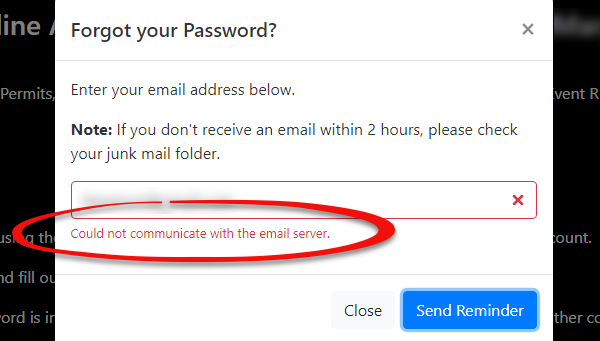](https://opscom.wiki/uploads/images/gallery/2026-07/preimage.png) ### Fixing Communication Errors 1. Hover over **System Configuration** and click **System Settings**. 2. Navigate to the **General System Settings** tab. 3. Locate the **Reply-to Admin Email Address** field. 4. Enter a valid, active email address into this field to serve as the system's sender address for automated communications. 5. Click **Save** to apply the configuration changes. 6. Re-attempt the user action that previously triggered the error (e.g., submitting the forgot password form) to verify the issue is resolved.Communication errors are almost always symptomatic of missing or incorrectly configured email parameters. If a user reports an email delivery failure or a communication error popup, verifying your global email settings should always be your first troubleshooting step.
--- ## Best Practices and Considerations - **Maintain crucial email fields:** **The Reply-to Admin Email Address and other sender settings found within the system settings are critical for all automated communications.** Ensure these fields are always populated with valid, actively monitored email addresses to prevent widespread delivery failures. - **Monitor system notifications:** **Regularly check the inbox of the email address configured as the Default Notification Email.** Proactively monitoring this inbox helps administrators catch any internal system alerts regarding failed communications or server errors before end-users report them. - **Escalate persistent issues:** **If the issue is still not resolved after configuring these fields, please contactThe Alarms System Settings feature allows administrators to configure and manage automated system alerts. Its primary purpose is to notify administrative and field enforcement staff of critical information regarding specific users, vehicles, or general events, thereby improving operational awareness and security. This article is intended for OPS-COM administrators responsible for backend configuration and enforcement operations.
## Setup and Configuration This feature is a core administrative tool used to define the active alerts that trigger within the system and on field enforcement devices. **Admin Side:** Administrators must have the appropriate system role permissions enabled to access and configure these settings. 1. Hover over **System Configuration** and click **Alarms System Settings**. 2. Review the active alarm categories and select the specific type you wish to configure or manage. 3. Save any modifications to ensure they immediately propagate to the database and sync with active handheld devices. ## Using this Feature Administrators can use this feature to categorize and manage three distinct types of system alarms. ### Available Alarm Types - **[People](https://opscom.wiki/books/the-opscom-admin-portal/page/people-alarms "People Alarms"):** Configure alarms that are tied directly to user profiles. This is commonly used to flag banned individuals, VIPs, or users with a history of severe parking infractions or unpaid violations. - **[Plate/Vehicle](https://opscom.wiki/books/the-opscom-admin-portal/page/plate-and-vehicle-alarms "Plate and Vehicle Alarms"):** Configure alarms that are tied directly to specific license plates or registered vehicles. This ensures that field enforcement officers are immediately alerted if they scan a scofflaw, a stolen vehicle, or a plate associated with a suspended permit. - **[Generic](https://opscom.wiki/books/the-opscom-admin-portal/page/generic-alarms "Generic Alarms"):** Configure general alarms for broader system use that do not strictly tie to a single user profile or specific vehicle record.Alarms configured in the backend sync directly to the handheld units used by enforcement staff. When an officer searches a flagged plate or user profile, the Android device will prominently display the alert on the screen so the officer can take immediate action.
--- ## Best Practices and Considerations - **Standardize alarm descriptions:** **Ensure that all configured alarms include clear, concise instructions for responding staff.** Field officers need to know exactly what action to take when an alarm triggers (e.g., "Do not approach, call dispatch immediately" versus "Issue a standard warning"). - **Prevent alert fatigue:** **Regularly review active alarms and remove those that are no longer applicable.** Keeping hotlists and active alarm triggers clean ensures that enforcement officers take alerts seriously when they do appear, rather than habitually dismissing them. - **Restrict configuration access:** **Organizations should strictly limit which administrators have the permission to create or modify system alarms.** Tightly controlling this backend access prevents the system from becoming cluttered with unnecessary, duplicate, or poorly defined alerts. # Defining User Profile SettingsThe User Profile Settings feature enables administrators to customize the specific information collected from users on their profile forms. Its primary purpose is to allow organizations to tailor the registration experience by controlling the visibility and mandatory status of data fields, ensuring that all necessary information is captured efficiently. This article is intended for OPS-COM administrators responsible for system configuration and user management.
## Setup and Configuration This feature is a core administrative tool used to dictate the fields presented to users during registration and profile updates. **Admin Side:** Administrators must have the appropriate system role permissions enabled to access the global system settings menu and modify user profile requirements. **User Side:** The configurations applied here directly dictate the fields end-users see and must complete when creating or updating their portal accounts. ## Using this Feature Administrators can use the following instructions to navigate to the settings menu and manage the visibility of various user profile fields. ### Configuring Field States 1. Hover over **System Configuration** and click **System Settings**. 2. Click **User Profile** on the **Manage System Settings** screen. 3. Select the desired display state for each available profile item from the provided list. ### Available Field States The state selected for each field is highlighted in black, with a checkmark indicating the active selection. Items can be set to one of three states: - **Hidden:** The field is not visible on the user-side profile form. - **Visible:** The field is seen on the user-side form, but entering information is optional. - **Required:** The field is seen on the user-side form and is mandatory. Required fields are indicated by a red asterisk. The system will not allow the user to save their profile if any required information is missing. ### Customizing Profile Sections The settings page allows you to customize several specific categories of user information: - **User Name:** A user name is an essential unique identifier for system access. While a bare minimum typically includes a username, first name, and last name, any of these items can be toggled based on your needs. - **Address Information:** This section is critical if your organization plans to mail physical permits or other correspondence to end-users. - **Phone Information:** Allows for the collection of various personal and primary phone numbers. - **License Information:** This field specifically refers to a driver's license number, not a vehicle license plate. You may opt to record this information if your organization is connected with local law enforcement. - **Student Information:** Controls fields relevant to student identification, such as student numbers and maximum/minimum digit limits. - **Employee Information:** Controls fields relevant to employee identification, such as staff numbers.By default, the username field is not editable by administrators. If your organization requires the ability to manually change user account names, you must contact
If any credit card information is entered by the user via the Text2ParkMe tab, the system automatically switches all other credit card information fields to a required state for that specific transaction to ensure payment processing succeeds.
--- ## Best Practices and Considerations - **Balance data collection and the user experience:** **Avoid making too many fields required, as this can create friction and deter users from successfully completing their profiles.** Prioritize truly essential information to streamline the registration process. - **Understand underlying system overrides:** **Be aware that the system may still require certain fundamental pieces of information even if you attempt to hide them.** For example, core identifiers like a username or email address are essential for basic functionality and may override your hidden settings. - **Configure student address requirements:** **If you require students to provide both a mailing and local address, ensure you enable the Require Both Addresses for Students setting.** Once filled out, admins can view both locations under the **Active Addresses** section of the user profile. Do not forget to also enable the **Using Student Second Address** setting so these fields are visible on the admin side. - **Review hidden fields periodically:** **Ensure that fields marked as hidden truly remain irrelevant to your current processes.** Organizational needs can change rapidly, making previously hidden data suddenly important for enforcement or reporting. - **Tailor requirements to specific user types:** **Consider which information is truly necessary for different user classifications.** You can configure the system to ask for different identifying details depending on whether the registering user is a student or an employee. # Account Creation PreferencesThe Account Creation Preferences feature allows administrators to choose between granting users immediate portal access or requiring explicit email verification upon registration. Its primary purpose is to balance user convenience with system security and data integrity by controlling the onboarding flow. This article is intended for OPS-COM administrators responsible for managing the user registration experience.
## Setup and Configuration This feature is a global system setting that immediately dictates the onboarding workflow for all new users. **Admin Side:** Administrators must have the appropriate system role permissions to access the configuration menus and modify the registration parameters. **User Side:** Depending on the configured preference, new users will either be logged in immediately after creating an account or prompted to check their email for a verification link before they can access the portal. For complete user-side documentation, please refer to the *[Registering as a User with OPSCOM-Go!](https://opscom.wiki/books/opscom-go-user-portal/page/registering-as-a-user-with-opscom-go "Registering as a User with OPSCOM-Go!")* article. ## Using this Feature Administrators can use the following instructions to locate the registration setting and toggle the desired onboarding workflow. ### Configuring the Account Creation Flow 1. Hover over **System Configuration**, click **System Settings**, and click the **User Profile** tab. 2. Locate the **Auto Login After Register** setting. 3. Enable the **Auto Login After Register** toggle to allow immediate login, or disable it to require email verification. ### Available Configuration States The **Auto Login After Register** setting has two distinct states, each with specific implications for user experience and system security: - **Immediate Login (Enabled):** This configuration allows users to instantly access their account immediately upon completing registration, bypassing email verification entirely. This method reduces friction and provides a quicker onboarding experience. It is ideal for scenarios where users might not have immediate access to their email, such as dedicated lobby kiosk setups. - **Email Verification (Disabled):** This configuration requires users to click a unique verification link sent to their registered email address before they can fully access their account. This is generally the preferred method, as it immediately confirms the registration originates from a real user with a valid email address, significantly reducing bot registrations and fake accounts.While immediate login reduces friction, requiring email verification establishes a reliable communication channel from day one. This is crucial for securely processing future password resets, executing account recovery procedures, and delivering important system notifications.
--- ## Best Practices and Considerations - **Balance security and convenience:** **Carefully weigh the trade-offs between user convenience (immediate login) and enhanced security (email verification) based on your organization's risk tolerance.** Consider the technical literacy and typical access methods of your target audience when deciding on the preferred setting. - **Ensure robust email deliverability:** **If you require email verification, verify that your system's global email sending configurations are properly established.** This guarantees that verification emails are delivered promptly and reliably, preventing users from getting stuck during registration. - **Communicate the registration process:** **Clearly inform users about the account creation process on your portal homepage.** If email verification is required, provide explicit instructions reminding users to check their spam or junk folders for the activation link. - **Maintain regulatory compliance:** **Consider that data privacy regulations often implicitly favor email verification.** Forcing users to verify their email contributes to better data quality and acts as a verifiable record of user consent. # Configuring Multi-Factor Authentication on the User PortalMulti-Factor Authentication (MFA) adds a crucial second layer of security to user accounts by requiring one-time passwords (OTPs) sent via email. Its primary purpose is to significantly enhance protection against unauthorized access to the system. This article is intended for OPS-COM administrators responsible for configuring global security settings and managing the user login experience.
## Setup and Configuration Implementing MFA involves administrator-side configuration within the system settings and customizing the associated email template. ### Admin Side Configuration One-time passwords will not be available on the user portal until enabled within the global settings. 1. Hover over **System Configuration** and click **System Settings**. 2. Navigate to the **User Profile** tab. 3. Configure the **Enable Multi-Factor Authentication** setting to your desired state.If the MFA setting is not available for you to change, please have your primary administrator contact
The state of a user's one-time password verification is stored in the local storage of their session data. If a user clears their browser cache, or attempts to log in using a different web browser or device, the MFA verification will not persist and they will be forced to enter a new one-time password.
--- ## Best Practices and Considerations - **Execute a gradual rollout:** **When introducing MFA, consider starting with the Visible setting to allow users to opt-in voluntarily.** Once your user base is accustomed to the feature, transition the setting to the **Required** state for all users if your organizational security policy mandates it. - **Verify email deliverability:** **Ensure that your system's email settings are correctly configured and that OTP emails are not being blocked by institutional spam filters.** Users must receive these emails promptly to successfully log in. - **Communicate OTP expiry limits:** **Remind users that one-time passwords are time-sensitive and permanently expire after 15 minutes.** Generating a new password will automatically invalidate any previous ones, and this system default cannot be changed. - **Provide clear communication and training:** **Inform users about the MFA requirement, how to set it up, and how to log in using OTPs.** Providing clear instructions and troubleshooting tips on your portal homepage reduces support tickets during the initial rollout. # Password and Security SettingsThe Password and Security Settings feature provides administrators with critical tools to enforce robust password policies and manage login security for all backend administrative accounts. Its primary purpose is to protect sensitive system data, prevent unauthorized access, and ensure organizational compliance with modern security standards. This article is intended for OPSCOM administrators responsible for managing backend system configuration and access security.
## Setup and Configuration This feature requires high-level administrative access to view and manage global security protocols. **Admin Side:** Administrators must have the appropriate system role permissions enabled to access the centralized system settings menu. 1. Hover over **System Configuration** and click **System Settings**. 2. Click **Security** to open the management window and view all available security configurations. **User Side:** This feature dictates backend administrative security and does not directly configure the end-user parking portal login policies. ## Using this Feature Administrators can use the configuration window to define various aspects of password management, strength requirements, and automated account lockout policies. ### Password Security Settings - **Salted Password Hashing:** Adds an essential layer of security by irreversibly converting passwords into unique, short hash values with a randomized "salt" string. This ensures that even if two users share the same password, their stored hash values remain completely different. It prevents reverse engineering, meaning forgotten passwords must be reset rather than retrieved. - **Require Password Update:** Forces administrators to change their passwords upon their next successful login. This is ideal for ensuring compliance after a manual password reset. - **Toggle Password Expiry:** Mandates regular password changes. When enabled, enter a numerical value into the **Password Expiry in days** field to define the exact lifecycle of an active password (e.g., 90 days). - **Enable Password History:** Remembers passwords previously used by an administrator to prevent immediate reuse. When enabled, set the **How long to remember old passwords** field (in days) to define the restriction duration. ### Password Strength Requirements These settings allow you to enforce complexity rules for all new administrator passwords: - **Minimum Password Length:** Sets the absolute minimum number of characters required for a valid password. - **Enable password strength requirements:** Toggles specific complexity rules on or off. When enabled, you can set a minimum required character count for **Numerical Characters**, **Lower Case Characters**, **Upper Case Characters**, and **Non-Alpha Numeric** characters (e.g., !, &, #). ### Admin Account Lockout Settings These settings provide an automated layer of security by locking an administrator out of their account after repeated incorrect password attempts: - **Enable Admin Lockouts:** Toggles the automated account lockout feature on or off. - **Lockout after X Attempts:** Sets the threshold for failed login attempts with an incorrect password before the system actively locks out the administrator. - **Login attempt timeframe:** Sets the timeframe (in minutes) during which incorrect login attempts are counted. For example, if an administrator fails 3 times within a 5-minute period, their account will be locked out. - **Lock the admin out for X minutes:** Sets the duration (in minutes) that the administrator's account will remain locked. For example, setting it to 120 minutes means the administrator is completely locked out for 2 hours before another login attempt is permitted.Several major security settings (such as Salted Password Hashing, password expiry, and lockouts) are visible to administrators but can only be changed by the OPSCOM Team. For modifications to these restricted, read-only settings, please contact
The Manage Files feature provides a centralized repository for all files used across your application, primarily focusing on images for user and admin dashboards. Its primary purpose is to allow administrators to easily upload, view, organize, and manipulate visual content to ensure consistent branding throughout the system. This article is intended for OPS-COM administrators responsible for managing system content and visual assets.
## Setup and Configuration This feature is a core administrative tool used to store and manage system-wide assets. **Admin Side:** Administrators must have the appropriate system role permissions enabled to access the configuration menus and modify system files. **User Side:** This file manager is strictly a backend administrative tool; however, the uploaded files (such as logos, banners, and permit images) are ultimately visible to end-users on the parking portal. ## Using this Feature Administrators can use the following instructions to navigate the file manager, upload new assets, manipulate existing files, and embed images directly onto custom pages. ### Accessing and Viewing Files 1. Hover over **System Configuration** and click **Manage Files**. 2. Select your preferred viewing layout from the interface: - **Grid Mode:** Displays a visual thumbnail preview of each image, which is highly useful for quickly identifying visual content. - **Table Mode:** Provides a detailed list view, displaying file names, sizes, and other relevant information. ### Adding Files to the Repository 1. Click the **Upload** tool to open the file upload interface. 2. Click **Select files** and choose the desired images from your local device. 3. Click **Submit** to upload the files directly to your site's storage.Once an image is successfully uploaded, it cannot be moved to a different folder. To maintain proper organization, ensure you navigate to and open the intended destination folder before you upload the image.
### Managing Existing Files 1. Right-click on a specific image or file to open a contextual menu. 2. Click **Download** to save a copy of the file to your local device, **Rename** to change the file name, or **Delete** to permanently remove the file from the system. 3. Click **View** on an image, then click the **Cropping** icon to open a tool that allows you to resize or adjust the visible dimensions to focus on a specific area. ### Adding Images to a Page 1. Click **Insert** in the text editor toolbar when editing a custom page or content area. 2. Select **Image** from the dropdown menu. 3. Click the **search folder** icon next to the source field to open the file manager. 4. Locate and double-click the specific image you wish to insert. The image will immediately be added to the page at the location of your cursor. --- ## Best Practices and Considerations - **Organize files using sub-folders:** **Consider creating sub-folders within the file manager to keep your assets organized and easy to locate.** Because uploaded files cannot be moved once added, establishing a clean folder structure early prevents repository clutter. - **Use descriptive file names:** **Always use clear and descriptive file names to simplify identification and referencing.** For example, naming an asset *company-logo-header.png* is significantly better than a generic name like *image1.png*. - **Optimize image sizes:** **Before uploading, optimize large images for web use.** Smaller file sizes will drastically improve page load times for both the administrative backend and the end-user interfaces. - **Backup critical assets:** **Consider maintaining local backups of critical branding assets as a best practice.** While the system securely manages these files, having local copies of standard organizational logos and banners is always recommended. - **Ensure path accuracy:** **When manually linking images to pages via HTML, ensure the URL path is exactly correct.** File paths are often case-sensitive, so capitalization and spelling must perfectly match the uploaded file name. # Admin Dashboard Setup (Quick Start)The OPSCOM Dashboard is a fully customizable, widget-based analytics interface built directly into the admin portal. Its primary purpose is to allow administrators to create tailored data views, arrange widgets freely on a drag-and-drop grid, and configure specific metrics to monitor daily operations. This article is intended for OPSCOM administrators seeking a brief overview of dashboard capabilities.
## Setup and Configuration Configuring personal dashboards and setting up widget layouts requires specific backend access. **Admin Side:** Administrators must have the appropriate administrative permissions enabled within their user role to access, configure, and save dashboard layouts. ## Using this Feature Administrators can use the dashboard interface to construct personalized, real-time views of system data. ### Customizing the Dashboard 1. Navigate to the main dashboard interface within the admin portal. 2. Create multiple personal dashboards to separate different types of data. 3. Arrange widgets freely on the provided drag-and-drop grid. 4. Configure each widget individually to show exactly the data you need for your daily workflows.Dashboard layouts and widget configuration are fully documented in our comprehensive feature guide. For detailed instructions on available widgets, deep customization, and advanced layout options, please refer to the *[Using the OPSCOM-ARC System Dashboard & Widgets](https://opscom.wiki/books/the-opscom-admin-portal/page/using-the-opscom-arc-system-dashboard-widgets "Using the OPSCOM-ARC System Dashboard & Widgets")* article.
--- ## Best Practices and Considerations - **Utilize automatic refreshing:** **Set your dashboards and widgets to automatically refresh on a configurable schedule.** This ensures your analytics are consistently up-to-date without requiring you to manually reload the page. - **Design for mobile responsiveness:** **Take advantage of the system's responsive design.** Dashboards and widgets are fully responsive down to mobile widths, allowing you to easily monitor system metrics and enforcement operations from a smartphone or tablet. - **Organize with multiple dashboards:** **Create multiple personal dashboards tailored to specific operational tasks.** Instead of cluttering a single screen with too much information, separate your widgets logically (e.g., maintaining one dashboard for financial metrics and another for daily enforcement activities). # Content & Design # Email Headers and FootersThe Email Headers and Footers feature allows administrators to define and manage reusable layout components for system-generated emails. Its primary purpose is to ensure consistent organizational branding, provide essential contact information, and apply uniform styling across all automated email communications. This article is intended for OPSCOM administrators responsible for managing system configuration and visual design.
## Setup and Configuration This feature is a core administrative tool used to design the visual wrapper for outbound system emails. **Admin Side:** Administrators must have the appropriate system role permissions enabled to access the contents and design configuration menus. ## Using this Feature Administrators can use the following instructions to navigate the layout list and edit individual email components. ### Editing Email Layout Templates 1. Hover over **System Configuration**, then **Contents & Design**, and click **Email Headers & Footers**. 2. Click the **Toggle Templates** button to display the various sections of your email layouts. 3. Locate the specific section you wish to modify (e.g., Header, Footer, or Style) and click the **Edit** button next to it. 4. Add or modify text, insert images such as your organization's logo, or include inline styles directly within the HTML editor. 5. Click the **Save Changes** button to finalize your updates. 6. Click the **Back** button to return to the template list and edit other sections as needed. ### Available Actions and Buttons - **Toggle Templates:** Click this button to reveal the underlying layout sections available for editing. - **Edit:** Click this button to open the HTML editor for a specific layout component. - **Save Changes:** Click this button to commit your modifications to the system database. - **Archive Template:** Click this button located in the top right corner of the editor to retire a layout template that is no longer needed. - **Back:** Click this button to exit the editor and return to the main layout list.The **Email Template Layout List** page acts as a central repository for the individual components that wrap your messages. Remember that changes made to these foundational layout templates will globally and immediately affect all system email templates that are configured to use them.
--- ## Best Practices and Considerations - **Maintain consistent branding:** **Use email headers and footers to consistently display your organization's logo, branding colors, and contact information.** Uniform branding creates a professional and cohesive user experience across all automated communications. - **Provide essential information:** **Ensure your footer contains crucial information such as your organization's name, website, and a general contact email or phone number.** This gives users a clear path to reach out if they have questions about their parking portal activity. - **Design for mobile responsiveness:** **Consider how your headers and footers will appear on mobile devices when adding content and styling.** Use responsive design principles or simple layouts to ensure the emails are easily readable on smaller screens. - **Test your changes:** **Always test the email templates that use these layouts after making any modifications.** Send a test email to yourself to ensure everything renders correctly in various email clients before relying on the system to send them to active users. - **Manage complex inline styling:** **Coordinate with OPSCOM Support for custom CSS in the Style template if you require complex or site-wide styling changes.** While the provided editor allows for inline HTML styles, global CSS changes are often better managed directly at the template level by our team. # Email TemplatesThe Email Templates feature allows administrators to customize the content and appearance of automated emails sent by the system. Its primary purpose is to enable the creation of dynamic, informative messages using shortcodes and a smart editor, ensuring clear and consistent communication with portal users. This article is intended for OPS-COM administrators responsible for managing system communications and visual design.
## Setup and Configuration This feature is a core administrative tool used to manage outbound email content. **Admin Side:** Administrators must have the appropriate system role permissions enabled to access the contents and design configuration menus. If your organization has multiple languages installed, you can click the **Create** button from the main template list to build localized versions of your messages. **User Side:** This feature is strictly a backend administrative tool. End-users interact with the results of this configuration when they receive automated emails (e.g., password resets, appeal updates) in their personal inboxes. ## Using this Feature Administrators can use the following instructions to navigate the template list, edit default automated messages, and create custom templates for manual communications. ### Editing Default Email Templates 1. Hover over **System Configuration**, then **Contents & Design**, and click **Email Templates** to view the active list. 2. Locate the specific template you wish to edit in the list. 3. Click the **Edit** button next to the template to open the dedicated editor interface. 4. Make the desired changes to the available fields and content areas. 5. Click the **Save** button to apply the changes. ### Available Configuration Fields When editing an email template, administrators must configure the following fields: - **Label:** Enter a descriptive name to easily identify the email template within the system's list. - **Type:** A non-adjustable value that indicates the specific purpose or system trigger for this email template (e.g., "Appeal Submitted," "Password Reset"). - **Language:** Select the appropriate language for the template if your system supports options like French or English. - **Layout:** Select a pre-defined layout that surrounds your message. Layouts dictate your email header, footer, and overall styling. - **Subject:** Enter the exact text that will appear as the subject line of the email message. - **HTML Content:** Write the main body of the message here. This smart editor supports rich text formatting, the insertion of images, and the use of shortcodes to create visually appealing emails. - **Text Content:** Enter a plain text version of the message. This serves as a fallback for strict email clients that do not render HTML. It does not support shortcodes or any formatting. ### Using Shortcodes Each email template has a specific set of available shortcodes that allow you to dynamically insert user or event information into your message. [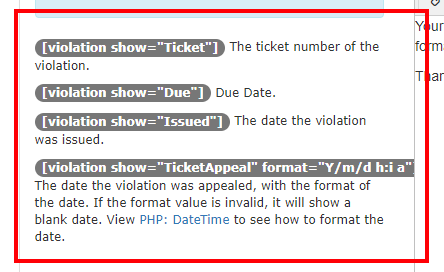](https://opscom.wiki/uploads/images/gallery/2026-07/uo4image.png) The shortcode tokens are typically displayed on the left side of the template editor. You can insert these directly into the **HTML Content** editor on the right side. For example, the template for an appeal might offer `[ticket_appealed_date]` or `[ticket_number]`. The system automatically replaces these shortcodes with the appropriate information when the email is generated and sent. ### Creating and Using Custom Email Templates Administrators can create and store frequently used emails that are not tied to specific system triggers. These templates automatically populate the email body when manually drafting a message to a user. 1. Click the **Create** button on the main templates page. 2. Enter a descriptive name into the **Label** field. 3. Compose the message using the **HTML Content** and **Text Content** fields. 4. Click the **Save** button. 5. Navigate to the compose email page to draft a manual email to a user. 6. Select your new template from the **Load Template** drop-down menu to automatically populate the email contents. 7. Complete any highlighted required fields in the interface before clicking the **Send Email** button.Unlike system-defined default templates, custom templates include a **Delete** button on their configuration page, allowing you to quickly remove them from the system when they are no longer needed.
--- ## Best Practices and Considerations - **Maximize the use of shortcodes:** **Utilize shortcodes fully to make your emails dynamic, personalized, and informative.** Automating data entry reduces manual effort and prevents potential typographical errors in critical communications. - **Maintain consistent branding:** **Use email layouts configured in the [Email Headers and Footers](https://opscom.wiki/books/setup-configuration-for-admins/page/email-headers-and-footers "Email Headers and Footers") section to maintain consistent branding across all system-generated emails.** Consistent logos, colors, and contact info create a professional appearance. - **Populate both content sections:** **Always ensure both the HTML Content and Text Content sections are populated and convey the message clearly.** This guarantees compatibility for all email clients, even those that strip out HTML formatting. - **Test all templates after editing:** **After making changes to an email template, send a test email to yourself or a test account.** Verify that all shortcodes are rendering correctly, the formatting behaves as expected, and the message is clear. - **Manage language-specific templates carefully:** **If your system supports multiple languages, ensure you create and maintain separate templates for each language.** When using the **Load Template** feature for manual emails, remember that custom templates display for all users regardless of the selected language, so ensure the correct version is chosen before sending. # TranslationsThe Language Translations feature allows administrators to manage multi-language support and customize specific terminology displayed across the user portal. Its primary purpose is to ensure that all user-facing text, labels, and system messages are accessible and align perfectly with your organization's local terminology (e.g., changing the word "ticket" to "citation"). This article is intended for OPSCOM administrators responsible for managing portal content and localization.
## Setup and Configuration This feature is a core administrative tool used to dictate the text displayed on the user-side portal. **Admin Side:** Administrators must have the appropriate system role permissions enabled to manage language settings and edit translations. 1. Hover over **System Configuration**, click **Content & Designs**, then **Translations** to access the **Installed Languages** page. **User Side:** The translation configurations directly control the language options and specific wording available to end-users navigating the parking portal.When reviewing the translation list in the backend, translations displayed in black text are active on the user side and can be freely changed. Translations displayed in red text are located on the admin side and are not currently supported for localization; they will remain in English until admin-side translations are fully supported.
## Using this Feature Administrators can use the following instructions to add new languages, create localized sub-languages, and manually edit specific terminology across the system. ### Installing and Adding Languages - **Install Default Languages:** If base languages like English or French are available but not yet installed, you can install them directly to load a complete preset translation template with a defined Name and Locale. - **Add Custom Languages:** Click the **Add Language** button to bring up a modal. Enter a custom label and locale, then click **Save Changes**. The label identifies the translation throughout the site, while the locale is used for system identification. - **Enable or Disable Languages:** Toggle the switch under the **Enabled** column on the **Installed Languages** page. Disabling a language immediately removes it as a selectable option for end-users on the portal. ### Adding Sub-Languages Sub-languages allow you to support regional variations (e.g., American English vs. British English). 1. Ensure the primary "main" language is already created and installed. 2. Click the **Add Language** button. 3. Enter the existing main locale, followed by an underscore `_`, and the sub-language identifier (e.g., entering `en_us` for American English). 4. Click **Save Changes**. The sub-language will automatically inherit the translations set up on the main language. ### Editing Translations and Terminology The translator is not just for foreign languages; it is essentially a list of code terms and their corresponding display text, allowing you to easily replace local terminology (e.g., changing "ticket" to "citation" everywhere on the portal). 1. Click **Edit Translations** next to a language. 2. Enter a specific word or component (e.g., "permit" or "ticket") into the search bar at the top right to filter the list. 3. Click the specific text box for the term you wish to modify and type in your preferred localized text. 4. Click away from the input field. The translation will highlight in yellow to indicate an unsaved change, and the number of affected records will display at the bottom of the page. 5. Click the **Save Changes** button to apply the text updates across the system. ### Creating Templates and Messaging for New Languages When you create a brand new custom language, it will not automatically rely on the default templates and system messaging set up for previous languages. They will appear blank until configured. 1. Hover over **System Configuration**, click **Content & Designs**, then **Templates & Design**. 2. Click **Toggle Templates** for the templates currently being used. 3. Click the **Create** button to add the new template for your language, or click **Edit** on an existing language to copy its text over to the new one. 4. Hover over **System Configuration**, click **Content & Designs**, then **System Messages**. 5. Click the **Edit** button next to an individual message, select your new language, and type out the localized translation. --- ## Best Practices and Considerations - **Use the Token language for troubleshooting:** **Use the "Token" language on the user side to easily identify exactly where a translation exists so it can be changed.** To do this securely, navigate to a user's profile on the admin side and click the **Login as User** button. Switching to the Token language reveals the backend code names for every text element on the screen. Regular users cannot access the Token language. - **Establish the main language first:** **You must create the main language first before creating any related sub-languages.** If the main locale is missing, the sub-language will fail to inherit the correct text and will default back to standard English. - **Protect custom language data:** **Be aware that deleting a custom language permanently removes its data, requiring OPSCOM support to recover.** While base languages like English and French can be easily re-installed, custom entries cannot. Note that deleting a main language will not delete its associated sub-languages. - **Leverage bulk terminology updates:** **When editing terminology to fit local phrasing, update all instances of the word before saving.** Searching for a term like "ticket" will pull up all translatable instances (e.g., *Manage Ticket Categories*, *Pay Ticket*). Editing them all at once ensures complete consistency across the user portal. # User Portal Branding and SetupThe User Portal Branding and Setup feature allows administrators to define the global default branding for the public-facing portal. Its primary purpose is to ensure a consistent visual presentation across the user environment by establishing a default site logo and header. This article is intended for OPS-COM administrators responsible for managing system configuration and visual design.
## Setup and Configuration This feature requires administrative access to the global system settings. **Admin Side:** Administrators must have the appropriate system role permissions enabled to access the global system settings and the file management repository. ## Using this Feature Administrators can use the following instructions to configure the default logo and header images for their environment. ### Configuring Default Images 1. Hover over **System Configuration** and click **System Settings**. 2. Click the **Global** tab to view the global settings section. 3. Click the **Select Image** button next to either the **Default Site Logo** or **Default Site Header** setting to open your file repository. 4. Browse or search for the specific image you wish to use within the **Manage Files** interface and click to select it. 5. Click **Save Settings** to apply your branding selections.Once an image is selected, its file name or a preview will appear in the respective configuration settings field. For best practices on uploading and organizing your visual assets, please refer to the *[Uploading and Managing Files](https://opscom.wiki/books/setup-configuration-for-admins/page/uploading-and-managing-files "Uploading and Managing Files")* article.
### Key Information Displayed These default images serve as global fallbacks and will appear in various places throughout the system if no specific visual assets are set in other areas (such as the Contents and Designs section). Common locations where these default images are utilized include: - The User Portal (e.g., your public-facing permit purchasing site). - The phone interface utilized in features like Real-Time Parking. - Mobile applications, Text2ParkMe, and QR code interfaces. ### Available Actions and Buttons - **Select Image:** Click this button to open the file manager to choose an existing image or upload a new one for your branding. - **Save Settings:** Click this button to commit your branding selections to the active system environment. --- ## Best Practices and Considerations - **Maintain branding consistency:** **Use high-quality, appropriately sized images that accurately reflect your organization's branding.** Consistent logos and headers build trust and provide a professional appearance across all platforms. - **Optimize image files:** **Ensure your image files are properly optimized for web use.** Compress files and use appropriate resolutions to guarantee fast page loading times across both desktop and mobile interfaces. - **Understand global impact:** **Remember that these are default fallback settings.** If you have specific headers or logos configured in other sections of the system (like individual email templates or specific public pages), those specific configurations will always override these global defaults. - **Ensure visual accessibility:** **Consider the visual accessibility of your chosen images.** Ensure adequate color contrast for any text overlays, especially within your header design, to accommodate all users. # Pages and Content BlocksThe Pages and Content Blocks feature allows administrators to create and manage the visual content and system messages displayed throughout the user portal. Its primary purpose is to enable organizations to customize their public-facing pages, embed interactive features using shortcodes, and enforce user agreements via popup disclaimers. This article is intended for OPS-COM administrators responsible for managing portal content and user communications.
## Setup and Configuration This feature is a core administrative tool used to build and maintain the user-facing portal environment. **Admin Side:** Administrators must have the appropriate system role permissions enabled to access the content and design menus. **User Side:** The configurations applied here directly dictate the layouts, text, interactive forms, and popup agreements that end-users interact with while navigating the parking portal.Shortcodes are not supported at this time on the user side.
## Using this Feature Administrators can use the following instructions to create custom pages, embed interactive shortcodes, and generate targeted system messages. ### Accessing the Management Interface 1. Hover over the **gears icon** (System Configuration) and click **Content & Designs** then **Pages and Content Blocks**. ### Creating Pages 1. Click the **Create Page/Message** button at the top right of the management screen. 2. Select **Page** from the **Page Type** drop-down menu. 3. Configure the following page attributes: - **Title:** Enter the name that will be displayed on the user navigation bar. - **Path:** Define the URL path after the domain (e.g., entering *login/* establishes the page as the home page). - **Visibility:** Toggle the **Visible** button to make the page accessible or hidden to end-users. - **Language:** Select the appropriate language for the page (e.g., English or French). - **Layout:** Select the visual structure for the page. Typically, this is left as the **Default Layout**. - **Content:** Enter the main body text or embed shortcodes to display interactive features. 4. Click the **Save Messaging** button to finalize the page creation.Toggling a page to invisible hides it from your end-users, but it will still remain fully editable to administrators on the backend under the **Messages** tab. This is highly useful for drafting content.
### Content Placement and Shortcodes The smart editor reads content from top to bottom, left to right. Where you place a shortcode heavily dictates the final visual layout. For example, placing a lot information shortcode *before* your text content in the editor will render the interactive lot table visually above your text on the live page. Placing the shortcode *after* the text will render the table below it. ### Editing Pages 1. Review the **URL / System Location** column in the page list to identify the specific area of the portal you are updating (e.g., updating */permits* modifies the main permit screen). 2. Click the **Edit** button next to the specific page title. 3. Make the desired changes to the attributes or text formatting. 4. Click the **Return to Page List** button at the top of the screen to discard all recent changes, or click the **Save Messaging** button to apply them. ### Creating System Messages System messages are used to offer agreements and disclaimers before users make purchases. If a user does not agree to a required system message, they are automatically redirected away from the action. 1. Click the **Create Page/Message** button. 2. Select **Message** from the **Page Type** drop-down menu. 3. Enter a **Title** for the message. 4. Create a unique **Identifier**. This code is strictly used to link the message to a page via a shortcode. 5. Toggle the **Visible** setting, select the **Language**, and input your **Content**. 6. Click the **Save Messaging** button.Do not click the **Return to Template List** button before saving. Doing so will immediately discard all changes, and your system message will not be created.
### Editing System Messages 1. Click the **Messages** tab on the main management screen. 2. Click the **Edit** button next to the system message you wish to modify. 3. Adjust the title, identifier, visibility, language, or content as needed. 4. Click the **Save Messaging** button. ### Linking Messages to Pages System messages and pages work together using disclaimer shortcodes. To display a popup message on a specific page: 1. Copy the unique **Identifier** of the system message you created. 2. Open the target page in the editor. 3. Insert a disclaimer shortcode into the content area using the identifier (e.g., `[disclaimer name=lockersDisclaimer dismiss=never]`). 4. Save the page. The system will now automatically trigger the message when users access that location. --- ## Best Practices and Considerations - **Do not orphan system messages:** **If you modify a system message's identifier, you must manually update all corresponding disclaimer shortcodes across your pages.** Failing to update the shortcodes will break the link, and the message will fail to display to users. - **Use visibility toggles for drafting:** **Keep the Visible toggle off while drafting new pages or complex system messages.** This allows you to format text and test shortcodes in the backend without accidentally exposing unfinished pages to live users. - **Leverage available documentation:** **Review the documentation for a detailed list of available shortcodes.** Shortcodes limit the technicality of the system, offering a convenient way to add interactive forms, user data, and dynamic tables without requiring you to write code. Refer to the *[User Information Shortcodes](https://opscom.wiki/books/setup-configuration-for-admins/page/user-information-shortcodes "User Information Shortcodes")* article for complete details. --- ### Related Videos # Templates and DesignThe Templates and Design module allows administrators to heavily customize the visual functionality and branding of the User Portal. Its primary purpose is to structure the visual layout around your core page content, ensuring the portal accurately reflects your corporate branding and provides a seamless user experience. This article is intended for OPSCOM administrators.
## Setup and Configuration Configuring your portal's design involves creating a foundational layout and then building specific templates within that layout. **Admin Side:** ### Creating a Layout 1. Hover over **[System Configuration](https://opscom.wiki/books/setup-configuration-for-admins/chapter/system-configuration)** and click **[Templates and Design](https://opscom.wiki/books/setup-configuration-for-admins/page/templates-and-design)**. 2. Click the **Create Layout** button located at the top right of the page. 3. Enter a descriptive name for your new layout in the provided field. 4. Click the **Save Changes** button. The layout will now appear in your Layouts list. 5. Click the **Non-Default** drop-down menu and select **Default** if you wish to make this the active layout for your system. ### Creating Templates 1. Hover over **[System Configuration](https://opscom.wiki/books/setup-configuration-for-admins/chapter/system-configuration)** and click **[Templates and Design](https://opscom.wiki/books/setup-configuration-for-admins/page/templates-and-design)**. 2. Click **Toggle Templates** next to your newly created layout to display its available templates. 3. Click the **Create** button to begin adding specific section templates to the layout, including bilingual support for English and French. **User Side:** End-users do not interact with the setup of templates. They will simply view the customized layout when navigating the User Portal to register, add vehicles, purchase permits, or pay violations. ## Using this Feature The OPSCOM User Portal is split into specific visual sections using templates. All core text content is added through **[Pages and Content Blocks](https://opscom.wiki/books/setup-configuration-for-admins/page/pages-and-content-blocks)**, while templates wrap around that content to provide styling and structure. ### Template Sections - **Header:** The top of your page containing the header image, logos, and primary user navigation. - **Content\_Header:** An upper section to place content, such as alerts or user information, before the main body. - **Content:** The core content of your pages. This cannot be added from the templates module and requires you to navigate to the system messaging tools. - **Content\_Footer:** A lower section appearing after the core content. You can use this to display subsequent alerts, messages, or additional context. - **Footer:** The bottom of your page used to advertise important information, provide contact details, or display software versioning. ### Available Actions & Buttons - **Toggle Templates:** Click this button to instantly display all of the section templates currently attached to a specific layout. - **Edit:** Click this button next to a layout or section name to modify its details and source code. - **Archive:** Click this button to safely retire a layout that you are no longer using without permanently deleting its history. ### Default System Templates If you adjust the scripts and styles to the point of breaking your site, or you are unsure what your changes have done, you can refer to the default templates below to quickly restore your page's functionality and style. **Default Script Template**The Form 11 Shortcodes feature allows administrators to dynamically auto-fill specific violation details into system templates. Its primary purpose is to automatically pull nested data directly from a violation record—such as ticket numbers, user profiles, or vehicle details—and populate the issued Form 11 accurately without manual data entry. This article is intended for OPS-COM administrators responsible for configuring system templates and violation notices.
## Setup and Configuration This feature involves adding specific formatting strings directly to your system templates. **Admin Side:** Administrators must have the appropriate system role permissions to access and edit system templates. 1. Navigate to the specific system template you wish to modify. 2. Insert the required shortcode syntax into the text editor where you want the violation data to appear. 3. Save the template. **User Side:** This is strictly a backend configuration tool. End-users will simply see the fully rendered Form 11 document with their specific violation details already auto-filled. ## Using this Feature Administrators can use the following syntax rules and data packets to construct dynamic shortcodes for their Form 11 templates. ### Understanding the Base Shortcode The base shortcode for pulling Form 11 violation data is formatted as follows: `[values show=violation._____]` The blank space must be filled with a specific variable name to pull from the violation information packet. The packet itself is always called `violation`, and this identifier must be placed at the very start of any value call. ### Navigating Nested Values For each nested value within the system's data packet, the parent packet name must be added as part of the variable string. Each part of the path is separated by a period (`.`), with the specific variable you want to output placed at the end. ### Example Shortcodes The following table provides common examples of Form 11 shortcodes. To return a specific value in the same section, simply replace the provided variable name with the sibling value you want to output.| **Example Shortcode** | **Description** |
| `[values show=violation.Ticket]` | Returns the violation ticket number. |
| `[values show=violation.user_info.username]` | Returns the username of the user the violation belongs to. |
| `[values show=violation.writer.DisplayName]` | Returns the display name of the admin who assigned the violation to the user. |
| `[values show=violation.vehicle.Plate]` | Returns the plate of the vehicle the violation was assigned to, if applicable. |
| `[values show=violation.vehicle.province.ProvName]` | Returns the province or state of the vehicle plate. |
| `[values show=violation.vehicle.colour.ColourName]` | Returns the registered colour of the vehicle. |
| `[values show=violation.vehicle.plate_type.TypeName]` | Returns the plate type of the vehicle. |
| `[values show=violation.vehicle.vehicle_type.TypeName]` | Returns the type of the vehicle. |
| `[values show=violation.vehicle.make.MakeName]` | Returns the make of the vehicle. |
| `[values show=violation.location.LocationName]` | Returns the name of the location the infraction happened. |
| `[values show=violation.details.0.Ticket]` | Returns the violation ticket number (alternate value location). |
| `[values show=violation.details.0.type.ViolationDescr]` | Returns the violation type description. |
If a shortcode is entered incorrectly, or if the targeted data field is empty (null) for that specific user or vehicle, the system will simply leave that space blank on the generated Form 11.
### Violation Packet Reference The violation info packet is formatted like the JSON example below. The values on the left are the exact variable names you must use in your shortcode path, while the values on the right are example outputs returned by this packet. ```json { "ViolationID": 237, "SemPermitID": null, "Ticket": "TT-19026", "VehicleID": 5, "Spoiled": 0, "TicketType": 1, "Issued": "2024-07-17 16:11:00", "convNotice": null, "Due": "2024-07-27 16:11:00", "ViolationTypeID": -1, "Fine": "50.0000", "AdjustedFine": "20.0000", "Towing": "0.0000", "taxAmount": "0.0000", "Writer": 7, "LocationID": 10, "Comment": null, "TicketAppeal": null, "appealType": 0, "appealFormat": null, "AccessAdminID": 50, "ActionedPer": null, "Created": "2024-07-17 20:12:08", "AppealUserID": 0, "AppealProcessDate": null, "AppealAdminID": 0, "AppealComment": null, "AppealAdminComment": null, "AutoNotice": 0, "ProcessedByCollection": null, "SentToCollections": null, "PrivateComments": "", "DriveAway": 0, "UUID": null, "VioNotice": null, "latitude": null, "longitude": null, "Warning": null, "userid": null, "incidentID": null, "failToIdentify": null, "pin": "YL", "duplicate": null, "AdjustmentReason": null, "notices_count": 1, "user_info": { "UserID": 5, "studentNo": null, "employNo": "00800147", "username": "mashbury", "firstName": "Michael", "preferredname": null, "lastName": "Ashbury", "street": "688 Zaproxy Ridge", "city": "East Romaineburgh", "prov": 9, "postal": "K2G5B1", "email": "mash-bury@tomahawk.ca", "display_name": "Michael Ashbury", "account_no": "00800147", "prov_name": "Ontario", }, "writer": { "AdminAccessID": 7, "Username": "admin", "DisplayName": "Administrator" }, "vehicle": { "VehicleID": 5, "Active": 1, "Plate": "MASH", "Year": 1998, "TotalVio": 12, "TotalUnpaid": 2, "TotalWarning": 0, "vehicleAlert": true, "vin": "JNAMA43H9XGE50339", "electric_vehicle": false, "province": { "ProvName": "West Virginia", "ProvCode": "WV", }, "make": { "MakeName": "Toyota" }, "colour": { "ColourName": "Black" }, "plate_type": { "TypeName": " Passenger" } "vehicle_type": { "TypeName": " Van" }, }, "location": { "LocationID": 10, "LocationName": "Hospital & Administration Building", }, "details": { "ViolationsDetailID": 359, "ViolationID": 237, "Ticket": "TT-19026", "ViolationTypeID": 16, "LocationID": 10, "offenceFine": 50, "discountFlag": 1, "discountAmount": 20, "discountHours": 240, "type": { "ViolationTypeID": 16, "ViolationDescr": "No Parking Snow Route - Mandatory Towing", "DefaultCost": 50, "discountFlag": true, "discountAmount": 20, "discountHours": 240, } } } ``` --- ## Best Practices and Considerations - **Maintain exact syntax:** **Variable names are case-sensitive and must exactly match the data packet format.** For example, using `provname` instead of `ProvName` will cause the shortcode to fail. - **Understand nested logic:** **When targeting nested arrays (like user\_info or vehicle), ensure you include all parent variables separated by periods in your shortcode path.** You cannot skip levels in the hierarchy. - **Test templates thoroughly:** **Always test new Form 11 templates by generating a sample notice for a dummy violation.** This verifies that all shortcodes are rendering correctly and formatting as expected before they are sent to live users. # User Information ShortcodesThe User Information Shortcodes feature allows administrators to dynamically insert specific user details into email templates and system messages. Its primary purpose is to personalize automated communications—such as password reset emails or portal greetings—by automatically pulling data directly from the recipient's user profile. This article is intended for OPS-COM administrators responsible for configuring system communications and customizing templates.
## Setup and Configuration This feature involves adding specific formatting strings directly to your system templates or messages. **Admin Side:** Administrators must have the appropriate system role permissions enabled to access and edit email templates or system messaging pages. 1. Navigate to the specific email template or system message you wish to modify. 2. Insert the required shortcode syntax into the text editor exactly where you want the user data to appear. 3. Save the template or message. ## Using this Feature Administrators can use the following specific shortcodes to construct dynamic and personalized communications. To use them, simply type or paste the exact shortcode string into the text editor of your chosen email template or system message.| **Shortcode** | **Description** |
| `[user show="firstname"]` | Returns the first name of the user account receiving the email or messaging. |
| `[user show="lastname"]` | Returns the last name of the user account receiving the email or messaging. |
| `[user show="email"]` | Returns the email address of the user account receiving the email or messaging. |
| `[user show="username"]` | Returns the username of the user account receiving the email or messaging. |
| `[user show="salutation"]` | Returns the salutation of the user account receiving the email or messaging. |
Keep in mind that these shortcode descriptions are also conveniently located directly on the email template configuration page for lost passwords, allowing for quick reference while actively drafting recovery emails.
--- ## Best Practices and Considerations - **Maintain exact syntax:** **Ensure shortcodes are typed exactly as shown, including the brackets and quotation marks.** Any typographical errors will cause the shortcode to break, resulting in the raw, bracketed code displaying to the end-user instead of their information. - **Use personalization to improve engagement:** **Incorporate the user's first name in greetings to make automated emails feel more personal and professional.** For example, opening an email with "Hello `[user show="firstname"]`," is much more engaging than a generic greeting. - **Test templates thoroughly:** **Always send a test email or preview a system message after inserting new shortcodes.** This verifies that the tags are correctly pulling the intended user data and formatting properly within the layout before the messages are dispatched to active users. # News Items (RSS Feed)The News Feed allows administrators to broadcast timely messages and updates directly to their users. Its primary purpose is to provide a simple content management dashboard for drafting, scheduling, and publishing announcements, paired with an open syndication channel (RSS) for power users. This article is intended for OPSCOM administrators responsible for managing site communications.
## Setup and Configuration This feature is a core communication tool used to push updates to the user portal and mobile application. **Admin Side:** Administrators must have the appropriate system role permissions enabled to access the content and design configuration menus to manage news items. **User Side:** End-users interact with the news feed directly from the main menu of the parking portal or mobile app. The system automatically checks for new messages once every 15 minutes, displaying an alert badge above the menu icon when unread messages are available. After new messages have been viewed, they will automatically be marked as read. ## Using this Feature Administrators can use the following instructions to navigate the management interface to create, schedule, and archive news broadcasts. ### Accessing the Management Interface 1. Hover over **System Configuration** and click **Content & Designs** then **News Items**. Navigating this will bring you to the messages page. ### Creating New Messages 1. Click the **Create New Message** button located at the top of the list. 2. Enter the title of the news post into the **Title** field. 3. Enter a short blurb describing what the post is about into the **Description** field. 4. Enter a link to a related webpage or the full article into the **Article Link** field. 5. Enter the exact text that will appear on the link button into the **Link Text** field. 6. Select the exact date on which the message will appear to users in the **Published** field. 7. Enable the **Visible** checkbox to ensure the message will be seen by users. 8. Click the **Save Changes** button.A message will only appear to site users if the **Visible** checkbox is enabled and the configured publish date has already passed. This allows administrators to draft and schedule messages to appear on a set date in the future.
### Archiving and Deleting Messages 1. Click the **Archive** button next to a specific record in the list. 2. Click the **View Archived** button to open the list of historically archived messages. 3. Click the **Unarchive** button to restore a message, or click the **Delete** button to permanently remove it from the system.Once a message has been permanently deleted from the system via the archived list, it cannot be recovered.
### Accessing the RSS Feed Users can bypass the application entirely and pull updates directly into their favorite RSS feed readers (such as Feedly or Slack) using standard content syndication. 1. Access the RSS feed by appending `/newsfeed/rss` to the end of your standard OPSCOM website URL. --- ## Best Practices and Considerations - **Schedule announcements in advance:** **Leverage the publish date feature to schedule messages in the future.** This allows your team to prepare communications ahead of holidays, events, or planned maintenance without needing to manually publish them on the exact day. - **Keep messaging concise:** **Keep your descriptions short and use the article link to provide detailed information.** The news feed is designed for quick blurbs; long text can quickly clutter the user's mobile feed and portal interface. - **Archive outdated content:** **Regularly archive old messages to keep your active list clean.** Once a message is archived, it will no longer appear in the list of messages or be available to users, regardless of its previous visibility status. - **Promote the RSS feed to power users:** **Encourage power users or internal staff to use the RSS feed URL.** This provides an alternative, highly efficient way for them to stay up-to-date on news posts without actively logging into the portal or checking the app. # Changing the Organization Name Displayed to ParkersThis feature allows administrators to update the organization's display name across the entire platform. Its primary purpose is to control the branding that appears on the public-facing parking portal, connected handheld units, and printed violation notices. This article is intended for OPS-COM administrators responsible for managing global system configurations and organizational branding.
## Setup and Configuration This is a core system setting and does not require any special backend configuration to access or modify. **Admin Side:** Administrators must have the appropriate system role permissions enabled to access the global system settings menus. **User Side:** This feature is strictly a backend administrative configuration. End-users do not interact directly with this setting, but the configured name will automatically display on the parking portal when they log in or browse the site. ## Using this Feature Administrators can use the following instructions to seamlessly update the organization name displayed on the web portal and on enforcement handheld units. 1. Hover over **System Configuration** and click **System Settings**. 2. Click **General System Settings** from the provided list. 3. Locate the **Organization Name: Website** field at the top of the page and enter the desired display name. 4. Locate the **Organization name: Handheld** field and enter the desired display name. 5. Scroll to the bottom of the page and click the **Save Changes** button.The text entered into the **Organization Name: Website** field will appear directly on your public-facing user portal. The text entered into the **Organization name: Handheld** field will appear on your enforcement officers' handheld screens and on all violation notices printed from a handheld device.
--- ## Best Practices and Considerations - **Understand global handheld configurations:** **The Organization name: Handheld setting is a global configuration.** The name you enter here will be displayed uniformly on all handheld units connected to your system. This setting cannot be changed manually on the individual handheld devices themselves. - **Verify public-facing spelling:** **Ensure the name is spelled correctly and reflects your official branding before saving.** Because the website name is a public-facing setting, any typographical errors will be immediately visible to all end-users on your portal. - **Maintain brand consistency:** **For brand consistency, it is highly recommended to keep the website and handheld names the same.** Do not configure different names unless your organization has a specific operational reason for displaying them differently to users versus field staff. # User Configuration # User TypesThe User Types feature allows administrators to categorize system users (such as Student, Staff, or Public) and control various aspects of their interaction with the system. Its primary purpose is to tailor the user experience by defining access to specific lots, available payment options, and the visibility of specific fields on their profile based on their assigned group. This article is intended for OPSCOM administrators responsible for managing user accounts and system permissions.
## Setup and Configuration This feature requires administrative access to manage user groups and system master categories. **Admin Side:** Administrators must have the appropriate system role permissions to access the user configuration tools and create new user types. **User Side:** Depending on your configuration, end-users can select their user type during the initial portal registration process. ### Creating a New User Type 1. Hover over **System Configuration**, click **Users**, then **Types** to open the User Type Administration page. 2. Click the **Create New User Type** button. 3. Enter the desired name into the **Type Name** field (e.g., Public Parker). 4. Select the appropriate internal master category from the **Grouping** drop-down menu. New user types must be assigned to one of four hardcoded categories: **Staff**, **Student**, **Public**, or **Athletics**. 5. Enable the **Visible to Users** toggle if you want to make this user type selectable by end-users during registration. 6. Enter a numerical value into the **Extra Active Vehicles** field. By default, users can have one active vehicle; this specifies how many additional active vehicles are allowed. Detailed instructions can be found on the *[Limiting Active Vehicles](https://opscom.wiki/books/setup-configuration-for-admins/page/limiting-active-vehicles "Limiting Active Vehicles")* page. 7. Enable the checkbox next to each allowed payment method under the **Allowed Payment Types** section. 8. Click the **Create User Type** button to finalize the addition.You can also create specific user types to categorize your archived users. This grouping is crucial as it links to internal master categories, which heavily govern access to other system items and the appearance of profile forms.
## Using this Feature Administrators can use the following instructions to apply user types to profiles, manage lot access, and execute specific searches. ### Applying a User Type to a User A user type can be assigned to a user when their account is first created or changed at any time later. 1. Hover over **User Management** and click **User Search**. 2. Search for the specific user you want to edit. 3. Edit the user profile and click the **User Type** drop-down menu. 4. Choose the desired user type. 5. Click the **Submit Profile Information** button. 6. Review the submission and click the **Information Correct** button to save the changes. ### Configuring Access to Lots with User Types User types play a critical role in controlling backend and user-side access to parking lots. 1. Hover over **Parking Management**, click **Lot Administration**, then **Pricing & Lot Admin**. 2. Click on the **Lot Name** of the lot you wish to configure. 3. Ensure **User Type Lot** is selected on the **General Tab** under the **Lot Access** section. 4. Select the specific user types you wish to allow access to this lot from the **Lot Types** drop-down menu. You can press Ctrl + Click to select multiple types simultaneously.When a user logs into the system and attempts to purchase a permit, the portal will only display lots that are explicitly configured for that user's specific user type. For example, a user assigned a student user type will not see staff-only lots during the checkout process
### Available Actions and Buttons - **\# of Users:** Click this button located beside a user type in the main list to automatically perform a system search for all users assigned to this group. - **\# of Payment Types:** Click this button to immediately view a list of all payment types associated with each user type. - **Show/Hide Lot User Types:** Click this link when viewing the list of lots in the Lot Administration module to quickly see exactly which user types a lot is configured to accept. - **Delete User Type:** Click this button on an existing user type to permanently remove it. A user type can only be deleted or archived if no active or inactive users are currently assigned to it. --- ## Best Practices and Considerations - **Align with your organizational structure:** **Create user types that directly reflect the categories of individuals interacting with your system.** Using clear names like Faculty, Undergraduate, Graduate, or Visitor makes management intuitive. - **Enforce granular access control:** **Leverage user types in Lot Administration to precisely control who can access and purchase permits for specific parking areas.** This enhances security and ensures proper resource allocation (e.g., restricting student access to a faculty lot). - **Understand the impact on profile fields:** **Remember that the internal Grouping (Staff, Student, Public, Athletics) you assign to a user type dictates the visibility of fields in the registration form.** For instance, student users might see specific student ID fields that staff users will not. - **Control vehicle limits securely:** **Use the Extra Active Vehicles setting to carefully manage the number of vehicles associated with specific user groups.** This directly impacts parking availability and overall system load. - **Apply payment type restrictions:** **Utilize the Allowed Payment Types setting to ensure only relevant payment methods are available to specific user groups.** For example, you can safely restrict internal payroll deduction options to staff user types only.The Limiting Active Vehicles feature allows administrators to strictly control the maximum number of active vehicles a user can associate with their portal profile. Its primary purpose is to help manage parking inventory, prevent permit abuse, and ensure users maintain a reasonable number of registered vehicles within the system. This article is intended for OPS-COM administrators responsible for managing user configurations and parking regulations.
## Setup and Configuration Active vehicle limits are controlled and configured through the specific settings of individual User Types. **Admin Side:** Administrators must have the appropriate system role permissions enabled to access the user configuration menus and modify user type settings. For detailed information on working with user types, refer to the *[User Types](https://opscom.wiki/books/setup-configuration-for-admins/page/user-types "User Types")* wiki article. **User Side:** Users will directly experience these limits on the user portal when attempting to add new vehicles or change the active status of their existing vehicles. ### Editing Active Vehicle Limits 1. Hover over **System Configuration**, click **Users**, then **Types** to open the **User Type Administration** page. 2. Locate the specific user type you wish to edit from the list and click the **Edit** button. 3. Locate the **Extra Active Vehicles** field. 4. Enter the desired number to reflect the maximum additional active vehicles allowed for this user type. 5. Click the **Update User Type** button to apply your new configuration limit.The number entered in the **Extra Active Vehicles** field represents how many *additional* active vehicles a user may have on their profile, beyond their first required active vehicle. For example, if you set this number to 1, the user may have a maximum of 2 active vehicles (their one required active vehicle plus one additional).
## Using this Feature Once the active vehicle limit is set for a user type, it directly dictates how those specific users can interact with their vehicle information on the portal. ### Standard User Portal Interaction 1. Navigate to the **Vehicle** tab on the user portal to access the vehicle information section. 2. Click the **Add New Vehicle** button. 3. Fill out the required vehicle information and click the **Save Changes** button. 4. Observe the confirmation message and verify the vehicle now appears on the active list. ### Exceeding the Active Vehicle Limit If a user tries to add a vehicle that would exceed their configured limit (e.g., attempting to add a third vehicle when their limit is set to a maximum of two): 1. Enter the new vehicle information and click the **Save Changes** button. 2. The user will still receive a confirmation message indicating the vehicle was successfully added to their profile. 3. Observe that the newly added vehicle appears on the vehicles page, but it is locked in an inactive state. 4. Attempt to make the vehicle active by toggling its state. The system will block the action and display a message indicating the vehicle cannot be made active due to the limit set for their user type. ### Minimum Active Vehicle Requirement Conversely, if a user attempts to make all of the vehicles on their profile inactive, the system will block the action. A message will appear indicating that the user must always have at least one active vehicle associated with their profile. --- ## Best Practices and Considerations - **Understand the additional limit logic:** **Remember that the Extra Active Vehicles setting represents additional vehicles beyond the one required active vehicle.** A setting of 0 means a user can have a maximum of one active vehicle. A setting of 1 means a maximum of two active vehicles, and so on. - **Account for grandfathered vehicles:** **If you reduce the number of allowed active vehicles for a user type, users who currently exceed the new limit will not be immediately affected.** They are grandfathered in with their current active vehicles. The new, stricter rule will only come into effect when the user attempts to add new vehicles or reactivate previously inactive vehicles in the future. - **Communicate limits clearly to users:** **Inform users about active vehicle limits in your FAQs or permit purchasing guidelines to manage expectations.** While the system provides messages when limits are reached, proactive communication prevents user confusion and reduces support tickets. - **Handle existing system vehicles:** **Be aware that if a user attempts to add a vehicle that is already present in the system, they will be prompted to claim it.** The exact same active vehicle rules and limits described above will still apply to this claiming process. # Manage User DepartmentsThe [User Departments](https://opscom.wiki/books/setup-configuration-for-admins/page/manage-user-departments) feature allows administrators to categorize users based on their departmental affiliation within an organization. Its primary purpose is to enhance user management by enabling better organization, reporting, and potentially targeted communications or access controls, ensuring that user data is structured and easily manageable. This article is intended for OPS-COM administrators responsible for configuring system settings and managing user profiles.
## Setup and Configuration This feature is a core administrative tool used to structure organizational data within the system. **Admin Side:** Administrators must have the appropriate system role permissions enabled to access the user configuration menus and manage departmental lists. **User Side:** Depending on your specific portal configuration, these departments may be selected by end-users during the registration process or when editing their profile, providing a key piece of information for accurate user categorization. ## Using this Feature Administrators can use the following instructions to navigate the management interface and seamlessly add, edit, or delete user departments. ### Accessing the Management Interface 1. Hover over **System Administration**, click **Users**, then **Manage User Departments**. ### Adding User Departments 1. Click the **Add User Department** button. 2. Enter the desired name into the **Department Name** field. 3. Click the **Save Changes** button to add the new department to the system. ### Editing User Departments 1. Locate the specific user department you wish to modify in the list. 2. Click the **Edit** button next to the department. 3. Update the existing name of that department in the provided field. 4. Click the **Save Changes** button to apply your updates. ### Deleting User Departments 1. Locate the department you wish to remove from the list. 2. Click the **Delete** button next to the department. 3. Click the **Confirm** button to finalize the removal.In order to delete a user department, it must not currently be in use by any user in the system. Administrators must first verify that no users are actively assigned to this department before it can be removed.
--- ## Best Practices and Considerations - **Reflect your organizational structure:** **Create user departments that accurately reflect the specific departments or divisions within your organization.** This significantly helps with accurate reporting and long-term user organization. - **Maintain consistency in naming:** **Use clear, consistent, and recognizable names for your departments to avoid confusion.** Avoid using obscure acronyms if they are not universally understood by your user base. - **Ensure data integrity prior to deletion:** **Always ensure that no users are assigned to a department before attempting to delete it.** Reassigning users to another department (or to "None" if applicable) is a necessary step to maintain data integrity and prevent system errors. - **Leverage departments for targeted reporting:** **Categorizing users by department can be highly valuable for generating targeted reports.** This structural data allows you to easily analyze trends across different parts of your organization, such as departmental permit sales or specific violation distributions. --- ### Related Video # Locker User TypesThe Locker User Types feature allows administrators to categorize user profiles specifically for the purpose of locker management. Its primary purpose is to enable flexible control over who can access and utilize certain locker areas, enhancing organizational efficiency and tailored access to physical resources. This article is intended for OPS-COM administrators responsible for managing locker inventory and user permissions.
## Setup and Configuration This feature requires administrative access to the backend system settings to create and manage the user categorizations. **Admin Side:** Administrators must have the appropriate system role permissions enabled to access the configuration menus and manage locker user types.If you do not see the configuration settings mentioned below, please contact
The Login Sources SSO feature allows administrators to define the various methods by which users authenticate and sign into the system. Its primary purpose is to provide flexible control over user access, allowing for standard direct logins or integration with external identity providers like SAML or LDAP to enhance convenience and security. This article is intended for OPS-COM administrators responsible for managing system access and user authentication.
## Setup and Configuration This feature is a core administrative tool used to manage how different user populations access the portal. **Admin Side:** Administrators must have the appropriate system role permissions enabled to access the configuration menus and manage SSO integrations. **User Side:** Users will interact with the configured login sources when accessing the portal. If a Single Sign-On (SSO) source is enforced, they will automatically be redirected to their institution's secure login page before accessing the system. ## Using this Feature Administrators can use the following instructions to manage the default login source, add new external identity providers, and modify existing authentication methods. ### Managing the Default Login Source OPSCOM is the default login source for the system. This means that, by default, users will log in directly to the portal using a standard username and password created within the system itself. If you disable the OPSCOM default login source, then only your other configured login sources, such as SAML or LDAP, will be active. Users will be forced to authenticate through those external providers. ### Adding Login Sources The system supports multiple login sources simultaneously, allowing some users to utilize SSO while others log in directly. 1. Hover over **System Configuration** and click **Users** then **Login Sources**. 2. Click the **Add Login Source** button. 3. Enter a descriptive label into the **Name** field. 4. Enter the display identifier into the **Login Source** field. This is what you will see on the user profile to indicate if the user logs in with a special source (e.g., SSO or SAML). 5. Enter the root domain into the **Domain Name for OPSCOM to use** field. This must be the domain without any references to the admin portal (for example, use *CLIENTID.ops-com.com* instead of *CLIENTID.admin.ops-com.com/admin*). 6. Define the **Login Source - Code** field. This is a crucial identifier that the user profile will match against when associating users with this new login source. 7. Complete the remaining SSO fields when you are ready to apply the specific setup instructions provided by your Identity Provider. 8. Click the **Save Changes** button to add the new login source.When filling out the configuration form, fields highlighted in red are strictly required before you can save. Fields highlighted in yellow are technically required for the login source to function correctly, but the system will temporarily allow empty or invalid values to be saved initially. Yellow fields can also indicate that an unsaved change has been made to that specific field.
### Available Actions and Buttons From the main management page, you can manage your configured login sources using the following actions: - **Edit:** Click this button to modify an existing login source's details. This will bring up the configuration form, allowing you to update its connection properties. - **Delete:** Click this button to permanently remove a login source from the system. - **Status Drop-down:** Select a status of Active, Inactive, or Hidden for any login source. If a source is made inactive, users who were previously connected to it will no longer be able to log in and must be manually migrated to a different login source. --- ## Best Practices and Considerations - **Strategically plan for multiple sources:** **Carefully plan your login source strategy before implementation.** Determine exactly which user groups will use which login method (e.g., students via SAML, staff via LDAP, and public users via direct login). - **Manage user provisioning:** **Consider how users will be created and linked to their login sources.** Decide whether profiles will be auto-created upon their first successful SSO login or if they must be pre-imported. This linkage strictly relies on the exact string match of the **Login Source - Code** field. - **Test before disabling direct logins:** **If you intend for all users to access the system via an external SSO, thoroughly test the integration before disabling the default OPSCOM login source in a live environment.** - **Deactivate instead of deleting:** **Use the inactive status for temporary deactivation or if you foresee needing to reactivate a login source in the future.** Only use the **Delete** action when a login source is permanently retired and has absolutely no associated active users. - **Communicate changes to users:** **Clearly communicate to your users how they are expected to log in.** If you introduce new SSO options or change existing methods, provide clear instructions and direct links on your portal homepage to prevent login confusion. # Vehicle Configuration # Vehicle Plate TypesThe Vehicle Plate Types feature allows administrators to categorize vehicles based on their official plate designation, such as Passenger, Commercial, or Motorcycle. Its primary purpose is to ensure accurate vehicle identification, improve reporting, and align system data with specific parking or violation rules. This article is intended for OPSCOM administrators responsible for configuring system settings and managing vehicle data.
## Setup and Configuration This feature is a core administrative tool used to establish the drop-down options available when registering a vehicle in the system. **Admin Side:** Administrators must have the appropriate system role permissions enabled to access the vehicle configuration menus and manage plate type lists. **User Side:** End-users will interact with these settings by selecting a matching plate type from a drop-down menu when adding a new vehicle to their portal profile.Plate Type, Plate Number, and Province/State are considered the three essential criteria to ensuring a license plate is completely unique within the OPSCOM database.
## Using this Feature Administrators can use the following instructions to navigate the management interface and seamlessly add, edit, or delete vehicle plate types. ### Accessing the Management Interface**Note:** Plate types cannot be permanently deleted if they are linked to vehicle records. Instead, selecting delete will **archive** the plate type, hiding it from users while safely preserving all historical vehicle data.
--- ## Best Practices and ConsiderationsThe Vehicle Colors feature allows administrators to define and manage the drop-down list of available vehicle colors used throughout the system. Its primary purpose is to ensure accurate vehicle identification, maintain detailed record-keeping, and enforce data entry consistency for both end-users and enforcement officers. This article is intended for OPS-COM administrators responsible for managing vehicle configurations.
## Setup and Configuration This feature is a core administrative tool used to establish the options available when registering a vehicle in the system. **Admin Side:** Administrators must have the appropriate system role permissions enabled to access the vehicle configuration menus and manage the color list. **User Side:** End-users will interact with these settings by selecting a matching color from a drop-down menu when adding a new vehicle to their portal profile. ## Using this Feature Administrators can use the following instructions to navigate the management interface to seamlessly add, edit, or delete vehicle colors. ### Accessing the Management Interface 1. Hover over **System Configuration**, click **Vehicles**, then **Manage Vehicle Colours**. ### Adding Vehicle Colors 1. Click the **Add Colour** button. 2. Enter the descriptive name of the color into the **Name** field. 3. Click the **Save Changes** button to add the new color to the list. ### Editing Vehicle Colors 1. Locate the specific color you wish to modify in the list. 2. Click the **Edit** button next to the entry. 3. Make the necessary updates to the name field. 4. Click the **Save Changes** button to apply your updates. ### Deleting Vehicle Colors 1. Locate the specific color you wish to remove from the list. 2. Click the **Delete** button next to the entry to remove it from the system.In order to delete a vehicle color, it must not be in use by any vehicles in the system. Administrators must first ensure that no active or archived vehicles are currently assigned this color before it can be removed. This prevents vehicle records from having blank or invalid data.
--- ## Best Practices and Considerations - **Maintain real-world accuracy:** **Use standard color names to maintain consistency across your records.** Standardizing broad colors (e.g., "Silver" instead of having overlapping options like "Silver," "Light Gray," and "Metallic") prevents confusion and fragmented data. - **Optimize the user experience:** **Provide a well-maintained and comprehensive list of vehicle colors.** A clean list makes data entry significantly easier and more accurate for both end-users registering vehicles and administrators managing records. - **Leverage accurate data for reporting:** **Accurate color data can be highly useful for various system reports.** Consistent color descriptions aid enforcement efficiency and assist with identifying common vehicle populations during security audits or lot utilization reviews.The Vehicle Makes feature allows administrators to define and manage the drop-down list of vehicle manufacturers (such as Ford, Honda, or Toyota) used throughout the system. Its primary purpose is to ensure accurate vehicle identification, maintain comprehensive record-keeping, and enforce consistent data entry for all vehicle-related profiles. This article is intended for OPS-COM administrators responsible for managing vehicle configurations.
## Setup and Configuration This feature is a core administrative tool used to establish the drop-down options available when registering a vehicle in the system. **Admin Side:** Administrators must have the appropriate system role permissions enabled to access the vehicle configuration menus and manage the list of vehicle makes. **User Side:** End-users will interact with these settings by selecting a matching manufacturer from a drop-down menu when adding a new vehicle to their portal profile. ## Using this Feature Administrators can use the following instructions to navigate the management interface to seamlessly add, edit, or delete vehicle makes. ### Accessing the Management Interface 1. Hover over **System Configuration**, click **Vehicles**, then **Manage Vehicle Makes**. ### Adding a Vehicle Make 1. Click the **Add Make** button. 2. Enter the full, descriptive name of the manufacturer in the **Name** field. 3. Click the **Save Changes** button to add the new make to the list. ### Editing a Vehicle Make 1. Locate the specific make you wish to modify in the list. 2. Click the **Edit** button next to the entry. 3. Make the necessary updates to the name field. 4. Click the **Save Changes** button to apply your updates. ### Deleting a Vehicle Make 1. Locate the specific make you wish to remove from the list. 2. Click the **Delete** button next to the entry. 3. Confirm the deletion prompt to permanently remove it from the system.In order to delete a vehicle make, it must not be in use by any vehicles in the system. Administrators must first ensure that no active or archived vehicles are currently assigned this make before it can be removed. This prevents existing vehicle records from having blank or invalid data.
--- ## Best Practices and Considerations - **Maintain accuracy and completeness:** **Ensure your list of vehicle makes is comprehensive and accurate.** Maintaining an up-to-date list guarantees precise data capture and significantly easier searching for specific vehicle records. - **Use consistent naming conventions:** **Use clear, consistent, and recognizable names for vehicle makes to avoid confusion and ensure data uniformity.** For example, standardizing on "Chevrolet" rather than allowing overlapping options like "Chevy" prevents fragmented data. - **Ensure data integrity before deletion:** **Always verify that no vehicles are assigned to a specific make before attempting to delete it.** Reassigning vehicles to another make (or to a generic "Unknown" if applicable) is a crucial step to prevent critical data errors on user profiles. - **Leverage accurate data for reporting:** **Well-categorized vehicle makes contribute to more insightful reports.** A clean, unified list allows for accurate analysis of vehicle populations and trends within your parking environment.The Vehicle Types feature allows administrators to define and manage categories for different kinds of vehicles (e.g., Car, Truck, Motorcycle, Van). Its primary purpose is to ensure accurate vehicle classification, support specific parking rules, and enhance reporting capabilities within the system. This article is intended for OPS-COM administrators responsible for configuring vehicle settings.
## Setup and Configuration This feature is a core administrative tool used to establish the options available when users register a vehicle in the system. **Admin Side:** Administrators must have the appropriate system role permissions enabled to access the vehicle configuration menus and manage the list of vehicle types. **User Side:** End-users will interact with these settings by selecting a matching vehicle type from a drop-down menu when adding a new vehicle to their portal profile. ## Using this Feature Administrators can use the following instructions to navigate the management interface to seamlessly add, edit, or delete vehicle types. ### Accessing the Management Interface 1. Hover over **System Configuration**, click **Vehicles**, then **Manage Vehicle Types**. ### Adding Vehicle Types 1. Click the **Add Type** button. 2. Enter the descriptive name of the category in the **Name** field. 3. Click the **Save Changes** button to add the new vehicle type to the list. ### Editing Vehicle Types 1. Locate the specific vehicle type you wish to modify in the list. 2. Click the **Edit** button next to the entry. 3. Make the necessary updates to the name field. 4. Click the **Save Changes** button to apply your updates. ### Deleting Vehicle Types 1. Locate the specific vehicle type you wish to remove from the list. 2. Click the **Delete** button next to the entry to remove it from the system.In order to delete a vehicle type, it must not be in use by any vehicles in the system. Administrators must first ensure that no active or archived vehicles are currently assigned this type before it can be removed. This prevents vehicle records from having blank or invalid data.
--- ## Best Practices and Considerations - **Establish comprehensive categorization:** **Ensure your defined vehicle types cover all relevant classifications for vehicles that will interact with your parking system.** Having a complete list prevents users from selecting incorrect categories when registering unique vehicles. - **Use clear and consistent naming:** **Use descriptive and consistent names for your vehicle types to facilitate easy understanding.** Clear naming conventions ensure accurate data entry for both administrators managing records and end-users setting up their profiles. - **Leverage categorizations for reporting:** **Properly categorized vehicle types are highly valuable for generating reports.** Accurate classifications allow administrators to conduct detailed analyses on vehicle populations, lot capacity needs, and overarching parking trends.The Lot Groups feature allows administrators to logically group similar parking lots together, treating them as a single entity for specific system configurations. Its primary purpose is to simplify parking administration by enabling shared settings—such as free parking time and vehicle count limits—across multiple lots simultaneously. This article is intended for OPS-COM administrators responsible for managing parking inventory and lot configurations.
## Setup and Configuration This feature is a core administrative tool used to structure and streamline parking lot management. **Admin Side:** Administrators must have the appropriate system role permissions enabled to access the parking configuration menus. A lot may only belong to one group, and assigning a lot to a group is strictly optional. 1. Hover over **System Configuration**, click **Parking**, then **Manage Lot Groups**. 2. Click the **Add Lot Group** button. 3. Enter a descriptive name into the **Lot Group** text box. 4. Enter a value in minutes for the **Free Parking Time Limit** if applicable. This is typically used for pay-by-plate meters to provide a grace period for users to register their license plate. 5. Configure the **Offence Location** field. These locations are used in conjunction with static cameras to automatically associate the correct location when a violation is written via a camera report. 6. Enter a numerical value into the **Vehicle Counts Limit** field to set a maximum vehicle count for the entire group of lots. 7. Click the **Save Changes** button. The newly created lot group will immediately appear in the management list. **User Side:** This feature is strictly a backend administrative configuration. End-users do not interact directly with lot groups on the parking portal. ## Using this Feature Once a lot group is successfully created, administrators must individually assign their existing lots to the new group. ### Assigning a Lot to a Lot Group 1. Hover over **Parking Management**, click **Lot Administration**, then **Pricing & Lot Admin**. 2. Click on the **Lot Name** of the specific lot you wish to assign to a group. 3. Navigate to the **General** tab and locate the **Lot Group** drop-down menu. 4. Select the desired lot group from the list. 5. Click the **Update Lot** button to apply the assignment.Deleting a lot group is a permanent action from the management list. However, while the group will no longer appear, its associated data (such as connections to specific permits and historical parking lot data) remains securely stored in the system. This ensures complete data integrity for all past transactions.
--- ## Best Practices and Considerations - **Implement logical grouping:** **Group lots that share similar operational characteristics or pricing rules.** For instance, placing all visitor lots in one group and all faculty lots in another makes overarching management much easier. - **Integrate carefully with pay-by-plate:** **Ensure the Free Parking Time Limit provides adequate time for users to complete their registration.** This setting is crucial for lots using pay-by-plate systems to prevent unwarranted violations while users are actively paying. - **Leverage centralized control:** **Use lot groups to centralize the management of your settings.** This drastically reduces the administrative overhead of manually configuring time limits or capacity restrictions individually for every single lot. # Managing Lot ZonesThe Managing Lot Zones feature allows administrators to define specific geographical or logical areas within a single parking lot. Its primary purpose is to provide granular control over pricing variations, access rules, and enforcement strategies tailored to different sections of a larger lot. This article is intended for OPS-COM administrators responsible for configuring parking environments and lot infrastructure.
## Setup and Configuration This feature is a core administrative tool used to structure parking locations within the system. **Admin Side:** Administrators must have the appropriate system role permissions enabled to access the parking configuration menus and manage lot zones. **User Side:** End-users do not directly interact with lot zone backend configurations. However, the pricing and access rules applied to these zones dictate where users are permitted to park and how much they are charged. ## Using this Feature Administrators can use the following instructions to navigate the management interface to seamlessly add, edit, view linked lots, or delete lot zones. ### Accessing the Management Interface 1. Hover over **System Configuration**, click **Parking**, then **Manage Lot Zones**. ### Adding Lot Zones 1. Click the **Add Lot Zone** button. 2. Enter the full, descriptive name of the zone into the **Name** field (e.g., Day Care Center). 3. Enter a shortened identifier into the **Short Name** field. This is typically used for optimized display on handheld enforcement devices (e.g., DAY). 4. Click the **Save Changes** button to add the new zone to the list. ### Editing Lot Zones 1. Locate the specific lot zone you wish to modify in the list. 2. Click the **Edit** button next to the entry. 3. Enter the desired changes into the name fields. 4. Click the **Save Changes** button to apply your updates. ### Viewing and Unlinking Lots (Active and Archived) Administrators can see all lots associated with a specific lot zone directly on the Manage Lot Zones page. - **Archived Lots Visibility:** Archived lots linked to a zone are displayed alongside active lots, styled with a distinct visual icon to differentiate them from active ones. - **Removing Associations:** To remove a lot association, locate the specific lot tag next to the record count, click the **Zone & Location** tab, click **Remove Zone** to detach the zone, and click **Update Lot**. ### Deleting Lot Zones 1. Locate the specific lot zone you wish to remove from the list. 2. Click the **Delete** button next to the entry. 3. Click the **Delete** button in the confirmation window to permanently remove it from the system.A lot zone can only be deleted if no records are currently associated with it. **If deletion is blocked due to remaining records, review the associated lot tags—including any archived lots—and remove the zone from those lots before proceeding with deletion.**
--- ## Best Practices and Considerations - **Implement granular control:** **Use lot zones to apply different rules, prices, or restrictions to sub-sections within a single large parking lot.** This prevents the need to create entirely separate lots in the system when they physically share the same location. - **Use clear naming conventions:** **Use descriptive names for your lot zones that clearly indicate their specific purpose or physical location.** Utilizing clear names like "North End Hourly" or "Permit Holder Zone A" drastically reduces confusion for enforcement staff. - **Check archived lots prior to deletion:** If a lot zone cannot be deleted, check for linked archived lots that may still be referencing the zone. Unlinking the zone from these archived records will allow you to delete the zone successfully without data conflicts. - **Integrate with mapping features:** **If your system includes mapping features, ensure your defined lot zones can be visually represented.** Clearly drawn and labeled zones on a digital map improve clarity for both administrators managing the system and users navigating the physical lot. # Common LotsThe Common Lots feature allows administrators to categorize parking lots based on shared characteristics or administrative distinctions. Its primary purpose is to provide a way to organize lots beyond their physical location, facilitating better management and reporting across the environment. This article is intended for OPS-COM administrators responsible for configuring parking operations and lot categorizations.
## Setup and Configuration This feature is a core administrative tool used to group parking lots logically. **Admin Side:** Administrators must have the appropriate system role permissions enabled to access the parking configuration menus and manage lot types. **User Side:** This feature is strictly a backend administrative configuration. End-users do not interact directly with common lot types on the parking portal. ## Using this Feature Administrators can use the following instructions to navigate the management interface to add, edit, or delete common lot types. ## Adding or Editing Common Lot Types 1. Hover over **Admin Options**, then **Parking**, and click **Common Lots**. 2. Click the **Add Common Lot Type** button at the top of the page to create a new entry, or click the **Edit** button next to an existing lot type to modify it. 3. Enter or change the name in the **Common Lot Type Name** field. 4. Click the **Save Changes** button.Be aware that editing an existing common lot type will immediately update all lots currently assigned to that type. Making changes to lot types that are actively in use will reflect across the entire system instantly.
## Deleting Common Lot Types 1. Hover over **Admin Options**, then **Parking**, and click **Common Lots**. 2. Locate the specific common lot type you wish to remove from the list. 3. Click the **Delete** button next to the entry.You are unable to delete common lot types that are currently being used by lots within the system. You must first reassign or remove the lot type from any associated lots before the **Delete** button becomes available.
--- ## Best Practices and Considerations - **Create meaningful categories:** **Create common lot types that genuinely help categorize and distinguish your parking lots.** Utilizing clear groups such as "Student Resident Lots," "Staff Permit Lots," or "Hourly Pay Lots" makes administration and reporting much more intuitive. - **Verify deletion prerequisites:** **Always ensure that no active lots are assigned to a common lot type before attempting to delete it.** Reassigning lots to another type, or removing the type assignment entirely, is a necessary step to maintain data integrity. - **Maintain naming consistency:** **Maintain consistent naming conventions for your common lot types.** Using a standardized format for names ensures clarity and ease of use for all administrators working within the system. # Permit StatesThe Permit States feature allows administrators to define and manage the various statuses a parking permit can have within the system, such as Active, Expired, Voided, or Lost. Its primary purpose is to accurately track the lifecycle of permits, facilitating efficient management and providing clear reporting on permit validity and usage. This article is intended for OPS-COM administrators responsible for managing parking configurations and permit workflows.
## Setup and Configuration This feature is a core administrative tool used to establish the lifecycle statuses available for parking permits. **Admin Side:** Administrators must have the appropriate system role permissions enabled to access the parking configuration menus and manage permit states. **User Side:** This feature is strictly a backend administrative configuration. End-users do not create permit states, but they will see their permit's current state (e.g., Active or Expired) when viewing their profile on the user portal. ## Using this Feature Administrators can use the following instructions to navigate the management interface to seamlessly add, edit, or delete permit states. ### Accessing the Management Interface 1. Hover over **System Configuration** and click **Parking** then **Manage Permit States**. ### Adding Permit States 1. Click the **Add Permit State** button. 2. Enter the desired name into the **Permit State Name** field. 3. Enable or disable the **Valid** checkbox to define whether this state represents a valid, active parking privilege. 4. Click the **Save Changes** button to add the new permit state to the list. ### Editing Permit States 1. Locate the specific permit state you wish to modify in the list. 2. Click the **Edit** button next to the entry. 3. Make the necessary updates to the state fields. 4. Click the **Save Changes** button to apply your updates. ### Deleting Permit States 1. Locate the specific permit state you wish to remove from the list. 2. Click the **Delete** button next to the entry. 3. Click the **Delete** button in the confirmation window to permanently remove it from the system.In order to delete a permit state, it must not currently be in use by any permits in the system. Administrators must first ensure that no active or archived permits are currently assigned this permit state before it can be removed. This prevents permit records from having blank or invalid state information.
### Available Actions and Buttons - **Add Permit State:** Click this button to create a new permit status in the system. - **Edit:** Click this button to modify the configuration of an existing permit state. - **Delete:** Click this button to permanently remove a permit state from the system. - **Save Changes:** Click this button to commit your new or updated permit state to the database. --- ## Best Practices and Considerations - **Define comprehensive states:** **Define a set of permit states that accurately reflect the entire lifecycle of a permit within your operations.** Having states that cover everything from creation to expiration or invalidation ensures no permit falls through the cracks. - **Use clear naming conventions:** **Use clear, concise, and easily understandable names for your permit states.** Designations like Active, Pending Payment, Revoked, or Expired are instantly recognizable to both administrators and enforcement officers. - **Ensure data integrity before deletion:** **Always ensure that no permits are currently assigned to a specific state before attempting to delete it.** Reassigning permits to another valid state is crucial to prevent data inconsistencies across the system. - **Understand the impact on reporting:** **Accurate state management ensures reliable reporting.** Permit states are fundamental for various reports, such as active permit counts, expired permit analysis, or voided permit reconciliation. - **Plan workflow integration:** **Consider how different permit states fit into your operational workflows.** For example, clearly map out exactly what automated or manual actions trigger a permit to change from a Pending status to an Active status. # Standard vs. Temporary PermitsThis article explains how standard term permits and temporary permits handle vehicle assignments and plate scanning in OPSCOM. It outlines how administrators can configure vehicle activity limits so enforcement officers can verify permit validity across multiple vehicles on a single user account. This article is intended for OPSCOM administrators.
## Intro Standard permits are long-term, account-based passes that can cover all vehicles registered to a user profile, making them ideal for regular staff, faculty, and students. Temporary permits are short-term passes bound strictly to a single specific license plate, designed for visitors, contractors, or brief parking needs, and intended to be used up to 30 days (though, this can be changed in settings, allowing them to be used indefinitely). This guide explains the core functionality differences between standard and temporary permits within OPSCOM. ## Setup and Configuration ### Admin Side Setup Hover over **System Configuration,** **Users,** then click **User Types**. Click the **Edit** button next to the target user type. Locate the **Extra Active Vehicles** field. Enter the desired number of additional active vehicles allowed per account (this is in addition to the default, of 1 vehicle) to match the total registered vehicles allowed, or set a higher value if lot capacity is not restricted. Click the **Save** button to apply the changes.The **Extra Active Vehicles** field represents how many *additional* active vehicles a user may have on their profile, beyond their first required active vehicle. To view that wiki article on limiting active vehicles, [click here!](https://opscom.wiki/books/setup-configuration-for-admins/page/limiting-active-vehicles)
### User Side Setup Log into the user portal and register all vehicles under the user profile. Instructions can be found on the *User Experience page*. ## Using this Feature ### Standard Permits and Vehicle Validity Standard term permits are account-based rather than plate-specific. When a user holds an active standard permit, the permit covers the user profile and its associated vehicles. Administrators can handle multi-vehicle accounts under standard permits in two ways: - **Default Profile Behavior**: When an enforcement officer scans a plate that is linked to a profile with an active standard permit but is not marked as the primary active vehicle, the system alerts the officer that the profile holds a valid permit. - **Multi-Active Vehicle Allowance**: By increasing the **Max Active Vehicles** limit for a user type, administrators allow users to maintain multiple active vehicles simultaneously. Every vehicle registered on the account will scan as active without requiring the user to switch active plates in the portal.Standard permits apply to the user account level. If space and lot capacity are not concerns, increasing the allowed active vehicles per user type ensures that any vehicle registered on an account will scan as valid for enforcement personnel.
### Temporary Permits and Vehicle Validity Temporary permits are strictly plate-specific and cannot be shared across multiple vehicles on an account. Key characteristics of temporary permit vehicle assignments include: - **Single Plate Binding**: A temporary permit applies exclusively to the specific license plate selected during the purchase process. - **No Account-Level Coverage**: Scanning a secondary vehicle on the same user account will not display temporary permit validity unless a separate temporary permit was purchased for that specific plate.Temporary permits are bound strictly to a single vehicle plate. If a user drives a secondary vehicle, a separate temporary permit must be issued for that license plate.
--- ## Best Practices and Considerations - **Increase the Max Active Vehicles setting for user types if lot capacity is not a concern** so that users with multiple vehicles do not need to manually toggle their active vehicle in the portal. - **Evaluate potential permit misuse before enabling high active vehicle limits** if your organization has limited parking space or wants to prevent users from parking multiple vehicles simultaneously on a single permit. - **Ensure users register all potential vehicles in the portal prior to parking** so enforcement officers can match scanned plates back to the valid account permit. # Location Configuration # LocationsThe Manage Locations feature allows administrators to define and organize various physical locations relevant to your operations, such as buildings, parking areas, or specific points of interest. Its primary purpose is to provide clear geographical context within the system, which is crucial for accurate incident reporting and violation tracking. This article is intended for OPSCOM administrators responsible for managing geographic data and enforcement locations.
## Setup and Configuration This feature is an administrative tool used to establish the physical boundaries and landmarks recognized by the OPSCOM system. **Admin Side:** Administrators must have the appropriate system role permissions enabled to access the location configuration menus and manage the geographic lists. **User Side:** This feature is strictly a backend administrative configuration. End-users do not interact directly with these location settings on the parking portal. ## Using this Feature Administrators can use the following instructions to navigate the management interface to seamlessly add, edit, or delete various system locations. ### Accessing the Management Interface 1. Hover over **System Configuration**, click **Manage Locations**, and then click **Manage Locations**. ### Adding Locations 1. Click the **Add Location** button. 2. Enter the full name of your new location in the provided text field. 3. Select the desired sub-locations you would like associated with this main location. 4. Enable the **Writer Visible** checkbox to make the location available to violation writers on handheld devices or the admin interface. 5. Enter a geographic location code in the **GIS Number** field if your organization utilizes GIS mapping. 6. Click the **Save Changes** button to create the new location and refresh the list.Sub-locations are specifically used in incident reporting and do not apply to vehicle violations. Detailed setup instructions can be found on the *[Locations - Sub Locations](https://opscom.wiki/books/setup-configuration-for-admins/page/locations-sub-locations "Locations - Sub Locations")* page.
### Editing Locations 1. Locate the specific location you wish to modify in the active list. 2. Click the **Edit** button next to the entry. 3. Make the necessary updates to the name, visibility, or associated sub-locations. 4. Click the **Save Changes** button to apply your updates. ### Deleting Locations 1. Locate the eligible location you wish to remove from the list. 2. Click the **Delete** button next to the entry. 3. Confirm the action to permanently remove the location from the system.A location can only be deleted from the system if it is not associated with any existing records. Administrators must first ensure that the location is not actively referenced by incidents, violations, or other system data. Reassigning records to another valid location is crucial to prevent data inconsistencies. If a location is currently in use, the **Delete** button will not be available.
--- ## Best Practices and Considerations - **Use descriptive naming:** **Use clear and concise names for your locations.** Utilizing descriptive names like Main Campus Building A, West Parking Lot, or Gymnasium Entrance drastically improves clarity for all users and enforcement officers. - **Leverage sub-locations:** **Utilize sub-locations to provide more specific detail for incident reporting.** Detailed geographical categorization is crucial for accurate record-keeping and long-term security analysis. - **Manage writer visibility carefully:** **Carefully consider which locations need to be enabled as Writer Visible.** Ensuring enforcement officers only see relevant violation locations on their handheld devices streamlines their workflow and ensures accurate violation reporting. - **Ensure data integrity before deletion:** **Always verify that a location is not actively referenced by any system records before attempting to delete it.** Attempting to force the deletion of an active location can cause critical data conflicts with past incident reports or issued violations. # Locations - Sub LocationsThe Sub Locations feature allows administrators to define more granular areas within a main system location, primarily for detailed incident reporting. Its primary purpose is to enhance the precision of incident documentation by pinpointing specific spots within a larger location, providing richer context for investigations and analysis. This article is intended for OPS-COM administrators responsible for managing geographic data and incident configurations.
## Setup and Configuration This feature is an administrative tool used to establish specific areas within your predefined physical locations. **Admin Side:** Administrators must have the appropriate system role permissions enabled to access the location configuration menus and manage the geographic lists. Ensure your primary locations are already configured before adding sub-locations. Detailed instructions can be found on the *[Locations](https://opscom.wiki/books/setup-configuration-for-admins/page/locations "Locations")* page. ## Using this Feature Administrators can use the following instructions to navigate the management interface to seamlessly add, edit, or delete various sub-locations. ### Accessing the Management Interface 1. Hover over **System Configuration**, click **Manage Locations**, then **Manage Sub-Locations**. ### Adding Sub Locations 1. Click the **Add Sub-Location** button. 2. Enter the name of your new sub-location in the provided text field. 3. Enter a geographic location code in the **GIS Number** field if your organization utilizes GIS maps. 4. Click the **Save Changes** button to create the new sub-location and refresh the list.The GIS Number field is strictly optional and is only required for clients who utilize an external geographic location code system or mapping integration.
### Editing Sub Locations 1. Locate the specific sub-location you wish to modify in the active list. 2. Click the **Edit** button next to the entry. 3. Make the necessary updates to the name or GIS number. 4. Click the **Save Changes** button to apply your updates. ### Deleting Sub Locations 1. Locate the eligible sub-location you wish to remove from the list. 2. Click the **Delete** button next to the entry. 3. Confirm the action to permanently remove the sub-location from the system.A sub-location can only be deleted from the system if it is not associated with any existing records. Administrators must first ensure that the sub-location is not actively referenced by incidents, violations, or other system data. Reassigning records to another valid sub-location is crucial to prevent data inconsistencies. If a sub-location is currently in use, the **Delete** button will not be available.
--- ## Best Practices and Considerations - **Add detail for incident reporting:** **Leverage sub-locations to provide specific detail that goes beyond the general location.** For example, within a main location like "Mulloy Library," you might create sub-locations for "Reading Room," "South Entrance," and "Loading Dock" to pinpoint exactly where an incident occurred. - **Maintain clarity in naming:** **Use clear and concise names for your sub-locations.** Descriptive naming ensures incident reports are easily understandable for all administrators and enforcement officers reviewing the data. - **Ensure accurate GIS integration:** **If your organization uses GIS data, ensure your GIS numbers for sub-locations are accurate and consistent with your mapping systems.** Mismatched codes can cause mapping errors or data syncing issues. - **Verify data integrity before deletion:** **Always ensure that a sub-location is not actively referenced by any system records before attempting to delete it.** Attempting to force the deletion of an active sub-location can cause critical data conflicts with past incident reports. # Violations Configuration # Ticket CategoriesThe Ticket Categories feature allows administrators to define and manage different types of violations, such as municipal, parking, or bicycle infractions. Its primary purpose is to ensure accurate incident reporting, enforce specific rules, and tailor violation processes by determining whether tickets apply to vehicles or users. This article is intended for OPS-COM administrators responsible for configuring violation types and enforcement settings.
## Setup and Configuration This feature is a core administrative tool used to establish the types of violations available in the system. **Admin Side:** Administrators must have the appropriate system role permissions enabled to access the violation configuration menus and manage ticket categories. **User Side:** This feature is strictly a backend administrative configuration. End-users do not interact directly with ticket categories, though they will see the specific category name printed on any violation notices they receive. ## Using this Feature Administrators can use the following instructions to navigate the management interface to seamlessly add, edit, or archive ticket categories. ### Accessing the Management Interface 1. Hover over **System Configuration**, click **Violations**, and then click **Manage Ticket Categories**. ### Adding Ticket Categories 1. Click the **Add Ticket Category** button. 2. Enter the descriptive name of the violation in the **Ticket Category Name** field. 3. Enable the **Handheld Visible** toggle to allow the category to be selected by enforcement officers on their mobile devices. 4. Select the appropriate options under **Applies To** to determine if the ticket can be issued to **Vehicles**, **Users**, or both. 5. Enable the **Enable Fail To Identify** toggle if this ticket category applies to users. 6. Click the **Save Changes** button to add the new ticket category to the list. ### Editing Ticket Categories 1. Locate the specific ticket category you wish to edit in the list. 2. Click the **Edit** button next to the category. 3. Make the necessary updates to the configuration fields. 4. Click the **Save Changes** button to apply your updates. ### Archiving Ticket Categories 1. Locate the specific ticket category you wish to remove from the active list. 2. Click the **Delete** button next to the category. 3. Confirm the action when prompted.While the interface uses a delete button, ticket categories are not actually permanently removed from the system's database. Instead, they are archived. This preserves the integrity of any historical data associated with that ticket type so that past violations and reports remain accurate.
--- ## Best Practices and Considerations - **Establish clarity and specificity:** **Create ticket types that are clear, specific, and easily understood by both enforcement officers and users.** Utilizing distinct names like No Permit, Fire Lane, or Smoking Violation reduces confusion in the field and on the user portal. - **Manage handheld visibility carefully:** **Carefully manage the Handheld Visible setting.** Only enable ticket types that your field officers actively enforce to prevent device clutter and streamline the ticket issuance process. - **Utilize flexible application options:** **Leverage the ability to apply tickets to vehicles, users, or both.** This accommodates a broader range of enforcement scenarios beyond traditional parking infractions, such as issuing a direct behavioral violation to a specific user profile. - **Acknowledge data integrity archiving:** **Understand that deleting a ticket type archives it.** Historical reports will still accurately reflect past violations, even if the category is no longer actively used by your organization. - **Train enforcement staff:** **Ensure enforcement staff are thoroughly trained on the proper use and selection of ticket categories.** Proper training, especially for violations applied directly to users, ensures accurate data capture and reduces appeal requests.The Ticket Offence Items feature allows administrators to define the specific violations that can be issued within the system, such as Parked with No Proof of Payment or Expired Meter. Its primary purpose is to configure fine amounts, discounts, and specific behaviors for each offence, ensuring accurate and consistent enforcement across both web and handheld platforms. This article is intended for OPS-COM administrators responsible for configuring violation structures and enforcement settings.
## Setup and Configuration This feature is a core administrative tool used to establish the fines and violations available for issuance by enforcement staff. **Admin Side:** Administrators must have the appropriate system role permissions enabled to access the violation configuration menus and manage ticket offence items. **User Side:** End-users do not interact directly with this configuration, but the settings defined here dictate the exact fine amounts, discounts, and violation descriptions they see when issued a ticket. ## Using this Feature Administrators can use the following instructions to navigate the management interface to seamlessly add, configure, edit, or archive ticket offence items. ### Accessing the Management Interface 1. Hover over **System Configuration**, click **Violations**, then **Manage Ticket Offence Items**. ### Adding a New Offence Item 1. Select the specific category you wish to add an offence item to from the **Ticket Category** drop-down menu in the top left box, or choose **Unassigned Offence Items**. 2. Click the **Add New Offence Item** button. 3. Enter a description for the violation in the **Violation Type Description** field. 4. Select the appropriate category from the **Ticket Category** drop-down menu. 5. Enter a tracking code in the **Key** field if utilizing internal audit codes. 6. Enter a code in the **By-Law code** field if linking violations to specific municipal by-laws for court collections. 7. Enable the **Administrative Fee** checkbox if this item is strictly a backend admin fee. 8. Click the **Save New Offence Item** button. ### Setting the Fine Amount and Discount 1. Enter the base monetary penalty in the **Fine Amount** field. 2. Enable the **Apply Discount** checkbox to offer a reduced rate for early payment. 3. Enter the monetary amount of the discount in the **Discount Amount** field. 4. Enter the number of days the user has to pay the reduced rate in the **Discount Days** field. 5. Click the **Save Ticket Offence Item** button.If the base fine is set to $30.00, and a discount of $10.00 is applied if paid within 14 days, the collected fine will be $20.00. After 14 days, the discount automatically expires, and the full $30.00 is due.
### Configuring Adjustable Fine Amounts Officers can increase or reduce a ticket amount at their discretion (e.g., for repeat offenders or multiple stacked violations) if this setting is enabled. 1. Enable the **Adjust Fine Amount** checkbox in the ticket configuration screen. When enabled, the fine amount will appear in black text on handheld units, allowing patrol officers to manually edit the amount. When disabled, the fine amount appears as a grey, non-editable figure on handhelds. ### Configuring Administration Fees Admin fees are useful for backend charges like conviction fees or booting fees. Offence items designated as administration fees do not show on handheld units and are only visible on the admin interface, ensuring field officers do not issue them directly. 1. Enable the **Administrative Fee** checkbox. 2. Enter the desired charge in the **Fine Amount** field. 3. Click the **Save Ticket Offence Item** button. ### Editing Offence Items 1. Click the **Pencil icon** next to the specific offence item in the list. 2. Make the necessary updates to the configuration fields. 3. Click the **Update Ticket Offence Item** button to confirm. ### Archiving and Deleting Offence Items 1. Click the **Delete** button next to the specific offence item.Ticket offence items can only be deleted if there are no violations already written for that particular offence item. Once a violation has been issued using a specific offence item, it can no longer be deleted. Instead, clicking delete will automatically archive the item to preserve the integrity of historical data and reports.
--- ## Best Practices and Considerations - **Use clear and specific offence names:** **Use descriptive names for offence items to avoid ambiguity.** Distinguishing between "No Parking - Fire Lane" and a generic "Parking Violation" provides better reporting and clarity for users. - **Implement a strategic fine and discount structure:** **Carefully define your fine amounts and discount structures to encourage timely payment.** Align these settings with your organization's overarching enforcement policies. - **Manage handheld visibility effectively:** **Strategically decide which offence items are visible on handhelds.** Keep the list concise for field officers by moving less common or backend-only fees to the Administration Fees category. - **Maintain by-law code accuracy:** **For municipalities, ensure the By-Law Code is accurately entered and consistent with legal requirements for court collections.** - **Leverage alphanumeric sorting:** **To achieve a specific custom sort order on both admin interfaces and handheld units, prefix the Offence Item Name with numbers or spaces.** The system sorts the list alphanumerically (a space is considered higher than an 'A'). - **Establish rules for adjustable fines:** **Leverage the Adjust Fine Amount feature with clear business rules for officers.** Properly categorize what violations apply to vehicles versus users to fit various enforcement scenarios securely. --- ### Related Videos # Sort Violations for Quick AccessThe Sort Violations for Quick Access feature allows administrators to customize the display order of ticket offence items by strategically adding spaces to the beginning of offence names. Its primary purpose is to reorder long lists of violations, ensuring the most frequently used offences appear at the top for quicker selection on both the admin interface and handheld enforcement devices. This article is intended for OPS-COM administrators responsible for configuring violation settings and optimizing field officer workflows.
## Setup and Configuration This feature leverages a built-in alphanumeric sorting behavior to enhance administrative and enforcement workflows. **Admin Side:** Administrators must have the appropriate system role permissions enabled to access the violations configuration menus and edit ticket offence items. ## Using this Feature The system automatically sorts lists alphanumerically. Because a space character comes before all alphanumeric characters in the standard ASCII character table, prefixing a violation name with one or more spaces forces it to appear higher in the sorted list. **Example of Sorting with Spaces:** - Zebra Offence (two spaces, sorts first) - Test Offence (one space, sorts second) - Apple Offence (no space, sorts third) - Bottle Offence (no space, sorts fourth) Administrators can use the following instructions to reorder their violation lists. ### Reordering Violations 1. Hover over **System Configuration**, click **Violations**, then **Manage Ticket Offence Items**. 2. Select the specific ticket category you wish to reorder from the drop-down menu to display its associated violations. 3. Click on the specific violation you wish to modify to refresh the screen with its entry information. 4. Add a single space to the very beginning of the **Violation Type Description** field. 5. Click the **Save Violation Type** button. The list will now display this modified item at the top. 6. Repeat the process for other violations in the category, using multiple spaces to define exact rankings. For example, add two spaces to make an item appear first, and one space to make an item appear second.If two items have the exact same number of leading spaces, the system will revert to sorting them alphabetically based on the remaining characters in their descriptions.
--- ## Best Practices and Considerations - **Maintain sorting consistency:** **If you start using spaces to sort, apply the method consistently across all relevant lists.** If you sort one category of offences, consider sorting others to provide a uniform experience across the system. - **Use minimal spaces:** **Use the fewest number of spaces necessary to achieve your desired order.** For example, if you only need one item at the very top, a single space is sufficient. If you need two items, give one item two spaces, and the other item one space. - **Consider the handheld impact:** **Remember that this sorting method affects the display order on both the admin interface and handheld units.** Strategically sorting your most common violations directly improves the efficiency of your enforcement officers in the field by reducing scrolling. - **Document your strategy:** **If multiple administrators manage ticket offence items, document your sorting strategy internally.** This maintains consistency and prevents accidental reordering by other staff members editing descriptions. - **Avoid using wildcards:** **This sorting method relies on actual space characters, not wildcards or other special characters.** Characters like an asterisk or dash might not function as expected in standard sort orders and should be strictly avoided. # Handhelds Devices Settings (Handheld Commons)The Handheld Devices Settings feature allows administrators to manage and configure handheld devices used for field enforcement and data collection. Its primary purpose is to register new devices, push messages, and update device configurations to ensure seamless operation and accurate data synchronization for field personnel. This article is intended for OPSCOM administrators responsible for managing enforcement hardware.
## Setup and Configuration This feature requires both physical software installation on the handheld devices and backend configuration within the administration portal. **Admin Side:** Administrators must have the **Display as Ticket Writer** permission enabled to use a handheld as a ticket writer. This setting is enabled by default with the standard patrol officer role. Additionally, before accessing a handheld device for the first time, new admin users are strictly required to log in through the online admin portal to complete their initial password reset. 1. Hover over **System Configuration**, click **Admin Management**, then **Manage Roles**. 2. Select the specific role for the patrol officer and click on the **Violations** tab. 3. Enable the **Display as Ticket Writer** checkbox to grant access. Detailed instructions can be found on the *[Manage Roles and Permissions](https://opscom.wiki/books/setup-configuration-for-admins/page/manage-roles-and-permissions "Manage Roles and Permissions")* page. ## Using this Feature Administrators can navigate the management interface to seamlessly add new devices, push direct messages to active units, and update device data. 1. Hover over **Tools** and click **Handhelds Devices**. Alternatively, hover over **Violations** and click **Handhelds Devices**. 2. The Handhelds - Common Settings screen will appear, where you can manage various aspects of your handheld fleet. ### Adding a New Device When adding a new handheld device, the process involves actions on both the physical device itself and within the OPSCOM system configuration. 1. Install the OPSCOM enforcement application directly on the handheld device. 2. Tap the login button on the device to attempt a first login. A notice indicating the device is not registered will appear and display a 16-digit alphanumeric UUID (Universally Unique Identifier). 3. Navigate to the Handhelds - Common Settings page in the admin portal and click the **Add New Device** button. 4. Enter the obtained identifier into the **UUID** field, ensuring you include all characters and any dashes. 5. Click the **Server to Sync with** drop-down menu and choose the **Production Server**. 6. Enter a clear, descriptive name into the **Name** field. 7. Enable the **Enabled** checkbox at the top of the entry form. 8. Click the **Add Device** button to complete the registration. ### Pushing Messages You can send messages directly to your configured handheld units in the field. 1. Click the **Push Message** button on the main settings screen. 2. Follow the on-screen prompts to compose and send your message to the selected devices. ### Updating Device Data To modify settings for an existing handheld device: 1. Click on the specific device name you wish to update to expand a drop-down list of editable settings. 2. Enter your desired changes to the device's configuration. 3. Click the **Process Updates** button to save and apply your changes to the device.To successfully edit a ticket footer for your handheld devices, you must possess the system permission level and role of a Primary Admin.
--- ## Best Practices and Considerations - **Always register on the production server first:** **Due to the underlying logic of the tool, you must always register a new handheld unit on the Production admin portal first, even if its ultimate purpose is for testing on a Preview site.** The system initially connects to the production server, then references the assignment table to determine if a unit is registered for Production or Preview. - **Follow specific steps for preview testing:** **To add a handheld unit to a preview environment for testing, you must configure both servers and perform a device reinstallation.** First, refresh your preview site. Then, add the unit to the production portal but choose your Preview Server from the **Server to Sync with** drop-down menu. Next, enter the exact same device information into the preview admin portal. Finally, perform a fresh reinstallation of the OPSCOM enforcement app on the handheld device itself to pick up the newly set path. - **Reinstall software when switching environments:** **Remember that you must perform a reinstallation of the software on the handheld unit each time you change the synchronization path in the system.** This forces the physical handheld device to update and connect with the newly selected path. - **Ensure UUID accuracy:** **Ensure the UUID is entered precisely, including any required dashes.** Any typographical error will actively prevent the device from connecting to the server. - **Use descriptive naming conventions:** **Use clear, identifiable names for your handheld devices to simplify management and troubleshooting.** Standardizing names like "Patrol Unit 1" or "Enforcement Officer John's Device" makes identifying hardware in the system much easier. # Incidents Configuration # Managing Incident Categories and Sub-CategoriesThe Incident Categories and Sub Categories feature allows administrators to accurately define and classify all incidents reported within the system. Its primary purpose is to organize incident types, control their visibility in reports, and enforce required checklists to ensure precise documentation. This article is intended for OPS-COM administrators responsible for managing incident configurations and reporting.
## Setup and Configuration This feature is a core administrative tool used to establish the drop-down options available to enforcement officers when logging an incident. **Admin Side:** Administrators must have the appropriate system role permissions enabled to access the incident configuration menus and manage category lists. ## Using this Feature Administrators can use the following instructions to navigate the management interface to seamlessly add, edit, or manage both main incident categories and their specific sub-categories. ### Accessing the Management Interface 1. Hover over **System Configuration**, click **Incidents**, then **Categories**. ### Adding Categories 1. Click the **Add New Category** button located at the bottom of the page. 2. Enter the details for your new category into the **Category Name** field. 3. Enter a code into the **GIS number** field if your organization utilizes geographic location mapping. 4. Enable the **In House** checkbox if this category is strictly for internal tracking and administrative use. 5. Enable the **Included in Reports** checkbox if you want incidents of this type to actively appear in standard system reports. 6. Click the **Save Incident Category** button to finalize the addition.The GIS number field is strictly optional and is only required for clients who utilize an external geographic location code system or mapping integration.
### Editing Categories 1. Locate the desired category from the active list on the main management page. 2. Click the **Pencil icon** next to the entry you wish to edit. 3. Make the necessary updates to the configuration fields. 4. Click the **Save Incident Category** button to apply your updates. ### Managing Sub Categories Sub-categories provide a finer level of detail and granularity for incidents. 1. Click the **Sub** button next to a main category name to view its associated sub-categories. 2. Enter the new name into the **Name** field at the bottom of the list to add a new sub-category, or click directly into the text box of an existing entry to change its name. 3. Enable the **Required** checkbox if a specific checklist must be completed for incidents filed under this sub-category. 4. Enable the **Include** checkbox if this sub-category should be included in generated reports. 5. Enable the **Archive** checkbox to retire a sub-category that is no longer actively in use. 6. Click the **Save Sub-Categories** button to apply all updates to the list. --- ## Best Practices and Considerations - **Establish a logical hierarchy:** **Create a clear and logical hierarchy between categories and sub-categories to ensure accurate incident classification.** For example, using "Theft" as a main category with "Vehicle Theft" and "Personal Belongings Theft" as sub-categories makes reporting incredibly intuitive. - **Leverage checklists for consistency:** **Utilize the Required checklist option for sub-categories to ensure that all necessary information is collected consistently.** This directly improves data quality and officer compliance for specific types of critical incidents. - **Manage report inclusion carefully:** **Carefully consider which categories and sub-categories should be included in reports based on your organization's analytical and compliance needs.** - **Distinguish internal data:** **Clearly distinguish between In House categories meant for internal tracking and those intended for broader reporting or external sharing.** Keeping sensitive internal HR or administrative incidents out of general reports maintains data security. - **Conduct regular reviews:** **Periodically review your incident categories and sub-categories to ensure they remain relevant.** As your operational needs or reporting requirements change, your categories should be updated or archived to match. # Managing Incident FlagsThe Managing Incident Flags feature allows administrators to create custom tags or labels that can be attached to incident reports. Its primary purpose is to quickly categorize, highlight, or draw attention to specific characteristics of an incident, thereby improving reporting capabilities, search efficiency, and internal communication. This article is intended for OPS-COM administrators responsible for managing incident configurations and workflows.
## Setup and Configuration This feature is a core administrative tool used to establish the descriptive labels available to enforcement officers and administrative staff when documenting incidents. **Admin Side:** Administrators must have the appropriate system role permissions enabled to access the incident configuration menus and manage the list of available flags. ## Using this Feature Administrators can use the following instructions to navigate the management interface to seamlessly add or delete incident flags, as well as control their visibility in reports. ### Accessing the Management Interface 1. Hover over **System Configuration**, click **Incidents**, then **Flags**. ### Adding Flags 1. Click on the empty text box provided at the bottom of the active list. 2. Enter a descriptive name into the text field (e.g., High Priority, Follow-Up Required, or Safety Concern). 3. Disable the **Include In Reports** checkbox if you do not want this flag to appear in generated reports. 4. Click the **Add** button to append the new flag to the system.By default, the **Include In Reports** checkbox is automatically enabled for all new flags. Disabling this setting ensures the flag remains strictly for internal viewing and workflow management.
### Deleting Flags 1. Locate the specific flag you wish to remove from the list. 2. Click the **Delete** button next to the flag. 3. Click the **Confirm** button to finalize the removal. --- ## Best Practices and Considerations - **Use clear and concise names:** **Use short, descriptive names for your flags that clearly convey their exact purpose.** Labels such as Critical, Resolved, or Requires Manager Review are instantly understandable for anyone reviewing the incident data. - **Carefully consider report inclusion:** **Carefully consider whether each individual flag should be included in reports.** Flags used purely for internal workflows or temporary tracking might not need to appear in aggregated system reports. - **Standardize your list:** **Develop a standardized list of flags to ensure consistency across all incident reporting.** A well-maintained and unified list makes it significantly easier to filter, search, and analyze large sets of historical incident data. - **Integrate flags into workflows:** **Think about how specific flags can integrate with your broader incident management workflow.** For instance, applying a Follow-Up Required flag could become a standard operating procedure to officially trigger a management review process. # Managing Ethnic TypesThe Managing Ethnic Types feature allows administrators to define and manage a drop-down list of ethnic classifications used specifically within incident reporting. Its primary purpose is to support detailed demographic data collection, enabling organizations to analyze trends, ensure fair practices, and securely comply with standard reporting requirements. This article is intended for OPS-COM administrators responsible for incident configuration and demographic reporting.
## Setup and Configuration This feature is a core administrative tool used to establish the drop-down options available when logging an incident in the system. **Admin Side:** Administrators must have the appropriate system role permissions enabled to access the incident configuration menus and manage the list of ethnic types. **User Side:** This feature is strictly a backend administrative and enforcement configuration. End-users do not interact directly with these settings on the parking portal, though patrol officers will select these types when completing specific incident reports in the field. ## Using this Feature Administrators can use the following instructions to navigate the management interface to seamlessly add, edit, or delete ethnic classifications. ### Accessing the Management Interface 1. Hover over **System Configuration**, then **Incidents**, and click **Ethnicity**. ### Adding Ethnic Types 1. Click the **Add Ethnic Type** button. 2. Enter the descriptive classification into the **Name** field. 3. Click the **Save Changes** button to add the new ethnic type to the list. ### Editing Ethnic Types 1. Click the **Edit** button next to the specific ethnic type you wish to modify. 2. Make the necessary updates to the name field. 3. Click the **Save Changes** button to apply your updates. ### Deleting Ethnic Types 1. Click the **Delete** button next to the specific ethnic type you wish to remove. 2. Click the **Confirm** button to permanently remove it from the system.In order to delete an ethnic type, it must not currently be in use by any records in the system. You will not see a **Delete** button unless there are absolutely no incident records associated with this specific classification.
--- ## Best Practices and Considerations - **Standardize your terminology:** **Use consistent and recognized terminology for ethnic types.** This ensures data accuracy across the board and facilitates meaningful, reliable analysis. - **Verify data integrity before deletion:** **Always verify that an ethnic type is not actively linked to any records before attempting to delete it.** Attempting to force the deletion of an active classification can cause critical data inconsistencies in historical reports. - **Leverage data for reporting and analysis:** **Accurate ethnic type data can be crucial for generating demographic reports related to incidents.** This data helps organizations identify patterns and effectively inform initiatives related to diversity, equity, and inclusion. - **Handle data with sensitivity and purpose:** **When collecting and managing demographic data, ensure that the purpose is clearly defined and aligns with organizational policies.** This information must be handled with strict sensitivity and adhere to all relevant privacy regulations. - **Ensure strict compliance:** **If your organization has specific reporting requirements related to demographics (e.g., for government or grant purposes), ensure your configured ethnic types comprehensively support those needs.** # Managing Incident RelationsThe Managing Incident Relations feature allows administrators to define specific types of connections between individuals involved in an incident, such as a Witness, Victim, Suspect, or Reporting Party. Its primary purpose is to accurately document complex incident scenarios, ensure all parties are properly identified, and facilitate comprehensive investigations. This article is intended for OPS-COM administrators responsible for configuring incident reporting standards.
## Setup and Configuration This feature is a core administrative tool used to establish the drop-down options available when documenting individuals involved in an active incident. **Admin Side:** Administrators must have the appropriate system role permissions enabled to access the incident configuration menus and manage the list of relations. ## Using this Feature Administrators can use the following instructions to navigate the management interface to seamlessly add or edit incident relations. ### Accessing the Management Interface 1. Hover over **System Configuration**, click **Incidents**, then **Relations**. ### Adding Relations 1. Locate the empty text box provided at the bottom of the list. 2. Enter the desired name for the connection (e.g., Witness or Victim) into the text field. 3. Choose a unique color for this specific relationship type to visually distinguish it within the system. 4. Click the **Insert New** button to add the new relation to the list. ### Editing Relations 1. Locate the specific relation you wish to modify in the list. 2. Click the **Edit** button next to the entry. 3. Make the necessary updates to the name or color. 4. Click the **Save Changes** button to apply your updates. --- ## Best Practices and Considerations - **Establish comprehensive definitions:** **Define all relevant relationship types that might occur in your incident reporting.** Providing a complete list ensures accurate and comprehensive documentation of any complex scenario your officers might encounter. - **Use clear naming conventions:** **Use concise and unambiguous names for relations to avoid administrative confusion.** For instance, clearly establishing the difference between a "Victim" and a "Complainant" guarantees field officers select the correct role during documentation. - **Enforce standardization:** **Encourage consistent use of defined relations by all personnel involved in incident reporting.** Consistent application drastically improves overarching data quality and long-term reporting reliability. - **Verify data integrity before deletion:** **Always ensure that a relation is not actively linked to any incident parties before attempting to delete it.** Attempting to force the removal of an active relation can cause critical data inconsistencies in historical incident reports. - **Leverage relations for reporting value:** **Properly categorized relations are essential for generating accurate reports.** This structured data is highly valuable for analyzing incident demographics and auditing the distinct roles of individuals involved across your property. # Extended User Profile OptionsThe Extended User Profile Options feature allows administrators to define and manage highly granular descriptive categories and values for user profiles, which are primarily used during incident reporting. Its primary purpose is to enable enforcement officers to accurately record unique physical features or personal identifiers of individuals involved in an incident, significantly enhancing the detail and accuracy of investigations. This article is intended for OPS-COM administrators responsible for managing incident configurations and reporting standards.
## Setup and Configuration This feature is a core administrative tool used to establish the descriptive drop-down options available when documenting individuals involved in an active incident. **Admin Side:** Administrators must have the appropriate system role permissions enabled to access the incident configuration menus and manage the list of extended profile values. **User Side:** This feature is strictly a backend administrative and enforcement configuration. End-users do not interact directly with extended profile options on the parking portal, though patrol officers will select these descriptive values when completing specific incident reports in the field. ## Using this Feature Administrators can use the following instructions to navigate the management interface to seamlessly add or edit extended user value types. ### Accessing the Management Interface 1. Hover over **System Configuration**, click **Incidents**, then **Ext. User Profile Options**.The management page displays a list of currently defined extended values. A Value Type acts as a broad category (e.g., Hair Type), while the Value Description details the specific characteristic (e.g., Balding, Red, or Long).
### Adding Extended User Value Types 1. Scroll to the bottom of the management page. 2. Select an existing category from the **Value Type** drop-down menu (e.g., Clothing Color or Tattoo Location). 3. Enter the specific characteristic into the **Value Description** text box. 4. Click the **Insert New** button to add the new extended user value to the system. ### Editing Extended User Value Types 1. Locate the specific extended value you wish to modify in the list. 2. Click the **Edit** button next to the entry. 3. Select the appropriate text box and make the desired changes to the category or name. 4. Click the **Save Changes** button to apply your updates. --- ## Best Practices and Considerations - **Leverage granular detail for incidents:** **Utilize extended values to capture specific, unique identifiers for individuals involved in incidents.** Accurate documentation of physical features can be highly critical for subsequent identification and internal investigations. - **Establish standardized terminology:** **Establish clear, consistent terminology for both Value Types and Value Descriptions.** Preventing overlapping descriptions ensures strict uniformity in data collection across all officers and administrators. - **Provide adequate training for officers:** **Train field officers on the importance of these fields.** Ensure they know exactly how to accurately select and describe extended values when creating live incident reports on their handheld devices. - **Avoid system redundancy:** **Review existing categories and values before adding new ones to prevent database duplication.** - **Adhere to privacy considerations:** **Be mindful of privacy regulations and your organization's policies regarding the collection of detailed personal identifiers.** Ensure that the collection of such sensitive demographic data is fully justified, compliant with local laws, and used responsibly. # Missing Property TypesThe Missing Property Types feature allows administrators to define and categorize different kinds of missing or stolen property (e.g., Electronics, Jewelry, Documents) within incident reports. Its primary purpose is to enable detailed and structured data collection for lost or stolen items, enhancing the overall accuracy of incident documentation and supporting external investigations. This article is intended for OPS-COM administrators responsible for managing incident configurations and reporting.
## Setup and Configuration This feature is a core administrative tool used to establish the specific categories and data points available to enforcement officers when documenting missing property. **Admin Side:** Administrators must have the appropriate system role permissions enabled to access the incident configuration menus and manage missing property categories. ## Using this Feature Administrators can use the following instructions to navigate the management interface to seamlessly add, edit, or delete property types and their associated fields. ### Accessing the Management Interface 1. Hover over **System Configuration**, click **Incidents**, then **Missing Property Types**. ### Adding Property Types 1. Click the **Add New Type** button. 2. Enter the descriptive category in the **Name** field. 3. Click the **Add New** button to save the new missing property type to the system. ### Adding Fields to Types 1. Click the **View Fields** button next to the specific property type you wish to expand. 2. Click the **Add New Field** button. 3. Enter a descriptive title in the **Field Name** field (e.g., Serial Number, Color, or Brand). 4. Select the appropriate formatting option from the **Field Type** drop-down menu (e.g., checkbox, textbox, or dropdown). 5. Enable the **Required** checkbox if this piece of information must be collected to successfully submit the incident report. 6. Click the **Add New** button to save the new field configuration. ### Editing Property Types 1. Click the specific property type name you wish to modify. 2. Enter the desired changes into the name field. 3. Click the **Save Changes** button.To modify any of the specific descriptive fields associated with the property type, click the **View Fields** button.
### Deleting Property Types Deleting a missing property type is a two-step process if it currently has associated fields attached to it. 1. Click the **View Fields** button next to the specific property type. 2. Click the **Delete All** button. 3. Click the **Save Changes** button to delete the selected fields. 4. Click the **Delete Property Type** button to permanently remove the category from the system.If there are absolutely no fields currently associated with that property type, you can immediately click the **Delete Property Type** button without performing the field deletion steps.
--- ## Best Practices and Considerations - **Implement structured data collection:** **Use fields within each property type to ensure structured and consistent data collection.** For example, when configuring an "Electronics" category, add specific fields for "Make," "Model," and "Serial Number" to guarantee officers capture actionable data. - **Maintain clear and concise names:** **Use descriptive names for both property types and their fields.** Utilizing clear nomenclature improves usability and clarity for officers actively filling out incident reports in the field. - **Use required fields carefully:** **Carefully consider which fields are truly required.** While complete data is valuable, forcing too many required fields can create an unnecessary data entry burden for officers during high-stress situations. - **Understand data integrity locks:** **Remember that a property type cannot be deleted if it has associated fields.** This structural mechanism helps prevent orphaned data and ensures the historical integrity of your incident records. - **Leverage structured data for reporting:** **Well-defined missing property types and their fields significantly enhance the quality of reports.** Accurate, categorized data directly aids in comprehensive investigations and property recovery efforts. # Alerts Configuration # Email Alert ListThe Email Alert List feature allows administrators to define a specific set of email addresses that will receive automated warning notifications from the system. Its primary purpose is to ensure that designated personnel are promptly alerted to important system events or potential issues, enabling timely intervention and management. This article is intended for OPSCOM administrators responsible for configuring system alerts and communications.
## Setup and Configuration This feature is a core administrative tool used to establish the routing for critical system notifications. **Admin Side:** Administrators must have the appropriate system role permissions enabled to access the alerts configuration menus and manage the recipient list. ## Using this Feature Administrators can use the following instructions to navigate the management interface to seamlessly add, edit, or delete recipient email addresses. ### Accessing the Management Interface 1. Hover over **System Configuration**, click **Alerts**, then **Email Alert List**.The Manage Alert Emails page primarily displays active contacts. However, you can enable the **Toggle Archived** checkbox at the top of the page if you want to view a history of inactive email addresses.
### Adding an Email Address 1. Click the **Add Alert Email** button. 2. Enter the desired email address into the input text box. 3. Enable the **Active** checkbox to ensure it can receive messages. 4. Click the **Save Changes** button to add the email address to the list. ### Editing an Email Address 1. Locate the specific email address you wish to modify in the list. 2. Click the **Edit** button next to the entry. 3. Make the desired changes to the email address in the text box. 4. Enable or disable the **Active** checkbox as necessary to pause or resume alerts for this user. 5. Click the **Save Changes** button to update the entry. ### Deleting an Email Address 1. Locate the specific email address you wish to remove from the list. 2. Click the **Delete** button next to the entry. 3. Click the **Delete** button in the confirmation window to finalize the removal, or click **Cancel** to return to the previous page without deleting. --- ## Best Practices and Considerations - **Target designated recipients:** **Only add email addresses of personnel who are responsible for monitoring and acting upon system warnings.** Sending alerts to staff members who do not manage the system can lead to alert fatigue. - **Monitor alerts regularly:** **Periodically review the emails sent to these addresses and the list itself.** This ensures all recipients are current and the warnings are being received and actioned appropriately by your team. - **Leverage group email addresses:** **Consider using a distribution list or group email address (e.g.,The Manage Email Warnings feature allows administrators to define and manage a list of email addresses that will receive critical system alerts. Its primary purpose is to ensure that designated personnel are promptly notified of important events, such as security breaches, system errors, or specific operational triggers, enabling swift response and management. This article is intended for OPSCOM administrators responsible for configuring system alerts and communications.
## Setup and Configuration This feature is a core administrative tool used to establish the routing for critical system notifications. **Admin Side:** Administrators must have the appropriate system role permissions enabled to access the alerts configuration menus and manage the recipient list. ## Using this Feature Administrators can use the following instructions to navigate the management interface to seamlessly add, edit, or delete recipient email addresses. ### Accessing the Management Interface 1. Hover over **System Configuration**, click **Alerts**, then **Manage Email Warnings**. ### Adding an Email Address 1. Click the **Add Warning Email** button. 2. Enter the desired email address into the input text box. 3. Click the **Save Changes** button to add the email address to the list. ### Editing an Email Address 1. Locate the specific email address you wish to modify in the list. 2. Click the **Edit** button next to the entry. 3. Make the desired changes to the email address in the text box. 4. Click the **Save Changes** button to update the entry. ### Deleting an Email Address 1. Locate the specific email address you wish to remove from the list. 2. Click the **Delete** button next to the entry. 3. Click the **Delete** button in the confirmation window to finalize the removal, or click the **Cancel** button to return to the previous page without deleting. --- ## Best Practices and Considerations - **Target designated recipients:** **Only add email addresses of personnel who are responsible for monitoring and acting upon system warnings.** Sending alerts to staff members who do not actively manage the system can lead to alert fatigue. - **Monitor alerts regularly:** **Periodically review the emails sent to these addresses and the list itself.** This ensures all recipients are current and the warnings are being received and actioned appropriately by your team. - **Leverage group email addresses:** **Consider using a distribution list or group email address (e.g.,The Manage Deposit Types feature allows administrators to define and manage various categories of deposits, such as those required for permits, equipment, or specific services. Its primary purpose is to accurately track refundable amounts, provide clear financial oversight, and ensure proper accounting for deposited funds within the system. This article is intended for OPS-COM administrators responsible for financial configurations and managing user deposits.
## Setup and Configuration This feature is a core administrative tool used to establish financial deposit requirements within the system. **Admin Side:** Administrators must have the appropriate system role permissions enabled to access the payments configuration menus and manage the list of deposit types. ## Using this Feature Administrators can use the following instructions to navigate the management interface to seamlessly add, edit, or delete various deposit types. ### Accessing the Management Interface 1. Hover over **System Configuration**, click **Payments**, then **Manage Deposit Types**. ### Adding a Deposit Type 1. Click the **Add Deposit Type** button. 2. Enter a descriptive identifier in the **Label** field (e.g., Permit Deposit or Key Fob Deposit). 3. Enter prompt instructions in the **Placeholder Text** field if desired. This optional text appears in the deposit information text field to guide administrators when creating a deposit record. 4. Enable or disable the **Flags** toggle. This controls the ability to edit the **Assignable Text** field in the resulting active deposit record, which will appear in the user's profile associated with the deposit. 5. Enter the required monetary value in the **Amount** field. 6. Enable the **Active** checkbox to ensure the deposit is currently available to be assigned. 7. Click the **Save Changes** button. ### Editing a Deposit Type 1. Locate the specific deposit type you wish to modify in the list. 2. Click the **Edit** button next to the entry. 3. Make any necessary changes to the configuration fields. 4. Click the **Save Changes** button to apply your updates. ### Deleting a Deposit Type 1. Locate the specific deposit type you wish to remove from the list. 2. Click the **Delete** button next to the entry.A deposit type can only be deleted if there are absolutely no records currently associated with it in the system. The **Delete** button will not be visible if the deposit type is actively in use or linked to past transactions. This restriction prevents financial data inconsistencies.
--- ## Best Practices and Considerations - **Use clear labeling:** **Use descriptive labels for your deposit types.** Utilizing clear names like Annual Permit Deposit or Visitor Pass Deposit ensures immediate clarity for both administrators reviewing accounts and users paying the fees. - **Utilize placeholder text:** **Utilize the Placeholder Text field to provide clear instructions or examples for administrators.** This helps guide staff members and standardizes data entry when they are manually creating deposit records. - **Understand the flags setting:** **Use the Flags setting for Assignable Text to add specific, customizable notes to individual deposit records.** This flexibility allows administrators to append unique details per transaction directly onto the user profile. - **Ensure financial reconciliation:** **Accurately tracking deposit types is crucial for financial reconciliation.** Proper configuration ensures all refundable amounts are reliably managed and easily audited by your accounting team. # New PagePreview Spaces in OPSCOM provide clients and support staff with a secure, isolated testing environment that mirrors your live production system's data. These spaces are invaluable for testing new features, staging changes, or conducting training without impacting your operational system, ensuring a safe sandbox for development and learning.
### Setup & Configuration Preview spaces are typically created on demand. Your production/live OPSCOM system is used to either create a new preview space or refresh an existing one with current or historical data. ##### Creating or Refreshing a Preview Space 1. Click **Tools,** then **Database to Preview**. From this page, you have two options for refreshing your preview database: - **For Up-to-Date Information**: 1. Select **Backup Production Database**. 2. Wait for the backup process to complete. 3. Click the **Refresh Preview Database** button. - **For an Older Backup**: 1. Select the specific date of the backup you wish to restore the preview database to. 2. Click the **Refresh Preview Database** button.It may take a few minutes to refresh the database. Generally, a database is refreshed in 1-2 minutes, but it can take up to 15 minutes depending on the size of your database. A message will be displayed along the top of the screen notifying you when the database refresh is complete.
Once the preview database has been refreshed, your preview system will automatically be created or updated. You can access the preview system by adding ".preview" before "OPSCOM.com" in your browser's address bar. For example, if your production space is `https://tomahawku.OPSCOM.com`, your preview space will be `https://tomahawku.preview.OPSCOM.com`. --- ### Using this Feature ##### Accessing Your Preview Space As an OPSCOM client, you can access your preview space directly by simply adding the ".preview." suffix to your subdomain name. For instance, if your production site is located at `https://yourorganization.OPSCOM.com`, your preview space can be found at `https://yourorganization.preview.OPSCOM.com`. ##### Preview Space Banner To clearly distinguish a preview space from a live production system, all preview spaces are denoted with an **amber warning banner** displayed prominently at the top of the page. ##### Locking and Unlocking Database Reset Option You can now lock and unlock preview and development OPSCOM databases to prevent them from being reset or refreshed accidentally. 1. On your preview site, click **Tools**, then **Reset Database**. 2. Toggle the lock/unlock setting as needed. - You will be prompted to provide a **reason** for locking or unlocking the database. - A history of the previous 10 lock/unlock actions will be displayed below for your reference. This feature allows you to ensure that if you are actively working on a preview/development system and do **NOT** wish for your changes to be reset or lost, you can place a lock. This lock notifies others attempting to refresh the database that a reset is not desired. --- ### Best Practices & Considerations - **Testing and Training Benefits**: Preview spaces are extremely useful for testing and training purposes. They allow you to work with a copy of your live database, providing real data for exercises without any risk of affecting your production system. The database can be manually reset at any time, allowing you to "erase" training data and start testing scenarios from scratch. - **Daily Data Backups**: Production/live data is backed up daily at **2 AM EST** and is available to push to the testing environment at any time. This means if you perform a refresh of your preview site, it will pull data captured the night before. This operation is specifically for providing relevant data for testing and preview during training or similar efforts and is separate from normal system backup procedures. - **Automatic Deletion of Inactive Spaces**: Preview sites are automatically deleted after **7 days of no login activity**. - If you require a preview site for an extended period, please contact OPSCOM support staff, and an expiry date can be set. - **Email Notifications are Suppressed**: No Emails Sent from Preview/Testing - All email notifications that would normally be sent from the server are captured and suppressed in preview/testing environments. Therefore, any email notifications generated within your preview space will **not** reach clients or external recipients. This is a deliberate security measure to prevent accidental communication from a non-production environment. # New PageThe Preview Space feature allows administrators to generate a secure, isolated testing environment that mirrors their live production system data. Its primary purpose is to provide a safe sandbox for testing new features, staging system changes, and conducting training without impacting operational data or actual end-users. This article is intended for OPSCOM administrators responsible for managing system testing and training environments.
## Setup and Configuration Preview spaces are generated on demand directly from your live production environment. **Admin Side:** Administrators require high-level system access to push data from the live database to a preview environment. No user-side configuration is required, as this is strictly an administrative testing tool. ## Using this Feature Administrators can use the following instructions to generate, access, and manage the active state of their preview database. ### Creating or Refreshing a Preview Space 1. Hover over **Tools** and click **Database to Preview** in your live production system. 2. Select **Backup Production Database** to capture up-to-date information, or select a specific date from the drop-down menu to use an older historical backup. 3. Wait for the manual backup process to complete, if applicable. 4. Click the **Refresh Preview Database** button to push the data to the testing environment.The database refresh process typically takes 1 to 2 minutes, but it can take up to 15 minutes depending on the total size of your organization's database. A notification message will display along the top of the screen to alert you when the refresh is officially complete.
### Accessing the Preview Space 1. Open your web browser's address bar. 2. Insert `.preview` immediately after your organization's subdomain name and before the main OPSCOM domain (e.g., `[https://yourorganization.preview.OPS-COM.com](https://yourorganization.preview.OPS-COM.com)`). 3. Press Enter to navigate to the isolated sandbox environment. ### Locking and Unlocking the Database Administrators can lock the preview database to prevent other staff members from accidentally refreshing the system and overwriting active testing or development work. 1. Log in to your preview site. 2. Hover over **Tools** and click **Reset Database**. 3. Toggle the lock or unlock setting as needed. 4. Enter a justification in the provided reason field when prompted by the system. ### Visual Cues and Status Indicators - **Amber Warning Banner:** To clearly distinguish a preview space from your live production system, the preview environment prominently displays an amber warning banner across the top of every page. - **Lock Action History:** The **Reset Database** page displays a historical log of the previous 10 lock and unlock actions, providing a reference trail for the administrative team. --- ## Best Practices and Considerations - **Understand email suppression rules:** **All email notifications are automatically captured and suppressed in the preview environment.** This is a deliberate security measure to prevent accidental communications—such as test citations or training receipts—from reaching actual clients or external recipients. - **Plan for automatic deletion:** **Preview sites are automatically deleted after 7 days of no login activity.** If your team requires a preview site for an extended training period or a long-term staging project, you must contact OPSCOM support staff so a custom expiry date can be set. - **Utilize daily data backups:** **Production data is backed up daily at 2 AM EST and is available to push to the testing environment at any time.** If you perform a refresh of your preview site without initiating a brand new manual backup, the system will automatically pull the data captured from the night before. # Managing Payment TypesThe Managing Payment Types feature allows administrators to control which payment methods are available throughout the system. Its primary purpose is to enable organizations to define new payment options, assign them to specific user types (e.g., Staff, Students, Public), and configure their usage for subscriptions or guest payments, ensuring strict alignment with internal financial policies. This article is intended for OPSCOM administrators responsible for configuring financial workflows and checkout experiences.
## Setup and Configuration This feature is a core administrative tool used to establish the payment gateways and offline payment methods accepted by your organization. **Admin Side:** Administrators must have the appropriate system role permissions enabled to access the payments configuration menus and manage the list of payment types. **User Side:** End-users interact directly with these configurations during the checkout process on the parking portal. The specific payment options they see are dynamically determined by the configurations applied to their assigned user type. ## Using this Feature Administrators can use the following instructions to navigate the management interface to seamlessly add, configure, and review payment types. ### Accessing the Management Interface 1. Hover over **System Configuration**, click **Payments**, then **$ Setup Payment Types**. ### Adding Payment Types The following example outlines how to set up an offline payment type using the **Always Successful** provider. This configuration allows payments to be immediately flagged as fully processed with no admin intervention, which is ideal for scenarios like payroll deductions where the actual funds are handled outside of OPSCOM. 1. Click the **Add Type** button. 2. Select **Always Successful** from the **Providers** drop-down menu. 3. Click the **Next Step** button. 4. Enter a descriptive title into the **Type Name** field (e.g., Payroll Deduction). 5. Select the specific **User Types** this payment method will be available to. 6. Navigate to the **Settings** tab and enable the necessary checkboxes for your requirements. 7. Review the **Allowed Payment Types** section to see active payment types listed first, followed by inactive ones. 8. Click the **Update Payment Type** button to finalize the addition.The list of **Providers** in the drop-down menu is hard-coded and securely controlled by Tomahawk. You cannot manually edit this picklist. Hover over the tooltip below the provider to view an explanation of what each provider entails.
### Configuring Payment Types for Subscriptions and Guests You can easily fine-tune how specific payment types are utilized for recurring subscriptions and guest checkout flows. 1. Locate the specific payment type you wish to configure in the list. 2. Click the **Pencil icon** next to the entry. 3. Click the **Settings** tab. 4. Enable the checkboxes for the items you wish to allow this payment type to be used for (e.g., enable the **Text2ParkMe** checkbox, the **subscriptions to permit renewals** checkbox, or the **guest payments** checkbox). 5. Adjust the **Prompt Information** settings to define what data is collected. You can enable only an email address or mandate full address information. 6. Click the **Update Payment Type** button to apply your changes.Full address information is strictly required when the payment provider performs Address Verification using AVS, 3DS, or a similar security service. This configuration also controls what information fields appear on the QR Code reservations screen after the payment type is selected.
### Hosted Payment Providers Setting up a hosted payment provider requires specific credentials from your merchant account. Once you retrieve the required values from your provider of choice, save the credentials securely and contact OPSCOM Support for further configuration instructions. - **[OpenEdge](https://opscom.wiki/books/the-opscom-admin-portal/page/openedge-hosted-payments "OpenEdge Hosted Payments"):** Requires an **Auth Key** (multi-digit string), **Terminal ID** (8-digit numeric key), and an **X-Web ID** (12-digit numeric key). - **[Moneris Checkout](https://opscom.wiki/books/the-opscom-admin-portal/page/moneris-checkout "Moneris Checkout"):** Requires a **store\_id**, an **api\_token**, and a **checkout\_id**. - **[Bambora Checkout](https://opscom.wiki/books/the-opscom-admin-portal/page/bambora-checkout "Bambora Checkout"):** Requires a **Payment Authorization Header** and a **Profile Authorization Header** (both alphanumeric passcodes).The information obtained from your hosted payment provider serves as the critical security credentials that encrypt the financial information exchanged between OPSCOM and the provider. It is vital that these keys are stored properly and securely to ensure complete operational security for your organization.
### Extended Payment Information For each active payment type, you can view extended information directly on the main management screen. This includes: - A general description of the payment type. - An indication of what the user will be prompted for when selecting that method (e.g., in a hosted payment scenario like EdgeExpress, the user might be prompted to enter an email address before being redirected to the credit card entry portal). - The total number of users currently associated with this payment type. There are also three columns on the far right that use an **X** or a **checkmark** to indicate specific permitted uses: - **Column 1:** Indicates if this payment type can be used for guest payments. - **Column 2:** Indicates if this payment type can be used for permit and invoice renewal payments. - **Column 3:** Indicates if this payment type can be used for Text2ParkMe subscriptions. ### Processing as an Admin When administrators are manually processing payments on the backend, the available payment types presented in the interface will be split into two distinct categories: 1. The payment types the specific user is normally allowed to use based on their assigned User Type. 2. The administrative payment types an admin can choose to override with, which often includes additional options not visible to the end-user. --- ## Best Practices and Considerations - **Implement granular control:** **Leverage User Types to restrict payment methods.** Ensuring users only see relevant options (e.g., only allowing "Payroll Deduction" for Staff users) prevents processing errors and unauthorized selections. - **Maintain a clear user experience:** **Simplify the checkout process and reduce confusion for users.** Limiting available payment types based on precise contexts or user designations makes the portal much easier to navigate. - **Ensure refund alignment:** **Ensure that appropriate refund types are linked to their corresponding payment types.** This configuration facilitates smooth and financially accurate refund processing when reversing transactions. - **Verify subscription compatibility:** **Verify that the chosen payment gateway provider fully supports recurring transactions.** This is a critical step before enabling any payment types for recurring billing subscriptions. - **Conduct regular reviews:** **Periodically review your payment type configurations and their associated settings.** This routine audit ensures your payment gateways remain perfectly aligned with your organization's evolving financial policies. # Managing Convenience FeesThe Managing Convenience Fees feature allows administrators to add an additional flat-rate charge directly to user payments, managed entirely within the system. Its primary purpose is to provide flexibility to offset processing costs, incentivize certain payment methods, or cover administrative burdens, distinct from any external transaction fees. This article is intended for OPSCOM administrators responsible for financial configurations and system pricing strategies.
## Setup and Configuration This feature is a core administrative tool used to establish additional charges applied to specific transactions or payment methods. **Admin Side:** Administrators must have the appropriate system role permissions enabled to access the payments configuration menus and manage fee settings.You can only use convenience fees if your system is currently configured to use Bambora or Worldline as your hosted payment provider.
**User Side:** End-users do not interact directly with the backend configuration of these fees. However, this fee amount is visible within the user portal and is added to their grand total before the final checkout screen. ### Transaction Fees versus Convenience Fees It is crucial to understand the distinction between these two types of fees before configuring your system: - **Transaction Fees:** These are charges applied directly by your payment provider (e.g., a credit card processor) for processing a payment. They are independent of OPSCOM internal settings and are managed solely by the payment provider. - **Convenience Fees:** These are additional charges that are managed and applied directly through OPSCOM. This fee amount is added to the grand total before being sent to the payment provider. ## Using this Feature Administrators can use the following instructions to navigate the management interface to seamlessly add and configure various convenience fees. ### Accessing the Management Interface 1. Hover over **System Configuration**, click **Payments**, then **Fees**. ### Setting Up Fees 1. Click the **Add Fee** button. 2. Configure the fee parameters based on your specific use case or scenario. 3. Click the **Update** button to save the new convenience fee.**Fee Limitations: Applied Once Per Order:** Fees are applied once per fee type, per order. If a fee is set for permits, only a single fee is applied to the entire order, regardless of whether it contains one permit or five permits. **Flat Rate Only:** Fees are currently restricted to a flat rate. There is no percentage-based fee option available at this time. **Grand Total Sent:** Fees are not sent to the payment provider as a secondary item. Only the grand total (item base price plus the convenience fee) is sent for processing.
### Configuration Scenarios Administrators can configure fees to accommodate a variety of operational scenarios: **Admin Collected Fee for Collecting Cash and Cheques** The administrator wants to encourage online payments. A fee is set up as a deterrent when users pay with cash or cheque to cover the increased administrative burden of manual processing. - **Setup:** The fee would apply to all item types but only to payment types of Cash and Cheque. **Admin Collected Fee for Permits** Permits are sent to a third party for enforcement, and that third party charges $0.50 per permit they enforce. The client wishes to pass this exact cost onto the user. - **Setup:** The fee would apply to all payment types, but only to Permits and Temp Permits. The setup would specify $0.50 as the fee amount. **Admin Charges a Convenience Fee to Cover an OPSCOM Collected Transaction Fee** There is an agreement with the payment provider that all permits will incur a $2.95 transaction fee. The client still wants to receive the full $150 for a purchased permit, so they set up a convenience fee to offset this cost. - **Setup:** The convenience fee will be charged when selecting the specific payment type that incurs the $2.95 transaction fee. The setup would apply to the relevant payment provider and define the convenience fee as $2.95. **Admin Includes the Transaction Fee in the Price of the Item** An agreement exists where all permits incur a $2.95 transaction fee. However, the client chooses to absorb this fee by increasing the item's base price instead of adding a separate line item. - **Setup:** There is no specific setup for fees in this scenario within OPSCOM, as the fee is already embedded in the item's base price. If you want to inform users that a transaction fee is included in the final amount, you will need to update a relevant footer message (e.g., in email templates or on the user portal) stating this. --- ## Best Practices and Considerations - **Ensure clarity for users:** **Clearly communicate any convenience fees to your users before they complete a transaction.** Full transparency regarding extra charges builds trust with your user base. - **Apply fees strategically:** **Use convenience fees strategically to align with your overall pricing strategy.** They can be highly effective tools to deter manual cash payments, offset third-party costs, or cover transaction fees. - **Remember the flat rate limitation:** **Remember that fees are a flat rate, not percentage-based.** Plan your fee amounts accordingly to ensure they adequately cover costs regardless of the total cart value. - **Understand the impact on the grand total:** **Be aware that OPSCOM adds the convenience fee to the item's price to form the grand total.** This combined total is what is ultimately sent to the payment provider for authorization. - **Distinguish external transaction fees:** **Distinguish between internal convenience fees and any external transaction fees imposed by your payment gateway.** Understand exactly where each fee is applied and how it impacts your final revenue. - **Plan for reporting:** **Consider how convenience fees will be reported and accounted for in your financial reconciliation processes.** Ensure your accounting team is aware of how these fees alter total transaction amounts.The Taxes feature allows administrators to define and manage the tax percentages applied to payments made within the system. Its primary purpose is to ensure accurate tax calculation during checkout, maintain compliance with local tax regulations, and provide transparency to users regarding applicable taxes. This article is intended for OPSCOM administrators responsible for financial configurations and system compliance.
## Setup and Configuration This feature is a core administrative tool used to establish the tax rates and rules applied to system transactions. **Admin Side:** Administrators must possess the Primary Admin role with the **Manage System Configuration** permission enabled to edit system tax settings. **User Side:** This feature is strictly a backend administrative configuration. End-users do not interact directly with tax configurations, but they will see the defined tax labels and calculated amounts displayed in their cart and on their receipts during the checkout process.If you do not see the settings mentioned in this article, please contact
The Invoice Template feature allows administrators to fully customize the email and PDF invoices sent to companies for outstanding permits. Its primary purpose is to ensure that billing communications accurately reflect your organizational branding while dynamically generating all necessary financial details using shortcodes. This article is intended for OPS-COM administrators.
## Setup and Configuration Configuring the invoice template involves adjusting the meta data that dictates how the email is identified and formatted before it reaches the recipient. **Admin Side:** 1. Hover over **System Config** and click **Email Templates**. 2. Click the **Edit** button next to **Permit Invoice** to access the template configuration form. 3. Enter a descriptive name for internal reference in the **Label** field. 4. Choose the appropriate language from the **Language** drop-down menu. 5. Select the default layout from the **Layout** drop-down menu. 6. Enter the text that will appear as the email subject line in the **Subject** field.You can successfully use shortcodes in the **Subject** field to dynamically personalize the email. For example, inserting **\[invoice account="name"\]** will automatically call up and display the specific account name for the company being invoiced directly in the subject line.
**User Side:** End-users do not interact with the setup or configuration of administrative email templates. ## Using this Feature The template form interface contains four primary areas: Meta Data at the top, a list of available Short Codes on the left, the actual visual Template on the right, and a Text Content field at the bottom (used for configuring a plain text version of the invoice). Administrators interact with the visual template editor to place static branding and dynamic shortcodes. ### Available Shortcodes The template allows the use of special tokens, or shortcodes, to accurately pull live information from the database and populate the invoice when sent. These function similarly to a standard mail merge. - **\[invoice account="number"\]**: The account number for the company. - **\[invoice account="name"\]**: The account name for the company. - **\[invoice account="fulladdress"\]**: The full address for the company. - **\[invoice account="invoice\_comments"\]**: The invoice comment value that is editable for companies only. Any line breaks will be preserved. - **\[invoice show="invoiceno"\]**: The unique Invoice Number. - **\[invoice show="duedate"\]**: The invoice due date. - **\[invoice show="billdate"\]**: The invoice bill date. - **\[invoice show="subtotal"\]**: The subtotal of all items before *[Taxes](https://opscom.wiki/books/setup-configuration-for-admins/page/taxes)*. - **\[invoice show="taxtotal"\]**: The total calculated amount of tax. - **\[invoice show="amounttotal"\]**: The total sum amount for all outstanding permits for this invoice. - **\[invoice show="counttotal"\]**: The total number of permits for the selected sales window. - **\[invoice show="details"\]**: The comprehensive list of permits, costs, and who holds the permit. ### Customizing the Template Sections There are several key areas on the template that should be actively edited by the admin to ensure proper branding and data delivery: - **Company Logo Field:** Replace the placeholder by inserting your organization's logo. - **Company Address:** Enter your physical organizational address so it clearly appears on the generated document. - **Invoice Identification:** Insert shortcodes to pull in the **\[invoice show="invoiceno"\]**, **\[invoice show="billdate"\]**, and **\[invoice show="duedate"\]**. - **Invoice Details:** Insert the **\[invoice show="details"\]** shortcode. When generated, this will automatically expand to list the Parker's Name, Item type being paid for (e.g., Permit, Access card), Item number (Permit Number), Sales Window, Lot Name, Quantity, and Cost. - **Payment Information:** Insert shortcodes to dynamically pull in the billing cost information, such as the **\[invoice show="subtotal"\]**, **\[invoice show="taxtotal"\]**, and **\[invoice show="amounttotal"\]**. --- ## Best Practices and Considerations - **Optimize your logo format:** **Using a JPEG or PNG file format is highly recommended for your company logo.** These formats ensure the highest quality rendering when the system generates the attached PDF version of the invoice. - **Verify data placement:** **Always test your shortcodes by generating a sample invoice.** This ensures the system retrieves and formats the intended data (such as the company's full address and account number) exactly where you placed the tokens. - **Leverage company comments:** **Add specific billing instructions or notes in the company configuration.** Using the **\[invoice account="invoice\_comments"\]** shortcode allows you to pass these targeted messages directly onto the finalized invoice, maintaining clear communication with corporate clients. # Setup payments with Flex DollarsThe Flex Dollar and Payroll Deduction feature allows administrators to offer a specialized payment method for handling partial permit payments with internal credits. Its primary purpose is to enable users to apply a pre-defined amount of flex dollars towards a permit purchase, automatically notifying administrators of the remaining balance to be processed via internal payroll. This article is intended for OPSCOM administrators responsible for financial configurations and custom payment workflows.
## Setup and Configuration This feature requires both a system-level activation and specific internal configurations to function properly. **Admin Side:** Administrators must have the appropriate system role permissions enabled to access the system settings, payments, and user configuration menus. **User Side:** Eligible end-users interact with this feature directly on the checkout page of the user portal, provided their cart meets the specific criteria for flex dollar usage.The Flex Dollar Payment feature is a custom development tailored specifically for limited use cases. It is enabled by a system-level setting that is typically configured by OPSCOM Support upon request. Please contact support to have this feature activated for your environment before proceeding with the configuration steps below.
### Enabling the Feature 1. Hover over **System Configuration** and click **System Settings**. 2. Click **Permits**. 3. Enable the **Enable Flex Dollars** checkbox. ### Configuring Email Notifications An email address must be configured to receive internal notifications with the details of the transaction each time this payment method is used. This email address must be actively monitored for any changes or updates to student flex dollar balances. 1. Hover over **System Configuration**, click **Payments**, then **Manage Flex Dollars**. 2. Enter an actively monitored email address into the **Flex Dollars Alert Email** text box. ### Defining Flex Dollar Amounts You must create the specific flex dollar values that users are permitted to select during checkout. 1. Hover over **System Configuration**, click **Payments**, then **Manage Flex Dollars**. 2. Click the **Add New** button. 3. Enter the descriptive text the user will see in the drop-down menu into the **Label** field (e.g., Apply $100 of Flex Credit). 4. Enter the corresponding numeric amount into the **Value** field (e.g., 100.00). 5. Click the **Save** button. 6. Repeat this process for all the pre-determined flex dollar amounts your organization offers. **Archiving (Deleting) Options:** To prevent users from selecting outdated credit amounts, click the **Delete** button next to any flex dollar entry. If the entry has linked transaction records, the system will automatically **archive** it rather than deleting it. The entry is then removed from the active list and hidden from end-users on the checkout page. ### Assigning the Payment Method This payment method must be explicitly enabled for the specific user types permitted to use it. 1. Hover over **System Configuration**, click **Users**, then **User Types**. 2. Select the specific user type you wish to grant access to (e.g., Staff). 3. Assign the **Flex Dollars/Payroll Deduction** payment option in the user type settings. Detailed instructions can be found on the *[User Types](https://opscom.wiki/books/setup-configuration-for-admins/page/user-types "User Types")* page. ## Using this Feature Once configured, this feature provides a streamlined purchasing workflow for users and a clear notification process for your administrative or payroll teams. ### User Purchase Workflow 1. Add a standard term permit to the shopping cart on the user portal. 2. Select **Flex Dollars/Payroll Deduction** as the payment method on the checkout page. 3. Select the desired credit amount from the populated drop-down menu of configured flex dollar labels. 4. Complete the transaction. The permit is considered valid and is issued immediately upon checkout. ### Administrator Workflow (Post-Purchase) 1. Receive the automated transaction email sent to the address configured in the **Flex Dollars Alert Email** field. This notification contains the user's name, contact information, permit details, flex dollar amount applied, and the remaining balance due. 2. Utilize this emailed information to independently confirm the user's flex dollar balances and process the remaining balance via your organization's internal payroll system.For auditing purposes, a note detailing the applied flex dollar amount is automatically added to the user's transaction payment record. However, the payroll deduction component and the updating of actual flex dollar balances are **not automated processes**. The system's primary function is to simply calculate and report the remaining payroll deduction balance to administrators for manual processing.
--- ## Best Practices and Considerations - **Understand cart restrictions:** **This payment option will only appear to eligible users when their cart contains only standard permits.** It will not be available as a selectable payment method if other items, such as violation payments or locker rentals, are also present in the cart. - **Use clear descriptive labels:** **Use clear and descriptive labels for the flex dollar amounts.** Applying transparent nomenclature like "Use $75 Payroll Credit" directly reduces user confusion and support requests during the checkout process. - **Train your payroll staff:** **Ensure the staff who manage payroll are fully aware of this workflow and understand how to act on the email notifications.** Clear internal communication is critical to the success of this manual process. - **Acknowledge external verification requirements:** **It is critical to understand that OPSCOM does not verify real-time flex dollar balances with any external system.** Administrators are solely responsible for independently verifying the spent flex dollar amounts with their HR or payroll department and managing any discrepancies outside of the system. - **Understand system payment logic:** **This type of payment is treated by the system as a full, successful payment.** OPSCOM does not currently utilize strict split-payment logic or backend validation of flex balances beyond recording the user's chosen deduction amount. - **Archive retired dollar amounts:** Use the Delete button to clear old flex dollar options from your active list. This keeps your administrative view manageable and prevents end-users from seeing or selecting expired credit amounts during checkout. # Stripe Payment Provider SetupThe Stripe Payment Provider Setup feature allows administrators to integrate with Stripe to process credit card payments directly within the system. Its primary purpose is to provide a secure and seamless checkout experience for users while simplifying financial reconciliation for your operations. This article is intended for OPSCOM administrators responsible for financial setup and payment gateways.
## Setup and Configuration This feature requires configuration within the OPSCOM administration portal as well as the external Stripe developer dashboard. **Admin Side:** Administrators must have the appropriate system role permissions enabled to access the payments configuration menus and establish external integrations. **User Side:** End-users interact with this feature seamlessly during the checkout process on the web portal or when interacting with field staff using handheld devices. ### Admin Portal Configuration 1. Hover over **System Configuration**, click **Payments**, then **Setup Payment Types**. 2. Click the **Add Type** button. 3. Click the **Payment Provider** drop-down menu and choose **Stripe.js**. 4. Name the payment type, select the applicable user types, and click the **Settings** tab. 5. Enter your Stripe public key into the **Publishable Key** field. 6. Enter your Stripe secret key into the **Secret Key** field. 7. Verify that the **Currency** setting is correct for your region (the default is US dollars). [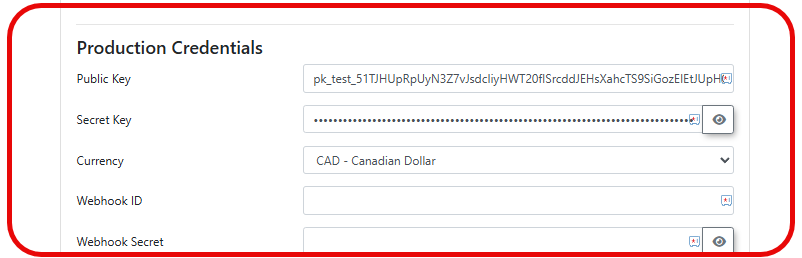](https://opscom.wiki/uploads/images/gallery/2026-07/gctimage.png)Only enter testing credentials into the configuration fields until you are completely ready for your users to have live access to this payment method.
### Stripe Web hook Configuration Webhooks are absolutely essential for Stripe to notify OPSCOM regarding payment successes or refund completions. Without these webhooks correctly configured, the system will not communicate any transaction information back to OPSCOM. ### Register Your Endpoint To begin receiving notifications, you must define exactly where Stripe should send the transaction data. 1. Navigate to your Stripe Dashboard, click **Developers**, and select **Webhooks**. 2. Click the **Add Destination** button to open the configuration window. 3. Select the specific event types the system needs to process (**payment\_intent.succeeded**, **payment\_intent.payment\_failed**, and **payment\_intent.canceled**). 4. Click the **Continue** button. 5. Select **Webhook endpoint** and click the **Continue** button. 6. Enter a descriptive name for the webhook. 7. Enter the specific URL provided by OPSCOM into the **Endpoint URL** field (e.g., https://\[CLIENTID\].ops-com.com/api/system/payments/stripe/callback). ### Retrieve Your Signing Secret Once the endpoint is created, Stripe generates a unique security key to verify that the data sent to your server is authentic. 1. Locate the **Signing secret** section on the summary page for your newly created webhook. 2. Click the **Reveal** button to display the string (which typically begins with the prefix whsec\_). 3. Copy this entire string and navigate back to your OPSCOM payment settings. 4. Paste the copied secret into the **Webhook Secret** field. 5. Copy the **Destination ID** provided by Stripe. 6. Paste the ID into the **Webhook ID** field to ensure all incoming data is securely verified. [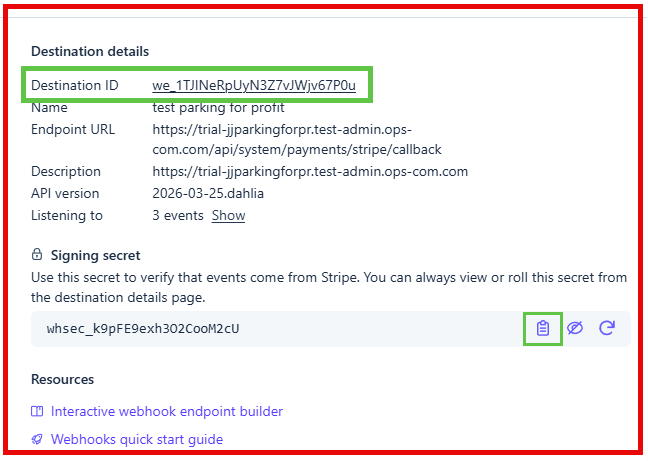](https://opscom.wiki/uploads/images/gallery/2026-07/bshimage.png)Ensure that your **Webhook Secret** is correctly matched between Stripe and OPSCOM to prevent pending status errors on completed payments.
## Using this Feature The checkout process is optimized for both web portal users and administrators using handheld devices in the field. ### Web Portal Transactions 1. Click the **Pay with Credit Card** button when you reach the final stage of a transaction to open the secure payment form. 2. Enter the required credit card details into the form. 3. Click the **Submit Payment** button to complete the purchase. ### Handheld App Transactions 1. Tap **Checkout** to open the payment summary within the OPSCOM for Android app. 2. Tap **Select Payment Method** and choose **Stripe**. 3. Tap and Hold the **Process Payment** button to finalize the transaction. ### Managing Transactions and Reports Administrators can seamlessly review all processed payments and manage financial returns through the standard reporting interfaces. 1. Hover over **Financial Management**, click **Transaction Reports**, then **Recent Payments**. 2. Review the **Status** column to determine the current state of each payment, and the **Payment Date** column to see exactly when the transaction occurred. 3. Click the **View Details** icon next to a specific transaction to see the full Stripe receipt. 4. Click the **Refund Payment** button to initiate a return of funds. 5. Click the **Confirm Refund** drop-down menu and choose **Full Refund** to finalize the reversal. --- ## Best Practices and Considerations - **Perform thorough deployment testing:** **Organizations should always keep Live Mode disabled during the initial deployment until all testing is verified with test credit card information.** It is highly recommended to process a single, small test transaction in Live Mode using a real card before making the payment option available to the general public. - **Maintain strict security requirements:** **Maintaining the security of your financial environment is critical.** You should never share your Stripe secret key or webhook secret with anyone, nor should you store it in plain text outside of the secure administration configuration screens. - **Rotate security keys regularly:** **Change the signing secret periodically.** Additionally, ensure you only subscribe to the strictly required event types within Stripe to minimize unnecessary data transmission.The Authorize.net Authorize.JS payment gateway integration enables secure payment processing within the checkout workflow via an embedded iframe. This feature allows OPSCOM administrators to collect customer payments directly while maintaining SAQ A level PCI DSS compliance. This article provides step-by-step instructions for configuring Authorize.net API credentials, setting up webhooks, and verifying the integration.
## Setup and Configuration **OPSCOM Payment Type Creation** First, we need to create a new payment type for this integration.Do not grant access to any user types until credential entry and webhook configuration are fully verified.
## Authorize net API Credentials Generation The next steps will detail how to link your OPSCOM installation to your payment provider account, with Authorize.net. - Log into the **Authorize.net Merchant Interface** using a Sandbox account for staging tests or a Live account for production. [](https://opscom.wiki/uploads/images/gallery/2026-08/iSmimage.png)Authorize.net credentials cannot be viewed again after generation. If keys are lost, new ones must be generated.
## Finishing OPSCOM Payment Type ConfigurationThe Managing Dispatch Categories feature allows administrators to define and classify the types of dispatchable events or incidents, such as parking incidents, security alerts, or maintenance requests. Its primary purpose is to organize dispatch logs, streamline response protocols, and enable accurate reporting on the nature of dispatched activities. This article is intended for OPS-COM administrators responsible for configuring dispatch operations and incident reporting.
## Setup and Configuration This feature is a core administrative tool used to establish the event categorizations available to dispatch personnel. **Admin Side:** Administrators must have the appropriate system role permissions enabled to access the dispatch configuration menus and manage category lists. ## Using this Feature Administrators can use the following instructions to navigate the management interface to seamlessly add or edit dispatch categories. ### Accessing the Management Interface 1. Hover over **System Administration** and click **Dispatch** then **Manage Dispatch Categories**. ### Adding Dispatch Categories 1. Click the **Add Dispatch Category** button. 2. Enter a descriptive title in the **Name** field. 3. Click the **Save Changes** button to add the category to the system. ### Editing Dispatch Categories 1. Click the **Edit** button next to the specific category you wish to modify. 2. Make the necessary updates to the category name. 3. Click the **Save Changes** button to apply your updates.When you make changes to a dispatch category that is currently in use by records in the system, these updates will be reflected across the entire system for all associated dispatch logs and related historical data.
--- ## Best Practices and Considerations - **Define comprehensive classifications:** **Define categories that accurately represent all types of dispatchable events your organization handles.** Providing a complete list ensures accurate documentation of any scenario your dispatchers might encounter. - **Maintain clear and concise names:** **Use descriptive and unambiguous names for your categories.** This facilitates quick understanding and accurate logging by dispatch personnel, especially during high-stress situations. - **Consider the impact on reporting:** **Remember that dispatch categories are fundamental for generating reports on incident types, call volumes, and resource allocation.** Accurate categorization ensures meaningful and actionable data analysis for management. - **Train your staff:** **Ensure that dispatch personnel are well-trained on selecting the correct categories for various events.** Consistent application across your team maintains overall data quality and reporting reliability. - **Conduct regular reviews:** **Periodically review your dispatch categories to ensure they remain relevant to your current operations.** As your operational needs and incident types evolve, your active categories should be updated to match. # Managing Dispatch SourcesThe Dispatch Sources feature allows administrators to define and categorize the origins of dispatch calls or events, such as a phone call, email, or an officer-initiated alert. Its primary purpose is to enable better tracking of incident intake, facilitate efficient routing to relevant categories, and enhance reporting on the origins of dispatch activities. This article is intended for OPS-COM administrators responsible for configuring dispatch workflows and incident tracking.
## Setup and Configuration This feature is a core administrative tool used to establish the intake tracking metrics for dispatch operations. **Admin Side:** Administrators must have the appropriate system role permissions enabled to access the dispatch administration menus and manage dispatch sources. ## Using this Feature The **Dispatch Category Link Administration** page allows you to define where your dispatch calls originate from and seamlessly link them to relevant dispatch categories. ### Accessing the Management Interface 1. Hover over **System Administration**, click **Dispatch**, then click **Manage Dispatch Sources**. ### Adding a Dispatch Source 1. Click the **Add Dispatch Source** button. 2. Enter the origin name (e.g., Walk-In, Radio, or Internal Alert) into the **Name** field. 3. Select the categories that should be linked to this source from the connected drop-down menu. 4. Click the **Save Changes** button.If you want to link the source to all available categories, you can left-click on the first category and hold the CTRL key while clicking to select them all simultaneously.
### Editing a Dispatch Source 1. Click the **Edit** button next to the specific source you wish to modify. 2. Make the necessary changes to the source name or category links. 3. Click the **Save Changes** button to apply your updates. --- ## Best Practices and Considerations - **Establish comprehensive definitions:** **Define all common methods by which dispatch calls or alerts are received in your organization.** Accurately capturing options like Emergency Line, Non-Emergency Phone, Email, or Mobile App Submission provides a clearer picture of your incident intake. - **Implement logical category linking:** **Link each source to all relevant dispatch categories it might generate.** For example, a standard Phone Call source might reasonably link to Parking Incident, Security Alert, and Maintenance Request categories to streamline dispatcher workflows. - **Maintain data consistency:** **Ensure consistent use of defined dispatch sources by all personnel involved in dispatch activities.** Uniform data entry is vital to maintain accurate reporting and prevent administrative confusion. - **Leverage reporting value:** **Properly categorized dispatch sources are invaluable for generating reports on call volume and types of incidents by source.** This data allows management to identify long-term trends in how incidents are reported across the property. - **Conduct regular reviews:** **Periodically review your list of dispatch sources to ensure they remain current.** Regular audits guarantee the options available to dispatchers remain highly relevant to your evolving operational needs. # Stripe Connect SetupThe Stripe Connect integration allows organizations to securely process credit card transactions and manage refunds directly within the system. Its primary purpose is to enable one-time payments, secure card saving for renewals, and straightforward dispute management. This guide is for OPSCOM administrators who need to set up and process payments using Stripe.
## Setup and Configuration This feature requires configuration within the OPSCOM administration portal as well as the external Stripe developer dashboard. **Admin Side:** Administrators must have the appropriate system role permissions enabled to access the payments configuration menus and establish external integrations. ### Admin Portal Configuration Stripe Connect operates as a separate integration from Stripe Direct. You must configure a new Stripe Connect payment type rather than editing an existing standard Stripe setup. 1. Hover over **System Configuration**, click **Payments**, then **Setup Payment Types**. 2. Click the **Add Type** button. 3. Click the **Payment Provider** drop-down menu and choose **Stripe - Checkout (Connect).** 4. Name the payment type, select the applicable user types, and click the **Settings** tab. 5. Verify that the **Currency** setting is correct for your region (the default is US dollars). 6. Locate the **Connect Your Stripe Account** and enter your legal **Business Name** and **Country** in the required fields and click **Connect Stripe Account.** This next step details enrolment of your existing Stripe account with OPSCOM as a Connected Account.You should always keep **the webhook signing secret** and any other payment related API keys stored **securely** as if they are passwords, **for all payment providers.**
This next step can be complex, and if needed, OPSCOM Support offers complimentary enrolment assistance, email support@ops-com.com
## Required Webhook EventsThe **Subscribed webhook events** check is the fastest way to catch a webhook that is missing a newer event. If OPSCOM cannot read your endpoint, the row lists the full set of events to confirm by hand. It should list the specific event that is missing. Make sure all of them are properly included in the webhook. **If this is not done, the integration will not work.** Once you paste and save the Webhook Endpoint ID and Signing Secret in OPSCOM, they intentionally disappear from the UI for security purposes. To get them again, you will have to regenerate a new key, and put this new key into the payment type in OPSCOM. **SAVE THIS IN A PASSWORD KEEPER, FOR YOUR OWN CONVENIENCE AND SECURITY.** If you need to update them, simply paste the new keys over the blank fields and click the Save button again.
If the browser is closed or the network drops after submitting, the payment still finalizes. A background checker reconciles it within about a minute. This is specific to **Stripe Connect.**
## Managing Saved Cards ## Processing RefundsIn the image, I have put in a red box, the option that you should not use, and the two options to use are in the green box. Unless you have a reason to not notify Stripe about the refund, do not use the third option.
[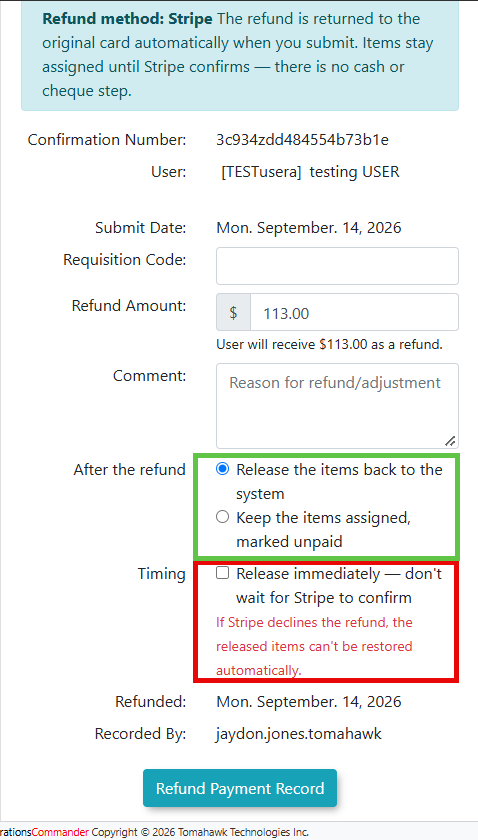](https://opscom.wiki/uploads/images/gallery/2026-09/SSKimage.png) ## Handling Chargebacks

