# Stripe Payment Provider Setup

<div _ngcontent-ng-c2426258411="" class="ng-tns-c2426258411-28" id="bkmrk-"><section class="processing-state_container is-gpi-avatar ng-tns-c2426258411-28 ng-trigger ng-trigger-processingStateShowHide ng-star-inserted is-done-processing" id="bkmrk--1"><div _ngcontent-ng-c2426258411="" aria-hidden="true" class="processing-state_details is-gpi-avatar ng-trigger ng-trigger-menuExpansion ng-tns-c2426258411-28 ng-star-inserted" id="bkmrk--2"></div></section></div><div _ngcontent-ng-c2362448710="" class="response-content ng-tns-c3088276128-27" id="bkmrk--3"></div><p class="callout info">This feature shows how to integrate with Stripe to process credit card payments directly within the system. Its primary purpose is to provide a secure and seamless checkout experience for users while simplifying financial reconciliation for operations. This article is intended for **OPSCOM administrators** responsible for financial setup.</p>

---

## Setup and Configuration

### Admin Portal

To begin the integration, an administrator must setup a payment type in OPSCOM, with will be linked to their Stripe account. This is handled through the central administration portal where you will input your unique credentials.

- Hover over **System Configuration &gt; Payments**, then click **Setup Payment Types**.
- Click **Add Type**.
- Click the **Payment Provider** drop-down menu and choose **Stripe.js** from the available options.

Once the provider is selected, you can **name the payment type**, **select applicable user types**, and then **go to the settings tab*.***

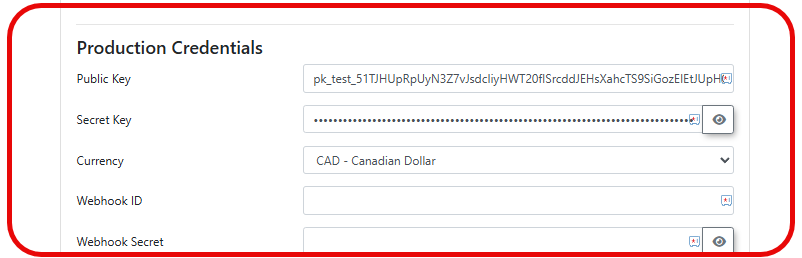
Now, you have to get the API keys for your Stripe account, and setup webhooks, which can be found on the stripe dashboard, which you should be logged into, from a previous step. Your **Publishable Key**, and **Secret Key**, can be found and copied here. You can click on these values to copy them, and paste them into the payment type settings in OPSCOM.

[![image.png](https://opscom.wiki/uploads/images/gallery/2026-04/scaled-1680-/VOiimage.png)](https://opscom.wiki/uploads/images/gallery/2026-04/VOiimage.png)

<p class="callout warning">You must provide your unique identification keys. Enter your Stripe public key into the **Publishable Key** field and your Stripe secret key into the **Secret Key** field. **<u>Only enter the Testing Credentials until you are ready for your users to have access to this.</u>**</p>

<span style="text-decoration: underline;">Take this time to ensure that the ***Currency*** setting is correct</span>, in the payment type settings (the default is US dollars). The next steps will be about populating the **Webhook ID** and **Webhook Secret** fields, in OPSCOM, with the correct information from your Stripe dashboard.

[![image.png](https://opscom.wiki/uploads/images/gallery/2026-04/scaled-1680-/gCTimage.png)](https://opscom.wiki/uploads/images/gallery/2026-04/gCTimage.png)

---

### Third-Party Webhook Configuration

Webhooks are essential for Stripe to notify OPSCOM regarding payment successes or refund completions.

<p class="callout warning">Without these Webhooks, the system **WILL NOT** communicate any transaction information to OPSCOM.</p>

<div class="my-4 rounded-lg overflow-x-auto overflow-y-hidden border border-gray-500/20 [&_thead_tr:first-child_th:first-child]:border-t-0 [&_thead_tr:first-child_th:first-child]:border-l-0 [&_thead_tr:first-child_th:last-child]:border-t-0 [&_thead_tr:first-child_th:last-child]:border-r-0 [&_tbody_tr:last-child_td:first-child]:border-b-0 [&_tbody_tr:last-child_td:first-child]:border-l-0 [&_tbody_tr:last-child_td:last-child]:border-b-0 [&_tbody_tr:last-child_td:last-child]:border-r-0 [&_thead_tr:first-child_th]:border-t-0 [&_tbody_tr:last-child_td]:border-b-0 [&_th:first-child]:border-l-0 [&_td:first-child]:border-l-0 [&_th:last-child]:border-r-0 [&_td:last-child]:border-r-0" id="bkmrk-sub-section-what-it-"><table class="min-w-full border-separate border-spacing-0"><thead><tr><th class="bg-gray-500/20 px-3 py-2 text-left font-medium leading-snug border border-gray-500/20">Sub-section</th><th class="bg-gray-500/20 px-3 py-2 text-left font-medium leading-snug border border-gray-500/20">What it covers</th></tr></thead><tbody><tr><td class="px-3 py-2 leading-snug border border-gray-500/20">**Register Your Endpoint**</td><td class="px-3 py-2 leading-snug border border-gray-500/20">Step-by-step Stripe Dashboard instructions to create an event destination, select event types, and enter the OPSCOM webhook URL</td></tr><tr><td class="px-3 py-2 leading-snug border border-gray-500/20">**Retrieve Your Signing Secret**</td><td class="px-3 py-2 leading-snug border border-gray-500/20">How to reveal and copy the `whsec_` secret, and destination ID into OPSCOM</td></tr><tr><td class="px-3 py-2 leading-snug border border-gray-500/20">**Test Your Endpoint**</td><td class="px-3 py-2 leading-snug border border-gray-500/20">Stripe CLI commands to forward live test events locally before going live</td></tr><tr><td class="px-3 py-2 leading-snug border border-gray-500/20">**Secure Your Endpoint**</td><td class="px-3 py-2 leading-snug border border-gray-500/20">Signature verification explanation and IP allowlisting recommendation</td></tr><tr><td class="px-3 py-2 leading-snug border border-gray-500/20">**Manage Event Delivery**</td><td class="px-3 py-2 leading-snug border border-gray-500/20">Delivered/Pending/Failed status descriptions and how to manually resend events</td></tr></tbody></table>

</div>### Register Your Endpoint

To begin receiving notifications, you must define where Stripe should send transaction data. In your Stripe Dashboard, click on **Developers** (bottom left) and select **Webhooks**.

[![image.png](https://opscom.wiki/uploads/images/gallery/2026-04/scaled-1680-/iIBimage.png)](https://opscom.wiki/uploads/images/gallery/2026-04/iIBimage.png)

Click the **Add Destination** button to open the configuration window.

You must select the specific event types the system needs to process. For a standard setup, ensure you select **payment\_intent.succeeded** for successful payments, **payment\_intent.payment\_failed** for failed payments, and **payment\_intent.canceled** for canceled payments. Now click Continue.

[![image.png](https://opscom.wiki/uploads/images/gallery/2026-04/scaled-1680-/5dlimage.png)](https://opscom.wiki/uploads/images/gallery/2026-04/5dlimage.png)

 Select **Webhook endpoint**, and click continue again.

[![image.png](https://opscom.wiki/uploads/images/gallery/2026-04/scaled-1680-/eGjimage.png)](https://opscom.wiki/uploads/images/gallery/2026-04/eGjimage.png)

Give the webhook a descriptive name, and in the **Endpoint URL** field, enter the specific URL provided by OPSCOM, in this format: `https://[CLIENTID].ops-com.com/api/system/payments/stripe/callback`

### Retrieve Your Signing Secret

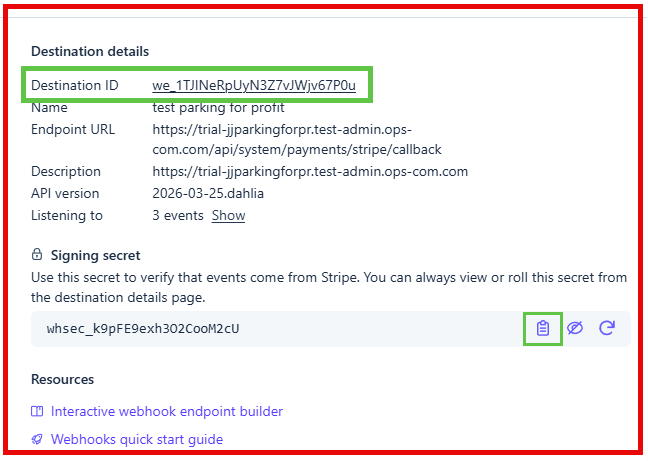
Once the endpoint is created, Stripe generates a unique security key to verify that the data sent to your server is authentic. On the summary page for your newly created webhook, locate the **Signing secret** section.

[![image.png](https://opscom.wiki/uploads/images/gallery/2026-04/scaled-1680-/BsHimage.png)](https://opscom.wiki/uploads/images/gallery/2026-04/BsHimage.png)

Click **Reveal** to display the string, which typically begins with the prefix `whsec_`.

Copy (***highlighted in a <span style="color: rgb(22, 145, 121);">green</span> box in the picture above!***) this entire string and navigate back to your OPSCOM **Payment Gateway** settings. Paste the secret into the **Webhook Secret** field. This handshake ensures that OPSCOM only processes legitimate requests from Stripe and ignores any unauthorized attempts to alter transaction data.

Once the endpoint is saved, you'll see the **<span style="color: rgb(0, 0, 0); background-color: rgb(191, 237, 210);">Signing secret</span>**, and <span style="background-color: rgb(191, 237, 210); color: rgb(0, 0, 0);">**Destination ID**</span> provided by ***<span style="background-color: rgb(191, 237, 210); color: rgb(0, 0, 0);">Stripe</span>***. Return to your *<span style="text-decoration: underline;"><span style="background-color: rgb(248, 202, 198); color: rgb(186, 55, 42); text-decoration: underline;">**OPSCOM**</span></span>*<span style="color: rgb(186, 55, 42);"> </span>configuration and paste the <span style="color: rgb(0, 0, 0); background-color: rgb(191, 237, 210);">**Signing secret**</span> into the <span style="text-decoration: underline;"><span style="background-color: rgb(248, 202, 198); color: rgb(186, 55, 42); text-decoration: underline;">**Webhook Secret**</span></span> field, and the <span style="background-color: rgb(251, 238, 184);"><span style="color: rgb(0, 0, 0); background-color: rgb(191, 237, 210);">**Destination ID**</span><span style="background-color: rgb(255, 255, 255);"> </span></span>into the <span style="text-decoration: underline;"><span style="color: rgb(186, 55, 42); text-decoration: underline;">**<span style="background-color: rgb(248, 202, 198);">Webhook ID</span>**</span></span> field to ensure all incoming data is securely verified.

<p class="callout warning">Ensure that your **Webhook Secret** is correctly matched between Stripe and OPSCOM to prevent "Pending" status errors on completed payments.</p>

[![image.png](https://opscom.wiki/uploads/images/gallery/2026-04/scaled-1680-/E3jimage.png)](https://opscom.wiki/uploads/images/gallery/2026-04/E3jimage.png)

---

## User Experience and Handheld Use

### Web Portal Transactions

Users will interact with the Stripe interface during their standard checkout process. When they reach the final stage of a transaction, they simply click the **Pay with Credit Card** button to open the secure payment form. After they enter the credit card details into the form, they click the **Submit Payment** button to complete the purchase.

### Handheld App — *OPSCOM Parking Enforcement*

For administrators or staff using handheld units in the field, the process is optimized for touch interaction. Tap **Checkout** to open the payment summary within the app. From there, tap **Select Payment Method** and choose **Stripe**. To prevent accidental charges, the final step requires you to tap and hold the **Process Payment** button to finalize the transaction.

## Managing Transactions and Reports

Administrators can review all processed payments and manage financial returns through the standard reporting interfaces. Hover over **Financial Management** and click **Transaction Reports** then **Recent Payments** to view a live list of activity.

Within this report, the **Status** column displays the current state of each payment, while the **Payment Date** indicates exactly when the transaction occurred. If you need more detail, click the **View Details** icon next to a specific transaction to see the full Stripe receipt.

If a correction is needed, click the **Refund Payment** button to initiate a return of funds. You will then click the **Confirm Refund** drop-down menu and choose **Full Refund** to finalize the reversal.

<p class="callout info">You can quickly find a specific transaction by using the search bar to enter a user's name or a specific receipt order ID/Confirm Code.</p>

---

## <span style="color: rgb(22, 145, 121);">Best Practices and Considerations</span>

- <span style="color: rgb(22, 145, 121);">**Deployment Testing** Organizations should always keep **Live Mode** disabled during the initial deployment until all testing is verified with test credit card information. It is highly recommended to process a single, small test transaction in **Live Mode** using a real card before making the payment option available to the general public.</span>
- <span style="color: rgb(22, 145, 121);">**Security Requirements** Maintaining the security of your financial environment is critical. You should never share your **Stripe Secret Key** or **Webhook Secret** with anyone or store it in plain text outside of the secure administration configuration screens.</span>
- <span style="color: rgb(22, 145, 121);">**Change the signing secret periodically**, and only subscribe to required event types.</span>

<div _ngcontent-ng-c2362448710="" class="response-content ng-tns-c3088276128-27" id="bkmrk--16"><div _ngcontent-ng-c1098760420="" class="container"><div _ngcontent-ng-c1840272799="" aria-busy="false" aria-live="polite" class="markdown markdown-main-panel enable-updated-hr-color" dir="ltr" id="bkmrk--17" inline-copy-host=""></div></div></div>