Violations Reports
- Violations by Pay Type by Month Report
- List Overdue Report
- Summary Report by Officer
- Violations by Officer Report
- Paid Violations Summary by Type Report
- Violations by Location/Officer Report
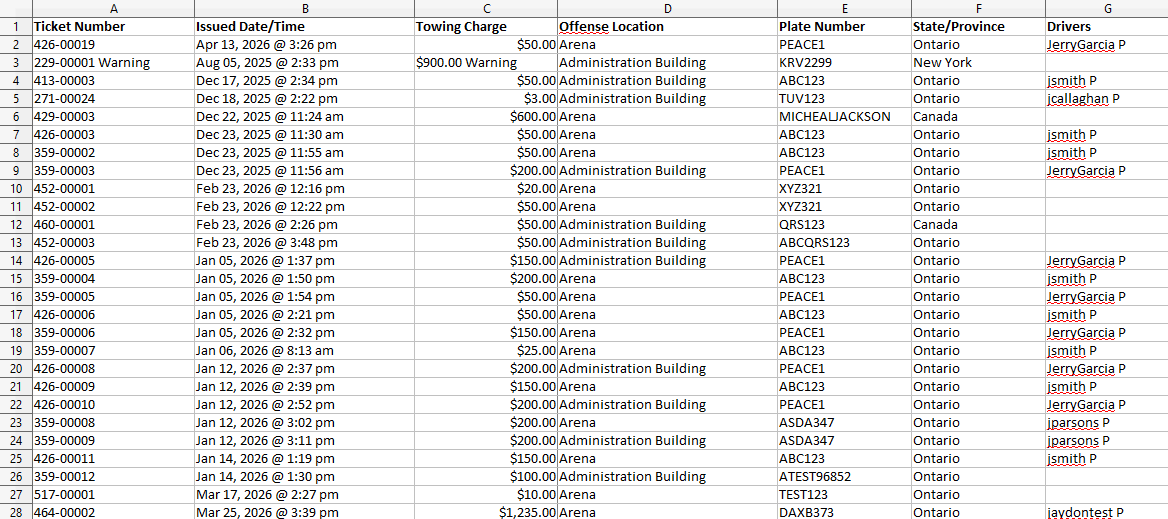
- Towed Vehicles Report
Violations by Pay Type by Month Report
Running the Report
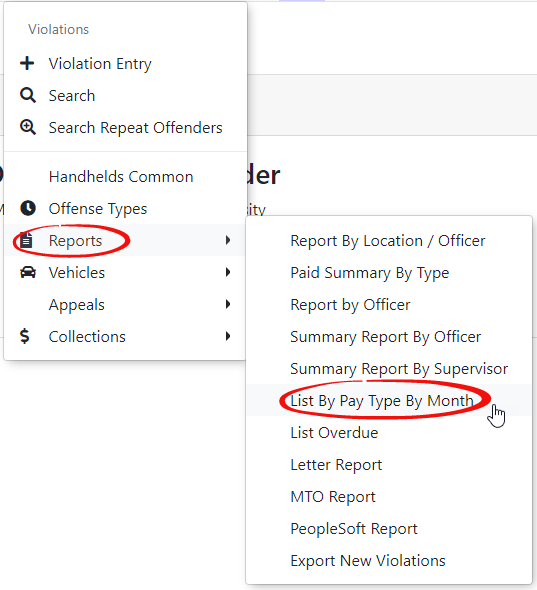
To begin go to the Violations menu and hover over Reports. Select List By Type By Month Report.
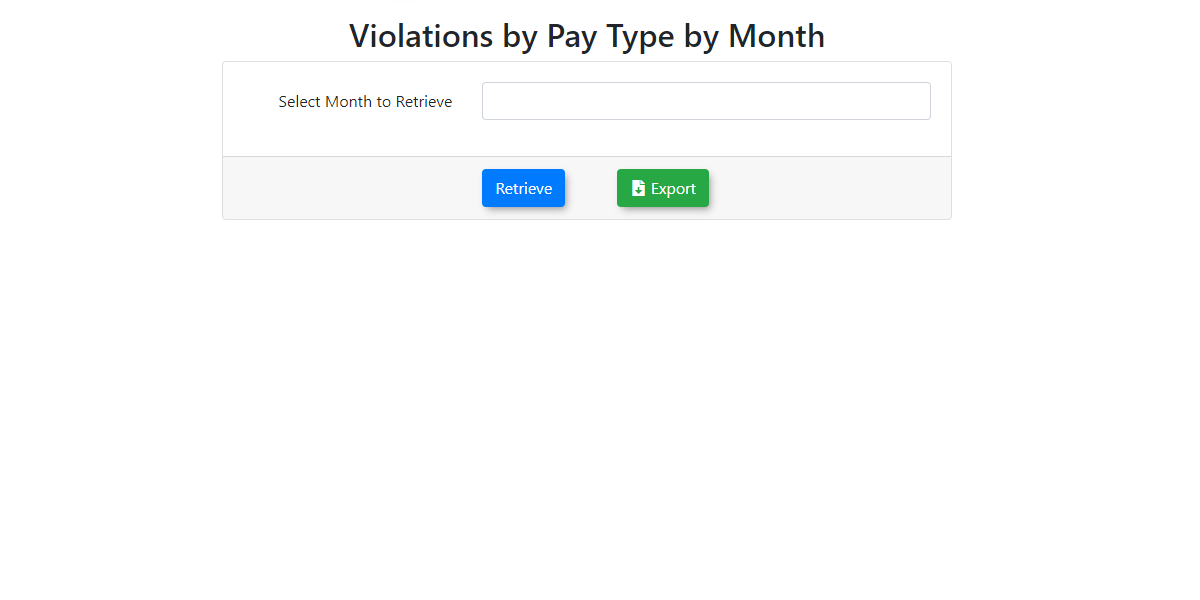
The Violations by Pay Type by Month screen opens.
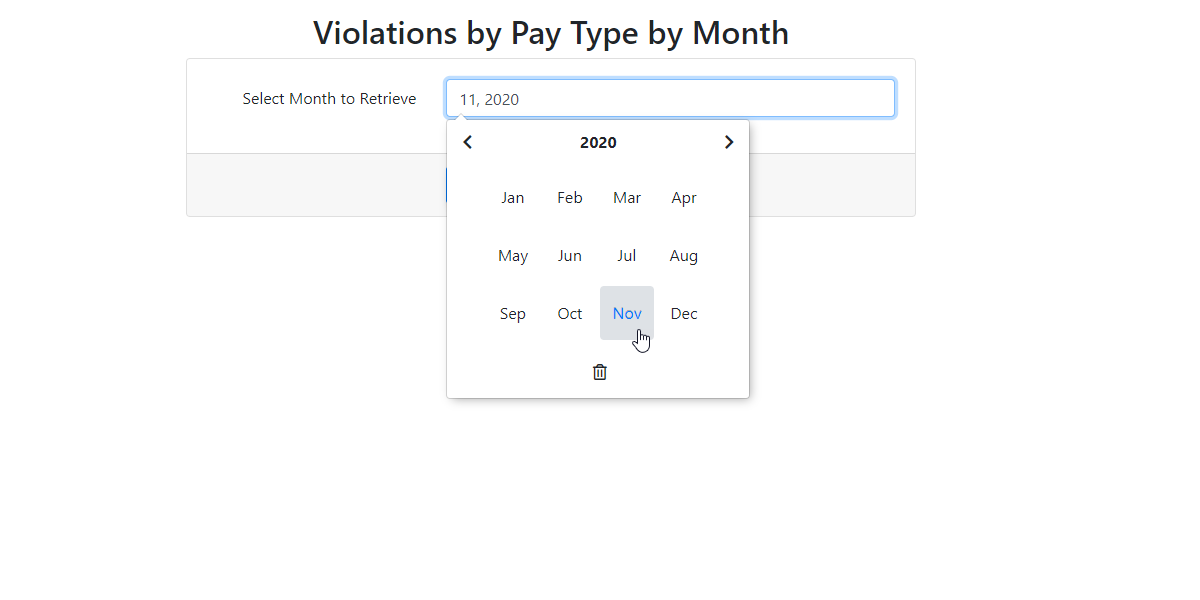
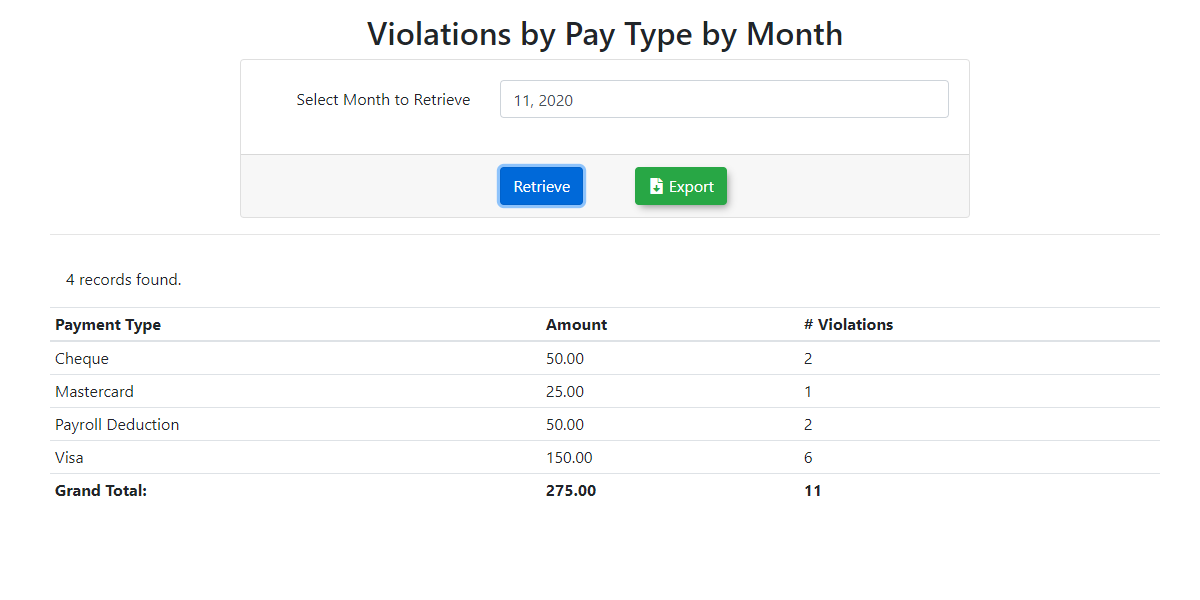
Select the month you wish to report on. In our example we will look at November of 2020. Click on Retrieve to continue.
The resulting report will display onscreen.
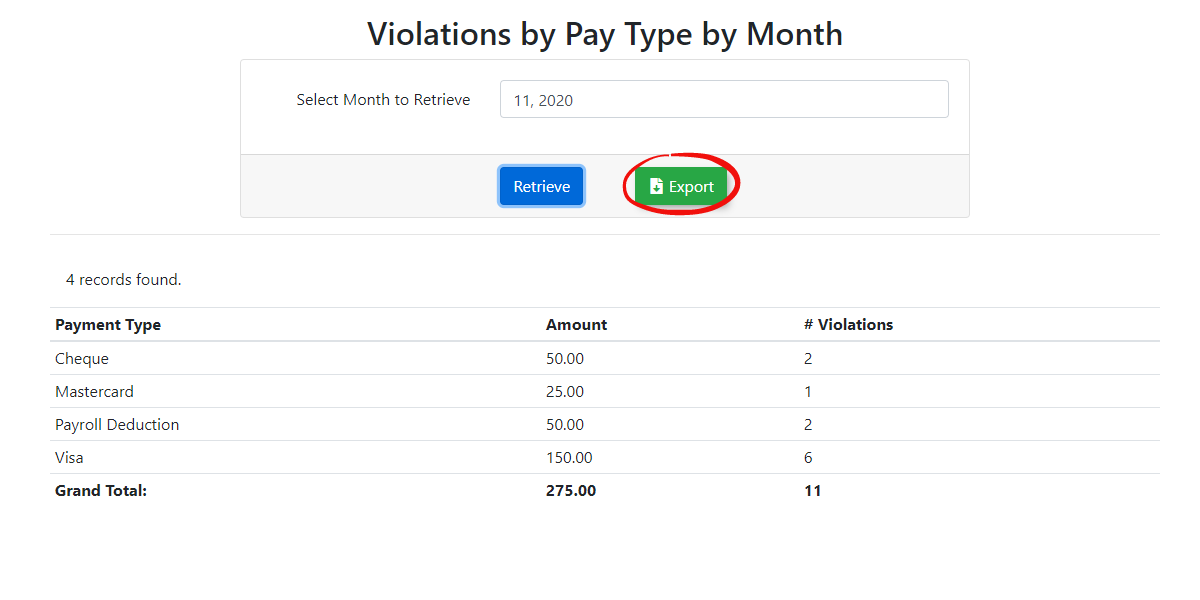
The report may also be exported as an excel file.
List Overdue Report
Accessing the Report
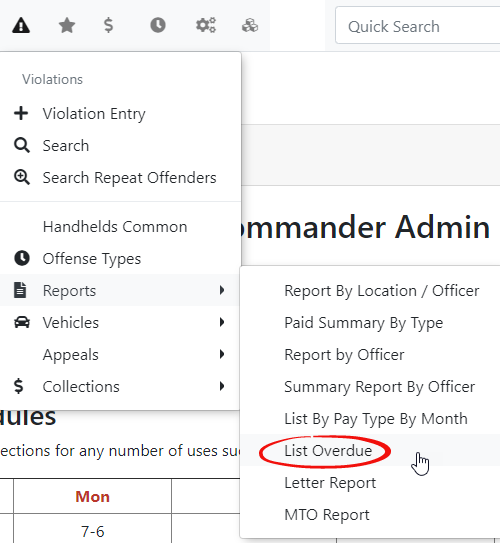
From the Violations menu hover over Reports and click the List Overdue menu item to access the Overdue Violation Payments report.
The Overdue Violation Payments screen is displayed.
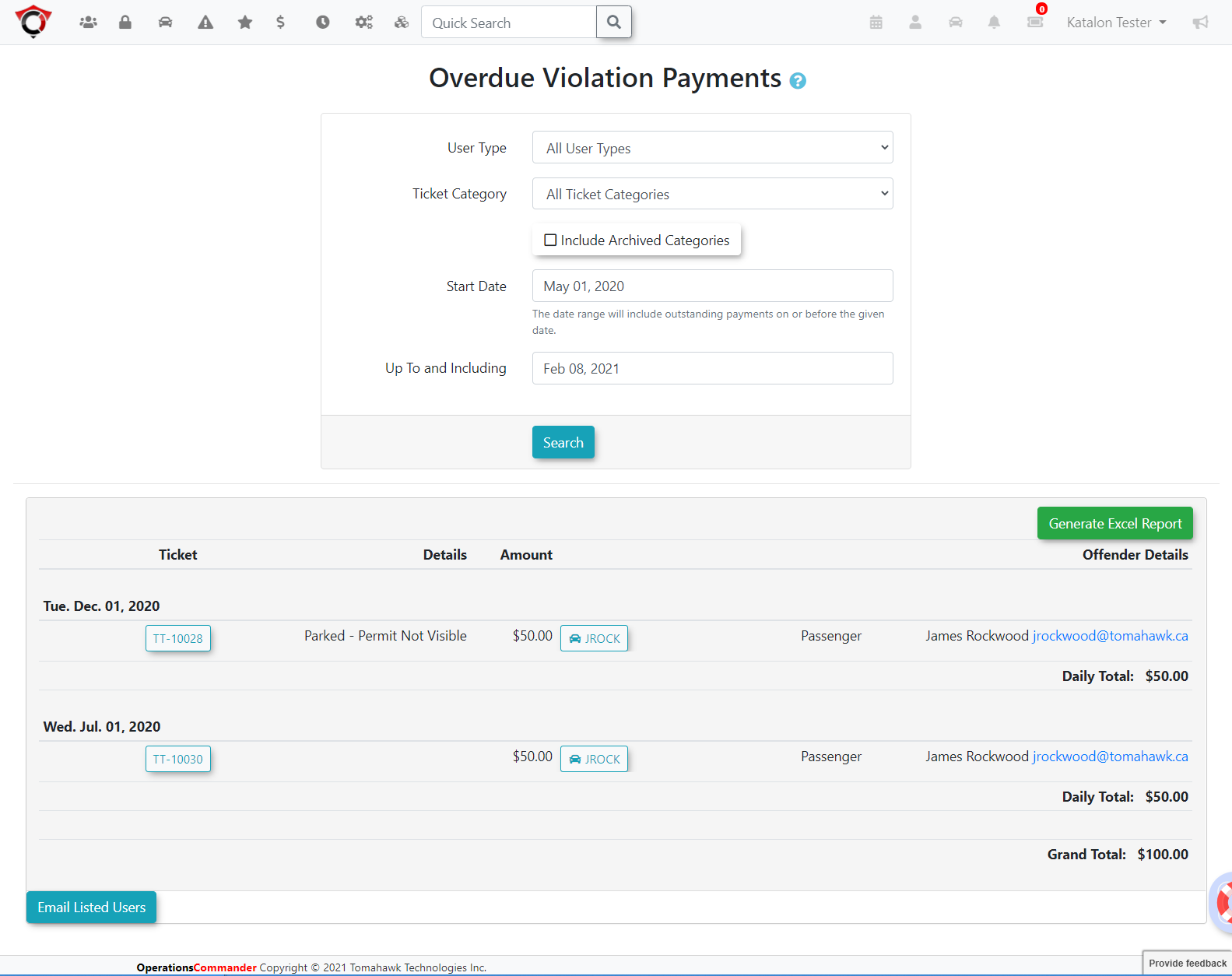
Enter your search criteria and click List Overdue Records. In this case we are looking at violations between May1st 2020 and February 8th 2021
The report will appear at the bottom of the screen with the violation number, details, amount, and offender details.
Emailing Users
You can click on the user email address to email users directly related to their overdue violations.
You can also select Email Listed Users at the bottom of the report to send an email to all users on the report.
Generating an Excel Report
Click Generate Excel Report to create an excel document for your records or further manipulation.
Summary Report by Officer
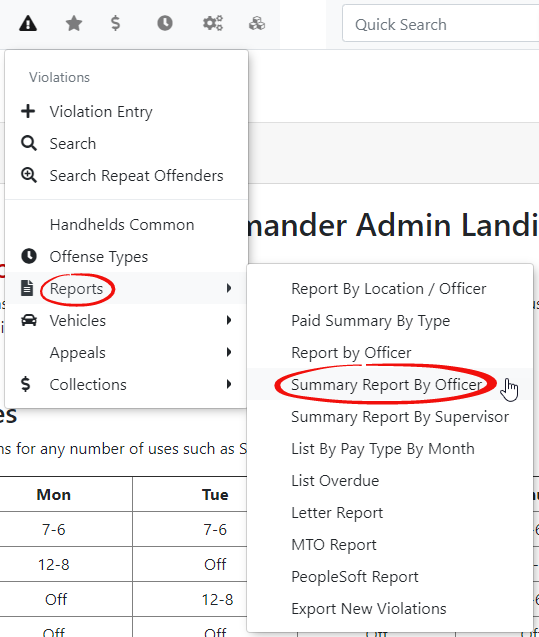
1. Hover over the Violations icon and hover over Reports. Click on Summary Report by Officers in the drop down menu.
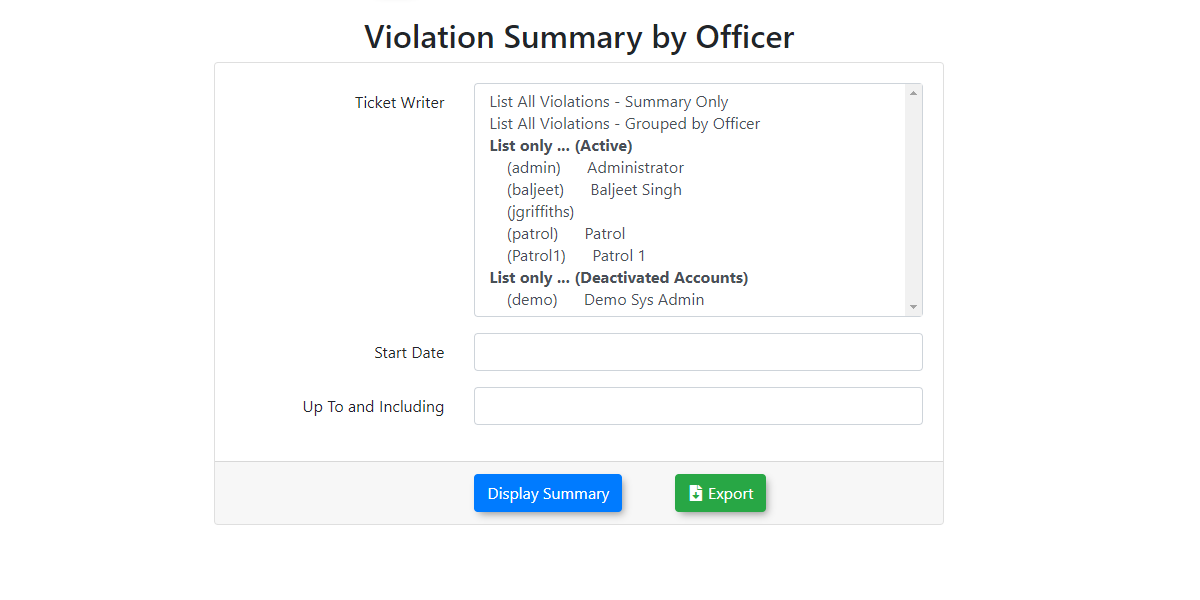
2. The Violation Summary by Officer screen is displayed. Select your Ticket Writer and date parameters for the search.
You can search individual officers or select either one of the full list options: Summary Only or Group led By Officer
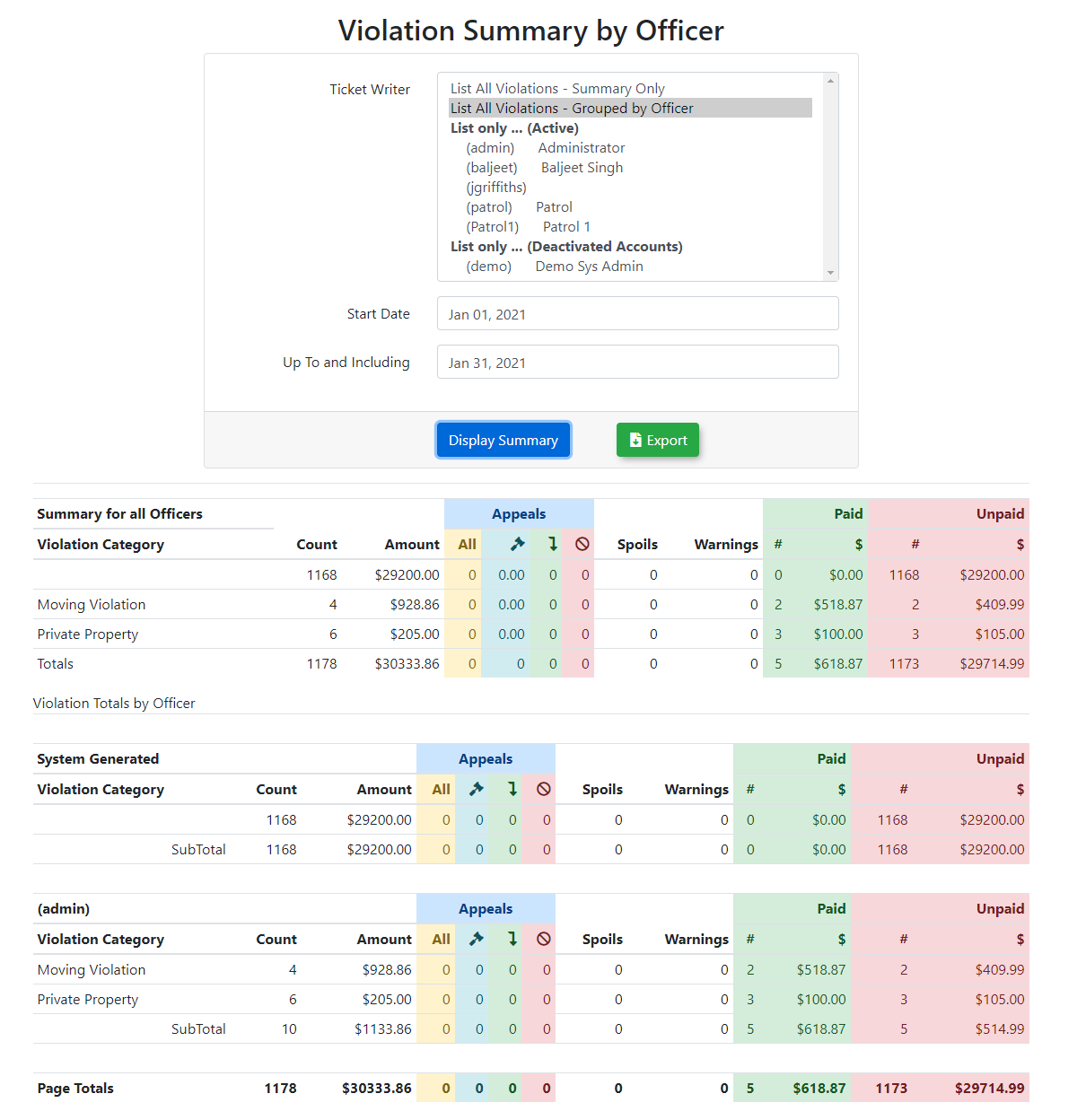
Click Display Summary and the report will appear at the bottom of the screen.
The report can also be exported to Excel. To do so click on the Export button.
The report will display based on your search criteria.
Violations by Officer Report
Using the Report
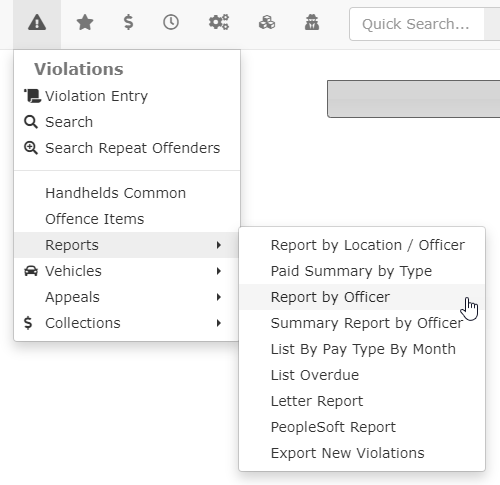
Hover over Violations and click Reports, Report by Officers.
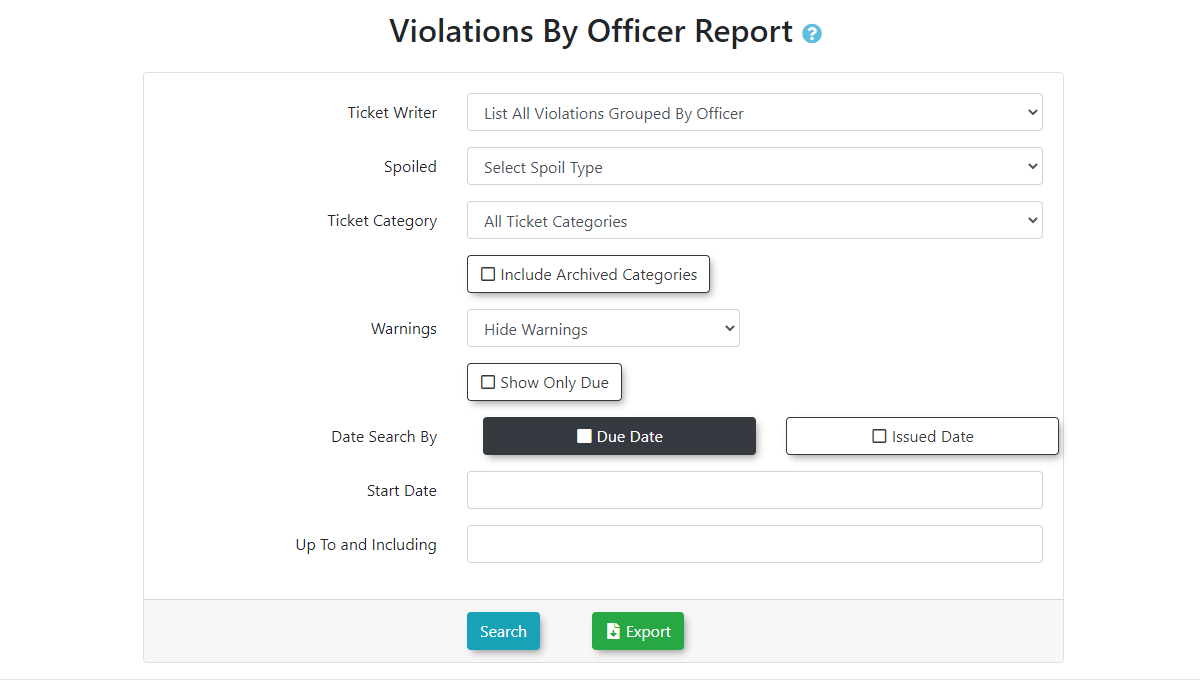
The Violations by Officer screen is displayed. Select your parameters for the search.
Search Criteria include:
Ticket Writer: You can select a specific officer or List all violations grouped by officer
Spoiled: Select a spoiled state
Ticket Category: Select a specific ticket category such as Private Property
Include Archived Categories: Toggle the item on to apply the search filter
Warnings: Select to hide, include, or show warnings only
Show Only Due: Toggle the item on to apply the search filter
Date Search By: Select either the Due Date or the Issued Date
Start Date and Up To and Including: Set the date range you wish to report on
You can then click Search to view the report onscreen or click Export to download the report as an excel document.
The report will appear at the bottom of the screen.
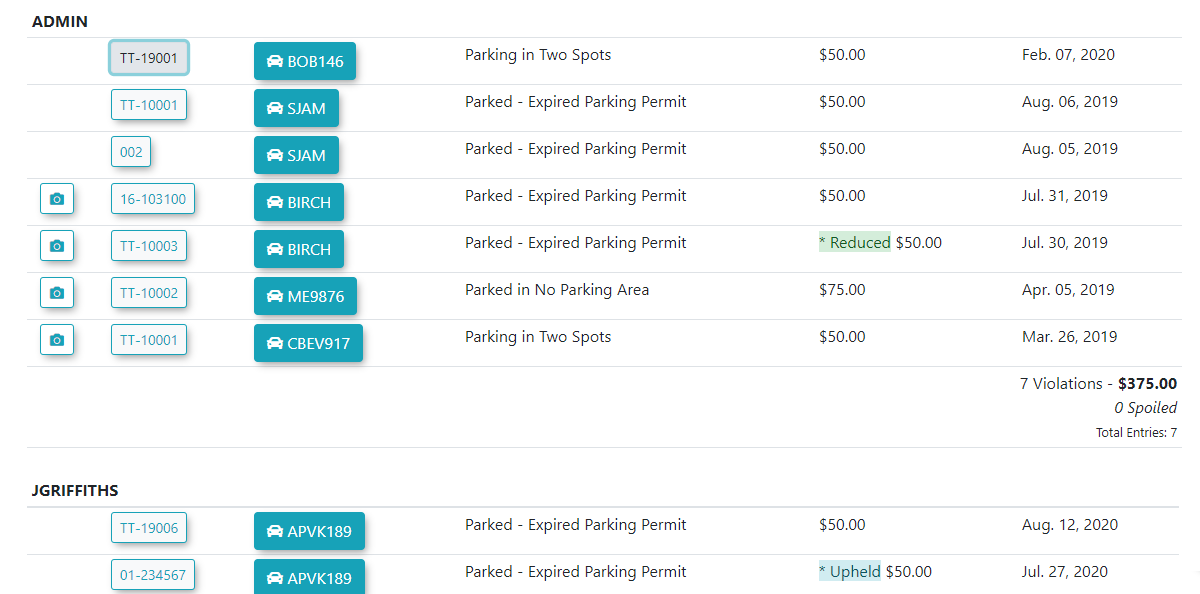
If you wish to view more information about each violation, click on the violation number. If you wish to view the pictures associated with a violation click on the Camera icon.
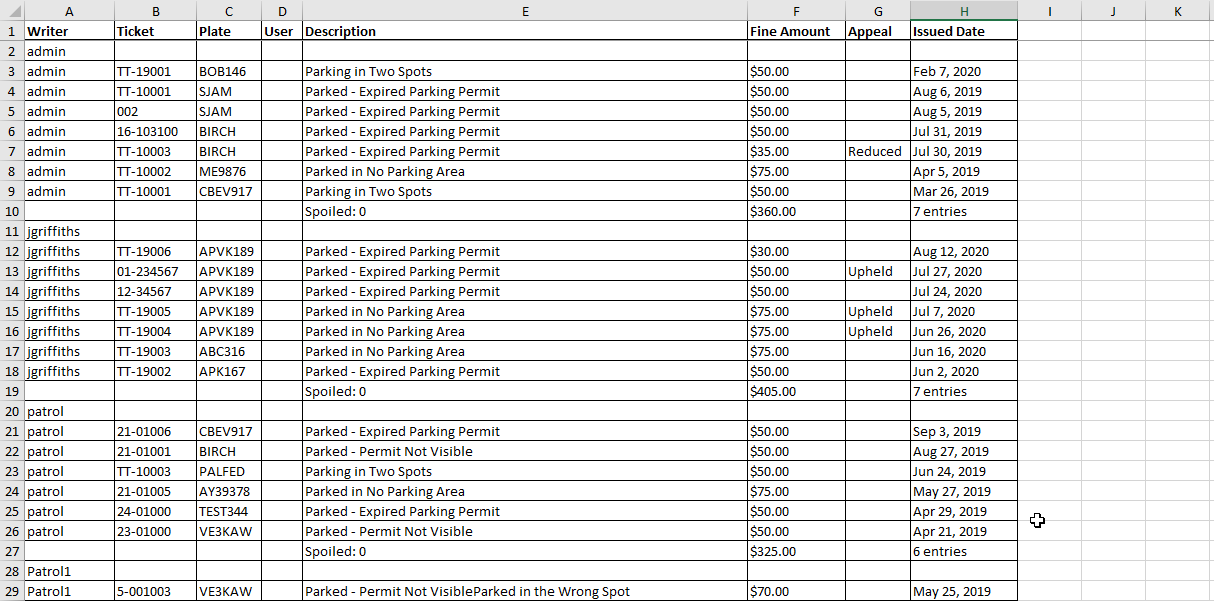
Exporting the Report
You can export the information to a .csv file and manipulate the data in Excel. Click Export to download the file.
Paid Violations Summary by Type Report
Accessing the Report
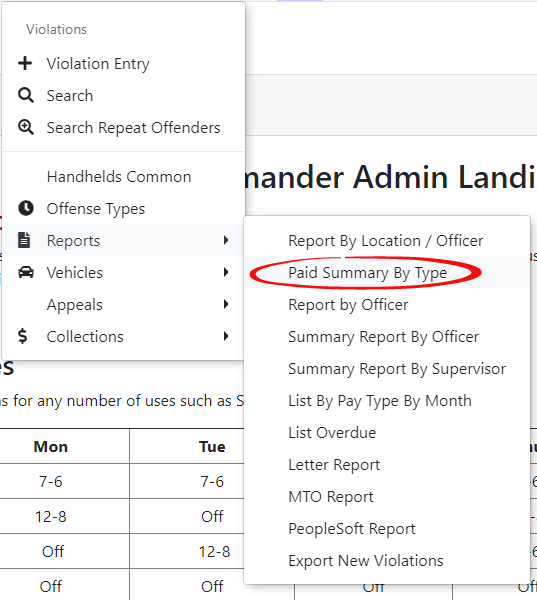
Hover over the Violations icon and click Paid Summary by Type.
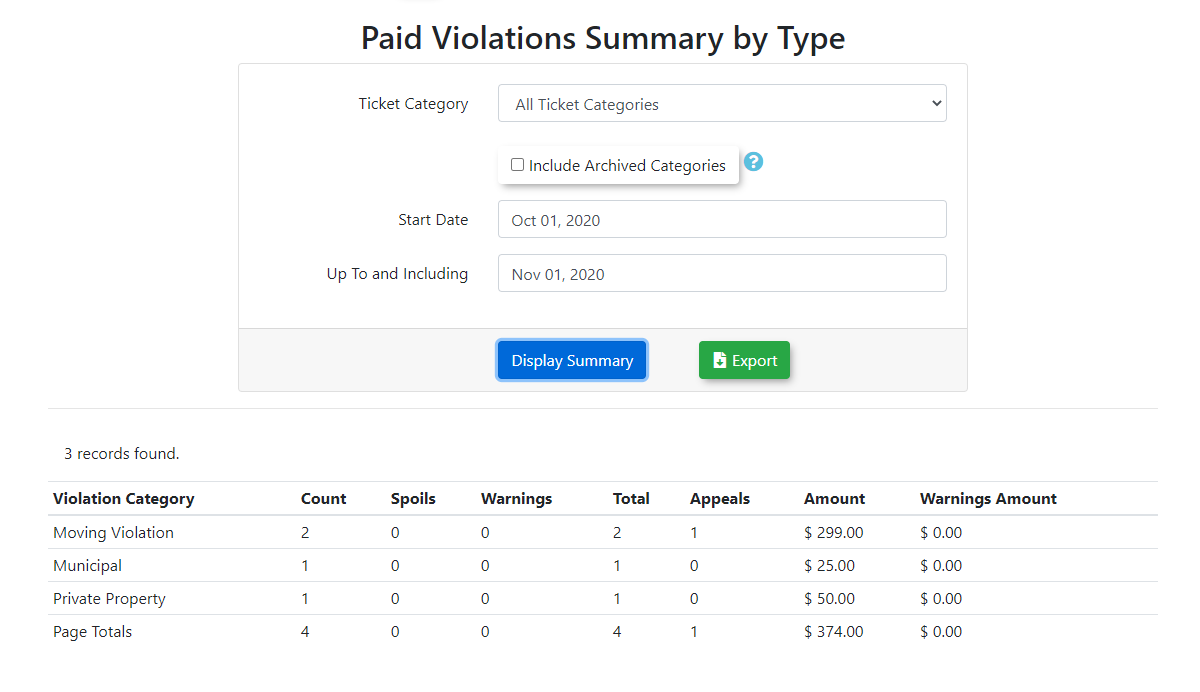
The Paid Violations Summary by Type screen is displayed. Select your date parameters for the search.
Click Display Summary and the report will appear at the bottom of the screen.
Violations by Location/Officer Report
This article outlines how to generate the Violations by Location and Officer report. This report allows OPS-COM administrators to analyze enforcement activities by summarizing violation data based on specific locations and the officers issuing the citations within a selected date range.
Using the Report
- Go to Violations, then Reports, and click Report by Location / Officer.
The Violation Summary by Location / Officer screen is displayed. Select your date parameters for the search, and select whether the date you enter is for the violations Issued date, or the violations Paid date (all unpaid will be excluded):
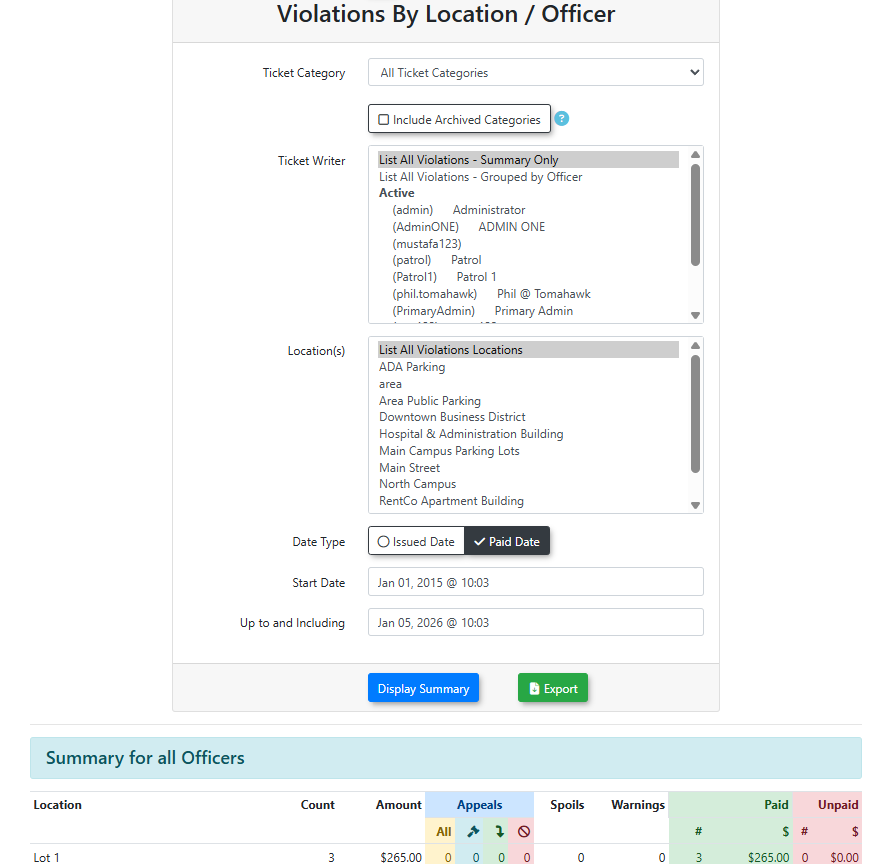
Click Display Summary and the report will appear at the bottom of the screen.
Key Information Displayed
Once generated, the report typically categorizes data to help administrators visualize:
-
Location Stats: The number of violations issued in specific lots or zones.
-
Officer Stats: The number of violations issued by specific enforcement officers within those locations.
Best Practices and Considerations
- When selecting your date parameters, keeping the range concise (e.g., monthly or quarterly) can help identify specific trends and ensure the report generates quickly.
-
Performance Review: Use this report during performance reviews to discuss enforcement coverage with officers.
-
Resource Allocation: Analyze location data to determine if specific parking zones require more or less enforcement frequency based on violation volume.
Towed Vehicles Report
Using the Report
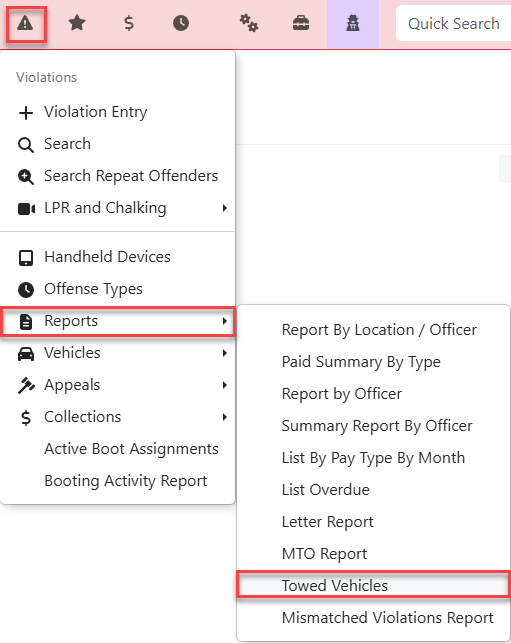
Hover over Violations and then Reports, then click Towed Vehicles.
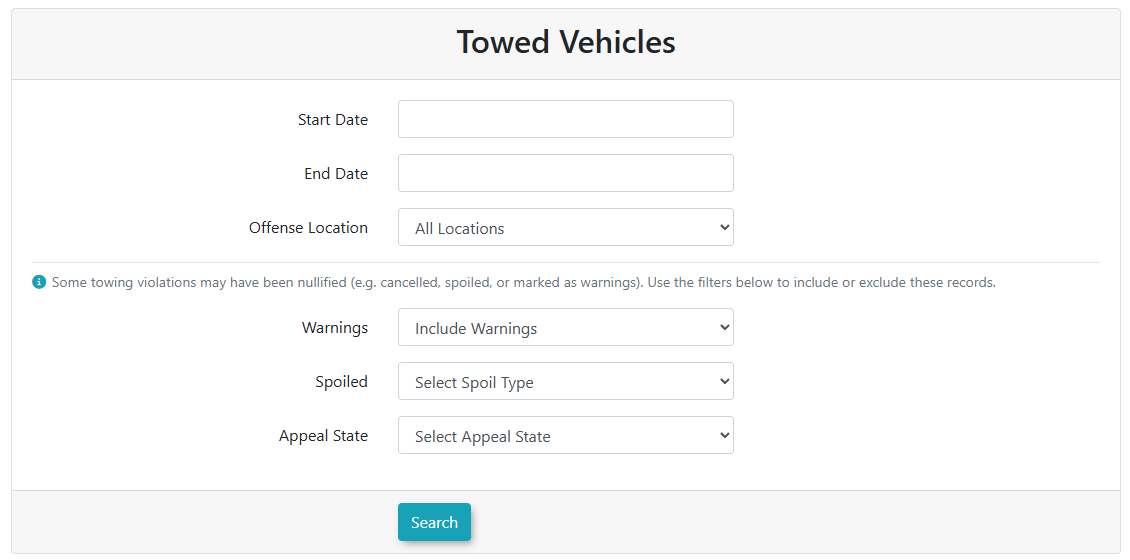
The Towed Vehicles screen is displayed. Select your parameters for the search.
Search Criteria include:
-
Start Date and End Date: Set the date range you wish to report on (up to and including the end date).
-
Offense Location: Filter the results to a specific lot or area, or select "All Locations".
-
Warnings: Choose to hide, include, or show only warnings that resulted in a tow.
-
Spoiled: Filter by specific "Spoil Types" to include or exclude nullified records.
-
Appeal State: Filter based on the current status of the violation appeal (e.g., Pending, Upheld, Canceled).
Click Search to view the report results onscreen.
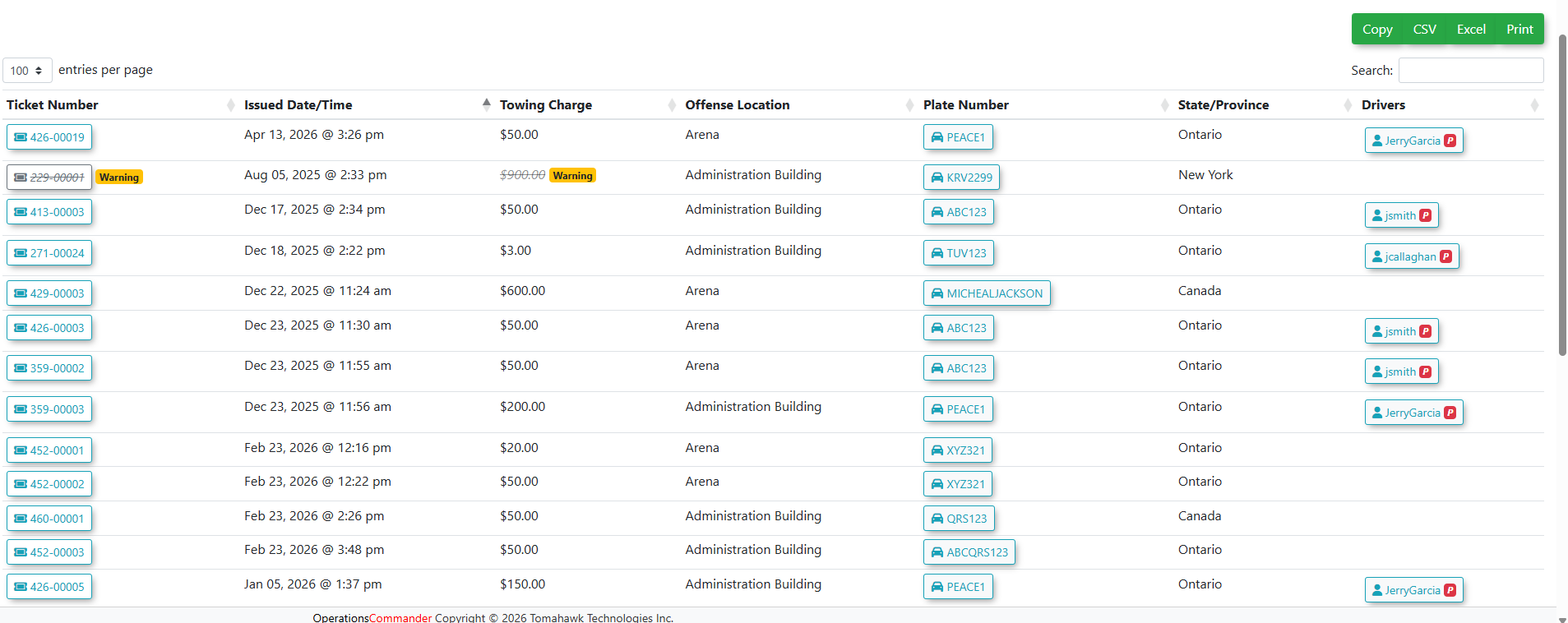
The report will appear at the bottom of the screen. The results will only include violations where the "Vehicle Towed" flag is set.
The report displays:
-
Ticket Number: Click the ticket number to view full violation details.
-
Issued Date/Time: The exact timestamp the violation was recorded.
-
Towing Charge: The specific fee associated with the tow.
-
Offense Location: The zone where the vehicle was towed from.
-
Plate Number: The license plate of the towed vehicle.
-
State/Province: The registered region of the vehicle.
- Drivers: Displays the name of the user associated with the vehicle plate (if an account exists in the system).
Exporting the Report
As this report uses the standard data-tables template, you have several options to export and manage the data. Use the buttons located at the top right of the results table:
-
Copy: Copies the table data to your clipboard.
-
CSV: Downloads the results as a comma-separated values file.
-
Excel: Downloads the results as a formatted Excel spreadsheet.
-
Print: Opens a printer-friendly version of the report.