The Permit Search tool is a central hub for finding, managing, and reporting on all parking permits. Its primary purpose is to provide administrators with detailed search capabilities and a suite of actions for managing permit visibility, user assignments, and communications. This article is intended for OPS-COM administrators.
## Setup and Configuration This tool is a standard administrative feature and utilizes existing permit and user data within the system. It does not require any specific initial configuration. **Admin Side:** Administrators do not need to configure any settings. The search page automatically populates based on your active permit inventory and user assignments. ## Using this Feature Administrators can use the following instructions to find specific groups of permits and perform a variety of bulk and individual management actions. ### Performing a Permit Search 1. Hover over **Parking Management** and click **Permit Search**. 2. Enter your search criteria into the designated fields. 3. Click the **Toggle More Options** button to expand additional filters. 4. Check the **Archived Permit Data** or **Include Only Active Permits** checkboxes under the expanded options to refine your search further. 5. Click the **Retrieve** button to generate your results. ### Visual Cues and Status Indicators At the top of the search results, a legend provides a quick overview of the permits found based on their status: - **Total**: The total number of permits found by your specific search criteria. - **Requested**: A user is associated with the permit, but no payment has been initiated. - **Rented/Reserved**: A payment is associated with the permit, but it may not be fully processed yet. - **Visible To User**: The permit is available for purchase and has no user associated with it. - **Visible to Admins**: The permit is explicitly hidden from users and has no user associated with it. - **Unavailable**: The permit's state is not set to Good, Valid, or Usable. ### Available Actions and Buttons Administrators can perform actions on both a bulk and individual level directly from the search results page. **Bulk Actions:** 1. Select a report or action from the drop-down menu at the top of the results (e.g., **Generate Mailing List**, **Generate User Usage Report**, **Send Email to Permit Users**, **Generate Status Report**, **Generate Permits for Printing**). 2. Click the **Perform Selected Action** button to proceed and apply the action to all permits in the current list. **Individual Actions:** - **Permit Number**: Click the link in this column to open the **Parking Permit Information** screen, where you can manage the **Permit State** and view associated user and payment details. - **Clock Icon (History)**: Click this icon to view the permit's complete transaction and user rental history. - **Reserved/Rented**: Click the user's name in this column to view their details, with links to navigate to their profile or send an email. - **Toggle Availability**: Enable or disable the checkbox in this column to control if a permit is visible to users for purchase. Use the **Mark all Available** or **Mark all Not Available** buttons for bulk changes, then click the **Update Records** button to save. - **Release**: Click this link to disassociate the permit from its current user, making it available for resale. - **Switch**: Click this link to initiate a [Permit Switch](https://opscom.wiki/books/the-opscom-admin-portal/page/permit-switch) and change the permit number associated with the current user. --- ## Best Practices and Considerations ### - **Process refunds separately:** **Releasing a permit does not automatically refund the user.** This action only disassociates the permit from the user. If a financial refund is required, you must also perform a separate financial adjustment on the user's profile. - **Understand the difference between permit statuses:** **Requested** means a user has selected an item but has not yet chosen a payment method. **Reserved** means there is an associated unprocessed payment (such as a promise to pay via cheque). **Rented** means the payment is fully processed and finalized. - **Customize your workspace:** **Use the Toggle More Options button to pin frequently used search filters to your default view.** This simple step saves time and customizes the search page to better fit your daily administrative workflow. # Permit SwitchThis administrative tool allows OPSCOM administrators to manage parking assignments by swapping permit locations or transferring permit ownership between users. This feature is essential for processing permit transfers and updating parking assignments efficiently.
## Setup and Configuration This feature is a standard administrative tool and requires no specific setup or configuration. Its functionality is based on existing user and permit data already present within your OPSCOM environment. ## Using this Feature The Permit Switch tool provides two primary functions for managing permit assignments: swapping permits and moving permits between users. ### Swapping Permits Use this process to exchange permit assignments between two users or to move one user to a different, vacant permit. 1. Select the lot and permit number for the first permit in the **Current Permit** fields. 2. Select the lot and permit number for the second permit in the **New Permit Lot** fields. - Note: Permits already assigned to other users will be highlighted and will display the name of the current owner. 3. Click the **Switch two permits** button. 4. Review the price difference on the confirmation screen and select either the **Full Price** or **Prorated Price** radio button. 5. Enter a mandatory **Reason for Action**. 6. Click the **Switch User Permit** button to finalize the swap. ### Moving a Permit from One User to Another Use this process to transfer ownership of a specific permit from one user to another. 1. Locate and **Select** the user who currently holds the permit using the first user search field. 2. Review the list of their assigned permits that appears. 3. Select the specific permit you wish to move. 4. Locate the user who will be receiving the permit in the second user search field that appears. 5. Click the **Move Permit** button. 6. Click **Ok** in the confirmation dialog to finalize the transfer. --- ## Best Practices and Considerations - **Invoice Responsibility:** Moving a permit from one user to another does not transfer any associated invoices. The original user remains responsible for any outstanding payments on their account. - **Automatic Price Calculation:** When swapping permits with different values, the system automatically calculates the price difference, both at **Full Price** and **Prorated Price** rates. This difference is applied as a charge or credit to the user's account upon confirmation. - **Audit Trail:** Always enter a clear and concise **Reason for Action** when performing a switch. This creates an important audit trail that can be reviewed in the permit's history, documenting why the administrative change was made. # Awaiting Payment - PermitsThe Awaiting Payment Permits report is an administrative tool used to manage and communicate with users who have pending permit payments. Its primary purpose is to provide administrators with a centralized view of unpaid permit reservations and offer efficient tools for sending payment reminders and processing payments. This article is intended for OPS-COM administrators.
## Setup and Configuration This report is a standard feature of the permit management module and does not require any specific configuration. **Admin Side:** Administrators do not need to configure any settings. The report automatically aggregates and displays data based on user permit reservations and their current payment status. **User Side:** End-users do not have access to this administrative report, but they will receive the email notifications and payment reminders dispatched from it to their registered email addresses. ## Using this Feature Administrators can use the following instructions to generate the report, filter results, and communicate with users who have outstanding permit payments. ### Generating the Report 1. Hover over **Permit Management** and click **Awaiting Payment**. 2. Wait for the Permits Awaiting Payment screen to load, displaying all users with pending payments. 3. Click the drop-down menu at the top of the page and select a specific lot to filter the list. ### Available Actions and Buttons The report provides several actions for managing the listed users and their pending payments: - **Email Listed:** Click this button to send a single, bulk email to all users currently displayed in the list. A pop-up will allow you to quickly compose a message and add attachments. - **Export and Print:** Click the **Excel**, **CSV**, **PDF**, **Copy**, or **Print** buttons to easily export or print the current report data for offline review. - **Envelope Icon:** Click this icon located in a user's row to compose and send an email to that individual user only. - **Profile Icon:** Click this icon to navigate directly to the user's profile page. - **Permit Number:** Click the link in this column to explicitly view or edit the permit's details and manually process any associated payments. --- ## Best Practices and Considerations - **Target specific transaction types:** **Remember that this report specifically targets users who have a promise to pay on file (such as a pending cheque or payroll deduction) but whose payment has not yet been processed.** It is a critical tool for managing non-credit card transactions. - **Send bulk reminders:** **Use the Email Listed button to send bulk payment reminders to all users on the report.** This is a highly efficient way to prompt users to complete their purchases and finalize their reservations. - **Establish a routine:** **Run this report weekly and send an email reminder for users to remit payment.**Establish a regular cadence (such as weekly or bi-weekly) for reviewing this report and dispatching reminders. Consistent communication helps reduce the number of abandoned reservations and ensures timely revenue collection.
# Using the Basic Waitlist ReportThe Basic Waitlist Report provides administrators with a centralized view of all users currently on waitlists, organized by parking lot. Its primary purpose is to help manage demand, facilitate user communication, and streamline the process of offering permits to waitlisted individuals. This article is intended for OPS-COM administrators.
## Setup and Configuration Before users can join a waitlist or their data appears in this report, waitlist functionality must be properly configured within your system. **Admin Side:** - Instructions for enabling waitlists for specific lots can be found on the *[Pricing & Lot Admin](https://opscom.wiki/books/the-opscom-admin-portal/page/pricing-and-lot-admin)* page, under the **Standard Permits** section. Waitlists can be set up for individual lots or configured as grouped waitlists that cover multiple locations. - Configure the **Only Allow Waitlist after lot is Full** setting to determine whether users will see the option to join a waitlist even before all permits for a designated lot are sold out, or only once the lot reaches full capacity. **User Side:** You can configure the option to allow users to see their rank on the waitlist. 1. Hover over **System Configuration** and click **System Settings**. 2. Navigate to the **Permits** tab and enable the **Show Waitlist Rank** checkbox. 3. Refer to the *[User Experience](https://opscom.wiki/books/opscom-go-user-portal/page/viewing-your-waitlist-position)* page for more details on the front-end view. ## Using this Feature Administrators can use the following instructions to access the report and interact with waitlisted user data. 1. Hover over **Permits**, hover over **Waitlists**, and click **Waitlist Report**. 2. View or edit details about a user waiting to purchase a permit in a specific lot directly on the **Waitlist Report** screen. ### Key Information Displayed This screen allows the admin to quickly see: - The user's Rank on the waitlist - The date added - The user's name - Their user type - Their city - The user's Phone Number - Any entered Comments - The lot they are waiting for a permit in**Visual Cues & Status Indicators: Blue Highlight:** The user does not currently have a permit assigned to them. **Yellow Highlight:** The user does currently have a permit assigned but has not yet purchased it.
### Available Actions & Buttons - The **User Profile** icon allows administrators to view and edit the user's profile. This is also the primary link administrators would use to sell a permit to the waitlisted user (click the **User Profile** icon and navigate to the **Parking** tab within their profile). - The **Add** button allows administrators to add comments specific to the waitlist record. If a comment already exists, an **edit** link will appear, allowing administrators to update the comments on file. - The **Toggle Selections** button allows administrators to select all records displayed in the report simultaneously. You can also make individual record selections by enabling the checkbox to the left of each record. - The **Export to Excel** button exports the entire table as an Excel spreadsheet for further analysis or record-keeping. --- ## Best Practices and Considerations - **Establish clear business rules:** **Organizations should establish clear business rules for when to remove a user from the waitlist**, such as after a user has been emailed an offer, or after a permit has been successfully purchased and processed. - **Proactively manage waitlists:** **Regularly review the Waitlist Report to identify users who are next in line and to manage available permits efficiently.** - **Streamline communication:** **Use the report to facilitate communication with waitlisted users**, either individually or in bulk by using the export function for email lists. - **Manage user expectations:** **If the Show Waitlist Rank setting is enabled, ensure users understand what their rank means and how it might change.** # Managed WaitlistThe Managed Waitlist system automates the process of assigning available permits to waitlisted users. Its primary purpose is to reserve available permits, notify designated administrators, and allow them to manually assign the permit to a user within a specific timeframe before it is released back to the waitlist. This article is intended for OPS-COM administrators responsible for managing parking inventory and waitlists.
## Setup and Configuration Before utilizing the managed waitlist, administrators must enable the core system settings and configure waitlists for individual lots. **Admin Side:** 1. Hover over **System Configuration** and click **System Settings**. 2. Click the **Permits** tab. 3. Enable the **Enable Managed Waitlist** checkbox. 4. Enter admin emails into the **Waitlist Email Managers** field. Multiple email addresses can be separated by commas. These email addresses will be notified when a permit becomes available for waitlisted users. 5. Enter the amount of time that is being given to users to purchase permits in the **Waitlist Reservation Duration** box. This value is measured in days.Enabling the Managed Waitlist setting makes the core waitlist system active, but you must still explicitly enable waitlists on individual lots for them to be used.
**Enabling Waitlists on Individual Lots:** Instructions for enabling waitlists for specific lots can be found on the *[Pricing & Lot Admin](https://opscom.wiki/books/the-opscom-admin-portal/page/pricing-and-lot-admin)* page, under the Standard Permits section. Waitlists can be set up for individual lots or configured as grouped waitlists that cover multiple locations. Configure the **Only Allow Waitlist after lot is Full** setting to determine whether users will see the option to join a waitlist even before all permits for a designated lot are sold out, or only once the lot reaches full capacity. **Waitlist Email Templates:** There is a standard email template you can configure for communicating with your users. To learn more about working with email templates, refer to the *[Waitlist Email Templates](https://opscom.wiki/books/setup-configuration-for-admins/page/email-templates)* article. **User Side:** Administrators can configure the option to allow users to see their rank on the waitlist via the public portal. 1. Hover over **System Configuration** and click **System Settings**. 2. Navigate to the **Permits** tab and enable the **Show Waitlist Rank** checkbox. To see exactly how this appears to the end-user, refer to the *[User Experience](https://opscom.wiki/books/opscom-go-user-portal/page/viewing-your-waitlist-position)* page.The Managed Waitlist emails sent to users automatically include both the exact purchase deadline date and time to prevent users from losing their spot due to confusion.
## Using this Feature Administrators can use the following instructions to manage waitlist assignments, process extensions, and communicate with users. ### Assigning a User a Permit from the Waitlist When a permit becomes available in a lot with a waitlist, the admin will be notified via the email addresses set up in the **Waitlist Email Managers** field. The permit will be actively reserved for assignment to users on the waitlist. 1. Hover over **Parking Management**, hover over **Waitlists**, and click **Waitlist**. 2. Click the **Assign** button to associate the selected user to the permit you wish them to have on the Waitlist screen. ### Releasing or Extending an Assigned Permit If the amount of time you set in the **Waitlist Reservation Duration** passes and the user has not purchased a permit, the admin will be sent an automated email. The admin then has the option to release the permit so it can be assigned again, or to extend the user's time to pay. 1. Return to the Waitlist page and click the **Permit** icon beside the target username. 2. Click the **Release Permit** button to remove the association, or click the **Extend** button to add 10 more days directly from the Parking Permit Information page. ### Available Actions and Buttons Administrators can utilize the following buttons from the main Waitlist screen: - **Remove Selected From Waitlist:** Click this button to completely remove individual or multiple records from the waitlist. - **Email All Listed Users:** Click this button to send a single, bulk email message to all users currently displayed in the table. - **Email Selected Users:** Click this button to send an email only to those specific users you have individually selected. - **Export to Excel:** Click this button to export the entire waitlist table as an Excel spreadsheet for further analysis or external record-keeping. --- ## Best Practices and Considerations - **Establish clear communication:** **Customize the Waitlist Selected email template to clearly inform users about the permit offer, the purchase deadline, and next steps.** - **Create a defined process:** **Establish internal procedures for managing permit offers, extensions, and removals from the waitlist to ensure consistency and fairness.** - **Monitor admin inboxes:** **Ensure the email addresses defined in Waitlist Email Managers are actively monitored by the appropriate staff to facilitate prompt assignment and follow-up.** - **Set a realistic reservation duration:** **Set a realistic and fair reservation duration, balancing user convenience with the administrative need to quickly reassign permits if offers are not taken up.** - **Leverage reporting tools:** **Use the [Waitlist Report](https://opscom.wiki/books/the-opscom-admin-portal/page/using-the-basic-waitlist-report) and export features to analyze demand, identify trends, and accurately refine your permit allocation strategies.** # Single AllocateThe Single Allocate tool allows administrators to add individual permits to a specific parking lot, rather than generating an entire block or range of numbers. Its primary purpose is to help efficiently manage one-off permit additions and make quick inventory adjustments. This guide is intended for OPSCOM administrators.
## Setup and Configuration There is no specific system setup or configuration required to use the Single Allocate feature. It is a standard administrative tool available to users with the appropriate lot and permit management permissions. ## Using this Feature Follow these steps to allocate a single permit number to an existing lot. 1. Hover over **Parking Management** and click **Lot Administration** then **Allocate**. 2. Locate the lot you wish to add a permit to on the **Permit Number Allocation** page. 3. Click the **Add Permits To Lot** button. 4. Enter the desired permit number into the appropriate field on the **Add Permits** screen. 5. Click the **Add Permits** button to finalize the allocation.A pop-up message will appear on the screen confirming that your changes were successfully made.
--- ## Best Practices and Considerations - **Bulk Additions:** **Use the standard range allocation feature** if you need to add multiple sequential permits at once. The Single Allocate tool is best reserved for one-off additions, replacements, or custom permit numbers. - **Verify Inventory:** Always double-check your work by navigating to the *Permit Search* utility after adding a new permit. This ensures the permit was successfully generated and assigned to the correct lot before it is sold or assigned to a user. # Permit AllocationsThe Permit Allocations module allows administrators to generate, assign, and manage permit numbers within specific parking lots. Its primary purpose is to help effectively control lot inventory, whether you are adding new permit blocks, issuing single permits, or archiving old records. This article serves as a directory for OPSCOM administrators to navigate the various allocation tools.
## Setup and Configuration There is no specific global configuration required to access the allocation tools. These features are standard administrative functions available to users with the appropriate lot management and permit allocation permissions enabled on their account profile. ## Using this Feature The allocation menu provides several distinct utilities depending on your current inventory needs. Because each tool serves a specific function, please navigate to the following wiki articles for detailed, step-by-step instructions: - *[Adding Permits to a Lot](https://opscom.wiki/books/the-opscom-admin-portal/page/adding-permits-to-a-lot-allocation "Adding Permits to a Lot (Allocation)")*: Learn how to generate and allocate large, sequential blocks or ranges of permit numbers to a specific lot's inventory. - *[Single Allocate](https://opscom.wiki/books/the-opscom-admin-portal/page/single-allocate "Single Allocate")*: Discover how to quickly add individual, non-sequential, or custom permit numbers to a lot without generating a full range. - *[Archiving and Restoring Permits](https://opscom.wiki/books/the-opscom-admin-portal/page/archiving-and-restoring-permits "Archiving and Restoring Permits")*: Understand how to safely remove inactive permits from a lot's available inventory and how to seamlessly restore them if they are needed again. To access the general allocation dashboard within the system: 1. Hover over **Parking Management** and click **Lot Administration** then **Allocate**. 2. Locate the specific lot you wish to manage to begin using the allocation tools. --- ## Best Practices and Considerations**Inventory Audits:** Regularly review your lot allocations before the start of a new sales window or academic semester. Archiving unused permits and accurately generating new ranges ensures that your users have a smooth purchasing experience and prevents accidental over-selling.
- **Permission Control:** Restrict allocation permissions to lead administrators or lot managers. Preventing unauthorized staff from accidentally generating or deleting permit records ensures your reporting and revenue projections remain accurate. # Permit Sales Window ManagementPermit Sales Windows define the specific timeframes during which parking permits can be purchased and when they are valid. Its primary purpose is to help administrators create, configure, and activate sales windows so permits align accurately with organizational academic terms or operational periods. This article is intended for OPS-COM administrators.
## Setup and Configuration Administrators use the **Manage Permit Sales Window** page to create, configure, and define the dates for sales windows. **Admin Side:** 1. Hover over **Parking Management** and click **Sales Windows**. 2. Click the **+Add Sale Window** button. 3. Enter a descriptive name for your sales window in the **Name** field. 4. Choose your allocation timeframe from the **Allocation Type** drop-down menu: - **Monthly:** Used for permits valid on a month-to-month basis. - **Yearly:** Used for full-year or annual permit cycles. - **Semester:** Tailored for academic terms (e.g., Fall, Winter, Spring/Summer). - **Other / Alternate A / Alternate B:** Options for unique or non-standard timeframes that do not fit standard categories. 5. Enter your **Sale Start Date**, **Permit Start Date**, and **End Date**. 6. Choose a color for your sales window. 7. Click the **Save Changes** button. The newly created sales window will now appear in the list on the **Manage Permit Sales Window** page. ### Defining Key Dates When creating a new sales window, you must accurately define the following key dates to dictate availability: - **Sale Start Date:** The first day that permits associated with this sales window will be available for purchase by users. - **Permit Start Date:** The first day the purchased permit becomes officially valid and usable (e.g., scannable, recognized by LPR). This allows for pre-selling permits before their validity period begins. - **End Date:** The official last day permits can be sold within this sales window, and also the date on which the permits expire and become invalid.**Example Scenario:** If a sales window is configured with a Sale Start Date of December 29, 2025, a Permit Start Date of January 1, 2026, and an End Date of December 31, 2026, permits can be purchased anytime between December 29, 2025, and December 31, 2026. However, these permits will strictly be valid for parking from January 1, 2026, to December 31, 2026.
**User Side:** End-users do not configure sales windows. They simply purchase permits during the active windows configured by administrators. ## Using this Feature Once a sales window has been successfully configured, it needs to be made active for permits to be publicly sold. ### Activating the Sales Window 1. Locate the sales window you wish to activate on the **Manage Permit Sales Window** screen. 2. Click the drop-down menu in the **Active** column for that specific sales window. 3. Choose **Active**.If you manually activate a yearly sales window, other existing yearly sales windows will automatically switch to **Inactive** to prevent system conflicts.
--- ## Best Practices and Considerations - **Prevent overlapping dates:** **Carefully manage sales window dates to avoid unintended overlaps** that could confuse users or create accounting and enforcement issues. - **Plan ahead:** **Create sales windows well in advance of the sale start date** to allow ample time for configuration, testing, and marketing of new permits to your user base. - **Manage expired windows:** **Regularly review the End Date of your sales windows.** Past sales windows will be relocated under Past Permit Sales Window and cannot be reactivated; a completely new sales window must be created if similar dates are needed in the future. - **Use clear naming conventions:** **Use clear and descriptive names for your sales windows** (e.g., "Fall 2025-2026 Annual Permit Sales," "Spring Semester 2026") so they are easily identifiable in reporting and management screens. # Using Permit ProrationThe permit proration feature allows administrators to sell a parking permit that is valid for a shortened portion of an active sales window, automatically adjusting the overall cost accordingly. Its primary purpose is to accommodate users who need to begin parking partway through a standard term, such as a student arriving mid-semester or a new employee starting mid-month. This article is intended for OPS-COM administrators responsible for permit sales and lot configuration.
## Setup and Configuration Before an administrator can prorate a permit during checkout, the specific lot must be configured to allow proration. 1. Hover over **Parking Management** and click **Lot Administration** then **Pricing & Lot Admin**. 2. Click the specific **Lot Name** to open the lot settings. 3. Click the **Standard Permits** tab. 4. Enable the **Proration** checkbox to allow price adjustments for this lot. 5. Click the **Update Lot** button to save your changes. ## Using this Feature Once the lot is configured, administrators can prorate a permit directly from a user's profile during the assignment process. 1. Hover over **User Management** and click **User Search**. 2. Locate the desired user and click their **username** to open their profile. 3. Click the **Parking** tab to begin purchasing a permit. 4. Click the **Standard Parking Permit** button for the configured lot. The full price of the permit will be displayed initially. 5. Select the desired permit number and choose the adjusted start date for the permit. 6. Verify that the system automatically adjusts the price. A **prorated** label will appear next to the new cost. 7. Click the **Purchase this Permit** button to finalize the transaction. ### Visual Cues and Status Indicators - **Prorated Label:** Once the start date is modified, a **prorated** text label will appear to visually confirm that the original price has been recalculated. The newly adjusted cost will reflect accurately in both the Admin and User portals. --- ## Best Practices and Considerations**Admin Permissions:** In addition to configuring the lot, ensure that the administrative user attempting this process has the necessary *[Proration](https://opscom.wiki/books/the-opscom-admin-portal/page/using-permit-proration "Using Permit Proration")* permission enabled on their specific administrative role profile. If they do not, they will be unable to execute the proration.
- **Verify Start Dates:** **Always double-check the selected start date** before finalizing the purchase. The system relies entirely on this user-defined date to accurately calculate the remaining prorated cost for the sales window. # Permit Waitlist Feature OverviewThe Permit Waitlist feature allows OPSCOM administrators to efficiently manage users waiting to purchase a permit in a specific lot or lot category. Its primary purpose is to save administrative time and ensure a fair, organized allocation process when parking inventory is limited.
## Setup and Configuration Configuration steps vary depending on which waitlist management method your organization chooses to utilize. Detailed setup instructions for each method can be found on their respective wiki pages: - Instructions for the manual reporting method can be found on the *[Using the Basic Waitlist Report](https://opscom.wiki/books/the-opscom-admin-portal/page/using-the-basic-waitlist-report)* page. - Instructions for the automated assignment system can be found on the *[Managed Waitlist](https://opscom.wiki/books/the-opscom-admin-portal/page/managed-waitlist)* page. ## Using this Feature The OPSCOM Waitlist can be leveraged in two distinct ways depending on your organization's workflow needs. ### Basic Waitlist Report When a user joins a waitlist, administrators can utilize this report to manually track and communicate with waiting users. - **Available Actions:** Access the report to view waitlists sorted by lot, click directly into a user's profile, and email users individually or in bulk to coordinate permit sales. ### Managed Waitlist Functionality If enabled, this advanced functionality streamlines and automates parts of the permit assignment process for waitlisted users. - **Key Information Displayed:** Administrators receive direct notifications when a permit becomes available. The system automatically reserves the open permit for the waitlist pool. - **Available Actions:** Administrators can choose which waitlisted user to assign the reserved permit to, seamlessly adding the item directly to that user's cart. You can then trigger an email to the user giving them a specific time limit to pay for the permit before it expires and becomes available for the next person in line. --- ## Best Practices and Considerations - **Determine Your Waitlist Method:** Use the basic report if you require complete manual control over user communication and allocation, or enable the managed functionality to enforce strict payment deadlines and automate reservations, significantly reducing administrative overhead. # Selling Permits Using Tablet Kiosks with OPSCOMThe tablet kiosk feature allows organizations to configure a tablet as a dedicated self-service kiosk for selling temporary guest permits. Its primary purpose is to provide a streamlined way for visitors to purchase parking without staff assistance or the need for a personal user account. This article is intended for OPS-COM administrators responsible for facility setup and temporary permit management.
## Setup and Configuration Setting up a kiosk involves three main parts: obtaining the unique booking link for the desired parking lot, enabling Kiosk Compatible Mode within the system, and configuring the physical tablet device to lock it to the booking page. ### Part One: Obtain the Guest Permit Link Each lot configured for temporary permits has a unique URL for guest bookings. You will need this link to set up the kiosk. 1. Hover over **Parking Management**, hover over **Lot Administration**, and click **Pricing & Lot Admin**. 2. Click the name of the lot you want to feature on the kiosk. 3. Click the **Temporary Permits** tab. 4. Locate the QR code section and copy the guest permit booking link displayed directly below the code to use in the tablet configuration step.The lot must be properly configured to sell temporary permits. Detailed instructions can be found on the [Pricing & Lot Admin](https://opscom.wiki/books/the-opscom-admin-portal/page/pricing-and-lot-admin) page. You must set prices in the temporary permit section of the lot editor. If left blank, they will be disabled, and users will not be able to pick it as an option (e.g., setting permits available for free for 2 hours, $5 for 3 hours, $8 for 12 hours, and $10 for 24 hours/1 day).
### Part Two: Enable Kiosk Compatible Mode in OPSCOM This system-wide setting optimizes the guest permit workflow for a kiosk environment. 1. Hover over **System Configuration** and click **System Settings**. 2. Click the **General System Settings** tab. 3. Enable the **Enable Kiosk Compatible Mode** toggle. 4. Click the **Save Settings** button.Enabling this mode makes the following changes only to guest booking pages: After a successful transaction, the user is returned to the initial booking page instead of a receipt page, making it ready for the next user. The main navigation menu, header, and footer are hidden to prevent users from navigating away or attempting to log in on a public device.
Enabling Kiosk Compatible Mode affects all guest permit transactions, not just those from a kiosk. Users purchasing a guest permit via a QR code on their personal device will also be redirected to the start page after payment. We recommend enabling this setting only if you intend to use physical kiosks.
### Part Three: Configure the Tablet Device (Android) To function as a kiosk, the tablet must be locked to the guest permit URL using third-party apps and built-in operating system features. The following steps provide one example of how to achieve this on an Android device. **Step A: Install and Configure a Kiosk Browser App** 1. Open the Google Play Store on your Android tablet and install a kiosk browser application (e.g., Fully Kiosk Browser & Lockdown). 2. Tap the app to open it and configure its initial settings. 3. Paste the guest permit link from Part One into the **Start URL** field. 4. Enable **Fullscreen Mode**. 5. Disable the **Show Action Bar** and **Show Address Bar** options.Explore the app's advanced settings, such as navigating to **Web Auto Reload** and configuring **Auto Reload on Idle**. Setting this to 30 or 60 seconds will automatically reset the page for the next user after a period of inactivity.
**Step B: Pin the Kiosk App** Pinning the app prevents users from closing it and accessing other tablet functions. You can do this in the device settings. 1. Ensure the tablet has a security PIN or password enabled in the device's **Settings** app, typically under the Lock screen settings. 2. Navigate to **Settings**, tap **Security and privacy**, and tap **More security settings**. 3. Enable the **Pin app** option. 4. Open the kiosk browser app you just configured. 5. Tap the **recent apps** button (on most devices, this is an icon with three vertical bars at the bottom of the screen). 6. Tap the icon appearing above the kiosk app's window and select **Pin this app**. The device is now securely locked into the kiosk browser, and the device's PIN will be required to exit the app. ## Using this Feature Once fully configured, the tablet functions strictly as a locked-down, single-purpose device for guest purchases. ### End-User Workflow 1. Approach the tablet, which will already display the permit booking page for the designated lot. 2. Enter plate information and complete the payment process. The user cannot navigate to other apps, web pages, or system settings during this flow. 3. View the confirmation message upon successful payment. 4. Wait for the page to automatically reset to the start of the booking process for the next user in line. --- ## Best Practices and Considerations - **Physically secure the device:** **Use a commercial-grade tablet enclosure or stand to protect the device from theft and damage in a public environment.** - **Adapt to device variations:** **The specific menu names and steps for configuring a tablet can differ based on the device manufacturer, OS version, or the specific kiosk app used.** The instructions provided should be treated as a general guide. - **Test the entire user flow:** **Before deploying the kiosk publicly, perform several test transactions.** This ensures the process is smooth, payment is successful, and the page resets correctly for the next user. # Setting Permit State for a Lost or Stolen PermitThis article describes the process for managing a lost or stolen permit. Its primary purpose is to guide administrators through switching a user to a replacement permit and changing the original permit's status to remove it from active circulation. This guide is intended for OPS-COM administrators.
## Setup and Configuration This process utilizes standard administrative search and permit management tools, requiring no specific system configuration to function. **Admin Side:** Administrators do not need to configure any special settings to use this feature. The standard permit states are built into the system by default. **User Side:** End-users cannot mark their own permits as lost or stolen; they must report the issue directly to an administrator to securely process the replacement and update the permit state.Setting a permit's state to **Lost** or **Stolen** immediately removes it from active circulation. It will no longer be available for purchase or assignment from the Admin Portal, purchase from the User Portal, or selection within the permit switching tool.
## Using this Feature This process is divided into two distinct parts: first, switching the user to a new permit, and second, deactivating the old one.You must switch the user to a new permit before setting the old permit's state to **Lost** or **Stolen**. Failing to do so will prematurely remove the old permit from circulation, making it completely unavailable for the switch process.
### Switching the User to a New Permit 1. Use the **Quick Search** bar to find the permit number that has been reported lost (e.g., PW21). 2. Click the **Switch** button from the search results. 3. Click the drop-down menu on the right side of the permit switch screen to select a new, available replacement permit for the user (e.g., PW19). The user's current permit will correctly appear on the left. 4. Click the **Switch Permits** button to complete the change. A pop-up notice will confirm the switch is complete. ### Setting the Old Permit State to Lost or Stolen 1. Use the **Quick Search** bar again to find the original permit number (e.g., PW21). 2. Click the permit number link from the search results to open the permit details page. 3. Click the **Permit States** drop-down menu and select **Lost** or **Stolen**. 4. Wait for the system to confirm the update. The old permit is now officially out of circulation and will no longer appear in available permit lists. --- ## Best Practices and Considerations - **Temporarily hide high-demand inventory:** **During busy sales periods, consider temporarily hiding the new permit you plan to switch the user into.** This safely prevents another user from accidentally purchasing it from the public portal during the brief moment the switch is being manually processed by the administrator. - **Reverse states if found:** **The Lost or Stolen state is entirely reversible.** If a missing permit is eventually found and returned, you can easily navigate back to its details page and change its state back to an active, usable status. # Altering the Price of Unpaid Standard PermitsThis article describes the process for editing the cost of an unpaid standard permit for a specific user. Its primary purpose is to allow administrators to make one-time price adjustments for a single transaction without affecting the permit's default price for other users. This guide is intended for OPS-COM administrators.
## Setup and Configuration For an administrator to use this feature, their user role must have the specific price editing permission enabled. **Admin Side:** 1. Hover over **System Configuration** and click **Admin Management** then **Manage Roles**. 2. Select the administrator role you wish to modify. 3. Locate the permissions list for that specific role. 4. Enable the **Edit Unpaid Permit Cost** checkbox. 5. Save the changes to the role. **User Side:** End-users do not have access to alter permit pricing. They will simply see the final, adjusted price reflected in their cart once an administrator completes the process. ## Using this Feature Once the permission is enabled, the price of an unpaid permit can be changed from two different locations in the Admin Portal. ### Editing During Permit Reservation 1. Click the **edit cost** button that appears next to the permit price while booking a permit for a user. 2. Enter the new price and a clear comment explaining the reason for the change in the fields that appear. 3. Proceed with booking the permit as normal to see the adjusted price reflected in the user's cart. ### Editing from the Permit Information Page 1. Navigate to the cart and click the permit name link to open the **Permit Info Page** for a permit that is already in a user's cart but remains unpaid. 2. Click the **edit cost** button. 3. Enter the new price and an explanatory comment. 4. Click the **Update Permit** button to save the change.All changes made to a permit's price are logged for auditing purposes. You can view these changes in the user's profile under the **Recent History** and **Standard Permit History** sections. Any comments entered during the price change will also be directly visible in the notes on the **Permit Info Page**.
--- ## Best Practices and Considerations - **This feature only affects unpaid permits.** Once a payment has been processed, the price cannot be changed using this tool. Any required adjustments for paid permits must be handled through a separate [financial ](https://opscom.wiki/search?term=%5Bprice+adjustment%5D)[adjustment](https://opscom.wiki/search?term=%5Bprice+adjustment%5D). - **Always enter a clear and specific comment when changing a permit price.** This provides an essential audit trail for other administrators and is critical for quickly resolving any future billing questions or disputes. # Releasing a PermitThe permit release feature allows administrators to remove an active permit assignment from a user profile and return it to the available system inventory. Its primary purpose is to help effectively manage permit cancellations, user account closures, or lot reassignments. This article is intended for OPS-COM administrators.
## Setup and Configuration There is no specific configuration required to release a permit. This function is a standard administrative tool available to users with the appropriate permit management permissions enabled on their account. ## Using this Feature If you already know the specific permit number, you can bypass the initial steps by using the *[Permit Search](https://opscom.wiki/books/the-opscom-admin-portal/page/permit-search "Permit Search")* tool to locate the permit directly. If you do not know the permit number, follow the steps below starting from the user's profile. 1. Navigate to the user profile for whom you wish to release a permit. Click the specific permit number located on the user dashboard. [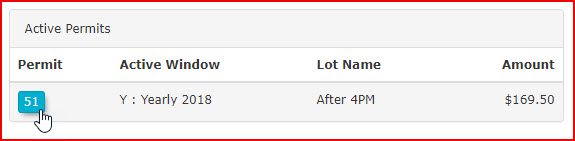](https://opscom.wiki/uploads/images/gallery/2024-06/Qt7image.png) 2. Click the permit number again from within the permit detail screen. This will direct you to the permit search screen where the release action can be performed. 3. Enter a descriptive note in the comment field to track the reason the permit is being released. 4. Click the **Release This Permit** button. 5. Click **OK** in the pop-up window to confirm the release of the permit. A confirmation message will appear on the screen to verify the action was successful. Now, when you search for this permit, it will appear as available in the system. --- ## Best Practices and Considerations - **Audit Trails:** **Always leave a comment** when releasing a permit. Recording the reason for the release creates an important audit trail that can be referenced later if there are questions regarding the user's account history or billing. - **Immediate Availability:** Once a permit is successfully released, it is immediately placed back into the available inventory pool. If the lot is heavily utilized or has a waitlist, be aware that this space can now be claimed by or allocated to another user. # Archiving and Restoring PermitsThe Archiving and Restoring Permits feature allows administrators to remove permits from a given lot's active inventory without permanently deleting them from the system. Its primary purpose is to help efficiently manage lot allocation by safely archiving unused or seasonal permits and easily restoring them when they are needed again. This article is intended for OPSCOM administrators.
## Setup and Configuration There is no specific system setup or configuration required to use this feature. Archiving and restoring permits is a standard administrative tool available to users with the appropriate lot and permit management permissions. ## Using this Feature Administrators can use the allocation tool to seamlessly archive existing permits or restore previously archived ones. ### Archiving Permits 1. Hover over **Parking Management** and click **Lot Administration** then **Allocate**. 2. Locate the specific lot you wish to manage. 3. Click the **Archive Permits** drop-down menu and choose **Selected Permits** to remove a specific portion, or choose **All Permits** to remove the entire lot's inventory. 4. Select the specific permits you wish to archive if you chose the selected option. 5. Click the **Remove** button to initiate the archiving process. 6. Click the **Remove** button again on the confirmation screen to complete the action. ### Restoring Permits 1. Hover over **Parking Management** and click **Lot Administration** then **Allocate**. 2. Locate the specific lot and click the **Add Permits To Lot** button. 3. Enter individual permit numbers directly into the **Permits** text box, or generate a range by entering the **prefix**, **postfix**, and the starting and ending sequence numbers (e.g., 01 to 10). 4. Click the **Add Permits** button to begin the restoration process. 5. Click the **Add Permits** button on the confirmation popup to finalize the restoration. --- ## Best Practices and Considerations**Restoration Messaging:** When restoring a previously archived permit, the confirmation popup will explicitly indicate that the permits are "restored" rather than "created." This verifies that the system has successfully pulled the existing permit data from the archive.
- **Verify Inventory Changes:** **Always refresh the list of permits** after completing an archive or restore action to visually confirm that the targeted permits (e.g., TL2-01 through TL2-05) have been successfully removed from or added back to the lot. - **Bulk Archiving Caution:** Exercise caution when choosing the **All Permits** option, as this will immediately queue every permit within that lot for removal. Ensure no active user permits are inadvertently caught in a bulk archive sweep. # OC Prime - New Temp Permit FunctionalityThe Temporary Permit Rate Templates feature allows administrators to control pricing, eligibility, and special conditions for temporary parking permits on a per-lot basis. Its primary purpose is to define how temporary permit pricing is calculated using assignable templates with customizable hourly rates and priority layers. This article is intended for OPS-COM administrators.
## Why We Built This Every setting below exists to solve a specific problem we heard from customers. Keep these in mind as you read — they're the "why" behind the "how": - Duration-First Selection — parkers pick their date and time first, and the system automatically applies the cheapest available rate. No more manually choosing between permit types. - Early Bird Sale Windows — reward parkers who buy ahead of a deadline with a lower rate that disappears once the window closes. - The Rate Stacker — bill accurately for stays that span more than one rate type (e.g., a few hourly hours followed by an evening flat rate), instead of forcing the whole stay onto a single rate. - The Overnight Bridge — keep overnight stays valid instead of having permits expire at midnight regardless of when the lot actually reopens. - Speed and scale for admins — Reusable Pricing Templates and the Visual Block Painter cut down the time it takes to price many lots individually. - Event and exception pricing — Layered Priority lets admins override standard pricing for a one-off event without rebuilding the whole template. - Hidden or restricted pricing — promo codes and password-protected templates support scenarios like volunteer rates or private group rates without exposing them to the general public. ## Setup and Configuration #### Enable This Feature To enable the new booking flow feature you must turn the feature on from the Rate Template Tab in Lot admin. 1. Navigate to the **Lot Admin** page and chose your lot. 2. Click on the **Rate Template** tab. 3. Toggle on **Enable new temp permits for this lot**.This is where you build the "shape" of your pricing — painting different scenarios (peak hours, overnight, weekends) directly onto a calendar instead of configuring rules in the abstract.
### Creating a Rate Template 1. Navigate to the **Rate Templates** admin page. 2. Click the **Create** button to open a blank template. 3. Select the **Brush** tool in the template editor to paint pricing onto hourly sections of the day. 4. Set a name, color, and price to add a new brush. 5. Edit existing brushes by adjusting their name, color, and price parameters.**Unpainted Time Slots:** Any hourly section left unpainted is treated as not bookable. Users cannot book a permit or park in the lot during that time.
### Fixed Rate Blocks and Early Bird PricingUse this when you want one flat price for a stretch of time, or want to reward early purchases with a rate that disappears after a cutoff — this is what powers Early Bird Sale Windows.
1. Hold **Ctrl** on your keyboard and click multiple time slots. 2. Choose the **Merge** option to create a fixed-rate block. 3. Configure a booking cutoff time using the **Sale End** field if you want the block to stop being bookable at that specific price after a certain time. Once the cutoff passes, the price reverts to whatever other layer applies for that time. 4. Scroll to the form at the bottom of the template page to edit all created blocks. ### Assigning Templates to a LotThis is where you decide who can use a given template, and how many permits it can cover — useful for scenarios like staff-only rates or capacity-limited event pricing.
1. Navigate to the lot edit page and click the **Rate Templates** tab. 2. Enable the temporary permits feature for the specific lot. 3. Select at least one template to assign it to the lot. 4. Choose the specific user types in the eligibility list to define who can use this template. Only user types already enabled for the lot will appear. 5. Enter a password in the password protection field to restrict access to the template. 6. Enter a value for **Max Permits** to set the maximum number of permits sellable under this specific pairing. 7. Refresh the lot page after assignment to see the template applied. ## Using this Feature ### Layers and Priority CalculationLayers let you handle exceptions without rebuilding your whole pricing — e.g., a holiday rate that should always win, layered on top of your everyday template.
Each template can contain multiple layers, and each layer is assigned a priority on a per-day basis. - **Same Priority Layers:** If two layers share a priority and their time blocks overlap, both are considered during price calculation. The system automatically selects the cheapest price for the current hour block. - **Higher Priority Layers:** If a layer has a higher priority, its pricing always takes precedence over lower-priority layers, even if the lower priority is cheaper. A single hour block on a higher priority layer will be the only bookable slot for that day, though lower priority blocks on other days of the week will remain bookable. - **Cross Template Calculation:** If a user qualifies for multiple templates on the same lot, the system calculates the price under each eligible template and automatically selects the cheapest. Layers from different templates are never combined. Administrators can use the admin-only **Price Calculator** tool on the template page to simulate a given time slot and view the full price breakdown. ### Proration RulesThis determines whether a parker is charged for exactly the time they used, or a flat fee no matter when they arrived — worth understanding so you can explain a charge if a parker asks about it.
- **Single Hourly Blocks:** These blocks are prorated. If a user arrives or leaves mid-hour, they are only charged for the portion of the hour actually used. - **Fixed Rate Blocks:** These blocks are not prorated. Booking anywhere within the block requires paying the full block price, but grants the permit for the entire block duration.**Developer Note on Time Blocks:** The `sale_start`, `sale_end`, and `valid_until` fields on time blocks are time-only reference values stored against a placeholder date. **They must never be given a timezone cast.** Doing so causes the weekly rate grid to silently stop rendering saved blocks. A code comment flags this at the cast site and must not be removed.
### User Booking FlowThe goal on the parker side is getting from "I need to park" to "I'm parked" in as few taps as possible, while still surfacing special offers to those who qualify.
1. Select a start time for the temporary permit. 2. Choose a quick option for the end time or select **Other** to pick a specific date. 3. Check the **Assign to all vehicles on profile** checkbox if the lot allows bookings longer than 30 days and a duration of 31 or more days is selected. 4. Enter a promo code or template password to unlock additional hidden templates. 5. Review the price breakdown overview. 6. Proceed to checkout to have the permit added to the cart. ### Promo CodesBuilt for scenarios like volunteer parking, private group rates, or limited-time discounts — visible only to people who have the code.
Administrators can create a promo code tied to a specific lot and optionally restrict it to a specific template. Available configuration options include: - **Discount Percentage** - **Valid Date Range** - **Usage Limit** (total number of redemptions) **Promo code redemption rules:** Each user can redeem a given promo code once per permit. If a user removes that permit from their cart before purchasing, the code becomes usable again for a new permit. ### Concept Overview| **Concept** | **Behavior** |
| **Unpainted time slot** | Not bookable |
| **Same priority layers overlapping** | Cheapest price wins |
| **Higher priority layer** | Always wins, even if pricier |
| **Fixed rate block** | No proration, full price for any partial use |
| **Single hourly block** | Prorated to actual time used |
| **Multiple eligible templates** | Cheapest template auto-selected; no cross-template layer mixing |
| **Promo code** | One use per user per permit; freed up if permit is removed from cart |
| **Max permits limits** | Template maximum is a sub-limit within the lot's overall maximum |
This article explains how to configure and issue a single temporary parking permit that applies to multiple vehicles on a user's profile. This feature streamlines the permitting process for administrators managing users who need temporary access for more than one registered vehicle. This guide is intended for OPSCOM administrators.
## Setup and Configuration Before issuing a temporary permit for multiple vehicles, you must configure the specific lot to allow this functionality. 1. Navigate to **Lot Administration** and select the lot you wish to configure. 2. Click the **Temporary Parking** tab. 3. Enable the **Allow temp permits to be used over 30 days** checkbox. 4. Enable the **Allow all vehicles on profile to receive the permit** checkbox. 5. Save your lot configuration changes. ## Using this Feature Once the lot is configured, administrators can issue the multi-vehicle temporary permit directly from the user's profile. 1. Navigate to the desired user's profile and click the **Parking** tab. 2. Click the **Temporary Parking Permit** button. 3. Select the configured lot within the **Temporary Parking Permit Registration** window. 4. Set the **start date** and **end date**. 5. Click the **Apply to all Vehicles** button. 6. Click the **Confirm This Permit** button to proceed to the confirmation window. 7. Verify that all intended vehicles are listed, then click the **Purchase this Permit** button. 8. Select the method of payment on the payment screen then click the **Submit Payment Information** button. 9. Select **Confirm Payment Information** to proceed. 10. Click the **Process Manually** button to finalize the transaction. Upon completion, you will be taken to the **Transaction Details** screen, where you can view a final record of the purchase. --- ## Best Practices and Considerations**Date Range Requirement:** The selected date range between the **start date** and **end date** must be for a period longer than 30 days. If the duration is 30 days or less, the **Apply to all Vehicles** button will not activate.
- **Vehicle Verification:** Always review the vehicle list on the confirmation screen before clicking **Purchase this Permit** to ensure the user has all necessary vehicles properly registered to their profile. - **Lot Configuration:** Remember that the multi-vehicle option is lot-specific. If you expect administrators to use this feature across different areas, ensure all relevant lots are updated under their respective **Temporary Parking** tabs. # Temporary Permit PrintingThe Temporary Permit Printing feature allows administrators to search, retrieve, and batch-print temporary parking permits. Its primary purpose is to help efficiently generate physical hang tags or dash passes for users needing short-term parking access. This article is intended for OPS-COM administrators.
## Setup and Configuration There is no specific configuration required to use this feature, provided your administrative user role has the appropriate permit management permissions enabled. ## Using this Feature Administrators can use this tool to print multiple temporary permits at once through a system search, or print individual permits directly from a user's account. 1. Hover over **Parking Management** and click **Temporary Permits** then **Temp Permit Printing**. 2. Click the **Retrieve** drop-down menu and choose the permit types you want to display. 3. Click the **Permit Lot** drop-down menu and choose the specific lot you are printing for. 4. Enter the **Start Date** and the **Up to and Including** date to define your search range. 5. Click the **Retrieve** button to generate the list of permits below the search criteria. 6. Enable the checkbox for each permit you wish to print from the generated list. 7. Click the **print selected hang tags** button to generate the physical permits. [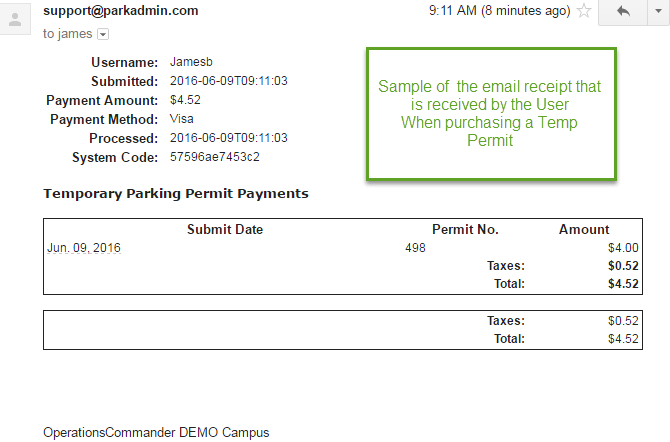](https://opscom.wiki/uploads/images/gallery/2024-06/A1Uimage.png) ### Printing from User History If you only need to print a single permit, it is often faster to do so directly from the user's profile. 1. Navigate to the specific user's profile and access their history. 2. Locate the **Temp Permit** section within their records. 3. Click the **printer** icon located under the **Permit #** column to print that specific permit. [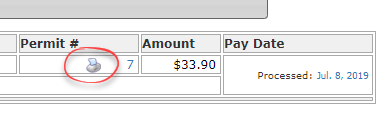](https://opscom.wiki/uploads/images/gallery/2026-07/kzximage.png) --- ## Best Practices and Considerations - **Batch Processing:** **Utilize the date fields and lot filters** when retrieving permits to quickly print daily or weekly batches of temporary permits for upcoming events or short-term visitors. - **Individual Printing:** **Print directly from the user's history** if you only need to issue a single replacement permit or handle a walk-in user, rather than running a system-wide search. - **Printer Settings:** Ensure your local printer is configured correctly to handle the specific cardstock or hang tag paper dimensions used by your organization before executing a large batch print. # Real-Time Parking MapThe Real-Time Parking Map feature provides a publicly accessible, interactive map displaying real-time lot availability. Its primary purpose is to allow users to easily find parking and purchase temporary permits directly from the interface, while simultaneously providing administrators with live lot statistics. This article is intended for OPSCOM administrators.
## Setup and Configuration Setting up the map requires creating a public-facing page and then configuring each lot that you want to display on that map.To use this feature, you must first contact an OPSCOM support staff member and have them enable it on your production system.
### Adding the Map to an OPSCOM Page A Map page is provided by default at this link: `[CLIENT NAME][.ops-com.com/u/#/realtimemodal](https://.ops-com.com/u/#/realtimemodal)`. If you would like to display the map on any other system messaging pages, such as the user login screen, follow these instructions: 1. Hover over **System Configuration**, click **Content & Designs**, then **Pages and Content Blocks**. 2. Create a new page or edit an existing one that will host the map. 3. Add the `[real-time-map]` and `[real-time-legend]` shortcodes into the content area, ensuring each is on its own line. ### Configure Individual Lots For each lot you want to display on the map, you must configure its map marker and temporary permit settings. 1. Hover over **Parking Management**, hover over **Lot Administration**, and click [Pricing and Lot Admin](https://opscom.wiki/books/the-opscom-admin-portal/page/pricing-and-lot-admin). 2. Select the lot you wish to edit and click the **Zones and Location** tab. 3. Set a map marker and enter a public-facing description in the **Location** field. 4. Click the **Temporary Parking** tab for the selected lot. 5. Set the **Maximum number of Temp Permits**, a 30-day usage setting, and the **Daily Cost** and **Hourly costs**. 6. Enable the **Allow this lot to appear on the Real-Time Parking Map** checkbox to finalize its visibility. ### Configure Special Spots (Optional) 1. Hover over **Lot Administration** and click **Manage Special Space Types**. 2. Click the **Add New** button to create informational categories such as 'Electric Vehicle Charging' or 'Handicapped Accessible'. 3. Navigate back to the specific lot within the [Pricing and Lot Admin](https://opscom.wiki/books/the-opscom-admin-portal/page/pricing-and-lot-admin) module. 4. Click the **General** tab and enter the number of spaces available for each **Special Space Type**. ## Using this Feature Once configured, the map is immediately accessible to both the public for finding and purchasing parking, and to administrators for viewing live lot statistics. ### Public User View 1. Navigate to the public map URL (e.g., `[https://yourdomain.parkadmin.com/real-time](https://yourdomain.parkadmin.com/real-time)`). 2. Hover over a map marker to quickly see the lot name and description. 3. Click a map marker to display detailed availability and information about special spots. 4. Click the **Book Now** button to proceed directly to the temporary permit purchase screen. ### Administrator View 1. Hover over **Parking Management** and click **Real-Time Map** to open the internal view. 2. Click on the map markers to display detailed lot statistics. This includes Pay by Plate machine capacity (if applicable), all other spaces availability, and special spaces (such as handicap and pregnancy spaces). --- ## Best Practices and Considerations - **Verify temporary parking configurations:** **The Real-Time Map is specifically designed for temporary parking.** A lot will not appear on the map unless all the required fields on the Temporary Parking tab are correctly filled out and the feature is enabled with the checkbox. - **Write clear public descriptions:** **Write clear and helpful descriptions in the Location field under Zones and Locations.** Because this text is highly visible to the public when they hover over a map marker, it should be used to provide useful context, like "Visitor Parking - North Campus". # QR Code Guest Temporary PermittingThe QR Code Guest Temporary Permitting feature allows administrators to configure specific parking lots so guests can self-register for temporary parking permits via a scanned QR code. Its primary purpose is to streamline the guest parking process for both free and paid scenarios, enabling visitors to quickly obtain a valid permit directly from their mobile device. This article is intended for OPS-COM administrators.
## Setup and Configuration Proper setup is required at both the system and lot level to enable QR code permitting functionality.QR codes also work for users who are already logged into an account. They must have an active session on the same browser to use their stored account information to checkout, and they must hold the correct user type for that lot. Users who wish to pay for a temporary permit with saved cards must first log in to their account, navigate to their permits, and click **Parking map** to use the accelerated checkout process.
### System-Wide Configuration These initial steps enable the QR code functionality for your entire system. 1. Hover over **System Configuration**, click **Users**, and then click **Types**. 2. Confirm that a user type named **Guest User** exists. If it does not, you must add it. 3. Hover over **System Configuration** and click **System Settings**. 4. Navigate to the **Temp Permits** tab. 5. Enable the **Enable QR Codes** checkbox.The **Guest User** type is absolutely essential for this feature to function. Without it, you will not be able to assign QR code capabilities to your lots.
### Lot-Specific Configuration Follow these steps for each individual lot where you want to offer guest temporary permitting via QR code. 1. Hover over **Parking Management**, hover over **Lot Administration**, and click *[Pricing and Lot Admin](https://opscom.wiki/books/the-opscom-admin-portal/page/pricing-and-lot-admin)*. 2. Select the desired lot to configure. 3. Select **Guest User** as the **User Type** for the lot on the **General** tab. Removing this user type will instantly disable the QR code feature for this specific lot. 4. Click the **Temporary Parking** tab. 5. Set the hourly or daily costs in the pricing section. Enter **$0.00** for the applicable timeframes for free parking, or enter the correct amounts for the durations you wish to offer for paid parking. 6. Click the **Update Lot** button to save all changes.**Visibility Options:** If you wish to use the lot for QR code functionality alone, excluding standard and temp permitting through the user portal, set the **Visibility to User** drop-down menu to **Hidden but Accessible** on the **General** tab. If you wish to use this lot for temporary permits exclusively, enable the **This lot is for temporary parking only** checkbox.
**Daily Cost** permits strictly expire at midnight on the day of purchase. To offer a true 24-hour permit, use the **Hourly Cost** setting and define a 24-hour duration instead.
## Using this Feature Once configured, you can brand the QR code and deploy it for public use. ### Branding the QR Code You can brand the QR code with your organization's logo. First, upload the logo to the system media bin. Then, select your uploaded image from the **Logo** field in the **QR code configuration** section on the **Temporary Parking** tab. ### Accessing and Deploying the QR Code 1. Hover over **Parking Management**, hover over **Lot Administration**, and click *[Pricing and Lot Admin](https://opscom.wiki/books/the-opscom-admin-portal/page/pricing-and-lot-admin)*. 2. Select the configured lot and click the **Temporary Parking** tab. 3. Locate the QR code and its associated links in the **QR code configuration** section. ### Available Actions - **Print QR Code:** Click this button to generate a printable page containing the QR code. This is ideal for quick deployment on physical signage. - **Download QR Code:** Click this button to download the QR code as an SVG file. This high-quality vector format is best for incorporating into professionally designed signs or digital materials. - **Direct Link:** Click this icon to copy the unique URL for the guest permit page. This link can be emailed, posted on a website, or sent via text message to provide direct access without requiring the user to scan a physical code. --- ## Best Practices and Considerations ### - **Always test the QR code:** **Always test the QR code with a mobile device after configuration** to ensure it directs users to the correct permitting page before making it public. - **Place signage strategically:** **For optimal visibility, place QR code signage at lot entrances and other strategic locations** where drivers will easily see it upon arrival and safely scan it. - **Verify payment processing:** **If you are offering paid temporary permits, ensure a payment processor is correctly configured and linked within your system.** - **Understand the user workflow:** The end-user experience is a simple, mobile-friendly process where the guest scans the code, selects a parking duration from the options you configured, enters their license plate number, and completes the payment if required. # QR Code User ExperienceThe QR Code User Experience allows parkers to quickly purchase a temporary permit for a specific lot by scanning a physical QR code. Its primary purpose is to provide a streamlined checkout process for both guest parkers and registered users, facilitating rapid parking payments via mobile devices. This article is intended for OPS-COM administrators to understand the mobile end-user workflow.
## Setup and Configuration This feature primarily relies on the physical placement of generated QR codes and the user's mobile device. **Admin Side:** Administrators must generate the lot-specific QR codes from the lot administration tools and post them visibly in the physical parking locations. No other specific system configuration is required for the checkout flow itself. **User Side:** End-users simply need a mobile device with a camera capable of scanning QR codes. They can choose to check out as a guest or log into their user portal for an accelerated payment process. ## Using this Feature The workflow varies slightly depending on whether the parker is checking out as a guest or as a logged-in user. ### Guest Checkout 1. Tap the QR code link or scan the physical code using a mobile device camera. 2. Tap the **Accept** button when prompted by the **Guest Disclaimer**. 3. Enter the vehicle information in the **Vehicle Plate** field. 4. Tap the **Duration** drop-down menu and select the length of stay. 5. Tap the **Payment Method** drop-down menu and choose the supported provider. 6. Tap the **Make Payment** button after entering credit card details on the secure payment page. ### Registered User Checkout (Accelerated) 1. Tap the QR code link or scan the code while actively logged into the **User Portal** (this can be in a closed browser tab, as long as the session is still active). 2. Review the pre-populated vehicle and payment information retrieved from your stored account details. 3. Tap the **Duration** drop-down menu to choose your stay length. 4. Tap the **Make Payment** button to complete the transaction instantly using stored tokens from the payment processor.Logged-in users experience a significantly faster checkout as the system automatically pulls stored vehicle plates and payment profiles, entirely removing the need for manual data entry in the field.
### Key Information Displayed Whether checking out as a guest or a registered user, the following key information is displayed: - **Lot Selection:** Since the QR code is lot-specific, the lot is automatically pre-selected and displayed at the top of the page. - **Transaction Record:** An on-screen confirmation appears immediately following a successful payment. - **User Receipt:** A receipt is automatically generated and sent to the user's registered email address (or the email address they were required to enter during checkout as a guest user). --- ## Best Practices and Considerations - **Encourage user registration:** **Encourage user registration to allow parkers to take advantage of the accelerated checkout.** This reduces friction during the parking process and improves overall compliance. - **Verify physical signage:** **Verify physical signage regularly to ensure QR codes are legible and linked to the correct, active lot in the system.** Weather, fading, and vandalism can negatively impact scanability. - **Establish guest refund policies:** **Organizations should establish a clear policy for managing guest refunds.** Because these transactions are not tied to a permanent user profile in the same way as registered accounts, they may require different administrative handling. # Rollover: Auto Selection and Automatically Processing PaymentsThis article outlines how to automatically process payments for recurring permits (rollovers) using user credit cards stored on file. Its primary purpose is to help administrators streamline the permit renewal process by batch-processing payments for the upcoming term. This guide is intended for OPSCOM administrators.
## Setup and Configuration Before utilizing this feature, ensure the following system and user requirements are met: - **Payment Gateway:** Your system must utilize a payment gateway that allows you to charge client cards directly. This feature will not function if your system is configured for Hosted Payments only. - **User Requirements:** The user must have a valid credit card registered in the system, and that card must be explicitly designated as the **Prime Credit Card**. ## Using this Feature The Rollover Payment Processing tool allows you to select and process recurring permit payments in batches. ### Processing Rollover Payments 1. Hover over **Permits** and click **Process Payments for Rollovers**. 2. Review the generated list on the rollover page. 3. Enable the checkbox for the payment types you wish to process. - Note: If an invoice or permit displays **None Set**, the user must manually log in and process the payment to secure the permit for the next sales window. 4. Click the **Process Payments for Rollovers** button to initiate the batch transactions. ### Visual Cues and Status Indicators - **Lock Pad Icon:** Displayed on the right side of the screen. This indicates that a previous payment attempt was initiated but did not reach a finalized "Paid" or "Cancelled" state. This is most often due to a *Declined - Retry later* response from the payment processor. ### Resolving a Locked Permit If a permit is locked (displaying the lock pad icon), it cannot be processed through the standard rollover screen. Follow these steps to clear the lock and complete the transaction: 1. Navigate to the user profile of the individual associated with the locked permit. 2. Access the user's **Cart** or **Pending Items**. 3. Select the permit item that is currently locked in the rollover report. 4. Proceed to checkout and manually process the payment using the user's preferred method (e.g., Credit Card, Cash, or Account Credit). 5. Verify the transaction is successful. Once the item is marked as paid in the user's account, it will automatically be removed from the locked status in the rollover screen. --- ## Best Practices and Considerations**Do not attempt to re-process a locked permit through the rollover screen.** A locked permit indicates an incomplete transaction. The lock must be cleared via manual intervention through the user's cart to avoid processing errors.
**Automatically Processing Invoices by a Company Manager: **Invoices will only be picked up by the automated rollover processing if a user with a **valid subscription** is designated as the **Billing Recipient** on the company record. If this is missing, the rollover processing will skip the invoice.
- **Monthly Monitoring:** Monitor rollover reports monthly to identify any lock pad icons, ensuring that all recurring permit payments have been successfully captured and no users slip through the cracks. - **Investigate Declines:** Investigate "Declined" messages immediately by contacting the user to verify their credit card information or by suggesting they contact their bank to authorize the transaction. - **Allow for Processing Time:** If a generic error occurs during processing, allow some time before trying again. Certain records may require a short period to clear the payment gateway's communication buffer before they can be successfully re-attempted. - **Verify Transactions:** Always confirm a successful payment within the user's transaction history before attempting any further administrative actions on the permit to maintain data integrity. # Feature Overview - Rollover/Renew PermitsThe permit rollover and renewal feature allows administrators to transition active permits from an expiring sales window to a new one. Its primary purpose is to maintain continuous parking access for patrons while seamlessly automating the billing process for the extended validity period. This article is intended for OPS-COM administrators managing recurring permit billing.
## Setup and Configuration Before executing a permit rollover, you must configure a new sales window and ensure your system is properly set up to handle automatic payments and notifications. 1. Configure a new sales window with a start date equal to or greater than the end date of the previous sales window. Detailed instructions can be found on the Permit Sales Window Management page. 2. Navigate to **System Settings** then **Permits** and toggle the **Show Permit Renewal Status to Users** setting to control visibility on the user portal. 3. Review your payment gateway settings. To process automatic credit card renewals, your gateway must allow the direct charging of client cards (this will not work with hosted-only payments). Users must also have a valid card saved as their Prime Credit Card. 4. Navigate to the **Email Templates** page to customize the *Payment Success* and *Payment Failure* templates to ensure accurate communication is sent to users upon renewal. ## Using this Feature The rollover utility allows you to move users in bulk, manage individual exceptions, and process payments simultaneously. ### Initiating a Rollover and Selecting Options 1. Hover over **Permits** and click **Sales Window**. 2. Click the **Rollover** button to open the Permit Renewal page. 3. Select the current expiring sales window in the **From Sales Window** drop-down menu. 4. Select the target sales window you are rolling permits into. 5. Select the specific user types you wish to process, or leave it as the default **All User Types**. 6. Click the **Show Lots** button to generate a list of eligible lots below the search form. ### Managing Individual Permits You can include or exclude specific permits from the rollover batch before processing. 1\. Click the **Holders** or **Renewing** button next to a specific lot to view a list of its associated permits. [](https://opscom.wiki/uploads/images/gallery/2026-07/NBlplrimage.png) 2\. Toggle the renewable status for any individual permits (e.g., if a specific permit holder is not returning). 3\. Click the **Update Permits** button to save your changes. Here's the logic for permit rollover states:| State | Current Permit Renewing (prevent rollover = 0) | User exists in target Sale Window | Permit exists in target Sale Window | Notes |
|---|---|---|---|---|
| Renewing | True | False | False | Neither the user, nor the permit exists, but the current permit is set to be renewed. |
| Blocked | True | False | True | The permit exists in the target sale window, but the user doesn't. This means anywhere for any permit in the lot. If the user has multiple permits and some of them renewed, then they technically are not blocked. If the user has been given a different permit, they also are not blocked. |
| Renewed | True | True | N/A | The user is considered renewed when they exist in the target sale window. Just like the note for blocked, it's not intended to be good for users with multiple permits. |
| Not Renewing | False | False | N/A | The user was not found in the target sale window and their permit is also not renewing. This is the expected scenario. |
| Not Renewing, but Exists | False | True | N/A | The user WAS found and their permit is not renewing. This could use some investigation to make sure that the user is supposed to have that permit or not. |
**Sales Window Dates:** Ensure your new sales window is configured accurately. A rollover cannot be performed unless the new sales window has a start date that is equal to or greater than the end date of the previous sales window.
**Task Processing Delays:** The rollover action is executed by a background system task. Emails are not sent the instant you click the button; there is a brief delay between clicking **Rollover Permits** and the dispatch of user notifications.
- **Administrative Alerts:** Ensure your administrator account has a valid email address attached to it. If a user’s permit is processed but they have an invalid or missing email address, the system will send a "Failure to Deliver" summary to the administrator who initiated the rollover. - **Manual Payments:** Users whose permits are rolled over but do not have an active payment subscription (like a saved credit card) will have the permit added to their cart as unpaid. They will need to log in and make a manual payment to secure their permit. - **Audit Trails:** A record of all success and failure emails sent during the rollover process is associated directly with each user’s account profile, allowing administrators to verify communication history if a patron claims they were not notified. --- ## Related Video # Enabling Permit Rollovers without Previous PaymentThis article outlines how to configure the system to allow permit rollovers without requiring a previous payment or a payment method on file. Its primary purpose is to provide administrators with the flexibility to process permit renewals for users who are billed through alternative methods, such as payroll deduction or student accounts. This guide is intended for OPSCOM administrators responsible for system configuration and permit management.
## Setup and Configuration Follow these steps to adjust your system settings and allow rollovers without payment. 1. Hover over the **System Config** menu and click **System Settings**. 2. Click **Permits** within the system settings menu. 3. Disable the **Require Payment for Rollovers** checkbox. 4. Click the **Save Settings** button to apply your changes.The **Require Payment for Rollovers** setting is enabled by default to ensure automated payment collection during the renewal process.
## Using this Feature Once the configuration is updated, the requirement for a previous payment is removed from the rollover logic. 1. Proceed with the standard rollover process to allocate permits for the next period. 2. Verify that user permits successfully roll over regardless of their immediate payment status. --- ## Best Practices and Considerations - **Alternative Billing:** Disabling the payment requirement is highly recommended if your organization relies on offline invoicing, internal departmental billing, or payroll deductions where immediate credit card processing is not required during the rollover action. - **Account Monitoring:** If you choose to allow rollovers without payment for standard users, ensure your team has a clear business rule and follow-up process for collecting permit fees post-rollover to avoid accumulating unpaid accounts. - **Reverting the Setting:** If you only need to process a specific batch of unpaid rollovers, remember to navigate back to **System Settings** and re-enable the **Require Payment for Rollovers** checkbox once your administrative task is complete. # Preventing Permit Rollover after CancellationThis article outlines how to stop an active permit from automatically renewing during the rollover process. Its primary purpose is to allow administrators and end users to cancel future recurrences of a permit while maintaining the current active status until expiration. This guide is intended for OPSCOM administrators.
## Setup and Configuration There is no specific configuration required to use this feature. The ability to prevent permit rollovers is a standard function available to both administrators and end users within their respective portals. ## Using this Feature The process for preventing a permit from rolling over can be completed by an administrator on behalf of a user, or by the end user directly through their portal. ### Administrator Side 1\. Navigate to the specific user's **Profile** page. 2\. Click the permit button associated with the active permit to reveal the **Parking Permit Information** window. [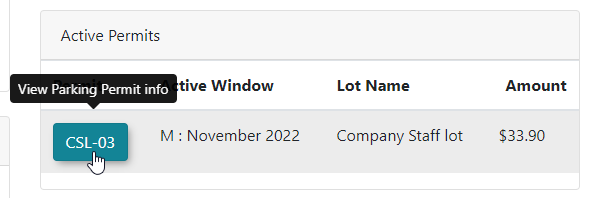](https://opscom.wiki/uploads/images/gallery/2026-07/1opimage.png) 3\. Click the **Rollover State** drop-down menu and choose **Prevent Rollover**. 4\. Enter a comment to explain why the state is being changed. This field is mandatory. 5\. Click the **Update Permit** button to apply the changes. 6\. Review the confirmation message that appears, verifying the flag has been changed. ### User Side 1\. Locate the active permit on the **User Dashboard**. 2\. Click the permit button to open the permit details. [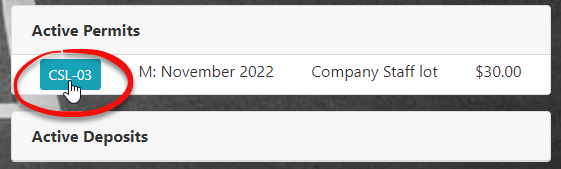](https://opscom.wiki/uploads/images/gallery/2026-07/5suimage.png) 3\. Click the drop-down menu in the Permit Information window and choose **Not Renewing**. ### Feature Results When administrators process permit rollovers for the upcoming season or month, permits that have had their state altered will be excluded from the main processing queue. Instead, these permits will appear in a separate list titled **Permits that will not be rolled over**. --- ## Best Practices and Considerations - **Mandatory Comments:** **Always provide a clear and detailed comment** when changing the rollover state. Because this action is mandatory for administrators, using it to accurately document the reason for cancellation (e.g., user request, account closure) ensures a reliable audit trail. - **Additional Notes:** In addition to the mandatory comment on the permit state, it is best practice to add a general note to the user's profile detailing the cancellation for quick administrative reference. - **Processing Awareness:** When running batch rollovers, always review the **Permits that will not be rolled over** list to ensure no permits were flagged for cancellation by mistake. # Text2ParkMe - UsageThe Text2ParkMe Usage report allows administrators to search and generate detailed records of historical and current mobile parking transactions. Its primary purpose is to help audit parking lot utilization and track user specific permit activity over time. This article is intended for OPSCOM administrators.
## Setup and Configuration There is no specific configuration required to access this report, provided that the Text2ParkMe feature is active in your environment and your administrative user profile has the appropriate reporting permissions enabled. ## Using this Feature Administrators can use this reporting tool to filter and review Text2ParkMe parking data based on specific search criteria. 1. Hover over **Parking Management** and click **Temporary Permits** then **Text2ParkMe** followed by **Current Usage**. 2. Enter your desired search criteria into the **User**, **Plate**, **Lot**, and/or date range fields. 3. Click the **Search** button to generate the report. ### Key Information Displayed - **Usage Data:** The generated report will appear directly below the search criteria fields, displaying all Text2ParkMe parking sessions that match your applied filters. - **User Profiles:** The **Username** field within the report results acts as an active link, allowing you to navigate directly to that specific user's profile for further investigation. --- ## Best Practices and Considerations - **Targeted Reporting:** **Utilize the start and end date fields** to narrow down your search results. This is highly recommended for end-of-month financial reconciliation or when auditing usage for a specific event. - **Investigating Discrepancies:** If an anomaly is spotted in the usage report, use the active **Username** link to quickly verify the user's account standing, vehicle history, and overall profile data.To generate a broad system-wide report, leave the **User**, **Plate**, and **Lot** fields blank and only apply a date range before clicking the **Search** button.
# Text2ParkMe - Active PermitsThe Text2ParkMe Active Permits report allows administrators to view a real-time list of all currently active and unexpired Text2ParkMe parking sessions. Its primary purpose is to help monitor mobile parking payments and easily audit current lot usage. This article is intended for OPSCOM administrators.
## Setup and Configuration There is no specific configuration required to access this report, provided that the Text2ParkMe feature is active in your environment and your administrative user role has the appropriate reporting permissions. ## Using this Feature This report automatically displays all Text2ParkMe permits that are currently active and have not yet expired as soon as the page is opened. 1. Hover over **Parking Management** and click **Permit Management** then **Text2ParkMe - Active Permits**. 2. Review the automatically generated list of active permits. 3. Enter your desired criteria into the **User**, **Plate**, or **Lot Name** search fields to narrow down the results. 4. Click the **Filter Report** button to update the listing based on your search criteria. 5. Click any **Username** link in the results to navigate directly to that specific user's profile. ### Key Information Displayed - **Active Permits:** Only permits that are currently valid and unexpired are displayed on this page. Historical or expired Text2ParkMe sessions are excluded. - **User Profiles:** The **Username** field serves as an active link, allowing you to quickly jump to a user's profile for deeper investigation. --- ## Best Practices and Considerations - **Filtering for Enforcement:** **Routinely use the Plate and Lot Name filters** when assisting field enforcement officers or verifying if a specific vehicle has a valid, active mobile parking session.Because this report automatically populates active permits upon opening, you do not need to click search to see current activity. Simply accessing the page provides an immediate snapshot of current Text2ParkMe usage.
# Setup Lots to Use Text2ParkMeThe Text2ParkMe feature allows users to pay for temporary parking, receive expiration reminders, and extend their parking time via SMS text messaging. Its primary purpose is to provide a convenient, mobile-friendly payment option for temporary parkers while increasing overall compliance. This article is intended for OPSCOM administrators responsible for managing parking lots and temporary permit configurations.
## Setup and Configuration Before you can configure individual lots to use Text2ParkMe, there are two mandatory system prerequisites that must be established with the assistance of the OperationsCommander team. - **Gateway Provider:** You must have a payment gateway provider set up and configured to accept Text2ParkMe payments. Work with your OPSCOM project manager to ensure this gateway is properly configured and tested within your system. - **T2P Phone Number:** You require a dedicated Text2ParkMe phone number that your users will text to obtain their temporary parking. The OPSCOM Support team will ensure this number is set up and tested for you. ## Using this Feature Once the system prerequisites are met, administrators must manually enable and configure the Text2ParkMe settings for each applicable lot. 1. Hover over **Parking Management** and click **Lot Administration** then **Pricing & Lot Admin**. 2. Click the specific **Lot Name** to open its settings. 3. Click the **Temporary Permits** tab. 4. Fill out all required fields located within the red box area. 5. Enter a clear display name in the **Text Code** field. This is the specific code that users will see and use when choosing this lot to park in. 6. Click the **Update Lot** button to save your changes. --- ## Best Practices and Considerations - **Text Code Clarity:** Ensure the **Text Code** you assign to a lot is short, intuitive, and easy for users to type on a mobile device to minimize entry errors. - **Visibility:** Verify that your lot visibility settings allow temporary parkers to see and interact with the lot once Text2ParkMe is enabled.**Text Messaging Fees:** Be aware that standard text messaging fees do apply to the end user based on their individual cellular phone plans. It is best practice to display a brief disclaimer regarding standard messaging rates on your physical lot signage.
# Planning Lot Groups and Lot ZonesThis article explains how to configure Lot Groups and Lot Zones to organize parking inventory within your system. Its primary purpose is to help administrators streamline enforcement operations and apply shared validation parameters across multiple locations. This guide is intended for OPSCOM administrators.
## Setup and Configuration Before applying zones to specific lots, you must first create the Lot Zone within your system settings. ### Creating a Lot Zone 1. Hover over **System Configuration** and click **Parking** then **Manage Lot Zones**. 2. Click the **Add Lot Zone** button. 3. Enter a descriptive long name and short name into the respective fields to define the zone. ## Using this Feature Administrators can assign lots to specific groups and zones directly from the lot administration settings. ### Applying a Lot Group to a Lot 1. Hover over **Parking Management** and click **Lot Administration** then **Pricing & Lot Admin**. 2. Click the specific **Lot Name** to open the lot settings. 3. Click the **General** tab. 4. Click the lot group drop-down menu and choose the group you wish to apply to your lot. ### Applying a Lot Zone to a Lot 1. Hover over **Parking Management** and click **Lot Administration** then **Pricing & Lot Admin**. 2. Click the specific **Lot Name** to open the lot settings. 3. Click the **Zone & Location** tab. 4. Click the zone drop-down menu and choose the zone you wish to apply to the lot. 5. Set the valid dates by configuring the **Days or Range with Sales Window** parameters. 6. Set the valid times by entering the **Start Time** and **End Time**. --- ## Best Practices and Considerations**Lot Groups vs. Lot Zones:** A *Lot Group* allows you to group similar lots together to be seen as a single entity (enabling enforcement across multiple lots). A *Lot Zone* is a grouping mechanism allowing specific validation parameters (times and dates) to be applied to one or more lots.
- **Single Group Assignment:** **Remember that a lot may only belong to one Lot Group**. While assigning a lot group is not mandatory, it is highly useful for organizing similar inventory. - **Multiple Zone Assignments:** You can assign the exact same zone to multiple distinct lots (e.g., applying a "RED Zone" configuration to both the Red Lot and the Green Lot). - **Enforcement Flexibility:** Patrol officers can select either a Lot Group or a Lot Zone during field enforcement, providing flexibility in how they monitor different parking areas. - **Permit Alignment:** **Ensure any permits tied to the lot reflect the same zone settings** to avoid compliance and validation issues for your users. # Pricing and Lot AdminThe Pricing and Lot Admin page is a central management tool for administrators to create new parking lots, define their characteristics, and configure pricing and permit settings. Its primary purpose is to allow comprehensive control over lot visibility, access, permit types, and advanced features, helping efficiently manage parking inventory. This article is intended for OPS-COM administrators.
## Setup and Configuration Creating and configuring parking lots is divided into several detailed tabs within the lot editor.Before setting up new lots, consider your organization's permit types, pricing structures, and any specific access restrictions (e.g., faculty-only lots, temporary parking areas).
### Accessing the Lot Editor 1. Hover over **Parking Management**, hover over **Lot Administration**, and click **Pricing & Lot Admin**. 2. Click the **Add Lot** button to create a new configuration, or click an existing **Lot Name** link to modify it. ### General Tab 1. Enable the **This lot is archived** checkbox to safely archive the lot, making it unavailable for new sales while retaining historical data. 2. Select an option from the **[Visibility to Users](https://opscom.wiki/books/the-opscom-admin-portal/page/lot-visibility-options)** drop-down menu (e.g., Visible, Not Visible, or Hidden but Accessible). 3. Enter the full, descriptive name for the lot in the **Lot Name** field. 4. Enter an abbreviated name in the **Lot Short Name** field. 5. Group similar lots together using the **[Lot Group](https://opscom.wiki/books/setup-configuration-for-admins/page/lot-groups-management)** feature to display them as a single entity. 6. Choose **[Common Lot](https://opscom.wiki/books/setup-configuration-for-admins/page/common-lots)** to allow any user type to park, or choose **[User Type Lot](https://opscom.wiki/books/setup-configuration-for-admins/page/user-types)** to restrict access (hold the **Ctrl** key to select multiple allowed user types). 7. Enter a **[Lot Password](https://opscom.wiki/books/the-opscom-admin-portal/page/lot-passwords)** to prevent users from booking a permit unless they have the required code. 8. Fill out the **Special Parking Spaces** section if your lot has dedicated spots like EV charging or ADA spaces. 9. Click the **Update Lot** button to save changes. ### Zone & Location Tab 1. Enter a description of the lot's physical location in the **Location Description** field. 2. Upload an **Image** to be displayed next to the lot name. 3. Configure a **Zone** for this lot by selecting a zone and specifying days or a range within the sales window. 4. Move or click **Create a Map Marker** in the **Map Detail** section to pinpoint the location and automatically populate GPS coordinates. 5. Click the **Update Lot** button to save changes. ### Standard Permits Section 1. Enter the base cost in the **Default Cost** field. 2. Choose **Enabled**, **Use Default Setting**, or **Disabled** for **Prorated Sales**. 3. Enable the **This lot can be used for a second permit** checkbox to allow users to purchase multiple permits for this lot. 4. Enable the **Allow the use of Waitlist with this lot** checkbox if you want the waitlist to be active. 5. Enable the **Only Allow Waitlist after lot is full** checkbox if you want a waitlist to activate only when permits are completely sold out. 6. Group multiple lots onto the same waitlist by entering a text value in the **Waitlist Lot Category** field. 7. Choose the applicable timeframe from the **Lot Sales Window** drop-down menu. 8. Enable the **Hang Tag Settings** if printing physical tags is required. 9. Click the **Update Lot** button to save changes.If a user joins a waitlist that is part of a **Waitlist Lot Category**, they will automatically be added to all individual lot waitlists associated with that specific group and assigned the identical ranking. This ensures that if a permit becomes available in any one of those grouped lots, the user is eligible to purchase it.
### Temporary Parking Tab 1. Enable the **This lot is for temporary parking only** checkbox if the lot is strictly exclusive to temporary parking. 2. Set the maximum number of daily temporary permits in the **Max Permits per Day** field. 3. Enable **Allow temp permits up to 30 days** or **Allow temp permits to be used over 30 days** under the **Permit Duration** settings. Disable these settings entirely if you do not wish to charge a daily fee. 4. Enable **Allow all vehicles on profile to receive the permit** to automatically apply the temporary permit to all vehicles on a user’s profile. 5. Enter the maximum fee for parking beyond 6 hours in the **Daily Cost** field. 6. Enter the hourly fee for parking in the **Hourly Costs** fields. If the lot has a flat rate, simply leave these fields blank. 7. Enter the monthly cost for parking permits that extend beyond 30 days in the **Over 30 Days Monthly Cost** field. 8. Enable the **Allow this lot to appear on the Real-Time Parking Map** checkbox to display the lot on the public map. 9. View, link to, download, print, or add a **Logo Image** to the **QR Code** directly from this section. 10. Click the **Update Lot** button to save changes. ### Flex Permits Tab 1. Enable the **Enable Flex Permits** checkbox. 2. Click the **Add New** button to create a new time slot with a specified price and color code. 3. Click the **Edit** button to modify existing time slots, pricing, or colors individually. Alternatively, use the Time Slot Chart and the **Select** button to click and drag time slot information to apply to multiple times and dates simultaneously. 4. Click the **Clear** button to quickly remove all pricing configurations, click **Fill** to populate the chart with uniform pricing, or click **Reload** to revert to previously saved settings. 5. Click the **Update Lot** button to save changes. ### Lot LPR Settings & Additional Settings Tabs 1. Set a grace period in the **Free Parking Time** field during which patrons can register their license plate with a pay-by-plate meter without incurring a charge. 2. Enter the applicable integration data into the **Banner Detail Code** field (used strictly for the Banner system). 3. Click the **Update Lot** button to save changes. ## Using this Feature Administrators use the main dashboard of the Pricing and Lot Admin page to view a high-level summary of all lot data and access specific administrative functions. ### Key Information Displayed - **Lot Name:** The full name of the lot and its associated permit sales window. - **User Types:** The specific user types permitted to book permits for the lot. - **Visibility:** Indicates the lot's visibility to users (e.g., Not visible, Visible, Not visible but available). - **Price:** The standard base price for permits in the lot. - **Permit types:** Icons representing the types of permits enabled for the lot (e.g., standard, temporary, flex). - **Visible to User:** The number of permits in the lot currently available for user purchase. - **Usage:** The number of permits currently booked or in use within the lot. ### Available Actions & Buttons - **Show Archived:** Click this button to reveal and manage lots that have been historically archived. - **Add Lot:** Click this button to launch the configuration screen for a completely new parking lot. - **Lot Name (link):** Click any listed lot name to open its detailed edit page, where you can modify various settings across different tabs. - **Export:** Click the export button at the far right of each lot row to output the lot's specific configuration information to an Excel file. - **Search:** Click the search button on each lot row to automatically navigate to the permit search page and view all active permits specifically associated with that lot. --- ## Best Practices and Considerations - **Establish a consistent naming convention:** **Establish a consistent naming convention for your lots** (e.g., "Lot A - Faculty," "Visitor Parking Garage") to significantly improve clarity for both internal administrators and public users. - **Manage visibility carefully:** **Carefully consider the Visibility to Users setting for each lot.** A lot marked as "Hidden but Accessible" is highly useful for administrative purposes or hidden user groups, as it remains accessible if the direct booking link is provided. - **Define clear waitlist policies:** **Organizations should develop a clear business rule for when to remove a user from the waitlist**, such as after a permit has been officially offered or after a user has been emailed. - **Optimize QR code placement:** **If utilizing QR codes for temporary parking, ensure they are prominently displayed and easily scannable** directly at the physical lot location. - **Conduct regular audits:** **Periodically review lot configurations**, especially pricing structures and sales windows, to ensure they remain current and fully aligned with your organizational parking policies. # Lot PasswordsThe Lot Passwords feature allows administrators to restrict access to specific parking lots by requiring a password during the permit booking process. Its primary purpose is to help control lot reservations for specific groups or events, ensuring only authorized users can secure a permit. This article is intended for OPSCOM administrators.
## Setup and Configuration Administrators must configure the password settings directly within the specific lot's profile to enforce the restriction. 1. Hover over **Parking Management** and click **Lot Administration** then **Pricing & Lot Admin**. 2. Click the specific lot name to open the lot editing page. 3. Enter the required password string into the **Password** field. 4. Enable the **Use Lot Password** checkbox to enforce the restriction. 5. Save your changes to apply the password protection to the lot.**Feature Dependency:** The **Use Lot Password** setting cannot be enabled if the **Password** field is left blank. You must set a password first before you can enforce it.
## Using this Feature Once a lot is password-protected, the system handles access differently for end-users and administrators. ### User Experience When an end-user attempts to access a password-locked lot, they are immediately redirected to a password input screen. 1. Enter the required password to access the permit reservation page. 2. Proceed with the standard permit booking process. Once the password has been input, the user will not need to enter it again for that single lot until their session data is cleared. If they attempt to access a different password-protected lot, they will be prompted for that specific lot's password. ### Administrative Access Administrators are not restricted by lot passwords on the administrative side of the system. You will not be prompted to enter the password when booking or allocating a permit on behalf of a user. ### Visual Cues and Status Indicators - **Lock Icon:** When a lot has password usage enabled, a lock icon will appear next to the lot name everywhere it is displayed throughout the system. This includes the main lot administration page, the user-facing portal, and the real-time parking map. [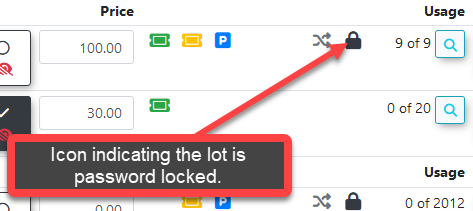](https://opscom.wiki/uploads/images/gallery/2026-07/3llimage.png) --- ## Best Practices and Considerations - **Event Parking Security:** **Combine lot passwords with lot visibility settings** to create a highly secure booking process for specialized event parking. By hiding the lot from the general public and assigning a password, you ensure that the lot can only be booked by users who have been provided both the direct URL link and the correct password. Instructions for hiding a lot can be found on the *[Lot Visibility Options](https://opscom.wiki/books/the-opscom-admin-portal/page/lot-visibility-options "Lot Visibility Options")* page. - **Password Communication:** Ensure you have a clear, documented method for distributing the lot password to your authorized users (e.g., via event registration confirmation emails or targeted internal memos), as they will be completely blocked from securing their parking without it. # Lot Visibility OptionsThe Lot Visibility Options feature provides administrators with enhanced control over parking lot visibility and accessibility. Its primary purpose is to allow you to define exactly how and when users can view and book permits for specific lots, ensuring that spaces can be precisely tailored for various scenarios, including event parking and restricted access. This article is intended for OPS-COM administrators.
**Important:** Direct URL links and QR codes function exclusively for **Temporary Permits**. Standard (regular/recurring) permits require the lot to be set to **Visible** so users can select it during standard checkout.
## Setup and Configuration Lot visibility can be configured individually within the Lot Edit Page or adjusted in bulk on the View All Lots Page by selecting one of three distinct access options. **Admin Side:** ### Configuring Visibility on the Pricing & Lot Admin Page 1. Hover over **Parking Management**, hover over **Lot Administration**, and click [Pricing & Lot Admin](https://opscom.wiki/books/the-opscom-admin-portal/page/pricing-and-lot-admin). 2. Click the specific **Lot Name** you wish to configure. 3. Select the desired option via the radio buttons under the **Visibility to Users** setting on the **General** tab. 4. Click the **Update Lot** button to save your changes. ### Configuring Visibility on the View All Lots Page (Bulk Action) 1. Hover over **Parking Management**, hover over **Lot Administration**, and click [Pricing & Lot Admin](https://opscom.wiki/books/the-opscom-admin-portal/page/pricing-and-lot-admin). 2. Locate the **Visibility** column for each lot on this main overview page. 3. Click the current visibility icon next to the desired lot (or lots) to immediately change the status using the radio buttons that appear. This allows you to quickly change the visibility status of multiple lots at once without entering the full edit page. ## Using this Feature The three lot visibility options provide granular control over user access. Depending on the setting chosen, the lot will behave differently for end-users interacting with the system. ### Visibility Options Explained - **Not Visible:** The lot is entirely hidden from end-users on the permit booking page and the real-time map. Users cannot book permits from this lot, even if they possess a direct link. This option is typically used for lots under active construction, maintenance, or that are no longer in use. - **Visible:** The lot is actively visible to end-users on the standard permit booking page and may prominently appear on the real-time map (if configured). Users can book permits from this lot, provided they meet any other required access criteria (e.g., user type, sales window). This is the standard, default setting for publicly available lots. - **Hidden But Accessible:** The lot is hidden from the general permit browsing page and real-time map. However, users can book **temporary permits** for this lot if provided with a direct URL link or QR code (e.g., via email, event invitations, or signage). *Note: Direct links are compatible with temporary permits only; standard permits cannot be accessed via direct link.***Visual Cues & Status Indicators** On the administrative dashboard, each visibility state is represented by a unique icon in the **Visibility** column. A standard icon indicates a **Visible** lot, a slashed icon indicates a **Not Visible** lot, and an alternative icon indicates a **Hidden But Accessible** status.
--- ## Best Practices and Considerations - **Leverage for Event Parking:** **The Hidden But Accessible option is ideal for event parking.** You can seamlessly provide a direct link to event attendees, allowing them to book permits without the lot being generally visible and consumed by standard daily users. - **Combine with Passwords:** **For enhanced security, combine the Hidden But Accessible setting with lot passwords.** This ensures that only users with both the direct link and the correct, secret password can successfully book permits for the restricted lot. - **Prioritize User Communication:** **If using Hidden But Accessible lots, clearly communicate exactly how users can access the lot.** Provide clear instructions alongside your links (e.g., "Scan this QR code upon arrival," or "Click the secure link in your registration email to book your space"). - **Audit Regularly:** **Periodically review the visibility settings of your lots** to ensure they continuously align with current operational needs, seasonal changes, and access policies. # Adding Permits to a Lot (Allocation)This article outlines the process for adding permits to specific parking lots. Its primary purpose is to enable the efficient management of your permit inventory by allowing permits to be added individually, sequentially, or with custom prefixes and postfixes so lots always have available inventory for sale. This guide is intended for OPS-COM administrators.
## Setup and Configuration This process is a standard administrative function and does not require any specialized system configuration. **Admin Side:** Administrators simply need to ensure that the target parking lot has already been created and configured within the system before attempting to allocate permits to it. **User Side:** End-users do not interact with the permit allocation process. They will only see the resulting permits available for purchase on the user portal once the allocation is complete and a sales window is active. ## Using this Feature Administrators can use the following instructions to generate new permit inventory and verify that it has been correctly added to the system. ### Adding Permits 1. Hover over **Parking Management**, hover over **Lot Administration**, and click **Allocate**. 2. Locate the specific lot to which you want to add permits on the Permit Number Allocation page and click the **Add Permits to Lot** button. 3. Enter the desired permit numbers into the provided fields using one of the following methods: - **Individual Permit Numbers:** Enter specific, non-sequential permit numbers, separated by commas (e.g., Staff01, Staff02, Visitor123). - **Range of Permit Numbers:** Enter a numerical range using the word "to" (e.g., 1 to 20 or 50 to 200). The system will automatically generate all numbers within that range. - **Prefix:** Enter text in the **Prefix** field. This text will be added before each generated permit number (e.g., entering "Staff" generates Staff01, Staff02). - **Postfix:** Enter text in the **Postfix** field. This text will be added after each generated permit number (e.g., entering "-East" generates 01-East, 02-East). 4. Click the **Add Permits** button. 5. Click the **Add Permits** button again on the confirmation pop-up to confirm and finalize the process. Wait for the success message to confirm that your changes were successfully made.**Preventing Permits From Being Reserved For The Waitlist.** When adding permits to a lot you may find they get reserved for the waitlist immediately which is a great feature if you are adding permits that you plan to assign with the waitlist tool. If you wish to add a permit to the lot and NOT have it immediately reserved to the wiaitlist you can select **"not visible"** when adding permits with the allocate tool. The selector button for this is located in the last line of text on the add permit popup window. Uncheck to have the permits be set as not available upon creation and therefore not visible to the end user. The permit will however, be visible and assignable for an admin.
### Viewing Added Permits After permits are added, you can verify their details by navigating to the permit search utility. 1. Hover over **Permits** and click **Permit Search**. 2. Filter by the relevant lot to view the newly added permits and confirm their accurate generation. --- ## Best Practices and Considerations - **Plan your numbering scheme:** **Before adding large batches of permits, plan your numbering scheme to ensure consistency and avoid conflicts.** - **Use unique identifiers:** **While the system inherently handles uniqueness, consider using prefixes or postfixes for different types of permits or lots for much easier identification in reports.** - **Verify your allocation:** **Always perform a quick check in the Permit Search utility after adding permits to confirm they have been correctly allocated to the desired lot.****Choose the most efficient entry method:** For small, specific additions, individual entry is efficient. However, for larger inventories, utilizing ranges combined with prefixes or postfixes will save significant administrative time.
# Setting Up A Lot To Be Visible and Available To The End UserThis article outlines the critical factors that determine a lot's visibility and availability to end-users when they are purchasing permits in OPSCOM. Its primary purpose is to help administrators understand and configure these settings correctly to ensure that parking lots are accessible to the intended user groups. This guide is intended for OPSCOM administrators.
## Setup and Configuration Configuring lot visibility requires adjusting system-wide settings as well as lot-specific user type permissions. **Admin Side:** **System-Wide Visibility Setting** 1. Hover over **System Configuration** and click **System Settings**. 2. Click the **Permits** tab. 3. Locate the **Show Only Visible lots** setting.Enable the **Show Only Visible lots** checkbox to only view lots marked as "Visible" across the system. Disable this checkbox to view both visible and non-visible lots in administrative views.
**Lot Visibility and User Type Settings** 1. Hover over **Parking Management**, hover over **Lot Administration**, and click [Pricing and Lot Admin](https://opscom.wiki/books/the-opscom-admin-portal/page/pricing-and-lot-admin). 2. Click **Add New Lot** (or click an existing **Lot Name** to edit). 3. Enable the **Visible** radio button in the **Visibility to User** setting on the **General** tab. 4. Select the appropriate **User Types** that are allowed to see and purchase permits for this lot in the **Lot Access** section. Hold the **Ctrl** key to select multiple user types. 5. Click the **Update Lot** button. 6. Disable the **This lot is for temporary parking only** checkbox on the **Temporary Permits** tab. **Allocate Permits to the Lot** 1. Follow the steps in the [Adding Permits to a Lot (Allocation)](https://opscom.wiki/books/the-opscom-admin-portal/page/adding-permits-to-a-lot-allocation) article to add and verify your permits. **Set Up a Permit Sales Window** 1. Follow the steps in the [Permit Sales Window Management](https://opscom.wiki/books/the-opscom-admin-portal/page/permit-sales-window-management) article to setup your Sales Window. **User Side:** End-users do not configure these settings. They simply log in and view the lots that their specific User Type has been granted access to during active sales windows. ## Using this Feature Administrators should interact with the system using the impersonation tool to test and verify that the lot is properly visible to the correct user types. ### Testing Lot Visibility 1. Hover over **User Management** and click **User Registration** to create a new test user, or click **User Search** to find an existing one. 2. Verify that the test user's **User Type** (e.g., Full Time Staff) matches one of the user types you allowed to access the newly configured lot. 3. Click the **Login as User** button for your test user. 4. Navigate to **Permits** on the User-Side Dashboard. 5. Verify if the lot you created is available to be reserved. If the user type you are testing does not match the lot's allowed user types, the lot will remain safely hidden on the user side. --- ## Best Practices and Considerations - **Test Thoroughly:** **Always perform a Login as User test with various user types after configuring a new lot or modifying its settings.** This ensures that visibility and availability precisely match your intentions. - **Align User Types:** **The most common reason a lot isn't visible is a mismatch between the lot's User Types setting and the logged-in user's actual user type.** Double-check this setting carefully. - **Check Sales Window Dates:** **Ensure your permit sales windows are always current.** An expired sales window will make the lot completely unavailable, even if all other settings are correct. - **Allocate Permits First:** **A lot without allocated permits, even if marked visible, will not allow users to purchase permits as there is no inventory to sell.** Always allocate permits after lot creation. - **Use Clear Naming Conventions:** **Use descriptive Lot Names and Lot Short Names that clearly indicate the lot's purpose or location to users.** # Public-Facing Lot PagesThis article outlines how to create and configure custom public-facing pages that display parking lots for user booking. This feature allows OPSCOM administrators to provide a streamlined, branded parking selection and purchase experience.
## Setup and Configuration Custom pages are managed through the **Pages and Content Blocks** section. 1. Navigate to **System Configuration**, select **Content & Designs**, and click **Pages and Content Blocks**. 2. Create or edit a page to serve as your Lot List or Lot Detail page. 3. Insert the appropriate **Shortcode** into the body of the page layout to render the desired functionality.Shortcodes must be typed exactly as they appear in the documentation, or they will not function correctly.
## Using this Feature The public-facing lot experience consists of two distinct subpages: the **Lots List** and the **Lot Detail**. ### Lots List Page The **Lots List** page displays all available parking lots to the user. You can place this module on any custom page. - **Path Configuration:** When creating the page, the path you assign will be reflected in the URL. For example, if you set the path to /lots, the module will display at `yourdomain.com/lots`. - **Shortcode Options:** Use the **\[lots\_list\]** shortcode to display the list. You can modify this shortcode using the following options:| **Shortcode Option** | **Description** |
| **\[lots\_list include\_hidden=1\]** | Includes lots that are otherwise set to be hidden from the user. |
| **\[lots\_list only\_text2parkme=1\]** | Restricts the list to show only lots with **Text2ParkMe** enabled. |
You can chain options together in a single shortcode. For example: **\[lots\_list include\_hidden=1 only\_text2parkme=1\]**.
### Lot Detail Page The **Lot Detail** page provides specific information for a single selected lot. This page is coded to function specifically when the path is set to **--lots-detail**, which dynamically fetches information for the selected lot ID. Use the following shortcodes to customize the layout of your Lot Detail page:| **Shortcode** | **Description** |
| **\[values show=lotname\]** | Displays the name of the lot. |
| **\[values show=lottype\]** | Displays the initial of the lot type. |
| **\[values show=lotnameid\]** | Displays the lot ID. |
| **\[values show=defaultcost format=currency\]** | Displays the cost to rent a permit for the lot. |
| **\[values show=location\]** | Displays the address or location description. |
| **\[values show=textcode\]** | Displays the **Text2ParkMe** code for the lot. |
| **\[values show=ratePer10Min format=currency\]** | Displays the **Text2ParkMe** rate for the lot. |
| **\[lot show=buy\_now\]** | Displays the purchase button. Redirects unauthenticated users to the login screen. |
| **\[lot show=map\]** | Displays a map based on the lot's stored latitude and longitude. |
| **\[lot show=photo\]** | Displays the photo assigned to the lot. |
The Event Parking feature allows administrators to configure exclusive parking lots that can only be booked by users who have been given a direct link or QR code. Its primary purpose is to help ensure that only authorized event attendees can reserve and purchase parking for specific occasions by utilizing visibility restrictions and passwords. This article is intended for OPSCOM administrators.
## Setup and Configuration Setting up a lot for exclusive event parking involves two main configurations: hiding the lot from the general public and applying an access password. Because the configuration steps for these features are extensive, please refer to their dedicated wiki articles for full step-by-step instructions: 1. Ensure **Temporary Permits** are active for the lot *(direct links do not function for standard permits)*. 2. Configure the lot to be hidden from standard public view. Instructions can be found on the *[Lot Visibility Options](https://opscom.wiki/books/the-opscom-admin-portal/page/lot-visibility-options)* page. 3. Secure the lot to ensure only authorized users can book space. Instructions can be found on the *[Lot Passwords](https://opscom.wiki/books/the-opscom-admin-portal/page/lot-passwords)* page. ## Using this Feature Once your event lot is properly hidden and secured with a password, administrators distribute access to the lot outside of the standard OPSCOM user portal. 1. Locate the direct URL link or QR code on the lot's **Temporary Permits tab**. 2. Distribute the direct link via email to your event attendees, or display the QR code on physical event signage or ticketing materials. 3. Ensure the attendees are also provided with the configured lot password. 4. When a user clicks the link or scans the QR code, they will be directed to the hidden lot's **temporary permit page** and prompted to enter the password to complete their parking reservation. --- Best Practices and Considerations**Retrieve Direct Link & QR Code:** OPS-COM automatically generates a unique direct link and QR code for your lot on the **Temporary Permits tab** once the lot is saved with a Lot Name and assigned User Types. Administrators can copy the link or download the QR code directly from this tab to use on event signage, ticketing materials, or pre-event emails.
- **Clear Communication:** **Always include both the direct link and the lot password** in your pre-event communications (such as registration confirmation emails). If attendees only have the link but lack the password, they will be unable to book their parking. - **Testing:** Before sending out communications to a large group of attendees, test the direct link and password yourself in an incognito or private browsing window to ensure the lot routes correctly and the password functions as intended. # Pay Station StatusThe Pay Station Status lookup tool is used for searching and verifying temporary permits issued by physical pay stations. Its primary purpose is to allow administrators and enforcement personnel to accurately look up a vehicle's pay station status based on various criteria, such as plate number and time. This guide is intended for OPS-COM administrators and enforcement staff.
## Setup and Configuration This tool is a standard administrative feature and does not require any specific system configuration. **Admin Side:** Administrators do not need to configure any internal settings. However, this feature strictly relies on a successful, active integration with your organization's external pay station hardware to continually populate its data. **User Side:** End-users do not interact with this administrative lookup tool. They only interact with the physical pay station hardware in the parking lots. ## Using this Feature Administrators and enforcement staff can use the following instructions to actively filter for pay station transactions and view specific vehicle details. ### Performing a Status Lookup 1. Hover over **Parking Management**, hover over **Temporary Permits**, and click **Pay Station Status**. 2. Enter your criteria into one or more of the following search filters: - **Plate:** Search for a specific license plate. - **Valid Date/Time:** Find permits that were valid on or after the selected date and time. - **Zones:** Filter the results for specific pay station zones. 3. Click the **Validity Filter** drop-down menu to show only **Valid**, **Non-Valid**, or **All** records. 4. Select an option from the **Sort Order** drop-down menu to logically organize the results by a specific column. 5. Click the **Search** button to generate the list. ### Available Actions - **Plate Number Link:** Click the linked number in the **Plate** column of any results row to open a new page where you can view or edit that specific vehicle's details. --- ## Best Practices and Considerations - **Verify infractions instantly:** **Use the Plate and Valid Date/Time filters together for quick enforcement checks.** This targeted search allows you to instantly verify if a specific vehicle had a valid pay station permit at the exact time of a recorded infraction, reducing administrative disputes.The data displayed on this page is pulled directly from your integrated pay station system. **Any discrepancies in the data should first be investigated directly at the physical pay station terminal or within its dedicated management software.**
# Refundable Parking DepositsThe Refundable Parking Deposits feature allows administrators to associate mandatory deposit fees—such as those for access cards or physical hang tags—with specific parking lots. Its primary purpose is to ensure that required deposits are automatically included in the total cost during the permit purchasing process and to track assigned inventory numbers. This article is intended for OPS-COM administrators.
## Setup and Configuration Before a deposit can be charged during a permit sale, administrators must apply the pre-configured deposit types to the appropriate parking lots. **Admin Side:** 1. Hover over **Parking Management**, hover over **Lot Administration**, and click **Pricing and Lot Admin**. 2. Click the specific lot name you wish to apply the deposit to. 3. Click the **Standard Permits** tab to view the available deposit types. 4. Click the deposit you wish to apply from the **Deposits** list. Hold the **Ctrl** or **Shift** key to select multiple deposit types simultaneously. 5. Save your lot configuration changes.Once a deposit type is successfully associated with a lot, it will automatically be included in the purchase of a permit in that lot for administrative transactions only.
**User Side:** End-users do not interact with the setup or configuration of refundable deposits. ## Using this Feature Administrators can use the following instructions to process a permit sale that includes a mandatory deposit and accurately record the assigned physical inventory. ### Processing a Permit with a Deposit 1. Navigate to a user's profile and click the **Parking** tab. 2. Click the **Standard Parking Permit** link to begin the permit purchasing process. 3. Select the lot you wish to register the client to (ensure it is a lot configured with a deposit). 4. Click the **Register Permit** button. 5. Review the **Confirm Parking Permit Registration** window. Verify that the required deposits are included and listed correctly in the **Total Owing** costs. 6. Click the **Purchase this Permit** button to begin the payment process. ### Editing Assignable Text (Access Cards and Hang Tags) During the payment process, administrators can record specific identifiers for the physical items being handed out (such as an access card number or a hang tag number). 1. Click the specific **Deposit Item** name (e.g., Access Card Deposit) on the payments screen. 2. Enter the physical item's number in the **Assigned Text** field within the **Deposit Information** pop-up window. 3. Click the **Update Deposit** button. 4. Verify that the assigned number now appears on the **Payments** screen under the **Deposits** section. 5. Proceed with completing the purchase and processing the payment in the usual manner. --- ## Best Practices and Considerations - **Understand administrative limitations:** **Remember that deposit types associated with a lot are only included in the purchase of a permit when processed by an administrator.** They are not automatically applied to self-service purchases made by end-users on the public portal. - **Utilize assignable text:** **Always use the assignable text feature to record access card or hang tag numbers at the time of sale.** This practice maintains accurate inventory records and is essential for properly processing the eventual refund when the physical item is returned. # Access Cards - SearchThe Access Cards Search tool allows administrators to locate and review access card assignments within specific parking lots. Its primary purpose is to help efficiently query access card data based on lot assignment or specific card number ranges. This article is intended for OPSCOM administrators.
## Setup and Configuration There is no specific configuration required to access this search tool, provided your administrative user role has the appropriate parking and permit management permissions enabled. ## Using this Feature Administrators can use this tool to filter and review access card assignments based on specific search criteria. 1. Hover over **Parking Management** and click **Permit Management** then **Access Cards** followed by **Search**. 2. Click the **Lot Name** drop-down menu and choose the lot you want to search. 3. Enter the numerical parameters in the **Access Card Range** fields to narrow down the search to specific cards. 4. Click the **Retrieve** button to generate the report. ### Key Information Displayed - **Search Results:** Any access cards that match your search criteria will appear directly below the search fields, displaying the relevant card numbers and their associated assignment details. --- ## Best Practices and Considerations**Lot Visibility:** Only lots that currently have access cards associated with them will be listed in the **Lot Name** drop-down menu. If you do not see a specific lot, verify its setup within your lot configuration settings.
- **Targeted Searching:** **Utilize the Access Card Range fields** when managing high-capacity lots to quickly find a specific card or a block of issued cards without needing to scroll through the entire lot inventory. # Clearing Items Awaiting PaymentClearing Items Awaiting Payment and its associated system tasks allow administrators to view and automatically clear unpaid permits and lockers sitting in user shopping carts. Its primary purpose is to free up unpaid inventory by returning items to the system after a specified timeframe. This article is intended for OPSCOM administrators responsible for inventory management and system configuration.
## How the Clearing Process Works: The automated clearing process operates in two distinct stages to ensure unpaid inventory is returned to the system: - **Individual Item Expiration (The Timer):** The moment an item (permit or locker) is added to a user's cart, a rolling clock starts. The item expires based on the duration set in the **Clear Payments After X Hours** setting (for example, an item added at 1:00 PM with a 24-hour setting will expire at 1:00 PM the following day). - **Periodic System Sweeps (The Task):** The **Clear - No Payment** scheduled task runs periodically based on your configured schedule. When the task executes, it scans all active shopping carts and automatically removes only the items whose individual expiration timers have passed. Unexpired items remain in carts until the next scheduled sweep. ## [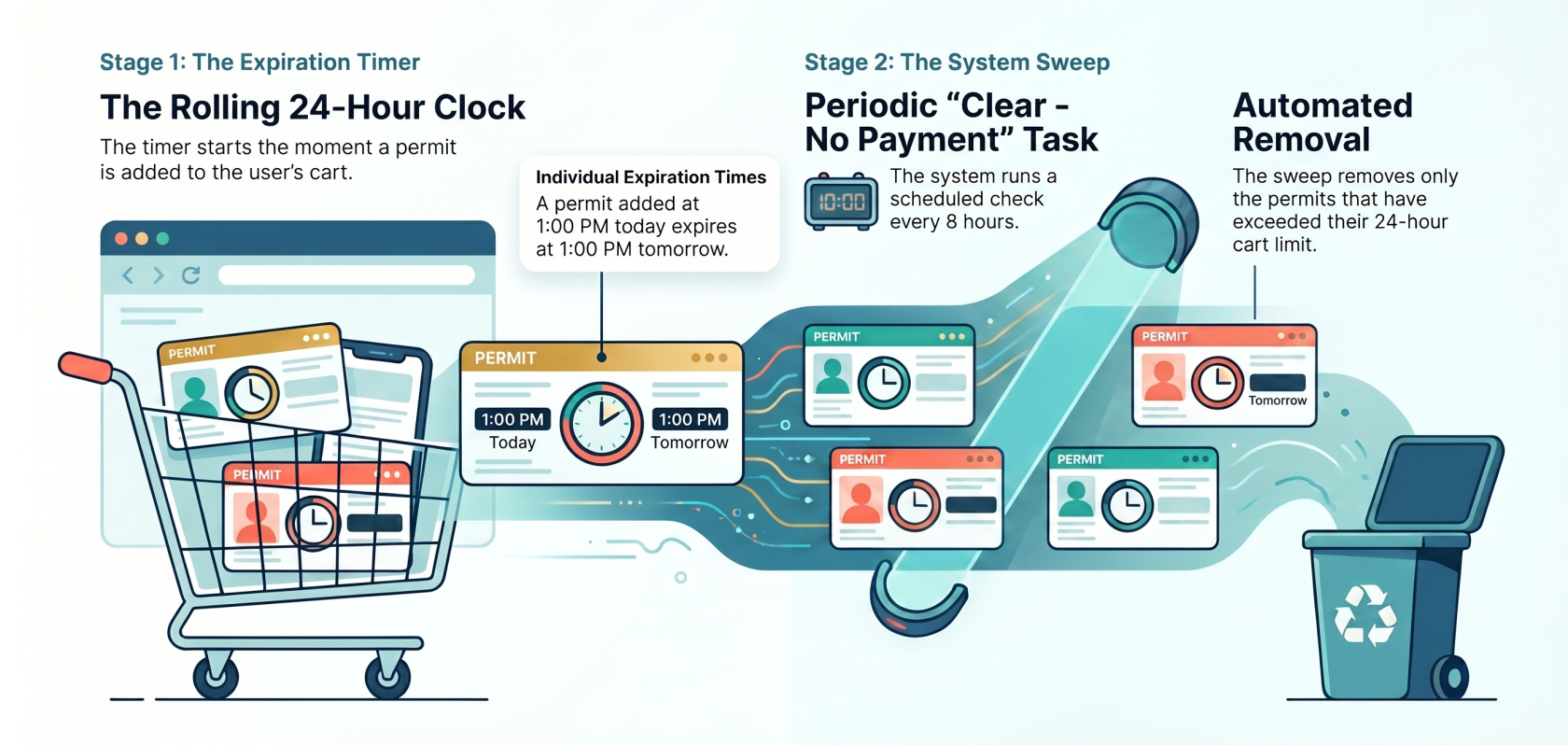](https://opscom.wiki/uploads/images/gallery/2026-06/automated-permit-expiration-system-workflow.png) ## Setup and Configuration To enable the automated clearing process for permits or lockers, contact **support@ops-com.com** to have the initial backend settings enabled for your environment (requires Primary Admin authorization). OPSCOM Support will configure the **Clear Unpaid Permits** toggle, **Clear Unpaid Lockers at Midnight** toggle, and the **Clear Payments After X Hours** timeframe on your behalf. Once Support has enabled these underlying settings, administrators can manage and schedule the clearing task directly within the portal: Once Support has enabled these underlying settings, administrators can manage and schedule the clearing task directly within the portal: 1. Click **Tools**, and then click **View System Task Logs**. 2. Locate the **Clear - No Payment** task. 3. Click the toggle switch to set it to **Enabled**. 4. Click the **pencil (edit) icon** next to the task to open the *Edit schedule — Clear - No Payment* pop-up modal. 5. Select your desired **Schedule type** (e.g., *Daily at a set time*) and set the execution time in the **Run at** field. 6. Click **Save**. ## Using this Feature Administrators can manually review the Midnight List for both permits and lockers to see which items are pending removal. ### Viewing Permits without Payments 1. Hover over **Parking Management**, click **Reports**, and then click **Midnight List**. 2. Review the report displaying all users with permits in their cart that do not have an associated payment. ### Viewing Lockers without Payments 1. Hover over **Locker Management** and click **Midnight List**. 2. Review the report displaying all users with lockers in their cart that do not have an associated payment. ### Available Actions From either Midnight List report, you can perform the following actions: - **See items to be cleared:** View the specific inventory sitting in the user's cart. - **Email the affected users:** Send a communication to users reminding them to complete their purchase. - **Clear their flag:** Remove the user from the Midnight List and update the queue. --- ## Best Practices and Considerations - **Excluded Inventory:** **Permits that have been rolled over (renewed) or assigned through a managed waitlist are excluded** from the automated clearing process. These must be managed manually. - **Zero Dollar Items:** Zero-dollar items cannot be cleared using the Midnight List task. Instead, you must use the **Mark Items as Paid** functionality to clear these specific transactions from a user's cart. # Parking Logix - Parking Sensor IntegrationThis article outlines how to configure and enable the **Parking Logix** integration within OPSCOM, allowing administrators to sync parking sensor data for real-time monitoring and display. This feature is intended for OPSCOM administrators responsible for system configuration and user-facing parking maps.
## Setup and Configuration Follow these steps to integrate **Parking Logix** sensors with your OPSCOM system. ### Enable Parking Logix Integration 1. Navigate to **System Settings**. 2. Select **Third Party** settings. 3. Enable the **Parking Logix Integration** checkbox. ### Adding the Lot Group 1. Create a new lot group for each lot where you are collecting sensor data. 2. Enter the required **API code** when configuring each group. - Note: It is possible, though unlikely, to have multiple **API keys** if lot access is split across several keys. 3. Navigate to the **Lot Administration** tool. 4. Open the **LPR Settings Tab** for the desired lot. 5. Assign the previously created lot group to the lot. ### Enable the System Task 1. Contact OPSCOM support by emailing **support@ops-com.com** to enable the required system task for sensor communication. 2. Once the system task is active, verify the integration by navigating to **Manage Parking Lot Groups** to confirm that lot counts are updating correctly. ## Displaying the Map on the User Side To display the parking map to end users, you must insert the integration short code into your site pages. 1. Navigate to **System Messaging**. 2. Edit the desired page where the map should appear. 3. Enter the short code **\[parking\_logix\]** into the page content. - You may add parameters such as **only**, **show**, **filter**, or **name** to the short code to restrict the list to specific lots. [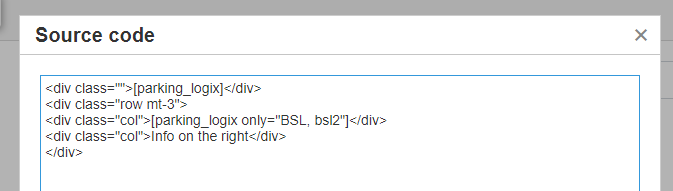](https://opscom.wiki/uploads/images/gallery/2026-07/ZXAvxjimage.png)By design, the map will only display lots that have a group assigned and a valid **API key** stored.
[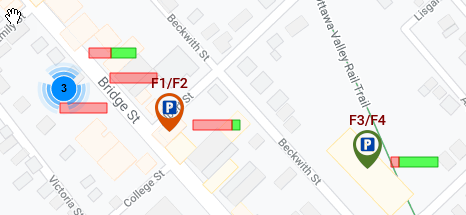](https://opscom.wiki/uploads/images/gallery/2024-06/6Lhimage.png) --- ## Best Practices and Considerations - **Data Accuracy:** Ensure that every lot intended for display is correctly linked to a lot group containing a valid **API key**, otherwise, the lot will not appear on the user-facing map. - **Support Coordination:** Because the system task must be enabled by the OPSCOM integration team, initiate your support request early in your setup process to avoid delays in data synchronization. - **Parameter Usage:** Use the filtering parameters within the **\[parking\_logix\]** short code to provide users with a clean, relevant view of specific parking areas rather than the entire system inventory. # Viewing and Editing LPR EventsThe License Plate Recognition (LPR) Capture Log is a tool designed to track, filter, and audit real-time and historical license plate reads. Its primary purpose is to help administrators monitor automatic data ingestion from fixed camera feeds as well as manual or mobile inputs from parking enforcement users. This article is intended for OPSCOM administrators.
## Setup and Configuration This reporting and auditing tool does not require any specific setup or configuration to function. Its capabilities are based on existing camera integrations, handheld device data, and the LPR permissions already assigned to your administrator profile. ## Using this Feature The LPR Capture Log consists of a comprehensive search interface and a detailed results table. Hover over **Violations** and click **LPR and Chalking** then **View Events** to access the log. ### Search and Filtering Interface Use the top section of the log to locate specific plate records using the following fields: 1. Enter full or partial plate numbers in the **Plate** field. To perform a strict match, type the exact plate number (e.g., **ABC123**). 2. Enable the **Perform Fuzzy Search** checkbox to use approximate string matching, which helps catch optical character recognition (OCR) anomalies or close variations. 3. Click the **Make** drop-down menu and choose a specific vehicle manufacturer, or leave it as the default **Any**. 4. Click the **Colour** drop-down menu and choose a specific vehicle color, or leave it as the default **Any**. 5. Define a strict search window using the **Start Date** and **Up To and Including** date pickers. 6. Click the **Toggle More Options** button to expand the interface and reveal advanced metadata filters: - **Cameras:** Scroll and select specific physical entry or exit lanes to track exact movement patterns. - **Event Type:** Click the drop-down menu and choose **Entry**, **Exit**, **Patrol**, or **Tracking**. - **Device Type:** Scroll and select the software agent or integration platform delivering the data (e.g., **ANY**, **PL8RDR / Vaxtor**, or **User / Other**). ### Key Information Displayed Once your search is executed, the **LPR Captures Results Table** displays the following information:| **Column Name** | **Description** |
| **Actions** | Provides interactive icons to manage the record. |
| **Licence Plate Image** | Displays the actual image of the captured license plate. |
| **Permit** | Displays an active permit badge icon if the plate is successfully cross-referenced with a valid parking permit. |
| **Plate** | Shows the license plate number detected by the camera or handheld device. |
| **Make / Model / Color** | Lists the declared vehicle descriptors (e.g., **NISSAN / WHITE**). |
| **Writer** | Identifies the intake route and assigned user or camera logic. |
| **Source** | Identifies the software module or entity passing the data. |
| **Device** | Dictates the hardware source classification, such as a fixed camera name or the handheld device name. |
| **Recorded** | Provides the exact timestamp log of the capture event. |
The **Start Date** and **Up To and Including** date parameters only restrict results generated by Pay Station data and LPR records. These filters do not retroactively filter out base vehicle profiles based on their original database creation date or account history.
- **Fuzzy Searching:** **Always use the Perform Fuzzy Search option** if you are unable to locate a vehicle using an exact plate match. Dirt, weather, or lighting can occasionally cause cameras to misread a character (e.g., reading an "O" as a "0"). - **Tracking Vehicle Movement:** When investigating a specific incident, use the **Cameras** and **Event Type** filters in tandem to track a vehicle's exact movement pattern through your facilities. - **Data Verification:** Use the **Licence Plate Image** provided in the results table to manually verify the plate characters if a user disputes a capture or violation. # Improve LPR Read RatesThe Improve LPR Read Rates guide provides administrators and enforcement personnel with instructions on how to physically and digitally optimize License Plate Recognition (LPR) cameras. Its primary purpose is to help increase the accuracy and speed of plate reads through physical adjustments, exposure tuning, bounding box modifications, and system configurations. This article is intended for OPS-COM administrators and enforcement staff.
## Setup and Configuration Optimizing your LPR read rates involves a combination of physical camera adjustments, web interface configuration, and handheld settings. ### Physical Camera Setup - **Optical Range:** The sweet spot for plate reads is between 1.5 to 2.5 meters between the camera and the license plate. [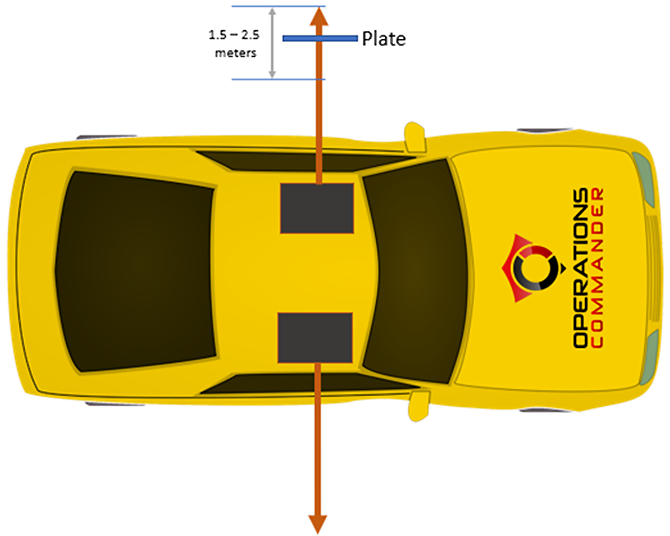](https://opscom.wiki/uploads/images/gallery/2026-07/vjuimage.png) - **Camera Angle:** Ensure the optimum angle for the camera is straight on (parallel) to the plate. - **Maintenance:** Always check to make sure the camera lens is completely clean and free of debris. ### Web Interface Configuration Administrators can use the web interface to fine-tune how the camera processes images and characters. **Adjusting Character Dimensions:** You can tweak character dimensions to improve regional reads (for example, Ontario plates). 1. Navigate to the Web Interface Page and select **Plate Reader** then **Camera OCR**. 2. Set **CHAR SIZE Min W** to 10. 3. Set **CHAR SIZE Max W** to 50. 4. Set **CHAR SIZE Min H** to 30. 5. Set **CHAR SIZE Max H** to 100. [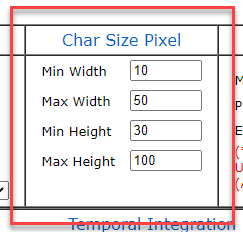](https://opscom.wiki/uploads/images/gallery/2026-07/asgimage.png) **Improving Exposure for Dark Plates:** 1. Set **Max Shutter** to 500. 2. Set **Max Gain** to 256. If images are too dark, this setting can be increased, but it is not recommended to exceed 1000. 3. Set **Iris Level** to 15. [](https://opscom.wiki/uploads/images/gallery/2026-07/Lio4pdimage.png) **Adjusting the Bounding Box:** The bounding box restricts the specific area analyzed by the LPR camera, ignoring unnecessary background information. Measurements for height are calculated from the top of the screen, and width from the left of the screen. [](https://opscom.wiki/uploads/images/gallery/2026-07/9isimage.png) 1. Navigate to the **Plate Reader Settings**. 2. Edit the pixel values to narrow the read area. The default full-frame settings are: - **Win MinX Pixel**: 0 - **Win MinY Pixel**: 0 - **Win MaxX Pixel**: 1279 - **Win MaxY Pixel**: 1023 3. Increase the **Min** values or decrease the **Max** values to shrink the bounding box horizontally (X) or vertically (Y). 4. Click the **Apply** button to save the changes.Once the bounding box settings are changed and you click the **Apply** button, the camera will reboot. This process will take a couple of minutes to complete before you can navigate away from the page.
### Handheld Unit Configuration For NOREAD results, you can adjust settings directly on the Android handheld device to process vanity plates or challenging reads. 1. Tap **System Settings**. 2. Tap **Include NOREAD (ie. vanity) Results**. 3. Set the percentage to 50% to start. 4. Tweak this percentage later based on how the system reacts in the field. ## Using this Feature The LPR system utilizes advanced algorithms and human corrections to continually improve its read accuracy during daily operations. ### Fuzzy Searching The PL8-RDR system inherently supports fuzzy searching based on user-supplied values. If the LPR system "sees" ABC123, it will automatically validate against similar visual patterns such as A8C123, ABC128, or A8C12B based on time of day and active permits. ### Manual Corrections You can actively improve plate reads by making manual corrections and verifying correct plates on the system. The system uses an algorithm that includes your human updates as part of its read score. Therefore, if a plate is consistently misread and corrected by an administrator or guard, it is highly probable that the system will return the human-updated version in the future.If you see a score of 100% in the LPR report, that indicates the system determined a human-updated version was the best match. A raw algorithmic read score of 100% is theoretically impossible with standard LPR cameras.
--- ## Best Practices and Considerations - **Optimize the bounding box:** **By selectively adjusting the bounding box settings, you can heavily customize the area processed by the LPR read.** Focusing the camera on a smaller area forces it to ignore surrounding noise, resulting in faster and significantly more accurate reads. - **Balance NOREAD noise:** **While increasing the NOREAD percentage on the handheld can help identify vanity plates, it may also introduce more system noise.** Monitor the results and find a balance that captures valid plates without overwhelming the user with false reads. - **Avoid excessive gain:** **When adjusting exposure, never increase the Max Gain setting over 1000.** Excessive gain will introduce heavy digital noise, actively degrading the camera's ability to perform OCR (Optical Character Recognition). # LPR Audit LogThe LPR Audit Log allows administrators to view and track License Plate Recognition (LPR) camera and chalking events. Its primary purpose is to help monitor entry, exit, patrol, and tracking activities across the parking system. This article is intended for OPSCOM administrators responsible for monitoring LPR activity and auditing vehicle movements.
## Setup and Configuration There is no specific setup or configuration required to use the LPR Audit Log, provided your administrative user role has the appropriate permissions to view LPR and violation data. ## Using this Feature The LPR Audit Log provides a centralized view of all LPR-related events, along with filtering tools to help you find specific records. 1. Hover over **Violations** and click **LPR and Chalking** then **View Audit Log**. 2. Review the initial screen to see the default audit log display. 3. Click **Toggle More Options** to expose the filtering capabilities. 4. Select a specific camera from the **Camera selection** drop-down menu to filter by location. 5. Select a specific event from the **Event type** drop-down menu to narrow the search results. ### Event Type Definitions When filtering by **Event type**, you can select from the following five categories: - **Any Event:** Displays all recorded LPR actions across the system. - **Entry Events:** Displays records of vehicles entering a monitored area. - **Exit Events:** Displays records of vehicles exiting a monitored area. - **Patrol Events:** Displays LPR chalking records captured by a Patrol Officer using a handheld unit. - **Tracking:** Displays records from cameras configured to track internal movement, such as a vehicle moving from one floor of a multilevel parking garage to another. --- ## Best Practices and Considerations - **Targeted Filtering:** Use the **Camera selection** and **Event type** filters combined to quickly drill down into specific data. This is particularly useful in high-traffic environments where searching without filters may yield an overwhelming number of results. - **System Monitoring:** Regularly review the audit log to verify that both stationary LPR cameras and handheld units are successfully capturing and transmitting data to the system. - **Handheld Unit Data:** Keep in mind that **Patrol Events** are directly tied to the actions of officers on the ground. Auditing these specific events can help verify patrol routes and coverage times. # The Validator - a Parking Validation UtilityThe Validator tool allows administrators to quickly issue temporary parking validations for specific lot zones based on vehicle license plates. Its primary purpose is to help manage guest or temporary parking permissions efficiently, ensuring compliant access for authorized visitors without requiring a full permit purchase. This article is intended for OPSCOM administrators and designated parking validators.
## Setup and Configuration Before staff can use the validation utility, administrators must configure the appropriate roles, assign users, and ensure lots are properly zoned. ### Configuring Roles and Users 1. Create a new role specifically for validation staff (e.g., "Parking Validator"). For detailed instructions, refer to the *[Managing Roles and Permissions](https://opscom.wiki/books/setup-configuration-for-admins/page/manage-roles-and-permissions "Manage Roles and Permissions")* page. 2. Add the **Create Temp Permit Entries** permission to this new role. 3. Create or edit an administrative user profile for the staff member who will manage validations. 4. Assign the newly created validation role to the user. 5. Select the specific lot zones this user is authorized to manage and save the profile. ### Configuring Lot Zones 1. Hover over **Parking Management** and click **Lot Administration** then **Pricing & Lot Admin**. 2. Click the specific lot name to open its settings. 3. Click the **Zone & Location** tab and select the zone associated with the lot to link it to the validator utility.The zones assigned to the validator's administrative profile must match the zones configured within the specific lots for the tool to function correctly.
## Using this Feature The validation tool can be accessed via the desktop portal, and the resulting permissions are verifiable in real-time by enforcement officers using the Android handheld application. ### Creating a Validation Record (Desktop) 1. Log in to the OPSCOM admin portal. Users with restricted, validation-only access will only see the **Create Validations** menu item. 2. Click **Create Validation Records** to open the utility. 3. Enter the required license plate numbers into the provided field. 4. Enter a comment for record-keeping purposes. 5. Click the lot zone drop-down menu and choose the area where the vehicle is permitted to park. 6. Select the valid date range for the permission to be in effect. 7. Set the valid time frame by selecting the appropriate hourly blocks (e.g., selecting blocks from 7 AM to 7 PM). 8. Select the specific days of the week you wish the validation to be in effect. 9. Click the **Validate** button to apply the permission. ### Key Information Displayed & Advanced Features - **Validation List:** A list of all successfully validated vehicles will appear directly below the submit form for quick reference. - **Advanced Access:** Administrators with full system access will see additional features beyond the basic creation tool, including the ability to run validation reports and manage existing validation records. ### Viewing Validations on Android Handhelds Enforcement officers can verify these temporary permissions directly from the field. 1. View the active vehicle list. Parkers who are validated through this tool will appear as a **Temp Parker** on the Android version of OPSCOM. 2. Tap the specific plate number to open an expanded view detailing the validator-created permission and the associated lot zone. 3. Tap the green **Validator** rectangle to trigger a pop-up showing the validation reference number and the exact expiry date of the permission. --- ## Best Practices and Considerations - **Restricted Access:** **Create a dedicated, restricted role** for staff who only need to validate parking (such as receptionists or event coordinators). Limiting their access to the validation tool prevents unauthorized changes to broader system settings. - **Time Frame Blocks:** Remember that the time frame selection blocks represent full hours. Always verify your selected blocks completely cover the intended visit duration to avoid accidental citations. # Branding the Validator ToolThis article outlines how to customize the visual appearance of the Validator Tool pages using the system messaging editor. This allows organizations to brand the validator interface with custom headers, text, and layouts to provide a consistent user experience. This guide is intended for OPS-COM administrators responsible for system configuration and design.
## Setup and Configuration To customize the look and feel of the Validator Tool, you must first access the specific system messages associated with these pages. 1. Hover over **System Configuration** and click **Content & Designs** then **Pages and Content Blocks**. 2. Click the **Messages** tab to access the list of editable system messages. 3. Locate the three specific messages used for the Validator Tool: - **Validator Entry** - **Validator Manage** - **Validator Report** ## Using this Feature Administrators can edit the content and layout of the Validator Tool pages using either a visual WYSIWYG editor or direct HTML code. 1. Click the **Edit** button next to the specific Validator page you wish to modify. 2. Enter a descriptive title for your page in the **Title** field. 3. Enter a unique identifier for the page in the appropriate field. 4. Select the desired language setting for your page. 5. Modify the page layout and design using the visual WYSIWYG editor. 6. Click the **Tools** menu and select **<>Source code** if you prefer to edit the page using straight HTML. 7. Save your changes to apply the new branding to the selected Validator page. --- ## Best Practices and Considerations - **Unique Identifiers:** The identifier entered on the edit screen must be completely unique to prevent page routing conflicts within the system. - **Image Sizing:** When adding a main graphic or header image, it is best practice to maintain a consistent width of 1448 pixels, though the height can be adjusted to your preference (e.g., 227 pixels). - **File Management:** Before inserting a custom graphic into your page design, be sure to upload the preferred image to your system's *Files Folder* using the **Manage Files** functionality. # Managing Validator RecordsThis article outlines the process for adding and managing parking validations using the Validator Tool. Its primary purpose is to allow administrators to manually validate parking for specific vehicles and remove incorrect validation entries to maintain accurate reporting. This guide is intended for OPSCOM administrators.
## Setup and Configuration There is no specific configuration required to manage validator records, provided your administrative user role has the appropriate permissions to access the **Parking Validation** tools. ## Using this Feature The Validator Tool allows administrators to quickly assign validations to vehicles and manage existing entries if an error was made during data entry. ### Adding a Validation Record 1. Enter the vehicle's license plate in the **Plate** field. 2. Click the **Lot Zone** drop-down menu and choose the appropriate lot. 3. Enter the required time frame in the **Valid Between Dates** fields. 4. Click the **Validate** button to create the record.Once a record is successfully created, it will automatically appear in the *Validate Parking Report*.
### Deleting a Validation Record If an entry was made in error, it can be removed using the management tool. 1. Hover over **Parking Management** and click **Parking Validation** then **Manage Validations**. 2. Enter the **Plate Number** and select the **Lot Zone** associated with the record you wish to locate. 3. Click the **Delete** button next to the relevant record to select it with a checkmark. 4. Click the **Archive** button when prompted to confirm the removal.A pop-up message will appear confirming the deletion of the record. Once archived, the record is immediately removed from the *Validate Parking Report*.
--- ## Best Practices and Considerations - **Data Accuracy:** **Double-check plate numbers and lot zones** before submitting a validation. Ensuring data accuracy at the point of entry reduces the administrative overhead of manually deleting and recreating records. - **Audit Trails:** **Regularly review the Validate Parking Report** to ensure that active validations are legitimate. While deleted records are removed from standard reports, utilizing proper archive procedures ensures system data integrity is maintained behind the scenes. # Validator Admin GroupsThe Validator Admin Groups article outlines how to configure, manage, and assign permissions for the *[Validator Tool](https://opscom.wiki/books/the-opscom-admin-portal/page/the-validator-a-parking-validation-utility "The Validator - a Parking Validation Utility")*. Its primary purpose is to allow administrators to effectively organize validation groups, assign specific roles, and define management zones for permit validation operations. This guide is intended for OPS-COM administrators.
## Setup and Configuration Configuring validator groups involves creating the core group structures, adding members, and assigning management zones to individual administrators. **Admin Side:** Administrators must completely configure these groups and permissions before staff can effectively use the validation tools. **User Side:** End-users do not interact with validator groups or backend administrative permissions. ### Creating a Validator Group 1. Hover over **System Configuration** and click **Admin Management** then **Manage Groups**. 2. Click the **Parking Validator** module. 3. Click the **Add New** button in the top right corner. 4. Complete the **Group Name**, **Module**, **Validator Comment**, **Admin Members**, and **Default Validation Hours** fields in the newly opened window. 5. Click the **Save Group** button.The **Default Validation Hours** value serves only as an automatically populated preset. There is currently no way to enforce a strict limit, and administrators may manually override this duration.
### Adding Members to a Group 1. Hover over **System Configuration** and click **Admin Management** then **Manage Groups**. 2. Click the **Edit** button next to the relevant Administrator Group. 3. Click on the **Admin Members** bar to select and add additional members. 4. Click the **Save Group** button at the bottom of the page. ### Zones and How They are Assigned 1. Hover over **System Configuration** and click **Admin Management** then **Edit Admin Users**. 2. Select the specific Admin User you wish to edit. 3. Scroll to the bottom of the page to the **Parking Validation Lot Zones** window. 4. Select the specific zone or zones that this administrator will manage. 5. Click the **Update User** button to finalize the changes. ## Using this Feature The *[Validator Tool](https://opscom.wiki/books/the-opscom-admin-portal/page/the-validator-a-parking-validation-utility "The Validator - a Parking Validation Utility")* utilizes distinct roles to accurately manage access to system data and dictate deletion capabilities. Understanding these roles is critical for secure system operation.| **Role** | **Access & Deletion Capabilities** |
| **Super Admin** | Has full access to all groups. Can view all current, pending, past, and archived validations, and delete entries at any time. |
| **Group Manager** | Can view their own groups and associated current/pending validations. Can delete entries pre-validation and up to 15 minutes past the start date. |
| **Validator Admin** | Can view and delete their own entries pre-validation or within the 15-minute grace period. |
| **Validator Entry** | Can delete any future, current, or past validations. |
**Archived information is not purged from the system.** While archived entries are functionally considered deleted from active views, the historical data is permanently retained to maintain system data integrity and auditing capabilities.
# Validate Parking ReportThe Validate Parking Report allows administrators to view and export historical records of parking validations within a specified timeframe. Its primary purpose is to help track, review, and audit validation activity across your system. This article is intended for OPSCOM administrators responsible for managing and auditing parking validations.
## Setup and Configuration Before an administrator can access this report, they must have the correct permissions assigned to their user role. 1. Navigate to your administrator role management settings. 2. Enable the **View Validator Report** checkbox for the appropriate administrator role. 3. Save the updated permissions. ## Using this Feature Follow these steps to generate and view the Validate Parking Report. 1. Hover over **Parking Management** and click **Parking Validation Report**. 2. Enter the desired date range into the search fields to define your reporting period. 3. Click the **Search** button to generate the record listing. [](https://opscom.wiki/uploads/images/gallery/2024-06/64Cimage.png) ### Available Actions - **Onscreen Viewing:** Once generated, the validation records will be displayed directly onscreen for quick review. - **Data Export:** You can export the generated record listing as an Excel file for deeper data analysis and external record-keeping. --- ## Best Practices and Considerations**Excel Exports:** Exporting your report data to Excel is highly recommended if you need to filter, sort, or share validation records with external stakeholders or accounting departments.
- **Regular Auditing:** **Regularly export and review the Validate Parking Report** to monitor validation usage, spot any anomalies, and ensure that validation privileges are being used appropriately by your staff. - **Targeted Searches:** When investigating specific validation events, use narrow date ranges to reduce the report generation time and make the onscreen data easier to navigate. # Hang Tag PrintingThe Hang Tag Printing feature allows administrators to batch search, email, and physically print parking permit hang tags. Its primary purpose is to streamline the distribution of physical permits by generating appropriately formatted print files that fit standard windowed envelopes and perforated hang tag paper. This article is intended for OPS-COM administrators responsible for permit fulfillment and physical tag distribution.
## Setup and Configuration This feature relies on existing permit data and user profile configurations. However, specific physical printer settings must be configured locally to ensure the hang tags print correctly. **Admin Side:** Administrators must configure their local web browser print settings to match the required margins before printing. Do not select the "Shrink to Fit" setting; instead, always use "100%" scale. **Recommended Printer Margins:**| **Margin** | **Inches** | **Millimeters** |
| Left | 0.88 | 22.35 |
| Right | 0.254 | 6.45 |
| Top | 0.96 | 24.38 |
| Bottom | 0.169 | 4.29 |
**Visual Cues & Status Indicators** The search results will display below the criteria fields. Any permits that were paid via Payroll Deduction will be visually highlighted in the results list.
### Available Actions and Buttons Once your list is generated, you can interact with the results using the following options: - **Username:** Click this link to see an overview of the user. You can also select the User Profile icon to open their complete user profile. - **Permit Number:** Click this link to open the parking permit information screen. - **Select All / Deselect All:** Click these buttons to quickly manage your bulk selections for printing or emailing. - **Email Selected:** Enable the **Email** checkboxes next to the desired users and click this button to send the hang tag digitally. Fill in the details of your email in the resulting prompt. - **Print Selected Hang Tags:** Enable the **Print** checkboxes for the desired users. If you do not want to include an expiry date, enable the **Do not print date** checkbox. Otherwise, select the expiry date to be printed on the hangtag and click this button. This action opens a new window displaying the username and address (positioned to fit in a windowed envelope) in the top left, the lot long name and permit number in the top right, and the actual permit at the bottom. --- ## Best Practices and Considerations - **Verify user address settings:** **In order for the correct address to display on the hangtag, you will need to have the Mail Permit to field selected on the user's profile, and the corresponding address fully completed.** For example, if you select Local Mailing Address as the destination, but the user only has their Personal Mailing Address completed, the address will securely remain blank and will not print on the hangtag. See the *Edit User Profile* guide for details. - **Optimize your physical materials:** **Consider using perforated paper to make it easier for users to remove and display the permits.** The empty space on both sides of the paper can be pre-printed to provide parking information, rules, and regulations to your users. Some organizations also purchase custom holograms to apply to the printed permit for added security. - **Check printer scaling:** **Always select the print option from your browser (Ctrl+P) and ensure your scale is set to exactly 100%.** Incorrect scaling will cause the printed address to misalign with physical windowed envelopes. # Printing Permit from Home SetupThe Permit Printing from Home feature allows end-users to generate and print a physical copy of their parking permit directly from the user portal. Its primary purpose is to provide administrators with the tools to configure printable permit templates and enable self-service printing to streamline permit distribution. This article is intended for OPS-COM administrators.
## Setup and Configuration Configuring this feature is a two-part process. Administrators must first enable the feature within the system settings and then customize the associated print templates. **Admin Side:** 1. Hover over **System Configuration** and click **System Settings**. 2. Click the **Permits** tab. 3. Enable the **Enable User Permit Printing** checkbox. 4. Click the **Save Settings** button. **Locating the Permit Print Templates:** The printable permits are generated from standard system messages. 1. Hover over **System Configuration**, click **Content and Design**, and then click **Pages and Content Blocks**. 2. Click the **Messages** tab. 3. Locate and edit the messages where the **System Location** column is labeled **permitPdf** (for regular printed permits) and **permitTempPdf** (for temporary printed permits). **User Side:** Once the global setting is enabled, users will see a new option to print their active permit directly from the user portal interface. For a detailed guide on the user-facing process, please refer to the [Printing Your Parking Permits Made Easy!](https://opscom.wiki/books/opscom-go-user-portal/page/printing-your-parking-permits-made-easy) article. ## Using this Feature Administrators interact with this feature primarily by designing and updating the system message templates that generate the final PDF document. Use the content editor on the **permitPdf** and **permitTempPdf** messages to design the layout of your printable permit. You can freely use a combination of text, images (like your organization's logo), and specific shortcodes to dynamically pull in live permit and user information. ### Available Shortcodes The following shortcodes can be inserted within the message body to display dynamic permit information: - **\[permitpdf user=fullname\]**: Displays the full name of the user. - **\[permitpdf vehicle=all\]**: Displays a comma-separated list of up to three associated vehicles. - **\[permitpdf vehicle=1\]**: Displays the first vehicle on the permit. You can also specifically use **vehicle=2** or **vehicle=3**. - **\[permitpdf permit=expiry\]**: Displays the permit's exact expiry date. - **\[permitpdf permit=permitno\]**: Displays the unique permit number. - **\[permitpdf permit=lotshortname\]**: Displays the short name of the associated lot. - **\[permitpdf permit=lotname\]**: Displays the full name of the associated lot. - **\[permitpdf permit=location\]**: Displays the location associated with the permit.To quickly use the recommended default template provided by the system, you can leave the content editor body as the default text. However, ensure you actively edit the document to change any placeholder logos or generic company names to match your specific organizational branding.
--- ## Best Practices and Considerations ### - **Always test your template before deploying:** **After creating your message, print it out to ensure the layout, shortcodes, and any images appear correctly on a physical page.** Virtual PDFs can sometimes render slightly differently than printed paper, so physical testing prevents scaling or cutoff issues. - **Include clear display instructions for the user:** **It is highly recommended to add text to the template that explicitly instructs the user on how to display the permit.** Clear instructions (e.g., "Please display this permit face-up on the driver's side of your dashboard so it is fully visible through the windshield") significantly aid your enforcement team in the field. # Zebra Sticker PrintersThe Zebra Sticker Printers feature provides a comprehensive guide for configuring dedicated Zebra sticker printers for use with the OPSCOM Admin Portal. Its primary purpose is to enable the accurate printing of physical permit stickers by setting up a custom layout, system messages, and local printer settings. This guide is intended for OPSCOM administrators responsible for hardware setup and permit fulfillment.
## Setup and Configuration This is a one-time, multi-phase setup process. It is highly recommended to complete all phases in the specified order before attempting to print your first sticker. ### Phase 1 Create the OPSCOM Layout Template 1. Hover over **System Config** and click **Templates & Design**. 2. Click the **Create Layout** button on the Layouts List page. 3. Enter a descriptive name for the layout (e.g., Zebra Printing) in the **Name** field and click the **Save Changes** button. 4. Click **Toggle Templates** on the next screen and create a **Styles** section and a **Scripts** section. 5. Copy the provided styling and script code into the corresponding sections for each language you wish to support. ### Phase 2 Create the System Message 1. Navigate to **Manage System Messaging** and click the **Create Page/Message** button. 2. Fill in the required fields, ensuring you select the new layout you created in Phase 1 from the **Layout** drop-down menu. 3. Hover over **Tools** and click **Source Code** in the content editor box. 4. Paste the required shortcode HTML into the source code view and click the **Save** button. ### Phase 3 Configure Windows Printer Drivers 1. Open Windows **Settings** and navigate to **Devices**, then **Printers & Scanners**. 2. Select your Zebra printer and click the **Manage** button. 3. Click **Printer Properties** and go to the **Stocks** tab. 4. Click the **New...** button to define a new stock that matches your sticker label dimensions exactly. 5. Navigate to **Printing Preferences** and select the new stock as the default after creating the stock. ### Phase 4 Configure Browser Print SettingsBefore proceeding, you must temporarily disable the auto-print script. Navigate back to your layout template in OPSCOM (**System Config** then **Templates & Design**) and comment out the code in the **Scripts** section. This will prevent the sticker from automatically printing and allow you to adjust the necessary browser settings.
- **For Chrome:** Adjust the print settings to match the required configuration, paying close attention to margins and ensuring headers and footers are disabled. - **For Firefox:** Open the print menu and adjust the page properties to match the required configuration, focusing on orientation, scale, and margins. ## Using this Feature Once all configuration steps are complete, administrators can use the following instructions to print permit stickers directly from the Admin Portal. 1. Navigate to the **Parking Permit Information** page for the desired permit. 2. Click the green **print** button located next to the **Update Permit** button. 3. Use the browser's print dialog that appears to print the sticker. 4. Uncomment the code in the **Scripts** section of your layout template to re-enable automatic printing after confirming the print settings are perfectly aligned. --- ## Best Practices and Considerations ### - **Double-check local print settings:** **Incorrect Windows driver or browser print settings are the most common cause of printing issues.** Always double-check that your margins, headers/footers, and paper/stock size are configured exactly as required for your specific sticker labels. - **Understand template roles:** **Ensure both the Layout Template and System Message are configured correctly.** The Layout Template exclusively controls the styling and printing action, while the System Message controls the actual content and data that appears on the printed sticker. Both must be accurate for the integration to work seamlessly. # Extend Your ParkingThe **Extend Your Parking** feature sends automated expiration notifications to users, giving them the opportunity to extend their active temporary parking permits before time runs out. System administrators can configure a global default notification time, while registered end-users can customize their personal notification preferences. This article is intended for OPSCOM administrators.
## Setup and Configuration Administrators establish the system-wide default lead time for permit expiration notices. Note that users can overwrite the default setting by signing into their account. ### Setting the Default Notification Time 1. Open the **System Configuration** menu. 2. Select **System Settings**. 3. Under the **Components** list on the left side, click **Temp Permits**. 4. Locate the **Default Permit Notification Time** drop-down menu. 5. Choose your desired default lead time (e.g., *10 Minutes* prior to expiration). 6. Click **Save Settings**. --- ## Best Practices and Considerations - **User Preference Overrides:** A user's personal profile selection Parking Expiry Reminder will always take precedence over the global Default Permit Notification Time. - **Account Requirement:** Expiration notifications and extensions apply **only to signed-in, registered users**. Guest checkouts do not support reminders or extensions. - **Supported Channels:** Applies to temporary permits purchased via the **User Portal**, **Real-Time Parking Map**, or **QR Code** express checkout. - **Recommended Setting:** A lead time of 10–15 minutes gives users sufficient time to process an extension before permit expiration.