# Clearing Items Awaiting Payment - Midnight List

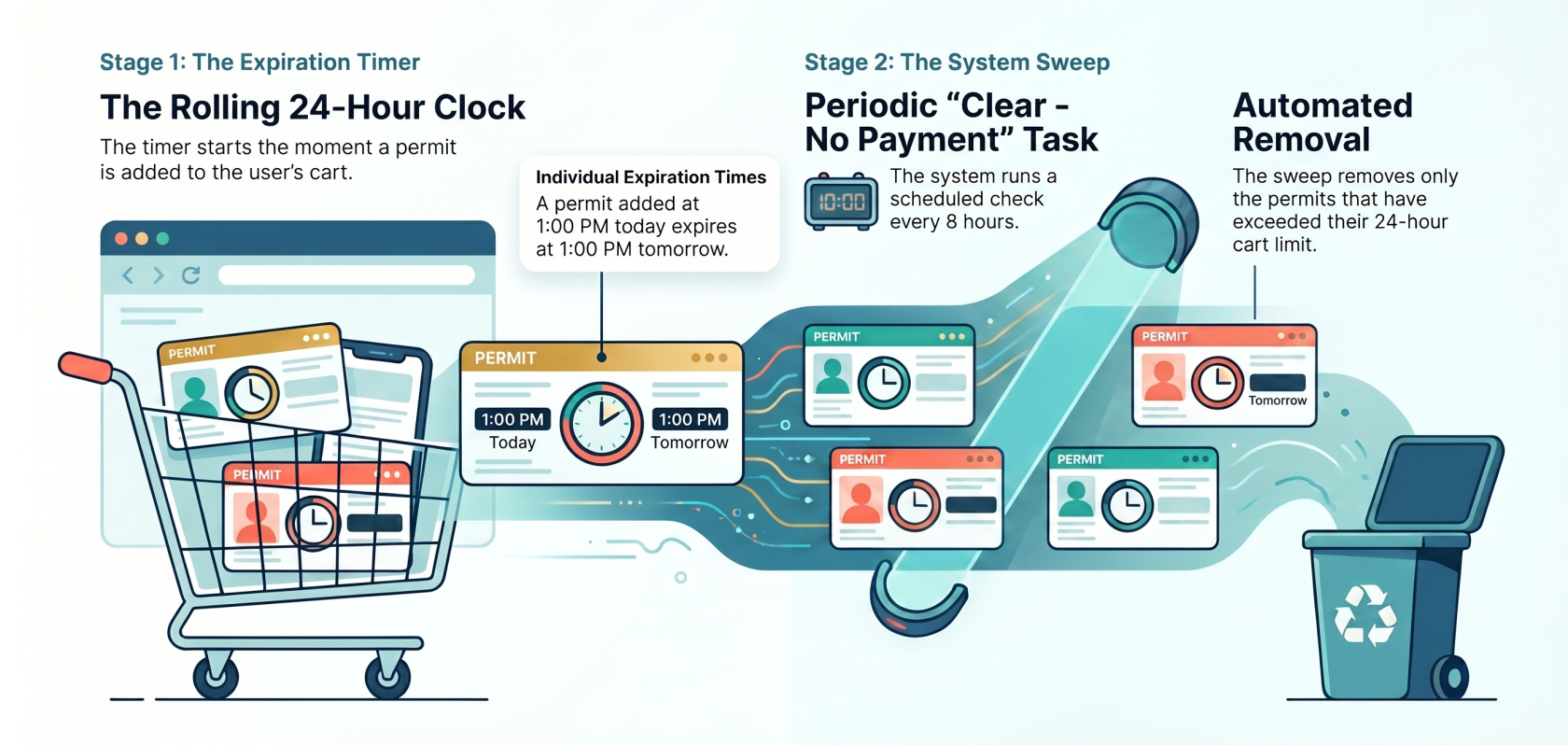
<p class="callout info">If enabled, there is a System task that will clear all permits that are sitting in user's carts without any payments or promises to pay on them. Permits that have been **rolled over (renewed)** or permits assigned through **managed waitlist** are <span style="text-decoration: underline;">**excluded**</span> from this process. Additionally, **Zero dollar** items will <span style="text-decoration: underline;">not</span> be able to be cleared this way. Instead, use the **Mark Items as Paid** functionality to clear these payments. </p>

<span style="color: rgb(0, 0, 0); font-family: -apple-system, BlinkMacSystemFont, 'Segoe UI', Oxygen, Ubuntu, Roboto, Cantarell, 'Fira Sans', 'Droid Sans', 'Helvetica Neue', sans-serif; font-size: 2.333em; font-weight: 400;">Viewing Permits without Payments</span>

1. Click **Parking Management**, hover over **Reports,** and click **Midnight List**.
2. On the report you can see all users with permits in their cart that do not have a payment associated. You can do the following from this report:

- - See items to be cleared
    - Email the affected users
    - Clear their flag to take them off the list and update the list  
          
        [![image.png](https://opscom.wiki/uploads/images/gallery/2024-06/scaled-1680-/SSuimage.png)](https://opscom.wiki/uploads/images/gallery/2024-06/SSuimage.png)

### Viewing Lockers without Payments

1. Click **Locker Management**, and click **Midnight List**.
2. On the report you can see all users with permits in their cart that do not have a payment associated. You can do the following from this report:

- - See items to be cleared
    - Email the affected users
    - Clear their flag to take them off the list and update the list

### Setting Up to Automatically Clear Permits without Payments

<p class="callout warning">If you do not see the settings mentioned below, please contact <support@ops-com.com> to have them enabled for you. You will need the permission of your Primary Admin.</p>

1. Click **System Configuration**, hover over **System Setting,** and click **Permits**.
2. Click to toggle **Clear Unpaid Permits** on.
3. Click **Payments**.
4. Change the **Clear Payments After X Hours** value to the number of hours you want to allow items to remain in the user's cart. Use numbers only
5. Follow the instructions in [this wiki article](https://opscom.wiki/books/setup-configuration-for-admins/page/managing-recurring-and-onetime-system-tasks) to toggle on the **Clear - No Payment** scheduled task.

### Setting Up to Automatically Clear Lockers without Payments

<p class="callout warning">If you do not see the settings mentioned below, please contact <support@ops-com.com> to have them enabled for you. You will need the permission of your Primary Admin.</p>

1. Click **System Configuration**, and hover over **System Settings.**
2. Click **Lockers**.
3. Click to toggle **Clear Unpaid Lockers at Midnight** on.
4. Change the **Clear Payments After X Hours** value to the number of hours you want to allow items to remain in the user's cart. Use numbers only
5. Follow the instructions in [this wiki article](https://opscom.wiki/books/setup-configuration-for-admins/page/managing-recurring-and-onetime-system-tasks) to toggle on the **Clear - No Payment** scheduled task.