The Improve LPR Read Rates guide provides administrators and enforcement personnel with instructions on how to physically and digitally optimize License Plate Recognition (LPR) cameras. Its primary purpose is to help increase the accuracy and speed of plate reads through physical adjustments, exposure tuning, bounding box modifications, and system configurations. This article is intended for OPS-COM administrators and enforcement staff.
## Setup and Configuration Optimizing your LPR read rates involves a combination of physical camera adjustments, web interface configuration, and handheld settings. ### Physical Camera Setup - **Optical Range:** The sweet spot for plate reads is between 1.5 to 2.5 meters between the camera and the license plate. [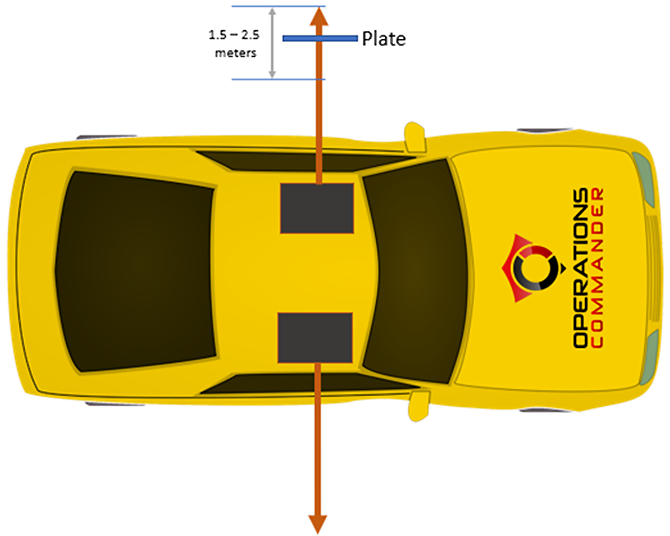](https://opscom.wiki/uploads/images/gallery/2026-07/vjuimage.png) - **Camera Angle:** Ensure the optimum angle for the camera is straight on (parallel) to the plate. - **Maintenance:** Always check to make sure the camera lens is completely clean and free of debris. ### Web Interface Configuration Administrators can use the web interface to fine-tune how the camera processes images and characters. **Adjusting Character Dimensions:** You can tweak character dimensions to improve regional reads (for example, Ontario plates). 1. Navigate to the Web Interface Page and select **Plate Reader** then **Camera OCR**. 2. Set **CHAR SIZE Min W** to 10. 3. Set **CHAR SIZE Max W** to 50. 4. Set **CHAR SIZE Min H** to 30. 5. Set **CHAR SIZE Max H** to 100. [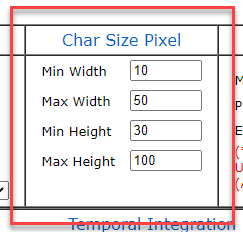](https://opscom.wiki/uploads/images/gallery/2026-07/asgimage.png) **Improving Exposure for Dark Plates:** 1. Set **Max Shutter** to 500. 2. Set **Max Gain** to 256. If images are too dark, this setting can be increased, but it is not recommended to exceed 1000. 3. Set **Iris Level** to 15. [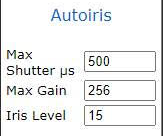](https://opscom.wiki/uploads/images/gallery/2026-07/Lio4pdimage.png) **Adjusting the Bounding Box:** The bounding box restricts the specific area analyzed by the LPR camera, ignoring unnecessary background information. Measurements for height are calculated from the top of the screen, and width from the left of the screen. [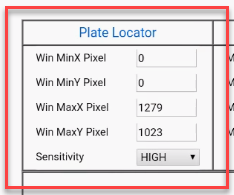](https://opscom.wiki/uploads/images/gallery/2026-07/9isimage.png) 1. Navigate to the **Plate Reader Settings**. 2. Edit the pixel values to narrow the read area. The default full-frame settings are: - **Win MinX Pixel**: 0 - **Win MinY Pixel**: 0 - **Win MaxX Pixel**: 1279 - **Win MaxY Pixel**: 1023 3. Increase the **Min** values or decrease the **Max** values to shrink the bounding box horizontally (X) or vertically (Y). 4. Click the **Apply** button to save the changes.Once the bounding box settings are changed and you click the **Apply** button, the camera will reboot. This process will take a couple of minutes to complete before you can navigate away from the page.
### Handheld Unit Configuration For NOREAD results, you can adjust settings directly on the Android handheld device to process vanity plates or challenging reads. 1. Tap **System Settings**. 2. Tap **Include NOREAD (ie. vanity) Results**. 3. Set the percentage to 50% to start. 4. Tweak this percentage later based on how the system reacts in the field. ## Using this Feature The LPR system utilizes advanced algorithms and human corrections to continually improve its read accuracy during daily operations. ### Fuzzy Searching The PL8-RDR system inherently supports fuzzy searching based on user-supplied values. If the LPR system "sees" ABC123, it will automatically validate against similar visual patterns such as A8C123, ABC128, or A8C12B based on time of day and active permits. ### Manual Corrections You can actively improve plate reads by making manual corrections and verifying correct plates on the system. The system uses an algorithm that includes your human updates as part of its read score. Therefore, if a plate is consistently misread and corrected by an administrator or guard, it is highly probable that the system will return the human-updated version in the future.If you see a score of 100% in the LPR report, that indicates the system determined a human-updated version was the best match. A raw algorithmic read score of 100% is theoretically impossible with standard LPR cameras.
--- ## Best Practices and Considerations - **Optimize the bounding box:** **By selectively adjusting the bounding box settings, you can heavily customize the area processed by the LPR read.** Focusing the camera on a smaller area forces it to ignore surrounding noise, resulting in faster and significantly more accurate reads. - **Balance NOREAD noise:** **While increasing the NOREAD percentage on the handheld can help identify vanity plates, it may also introduce more system noise.** Monitor the results and find a balance that captures valid plates without overwhelming the user with false reads. - **Avoid excessive gain:** **When adjusting exposure, never increase the Max Gain setting over 1000.** Excessive gain will introduce heavy digital noise, actively degrading the camera's ability to perform OCR (Optical Character Recognition).