The Incident Distribution feature allows dispatchers to email incident details directly to pre-configured user groups. Its primary purpose is to streamline communication and enable faster response times by eliminating the need to manually copy information to external email clients. This guide is intended for OPSCOM administrators and dispatch personnel.
## Setup and Configuration Before this feature can be utilized, an administrator must create distribution departments and assign users to them. These departments define the pre-configured recipients for incident emails. ### Creating a Distribution Department 1. Hover over **System Configuration**, click **Distribution**, and select **Departments and Users**. 2. Click the **List All** button beside the Departments section. 3. Click the **Plus** button. 4. Enter a descriptive name in the **Department Name** field. This name will be visible to dispatchers. 5. Click **Save Changes**. ### Adding a Contact to a Department 1. Navigate to the **Departments and Users** page and click the **List All** button beside the Users section. 2. Click the **Plus** button. 3. Click the **Department** drop-down menu and select the group this contact should belong to. 4. Enter the contact information, ensuring a valid address is placed in the email address field. 5. Click **Save & Send Invite**.Contacts invited to view distributions are not the same as standard parkers or admin users. They exist strictly to access the incident distribution module, and they receive a specific invitation link to view internal incident reports when you click save and send.
### Managing Existing Distribution Groups 1. Navigate to the Distribution Group Admin page. 2. Click the **Edit** button to modify the group name or the list of associated email addresses. 3. Click the **Delete** button to permanently remove a group from the system. ## Using this Feature Once distribution groups are configured, dispatchers can quickly send vital incident details directly from an active incident's main information page. ### Sending an Incident Email 1. Navigate to the Incident Information page for the relevant incident. 2. Click the **Email Incident** button to open the distribution pop-up window. 3. Click the **Select Recipient** drop-down menu and choose the appropriate distribution group. 4. Enter any relevant instructions or context in the **Comments** text box. 5. Click the **Send Email** button to distribute the information to the group. ### Key Information Displayed The automated email sent to the distribution group will extract and display the following key details from the incident report: [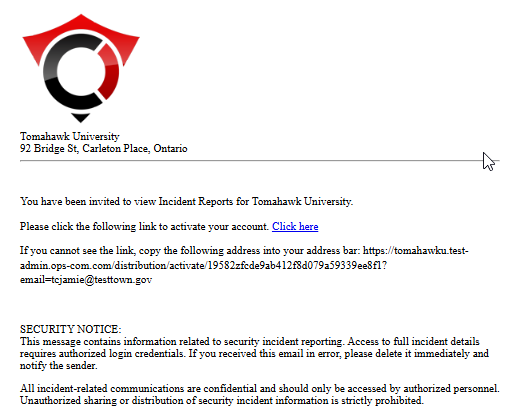](https://opscom.wiki/uploads/images/gallery/2026-07/ztiimage.png) - Incident Number - Location - Time of Incident - Description of Incident - Any optional comments added by the dispatcher --- ## Best Practices and Considerations - **Audit Distribution Groups:** **Regularly audit your distribution groups to ensure the email lists are completely up-to-date.** Outdated contact information can lead to severely delayed or missed incident notifications. - **Use Intuitive Naming:** **Create clear and intuitive group names.** Titles like "Day Shift Patrol" or "Weekend Supervisors" are much more effective and recognizable for dispatchers than generic names like "Group 1". - **Pre-Notify Contacts:** **Remember to send invited department contacts a separate message letting them know about the system.** This ensures they expect the automated invitation and do not accidentally delete your message or lose it in their spam folder.