The Mark Items as Paid feature allows administrators to efficiently update the payment status of outstanding items in bulk. Its primary purpose is to streamline administrative workflows when resolving unpaid balances for specific user demographics, item types, or lists of recovered violations returned by a collection agency. This article is intended for OPSCOM administrators.
## Setup and Configuration There is no specialized system configuration required to access this tool. Processing bulk payments is a standard administrative function available to users with the appropriate financial reporting and payment management permissions enabled on their account profile. ## Using this Feature Administrators can execute bulk payment updates either by defining broad system criteria or by entering a specific list of ticket numbers. ### Marking Items Paid by Criteria This method is useful for clearing out legacy balances or waiving fees for specific groups up to a certain date. 1. Hover over **Payments** and click **Mark Items Paid**. 2. Select the target demographic you wish to update from the **User Type** drop-down menu (e.g., Full Time Staff). 3. Select the specific item you are marking as paid from the **Choose Item Type** drop-down menu (e.g., Locker Rentals). 4. Select the end date for the adjustment period using the **Up To and Including** date picker. 5. Click the corresponding action button to process the bulk payment update for all items matching your selected criteria. ### Bulk Marking Violations Paid This method is primarily used when outstanding violations have been sent to collections, and the administrative office receives a return list of successfully retrieved payments from the collection agency. 1. Hover over **Payments** and click **Mark Items Paid**. 2. Click the **Bulk by Number** button located next to the Violations option. 3. Enter the specific violation numbers into the text tool, ensuring each ticket number is separated by a line return. 4. Select **Violations Paid Through Collection** (or the most appropriate payment type) from the drop-down list. 5. Click the **Mark Listed Paid** button to complete the process and apply the payments. [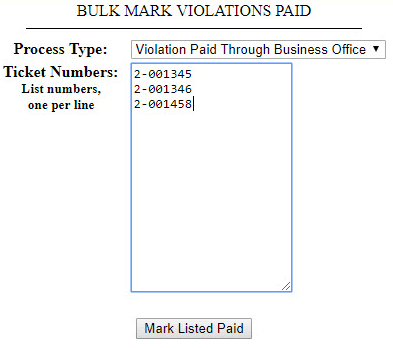](https://opscom.wiki/uploads/images/gallery/2026-07/u4uimage.png)**Exclude PINs from Violation Numbers:** When entering violation numbers into the bulk tool, you must not include the PIN associated with the ticket. For example, if a ticket is listed as 2-001345-92 (where 92 is the PIN), you should only enter **2-001345**.
--- ## Best Practices and Considerations - **Verify Collection Lists:** **Always double-check your compiled list of ticket numbers** before clicking the final submission button. Processing a bulk payment applies a permanent financial status change to all entered records, and manually reversing a large batch of incorrect tickets can be a time-consuming administrative task.