The Moneris Checkout Hosted Payment configuration allows administrators to process secure online transactions through a fully integrated Moneris merchant account. Its primary purpose is to enable reliable payment processing—including pre-authorizations and stored cards for recurring billing—directly within the OPSCOM checkout flow. This article is intended for OPSCOM administrators.
## Setup and Configuration Properly configuring Moneris Checkout involves two key stages: generating and configuring the settings within your Moneris merchant account, and then mirroring those exact settings within your OPSCOM environment. ### Gathering Required Credentials Before beginning the configuration in OPSCOM, you must create a profile in your Moneris account and obtain the following credentials: - **store\_id:** Your unique Moneris store number. - **api\_token:** Your unique API authentication token. - **checkout\_id:** Your specific checkout profile ID. - **hosted\_token\_id:** Generated from the Hosted Tokenization page (required if using Moneris Vault for stored payments). [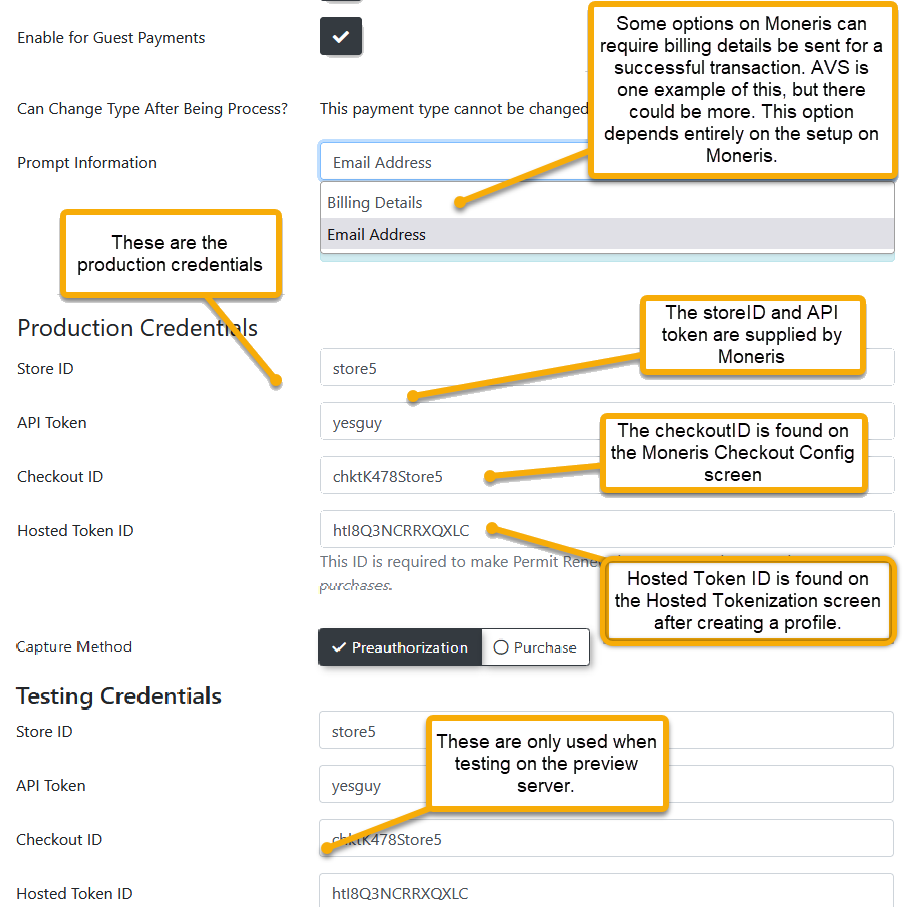](https://opscom.wiki/uploads/images/gallery/2026-07/embedded-image-8c6xeq2r.png) ### Moneris Portal Configuration 1. Log in to the Moneris Merchant Resource Center. 2. Click **Admin** in the main menu and select **Moneris Checkout Config**. 3. Locate your specific checkout profile and click to edit it. 4. Select **I have my custom order form and want to use Moneris simply for payment processing** under the Checkout Type settings. 5. Navigate to the Payment section and set the Transaction Type to your preferred method (preauthorize is highly recommended). 6. Disable the **Tokenize Card** option in the Payment section, as card tokenization for recurring payments is handled separately by the Moneris Vault. 7. Disable the **Enable Fullscreen** checkbox under the Branding and Design section to prevent the form from taking over the entire screen during checkout. 8. Select **Use Own Page** for the order confirmation setting so Moneris correctly redirects users back to the OPSCOM receipt page. ### OPSCOM System Configuration Once your Moneris portal is configured, you must add the payment type to OPSCOM. Detailed step-by-step instructions for adding the gateway can be found on the *[Payment Type Setup](https://opscom.wiki/books/setup-configuration-for-admins/page/managing-payment-types "Managing Payment Types")* page. **Important:** When configuring the gateway in OPSCOM, your Transaction Type setting (Pre-auth vs. Purchase) and your Security settings (AVS/CVV requirements) must exactly match what you configured in the Moneris portal. ## Using this Feature Because this is a backend payment gateway configuration, administrators do not manually interact with this feature on a daily basis. Once fully configured, Moneris automatically handles electronic routing when users process transactions on the user portal or when administrators process credit card payments via the administrative portal. ### Moneris Vault for Stored Payments Moneris Vault is a complementary service used for tokenizing and storing credit cards for future, automated use. This feature is heavily utilized for parking permit rollovers and the Text2ParkMe feature. To utilize this functionality, ensure your **hosted\_token\_id** is actively entered in your OPSCOM payment settings. --- ## Best Practices and Considerations - **Pre-Authorization vs. Purchase:** **We strongly recommend using the pre-authorization capture model** rather than the purchase model. The purchase model relies on a stable client connection; if a user's browser drops connection, the callback may fail to reach OPSCOM. The pre-authorization model processes funds server-to-server, preventing spotty internet connections from interfering with successful payment logging. - **AVS and Billing Information:** **Ensure your required checkout fields match your security settings.** If Moneris is configured to require Address Verification Service (AVS), you must configure OPSCOM to collect the user's full billing address during checkout. If OPSCOM is set to only collect an email address while Moneris expects a full billing address, all transactions will fail. - **Multi-Currency Limitations:** While Moneris supports multi-currency processing, enabling this feature will completely disable support for Recurring Billing, Gift Cards, 3D Secure 1.0, and Google Pay. Evaluate your institutional needs before enabling this feature. - **Invalid Credentials Error:** If you encounter an "Invalid credentials" error when attempting to tokenize a card, it is likely due to a missing **hosted\_token\_id** or because the token's "Source URL" authentication does not match the domain you are using. Verify your domain mappings in the Moneris portal to resolve this.