Notice Letter Templates
The Notice Letter Templates page allows administrators to manage, create, and edit the content and appearance of system-generated notice letters. Also known as a Notice of Impending Conviction (NIC) letter, its primary purpose is to inform users of outstanding violations slated for the Ontario court system collection process. This article is intended for OPSCOM administrators responsible for system configuration and communication design.
Setup and Configuration
There is no specific system setup required to begin using templates, but you must navigate to the dedicated design menu to access the editor.
-
Hover over System Configuration and click Content & Designs then Notice Letters.
-
Review the overview list of all notice letter content currently in the system.
Multi-Language Support: If your OPSCOM portal supports multiple languages, you must create and configure different content and templates for each language installed on the site.
Using this Feature
The templates page is divided into specific components that control either the text content or the visual styling of the physical letters.
Managing Template Types
Administrators can edit four distinct elements to build a complete notice letter:
-
noticeLetter: The core text template used when printing a notice letter containing a single violation.
-
noticeLetterMultiple: The core text template used when printing a notice letter that contains multiple violations.
-
styles: The CSS (Cascading Style Sheets) template used to apply element styling, such as assigning specific colors and text sizes to the letter.
-
Header: The content template that specifically dictates what appears in the header section of the notice letter.
Editing the Layout
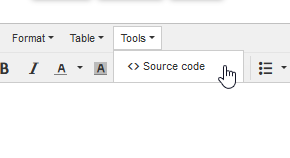
Clicking into any of the templates above will open a WYSIWYG (What You See Is What You Get) content editor. While minor text adjustments can be made directly in the visual view, it is highly recommended to edit the raw HTML source code to prevent print alignment issues.
-
Click Tools in the editor menu.
-
Click Source Code to open the HTML view.
-
Apply your formatting changes directly to the HTML code, or paste in code designed from an external HTML editor.
Inserting Short Codes
Notice letters use short codes as placeholders that automatically pull specific user or vehicle data from the database when the letter is generated (e.g., using [values show=vehicle.plate] to output "ABC123").
-
Scroll to the bottom of the edit content page, below the content box, to view the list of usable short codes.
-
Highlight the specific short code you wish to use.
-
Right-click the highlighted text and click Copy.
-
Click the desired area within the content editor where you want the information to appear.
-
Press Ctrl and V on your keyboard simultaneously to paste the short code.
Best Practices and Considerations
[!WARNING] Pasting Short Codes: Always use the keyboard shortcut (Ctrl + V) to paste short codes into the editor. Right-clicking inside the content editor will open a proprietary formatting menu rather than your browser's standard paste option.
-
HTML Editing: Avoid relying entirely on the visual WYSIWYG editor for complex layouts. The visual editor is not optimized for strict print templates. Making your changes through the HTML Source Code view ensures that the final printed PDF aligns correctly with your official municipal letterhead and windowed envelopes.
-
Test Your Templates: After making changes to a notice letter template or adding new short codes, generate a test letter for a sample violation to verify that all placeholders successfully pull the correct database information and the CSS styling renders properly.