# Notice Letter Templates

# Introduction

This page allows the admin to manage, create, and edit the content and appearance for notice letters used within the system.

Notice letters, also known as a Notice of Impending Conviction (<span data-highlighted="true"><span class="_11q7k1zt _5pio5fkk _189eyh40 _1il9nqa1 _19lclxqc _d0altlke acronym-highlight" data-testid="acronym-highlight">NIC</span></span>) letter, are part of the <span data-highlighted="true"><span class="_11q7k1zt _5pio5fkk _189eyh40 _1il9nqa1 _19lclxqc _d0altlke acronym-highlight" data-testid="acronym-highlight">MTO</span></span> process, and are sent out to let a user know of an impending conviction for any outstanding violations on their account, to be collected through the Ontario court system.

# Templates

The appearance and layout of notice letters is setup within the notice letter templates page.

The templates page for notice letters can be found under the <span class="fabric-text-color-mark" data-renderer-mark="true" data-text-custom-color="#36b37e">system configuration</span> menu, within the <span class="fabric-text-color-mark" data-renderer-mark="true" data-text-custom-color="#36b37e">content &amp; designs</span> submenu.

[![image.png](https://opscom.wiki/uploads/images/gallery/2024-06/scaled-1680-/jGKimage.png)](https://opscom.wiki/uploads/images/gallery/2024-06/jGKimage.png)

On the templates page, an overview of all notice letter content within the system is shown. Different content and templates must be created for each language that is installed on the site.

The notice letter templates page consists of two sections:

## **Content**

**noticeLetter** - the template used when printing a notice letter containing a single violation.

- **noticeLetterMultiple** - the template used when printing a notice letter that contains multiple violations.

## **Templates**

**styles** - element styling to be applied to the notice letters. This is done using Cascading Style Sheets (<span data-highlighted="true">CSS</span>), a type of coding used to affect how parts of the notice letter looks, such as assigning a specific colour and size to a paragraph of text.

- **Header** - the content that appears in the header of the notice letter.

<div class="rich-media-item mediaSingleView-content-wrap image-center cc-1yqzdhg" data-layout="center" data-node-type="mediaSingle" data-renderer-start-pos="1454" data-width="900" data-width-type="pixel" id="bkmrk--1"><div class="cc-1qpr13k"><div class="cc-bw8gfb" data-color="#091e4224" data-mark-type="border" data-size="2">  
</div></div></div>[![image.png](https://opscom.wiki/uploads/images/gallery/2024-05/scaled-1680-/uF0image.png)](https://opscom.wiki/uploads/images/gallery/2024-05/uF0image.png)

# Content Editor

This page is where the content of the notice letters can be edited.

The content section is a type of <span data-highlighted="true"><span class="_11q7k1zt _5pio5fkk _189eyh40 _1il9nqa1 _19lclxqc _d0altlke acronym-highlight" data-testid="acronym-highlight">WYSIWYG</span></span> (What You See Is What You Get) editor.

[![image.png](https://opscom.wiki/uploads/images/gallery/2024-05/scaled-1680-/r2vimage.png)](https://opscom.wiki/uploads/images/gallery/2024-05/r2vimage.png)

When editing the notice letter content, some basic knowledge of <span data-highlighted="true"><span class="_11q7k1zt _5pio5fkk _189eyh40 _1il9nqa1 _19lclxqc _d0altlke acronym-highlight" data-testid="acronym-highlight">HTML</span></span> (Hyper Text Markup Language) is beneficial.

The <span data-highlighted="true">WYSIWYG</span> (What You See Is What You Get) editor isn't meant for templates, and when editing directly through the interface, problems can occur where the final printed page doesn’t lineup with the template correctly.

Minor changes can be made with the editor, but it is recommended for most changes to be made through editing the <span data-highlighted="true">HTML</span> directly.

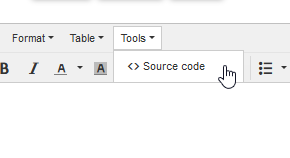
You can edit the <span data-highlighted="true">HTML</span> in the editor by selecting <span class="fabric-text-color-mark" data-renderer-mark="true" data-text-custom-color="#006644">Tools → Source Code</span>.

[![image.png](https://opscom.wiki/uploads/images/gallery/2024-05/scaled-1680-/PIvimage.png)](https://opscom.wiki/uploads/images/gallery/2024-05/PIvimage.png)

Alternatively, the layout of the template can be designed in an external <span data-highlighted="true">HTML</span> editor, and the source code copy and pasted into the <span data-highlighted="true">HTML</span> source code box.

[![image.png](https://opscom.wiki/uploads/images/gallery/2024-05/scaled-1680-/6o8image.png)](https://opscom.wiki/uploads/images/gallery/2024-05/6o8image.png)

# Short Codes

Notice Letters use a functionality called <span class="fabric-text-color-mark" data-renderer-mark="true" data-text-custom-color="#0747a6">short codes</span>, which are pieces of text used as placeholders for user information when setting up a template.

When a notice letter is generated, the <span class="fabric-text-color-mark" data-renderer-mark="true" data-text-custom-color="#0747a6">short code</span> will be automatically replaced with the relevant user information in the print out.

<span class="fabric-text-color-mark" data-renderer-mark="true" data-text-custom-color="#0747a6">Short codes</span> usable on each type of notice letter template are listed at the bottom of the edit content page, below the content box.

[![image.png](https://opscom.wiki/uploads/images/gallery/2024-05/scaled-1680-/9Bdimage.png)](https://opscom.wiki/uploads/images/gallery/2024-05/9Bdimage.png)

A <span class="fabric-text-color-mark" data-renderer-mark="true" data-text-custom-color="#0747a6">short code</span> placed in the template will automatically be replaced with the details of the user when the notice letter is being generated.

For example, if the following <span class="fabric-text-color-mark" data-renderer-mark="true" data-text-custom-color="#0747a6">short code</span> was placed within the body of the notice letter template:

- Vehicle: **<span class="fabric-text-color-mark" data-renderer-mark="true" data-text-custom-color="#bf2600">\[values show=vehicle.plate\]</span>**

It would be automatically replaced with the vehicle plate when the notice letter is generated, resulting in something like:

- Vehicle: **<span class="fabric-text-color-mark" data-renderer-mark="true" data-text-custom-color="#bf2600"><span data-highlighted="true"><span class="_11q7k1zt _5pio5fkk _189eyh40 _1il9nqa1 _19lclxqc _d0altlke acronym-highlight" data-testid="acronym-highlight">ABC123</span></span></span>**

## Using Short Codes

A <span class="fabric-text-color-mark" data-renderer-mark="true" data-text-custom-color="#0747a6">short code</span> can be inserted into the content by copy and pasting the <span class="fabric-text-color-mark" data-renderer-mark="true" data-text-custom-color="#0747a6">short code</span> from the list into the content where the information is wanted to be output in the final notice letter printout.

A <span class="fabric-text-color-mark" data-renderer-mark="true" data-text-custom-color="#0747a6">short code</span> can be copied to the clipboard by using these steps:

- Highlight the <span class="fabric-text-color-mark" data-renderer-mark="true" data-text-custom-color="#0747a6">short code</span> within the list
- Right click the highlighted text
- Click copy
- The<span class="fabric-text-color-mark" data-renderer-mark="true" data-text-custom-color="#0747a6"> short code</span> will now be contained within the clipboard

The <span class="fabric-text-color-mark" data-renderer-mark="true" data-text-custom-color="#0747a6">short code</span> can then be pasted into the content using these steps:

- Left click in the desired area within the content where the information is wanted to appear
- Press the Ctrl and V buttons on the keyboard at the same time
- The <span class="fabric-text-color-mark" data-renderer-mark="true" data-text-custom-color="#0747a6">short code</span> will now be pasted to the location selected within the content

Using right click will open a content-specific menu within the content menu, and so can’t be used to paste into the window.