This article outlines how to configure and enable the **Parking Logix** integration within OPSCOM, allowing administrators to sync parking sensor data for real-time monitoring and display. This feature is intended for OPSCOM administrators responsible for system configuration and user-facing parking maps.
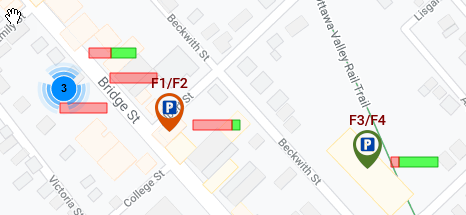
## Setup and Configuration Follow these steps to integrate **Parking Logix** sensors with your OPSCOM system. ### Enable Parking Logix Integration 1. Navigate to **System Settings**. 2. Select **Third Party** settings. 3. Enable the **Parking Logix Integration** checkbox. ### Adding the Lot Group 1. Create a new lot group for each lot where you are collecting sensor data. 2. Enter the required **API code** when configuring each group. - Note: It is possible, though unlikely, to have multiple **API keys** if lot access is split across several keys. 3. Navigate to the **Lot Administration** tool. 4. Open the **LPR Settings Tab** for the desired lot. 5. Assign the previously created lot group to the lot. ### Enable the System Task 1. Contact OPSCOM support by emailing **support@ops-com.com** to enable the required system task for sensor communication. 2. Once the system task is active, verify the integration by navigating to **Manage Parking Lot Groups** to confirm that lot counts are updating correctly. ## Displaying the Map on the User Side To display the parking map to end users, you must insert the integration short code into your site pages. 1. Navigate to **System Messaging**. 2. Edit the desired page where the map should appear. 3. Enter the short code **\[parking\_logix\]** into the page content. - You may add parameters such as **only**, **show**, **filter**, or **name** to the short code to restrict the list to specific lots. [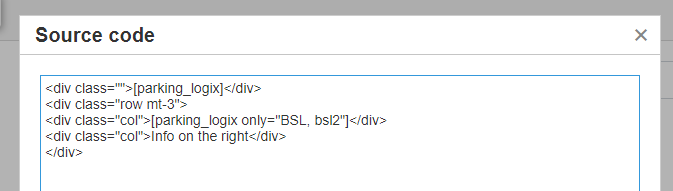](https://opscom.wiki/uploads/images/gallery/2026-07/ZXAvxjimage.png)By design, the map will only display lots that have a group assigned and a valid **API key** stored.
[](https://opscom.wiki/uploads/images/gallery/2024-06/6Lhimage.png) --- ## Best Practices and Considerations - **Data Accuracy:** Ensure that every lot intended for display is correctly linked to a lot group containing a valid **API key**, otherwise, the lot will not appear on the user-facing map. - **Support Coordination:** Because the system task must be enabled by the OPSCOM integration team, initiate your support request early in your setup process to avoid delays in data synchronization. - **Parameter Usage:** Use the filtering parameters within the **\[parking\_logix\]** short code to provide users with a clean, relevant view of specific parking areas rather than the entire system inventory.