The permit release feature allows administrators to remove an active permit assignment from a user profile and return it to the available system inventory. Its primary purpose is to help effectively manage permit cancellations, user account closures, or lot reassignments. This article is intended for OPS-COM administrators.
## Setup and Configuration There is no specific configuration required to release a permit. This function is a standard administrative tool available to users with the appropriate permit management permissions enabled on their account. ## Using this Feature If you already know the specific permit number, you can bypass the initial steps by using the *[Permit Search](https://opscom.wiki/books/the-opscom-admin-portal/page/permit-search "Permit Search")* tool to locate the permit directly. If you do not know the permit number, follow the steps below starting from the user's profile. 1. Navigate to the user profile for whom you wish to release a permit. Click the specific permit number located on the user dashboard. [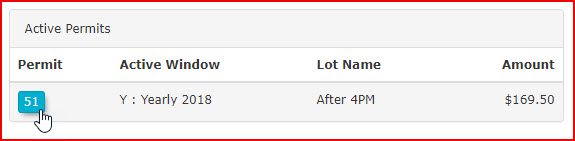](https://opscom.wiki/uploads/images/gallery/2024-06/Qt7image.png) 2. Click the permit number again from within the permit detail screen. This will direct you to the permit search screen where the release action can be performed. 3. Enter a descriptive note in the comment field to track the reason the permit is being released. 4. Click the **Release This Permit** button. 5. Click **OK** in the pop-up window to confirm the release of the permit. A confirmation message will appear on the screen to verify the action was successful. Now, when you search for this permit, it will appear as available in the system. --- ## Best Practices and Considerations - **Audit Trails:** **Always leave a comment** when releasing a permit. Recording the reason for the release creates an important audit trail that can be referenced later if there are questions regarding the user's account history or billing. - **Immediate Availability:** Once a permit is successfully released, it is immediately placed back into the available inventory pool. If the lot is heavily utilized or has a waitlist, be aware that this space can now be claimed by or allocated to another user.