The Search Payments tool provides a dedicated interface to locate specific transactions and run pre-configured payment status reports. Its primary purpose is to help administrators quickly find individual payment records using unique identifiers, as well as audit unprocessed or daily payments for accurate financial tracking. This article is intended for OPSCOM administrators.
## Setup and Configuration There is no specific system configuration required to access this search tool. Running payment searches is a standard administrative function available to users with the appropriate financial and payment management permissions enabled on their account profile. ## Using this Feature Administrators can locate specific transactions using unique identifiers or utilize pre-configured reporting links to pull lists of payments based on their payment type and current processing status. ### Searching by Unique Identifier 1. Hover over **Payments** and click **Search**. 2. Enter the specific text string into the **Confirm Code**, **Transaction ID**, or **Order ID** field on the Payments Reporting form. 3. Click the associated search button. If the code exists in the system, the screen will automatically refresh to display the specific transaction details for that purchase. [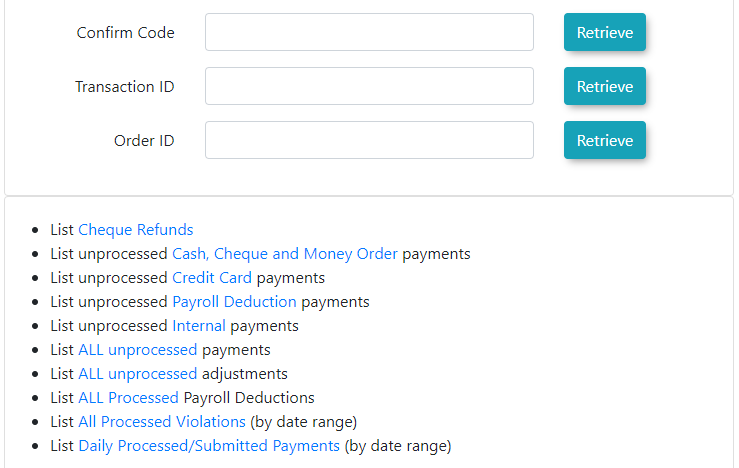](https://opscom.wiki/uploads/images/gallery/2026-07/2o2image.png) ### Using Pre-Configured Searches The search tool includes several pre-configured search links located below the main search fields. These links help you find grouped payment information quickly. Some reports require you to set a date range, while others will automatically pull all relevant data. Click any of the following links on the search page to generate the respective report: - **List Cheque Refunds** - **List unprocessed Cash, Cheque and Money Order payments** - **List unprocessed Credit Card payments** - **List unprocessed Payroll Deduction payments** - **List unprocessed Internal payments** - **List ALL unprocessed payments** - **List ALL unprocessed adjustments** - **List ALL Processed Payroll Deductions** - **List All Processed Violations** (requires a date range) - **List Daily Processed/Submitted Payments** (requires a date range) ### Reviewing the Daily Processed or Submitted Payments Report When you select the **List Daily Processed/Submitted Payments** option, you must specify your search parameters. 1. Select the desired date range using the provided fields. 2. Select whether you wish to search for submitted payments or processed payments. 3. Click the search button to generate the report. **Key Information Displayed:** The resulting report is divided into two distinct sections. The first section provides a highly detailed itemized list of all individual payments within the selected timeframe. The second section provides a concise daily summary table for quick financial reference. --- ## Best Practices and Considerations**Regular Audits:** Regularly use the pre-configured **List ALL unprocessed payments** search link to identify and resolve any pending transactions. Ensuring all manual cash, cheque, or internal payments are marked as processed keeps your financial reporting accurate and up to date.
- **Quick Access for User Support:** If a user contacts the administration office regarding a specific online purchase, ask them for the confirmation code provided on their digital receipt. Entering this into the **Confirm Code** search field is the fastest way to bypass broad user searches and instantly view the exact transaction details.