The Temporary Permit Printing feature allows administrators to search, retrieve, and batch-print temporary parking permits. Its primary purpose is to help efficiently generate physical hang tags or dash passes for users needing short-term parking access. This article is intended for OPS-COM administrators.
## Setup and Configuration There is no specific configuration required to use this feature, provided your administrative user role has the appropriate permit management permissions enabled. ## Using this Feature Administrators can use this tool to print multiple temporary permits at once through a system search, or print individual permits directly from a user's account. 1. Hover over **Parking Management** and click **Temporary Permits** then **Temp Permit Printing**. 2. Click the **Retrieve** drop-down menu and choose the permit types you want to display. 3. Click the **Permit Lot** drop-down menu and choose the specific lot you are printing for. 4. Enter the **Start Date** and the **Up to and Including** date to define your search range. 5. Click the **Retrieve** button to generate the list of permits below the search criteria. 6. Enable the checkbox for each permit you wish to print from the generated list. 7. Click the **print selected hang tags** button to generate the physical permits. [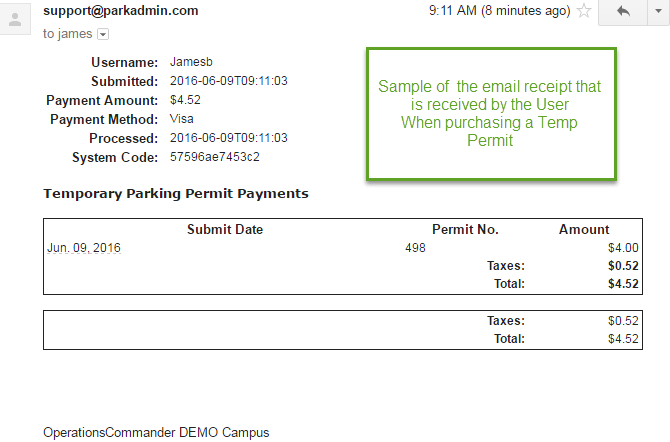](https://opscom.wiki/uploads/images/gallery/2024-06/A1Uimage.png) ### Printing from User History If you only need to print a single permit, it is often faster to do so directly from the user's profile. 1. Navigate to the specific user's profile and access their history. 2. Locate the **Temp Permit** section within their records. 3. Click the **printer** icon located under the **Permit #** column to print that specific permit. [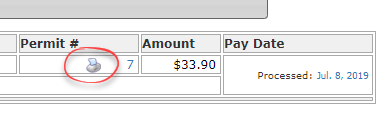](https://opscom.wiki/uploads/images/gallery/2026-07/kzximage.png) --- ## Best Practices and Considerations - **Batch Processing:** **Utilize the date fields and lot filters** when retrieving permits to quickly print daily or weekly batches of temporary permits for upcoming events or short-term visitors. - **Individual Printing:** **Print directly from the user's history** if you only need to issue a single replacement permit or handle a walk-in user, rather than running a system-wide search. - **Printer Settings:** Ensure your local printer is configured correctly to handle the specific cardstock or hang tag paper dimensions used by your organization before executing a large batch print.