The Validate Parking Report allows administrators to view and export historical records of parking validations within a specified timeframe. Its primary purpose is to help track, review, and audit validation activity across your system. This article is intended for OPSCOM administrators responsible for managing and auditing parking validations.
## Setup and Configuration Before an administrator can access this report, they must have the correct permissions assigned to their user role. 1. Navigate to your administrator role management settings. 2. Enable the **View Validator Report** checkbox for the appropriate administrator role. 3. Save the updated permissions. ## Using this Feature Follow these steps to generate and view the Validate Parking Report. 1. Hover over **Parking Management** and click **Parking Validation Report**. 2. Enter the desired date range into the search fields to define your reporting period. 3. Click the **Search** button to generate the record listing. [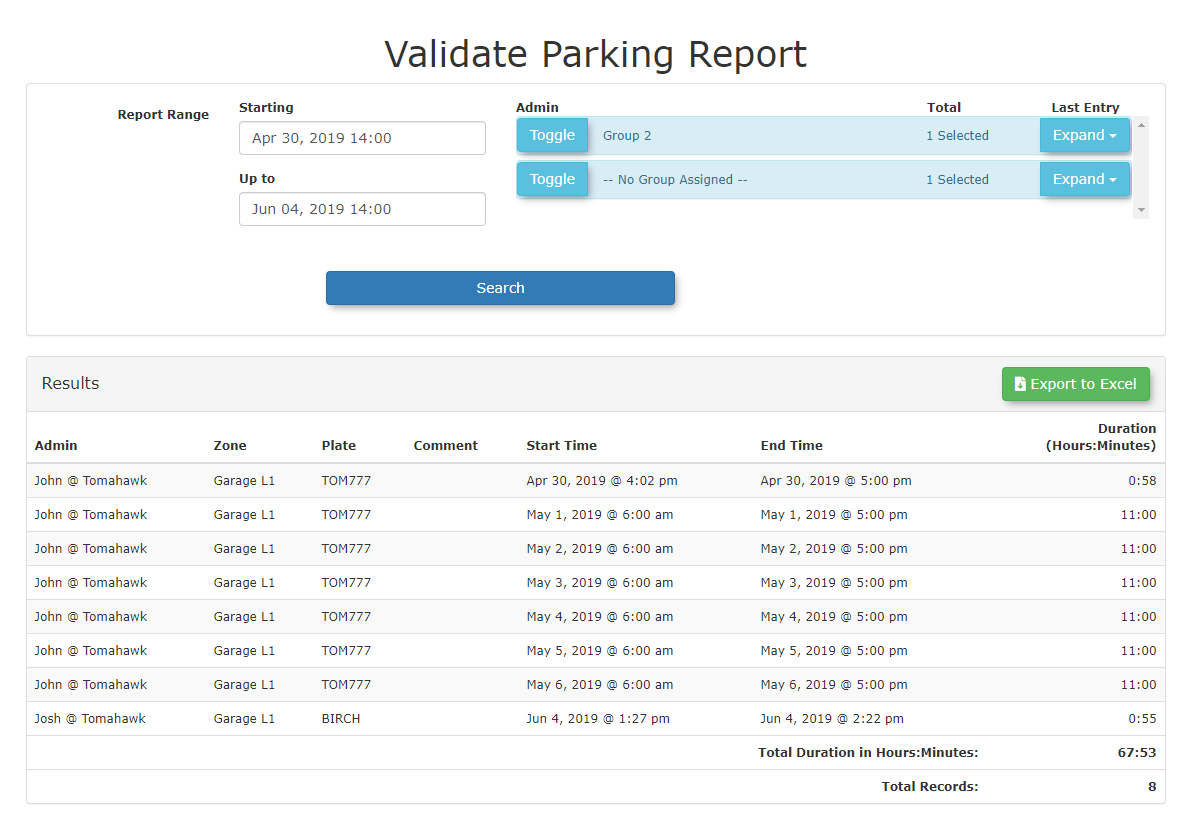](https://opscom.wiki/uploads/images/gallery/2024-06/64Cimage.png) ### Available Actions - **Onscreen Viewing:** Once generated, the validation records will be displayed directly onscreen for quick review. - **Data Export:** You can export the generated record listing as an Excel file for deeper data analysis and external record-keeping. --- ## Best Practices and Considerations**Excel Exports:** Exporting your report data to Excel is highly recommended if you need to filter, sort, or share validation records with external stakeholders or accounting departments.
- **Regular Auditing:** **Regularly export and review the Validate Parking Report** to monitor validation usage, spot any anomalies, and ensure that validation privileges are being used appropriately by your staff. - **Targeted Searches:** When investigating specific validation events, use narrow date ranges to reduce the report generation time and make the onscreen data easier to navigate.