The refund process allows OPSCOM administrators to reverse completed transactions directly from a user's profile. This feature helps administrators return purchased items (like permits or lockers) back to active inventory or reverse payments for accounting purposes, such as handling Non-Sufficient Funds (NSF). This guide is intended for OPSCOM administrators responsible for financial processing and user account management.
## Setup and Configuration Processing refunds is a core administrative function that does not require any additional system setup or configuration. It is accessed entirely through the individual user's profile. ## Using this Feature Administrators interact with the refund feature by locating the original transaction in the user's history and initiating a reversal. ### Processing a Refund 1. Search for and open the target user's profile. 2. Click the **History** tab and select **All Records**. 3. Locate the specific transaction you wish to refund. - For standard permits, temporary permits, or lockers, click the **Processed** date link. - [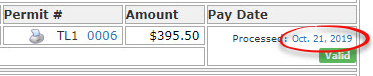](https://opscom.wiki/uploads/images/gallery/2026-07/hloimage.png) - For violations, click the **Processed** text link. - [](https://opscom.wiki/uploads/images/gallery/2026-07/0quimage-1.png) 4. Click the **Refund** button on the **Transaction Details** screen to open the refund window. 5. Enter an internal **Requisition Code** if required by your organization (this is optional). 6. Enter the total **Refund Amount**, ensuring you include applicable taxes. 7. Enter a required justification in the **comment** field. 8. Click the **Refund Payment Record** button to proceed, and accept any on-screen confirmations to continue. 9. Select the desired refund type from the **Adjustment Information** window. 10. Click the **Process This Adjustment** button to finalize the transaction. ### Visual Cues and Status Indicators Once the refund is processed, the system updates the user's profile to reflect the changes: - **Transaction Details:** The refunded amount will appear as a negative adjustment (e.g., $-395.50) on the transaction record. - **User History:** Under the **History** tab (**All Records**), the original purchase will display a **Released** date alongside a note indicating the item was "Released back to system by refund process." The financial transaction will also be logged under **Adjustment Records**. ### Handling NSF Payments Sometimes, a payment fails after it is recorded (e.g., a bounced cheque, known as Non-Sufficient Funds or NSF). Administrators must "refund" this payment in the system to create an outgoing record that neutralizes the failed incoming payment, keeping financial reporting accurate. - **Payment Type:** **Always select the identical payment type (e.g., Cheque) as the original failed payment** when processing an NSF refund. This ensures the Processed Payment Report accurately reflects the attempt and the subsequent removal of funds. - **Clear Notes:** **Always leave comprehensive and detailed notes documenting the failed payment.** This creates a transparent audit trail for anyone reviewing the accounting later.Ensure you are certain about releasing all items on a transaction before clicking the **Refund Payment Record** button. Once a permit is released back to inventory, it can be purchased immediately by another user.
--- ## Best Practices and Considerations - **Partial Refunds:** Refunding an entire transaction reimburses *all* items associated with that confirmation number and releases them back into inventory. **If you only need to reimburse a single item from a multi-item purchase, process an adjustment instead of a full refund.** - **Item Status After Refund:** Refunding a permit or locker releases the item back to the general inventory to be sold again. **Refunding a violation does not cancel the ticket; it simply returns the violation to an "awaiting payment" status.**