
Self-Release Boot System: User Portal
ThisThe articleSelf providesRelease anBoot overviewSystem of the self-release boot system forallows vehicle owners. This feature allows youowners to pay for a parking violation associated with a vehicle boot and instantly receive a release code, enabling youcode to remove the device yourself.themselves. TheIts primary purpose is to offer a fasterfast, andself-service more convenient wayresolution for you to resolve parking violationsviolations, andgetting get your vehiclevehicles back in service.
Howquickly while reducing the manual dispatch burden on parking enforcement staff. This article is intended for OPS-COM administrators to Self-Releasehelp Yourthem Vehicle
understand and support the end-user self-release workflow.
Setup and Configuration
This sectionfeature explainsrequires the processbooting ofand payingviolations formodules to be active and properly configured within your violation, receiving your unique release code, and returning the boot.environment.
ImportantAdmin Side:: AAdministrators validmust emailconfigure addressthe booting device policies, determining whether a user is required to receive your boot release code and instructions.
Check the booting device to see if a QR code sticker has been placed on it. If so, scan the QR code to quickpaythe associated violation.If the boot does not have a QR code sticket: begin the payment processonly foryour violation online through the payment portal. You can pay by logging into your user account or by usingGuest Payment. For theGuest Payment guide click here.There should be a ticket on your windshield that lists a violation code at the top, it will look like this, and may have an additional section at the end, consisting of two extra characters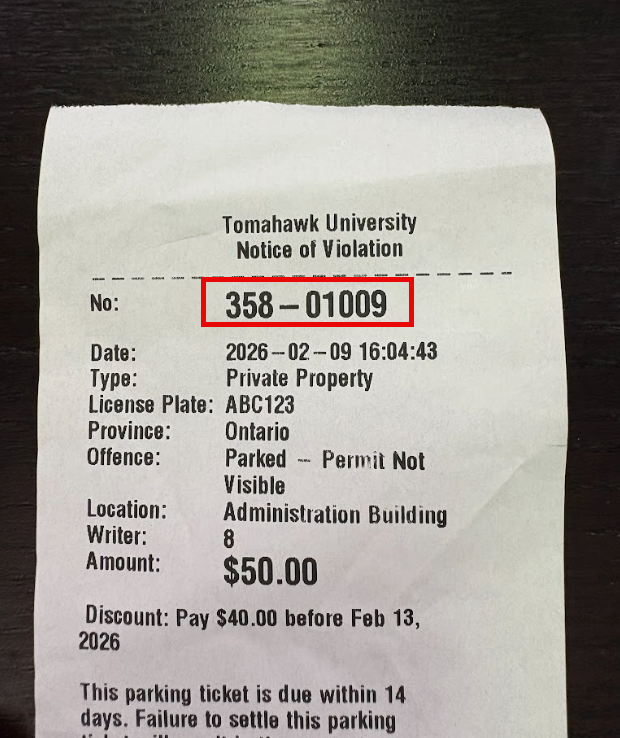
Depending on the parking authority's policy, you may be required to pay for only the single violation the boot is attached to, or youif maythey needmust pay all outstanding account violations before the system generates a release code. Additionally, administrators must ensure that the automated release emails contain accurate removal instructions and clearly defined boot drop-off locations.
User Side: Users must have a valid email address to receive their unique release code. If choosing to pay forthrough allan outstanding violations on yourexisting account beforerather than as a guest, the codeuser ismust released.
Uponthe successfulbooted payment,vehicle's twolicense separateplate emailsactively will be sentregistered to their profile.
Using this Feature
Administrators can use the emailfollowing addressinstructions youto provided.guide users through paying for their violation and removing the booting device.
- via
- QR Code or Guest Payment
-
OneScanemailthewillQRbecodeyourstickerpaymentlocatedreceipt.on the booting device to access the quick pay portal. -
ANavigatesecondto the online payment portal and use the guest payment option if the boot lacks a QR code. Detailed instructions can be found on the Quick & Easy Guest Payments page. -
Enter the specific violation code found on the windshield ticket.
-
Complete the required payment for the violation.
-
Log in to the User Portal.
-
Add the vehicle's license plate to the user profile if it is not already registered.
-
Navigate to the cart to view outstanding items.
-
Locate the violation marked with the Boot Applied status.
-
Complete the required payment.
-
Check the provided email
willinboxcontainforyourtwouniqueseparatebootautomated emails: a payment receipt and a release codeandemail. -
Follow the detailed instructions
for how to remove the boot and where to return it. Follow the instructions providedin the release code email to safely unlock and remove the boot fromyourthe vehicle.
Paying via an Existing Account
Removing and Returning the Boot
-
Paying
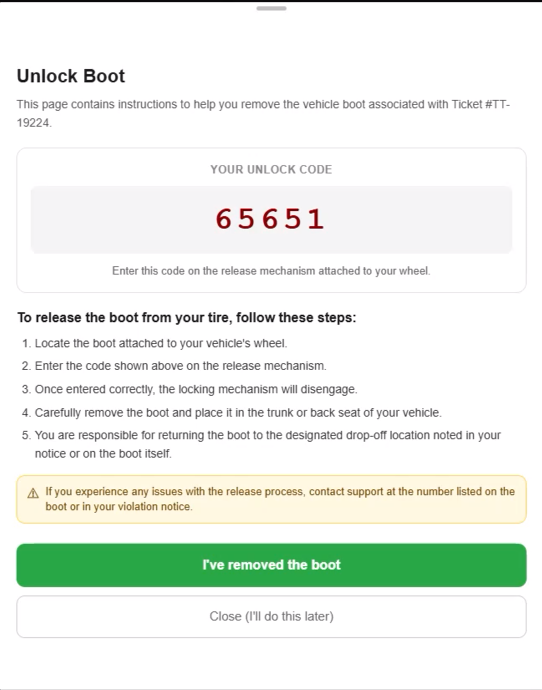
Return the boot to the specified drop-off location as outlined in the instructions.
Paying With an Existing Account
Alternatively, you are welcome to pay for the booting violation via your existing parking services account, follow these instructions;
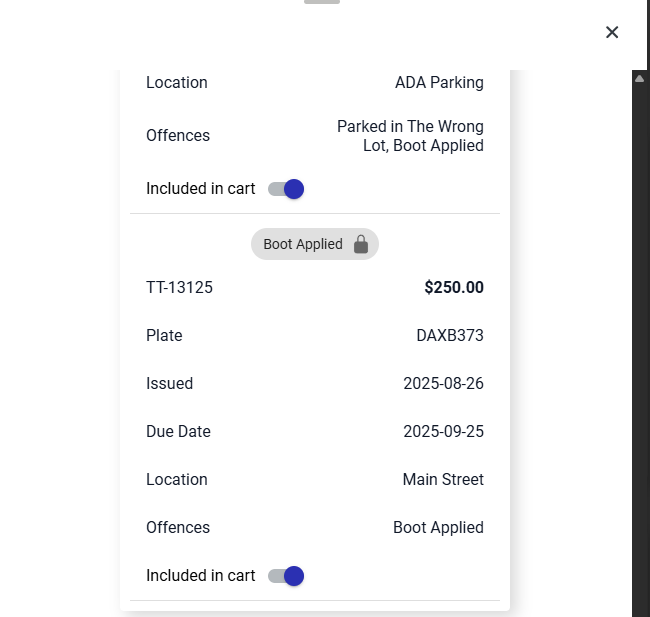
Make sure you add your plate as a vehicle on your user profile, then refresh the page, if you have not added the vehicle to your profile previously.Once your vehicle is added, check your cart. Violations that have had a boot applied to them will have a grey lock above them, and say"Boot Applied"
It is crucial tothat users return the boot promptly according to the provided instructions. Failure to return the boot within the allotted time frame may resulttrigger automated secondary fines or prevent the user from appealing future violations until the equipment is recovered.
Visual Cues and Status Indicators
-
Grey Lock Icon: Violations in
additionalthefinesuser'sorcart that currently have a physical boot applied will display a grey lock icon alongside theforfeituretextofBootyour depositApplied. This indicates to the user that payment is mandatory to release the vehicle.
Best Practices &and Considerations
-
BootCommunicateasemail requirements: Ensure users understand that aDeposit:valid email address is strictly required during checkout.InThecertainuniquesituations,boot release code and return instructions are dispatched exclusively via email upon successful payment. -
Establish deposit policies: If your organization charges a refundable
depositbootfeedeposit,mayensurebetheincludedrefundwithconditionsyourareviolation.clearlyThiscommunicated.depositDepositswillarebetypically refunded toyou throughthe original payment method only after thebootdevice has been returned within the specified timeframe and is confirmed to be in good condition. -
KeepEnforceInstructions:return deadlines:BeOrganizationssureshould establish strict business rules for unreturned boots. Remind users tosavekeep their instruction email until theemaildevicecontaininghas been successfully dropped off, as failure to return theremovalbootandpromptlyreturnmayinstructionsresultuntilinafteradditionalyousystemhavefinessuccessfully returnedor theboot.complete forfeiture of their deposit.