
Viewing Your Waitlist Position
The Waitlist Position Viewing feature allows end-users to check their current rank or projected rank on a parking waitlist directly from the user portal. Its primary purpose is to provide transparency to users regarding parking availability and to reduce the volume of status inquiries directed to the parking office. This article is intended for OPSCOM administrators to help them understand and support the user-facing waitlist experience.
Setup and Configuration
This feature requires explicit configuration on the backend before users can see their numerical rank.
Admin Side: Administrators must enable waitlist rank visibility within the global system settings. If this functionality is restricted by your parking organization, users will only be able to see that they are on a waitlist, but their specific numerical position will remain hidden.
User Side: Users access their waitlist details directly from the permit store on their portal dashboard.
Using this Feature
Administrators can use the following instructions to guide users on how to check their rank before or after joining a waitlist queue.
Accessing Waitlist Information
-
Log in to the User Portal and click Permits.
-
Locate the specific parking lot card that displays a waitlist option.
-
Expand the waitlist drop-down menu on the lot card to view the detailed position information.
-
Click the Join Waiting List button to add the account to the queue.
Waitlist positions are dynamically calculated based on the lot's configured capacity, the number of currently active permits, and the order in which users clicked the Join Waiting List button.
Visual Cues and Status Indicators
The expanded waitlist menu provides dynamic status indicators based on the user's current relationship with that lot:
-
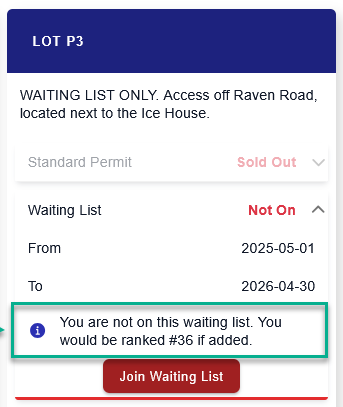
Projected Position: Before a user joins a full lot, the system displays an informational message (e.g., "You are not on this waiting list. You would be ranked #36 if added.") indicating their potential rank. This helps users make informed decisions about whether to join a long queue.
-
Live Position: Once a user adds themselves to the waitlist, the indicator automatically updates to show their current, live position. This number will adjust dynamically as other users are awarded permits or leave the queue.
Available Actions and Buttons
-
Join Waiting List: Click this button located within the expanded lot card menu to officially enter the queue for the selected parking lot.
Best Practices and Considerations
-
Determine visibility policies: Organizations should ensure that waitlist visibility aligns with their operational policies. If your waitlist processing is highly manual or subject to priority overrides (e.g., prioritizing staff over students), displaying the exact rank may cause user frustration if they see their position bypassed by priority users.
-
Monitor waitlist volume: Administrators should routinely monitor waitlist numbers to gauge parking demand. If a specific lot consistently maintains a massive waitlist, management may need to re-evaluate lot allocations or pricing structures.