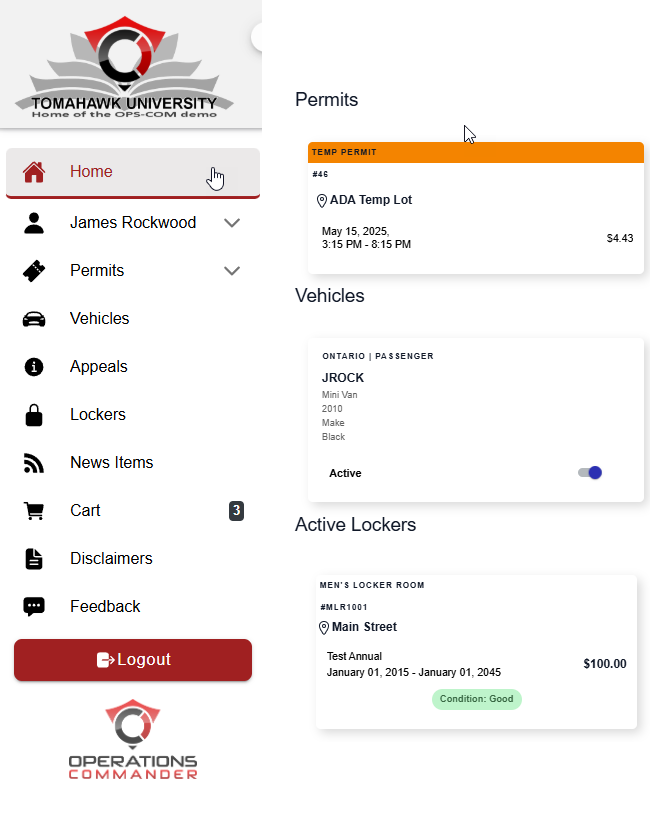
Your OPSCOM Dashboard: Your Parking Central!
Think of yourThe User Portal Dashboard asis yourthe go-toprimary startinglanding pointpage infor OPSCOM!end-users It'saccessing designedthe system. Its primary purpose is to giveprovide youusers with a quickpersonalized, centralized overview of yourtheir parking situationprofile and easyquick access to allessential features. This article is intended for OPS-COM administrators to help them understand and support the importantend-user features.experience.
Setup and Configuration
The dashboard requires no specific administrative setup, as it is the default landing page for all registered users upon logging in. However, the specific sections and cards displayed on the dashboard are dynamically generated based on your organization's takeactive amodules lookand around!the individual user's account history.
QuickUsing Stepsthis (Feature
Administrators can guide users through the following steps to navigate their personalized dashboard and access their parking information.
Navigating Yourthe Dashboard):
Dashboard
-
Log in to the
'UserPortal'Portal. You'llView the Home dashboard, which displays automatically
landupononsuccessfulyourlogin.'Home'dashboard.Hereyou'llClick
findasections like 'Unpaid Violations',specific'ActivePermitPermits',card'Vehicles',toandview'ActivedetailedLockers'.information or to print a physical copy of the permit.-
Unpaid Violations: Displays any outstanding parking
statuscitationslaidtiedoutto the user's account that require payment or appeal. -
Active Permits: Shows currently valid parking permits associated with the user.
-
Vehicles: Lists the license plates and vehicle details currently registered to the user's profile.
-
Active Lockers: Displays any active locker rentals the user has purchased.
-
Provide efficient support: Administrators should familiarize themselves with the user dashboard layout to efficiently assist parkers. When a user calls for support regarding an active permit or unpaid citation, knowing exactly what they see on
cardstheirlikescreen streamlines thepicturetroubleshootingbelow.process. You can click on the Permit card to see more information about that permit and print a copy!
Key Information Displayed
The information you seedisplayed on yourthe dashboard is personalized to yourthe user's account and it provides a snapshot of yourtheir current status using distinct interface cards:
Best Practices and Considerations