Payment Management (Subscriptions)
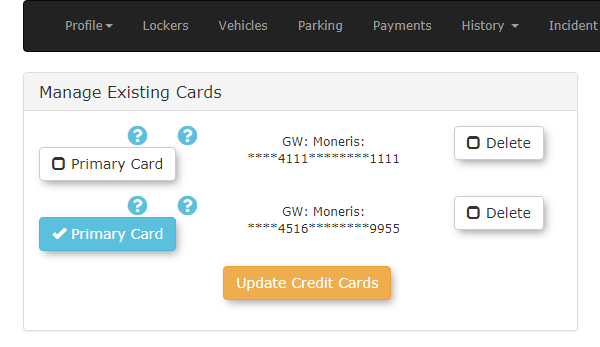
ManagingUsers Creditcan Cardsmanage multiple credit cards on their accounts through OPSCOM portal. Only one card may be set as primary. Admins can also add credit card details to a user profile.
Quick Steps:
-
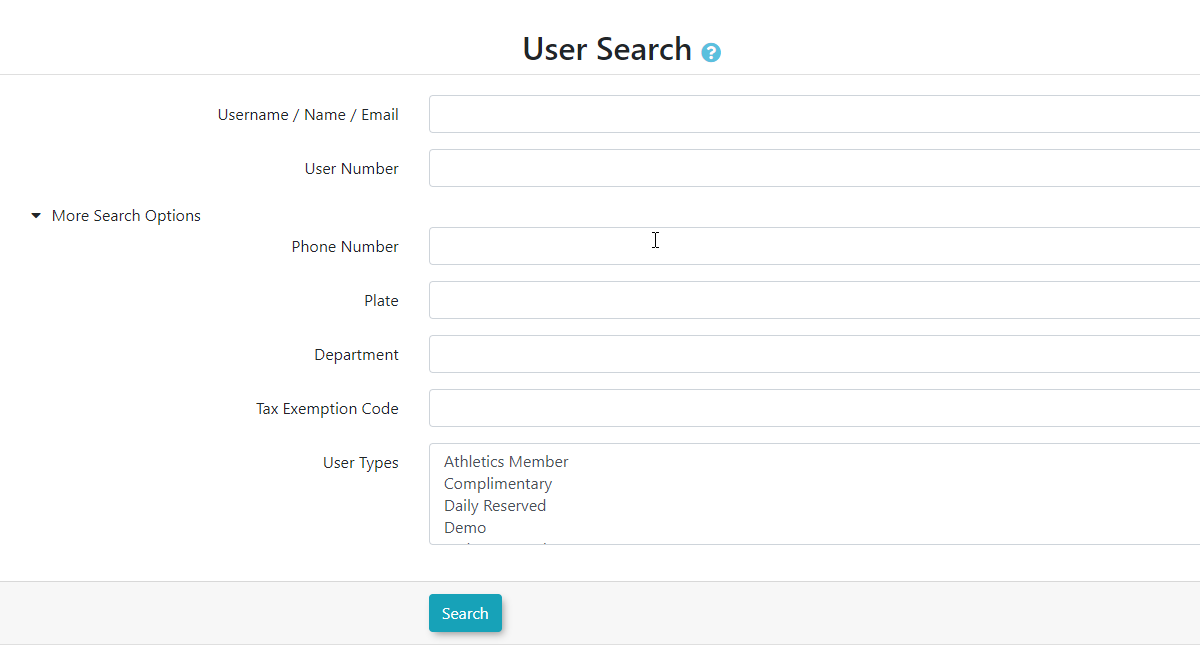
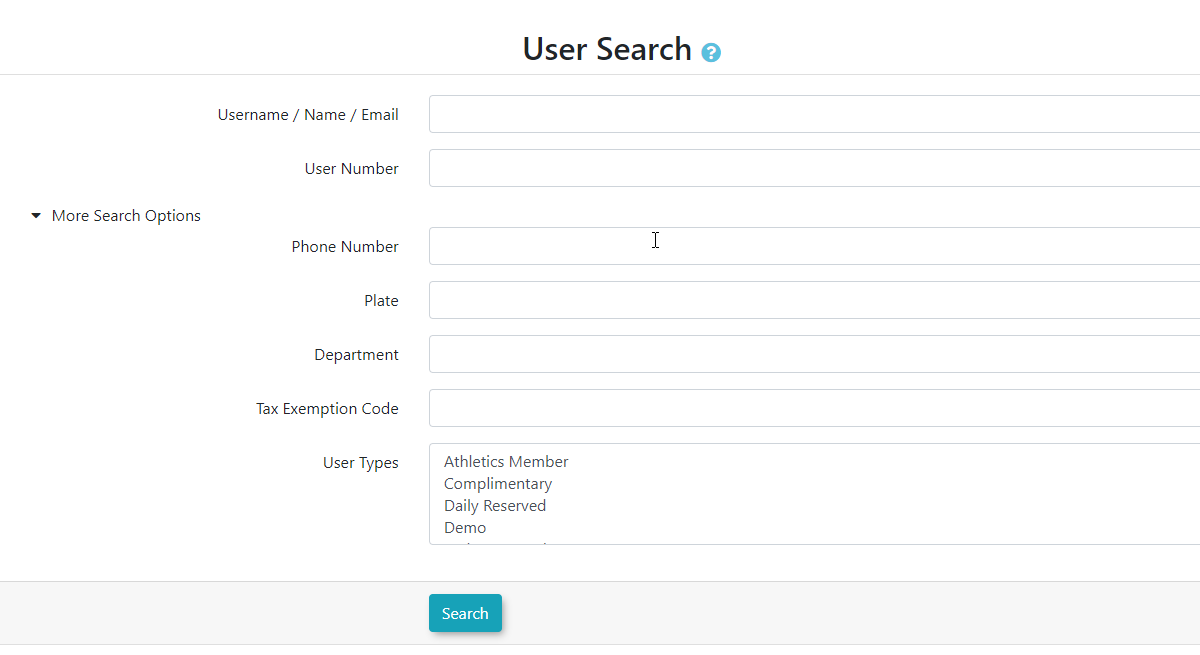
Search and select the User Profile.
-
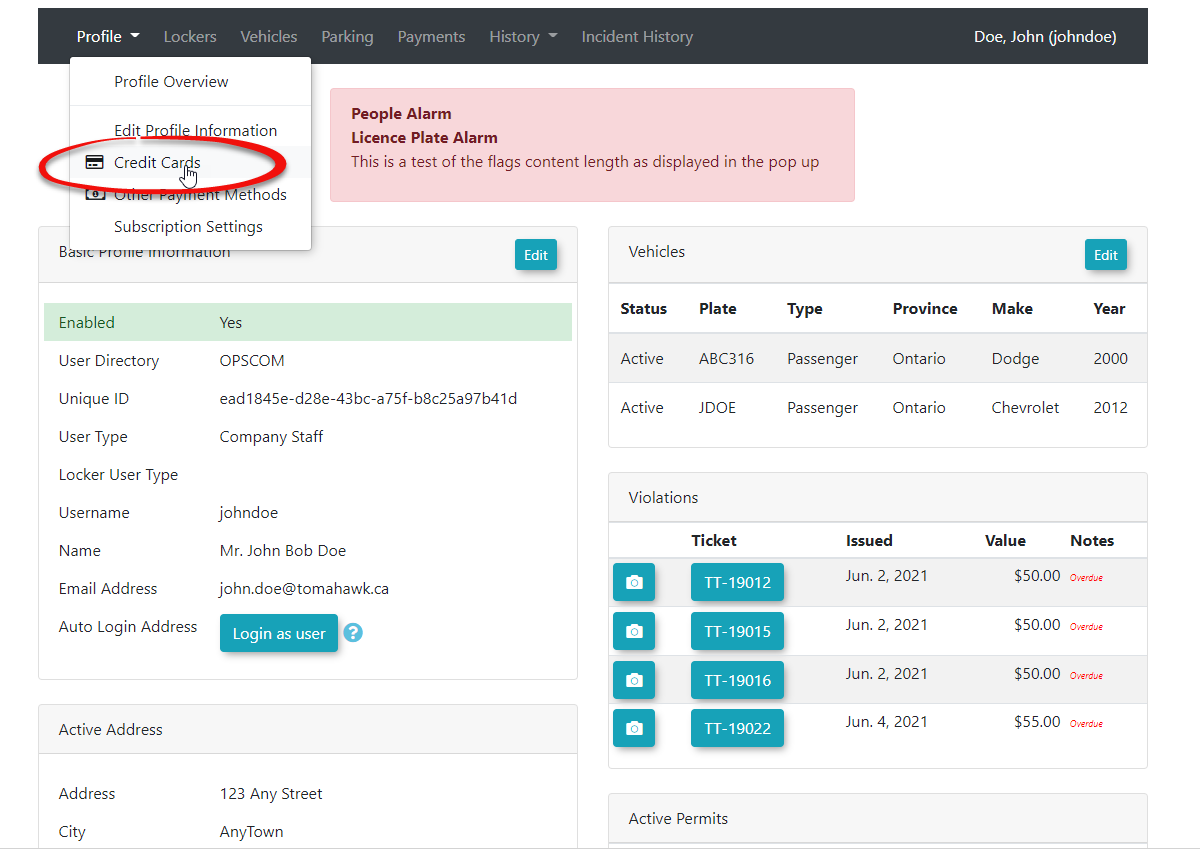
Using the Profile dropdown, click Manage Payment Methods.
- To add a payment method click Add New Payment Method under Payment Subscription Options.
-
To use a payment type for recurring payments or to be auto-charged for Permit Rollovers, click the drop down and chose the payment type from the dropdown under Permit Rollover Subscription and then click Save.
-
You will see a popup indicating that your permit rollover subscription has been updated.
Step by step instructions:
-
Search for the User:
-
Use the Quick Search or User Search functions to locate the user
thatwhose credit card you want tomanagemanage.a -
card for and selectSelect the
userUser toget toaccess theirprofile
Profile.
credit -
-
-
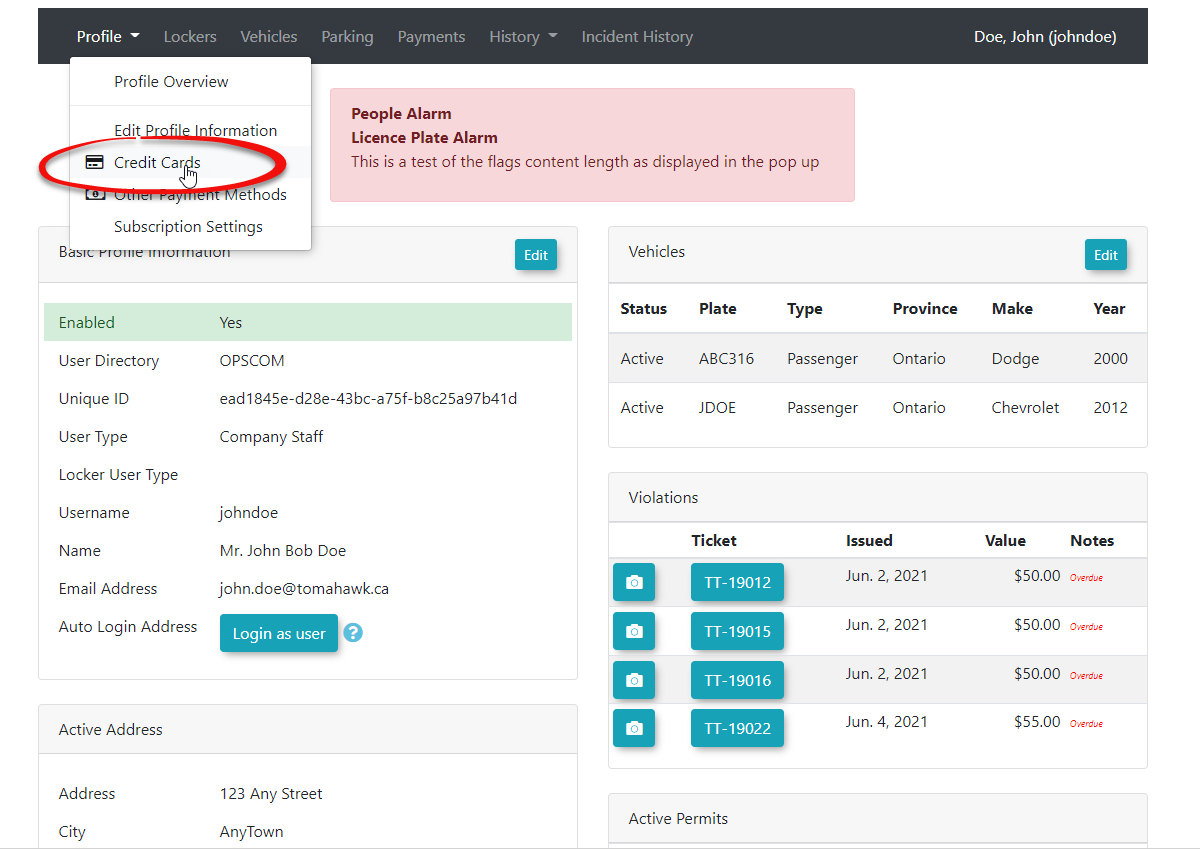
Hover overUse the Profile menuanddropdownclickto chooseCreditManageCardsPayment Methods.
-
-
-
TheCredit Card utilitywill display. The admin can fillFill out thecardPaymentinformationSubscription Method on theright,rightandsideclickof the screen. -
Click Add
CreditPaymentCardMethod button to registerthe credit cardin the system.
-
-
NoteAdd Permit Rollover Subscription:-
Choose the Payment Method from the dropdown list under Permit Rollover Subscription on left side of screen.
-
Click Save.
-
The Payment Method added here will now be used for any recurring payments and can be used to auto-charge for Permit Rollovers and Subscriptions.
-
Designate the credit card as the default or Prime Card to allow the rollover process to automatically use this card for recurring permit payments.