
Temporary Permit Printing
What this covers
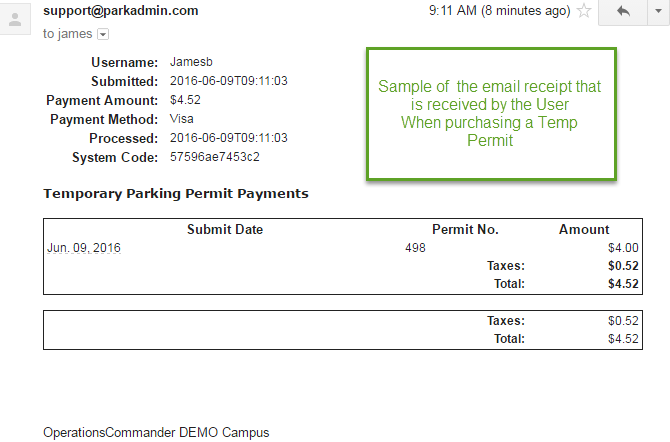
Visitor parking is managed with temporary permits. This page covers printing short-term hang tags and dash passes for guests, event attendees, and walk-in visitors, either one at a time or in daily and weekly batches.
The Temporary Permit Printing feature allows administrators to search, retrieve, and batch-print temporary parking permits. Its primary purpose is to help efficiently generate physical hang tags or dash passes for users needing short-term parking access. This article is intended for OperationsCommander (OPSCOM) administrators.
Who / when
Applies to: Admin Portal
Use this page when: you are a parking administrator and someone needs to park who is not a regular permit holder, such as a guest, event attendee, or walk-in visitor.
Steps
Setup and Configuration
There is no specific configuration required to use this feature, provided your administrative user role has the appropriate permit management permissions enabled.
Using this Feature
Administrators can use this tool to print multiple temporary permits at once through a system search, or print individual permits directly from a user's account.
- Hover over Parking Management and click Temporary Permits then Temp Permit Printing.
- Click the Retrieve drop-down menu and choose the permit types you want to display.
- Click the Permit Lot drop-down menu and choose the specific lot you are printing for.
- Enter the Start Date and the Up to and Including date to define your search range.
- Click the Retrieve button to generate the list of permits below the search criteria.
- Enable the checkbox for each permit you wish to print from the generated list.
- Click the print selected hang tags button to generate the physical permits.
Printing from User History
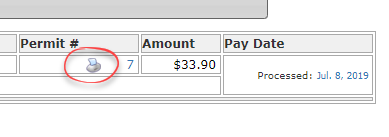
If you only need to print a single permit, it is often faster to do so directly from the user's profile.
Best Practices and Considerations
- Batch Processing: Utilize the date fields and lot filters when retrieving permits to quickly print daily or weekly batches of temporary permits for upcoming events or short-term visitors.
- Individual Printing: Print directly from the user's history if you only need to issue a single replacement permit or handle a walk-in user, rather than running a system-wide search.
- Printer Settings: Ensure your local printer is configured correctly to handle the specific cardstock or hang tag paper dimensions used by your organization before executing a large batch print.
— DRAFT REVIEW NOTES (not page copy; removed when applied to the live page) —
Factual flags
None of the points below have been edited. They are reported for the separate content-fix pass, per the brief.
- Setup and Configuration is self-contradicting. It opens "There is no specific configuration required to use this feature", then conditions the feature on the admin role holding "the appropriate permit management permissions enabled". A permissions dependency is configuration, so the two halves read against each other. Wording fix, not a framing fix.
- Dash passes are promised but never shown. The intro and the scaffold sentence both name "hang tags and dash passes", but the walkthrough only exposes "print selected hang tags" (step 7). Either a dash-pass path is missing from the steps, or the framing over-promises. Worth confirming which before the framing ships.
Review notes (not page copy)
- Template boundary. "## Steps" is placed as the brief specifies, and the page's existing walkthrough headings (
## Setup and Configuration,## Using this Feature,## Best Practices and Considerations) are carried through unchanged beneath it. That leaves two H2s adjacent (Steps, then Setup and Configuration). If Robin prefers the existing walkthrough headings to stay top-level with no "## Steps" label, that is a one-line change for whichever reads better in the BookStack render. - Approved intro, one sentence moved. The approved intro's final sentence, "Use it whenever someone needs to park who is not a regular permit holder.", now lives in Use this page when. That is the template's own division of labour (What this covers = the situation; Who / when = the trigger), and it avoids the intro and the Who / when block saying the same thing twice. The rest of the approved intro is verbatim.
- Scaffold sentence kept in place, unchanged. No technology or "legacy" references appear on this page, so no style-rule conflict arose here.
- No Related pages section this round, per the brief.