OPSCOM on the Web
Setup and Configuration
This feature utilizes the device's default web browser and requires no specialized backend configuration within the OPS-COM portal.
Using this Feature
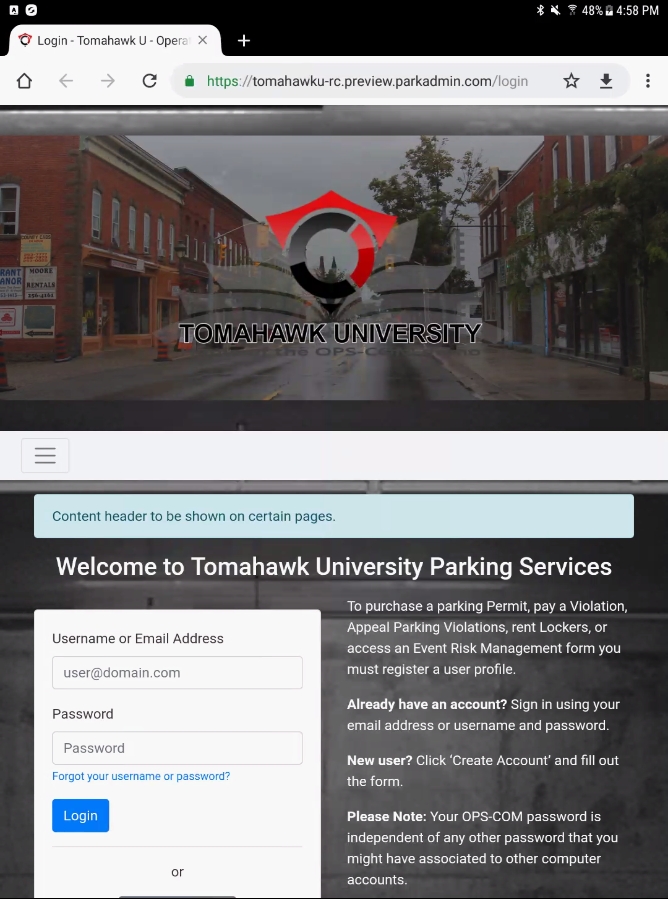
Enforcement personnel can use this shortcut to quickly jump from their active mobile session to the full OPS-COM login page.
Accessing the Web Portal
-
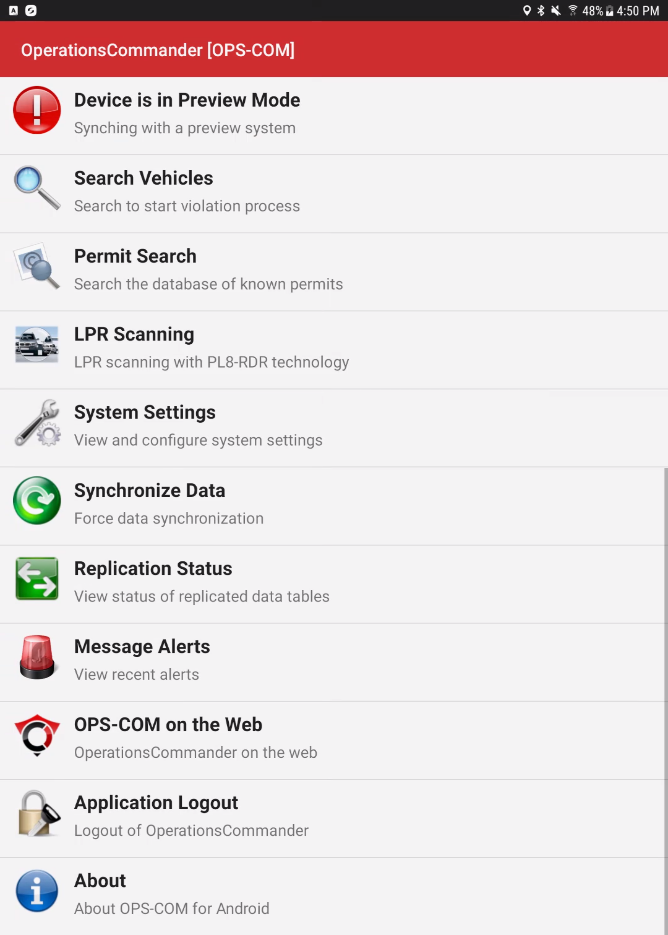
Tap OPS-COM on the Web from the main menu of the mobile application.
-
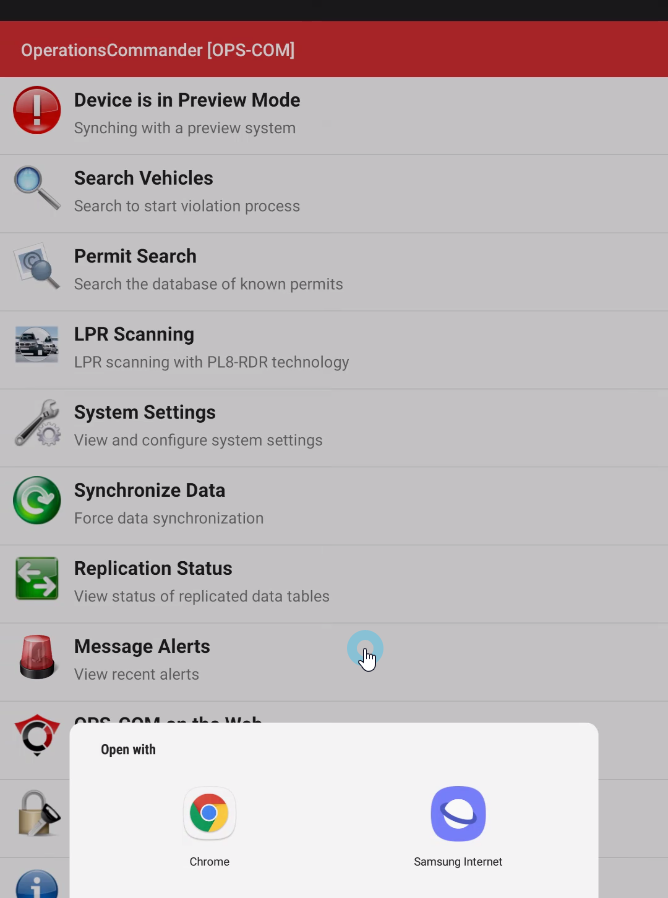
Tap your preferred web browser (e.g., Chrome) from the pop-up list when prompted by the Android operating system to choose an application.
-
Tap Just Once or Always to confirm your browser selection and execute the launch.
-
Log in to the standard OPS-COM web portal using your credentials once the browser redirects you to the login page.
Best Practices and Considerations
-
Select a default browser: Tap Always when selecting your preferred web browser to streamline future access. Setting a default browser skips the OS prompt, allowing the login page to launch immediately during subsequent uses.
-
Maintain active connectivity: Ensure your device is connected to a reliable network before attempting to use this shortcut. Because this feature redirects you to a live, external web page, it will not function if the device is currently in a dead zone or operating offline.
Network Requirements In order for this feature to work properly, the tablet must be in an area in which it is connected to the internet.internet
via
Wi-Fi or cellular
Enforcement personnel can use this shortcut to quickly jump from their active mobile session to the full OPS-COM login page.
Accessing the Web Portal
-
Tap OPS-COM on the Web from the main menu of the mobile application.
-
Tap your preferred web browser (e.g., Chrome) from the pop-up list when prompted by the Android operating system to choose an application.
-
Tap Just Once or Always to confirm your browser selection and execute the launch.
-
Log in to the standard OPS-COM web portal using your credentials once the browser redirects you to the login page.
Best Practices and Considerations
-
Select a default browser: Tap Always when selecting your preferred web browser to streamline future access. Setting a default browser skips the OS prompt, allowing the login page to launch immediately during subsequent uses.
-
Maintain active connectivity: Ensure your device is connected to a reliable network before attempting to use this shortcut. Because this feature redirects you to a live, external web page, it will not function if the device is currently in a dead zone or operating offline.
Network Requirements In order for this feature to work properly, the tablet must be in an area in which it is connected to the internet.internet
via
-
Select a default browser: Tap Always when selecting your preferred web browser to streamline future access. Setting a default browser skips the OS prompt, allowing the login page to launch immediately during subsequent uses.
-
Maintain active connectivity: Ensure your device is connected to a reliable network before attempting to use this shortcut. Because this feature redirects you to a live, external web page, it will not function if the device is currently in a dead zone or operating offline.
Network Requirements In order for this feature to work properly, the tablet must be in an area in which it is connected to the internet.internet
Menu Option
UsingIf the OPSCOMdevice onis the Web option opens an internet browser and redirects the user to the OPSCOM administrator login page.
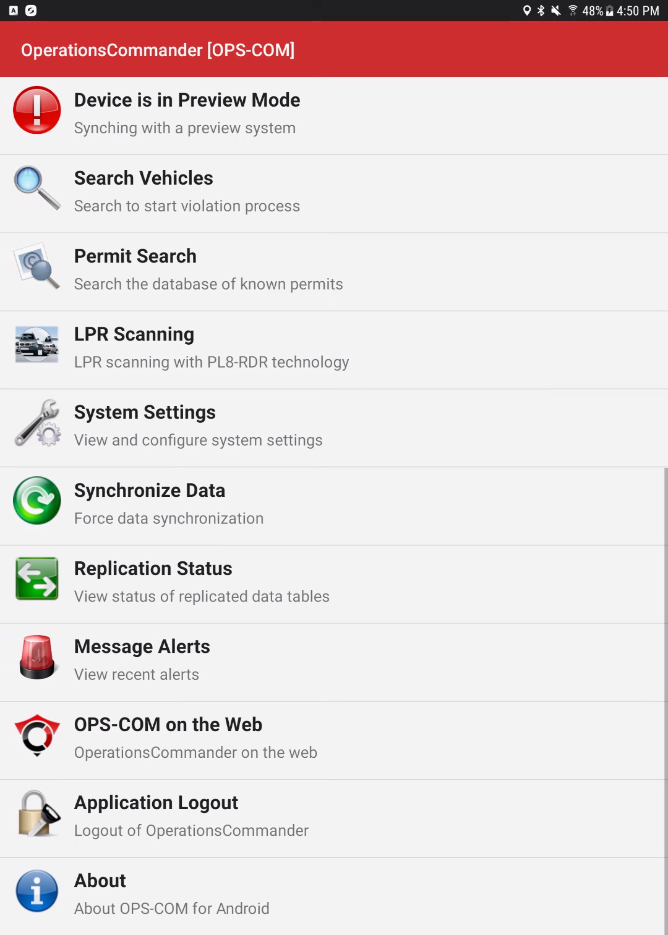
First, tap on theOPSCOM on the Weboption.
Open Browser
Depending on the browsing apps that are installed on your tablet, you will be asked what program you want to use to open the website with (e.g., Browser, Chrome, etc.).
Tap onoffline, the browserthatwillyouopenwantbuttodisplayuseafollowedconnectionbyJust OnceorAlways.
Login to Web Portal
This takes you to the OPSCOM login page. error.