Best Practices
Know
The yourBest VersionPractices
Itguide outlines the recommended daily maintenance routines for field enforcement handhelds. Its primary purpose is importantto ensure devices remain connected, up-to-date, and synchronized with the core database for optimal performance in the field. This article is intended for OPS-COM administrators and field enforcement personnel using the legacy Android application.
Setup and Configuration
Maintaining the handheld devices requires minimal backend configuration, but relies on consistent network availability.
Admin Side: Administrators should ensure devices are properly provisioned with Google Play Store access so they can receive regular application updates.
User Side (Enforcement Staff): Enforcement officers must ensure their device has an active internet connection (Wi-Fi or cellular data) to alwayssuccessfully bedownload runningupdates and synchronize enforcement data.
Using this Feature
Enforcement personnel should regularly interact with the latestdevice's versionupdate ofand OPSCOMsynchronization Parkingfeatures Enforcement.to maintain system health.
AvailableUpdating Updatethe Application
-
VisitOpen the Google Play store on your handheld device and search for "OPSCOM".Click -
Tap the red and black
iconOPSCOM(currentlyapplicationlistedicon.second). -
Tap the
resulting page, there can be several buttons labelled; Install, Uninstall, Update, Open. If theUpdate buttonreads Update,if there is a new version available. (Note: Prior toupdatingupdating, be sure to fully close the running OPS-COM applicationfirst.first).
ResetSynchronizing HandheldData
-
Ensure the tablet is in an area with a stable internet connection.
-
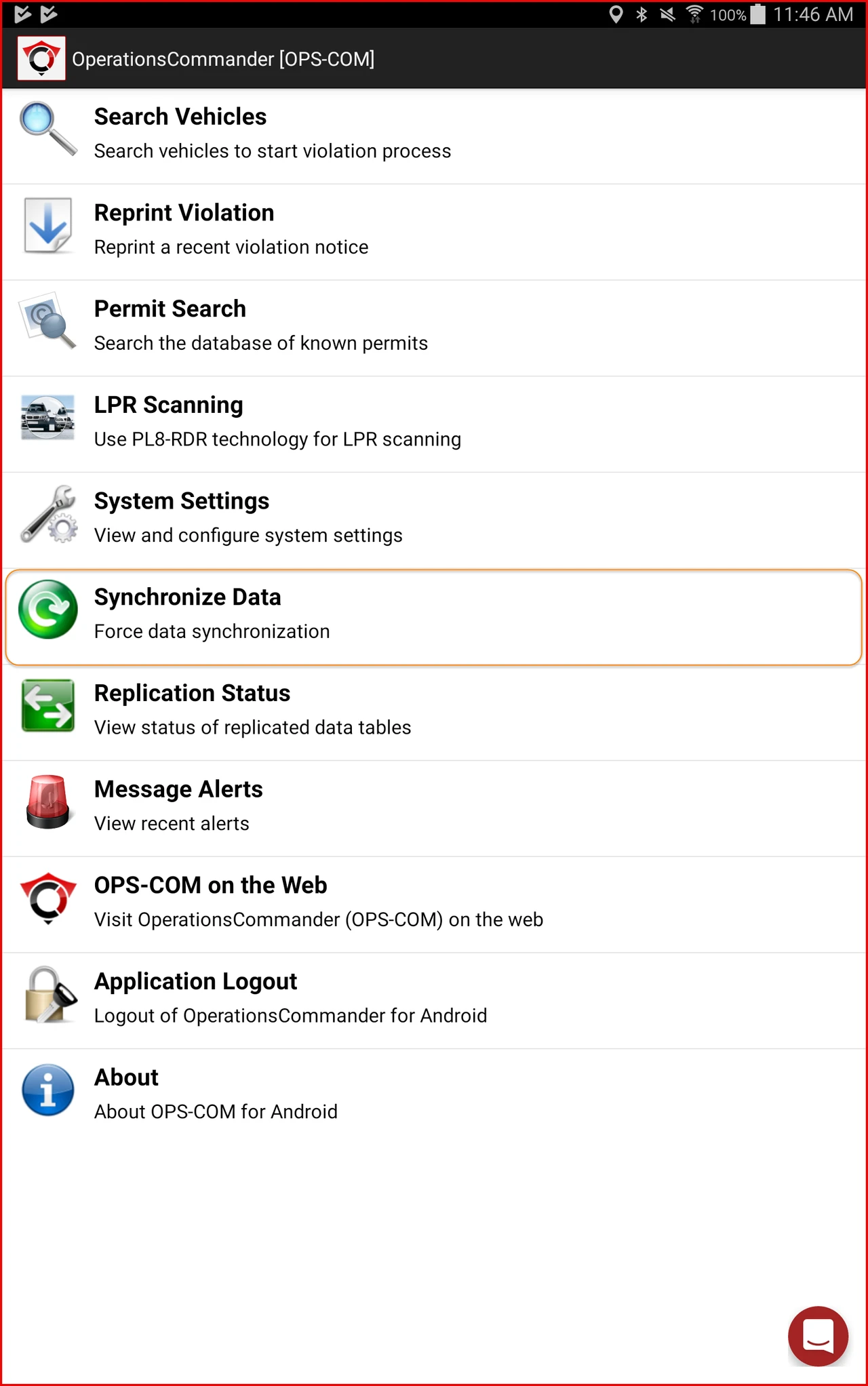
Tap the Synchronize Data option from the main menu to force the tablet to sync all local data with the main database immediately.
Visual Cues and Status Indicators
When patrolling, monitor the top left panel of the Search pages to verify your Database Connection State:
-
Green Dot: Indicates a healthy, active connection to the live database systems.
-
Orange Dot: Indicates that the system has lost its live connection but is currently operating on cached data. The system is still fully usable, but if the orange dot remains for an extended period, it is best to restart the application to reset the network connections.
Best Practices and Considerations
-
Reset handheld units daily: It is good practice to reset all
Handheldhandheld units before each shift. Resetting the unitwill refresh therefreshes network connections andallowallows any pending auto-updates to be installed. If the app isalwaysleft runningthenindefinitely, the system cannot auto-update and you will miss out on recent changes.It -
recommended that you kill (or close all)Kill background applications
whenentirely:your shift is complete or before you start a shift.Make sure to completely shut down the app, rather than simply minimizing or switching away from
it.it at the end of your shift. To swipe the app out of memory,goaccesstothe Recent Appsscreenscreen.(Android) -
Clear the application cache for persistent issues: If connection or
theApp Switcher (iOS).See these guides for more information:Android|iOSIfperformance issues persist even after resetting the app, try refreshing the app's cache.Refer
Check your version frequently It is important to thisalways guidebe running the latest version of OPSCOM Parking Enforcement. Regularly checking the Play Store for instructions.
Databaseprevents Connectionunexpected States
bugs Theand connectionensures you have access to the databaselatest systemsfield is denoted by a green dot in the top left panel of Search pages on the Handheld units. If the dot is orange, it means that the system has lost the connection but does have cached data. An orange dot indicates the system is still usable, however, if the orange dot remains for an extended period of time it would be best to restart the application to reset the connections.features.
Regularly Synchronize Your Data
The Synchronize Data option allows tablet users to force their table to synchronize all data on their tablet with the main database.
Note, in order for the forced synchronization to work, the tablet must be in an area where it is getting an internet connection. To do this tap on the Synchronize Data option.
As soon as this option is tapped, the synchronization will begin.