Chalks Tab
The Chalks Tab is a dedicated section within the Search Vehicle Results screen on the legacy OPS-COM Parking Enforcement application. Its primary purpose is to display a historical log of virtual chalking events for a specific vehicle, assisting officers in accurately enforcing time-limited parking zones. This article is intended for OPS-COM administrators and field enforcement personnel using the legacy Android application.
ReviewSetup Pastand Chalk ItemsConfiguration
InThe Chalks Tab automatically compiles its data directly from previous virtual chalking events performed by enforcement officers in the field.
Admin Side: No specific configuration is required on the handheld device to view this tab. Administrators manage global chalking grace periods and settings within the core OPS-COM administrative portal.
Using this Feature
Enforcement personnel use this tab to review past chalking records to determine if a vehicle has overstayed its allowed time in a specific location.
Accessing the Chalks Tab
-
Perform a plate or VIN query using the Search Vehicles function.
-
Tap the specific plate read from the initial search results list.
-
Tap the Details button to open the extended vehicle record.
-
Tap the Chalks tab
you(orareswipeableleft/right across the screen toseenavigateatonumberit).of
Key Information Displayed
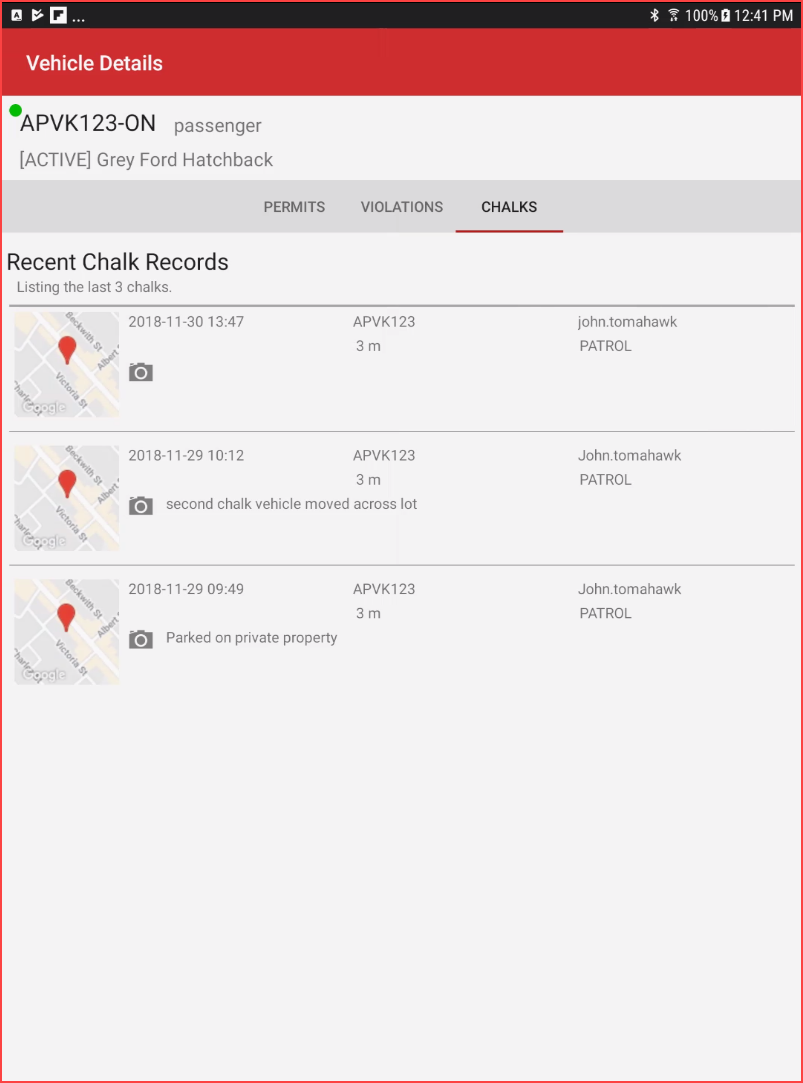
ChalksChalk History: Chalk records are listed chronologically, displaying from the most recent event at the top to the
oldest.oldest at the bottom.ThereisTime
aStamp: The specific date and exact time the chalk event occurred.-
Map Location: A visual map
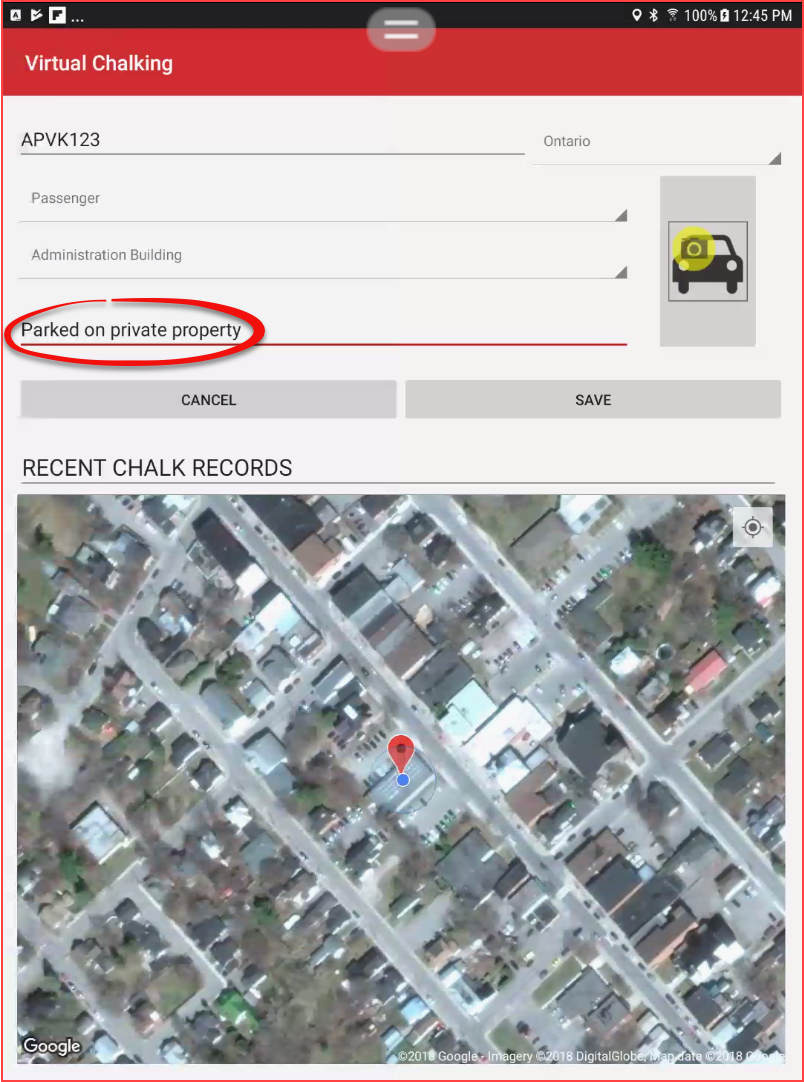
location thatsnippet illustrates exactly where the vehicle waschalkedparked when it was chalked. ThereisChalk
aComments:dateAnyandnotestimeorstampcommentsforentered by thechalkpatroleventThere is a camera icon that can be tapped to display the image that was taken with the chalk event. See below.There is a comment displayed on two of the items. This comment is madeofficer at the time of the initial chalking.See below.ThereDistance Calculation: A distance reading (in meters) indicating exactly how far your present physical position is
also a distance in meters reading that indicatesfrom thedistancelocationfromof the first chalkrecordrecord.to your present position.
Available Actions and Buttons
-
HereCamera:is a closer look at one of these listings:
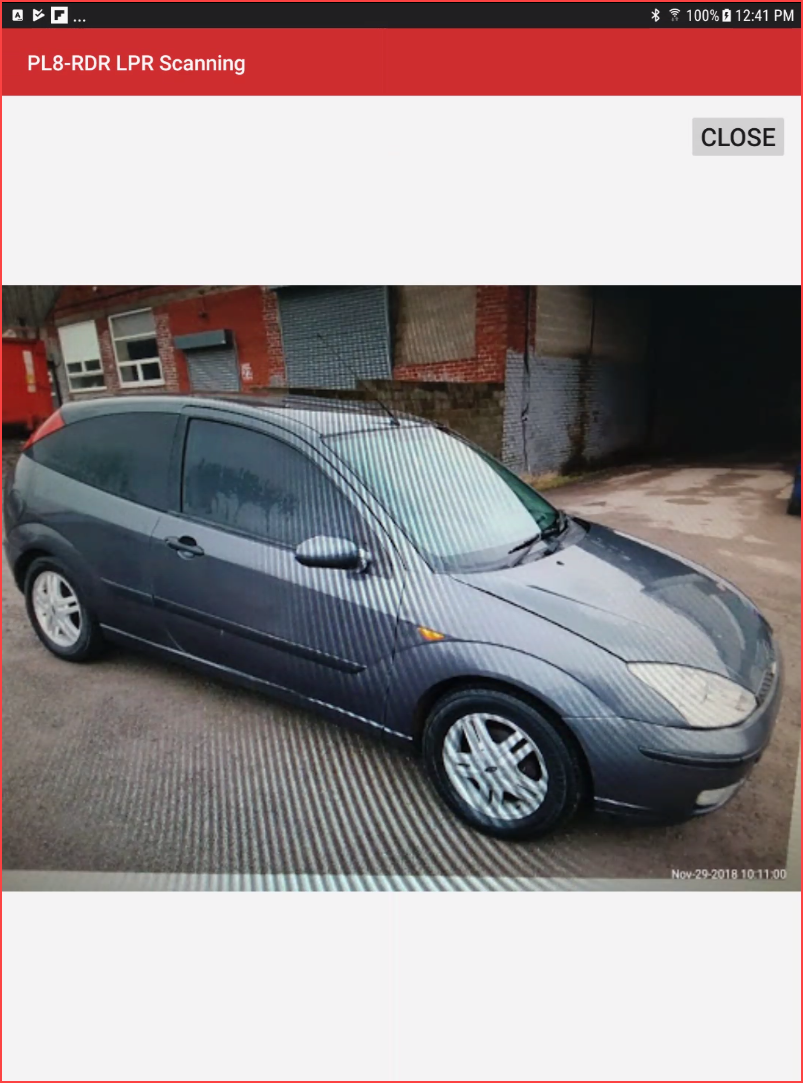
Review Chalk ImagesBy tapping onTap the cameraIconiconyouonwillaseespecific chalk record to display the full-size imageyoucapturedatduringthethattime you performed yourinitial chalking event.

ReviewBest MapPractices and Chalk CommentsConsiderations
-
ForReview chalk images before ticketing: Always tap thecommentcamerathaticonappearstoinverify therecordschalkabove. Hereimage is clear and the vehicle has not moved. Ensuring the evidence is solid and time-stamped correctly is crucial for defending against potential parking appeals. -
Leverage chalk comments: Encourage officers to add descriptive comments when initially chalking
ascreen.Youvehicle. Notes providing valuable context (e.g., valve stem positions, specific parking bays, or vehicle damage) are highly visible on this tab and cansee whereassist thepatrolsameofficeroraddedother officers upon their return patrol.
Legacy Application Notice This article pertains specifically to the comment.legacy OPS-COM Parking Enforcement app. If your organization has recently updated to the modern OPS-COM Enforce application, the interface, tab layout, and specific visual indicators will differ from what is described here.