
Choosing and Configuring Printers
Selecting
The aChoosing and Configuring Printers configuration process allows enforcement officers to connect and properly format their mobile Bluetooth Printerprinters within the legacy OPS-COM Android application. Its primary purpose is to ensure the application communicates with the correct hardware drivers, allowing for clear and accurate physical ticket printing in the field. This article is intended for OPS-COM administrators and field enforcement personnel configuring their handheld devices.
Setup and Configuration
ToBefore beginconfiguring navigatethe printer within the OPS-COM application, the physical printer must be powered on and actively paired to the SystemAndroid Settings:
device via the device's native OS Bluetooth settings.
User Side (Enforcement Staff): Enforcement officers must configure the application settings to recognize the paired printer and driver before issuing their first physical citation.
Using this Feature
Officers must explicitly select both the appropriate software driver and the specific hardware device within the application's system settings.
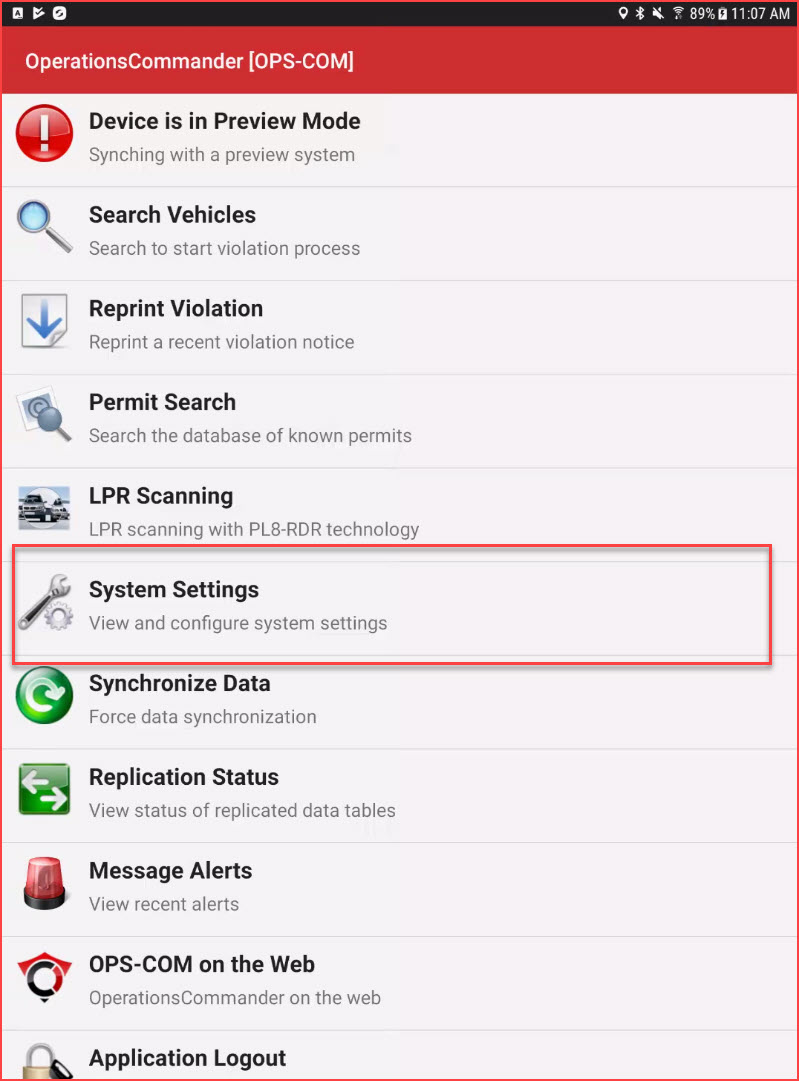
AccessAccessing System Settings
-
OnceTapinSystem Settingslook forfrom thefollowingmaintwomenuitems:of the OPS-COM application. -
Scroll through the menu to locate the specific printer settings options.
Selecting the Driver and Printer
-
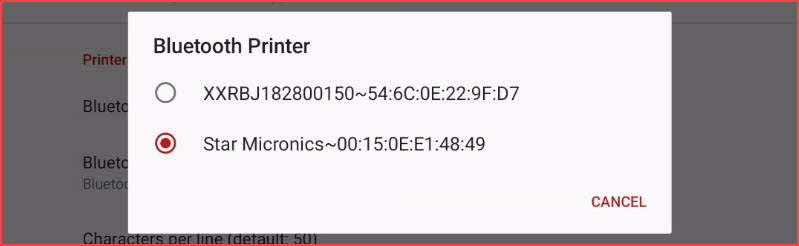
Tap Bluetooth print driver
Bluetooth Printer-
ClickTaponBluetooth Printer to open a list of paired BluetoothPrinterdevices.to -
Tap the name of the specific printer you are
using.
actively using to finalize the connection.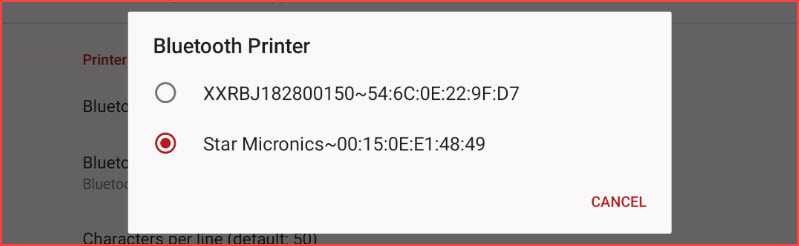
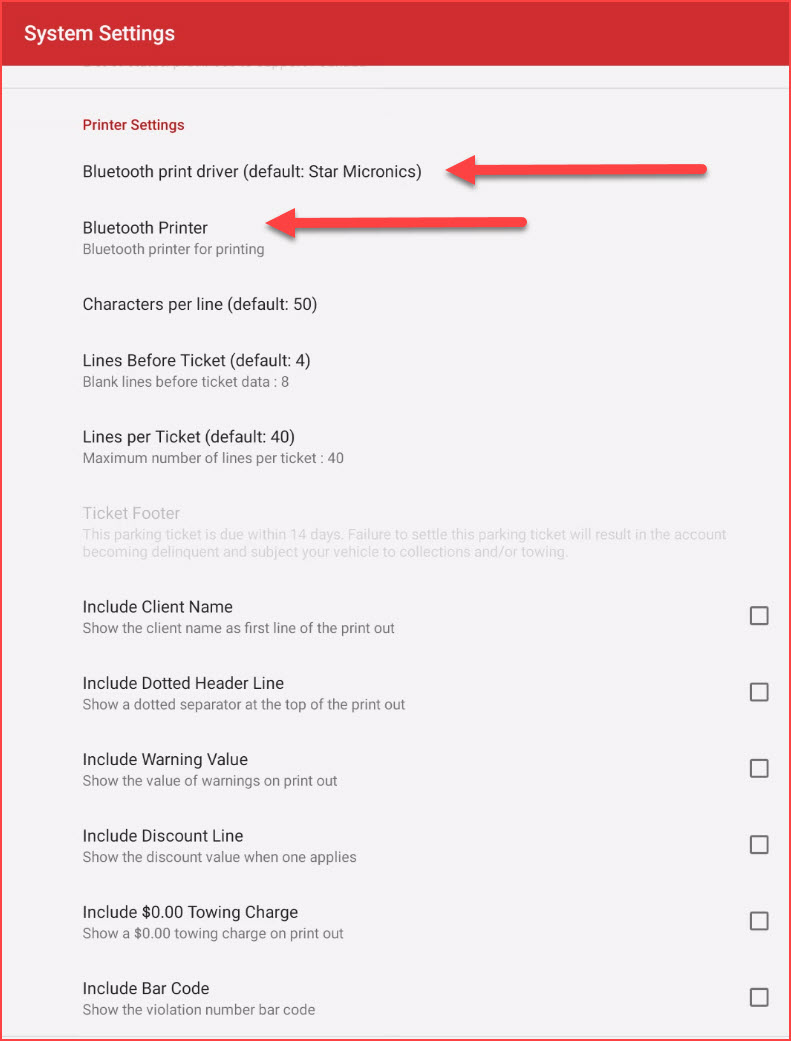
Select the Printer
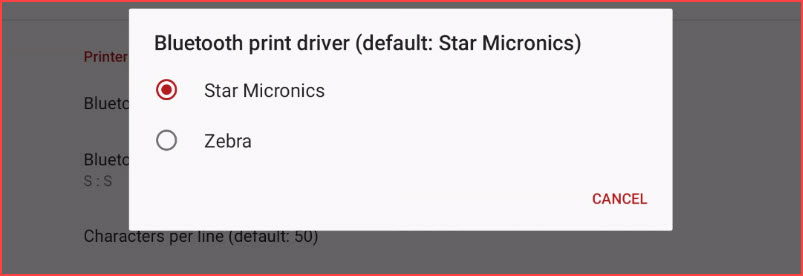
Tap on Bluetooth print driver to select the proper driver for the printerhardware you are using.
By defaultdefault, the printer driver is set to Star Micronics. If you are using a Zebra printer, tap to select Zebra.
Selecting the driver will automatically close the pop pop-up and return you to the main settings menu.
Best Practices and Considerations
-
Match your drivers to your hardware: It is
importantcritical that the selected driver matches your physical printer type. If these twosetting match as far as printer type.
oddIf theysettings do notmatchmatch, the printer will eithernotfail to work entirely or it willstartbegin to printoddout unreadable code andcharacters.TestingcharacterstheinsteadPrinterIt is alwaysof agoodproperlyideaformattedtoviolation. -
Verify functionality before patrolling: Always issue a test violation
toafterensureconfiguration.thatPrinting a test ticket ensures the printer is connected, formatting correctly, and working exactly asexpected.expected before you step out into the field to begin enforcement.