
Dispatch Log
The Dispatch LogsLog feature allows administrators/administrators and dispatchers to record and track all inquiries or communications that come into the office.office Thesedirectly dispatchfrom logsthe handheld device. Its primary purpose is to maintain a formal, time-stamped record of field inquiries, which can later be linked to specific incidents for further tracking.tracking
1.resolution. TapThis onarticle is intended for OPS-COM administrators and field enforcement personnel using the optionlegacy forAndroid Dispatch Log.application.
Setup and Configuration
2.The Thisdispatch willlogging takefunctionality youis native to the Addhandheld application and requires minimal backend configuration to use in the field.
Admin Side: Administrators must ensure that appropriate Log Categories are established within the core OPS-COM administrative portal so that field staff can accurately categorize their entries.
Using this Feature
Enforcement personnel can use this tool to quickly document interactions, dispatch calls, or field inquiries, complete with supporting photographic evidence.
Adding a Dispatch Log Entry
-
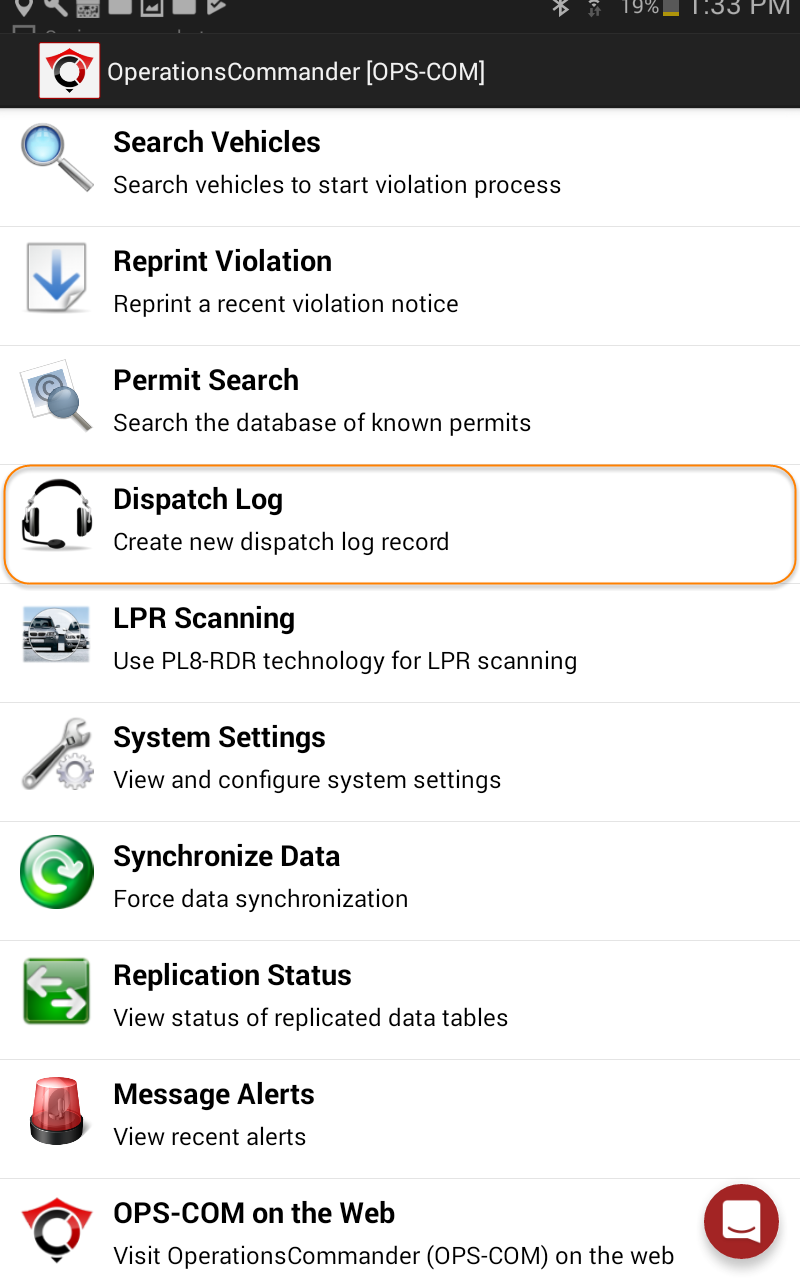
Tap Dispatch Log from the main application menu.
-
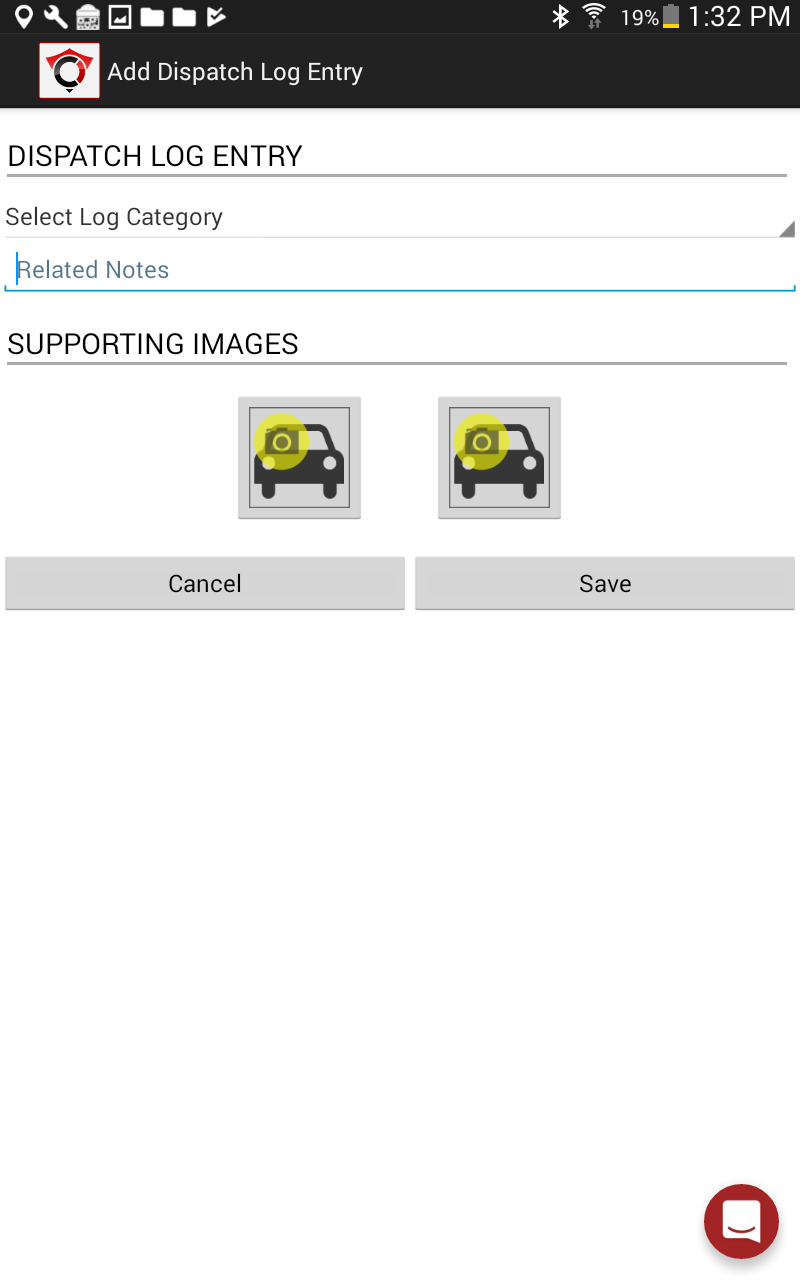
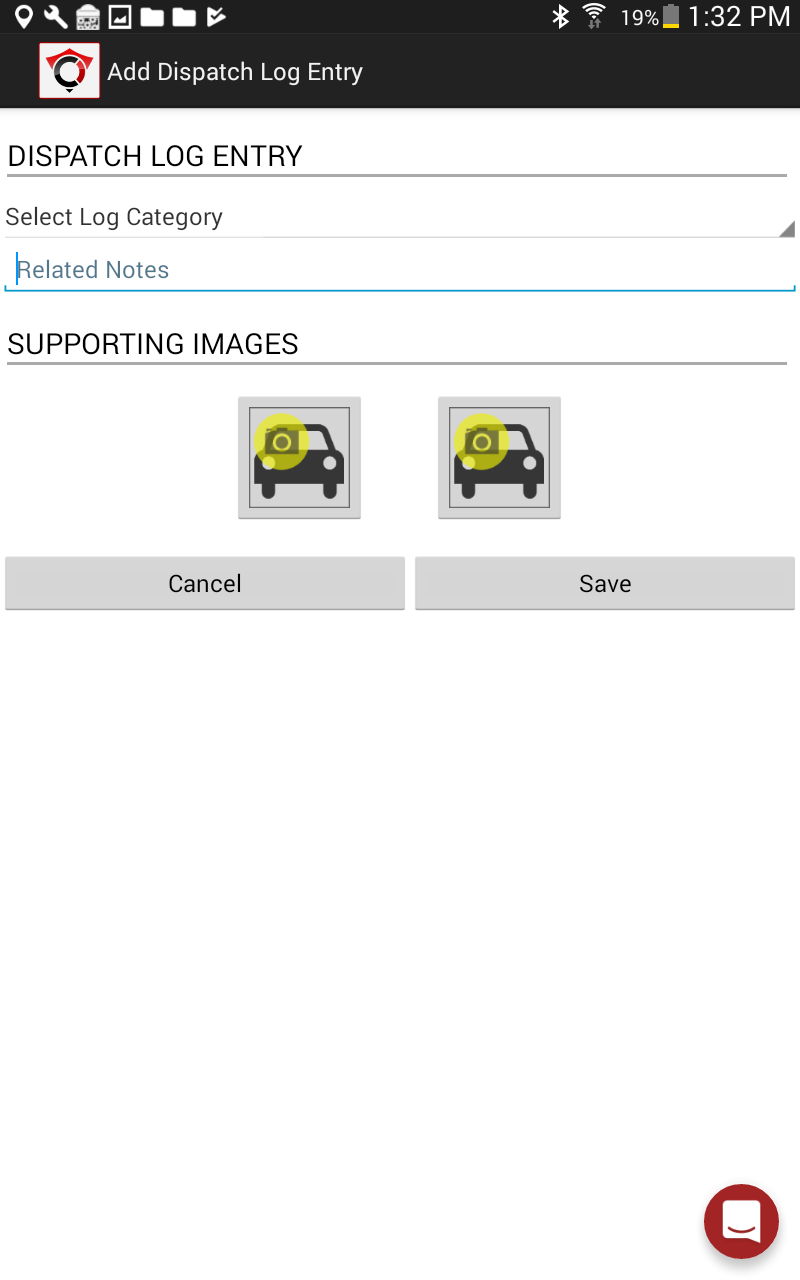
3.TapSelectthe Log Category drop-down menu and choose the appropriateLogclassificationCategory infor thefirstinquiry.drop-down -
keyTap
intheanytext field and enter detailed notesthat should be recordedrelated to the dispatchlogorandinquiry.attach -
to two supporting images. To attach images, selectTap one of the camera icons (represented by a vehicle with a camera) towards the bottom of the screen
thattohasattach avehiclesupportingwithimage.a -
in it. This will bring upTap the
camerashutterfunctionbuttonon the tablet, select(the circle with a camera initit) to takeathe picture.Select -
Tap the check mark
iftoyou are happy withaccept theimageimage,(iforyou need to retaketap thepicture, select thearrow to go backtoand retake thecamera).picture. Note: You can attach up to two supporting images per log entry. -
When you have all ofTap theinformation entered into the dispatch log, tap on theSave button at the bottom of thescreen.screenAonce all information and images are entered. -
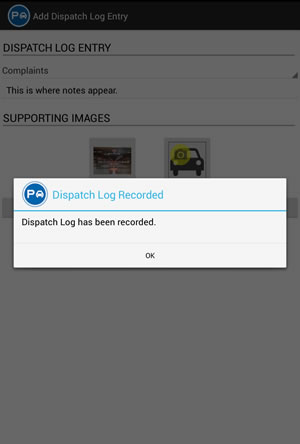
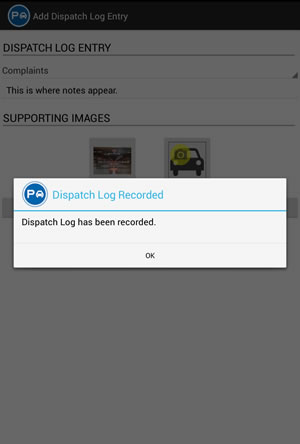
Tap OK on the confirmation pop-up message
will appeartoconfirm that your dispatch log has been recorded. Tap oncomplete theOKprocessbuttonandto go backreturn to the main menu.
Best Practices and Considerations
-
-
Utilize image attachments: Attach relevant photos whenever applicable. Visual evidence (such as a photo of a hazard, a damaged sign, or a specific vehicle) is highly valuable when a standard dispatch inquiry escalates into a formal incident or dispute.
Linking to Incidents While the handheld device creates the initial Dispatch Log entry, the process of formally linking these logs to larger, ongoing "Incidents" is managed by administrators or dispatchers within the main OPS-COM web portal.