
First Time Installation - Android
The First Time Installation - Android guide outlines how to download and set up the legacy parking enforcement application on a new mobile device. Its primary purpose is to ensure field officers successfully download the application from the Google Play Store Accessand
Onunderstand the deviceinitial Apps screen, locate the Google Play Store app.
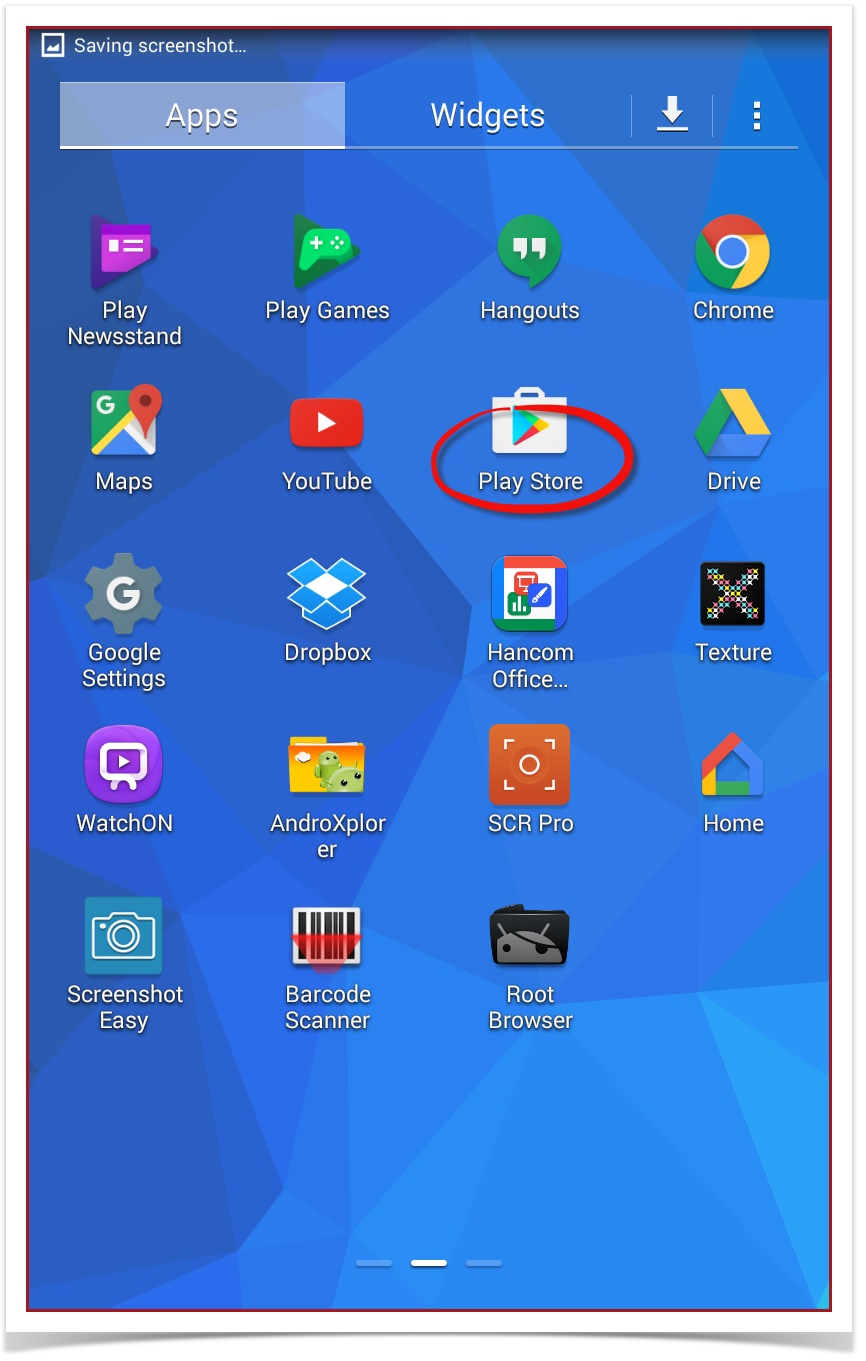
Tap to open the appregistration and searchpermission requirements. This article is intended for OperationsCommanderOPS-COM oradministrators OPSCOM.
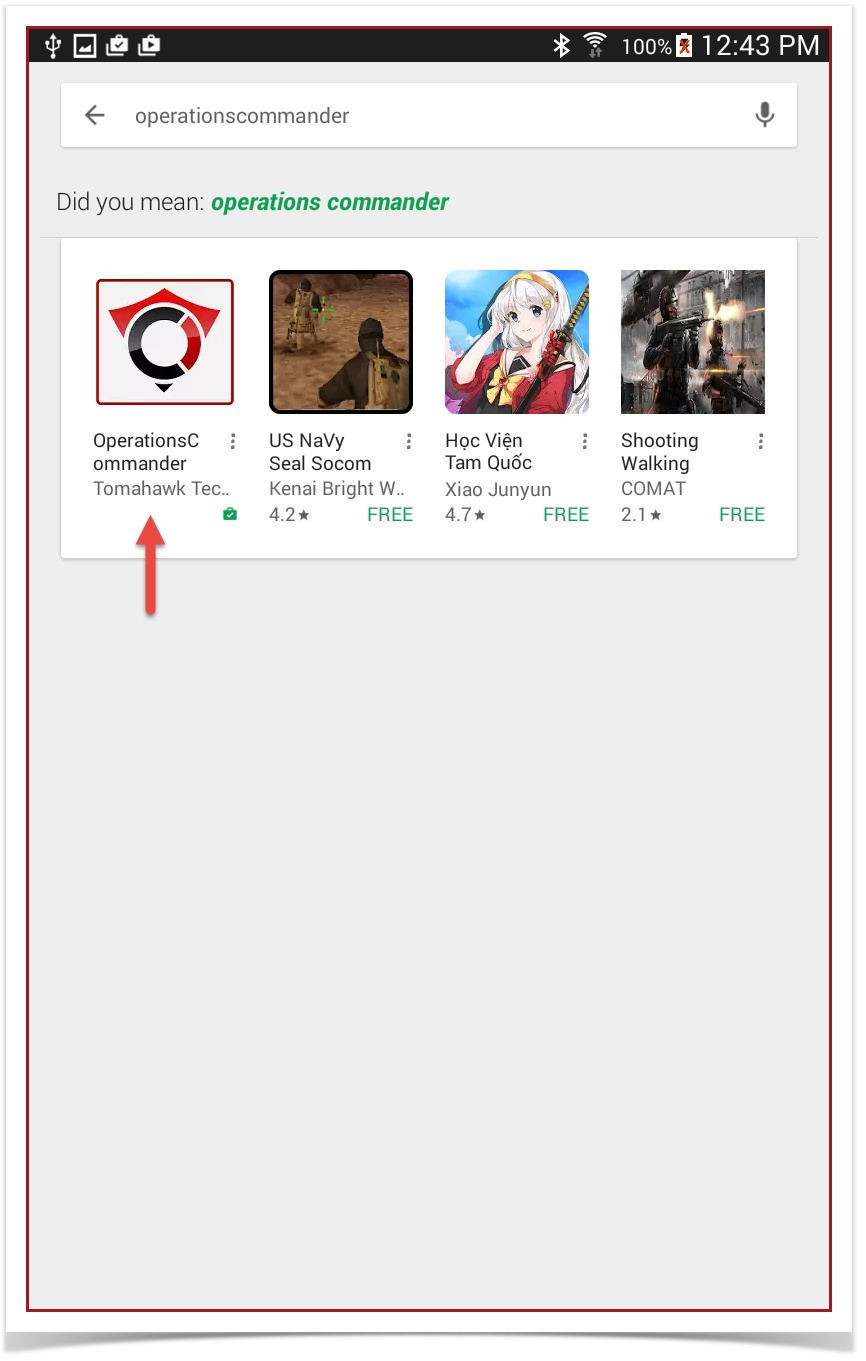
Tapenforcement thepersonnel iconprovisioning tonew beginhandheld the install process.devices.
InstallSetup theand OPSCOM ApplicationConfiguration
The followinginstallation windowrequires opens,both tapadministrative setup in the Installweb button.

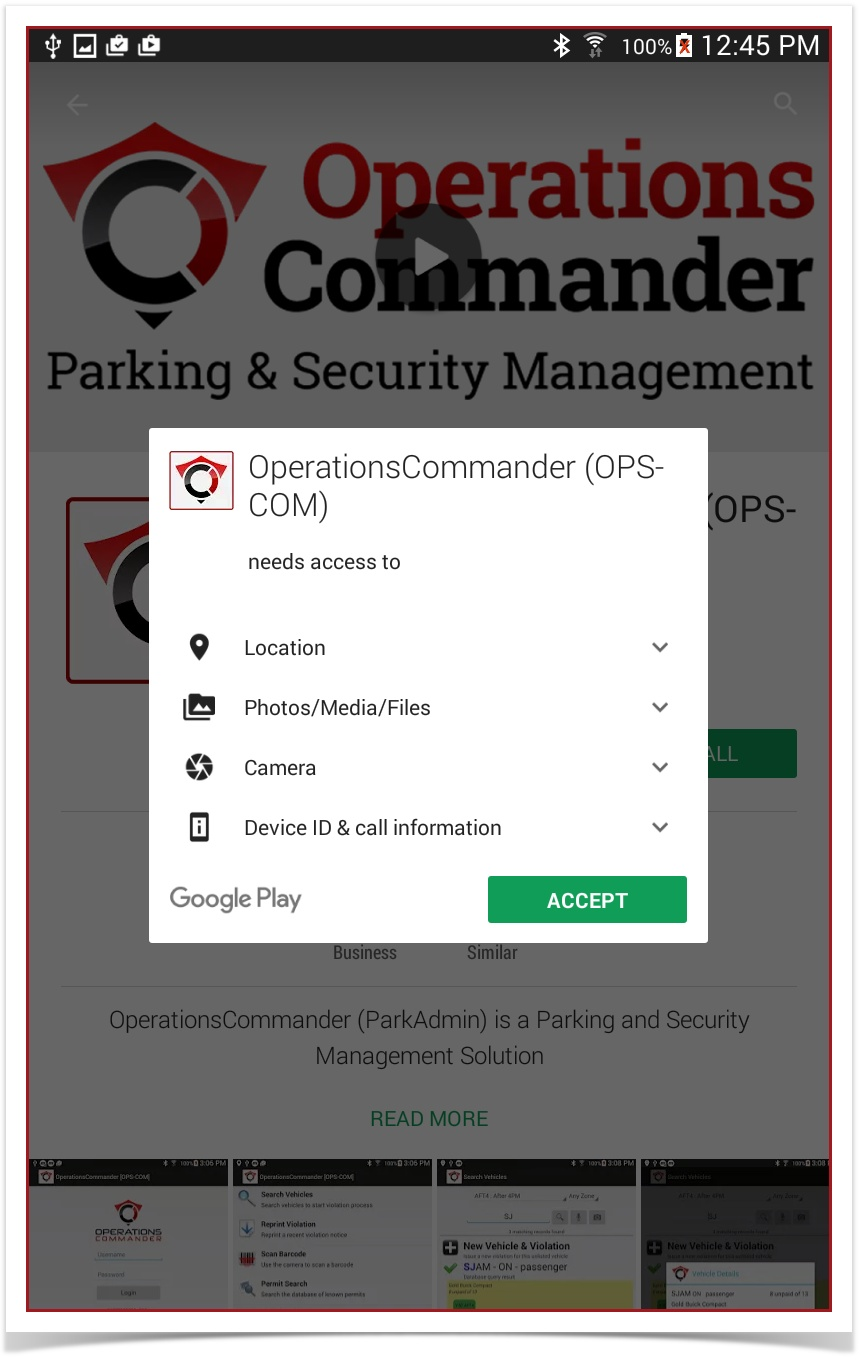
Thisphysical settings window will pop up to allow access to integrated appsconfiguration on the handheldAndroid device.
TapAdmin Accept.Side:
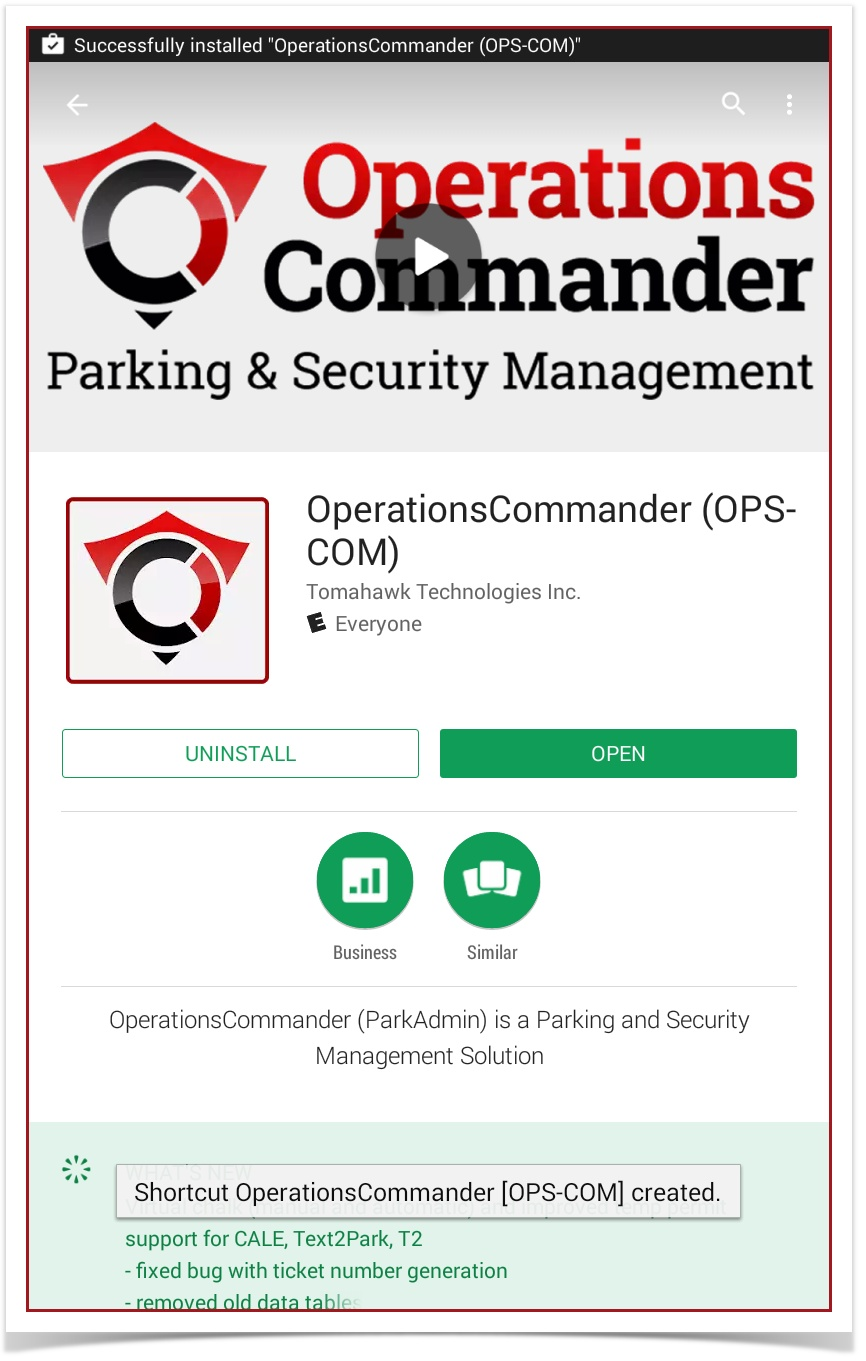
Oncemust ensure that field users have the appcorrect hasaccess installedrights before they can log in. Specifically, the screen will refresh with the following:
Launch the Application
To launch the application, use the Open button, or go to the device's main screen and start the app from the shortcut.
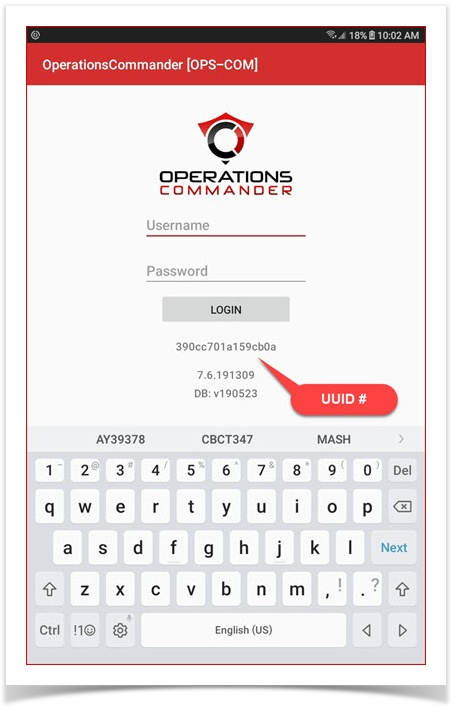
Application UUID
On first launch of the application a message will pop up saying the device is not registered; The message will include a UUID number.
Permission to Use the Software
To use this software, your user profile must have the "Add New Violation"Violation permission enabled under the Violations Permissions.Permissions settings in the core portal.
User Side (Enforcement Staff):
-
Tap the Google Play Store app on the device's main screen to open it.
-
Tap the search bar and type OperationsCommander or OPSCOM.
-
Tap the OPSCOM application icon from the search results to access the store page.
-
Tap the Install button to begin the download process.
-
Tap Accept on the settings pop-up window to grant the application access to required device integrations.
-
Tap the Open button directly within the store once the installation completes, or return to the device's home screen and tap the newly created OPSCOM app shortcut.
Using this Feature
Because this is a one-time installation process, interacting with the software primarily involves completing the initial launch and capturing the device's unique identifier.
Initial Application Launch
Upon opening the application for the very first time, the system will prevent immediate login and display a registration warning.
-
Application UUID Prompt: A message will pop up stating that the device is not registered. This message displays a unique UUID number. This string is critical, as your administrator needs this exact UUID to manually register and authorize the physical tablet within the main OPS-COM system.
Best Practices and Considerations
-
Document the UUID immediately: Officers should take note of the UUID displayed upon first launch and provide it to their supervisor. The application cannot proceed past the login screen until an administrator registers this specific hardware ID.
-
Verify user permissions: If
failureyouran officer's account logindoesfailsnotafterwork,thepleaseUUID has been registered, contacttheyourOPSCOMorganization's high-leveladministratoradministrator.forTheyourloginorganization.Yourisapplicationlikelyadminduewilltoensure yourthe user accounthas been givenmissing theappropriatemandatorypermissionsAddtoNewuseViolation permission on thehandheldbackend.devices.