Google Account
The Google Account configuration process guides users on how to add a Google profile to their Android handheld device. Its primary purpose is to grant access to the Google Play Store for downloading, updating, and troubleshooting the legacy OPS-COM Parking Enforcement app, as well as managing beta releases. This article is intended for OPS-COM administrators and field enforcement personnel configuring their devices.
Setup and Configuration
You will require a valid Gmail email account and password to access the Google Play Store on your handheld device.
Admin Side: Administrators configuring field devices prior to deployment should ensure the device is connected to a stable network and a standardized organizational Google account is available for use.
User Side: Depending on your Android version, the exact naming conventions may vary slightly, but the core steps remain the same.
-
Tap Settings from the main menu of your Android device.
-
Tap Accounts (or Users & Accounts).
-
Tap Add account from the settings list.
-
Tap Google from the list of available account types.
-
Enter your assigned Gmail email address and password, then follow the on-screen prompts to finalize the login.
Removing an Account If you already see Google in the accounts area and need to switch profiles, you can remove existing Google accounts from the device by tapping Google and selecting the remove option before adding the new account.
Using this Feature
Enforcement personnel and administrators use the active Google account to manage app updates, clear system caches, and opt into beta testing directly through the Google Play Store.
Clearing Google Play Cache
Google Play will cache application details for hours to even a day or more.
Clearing the cache ensures that the most recent version of the application that is available is accessible.
Other troubleshooting options relatedaccessible to notyour seeingdevice.
-
Access your device's native app
onsettings. -
Tap the
Play Store:https://www.maketecheasier.com/fixes-for-google-play-store-my-apps-not-showing/The below video demonstrates clearing everything from memory and then accessing theGoogle PlaypropertiesStore application. -
Tap Storage or Storage & cache.
-
Tap Clear cache to
"Clearremovecache"the temporary data.
OPSCOMJoining Betaor Program
We recommend that only one device be used forLeaving the Beta program as these releases may be unstable.
Our BETA program is open, which allows users to self-manage (add or remove) themselves from the beta testing group at any time.
At times, new beta (non-production) releases may be offered that address client client-reported issues or new functionality. Clients may test the beta versions to ensure issues are resolved and that normal functionality is not disrupted.
Best Practices and Considerations
-
Limit beta testing to specific devices: We recommend that only one device be used for the Beta program as these releases may be unstable. Testing on a single, dedicated unit ensures normal operations are not
receivedisruptedthese updates.Join onfor thewebhttps://play.google.com/apps/testing/com.operationscommander.handheldenforcement Joinfleet.onAndroidhttps://play.google.com/store/apps/details?id=com.operationscommander.handheld -
Verify
Ensure the handheld operates underTheyour active profile:athe specificprofile and thatGoogle profileshouldintendedbeforthebetaoneaccess.that is added to the Beta program.If you are not sure what account you are using,
you canreview the linked accounts under settings within Android.Alternately,Alternatively,justsimply follow the beta links abovelinkto use whatever profile you are currently logged into. -
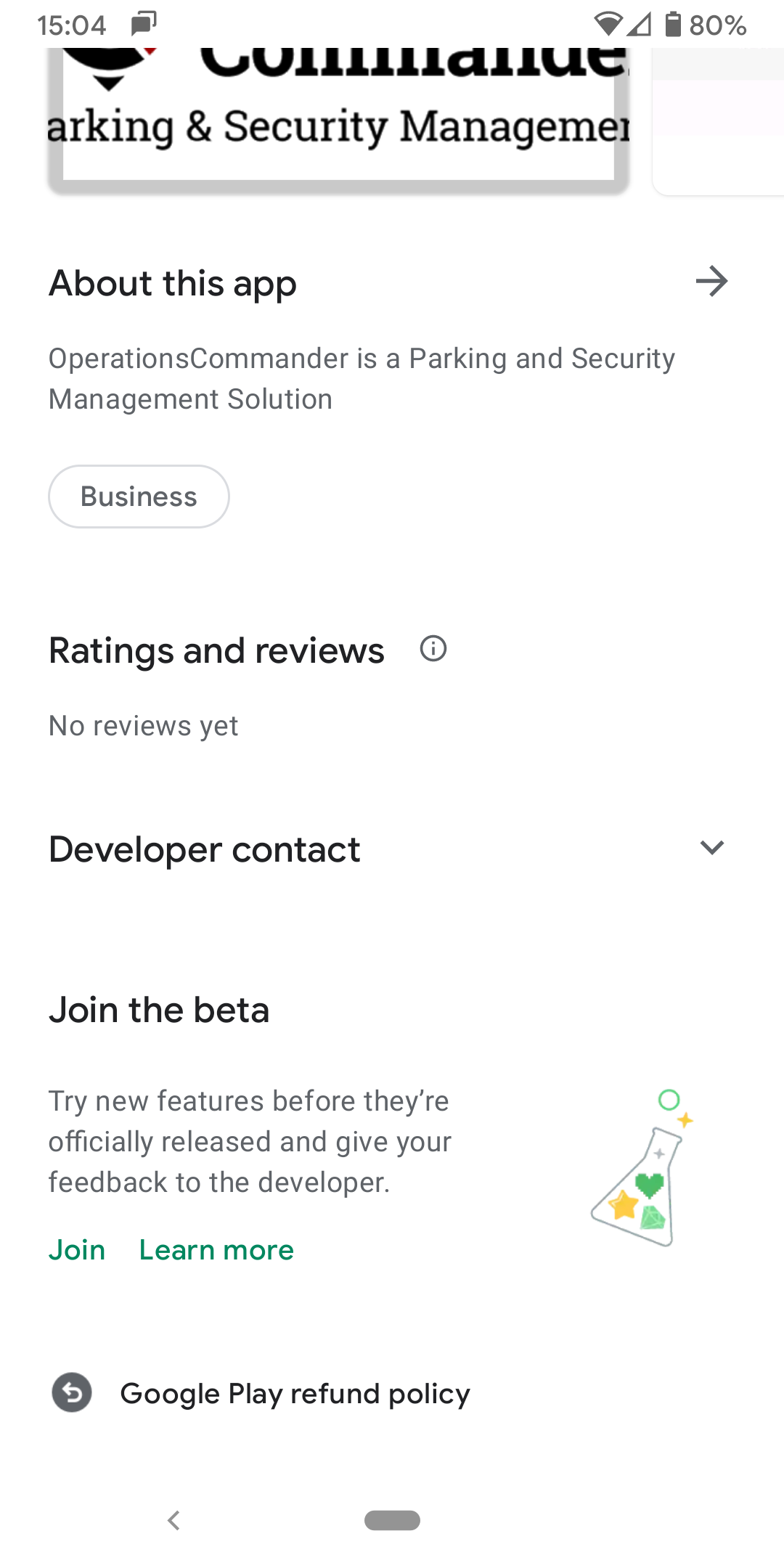
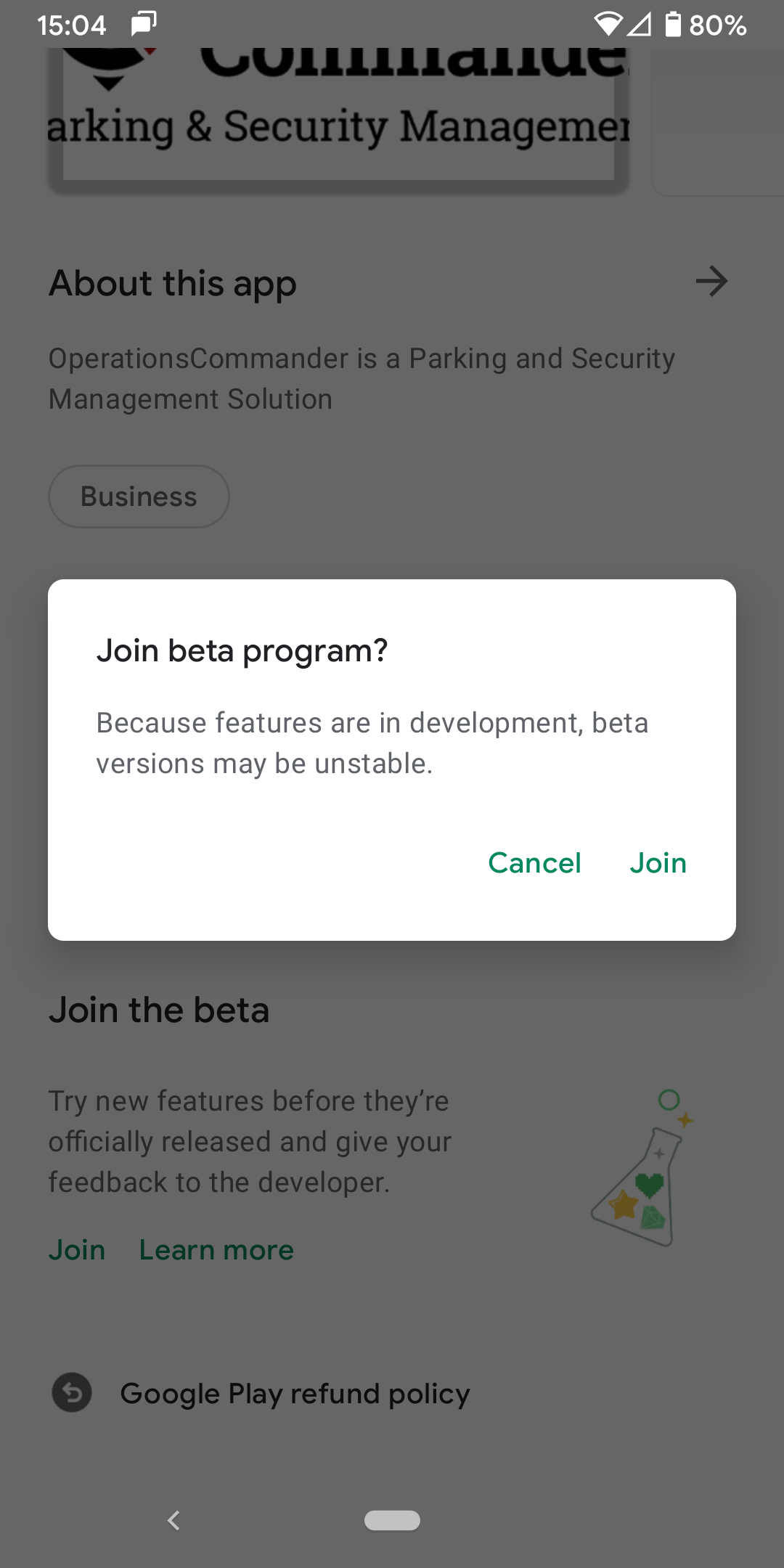
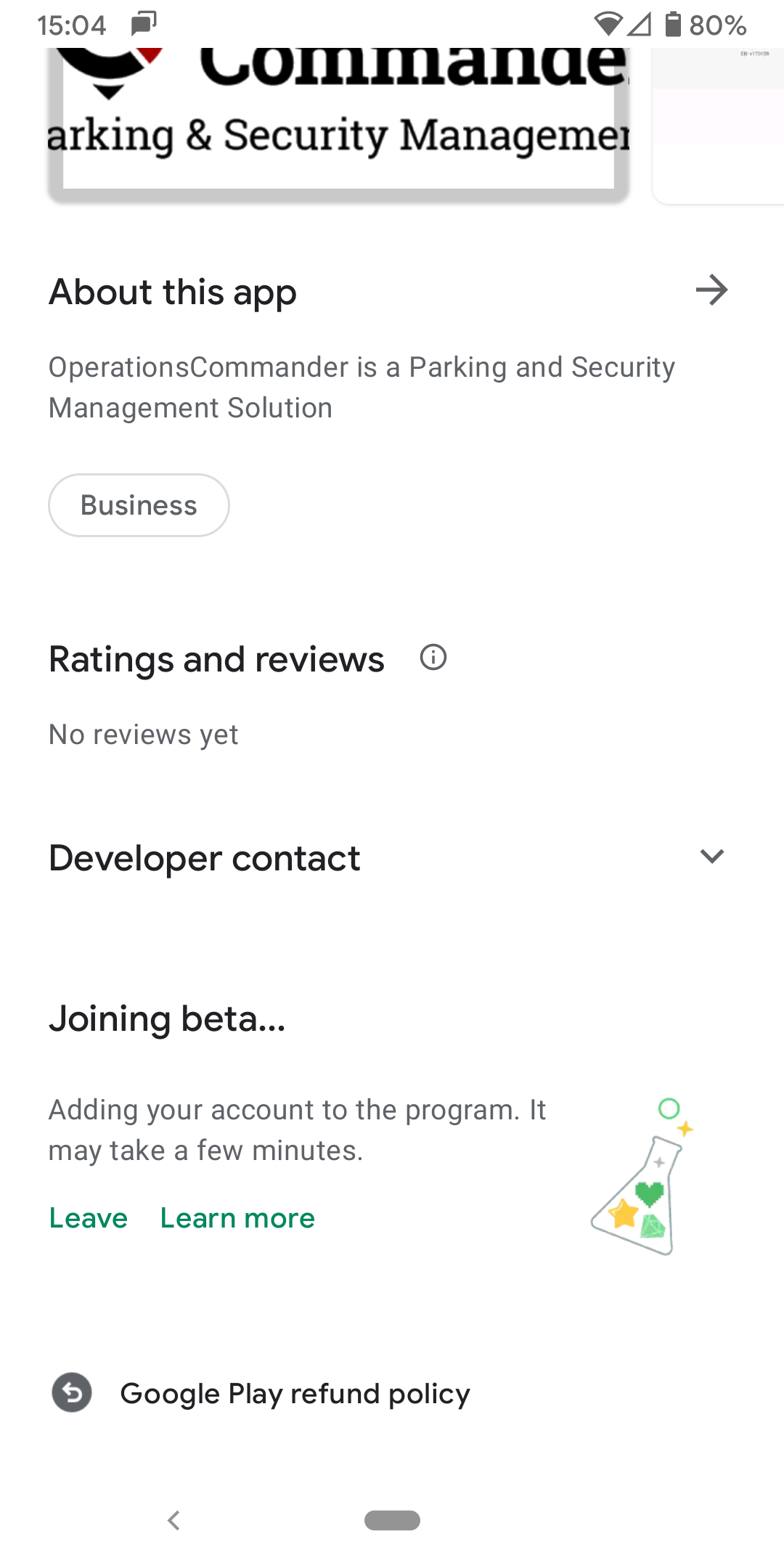
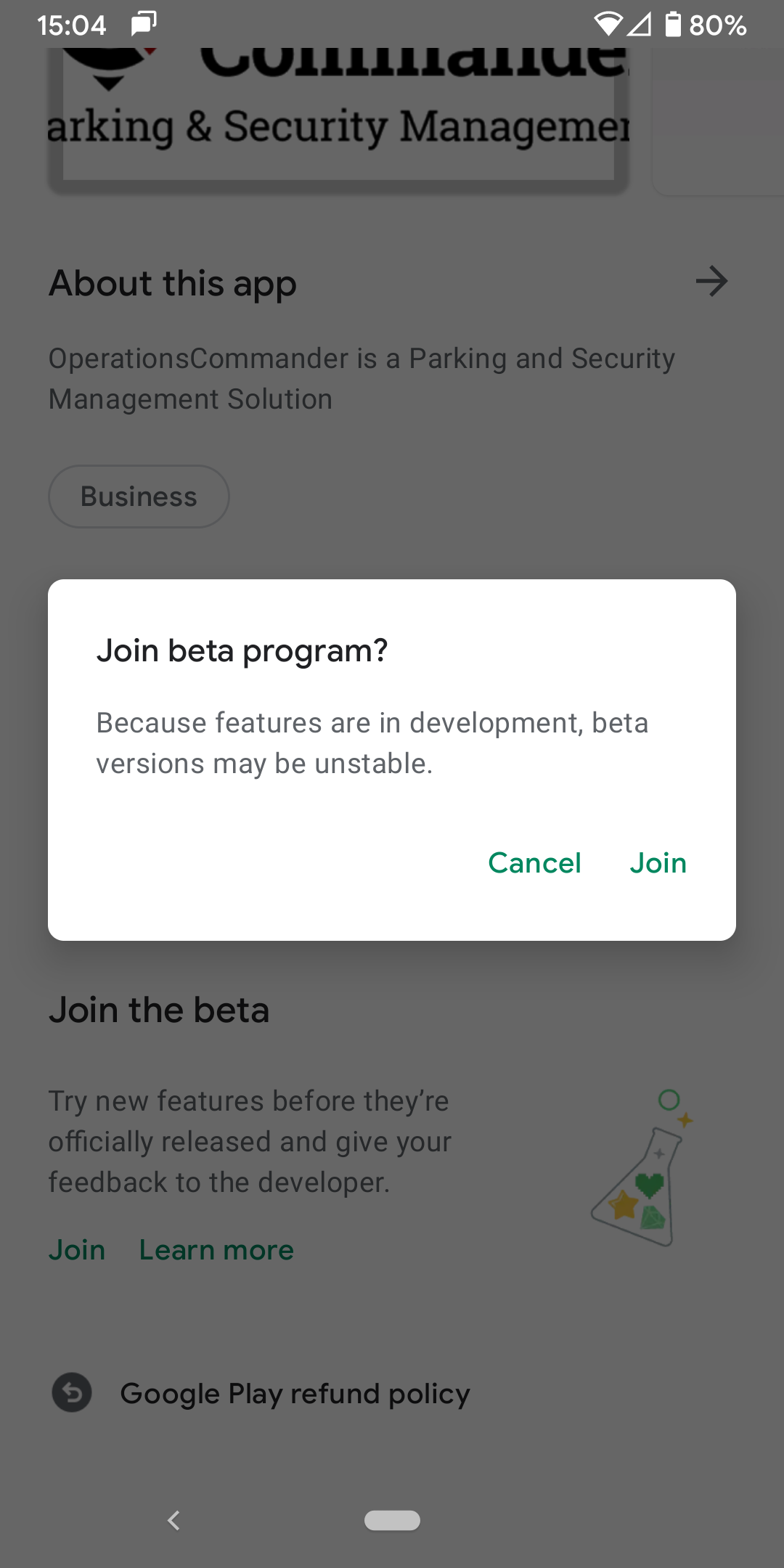
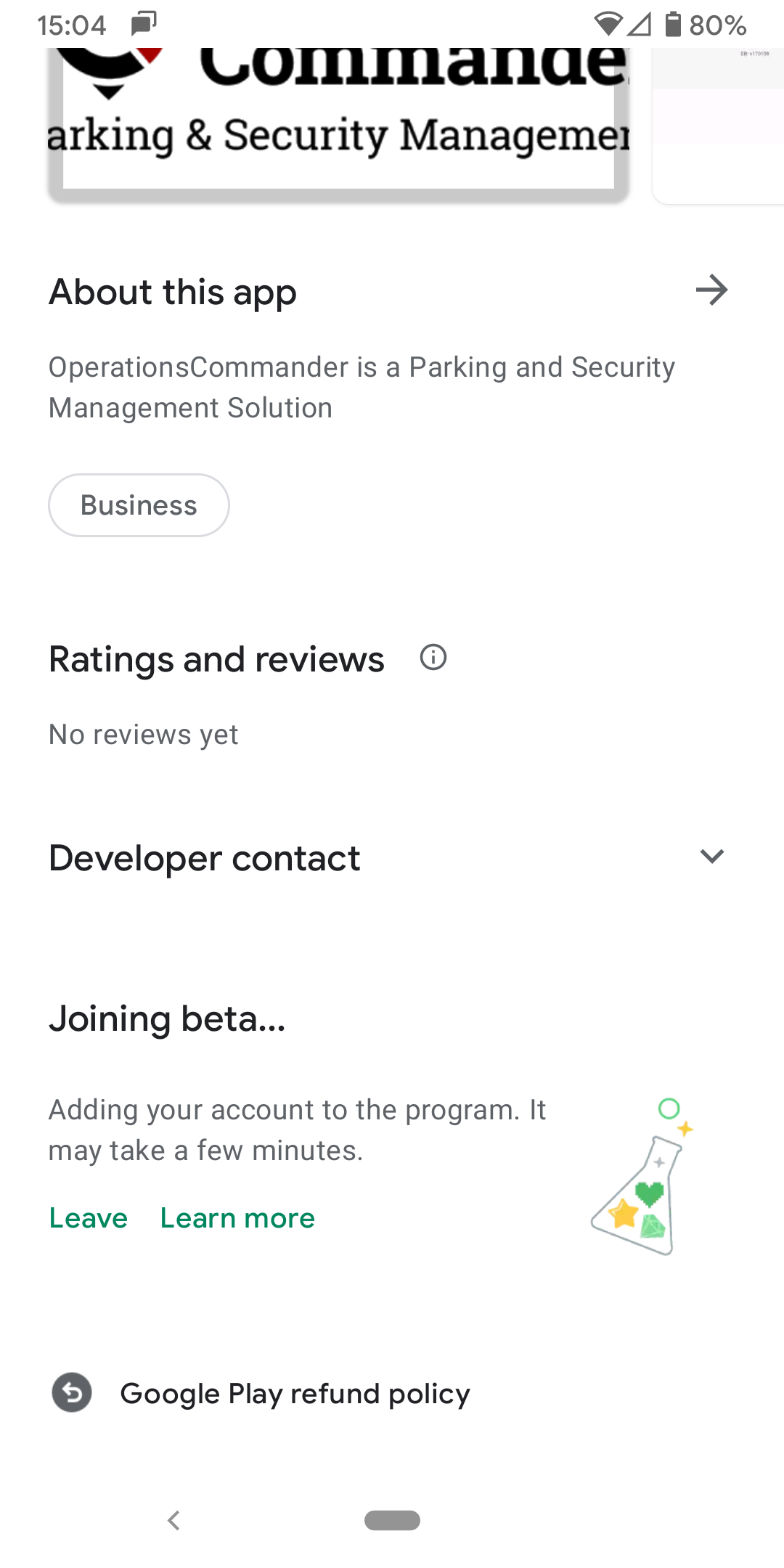
JoiningClear cache for missing apps: If you cannot see the OPS-COM app orLeavingthe latest update on theBetaPlayProgramStore,Simply follow the link listed above (on Android) and scroll down to determine your status.Notice that you can select either to "Join" or "Leave" under the Joining Beta.. header.JoinConfirmLeave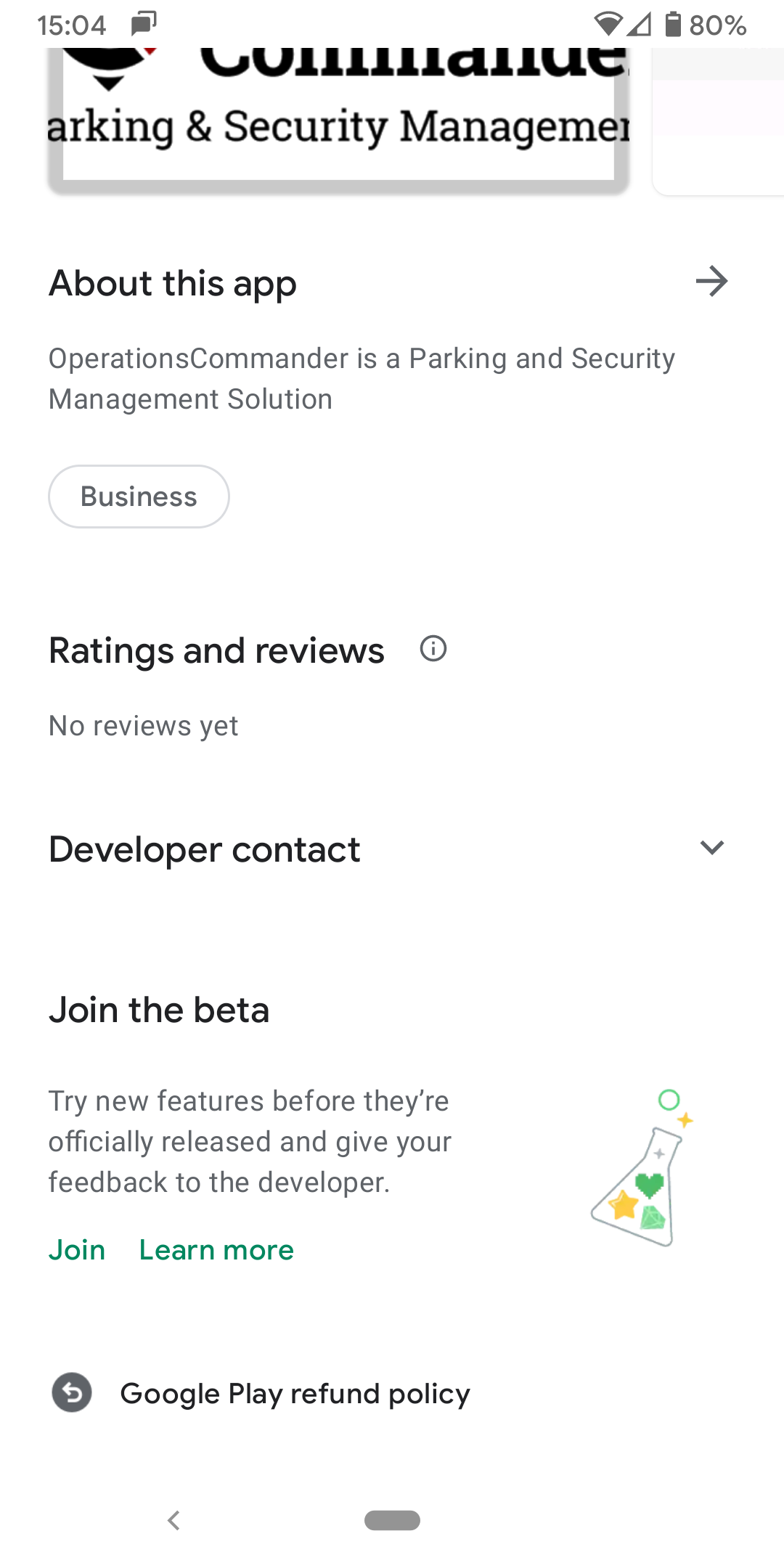
Step-by-step guideThis guide outlines how to add an OPSCOM (ParkAdmin) Google account to an Android enabled device.Depending on your Android version the steps may be slightly different, however mostly similar.
cacheYou will require a GMail email account and password to accessclear the Google PlayStore