Handheld Operation Log
The Handheld Operation Log Overviewfeature allows
Fromthe timemobile device to timerecord OPSCOMand store data regarding the operations and functions performed on the enforcement unit. Its primary purpose is to help identify and troubleshoot technical issues by providing detailed diagnostic information directly to the support team. This article is intended for OPS-COM administrators and field enforcement personnel using the legacy Android application.
Setup and Configuration
The operation logging feature runs automatically in the background of the handheld application and requires no specialized backend configuration.
Admin Side: No manual setup is required on the device to begin logging. Officers simply need to ensure the handheld device is connected to a network and synchronizing regularly to allow for automatic log uploads.
Using this Feature
When technical issues arise, OPS-COM Support personnel may request that you manually send a log file to usthem. soAdministrators thatand wefield staff can bettersend, assistview, you.or Theextract these logs using the following methods.
Sending the Log Manually
-
Log in to the legacy Android application.
-
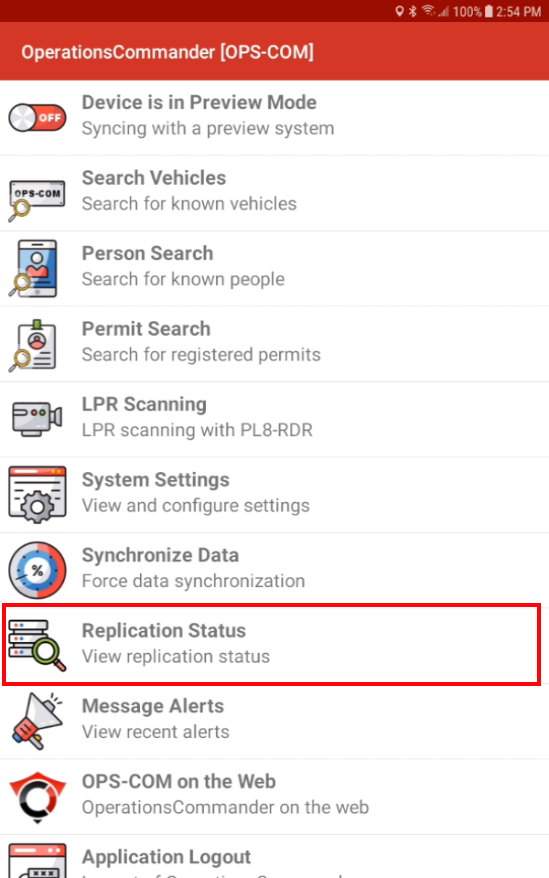
Tap Replication Status from the main menu.
-
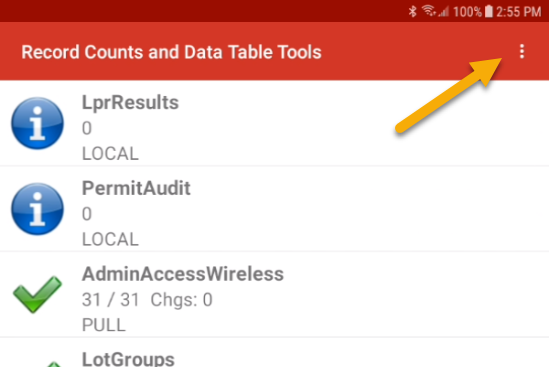
Tap the Menu icon (three vertical dots) located at the top right of the replication status screen.
-
Note: If you do not see the three dots on the screen, your specific tablet may utilize a physical hardware "overflow" button (typically located near the physical home and back buttons). Tap this hardware button to open the context settings.
-
-
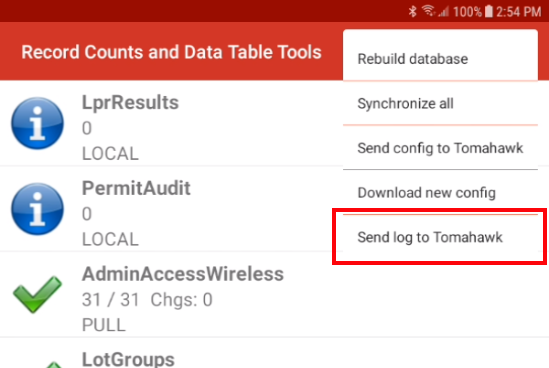
Tap Send Log to Tomahawk to transmit the diagnostic data to the support team.
Viewing Logs via the About Panel
If you need to quickly review the recent log fileentries sentwithout allowssending usthem:
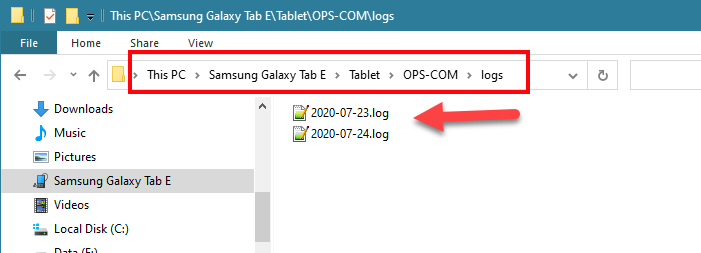
Extracting Logs via USB
If the device is completely offline and cannot transmit the log via the application, it can be extracted manually.
-
Connect the handheld
storesdevice to a computer using a USB cable or a wireless file transfer application. -
Navigate the internal storage to locate the OPS-COM application folder.
-
Copy the specific log file to your computer.
-
Attach the copied file to an email and send it directly to your support representative.
Best Practices and Considerations
-
Coordinate with support: Only manually push logs or extract them via USB when
anyexplicitlyoperations/functionsrequested by OPS-COM support personnel. Unsolicited log files without an associated support ticket may not be reviewed. -
Maintain device connectivity: Ensure field devices are
performedbroughtononline and synchronized regularly. Regular synchronization prevents thehandheldlocalitselfstorage from filling up andgenerallyensureshelpssupportushasdetermineaccesswhattomayrecentbedatacausingifissues.an issue occurs.
Automatic Log Uploads Log files are normallynatively designed to automatically uploadedupload to ourthe OPS-COM server for later review once they have becomeare more than 1one day old. However,For thisexample, assumeslogs created on Monday will automatically upload to the server on Tuesday around midnight, assuming the handheld is online and performs a successful synchronization at some point after any log files on the device24-hour are older than 1 day. For example, logs created on Monday should be uploaded to our server Tuesday around midnight, assuming the handheld is online and synchronizes Tuesday around or after midnight.mark.
Send Log to Tomahawk
To send the log to perform the following steps.
Log in to the Android app and selectReplication Statusfrom the main menu.Select the additional options dialog icon along the top right of the replication status area (1), then clickSend Log to Tomahawk(2).If you don't see the 3 dots as shown below you may have a tablet that has an "overflow" button on it which is usually located near the home and back button.Look for and click the one that appears to be 3 lines/dots for additional context settings.
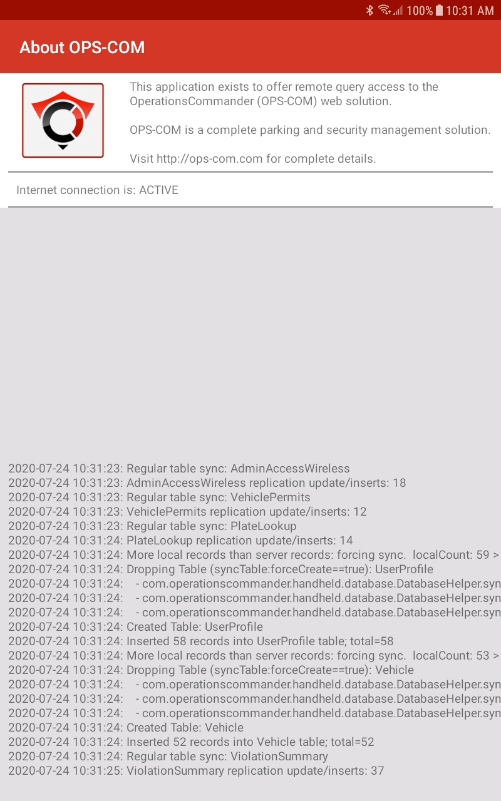
About Panel Log
The log can also be reviewed on the About panel.
Logs On Device
Logs may also be accessed on the device through a USB or wireless connection.
In this case, the log can be copied and sent through email.