
How weak Wi-Fi can affect OPSCOM
TypicalThe issuesHow that affectweak Wi-Fi strengthcan
- affect
ProximityOPSCOM guide outlines how network connectivity impacts the legacy Android enforcement application. Its primary purpose is toyourhelp administrators and field officers troubleshoot Wi-Fisourceissues,isunderstandthehownumberdataone factor in signal strength. The further you get from the closest Wi-Fi source the weaker the signal.Structural objects (buildings, walls, etc.) can contribute to weakening signal strength. Even a load bearing wall in a building can severely affect signal strength. Therefore, both the placement of your source as well as your location in relation to the source is important to consider.Other materials in your area can also cause signal degradation. Along with concrete, bricksynchronizes, andstone,ensurefoil-backedofflineinsulation foam and even some wallpapers can dampen and hinder the radio waves. It's normally quite difficult to determine which materialsrecords areinstalledproperlyin your place of business, and which are causing issues, but using a Wi-Fi repeater or relocating your router can help improve things. You may wantuploaded tokeep this in mind if patrolling interiors such as parking garages, parking levels below ground etc.Electrical devices around you may also cause problems with your Wi-Fi network. Devices such as microwaves and refrigerators can interfere with the radio signal from your router; anything that communicates on the 2.4GHz frequency can interfere. It's not common for these items to cause major problems, however it could be worth keeping them in mind if you are having problems resolving any issues you have.
Simple test to ensure you are connected
When in the field patrolling it may be difficult to tell if you have enough signal strength to be confident that OPSCOM is communicating through Wi-Fi with the main server. AThis quickarticle is intended for OPS-COM administrators and easyfield testenforcement wouldpersonnel.
Setup and Configuration
Data synchronization occurs natively within the application, but administrators can customize how frequently the device attempts to goauto-sync when idle.
Admin Side: Administrators or supervisors can adjust the idle Auto-Sync time interval (or disable it entirely) by accessing the System Settings menu on the handheld device.
User Side (Enforcement Staff): Officers must ensure the device's Wi-Fi receiver is turned on and connected to a reliable network when starting a shift, or when returning to a dispatch area to upload offline data.
Using this Feature
Enforcement personnel do not need a constant connection to issue violations, but they must interact with the application's synchronization tools to push that data to the main database.
Testing Connectivity in the Field
If you suspect you have lost your Wi-Fi connection while on patrol:
-
Open the native web browser on your tablet
todevice.test -
Attempt to load any standard public web page. If the browser
can notcannot connect toathewebwebsite,sitetheitdevicewilldoes not have sufficient signal strength to connect withOPSCOM.the OPS-COM server.Syncing
Manually Synchronizing Data
First rule: Don't Panic! IfWhen you can't sync immediately, it's not a critical issue. As long as you perform a sync when you getreturn to an area with betterknown connectivity.
Manualcoverage Sync
(like Thethe systemmain isoffice setup to sync information in two ways.
Throughor a forcedconnected manualvehicle), sync that the patrol officeryou can initiatemanually push your offline data.
-
Tap Synchronize Data from the main menu
entitledofSynchronizetheData.OPS-COM application. The synchronization process will begin immediately.

Understanding Auto-Sync
Auto-SyncThe occursapplication is designed to automatically sync in three differentspecific instances onto theprotect handheldyour unit.data:
-
OnStartup:startup of the app aA sync is performed automatically when the app is launched, provided you have connectivity. (Note: If you have poorconnectivity,connectivityOPSCOMupon startup, the app willshowdisplay an error and will not allow you tologin.log in). -
OnLogout:logging out of the app theThe unit will runana final auto-sync.syncBewhensureyoutouselogtheoutformalproperlylogout button. -
Idle: The unit will auto-sync when the device has been completely idle for
this to happen. Simply puttingtheappduration specified in thebackgroundsystemwillsettings.not
It'sIdle importantTimer toBehavior rememberThe autosyncidle Auto-Sync is a precaution put into effect to ensure syncing happens when an officer has not donemanually a syncsynced in a whilewhile. andIf theyour unit is idle. With aidle setting ofis 15 minutes, the unit wouldmust remain completely untouched for 15 minutes. If the tablet is used for any task during that time, the 15-minute timer restarts.
Visual Cues and Status Indicators
-
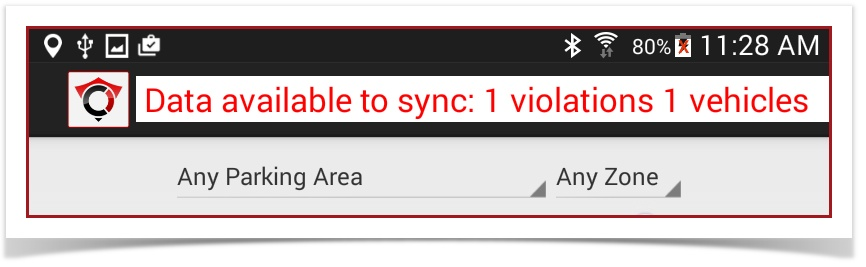
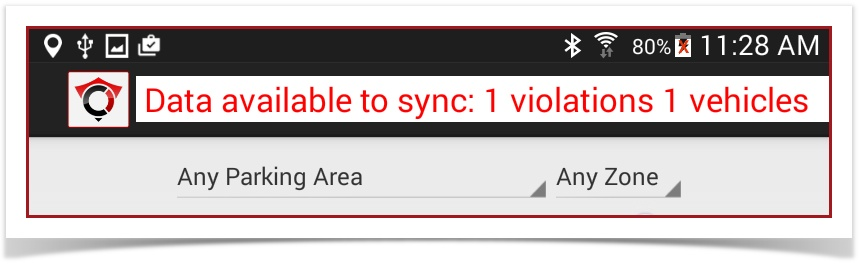
haveData Available Warning: When offline data is waiting to beidlefor 15 minutes. if you have any use of the tablet in that time the timer restarts. So if your officers are active with writing tickets it's not going to auto sync until they leave the unit idle for the entire 15 minutes. The idle time frame can be modified in the system settings.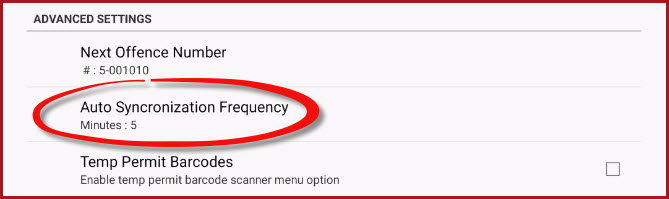
You can select various time intervals or disable auto sync all together.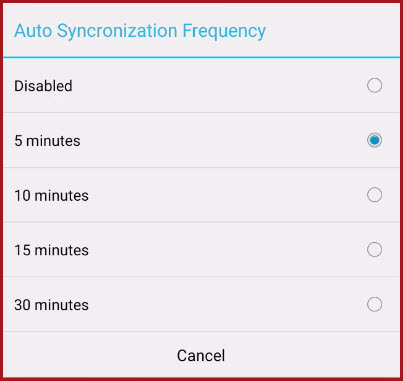
It would beuploaded, agood practice to return to the main menu and allow a sync or force a manual sync before logging out for the day at the end of your shift.Was Syncing Successful?The system has a built in indicator when there is data available to sync. Ared flashing message will appear at the top of the screen indicating "Data available to sync:"andfollowed by the number of violations and vehiclesthatstoredneed to be synced with the main server.locally. -
Sync Successful: Once a proper sync has occurred and all data is transferred to the main server, the red data available warning will
disappear.disappear from the screen.
Best Practices and Considerations
-
-
Perform an end-of-shift sync: Always return to the main menu and allow a sync, or force a manual sync, before logging out for the day at the end of your shift. This guarantees all field data is securely uploaded.
-
Log out properly: Do not simply put the app in the background, close it from the recent apps menu, or power off the unit while it is running. You must log out of the application properly using the interface to trigger the final logout auto-sync.
-
Consider electrical interference: Be aware that devices operating on the 2.4GHz frequency (such as certain appliances and older electronics) can interfere with Wi-Fi signals. While not the most common cause of complete signal loss, it is worth considering if you repeatedly fail to sync in a specific indoor location.
Don't Panic! If you cannot sync immediately due to a dead zone, it is not a critical issue. The OPS-COM app is designed to store your work locally. As long as you perform a manual sync when you return to an area with better connectivity, your data is safe.