Install Bluetooth Printer
Connect
The theInstall HardwareBluetooth
FirstPrinter stepprocess ensures that your Android handheld device can communicate with your mobile printing hardware. Its primary purpose is to makeestablish surea thatsuccessful theBluetooth deviceconnection can see and talk to the printer. This has nothing to do with the OperationsCommander commander and can actually be setup before installing the software.
Onceat the operating system seeslevel, which is required before the OPS-COM application can print physical violation tickets. This article is intended for OPS-COM administrators and connectsfield toenforcement personnel preparing their devices for field use.
Setup and Configuration
Connecting the hardware is the first step in the printing workflow. This process takes place entirely within the Android operating system settings and must be completed before configuring the printer OperationsCommanderwithin canthe useOPS-COM that printer.software.
Initial
Admin SetupSide:
- Administrators should ensure the physical printer is fully charged, powered on, and set to discoverable mode.
ensureEnsure the printer is
setupproperly set up and able to connect to thetabletif the printer is Star Micronics please review our supporting documentationChanging Bluetooth Mode
ensurethatEnsure the tablet has
bluetoothitsenabledinternal Bluetooth receiver enabled.
User Side: Before attempting to pair the device, users must verify two things:
Star Micronics Printers If your organization is using a Star Micronics printer, please refer to the specific Changing Bluetooth Mode documentation to ensure the hardware is transmitting the correct signal type before pairing.
Using this Feature
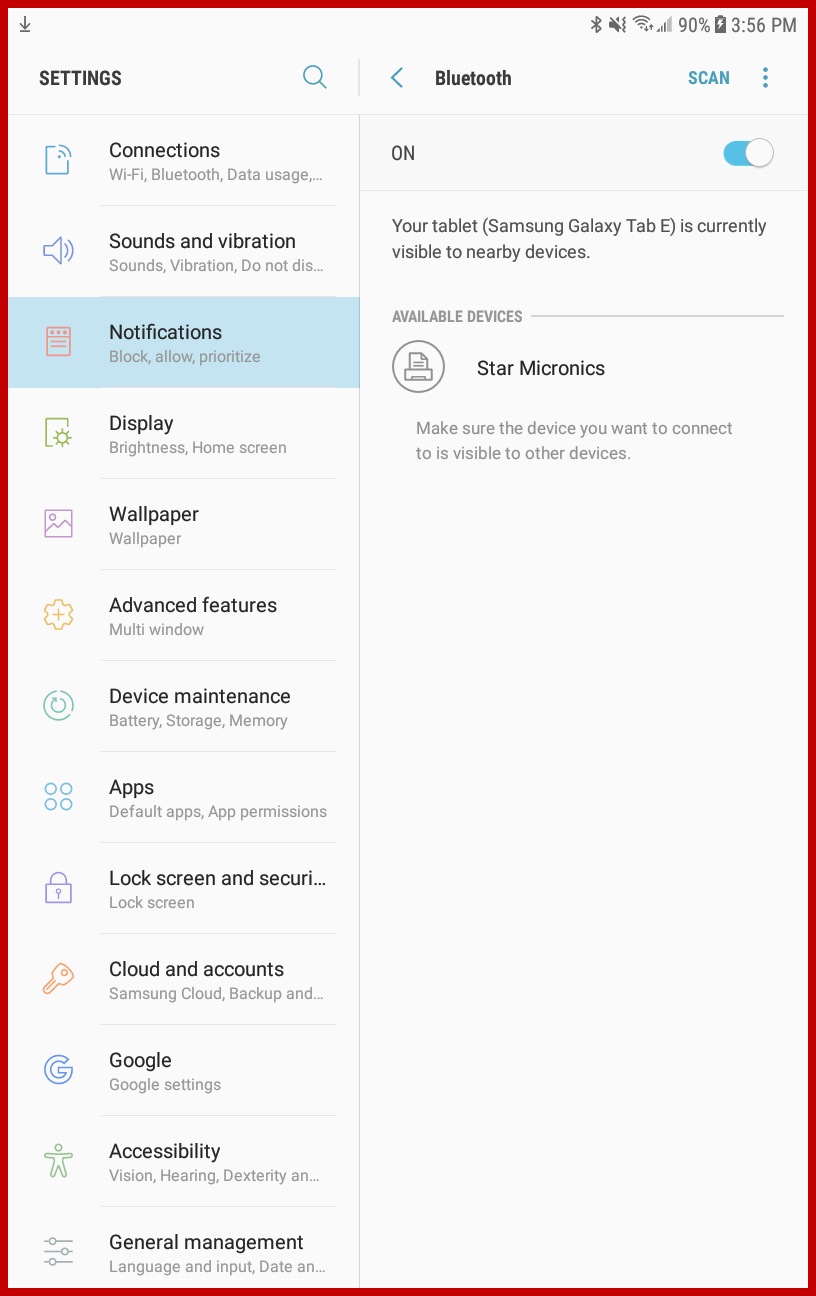
Enforcement personnel must pair the tablet and the printer directly through the Android device's native settings.
Enable Bluetooth onPairing the TabletPrinter
-
MakeTapsureBluetoothBluetoothwithinisyourenabledAndroid device's main system settings to open the connection options. -
Tap Search for Devices (or a similarly named scan button, depending on your
device.AndroidTapversion).on -
Wait for the scan to
getcomplete.more options.Select the option to Search for Devices.Your printer
shouldwill appear in thelisting.listing
of available devices.Pair -
Tap
onthe specific printer name in theprinterlist topair/linkinitiate the pairing process between your printer andtablettablet.together.Type -
Enter the printer PIN using the on-screen keyboard if
yourtheprinterdevicerequirespromptsone.thetoIf askedyou for a security code.
Best Practices and Considerations
-
Remember the default PIN: If the system asks for a Printer
PinPIN during the pairing process, the default Bluetooth PIN is usually12341234.otherwiseIf this code is rejected, please consult your printer's official hardware manual for the correct code. -
Complete the setup in OPS-COM: Pairing the printer
manual.
tablet is only the first step. Once the operating system successfully sees and connects to the printer, you must log into the enforcement app and complete the Choosing and Configuring Printers setup so the software knows which driver to use.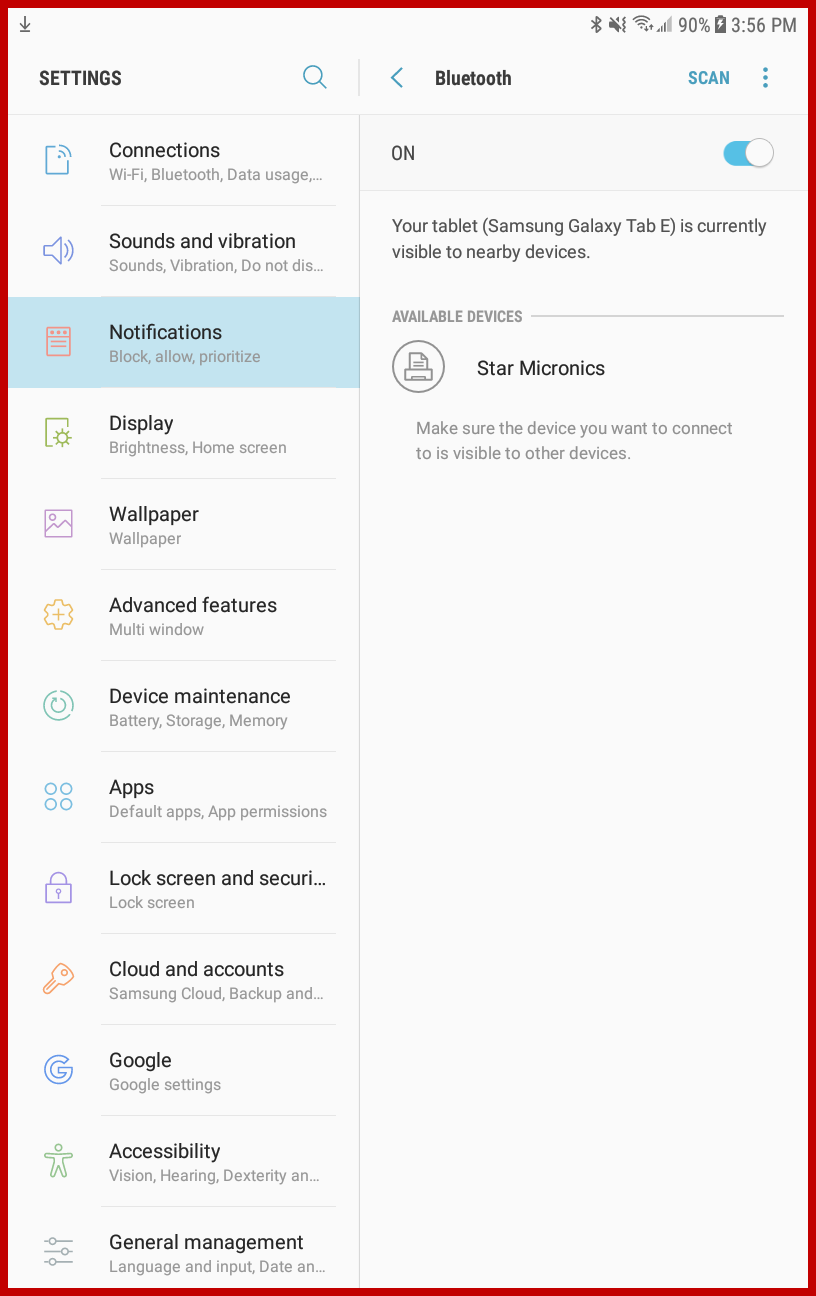
-