
Issuing a Person Violation
The Issuing a Person SearchViolation feature allows parking enforcement officers to write citations directly to individuals, rather than just to vehicles, using the legacy Android application. Its primary purpose is to enable enforcement actions for non-vehicular infractions or situations where a driver is explicitly known and present. This article is intended for OPS-COM administrators and field enforcement personnel.
Setup and Configuration
ToIn order to successfully issue a violationviolations to people, the system requires both backend categorization and local hardware preparation.
Admin Side: Administrators must ensure that a specific ticket category is configured in the backend system that explicitly applies to users (person tapviolations).
User Side (Enforcement Staff): Before a physical ticket can be printed in the field, enforcement officers must ensure their Bluetooth printer is actively paired to their handheld device and correctly selected within the System Settings menu.
Using this Feature
Enforcement personnel can query the database for existing users, create new user profiles on the fly, and issue direct violations.
Searching for a Person
-
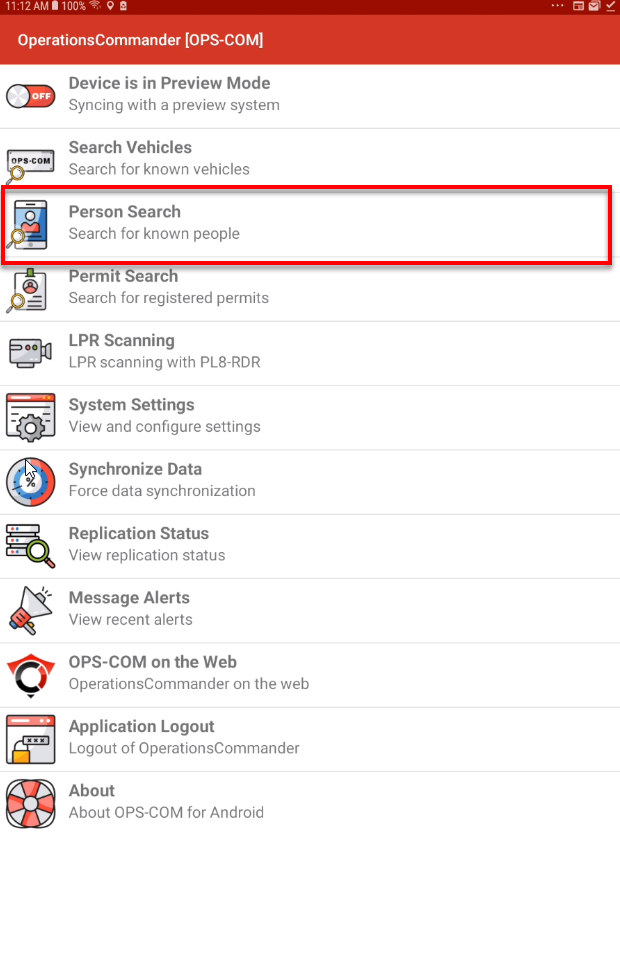
Tap Person Search from the main menu of the
OPSCOMOPS-COM Parking Enforcement app.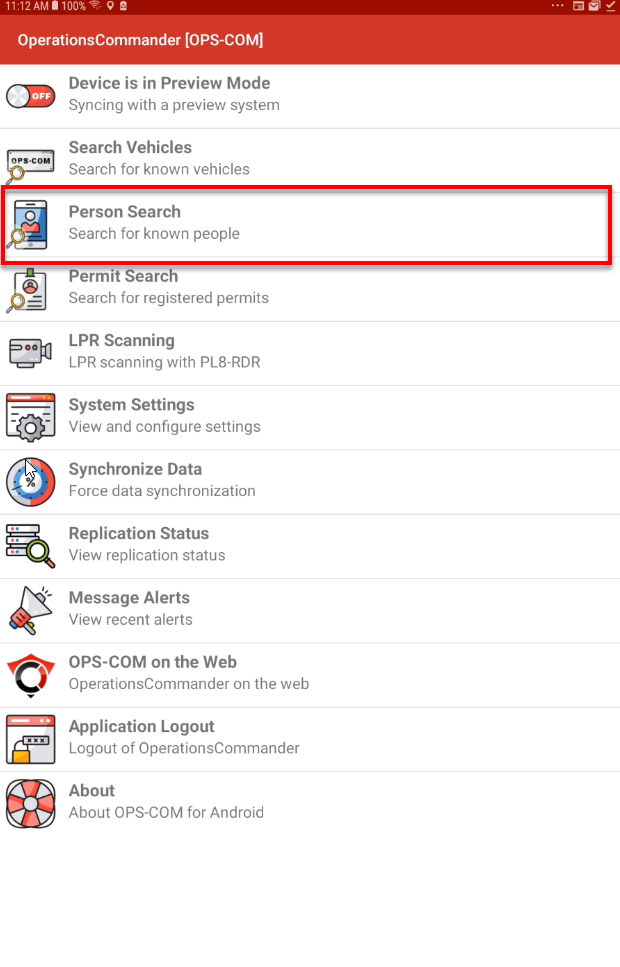
-
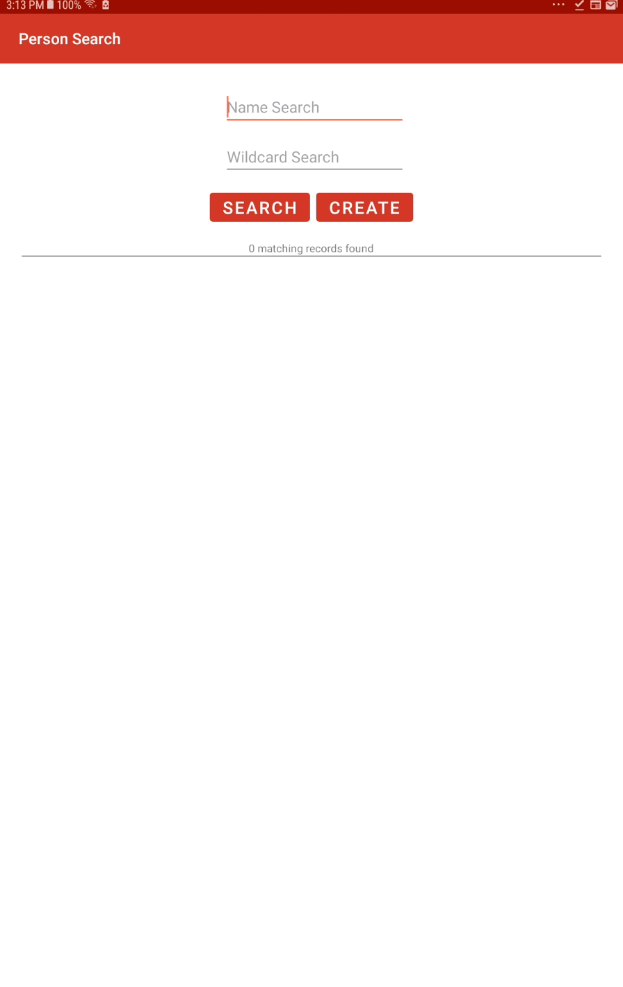
This will bring upEnter thePersonuser'sSearchdetailsinterface which will allow you to search an existing user or create a new one.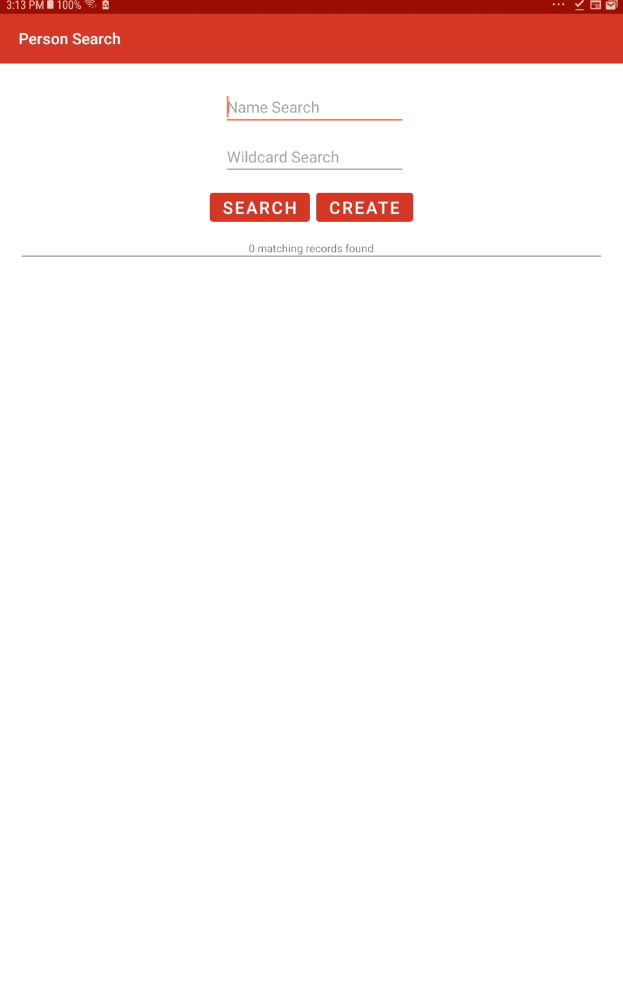
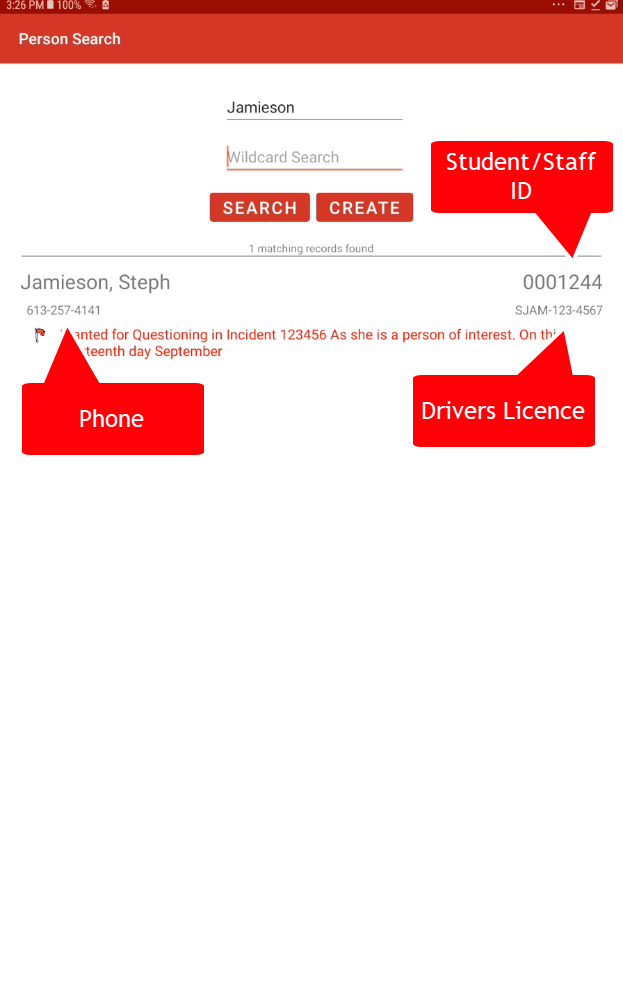
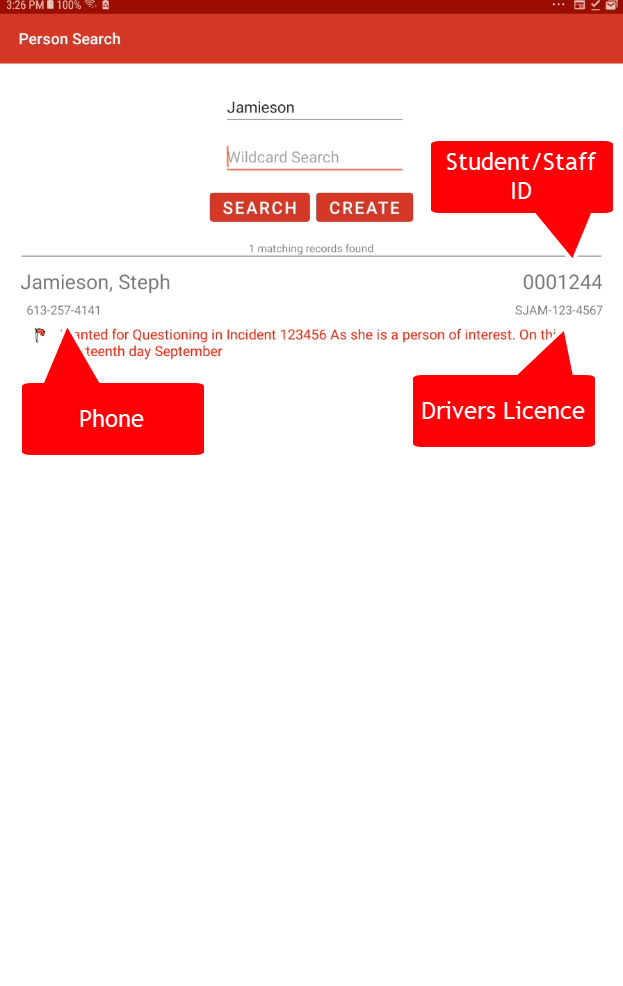
Name SearchSupply an existing user ininto the Name Search field and tap Searchto find the person you are looking for. If supplied by the user their full name, phone number, driver license and student/staff ID will be shown here. You will also see the people alarms associated with that user which will let off a sound notification from your tablet. This allows you to perform a search on a user without issuing a violation to gather additional details about them.
.
-
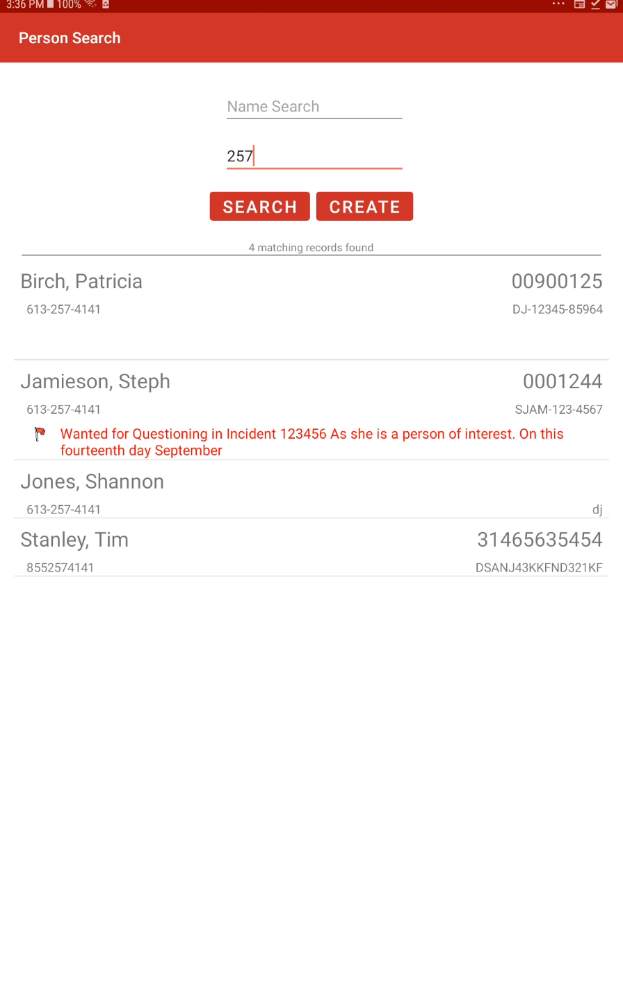
You can also performPerform a wildcard searchthatinsteadwillifallowyou only have partial information, allowing you to searchusersbased ontheira phone number, student/staffIDID, ordriversdriver'slicence.
license.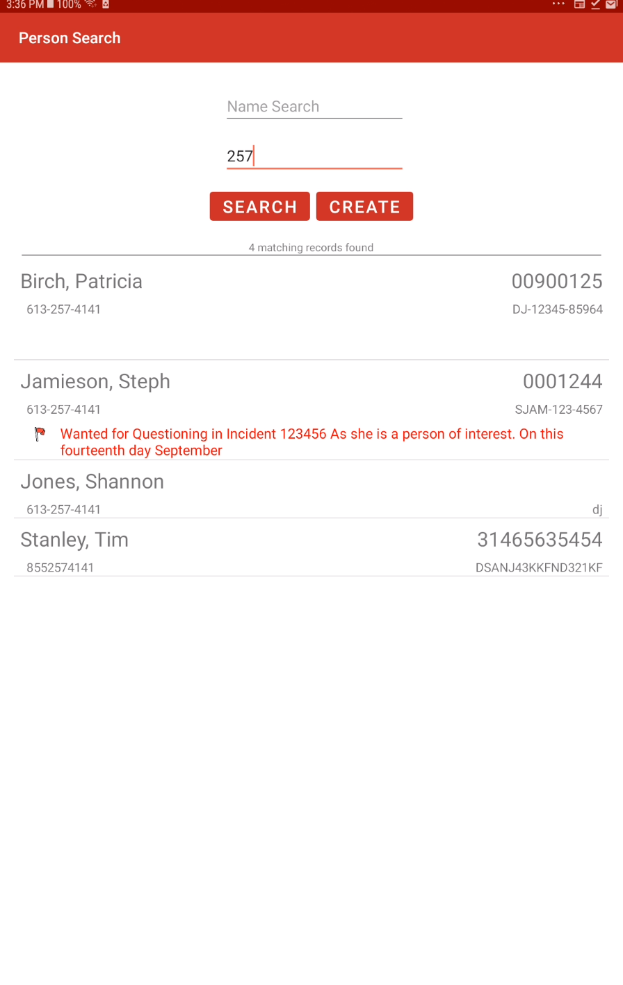
Wildcard Search
Creating Usersa New User
If a person is not already known in your system, you arecan ablequickly tocreate usea profile so the violation can be properly associated with an account.
-
Tap the Create button
tofromcreatetheasearchnew user. The violation will then be associated to that users account.interface. -
ToEntercreatethea user, you will need to add theirindividual's personal detailsmanually.manually into the provided fields. -
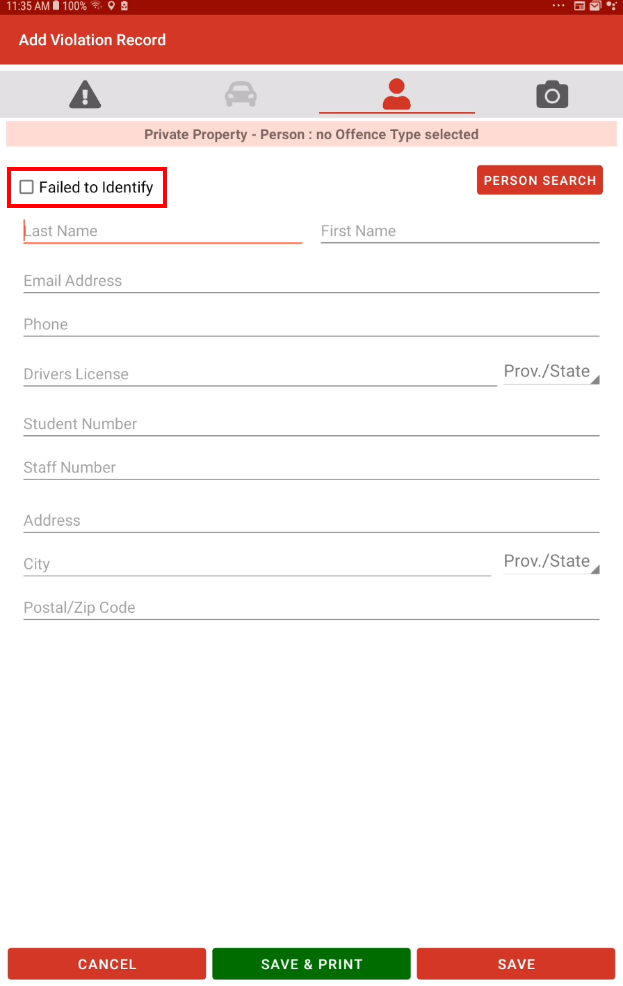
IfTap the Failed to Identify checkbox above the userfailsdetails if the user refuses to supply their personal information, allowing youcan select theFailed to Identifybox above the user detailsto continue issuing theviolation.
violation anonymously.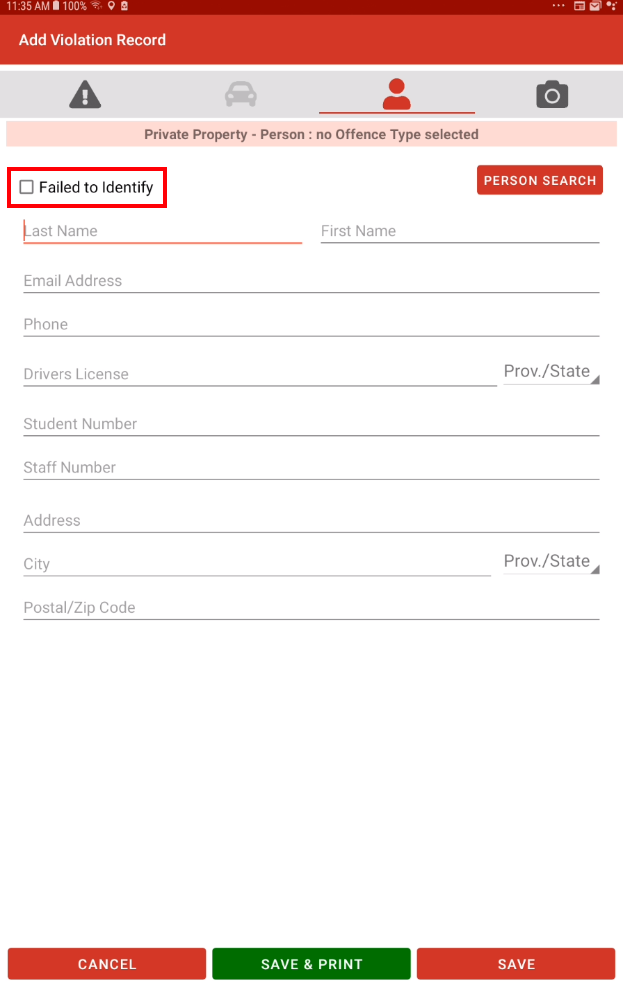
Issuing Personthe ViolationsViolation
-
nameSettingTapupthePersonperson'sViolationsThefromsystemtheallowssearchyouresults toissue personal, vehicle or both personal and vehicle violations. This allows officers to write tickets with both plate and personal information or issue violations unrelated to vehicles.In order for these violations to be issued you must have a ticket category that applies to users.To begin issuing a violation to a person tap their name onopen thePerson Searchinterface. This brings up theAdd Violation Recordwindow where you can begin recording your violation details.
window.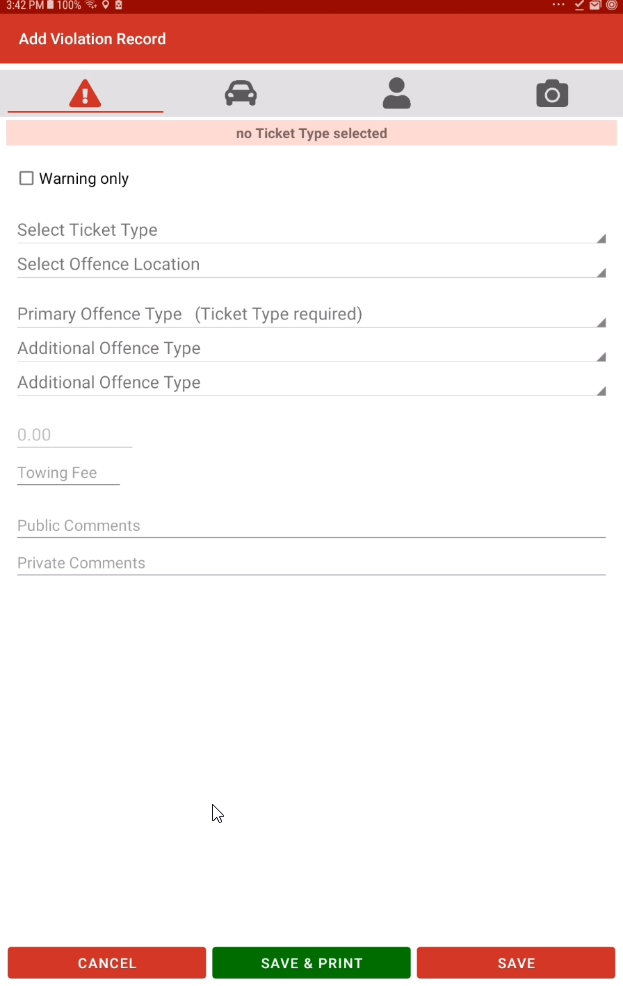
-
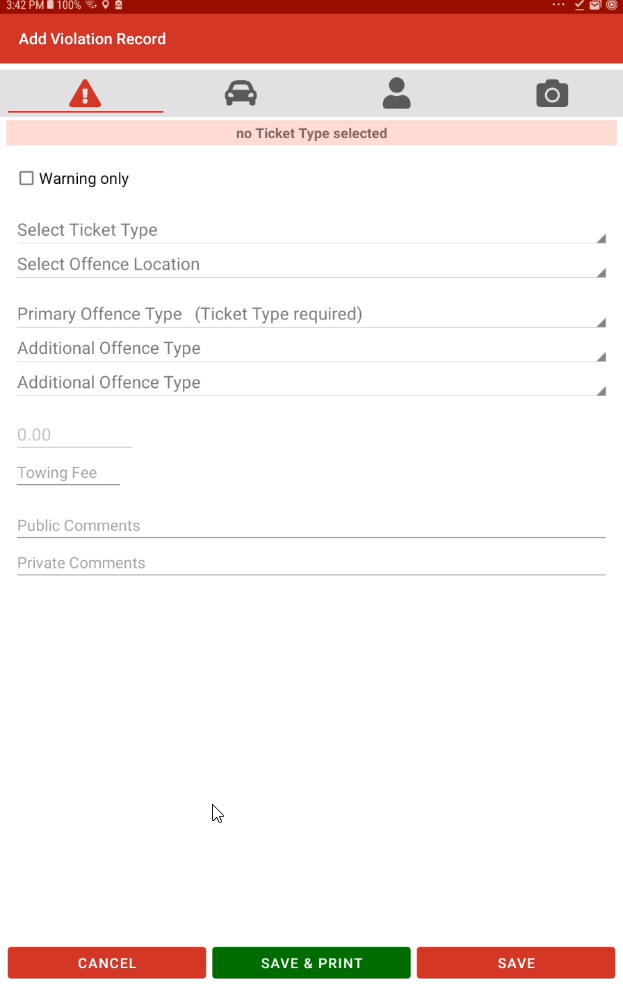
SupplySelect the appropriate Ticket Type andOffenceOffense Type. -
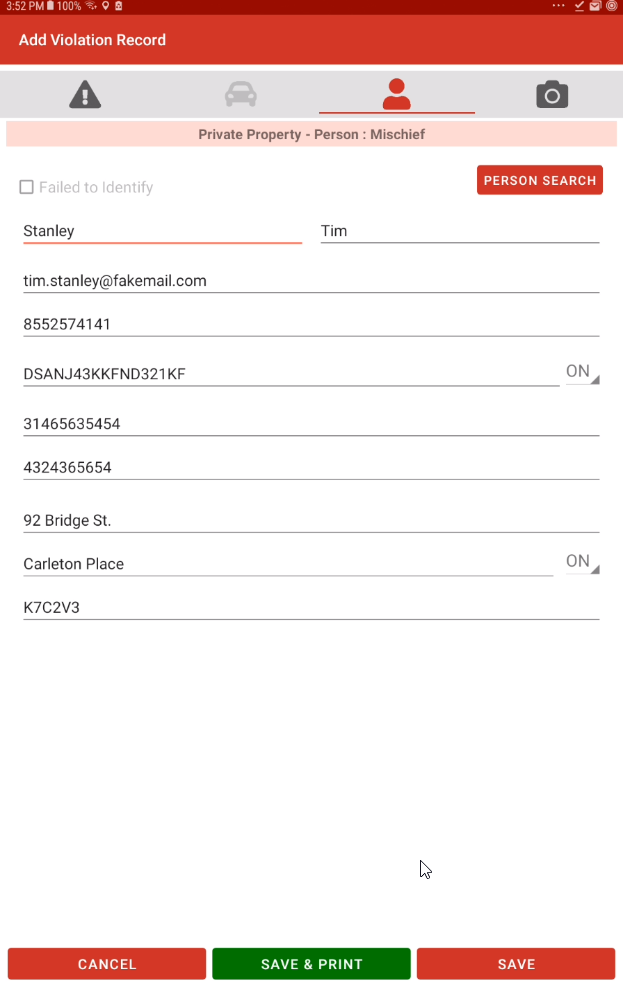
Next we can move toTap the person tab toget more information aboutreview theuserprofile and correctanythinganythatoutdatedmight not be correct.information. -
IfTap Save to log theuser fails to supply their personal information you can select theFailed to Identifybox above the user details to continue issuing the violation.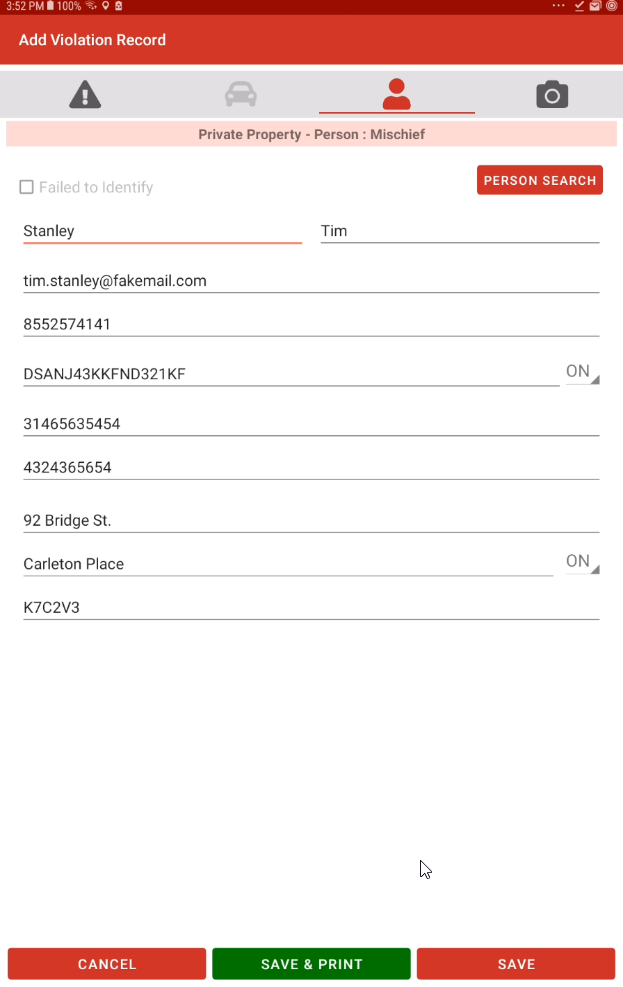
We can also search for a user by tapping thePerson Searchbutton. This will allow us to search for a different userviolation, orto complete the user info if you were issuing a violation fromPlate Search.Click Save or Save & Print to finish issuing the violation.Make sure to sync your tablet as soon as possible to ensure the data is pushed to the admin side database.Person Search "Cancels" ViolationIt may seem like searching for a person from the violation screen cancels the process however hitting the back button on your handheld device will take you back to your violation information.Printing a Person ViolationPrinter SetupBefore you can print a ticket you must have the printer connected by Bluetooth and selected in your printer settings underSystem Settings.Unlike vehicles, personal violations allow you to display the users name and drivers license on the ticket. This also allows you to conveniently issue violations that aren't relate to vehicles.
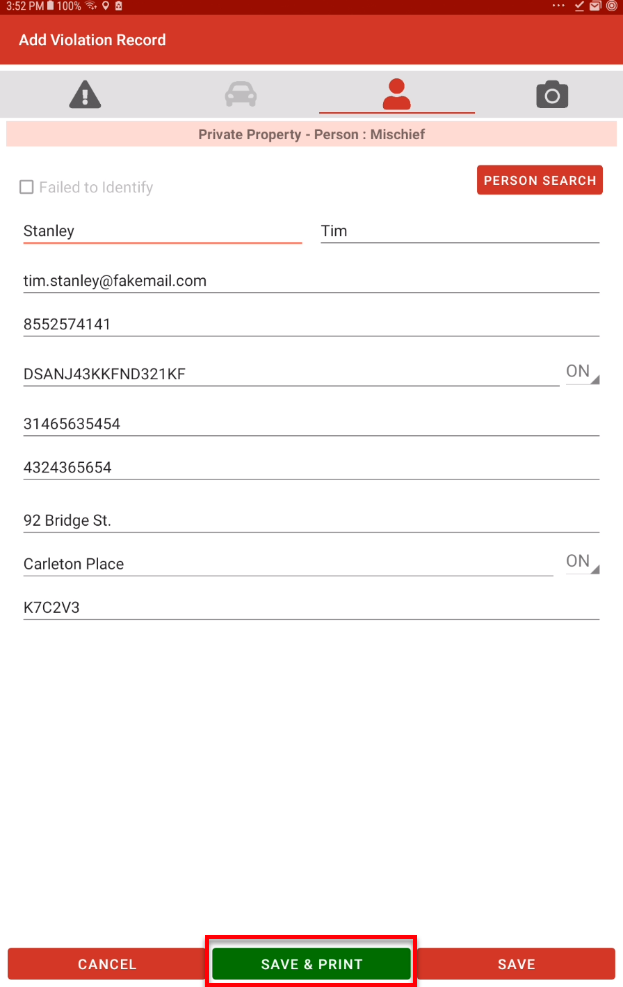
toTo print a person violation follow the steps above on searching the user andtap Save & Print.
log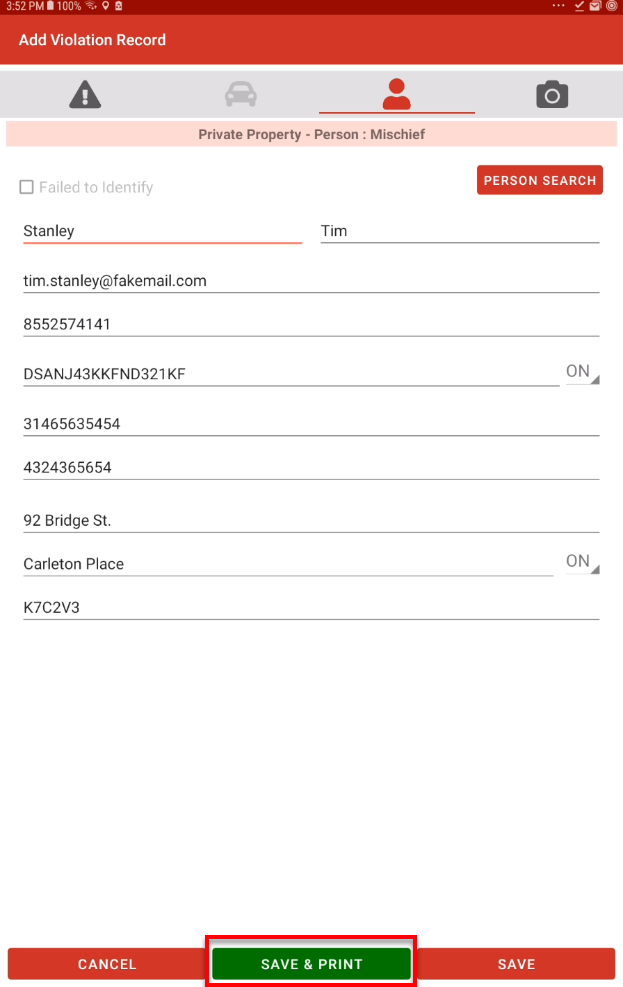
Thisthewillviolation and immediately print theticketphysical ticket.
Visual Cues and Status Indicators
-
People Alarms: When searching for an existing user, any people alarms associated with that specific profile will prominently display on the screen, and a sound notification will trigger on your
Bluetoothtablet.printerThisandallowstake you backofficers tothegatherpersoncrucialsearchdetailsinterface.or warnings about a user before approaching them.
PrinterPrinted Ticket ExampleDetails
Below is an example of a ticket that with both person and vehicle information.
IfWhen you issue a person person-only violation, then the license plate field will notautomatically be includedexcluded onfrom the printed ticket.
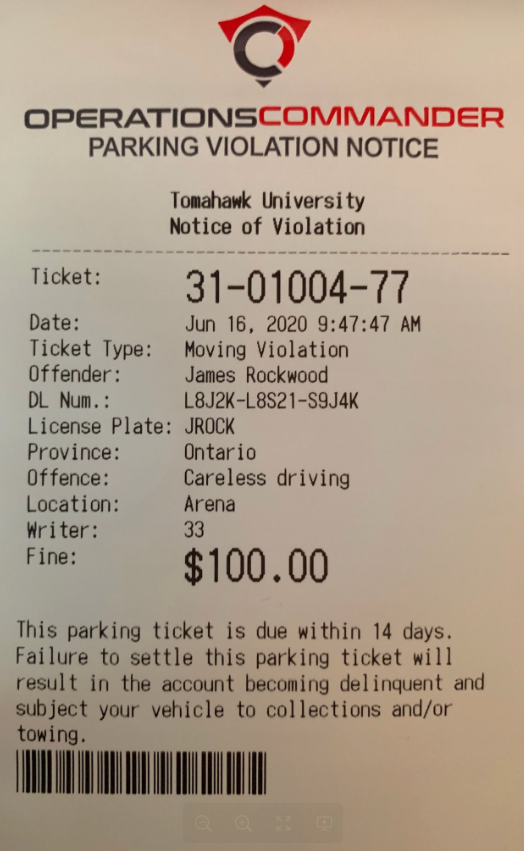
Explanation of the Front of the Ticket/Warning
Warning:
| Field | Description |
| Ticket Number | |
| Date | |
| Ticket Type | |
| License Plate | |
| Province | |
| Offense Type | |
| Location | |
| Writer | |
| Fine | |
| Towing | |
| Comments |
Explanation of the Back of the Ticket/WarningWarning:
The back of the ticket provides details about the issuing organization that issued the ticket and theclear policies and procedures regarding the ticket. The back clearly identifieson how the violator can pay or formally appeal the ticketticket. withIt includes a section for the violator to identify themselves and sign offoff, as well as office hours and contact information.
Best Practices and Considerations
-
Synchronize your device promptly: Make sure to sync your tablet as soon as possible after issuing violations. This ensures the offline data is securely pushed to the administrative database and reflects accurately on the
ticket.user'sTheaccount. -
Recovering from accidental searches: If you tap the Person Search button while actively filling out a violation, it may appear that the violation process was canceled. Do not panic; simply tap the physical back
alsobuttonidentifiesonwhereyour handheld device tofindreturnadditionalimmediatelyinformationtoonyourtheactiveorganizationviolationandinformation.the