
Locate Application Version (Legacy)
The OPSCOMLocate Application Version Legacy guide details how to easily find the current software version and unique handheld identifier for the older OPS-COM Parking Validation Enforcement AppApp. canIts beprimary downloadedpurpose fromis to help administrators and enforcement staff verify that their mobile devices are running the most up-to-date software, which is critical for troubleshooting and maintaining system compatibility. This article is intended for OPS-COM administrators and field enforcement personnel using the legacy application.
Setup and Configuration
To ensure your enforcement device is running correctly, staff must download and maintain the application via official app stores. No backend administrative configuration is required.
User Side (Enforcement Staff):
-
Open the Apple App Store or
theGoogle PlayStore.Store on your handheld device. -
If in doubt you can searchSearch for the OPSCOM Parking Validationappapplication.in -
Google Play or Apple Store and when viewing the details ofTap the application
youtowillviewseeits specific store details. -
Tap the Update button if it is visible. If the button
thatdisplaysisastypicallyInstalllabeledor"Install"Open,willyouinsteadareshoweither"Update".installing itThis indicates thatfor thehandheldfirstistime or already runningantheolderlatest available store version.
Using this Feature
Enforcement personnel can locate the version ofdetails in two different locations within the applicationlegacy whichapplication, canmaking beit updated.accessible whether you are actively logged in or not.
LocateLocating on the Version Details
Login Screen
-
UnderOpen the OPSCOM Parking Validation app on your handheld device. -
Remain on the initial Login Screen.
-
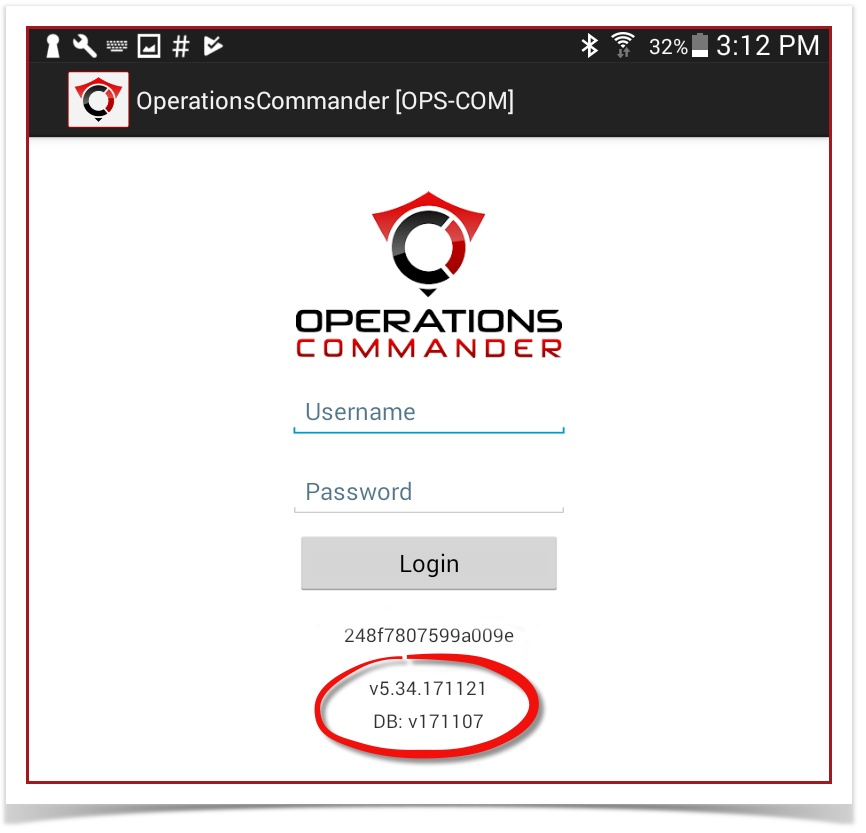
Look directly below the main login box and input fields to find the version details and the unique handheld identifier
areclearly listed.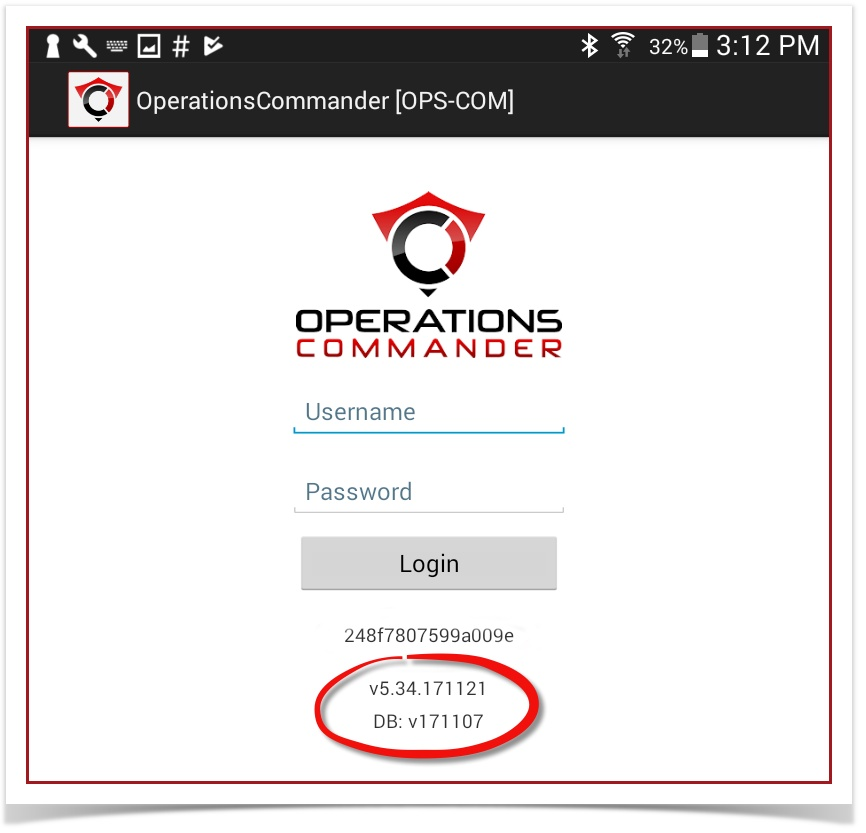
About
Locating
Selectvia the About menuScreen
option.
-
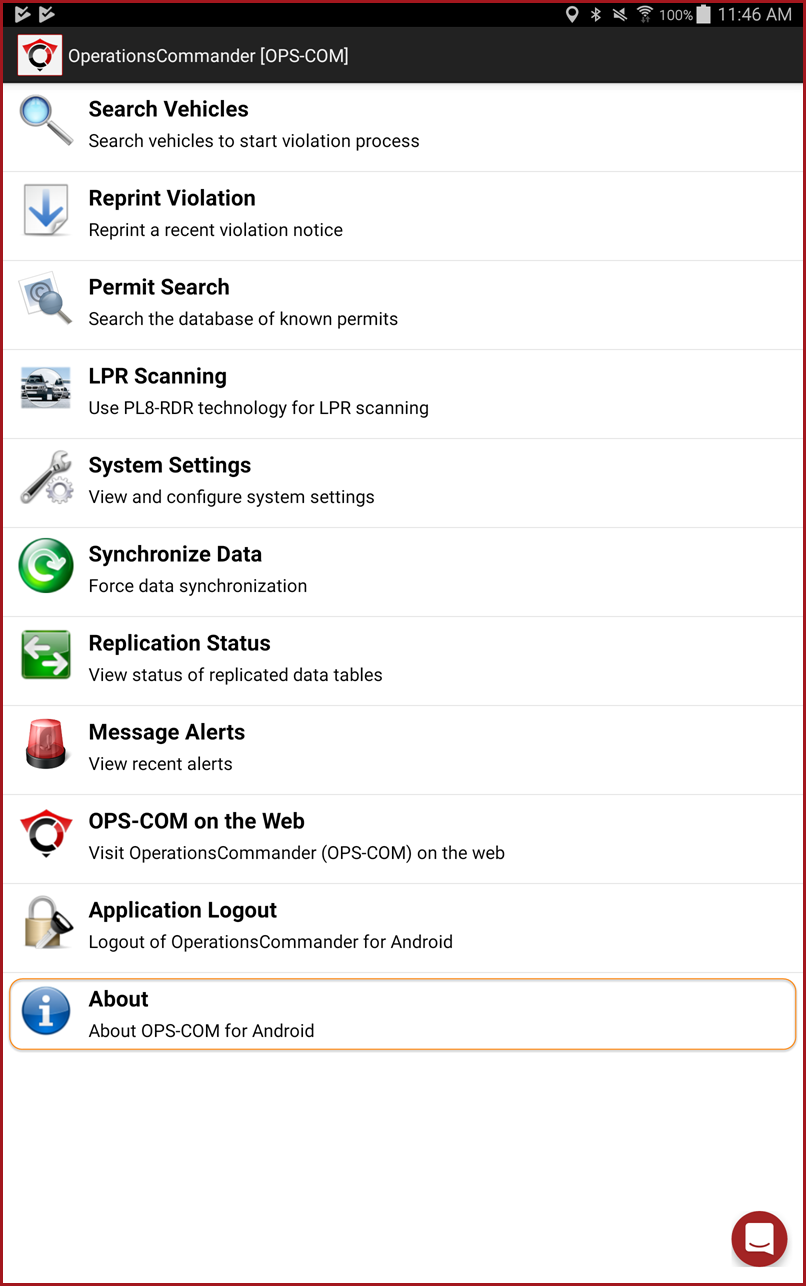
Log into the application and navigate to the main menu.
-
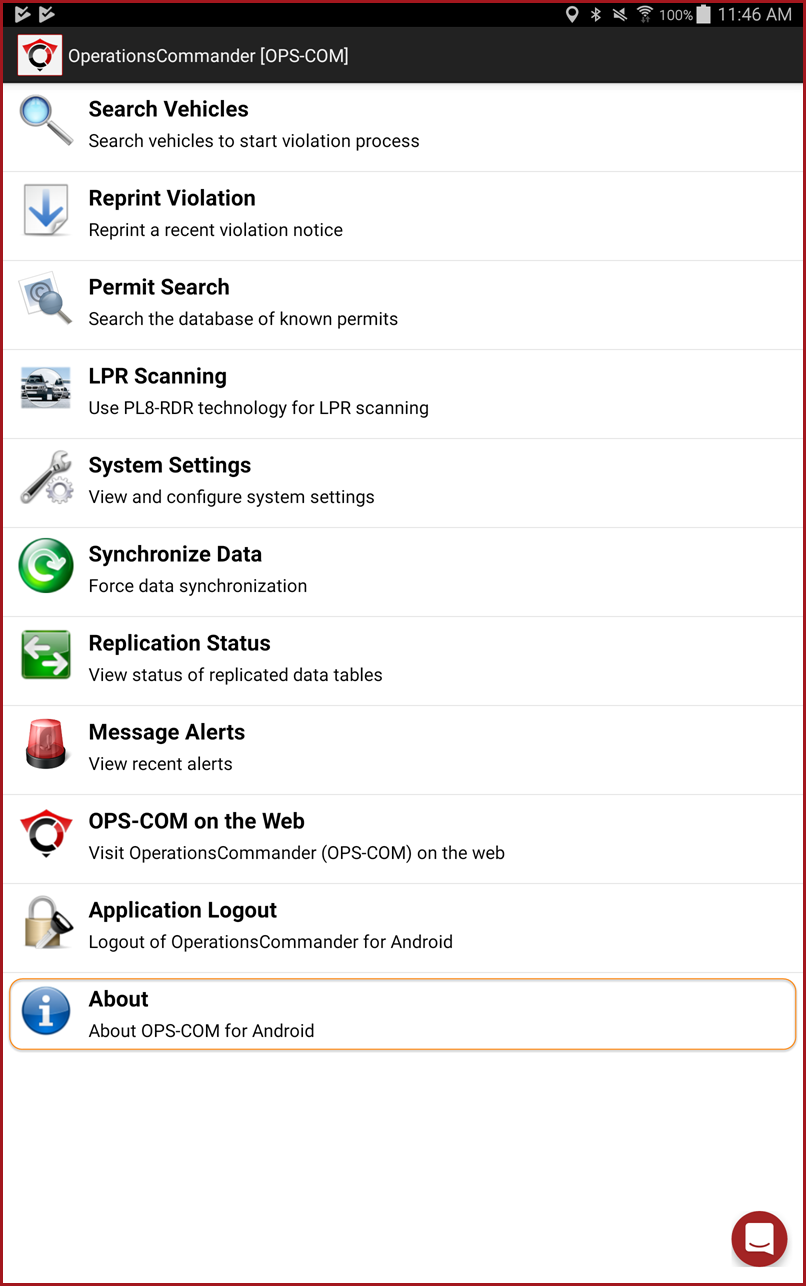
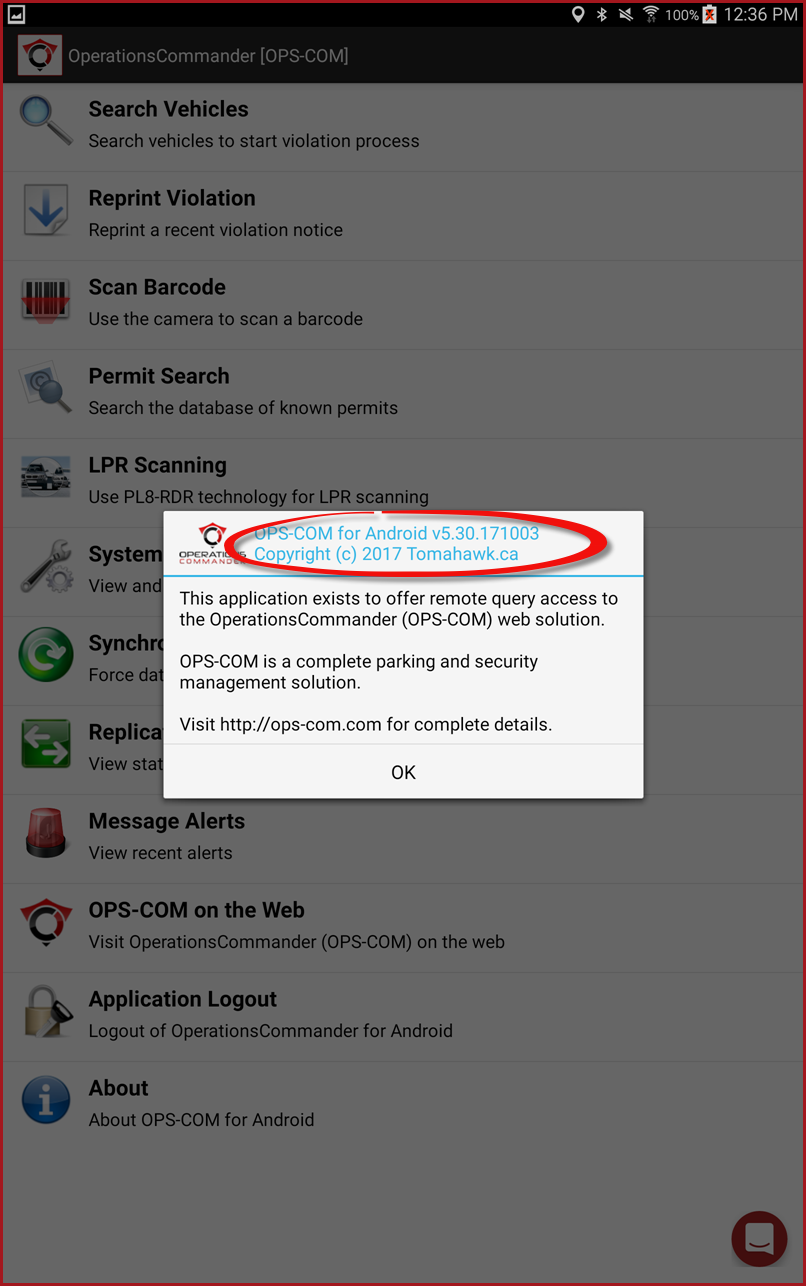
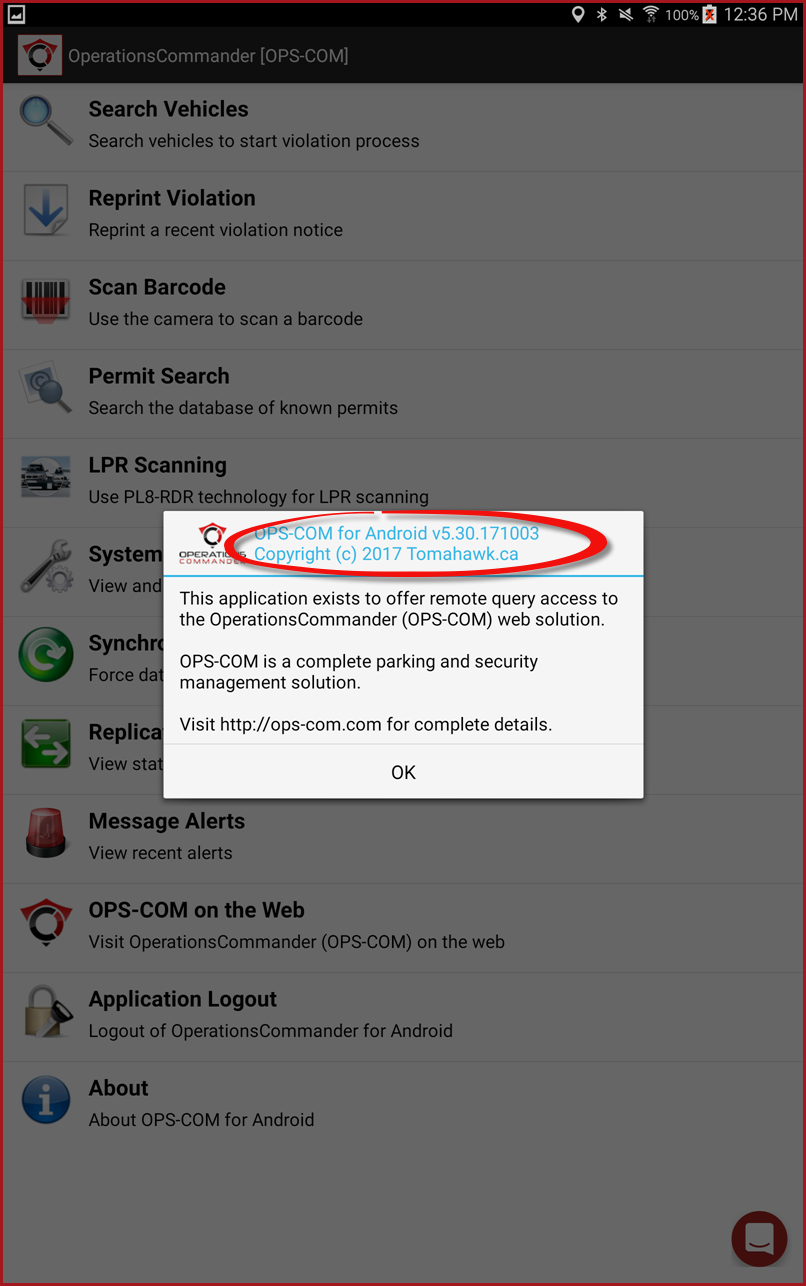
ATap About to open a pop-up message. This message will display a brief description ofOPSCOMthe OPS-COM applicationincludingalongside the exact version number. -
Tap OK on the pop-up to
goclosebackthe message and return to the main menu.
Best Practices and Considerations
-
-
Provide details for support: Always provide the precise Application Version and Handheld Identifier when submitting support tickets. Supplying this specific hardware and software information allows the OPS-COM support team to diagnose device-specific issues much more efficiently.
Transitioning to Modern Apps Please note that this article pertains to the legacy version of the OPS-COM enforcement application. If your organization has upgraded to the newer mobile application, the interface and steps to locate version information may differ.