
LPR Scanning Information
Interpreting
The LPR Scanning Information interface provides real-time data and visual cues when using the handheld's License Plate Recognition (LPR) capabilities. Its primary purpose is to help field officers quickly identify vehicles in violation, track chalked vehicles, and effectively monitor their active scanning status during patrols. This article is intended for OPS-COM administrators and field enforcement personnel using the Android application.
Setup & Configuration
The LPR flagsscanning interface relies on core system settings established in the backend, but the interface itself is ready to use natively within the app.
HereAdmin weSide: haveAdministrators should ensure that lot grace periods, permit rules, and any "vehicles of interest" (hotlists) are accurately configured within the core OPS-COM administrative portal, as the handheld relies on this data to display the correct flags.
User Side (Enforcement Staff): No specific device setup is required. Enforcement officers simply need to be logged into the OPS-COM Android app and navigate to the LPR scanning section with their device's camera or external LPR hardware active.
Using this Feature
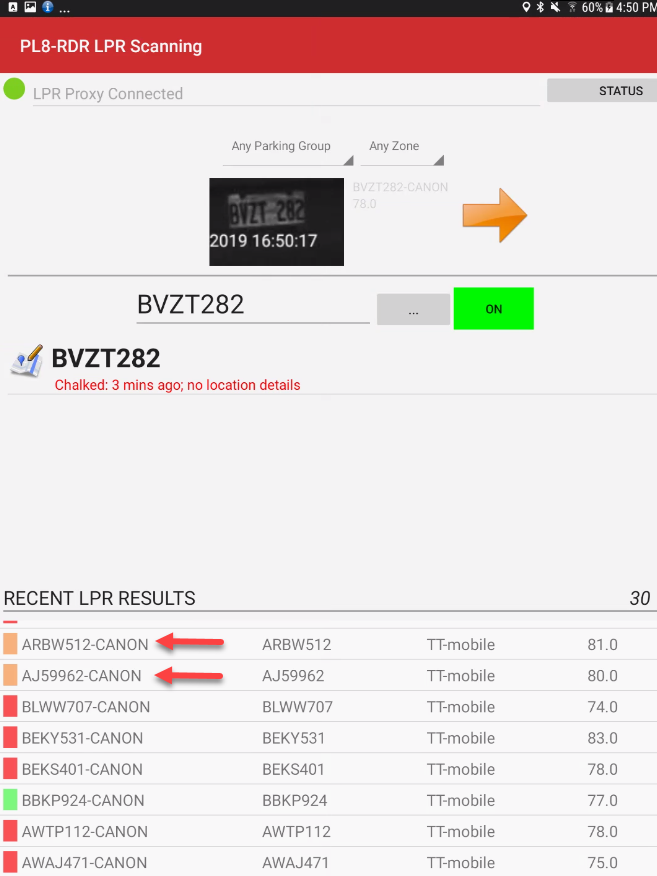
The LPR screen is designed to present crucial enforcement data rapidly as the officer moves through a typicallot.
Key display.Information NoticeDisplayed
-
readRunning
plateScancameTotal:fromLocated on the right side of the screen, just above the recent read list. This number indicates the total amount of plate reads successfully captured during your current patrol session. -
Camera
(indicatedDirectionalbyArrow:theAn orange arrow displayed beside the plateimage)image indicates exactly which camera (e.g., the right-side camera) captured the recent plate read.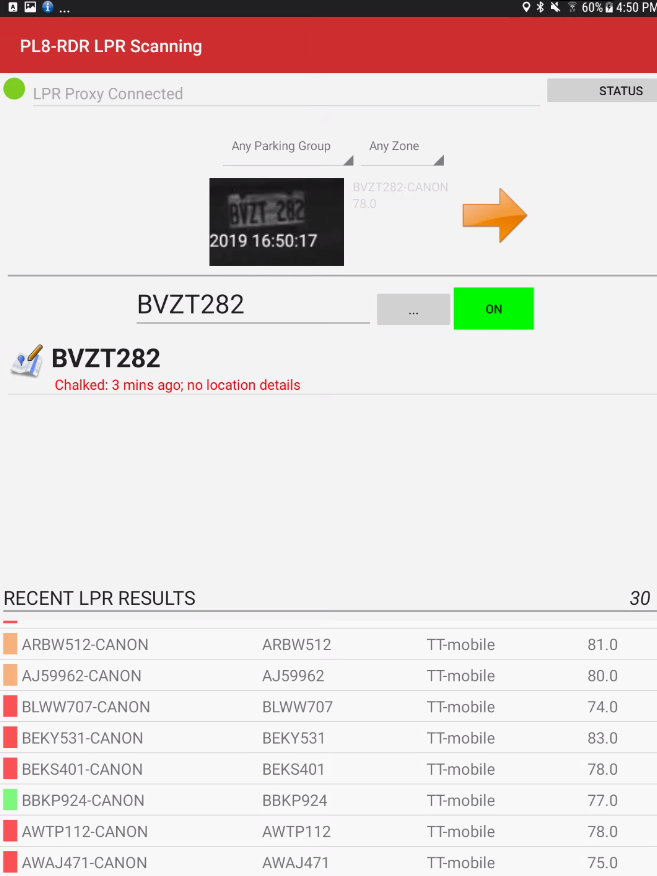
RunningVisual ScanCues Total& Status Indicators
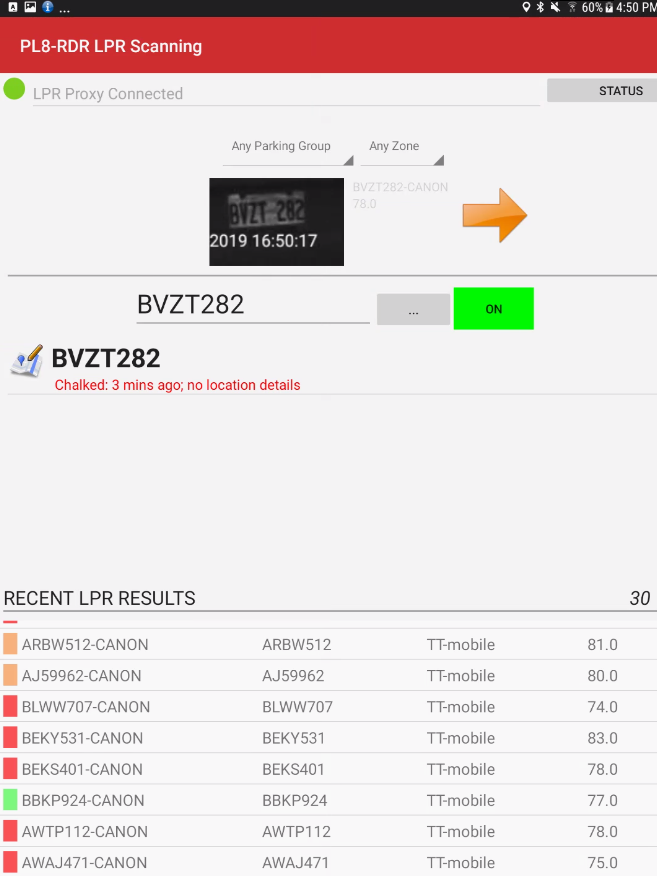
The runningsystem totaluses colored flags to instantly communicate the status of howa manyscanned readslicense youplate:
-
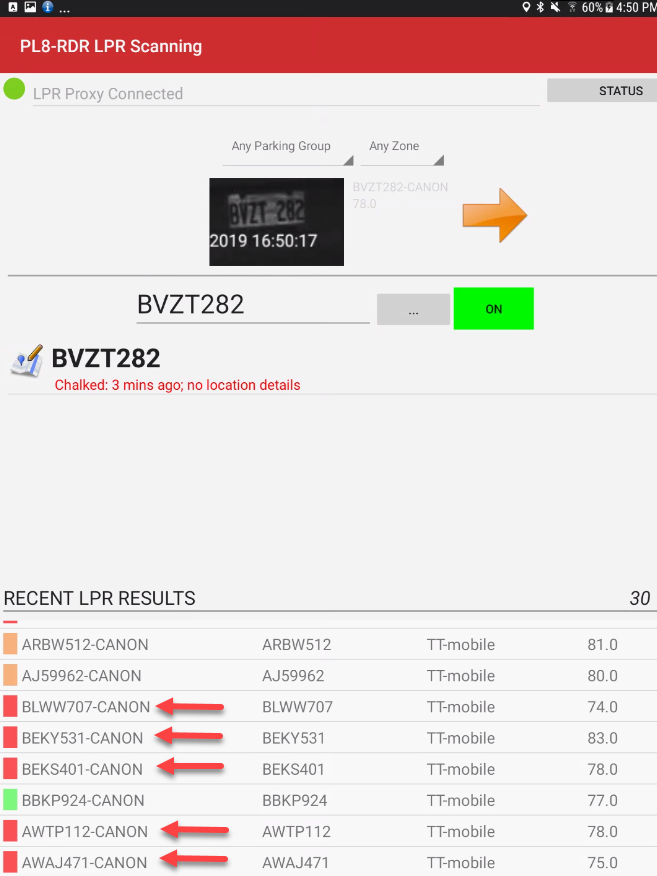
Red Flag: Indicates the scanned plate is currently in violation.
-
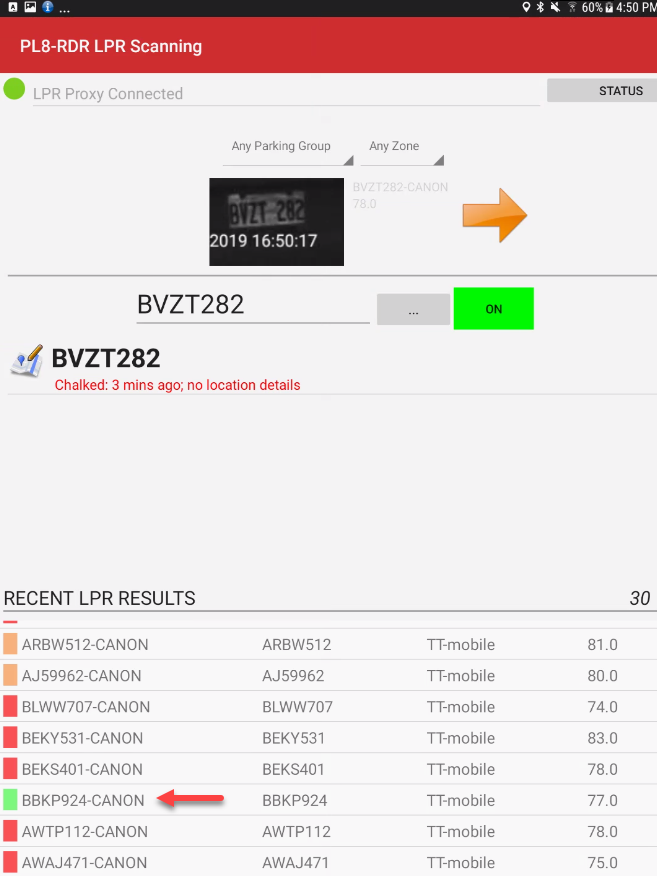
Green Flag: Indicates the scanned plate holds a
sessionvalid permit or authorization. -
Orange Flag: Indicates the vehicle has been chalked and is
locatedcurrentlyonstillthewithinright,itsjustallowedabovegracethe read list. In this case we have 30 reads total.period.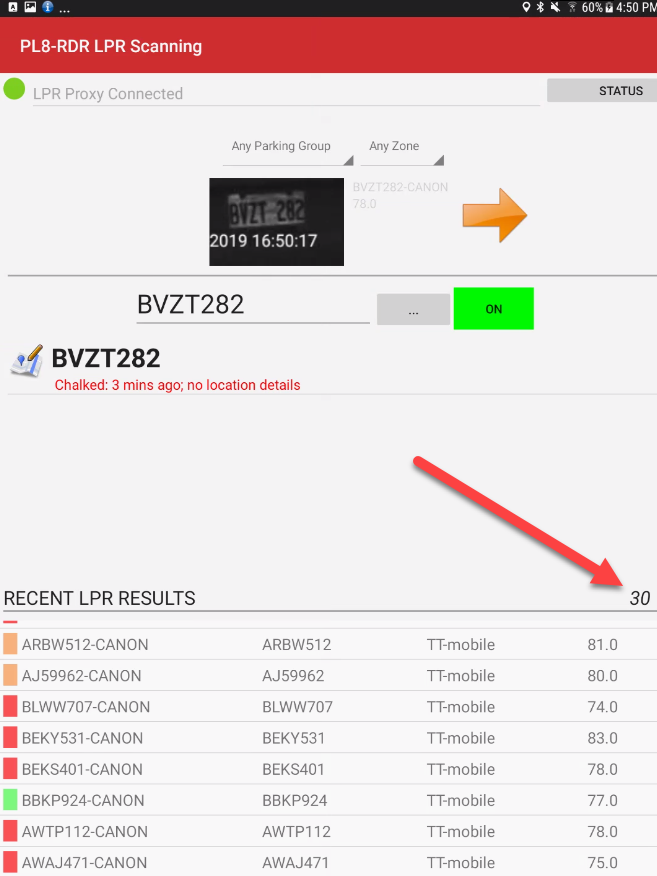
Visual Indicators During Scanning
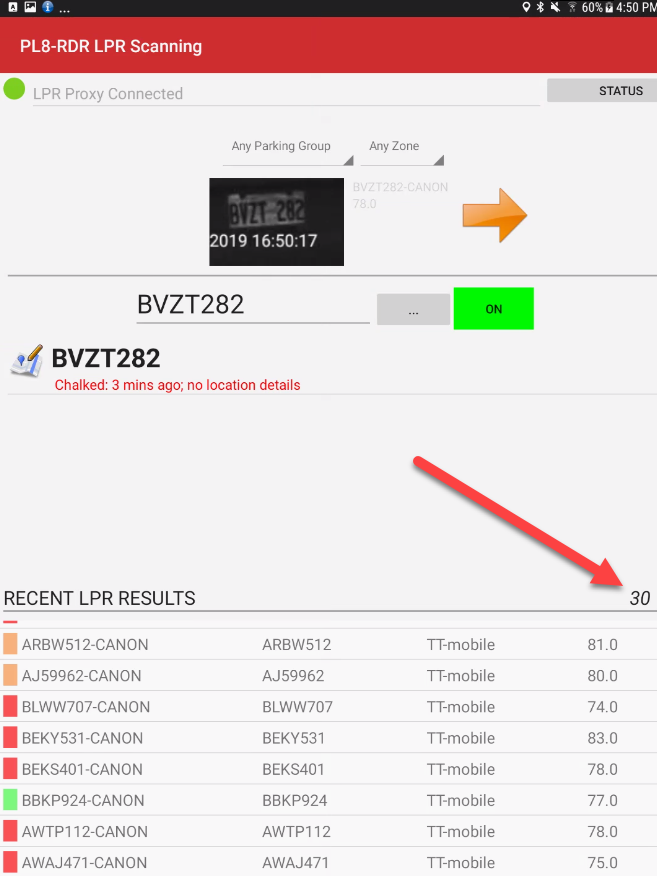
Plates in Violation are indicated by a red flag.
Valid PlatesPlate Loggingare flagged as green.While Valid readsPlates (Green Flags) will temporarily list on the handheld unitunit's butscreen for the officer's situational awareness, they will not be chalked or permanently passed into the backend system as part of the formal LPR events report.
PlatesAvailable ChalkedActions & Buttons
-
stopsReadsScannerthatToggle:are still in the grace period configured in your system will be indicated byWhen anorangeofficerflag.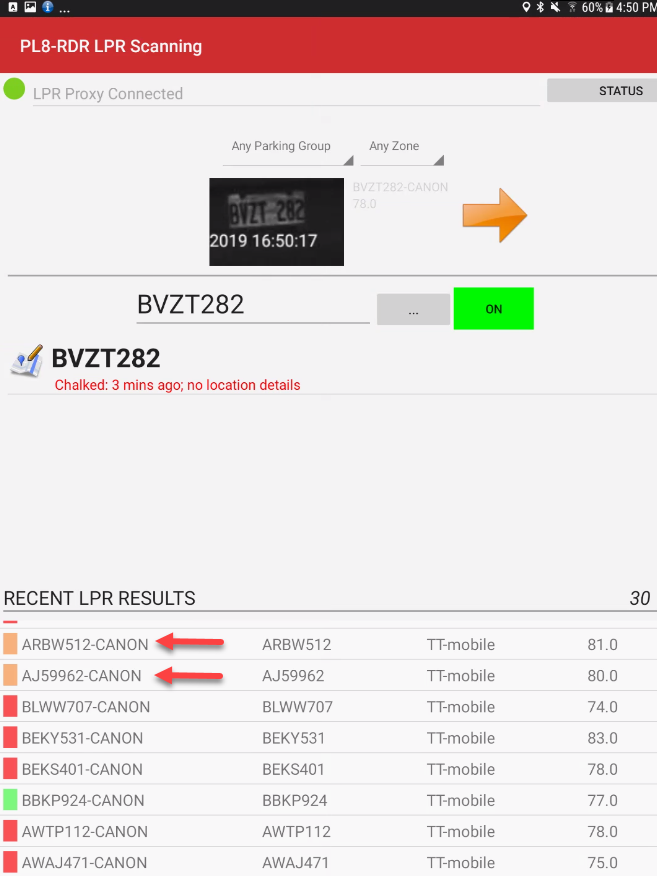
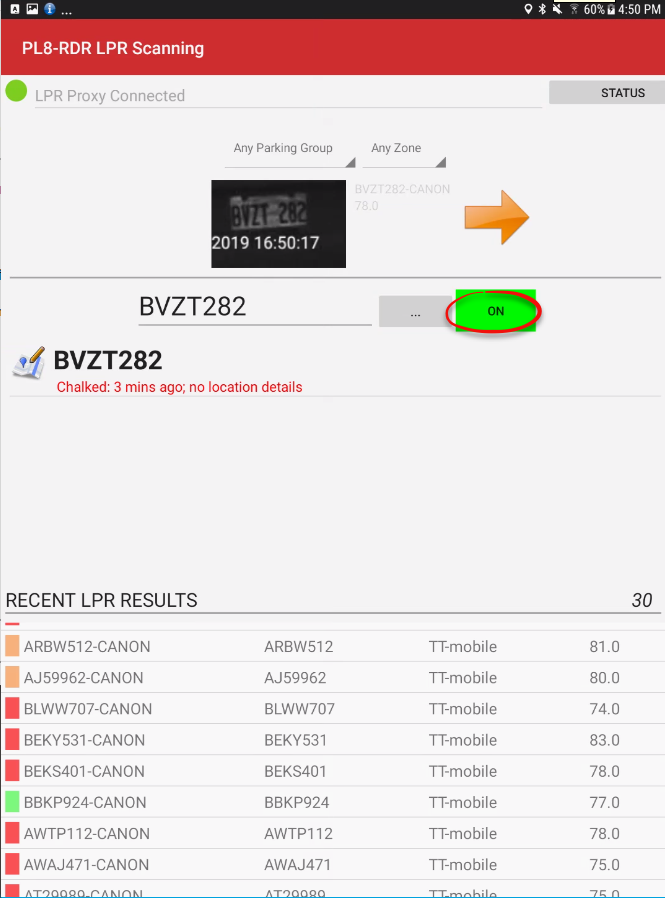
ToTapcontinuethescanningONplates be surebutton toengagereturntheitON button, make sure it'sto greenbeforeandcontinuing.resume active scanning. -
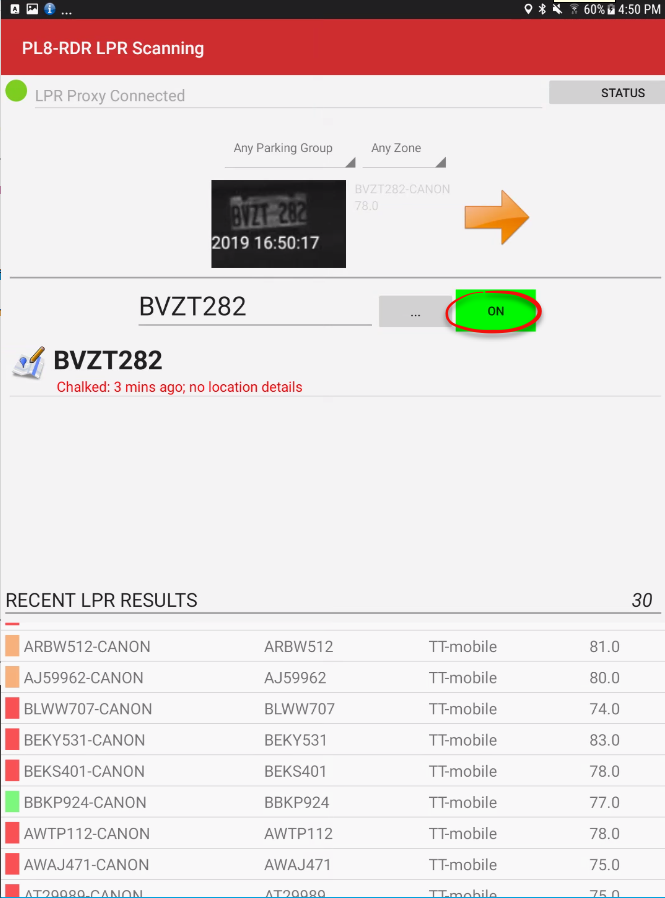
Toggle:
panel
selected, the system behaves differently:
- performed.
- normally.
- seen.
Best Practices & Considerations
-
Always resume scanning after edits: Remember to tap the ON button after manually editing a plate read. Failing to toggle the scanner back to green means the system remains in offline mode, and subsequent plates will not be scanned as you continue your patrol.
-
Utilize alert-only mode for targeted patrols: Use the Plates-of-Interest toggle when specifically hunting for scofflaws, stolen vehicles, or banned users, rather than performing general parking enforcement. This streamlines the patrol process and prevents the officer from being distracted by standard permit validation alerts.