Message Alerts
The Message Alerts feature provides a centralized communication channel for pushing important news, updates, and urgent notifications directly to patrol officers' handheld devices. Its primary purpose is to help administrators ensure field staff are immediately aware of changing situations, safety notices, or operational directives. This article is intended for OPS-COM administrators and field enforcement personnel using the legacy Android application.
ReviewSetup and Configuration
The messaging system is native to the application and requires no specialized configuration on the mobile device itself.
Admin Side: Administrators create and push alert messages to all active units or individual specific handhelds via the core OPS-COM administrative portal.
User Side (Enforcement Staff): No setup is required. Enforcement officers simply need to be logged into the legacy Android application and maintain an active network connection (Wi-Fi or cellular) to receive incoming messages.
Using this Feature
Enforcement personnel can receive alerts in real-time or review previously sent messages at their convenience through the application interface.
Reviewing Message Alerts
-
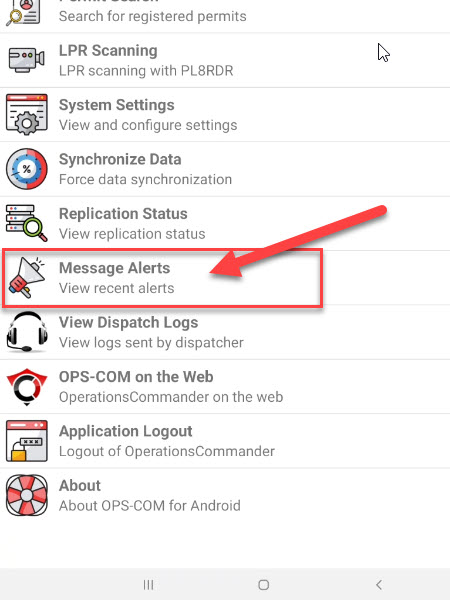
PatrolTap Message Alerts from the main menu of the OPS-COM application to open the message center. -
Review the list of recent alerts sent to your device.
Message Notifications
When a new message is pushed to the device, officers noware havenotified through several standard Android OS methods even if the abilityapp is running in the background:
-
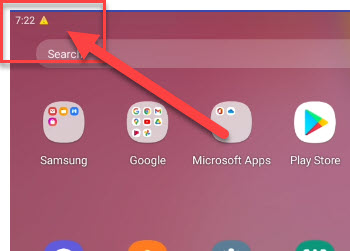
Look at the device's top header bar to see
important news by viewingnew messagealertsicons as they arrive. -
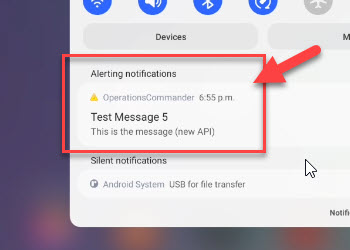
Swipe down on the
handheldheaderdevice.Alert messages are pushed outbar toall or individual handhelds byopen theAdministratorsnotification shade for a quick preview of theOPSCOMalertsoftware.text. -
AlertsTap the specific alert notification to automatically open the OPS-COM application and navigate directly to the Message Alert list.
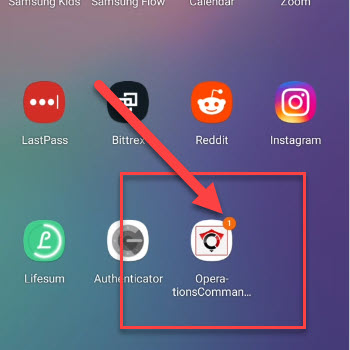
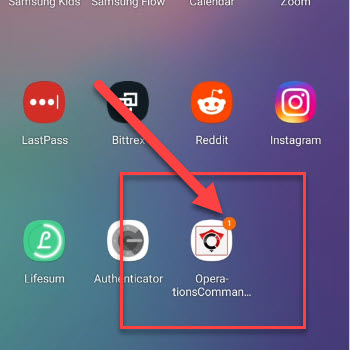
App Icon Badges If you are on the device's home screen, the OPS-COM application shortcut icon will display ona notification badge (a small numbered dot) indicating that you have unread messages waiting.
Visual Cues and Status Indicators
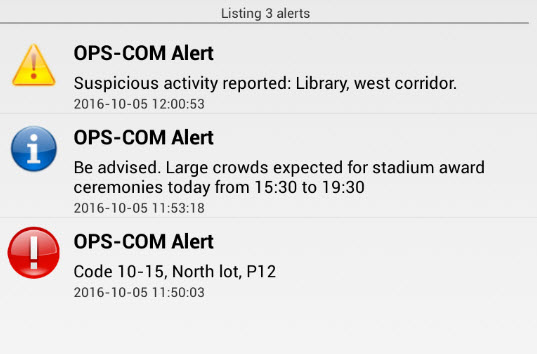
Alerts are categorized into three distinct types, indicated by color, to help officers instantly gauge the handheldspriority as they come in or you can view them later. To view recent Alerts clickof the Message Alerts area within the Handheld software.
Types of Alerts
There are 3 types of Alerts that can be pushed out to the handhelds. message:
-
Blue Alerts: These alerts are for general informational purposes (e.g., a reminder about an upcoming shift change).
-
Yellow Alerts
-: These alerts are used to inform users of events or situations that should bemonitored.actively monitored (e.g., a large event causing lot congestion). BlueRed Alerts
-: These alerts are reserved forinformational purposes.Red Alerts - These alerts are forhigh-priority situations that require immediateaction.action or response from the officer.
MessageBest NotificationPractices and Considerations
New
-
Acknowledge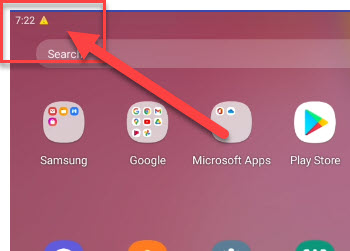
Thenotificationspulledpromptly:downOfficersheadershouldallowsroutinelyforcheckeasytheirviewingnotificationofshadethe alert message. Tapping the alert takes the user toand the MessageAlertAlertslist.menu
while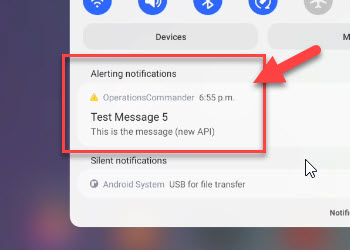
Theonapplicationpatrol.shortcutEnsuringicontimelywillreviewshowofany newincoming messagesasisacritical,badgeespeciallyonwhen Red Alerts are dispatched for immediate action. -
Prevent alert fatigue: Administrators should reserve Red Alerts strictly for genuine emergencies or time-sensitive directives. Overusing the
shortcut.highest priority alert for standard informational updates can cause officers to become desensitized to actual urgent situations.