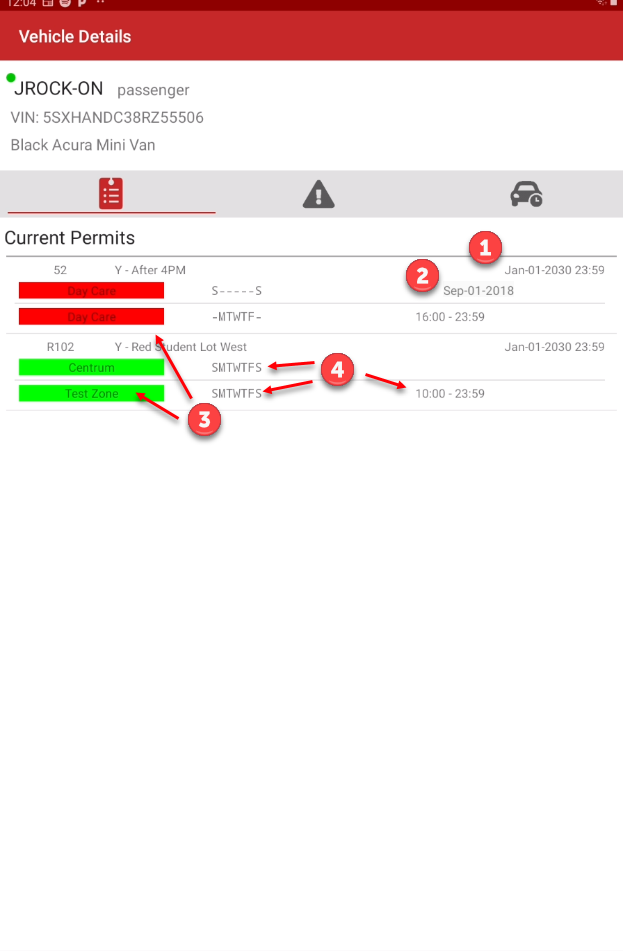
Permits Tab
The Permits Tab is a specific section within the Search Vehicle PermitResults Detailsscreen on the legacy OPS-COM Parking Enforcement app. Its primary purpose is to provide field officers with detailed information regarding a vehicle's active and historical permit validity, including specific zone assignments, days, and time restrictions. This article is intended for OPS-COM administrators and field enforcement personnel using the legacy Android application.
Setup and Configuration
The Permits Tab automatically pulls its data directly from the user and permit profiles configured in the backend database.
Admin Side: No specific configuration is required on the handheld device. Administrators manage all permit rules (such as valid days, hours, and zones) within the core OPS-COM administrative portal.
User Side (Enforcement Staff): No setup is required. Enforcement officers simply need to be logged into the legacy enforcement app and successfully perform a standard vehicle search.
Using this Feature
Enforcement personnel use this tab to verify if a vehicle is parked legally based on its specific permit rules, rather than just checking if it generally has a permit.
Accessing the Permits Tab
ThisdisplaysPerform a plate or VIN query using the
expirySearch Vehicles function.-
Tap the specific plate read from the initial search results list.
-
Tap the Details button to open the extended vehicle record.
-
Tap the Permits tab (or swipe left/right across the screen to navigate to it).
Key Information Displayed
-
Permit Expiry Date: Displays the exact expiration date of the
permitpermit. The system supports custom expiration dates (e.g., Sep-01-2018) that will accurately reflect here. YoualsoZone
haveAssociation: Displays which specific zones theabilityvehicle is authorized tosetparkcustominexpiry(e.g.,datesthesuch"Day Care" zone or "Centrum and Test Zone").-
Valid Days and Times: Outlines the specific days of the week the permit is valid, as
permitwell52aswhichthehasexactatimescustomtheexpiryvehicleofisSep-01-2018.allowed to park on those particular days (e.g., from 4:00 PM to midnight). The
Visual Cues and redStatus Indicators
-
Green and Red Bars: These color-coded bars visually represent whether the vehicle is currently valid to park in specific zones
or not. Ifat theuserstime of the search. A green bar indicates active validity for the zone, while a red bar indicates the vehicle isassociatedeither in the wrong zone or outside of its permitted timeframe.
Best Practices and Considerations
-
Check time and zone restrictions carefully: Always review the specific days, times, and zone associations listed on the Permits tab before issuing a violation. A vehicle may have a valid permit, but if they are parked in the wrong zone or outside of their designated hours, they are still subject to a
zonecitation.it -
Ensure data synchronization: Always check your connection status indicator on the main search screen. The permit details rely on recent data syncs; if you are operating entirely offline for extended periods, recently updated custom expiry dates or newly purchased permits may not immediately display
whichonzonethistheytab.are
Legacy exampleApplication weNotice canThis seearticle permitpertains 52 is associatedspecifically to the Daylegacy CareOPS-COM zoneParking Enforcement app. If your organization has recently updated to the modern OPS-COM Enforce application, the interface, tab layout, and visual indicators will differ from 4:00 pm to midnight. While permit R102what is validdescribed all week from 10:00 am to midnight for zones Centrum and Test Zone.