Plate Capture Using Handheld
BoundingThe BoxPlate Capture Using Handheld functionality utilizes the device camera and License Plate Recognition (LPR) software to quickly identify vehicles in the field. Its primary purpose is to ensure highly accurate plate reads by educating users on proper camera framing, distance, and the use of on-screen guide boxes. This article is intended for OPS-COM administrators and field enforcement personnel using the Android application.
Setup and Configuration
The optical character recognition functionality is built directly into the mobile application and relies primarily on proper physical technique rather than software configuration.
Admin Side:
-
Open the OPS-COM parking enforcement app on your handheld device.
-
Grant any requested operating system permissions to allow the application to access your device's camera.
-
Tap Search Vehicles from the main menu to access the capture screen.
Using this Feature
Enforcement personnel use the on-screen viewfinder to align the license plate, allowing the image processor to extract the alphanumeric characters.
Framing and Capturing a GuidePlate
-
Tap the camera icon to open the viewfinder.
-
Position the device so the license plate is visible within the on-screen bounding boxes.
-
Keep the device steady until the system successfully captures the plate and returns to the Plate Read screen.
-
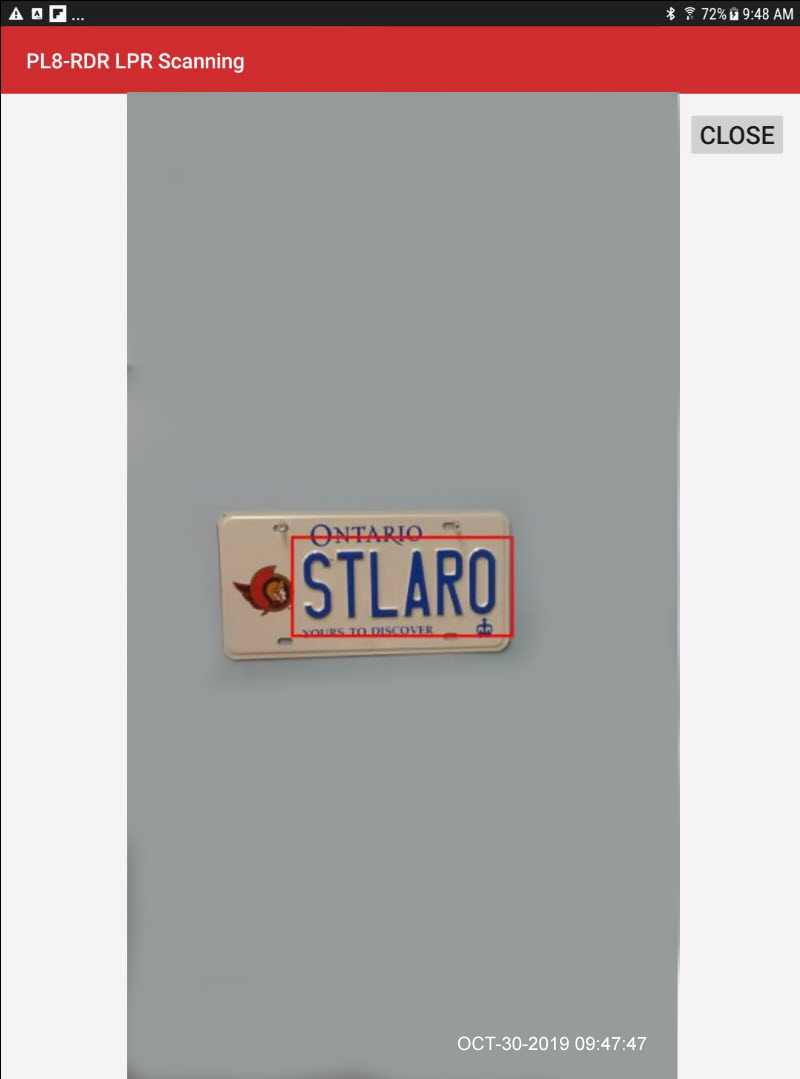
Tap the captured thumbnail image of the plate to open the full context image.
Visual Cues & Status Indicators
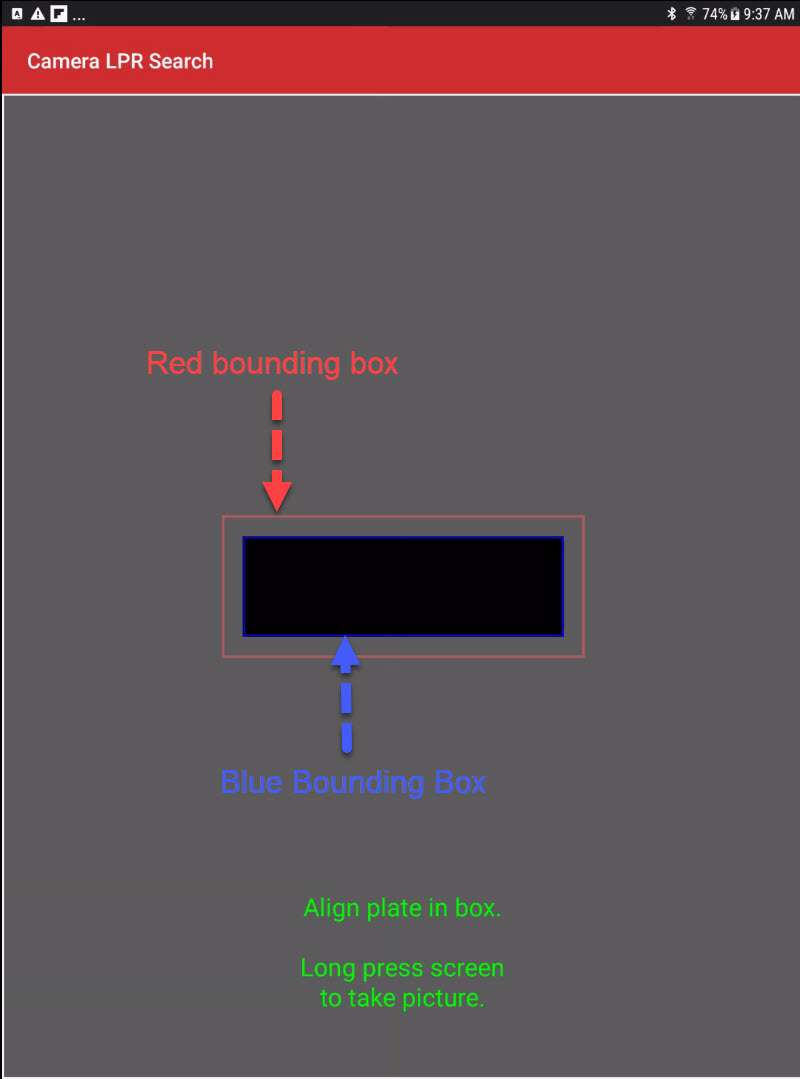
The viewfinder provides two outlined boxes to help determine if minor physical adjustments are needed to properly line up a plate:
-
Red Box: Indicates the maximum scanning area. If the physical plate extends outside of this red area, it will not be read by the system.
-
Blue Box: Indicates the optimal target area. It is highly advisable to keep the entire plate inside this blue box to ensure the LPR engine processes it correctly.
Best Practices and Considerations
-
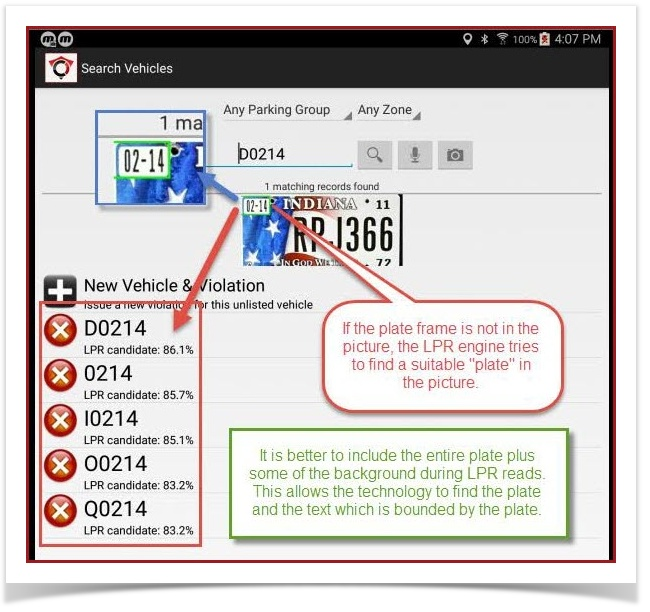
ForIncludebesttheresultsplateespeciallyedgesonandnon-standardbackground:licenseDoplateswe found if you try tonot capture the plate tootightlytightly.to the size of the box in the viewfinder it has trouble distinguishing between the actual plate number and the other text on the plate.In the sample below it actually captured the digits on the upper left of the plate.In this case, an attempt to match the edges of the plate with the bounding region confused the image processor.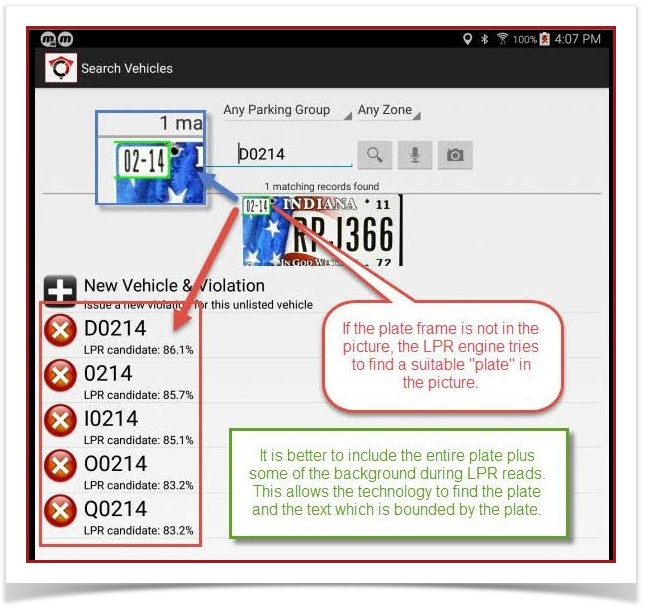
If the plate frame is not in the picture, the LPR engine tries to find a suitable "plate" in the picture.It is better to include the entire plate plus some of the
LPRbackgroundvehicle'sduringbackground.LPR reads. This allowsIf thetechnologyphysicaltoedgesfindof the plateandare excluded from thetext which is bounded bypicture, theplate.StepengineBackstruggles to distinguish the actual plate number from secondary text (such as province or state names) andTrymayAgainreturn an incorrect read. -
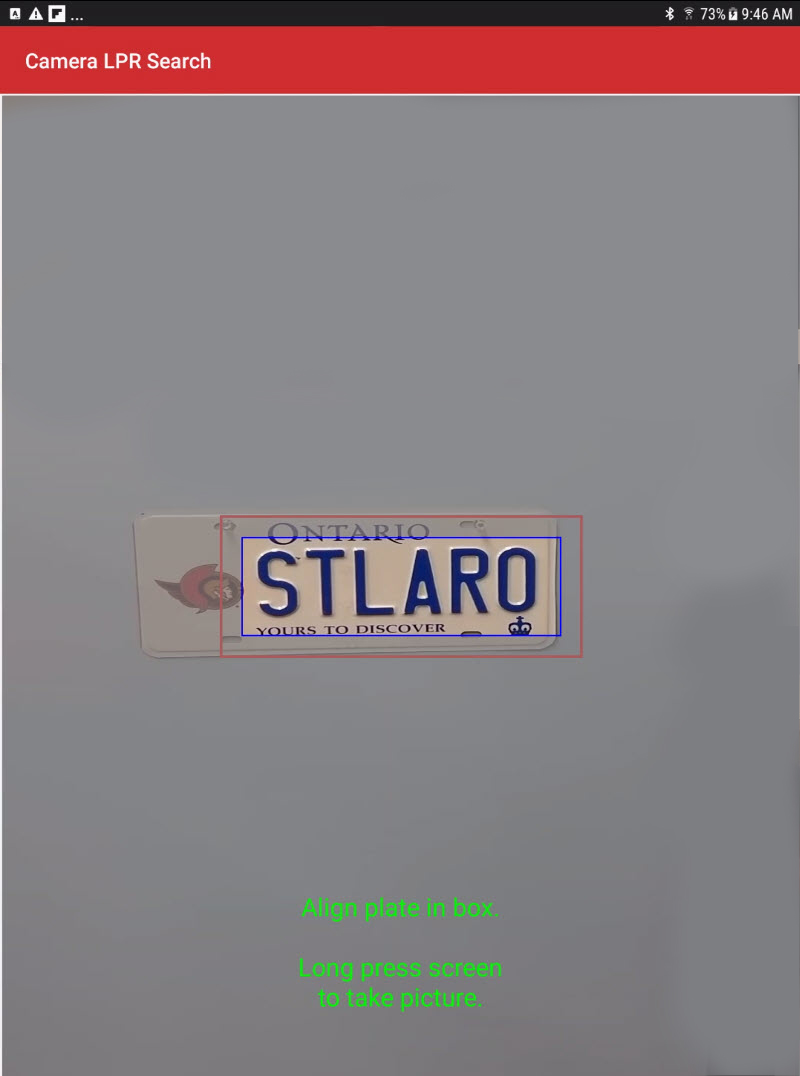
WeExcludewerecomplexablevanitytologos:accuratelyFocuscapturethe view specifically on the platebynumbers.backingIfup.scanning a vanity plate with heavy graphics, position the camera to exclude the logo from the blue bounding box if it consistently confuses the image processor. -
InReviewfactcontextweimagesexaggeratedto correct hardware offsets: Tap thedistancethumbnailpullingto view the full context image if your reads are consistently failing. With some device hardware, the plate may look perfectly centered in the live viewfinder, but the actual processed shot comes out off-center. The context image displays a date-stamped, red bounding box representing exactly where the system processed the image, allowing you to manually adjust your physical centering technique.
Step back by quite a bit and stilltry gotagain: an accurate reading.
Second listed entry is the plate... captured without a problem.
So the lesson here isDo not to be afraid to back offaway from the vehicle if the scanner is struggling. We often exaggerate the distance and pull back quite a bit andto it may yield better results.
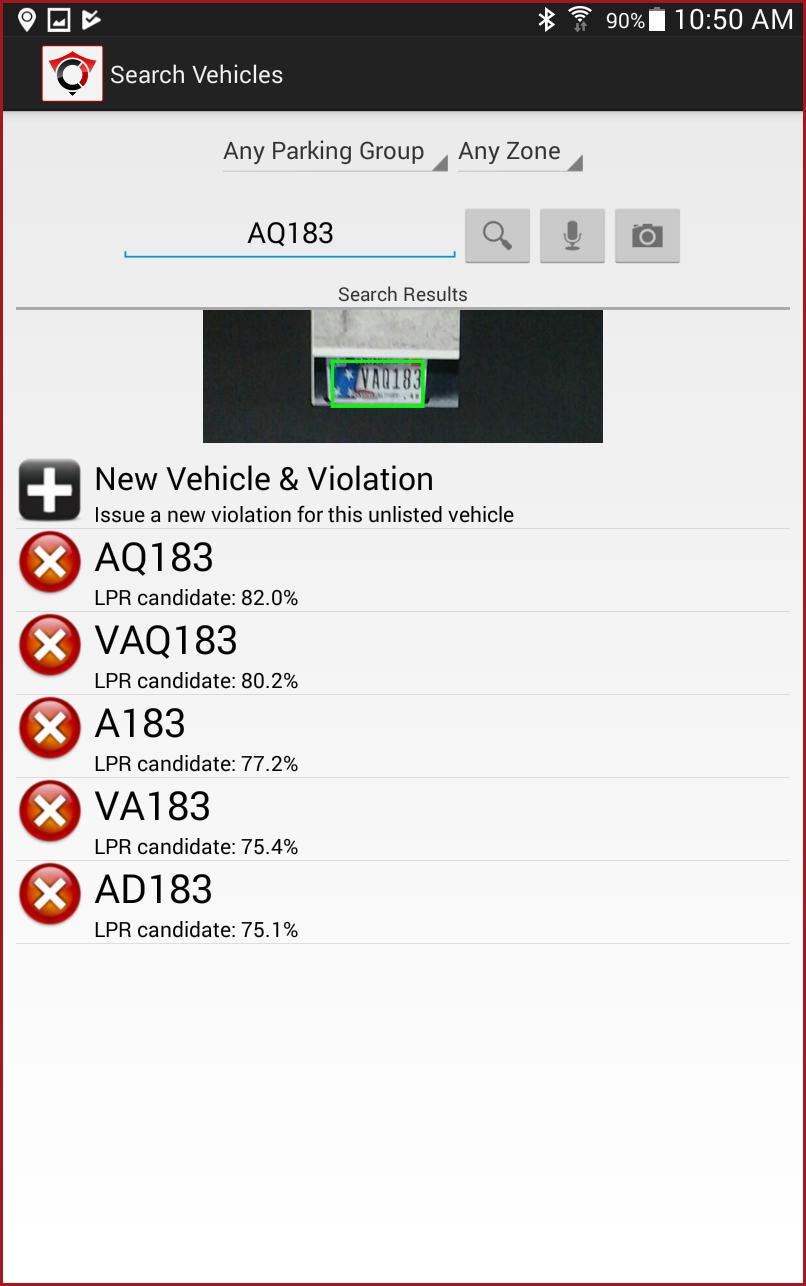
Itprocessor iscan quiteaccurately amazingread howplates even when they appear surprisingly small we can make the plate in the viewfinder and still get a read.
Using the guide boxes
Different devices may have different properties when it comes to the built in cameras. The viewfinder in OPSCOM is designed to help determine if minor adjustments need to be made in order to properly line up a plate to be read into the system.There are two outlined boxes to help align the plate. The Red box indicates the maximum area you wish to view the plate in. If the plate extends outside of the red area it will not be read. It is advisable to keep the plate inside the blue box to ensure it does get read properly. As discussed above the plate can actually be captured at a very small size inwithin the viewfinder.
Here is an example of a plate read. This is a perfect example of focusing the view on the plate number, excluding the Logo on this vanity plate.
Once the plate is captured the screen goes back to the Plate read screen.

The image of the plate can be tapped to see a full context image. The red bounding box represents where the blue bounding box was on plate capture.You can see the relationship between the viewfinder screen and the actual image captured. With some devices the plate looks centered but the actual shot comes out off center. This context image will allow you to see any offset so you can adjust the centering when capturing a plate. Note the contextual image is date stamped as well.