
Replication Status (Legacy)
System
The Replication Status Legacy screen within the older OPS-COM Android application displays the synchronization state of all local database tables against the central server. Its primary purpose is to help identify connectivity issues and allow users to manually manage data synchronization when standard automated syncing fails. This article is intended for OPS-COM administrators and field enforcement staff using the legacy application.
Setup and Configuration
The Replication Status screenfeature displaysis allbuilt natively into the legacy application and does not require backend configuration.
Admin Side: No administrative setup is required.
User Side: Users must have the legacy OPS-COM parking enforcement app installed on their handheld device and be logged in to view the local database tabletables.
Using this Feature
Enforcement personnel can use this feature to check the health of their connection and manually force data onpushes yourif unit and whether or not the tables/datarecords are synchronizedfailing withto theupload server.automatically.
-
Tap
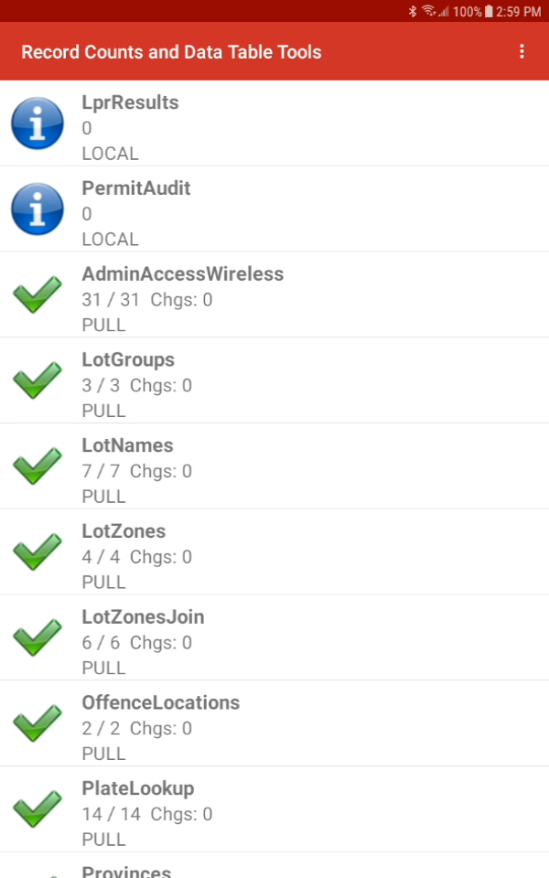
onthe Replication Statusoption.option from the main application menu. Thiswill bring you toReview the list of database tables on the Record Counts and Data Table Tools
.screen.Tap
Viewing System Status
Visual Cues and hold an option to open a pop-up message with additional options.
Status Report
Status Icons
Indicators
The following icons are used to clearly indicate status:the synchronization status of each individual table:
-
Green Checkmark: Table data is successfully synchronized with the server.
-
Red X: Table data is NOT synchronized with the server.
Note: During normal use (i.e., when issuing violations), it's expected that tables like VehicleTransfer and ViolationsTransfer may become temporarily out of sync. This indicates that new data (e.g., violations or vehicles) has been captured on your device and will need to be synced to the server.
- Blue Exclamation Point:
This indicates thereThere is currently no table data that needs to be synchronized between the handheld and the server.
Replication
During Actionsnormal 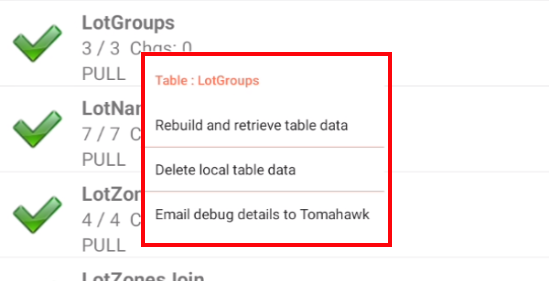
Thereuse are(i.e., when actively issuing violations), it is completely expected that tables like VehicleTransfer and ViolationsTransfer may temporarily display a numberRed ofX.actionsThis simply indicates that cannew bedata performedhas been captured on your local device and is waiting in the queue to be pushed to the server.
Replication StatusActions area(Table-Specific)
You holdingcan downperform withtargeted your fingeractions on individual tables if they are stuck or experiencing issues.
-
Tap and Hold an individual
table:table to open a pop-up message with additional options. -
PLEASETapNOTE:None of these options should have to be used if your unit is working correctly. We suggest logging in and outone of theapplicationfollowingas needed for proper synchronization.Please contactOPSCOM Supportif there are any issues before performing any replication status functions as detailed below.actions:-
Push table data to the
serverserver:- This will attempt to manually upload the local
devicesdevice's table data to theserverserver.(i.e. synchronize) andThis is generally safe tododo, as nothing is overwritten orremoved, though if you do push table data make sure all tables marked with a red X are synchronized.
- This will attempt to manually upload the local
-
Rebuild and retrieve table
datadata:
Warning:This option willdelete/droppermanently delete the local table data and retrieve the newest availabletabledata from the server.This could result in violations and/or vehicle data that hasn't yet been synchronized to the server and is still only on the local handheld from being lost. If a table is showing as out of sync never rebuild and retrieve table data unless instructed to by us. -
-
Delete local table
datadata:
Warning: This will permanently delete the local table data but has no effect on the server. Similar to the above this could result in the loss of local table data if not synchronized to the server first. Never select this function unless told to by us.
Email debug details to TomahawkTomahawk:
- This will send an email log file to
usOPSCOM Support containing helpful information fordebugging/troubleshooting issues.Select if requested to by us, or notify us first before sending if possible.
Replication Options
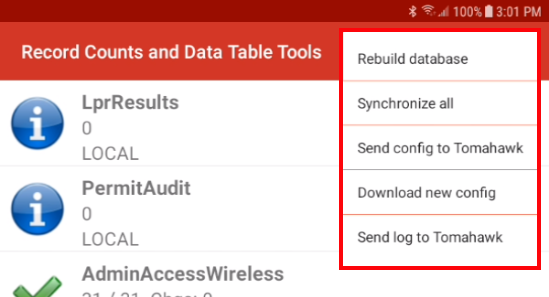
There are additional system-wide options available into manage the Replicationentire Statusdatabase areaat accessibleonce.
-
yourTap
devicestheoptions/menu button (
corner):corner of the screen. -
Tap one of the following actions:
-
Rebuild database:
WARNING:This will delete ALL local table databut has no effect onacross theserver.entireThis could result in the loss of local table data if not synchronized to the server first.Never select this function unless instructed by OPSCOM Support.device. -
-
Synchronize all:
This function is safe to select and is similar, if not the same as logging in or out of the device.The device will attempt to safely synchronize ALL table data with the server.We still recommend logging in and out instead of using this function in case another option is selected by accident.
-
Send config to Tomahawk:
- This will send
ana comprehensive email log file tous containing helpful informationsupport fordebugging/troubleshooting issues. Select if requested to by us, or notify us first before sending if possible.
- This will send
-
Download new config:
When selected theThe device will re-download all relevant system settingson(e.g.,nextorganizationstartup (organization,details, device name, ticketfooter,footer)etc.).on the next startup.
Best Practices and Considerations
-
Rely on standard login for synchronization: If your unit is working correctly, none of these manual options should be necessary. We highly recommend simply logging out and logging back into the application as needed, which acts as a safe, natural trigger for proper synchronization.
-
Avoid unauthorized rebuilds or deletions: Never select the rebuild or delete functions unless explicitly instructed by OPSCOM Support. Doing so without manually pushing your data first can result in the permanent loss of violations or vehicle data that has not yet been synchronized to the server.
-
Communicate before sending logs: If you need to use the Email debug details option, please notify the OPS-COM support team first if possible, or only select it when actively requested by a support technician.