
Reset Settings for OPSCOM Parking Enforcement
FromThe timeReset Settings feature within the legacy Android application allows users to timeclear youlocal maydevice beconfigurations toldand force the handheld to performpull fresh data from the Resetserver. SettingsIts functionprimary inpurpose is to troubleshoot and resolve synchronization or configuration issues on the mobile device. This article is intended for OPSCOM Parkingadministrators Enforcementand app.field Saidenforcement settingpersonnel canacting be found inunder the system settings areaguidance of support staff.
Setup and Configuration
This troubleshooting feature is natively built into the app.application and does not require any backend configuration to activate.
TheAdmin resetSide: settingsBefore functioninitiating a reset, ensure the handheld device is connected to a stable Wi-Fi or cellular network, as the application will need to download a fresh batch of data upon the next login.
Using this Feature
Enforcement personnel should only beuse performedthis iffeature youwhen haveexperiencing beenspecific tolddevice toissues doand soonly byunder us.direction from the support team.
Step-by-stepResetting guide
the -
Log in to the OPSCOM Parking Enforcement app.
-
ClickTap System Settings.from the main menu. -
Scroll down to the bottom of the settings list and
checktap the Reset Settings.checkbox to select it. -
LogTap the device's back button and log out of theappapplication(back, logout).completely. -
Fully close the
application.application from the Android recent apps menu. -
Restart the
tablet/handheld.tablet or handheld device. -
dataWhen you next logLog in to theapp,OPSCOMitParking Enforcement app. The system will automatically re-download all system settings and relateddata.during
this
initial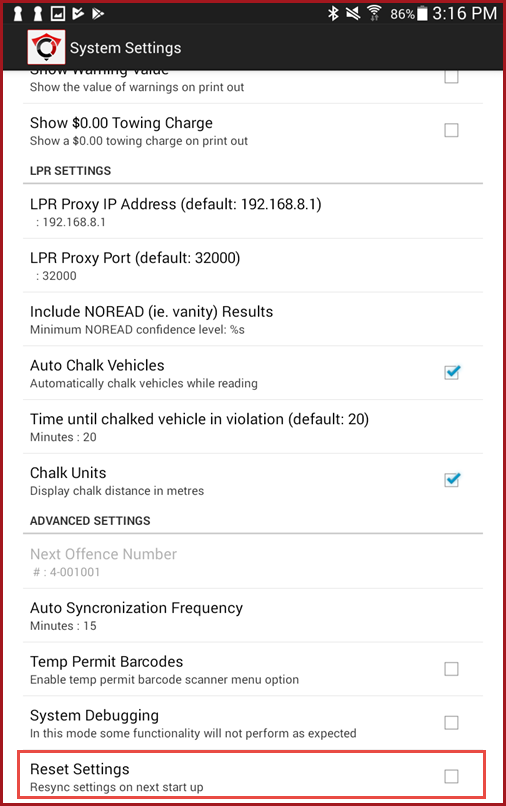
Best Practices and Considerations
-
Ensure a stable network connection: Always verify your device has a strong cellular or Wi-Fi signal before logging back in. Because the reset clears local data, a stable connection is required to successfully pull the fresh settings from the database and resume normal operations.
Authorized Use Only Do not perform a settings reset as a standard troubleshooting step. The reset settings function should only be performed if you have been explicitly told to do so by an OPSCOM Support representative.