
Retrieve Local Tablet Backups
ByThe defaultRetrieve allLocal Tablet Backups process allows organizations to access and extract offline violation data directly from an Android handheld device's internal storage. Its primary purpose is to recover locally stored violations createdin onthe event of a tabletsynchronization throughfailure, accidental application uninstallation, or database error before the OPSCOM Android apprecords are storedsuccessfully in local backup files in-case they ever need to be retrieved should anything happenuploaded to the violationsserver. This article is intended for OPS-COM administrators and IT support personnel.
Setup and Configuration
Extracting these files requires physical access to the device and a wired connection to a workstation.
Admin Side: Administrators must have a physical USB connection cable and a PC to access the device's internal file system.
User Side (Enforcement Staff): Ensure the Android tablet is powered on and actively unlocked before theyconnecting are uploadedit to ourthe servers (software is uninstalled, data tables are manually removed/dropped, etc).computer.
ToLocating retrievea USB Cable If you do not have a dedicated USB data cable, check the localtablet's tabletcharging backupsunit. doMost charging cables feature a detachable USB plug that can be removed from the following:
Plugadapter theand tabletplugged directly into your computerPC.
viaUsing USBthis Feature
Administrators must connect the device to a PC, locate the specific application data folder, and transfer the files to OPSCOM support for recovery.
Connecting the Tablet to a PC
-
Make sureConnect the tabletis unlocked once plugged intoto yourcomputer,computerotherwiseusingitawon'tcompatibleappear.USB cable. -
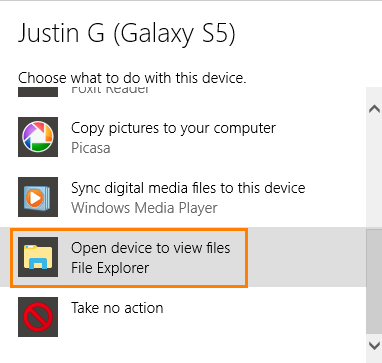
Once you plugUnlock the tabletintoscreenyourso the PCyoucanshouldauthorizeseetheaconnectionnotificationandappear,readsimilarthetointernalplugging in a USB thumb drive.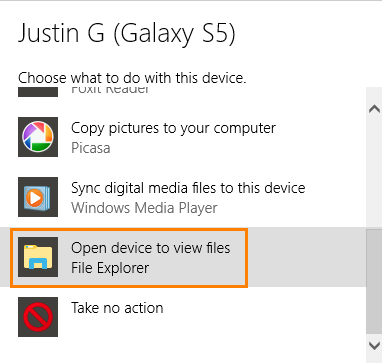
-
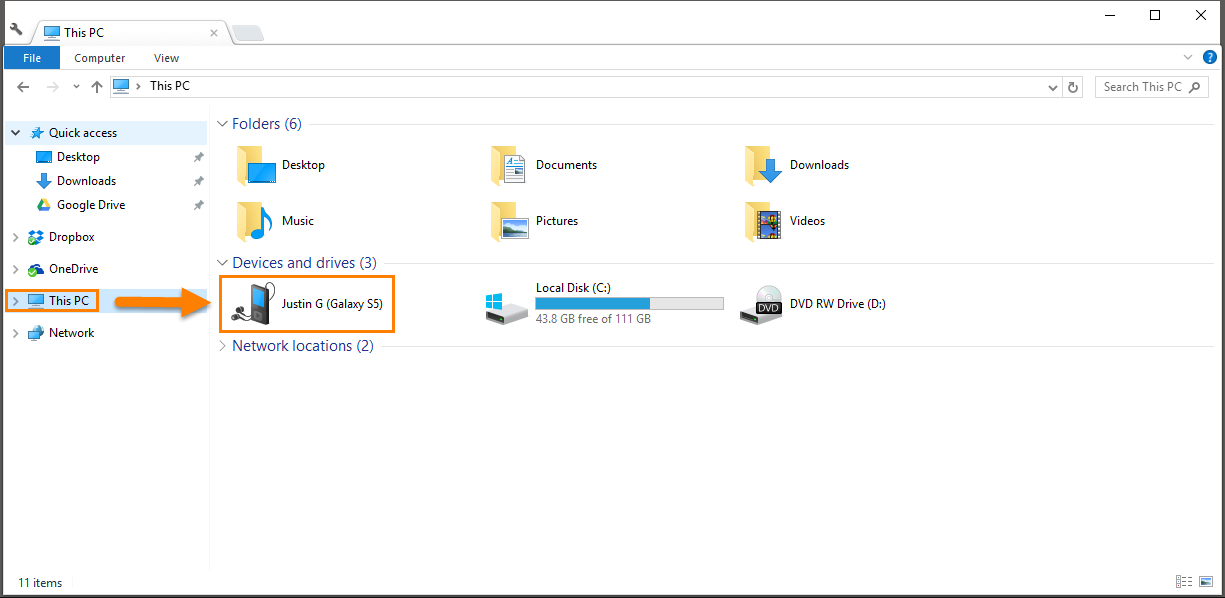
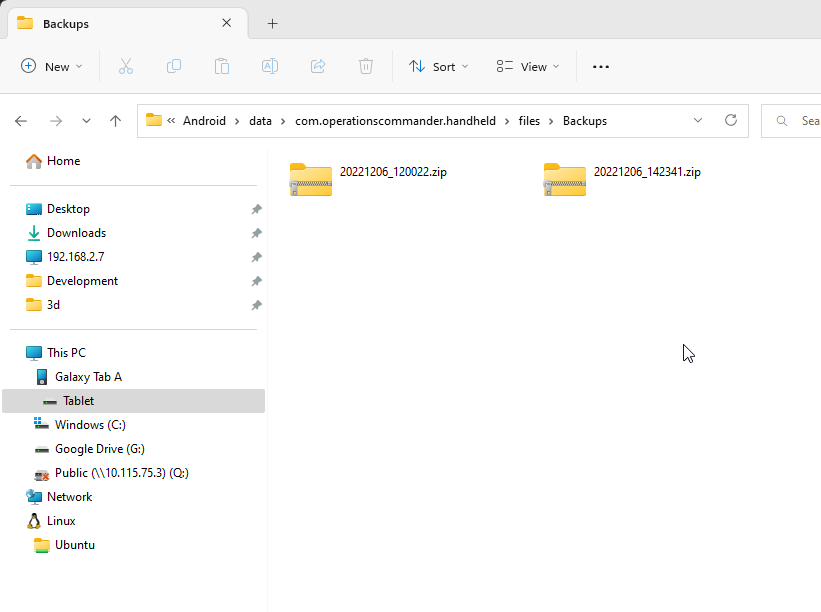
IfClickyouthedon'tUSBseeconnectionanythingnotificationyouonmayyourjustPC,needor navigate manually through File Explorer tonavigateThistoPC and open thetablettablet'smanuallyinternalbystoragegoing into windows file explorer and going under computer (where you normally see your C drive, D drive, network shares, thumb drives, etc).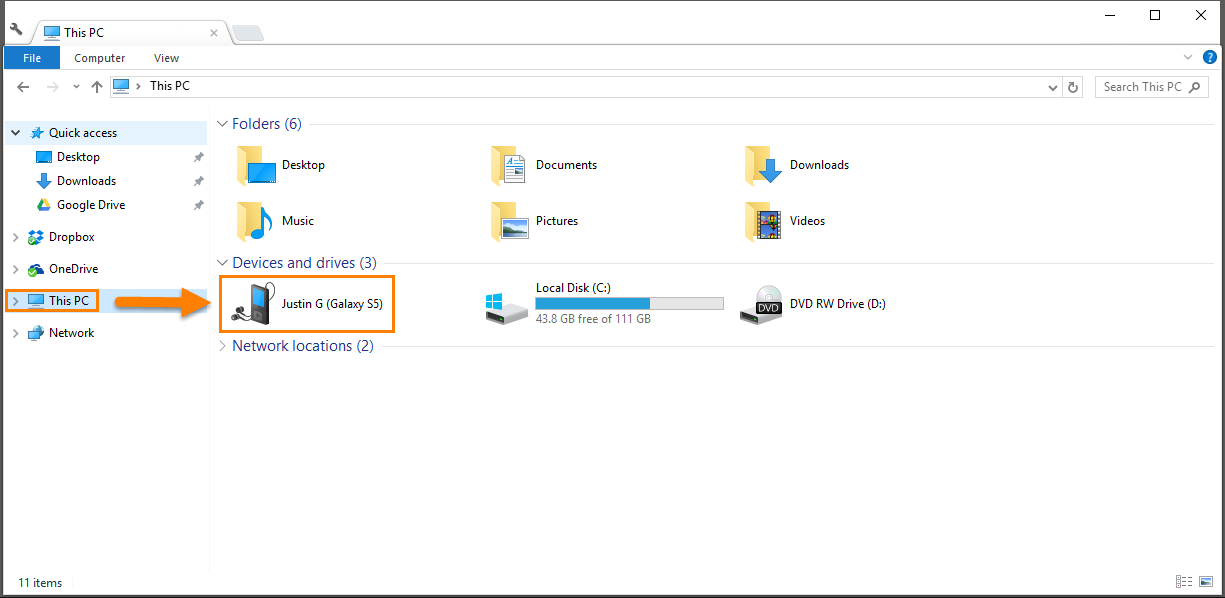
If you don't seem to have a wire to plug the tablet into your PC check where you charge the tablets, most of the time the plug of the tablet charging wire can be removed to allow USB connections instead of power outlet.
drive.
Locating and Copying Backup Files
-
At this point you should seeSelect all backup files locatedonwithinthethistablet.folderEither copy(or the specific filesyou have beenrequestedtobysend,support).or -
allCopy
backupthe selected files.The -
locationPaste
canthebefilesanywhereinto a new, temporary folder on your localcomputercomputer's desktop (this is a temporary file location before we upload the backups to Google Drive). As an example you could create a folder on your Desktop callede.g., "tabletTabletbackups", then copy and paste the backup files into it.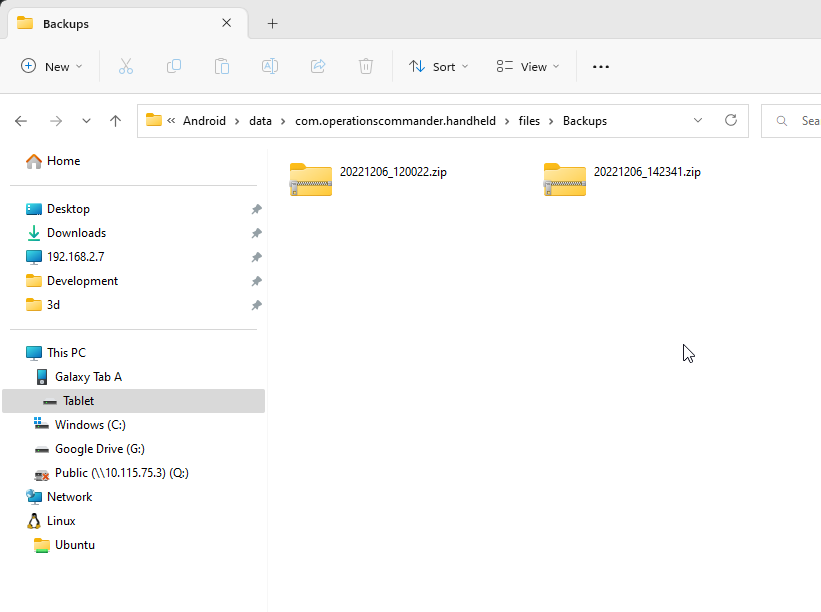
Backups").
ShareSharing your backupBackups with Support
Emailthebackupfiles are secured on your local computer, they must be shared with the support team tosupport@ops-com.comcomcomplete - the
orLogin to Google Drive.
recovery.-
GoOpen a web browser and navigate tohttps://drive.google.comGoogle Drive. -
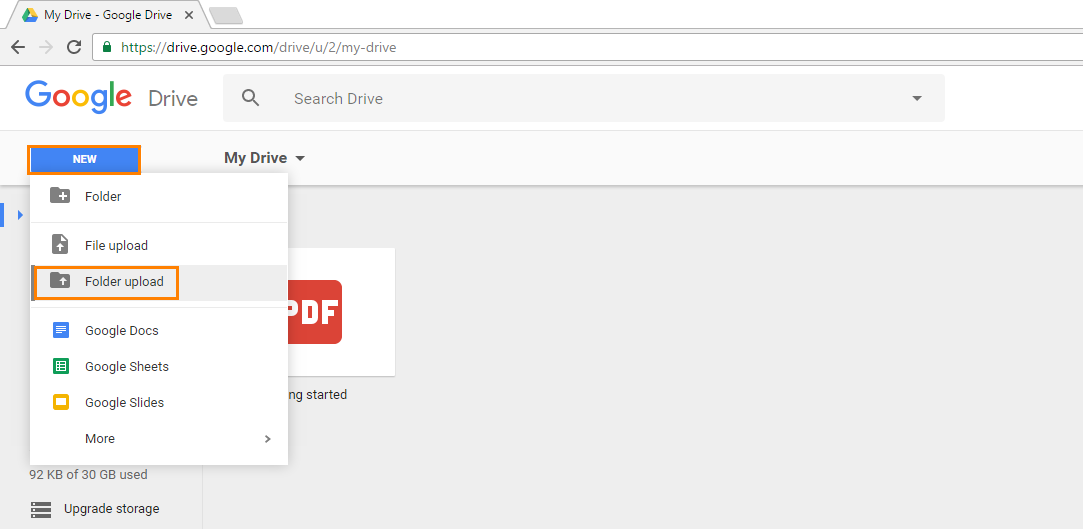
Click New and select Folder Upload
the backup files into Google Drive -
Once logged into Google Drive Select New > Folder Upload, navigate to and selectSelect thefolder you copied the thetemporary backupfiles to (mentioned in step2.babove).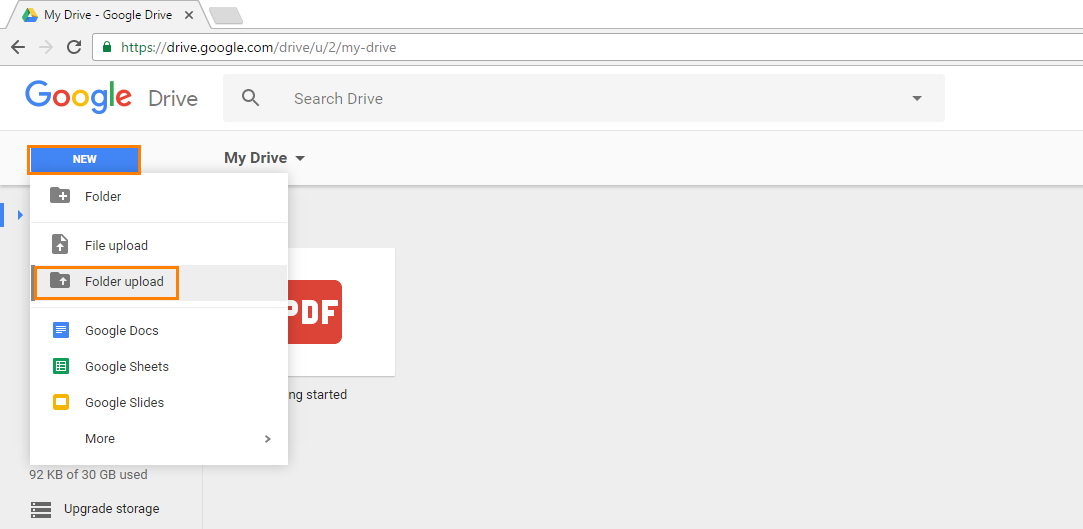
Wait for the backup files to upload to Google Drive, this could take some time depending on how many backups you are uploading.There should be a upload status window along the bottom right of Google Drive.Share the file withsupport@ops-com.comcom
-
Once
Notify us once you have uploaded the backup files so we can retrieve them.
You can remove the backup files and folder you created on your computerdesktop atto thisbegin pointthe sinceupload.
Wait for the upload status window in the bottom right corner of the screen to confirm all files have alreadysuccessfully beenuploaded.
Share the uploaded folder with support@ops-com.com and notify the support team that the files are ready for retrieval.
You may also email the backup files directly to Googlesupport Drive.if the overall file size is small enough to attach.
Best Practices and Considerations
-
Unlock the device before connecting: Always ensure the tablet screen is unlocked before plugging it into the USB port. PCs cannot read the internal file system of a locked Android device due to native security protocols.
-
Clean up temporary files: Delete the temporary backup folder from your local desktop once the support team confirms successful receipt. This keeps your PC free of unnecessary files and protects sensitive organizational violation data.