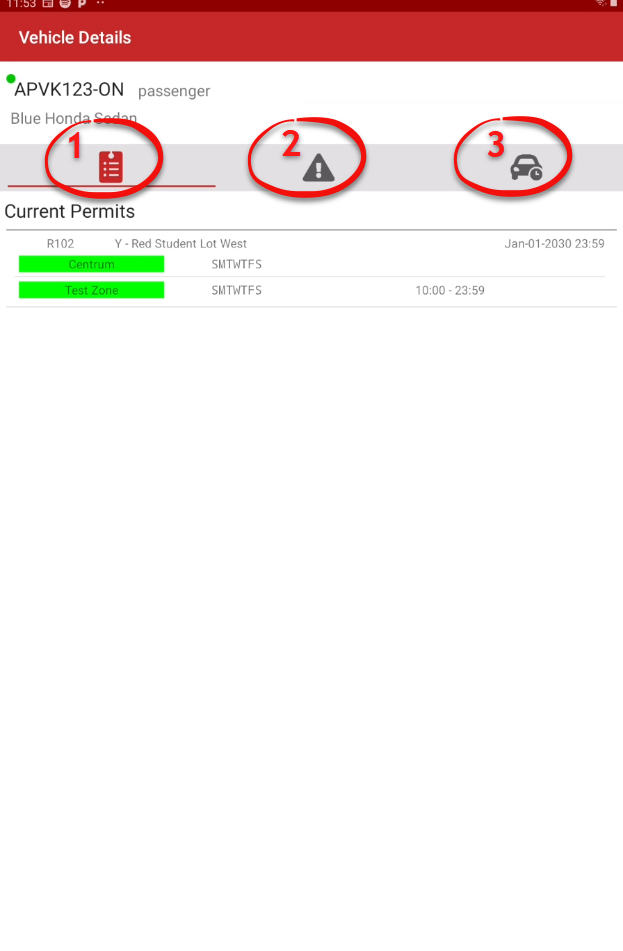
Search Vehicle Results
Typical
The Search Vehicle SearchResults screen in the legacy OPS-COM Parking Enforcement application displays comprehensive vehicle information after a plate search is performed. Its primary purpose is to give patrol officers immediate access to permit, violation, and chalking history so they can make informed enforcement decisions directly in the field. This guide is intended for OPS-COM administrators and field personnel using the legacy Android application.
Setup and Configuration
Viewing vehicle results is a core, native function of the legacy enforcement app and requires no backend administrative configuration.
Admin Side: No setup is required. You simply need to be logged into the enforcement app and successfully perform a standard vehicle search.
Using this Feature
During a typical plate searchsearch, therea wealth of actionable information is aplaced lot of informationright at the patrol officersofficer's fingertips.
Let's have a look at the Details section of the OPSCOM Parking Enforcement app. In this example we are searching for plate number APVK123.
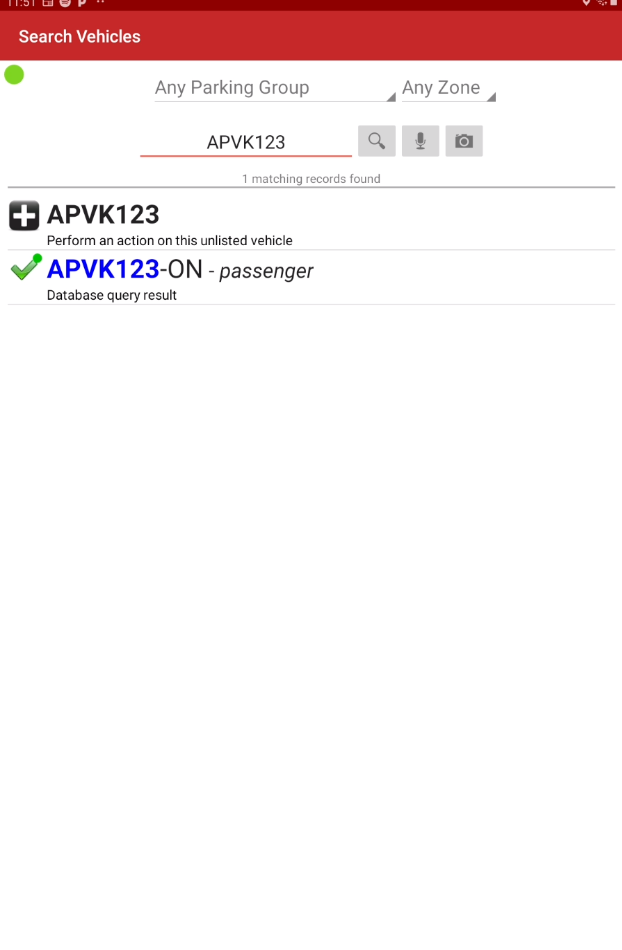
ViewViewing Extended Details
By tapping onTap the specific plate read infrom the initial search results list youto canexpand the record and view more detailed information.
YouExpanding maythis alsorecord Chalkreveals the vehicle,core Issueenforcement action buttons.
Available Actions and Buttons
-
Chalk: Tap this button to instantly initiate a virtual chalk record for time-limit enforcement.
-
Issue Violation: Tap this button to begin writing a new violation
orforviewthefurther details.vehicle. -
Details: Tap this button to drill deeper into the vehicle's complete parking history within your system.
Reviewing History Tabs
After tapping the Details buttonbutton, tothe drillapplication into this area.
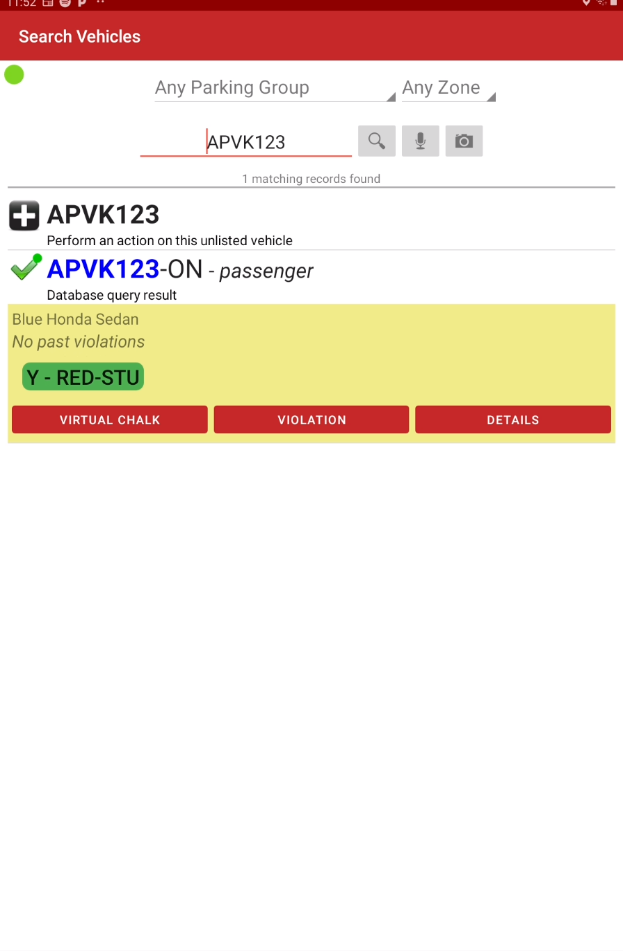
Permit, Violation and Chalk Details
Notice there arepresents three distinct tabs presented.containing
- vehicle's
Permitshistorical Violationsrecords. Chalks
The officerYou can either tap each tab toheader accessor swipe left and right across the informationscreen asto wellnavigate asseamlessly between them.
-
Permits: Displays any active or past permits associated with the license plate.
-
Violations: Displays the historical log of violations previously issued to the vehicle.
-
Chalks: Displays a history of virtual chalking events for the vehicle to assist with time-limit enforcement tracking.
Best Practices and Considerations
-
Review all tabs before ticketing: Always check the Permits, Violations, and Chalks tabs before issuing a new violation. Taking a moment to understand the full vehicle history and current permit status prevents issuing invalid tickets and greatly reduces user appeals.
-
Use swipe navigation: Take advantage of the swipe gesture to quickly move between the three detail screens. Swiping back and forth
betweensavesthesetimescreens.
in the field compared to manually reaching up to tap the top tab headers.