Search Vehicles
The Search Vehicles Menufeature in the OPS-COM Android application allows enforcement officers to instantly look up vehicle information using text, voice, or License Plate Recognition (LPR). Its primary purpose is to quickly retrieve live permit status and violation history to assist officers in making accurate enforcement decisions in the field. This article is intended for OPS-COM administrators and field enforcement personnel.
Setup and Configuration
TapThe vehicle search functionality is a core component of the handheld application and requires no specialized backend setup.
Admin Side: No backend administrative configuration is required.
User Side: Enforcement officers simply need to ensure they have an active session in the application and have granted the device necessary microphone and camera permissions to utilize voice and LPR search methods.
Connection Status Indicator A colored dot on the search panel indicates your real-time connectivity: Green Dot: The unit is actively connected to a Wi-Fi or cellular (3G/LTE) network, providing real-time data. Yellow Dot: The unit does not have an active connection. Searches can still be performed using the device's local cache, but data may not be fully up to date.
Using this Feature
Enforcement personnel can query the database using three distinct methods: manual text entry, voice dictation, or the device's LPR camera.
Tap Search Vehicles option
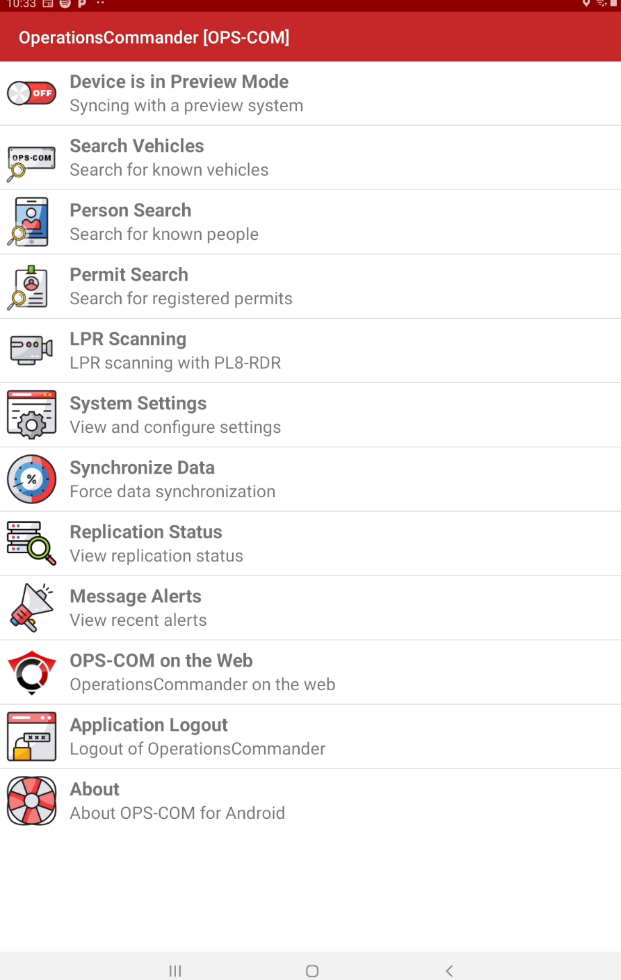
Search Vehicle Panel
The green dot indicates the unit is connected to a wifi or 3G/LTE source.
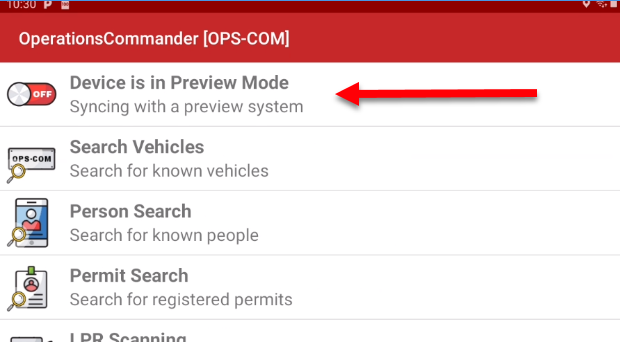
Static connection is not necessary since the device doesis maintainin Preview Mode).
Performing a cacheText ofSearch
-
IfTap thedotsearchisfieldyellow that would indicate the unit does not have a connection but searches may still be performed.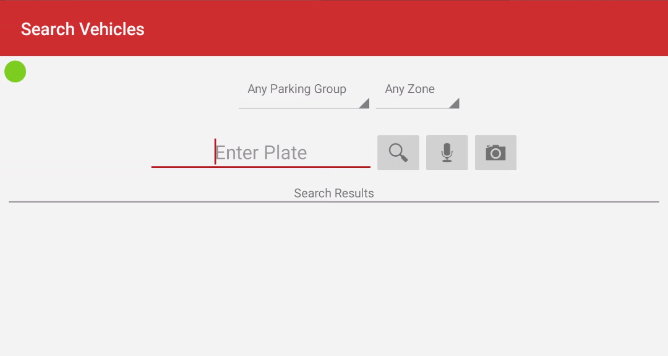
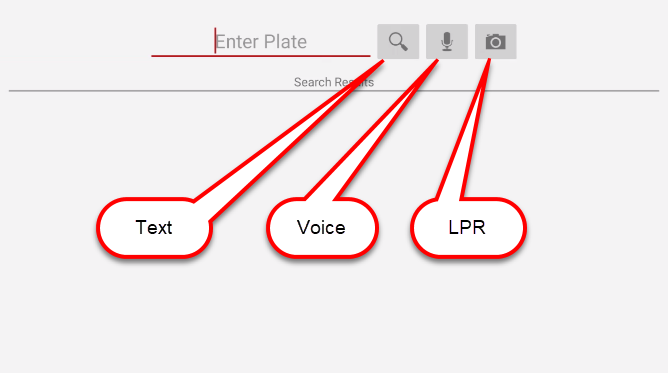
Entering Search CriteriaThere are three methods toand enter theplatefullinformation.Textusing the keypadVoice commandusing the built in micLPR using OCR technologythrough the tablet's camera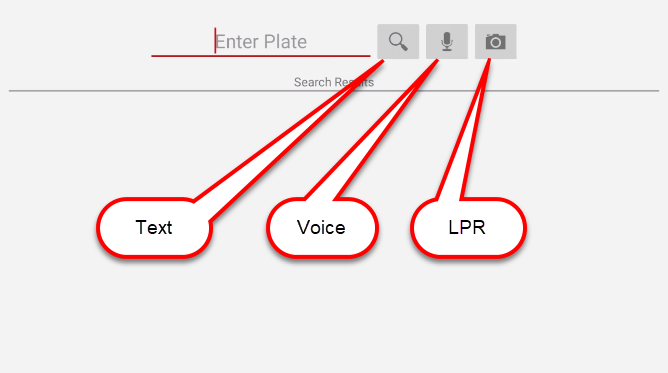
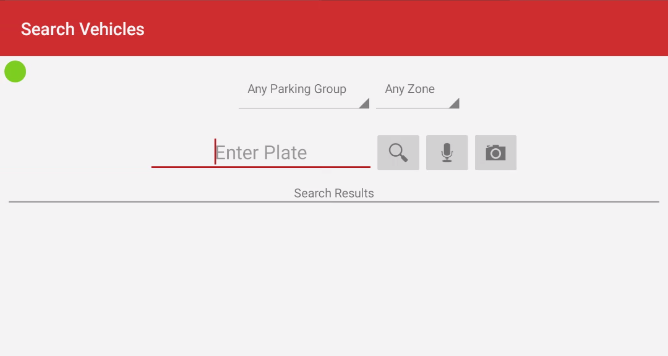
Text SearchUsing Text- On the Vehicle Search screen, enter thelicense plate number orVINVehiclenumberIdentificationthatNumberyou(VIN)wantusingtothesearchon-screenandkeypad.tap -
Tap the Search button.
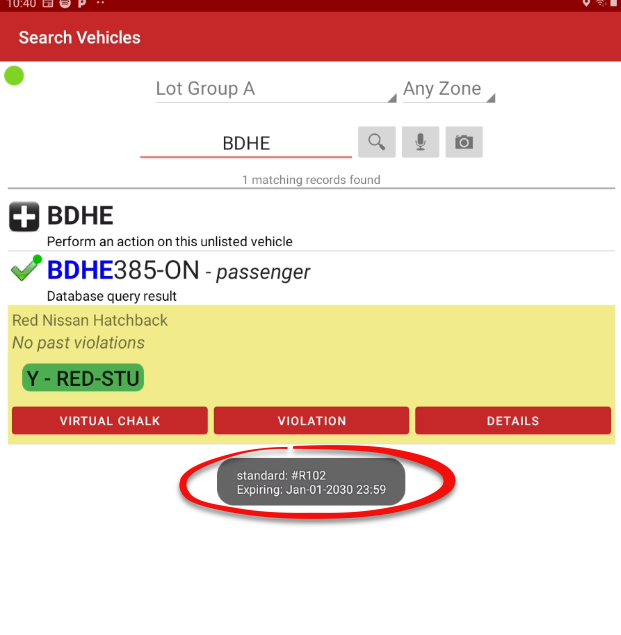
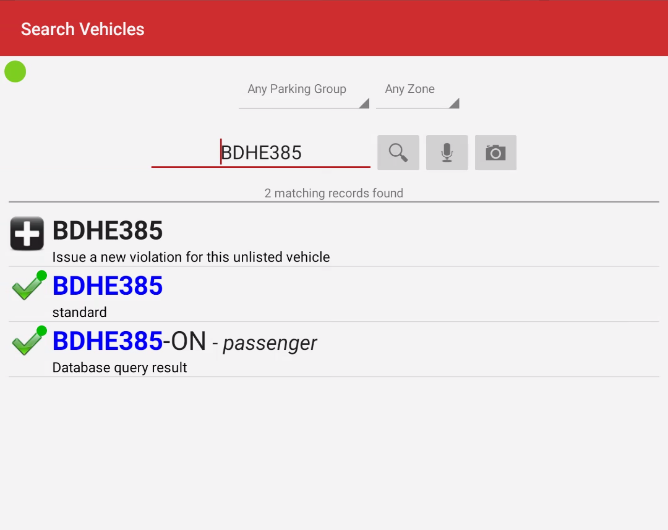
The vehicle details will appear below the search area.
Performing a plate:
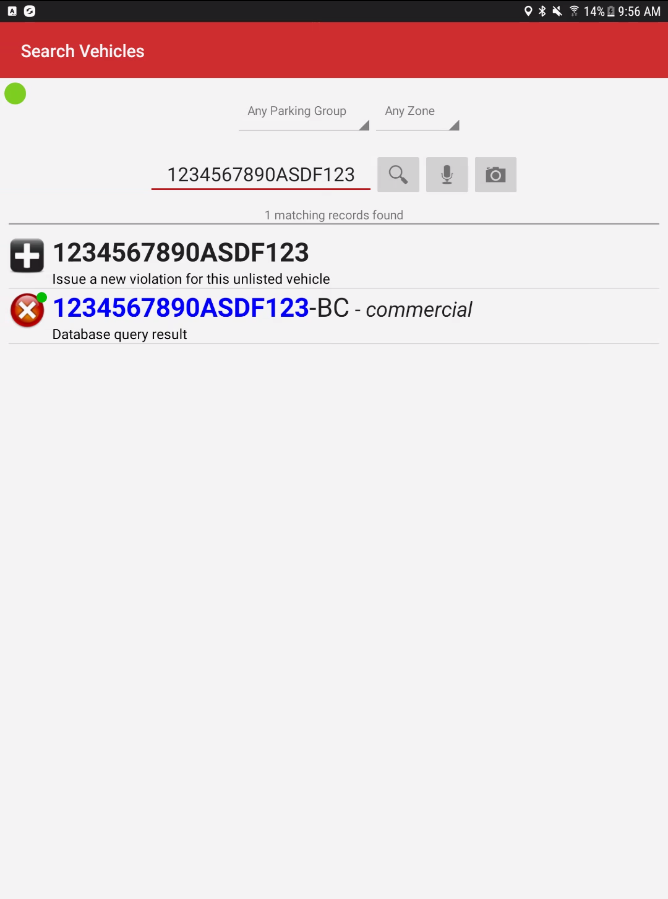
Example using a VIN:
Voice Search
-
Using Voice- SelectTap themicrophone.microphoneTheicon.google -
recognitionWait
"SayforSomething"thepageGoogleappears,VoicesayRecognition prompt to appear. -
Speak the license plate number clearly out
loud.
loud to populate the search field.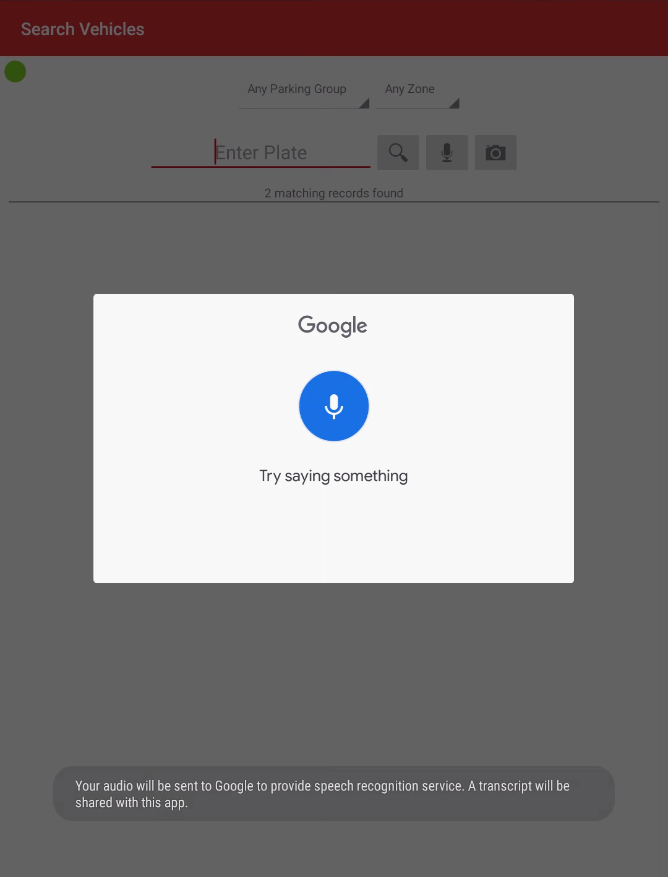
Performing an LPR/OCR Camera Search
-
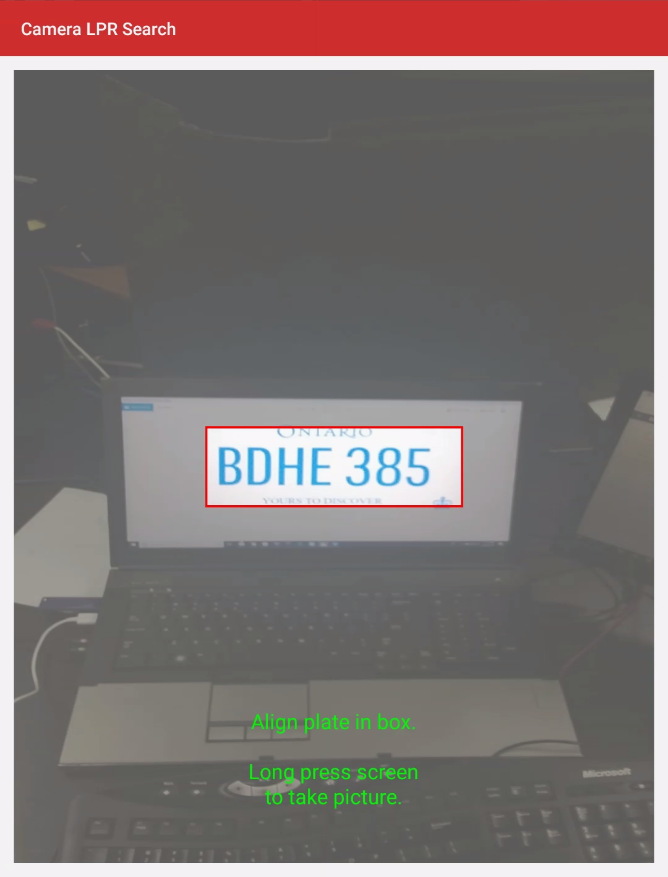
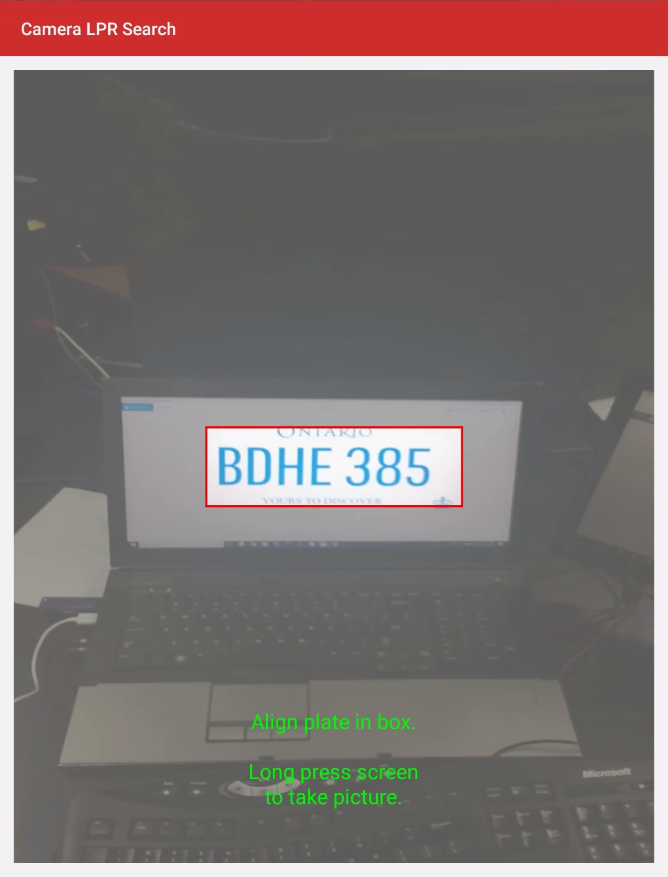
Tap the camera icon to enter LPR Search mode.
-
Line up the physical license plate
withwithin the on-screen rectangle. -
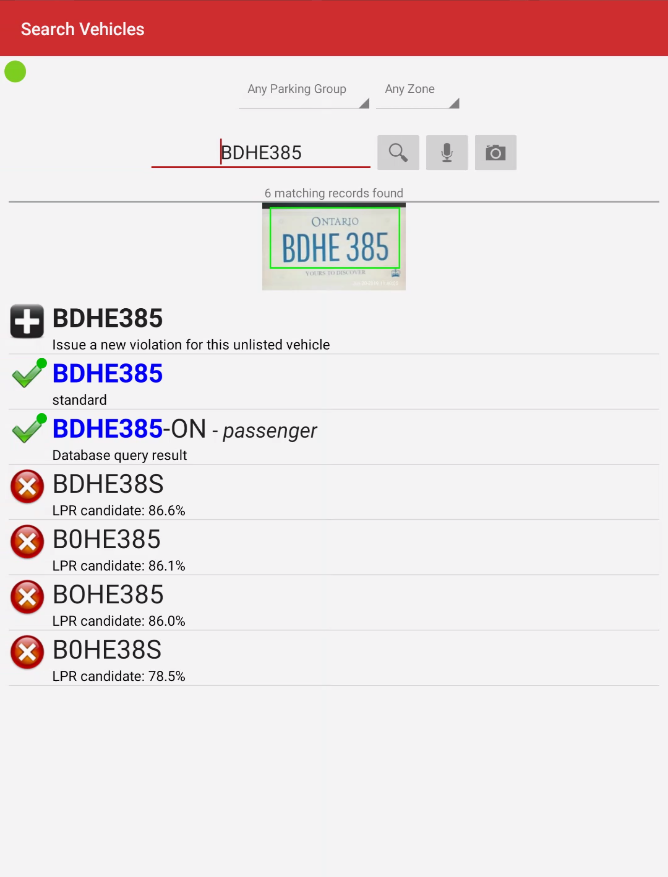
LongTappressand Hold the screen totakecapture ashotshot.and theThe screenrefresheswill refresh with a list of possible plate numbers.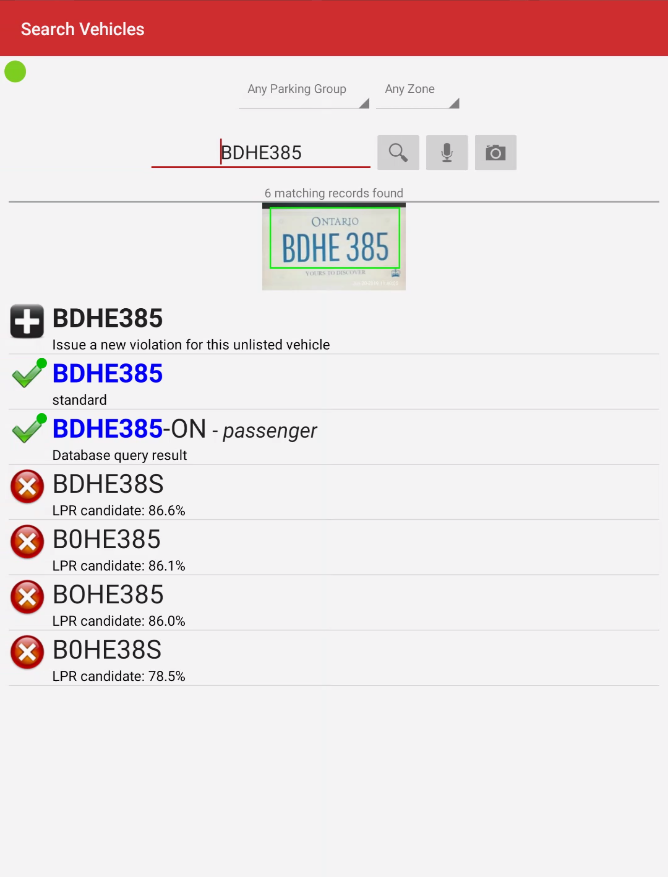
-
SelectTap the specific plate number that matches theimage.imageIn(e.g.,thisBDHE385)casetotapexecuteBDHE385.the search.
Reviewing Results and Available Actions
Selecting the vehicle beingfrom searchedthe forsearch results expands a yellow ribbon whichdetailing displaysthe available enforcement options.
-
ThreeVirtualbuttonsChalk:willTapappearthisbeneathbutton to initiate a time-stamped digital chalk record for time-limit enforcement. -
Issue Violation: Tap this button to proceed directly to the
licenseticketplateissuance screen forVirtualtheChalk,selectedIssue Violation,andDetails.
vehicle.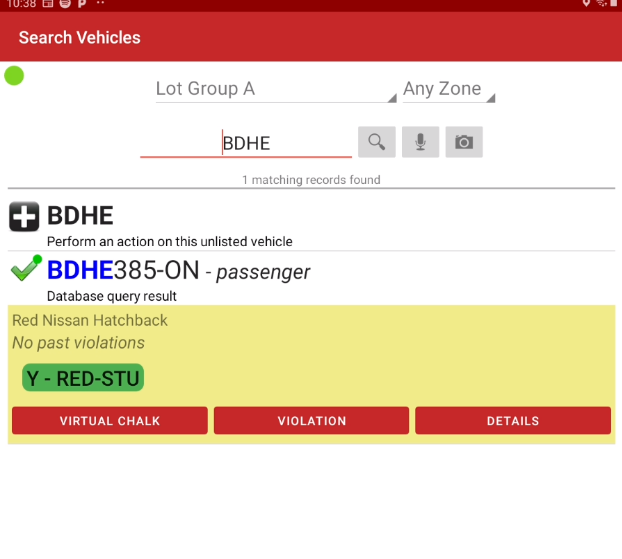
-
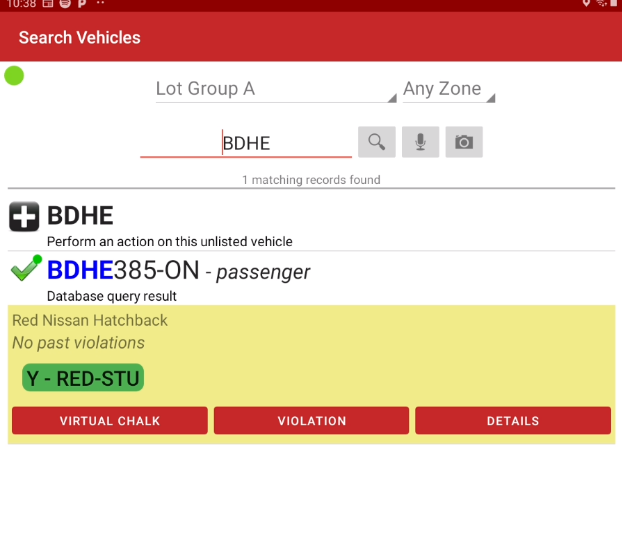
Details:SelectTap this button to open the comprehensive Search Vehicle Results screen, detailing the full permitthatandappearsviolation history. -
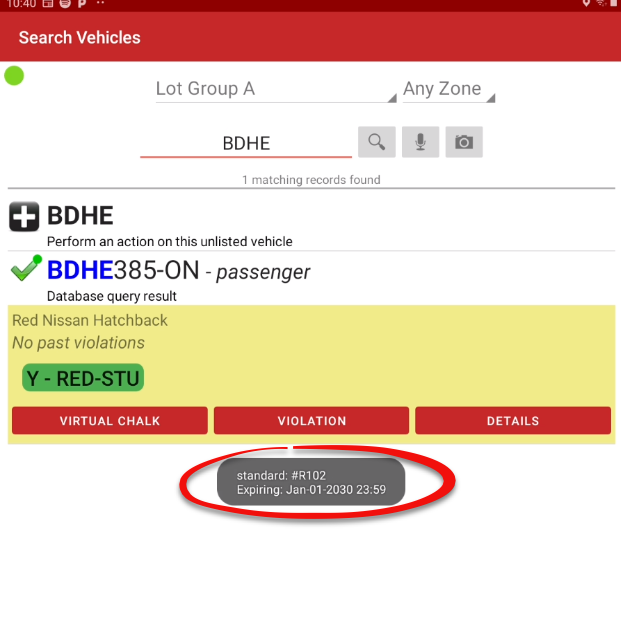
Permit Pill: Tap the specific permit name appearing directly underneath the license plate number to quickly review its expiration details without opening the
expiryfulldetails.history.
Best Practices and Considerations
-
AlternatelyMaintainselectan active connection: Always try to maintain a Wi-Fi or 3G/LTE connection (Green Dot) when actively patrolling. While theDetailsyellowbuttondot indicates cached searches are possible, real-time connectivity guarantees you are seeing the most recent permit purchases and user updates. -
Optimize LPR conditions: Hold the device steady and ensure the license plate is well-lit and centered within the rectangle when using the LPR/OCR camera to
viewguaranteeallthepermithighestdetails.
accuracy and avoid manual corrections. -