
Setting Device to Auto-Update
The Setting Device to Auto-Update process allows organizations to configure their Android handheld devices to automatically download and install application updates. Its primary purpose is to ensure that the legacy OPS-COM Parking Enforcement app, along with other critical device software, remains on the latest version without requiring manual intervention from field staff. This article is intended for OPS-COM administrators and IT personnel responsible for provisioning enforcement devices.
Setup and Configuration
This configuration is performed directly within the native Google Play Store on the Android operating system. It does not require any backend adjustments within the OPS-COM administrative portal.
Admin Side: Administrators configuring the field devices prior to deployment should ensure the device is connected to a stable network and logged into an active Google account to access the Play Store settings.
User Side (Enforcement Staff): Generally, field officers do not need to configure this setting if the device was pre-provisioned by administration. If manual configuration is required in the field, follow the steps below.
Using this Feature
Administrators interact with the native Google Play Store settings to dictate how the device handles application updates.
Configuring Auto-Update Settings
-
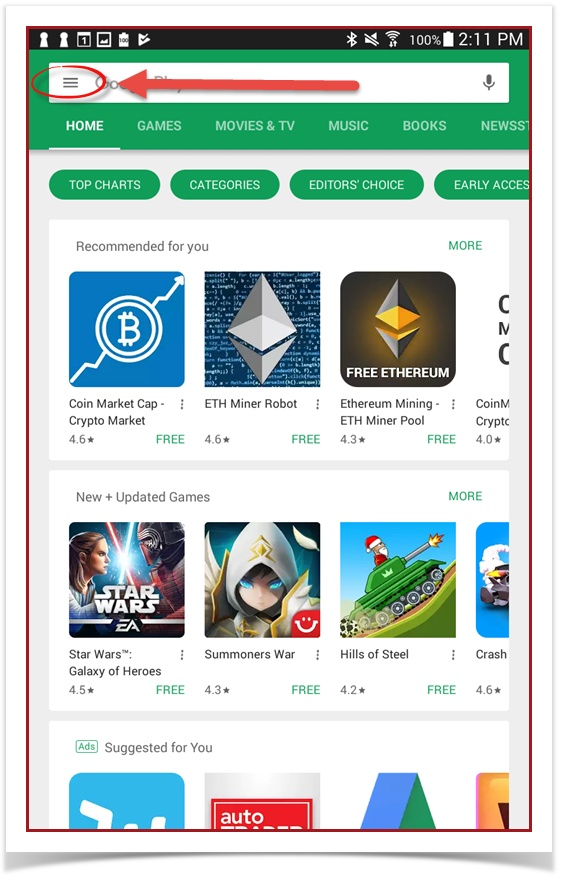
Open the Google Play
Store.Store

-
Tap the
hamburgerMenu icon (represented by three horizontal lines)onlocated in the top-left.
left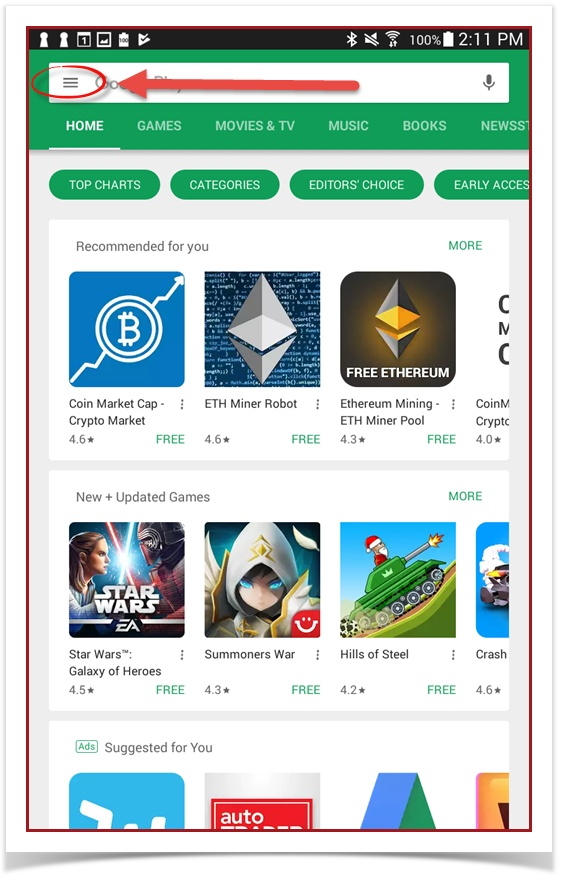
-
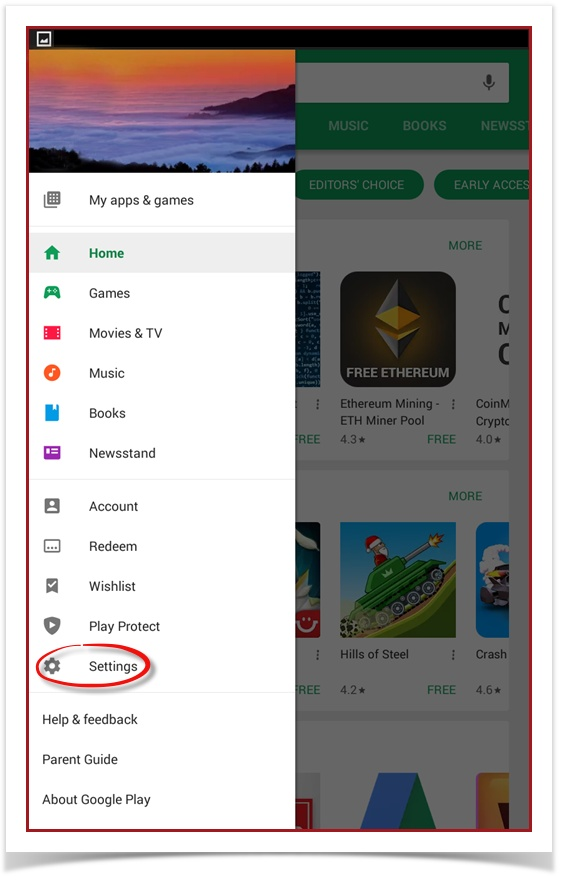
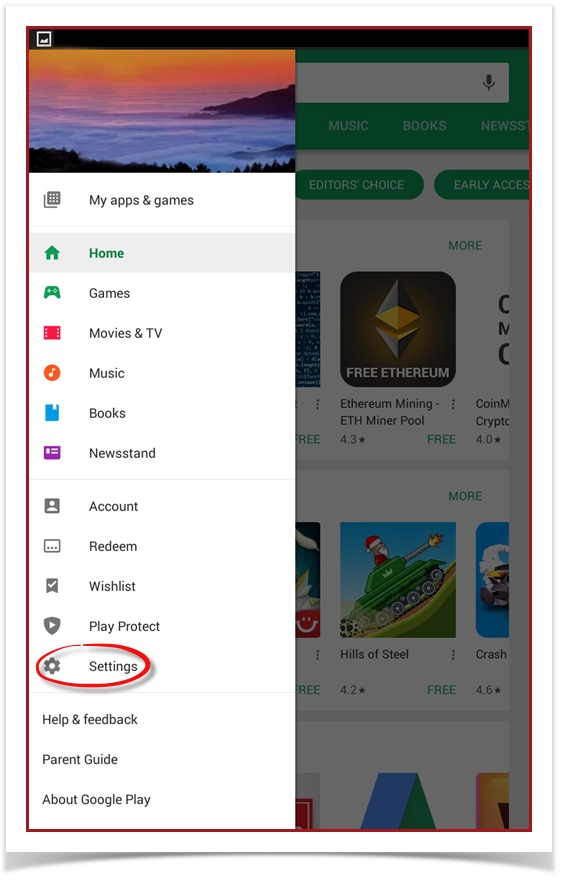
Tap
Settings.Settings
-
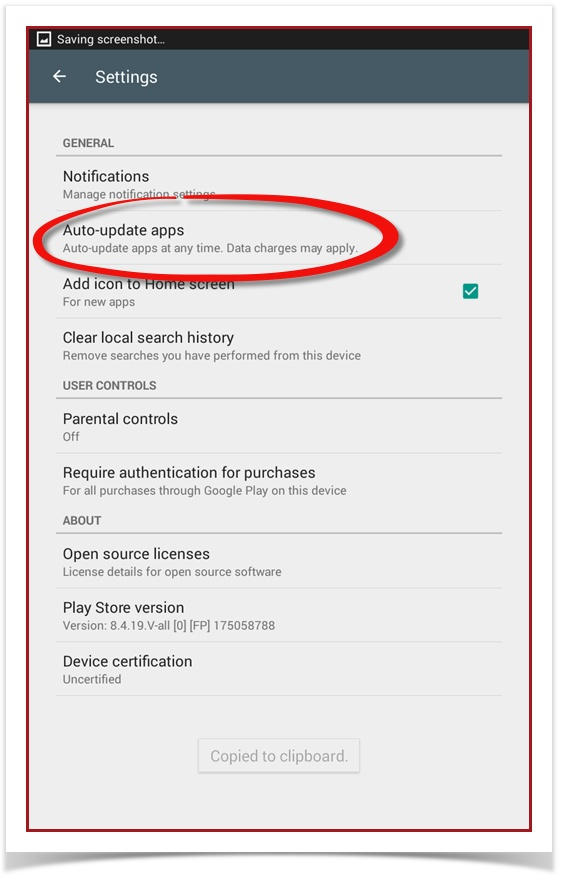
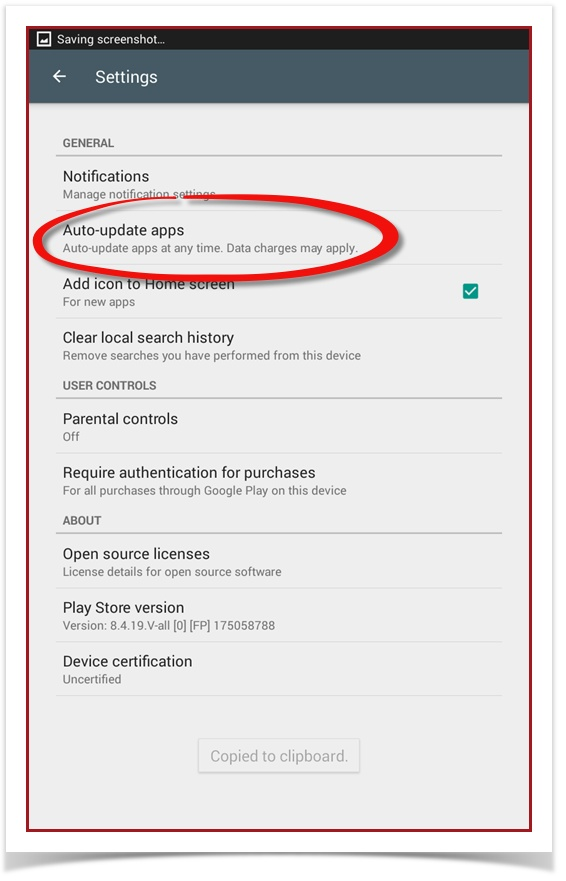
Tap Auto-update
apps.apps
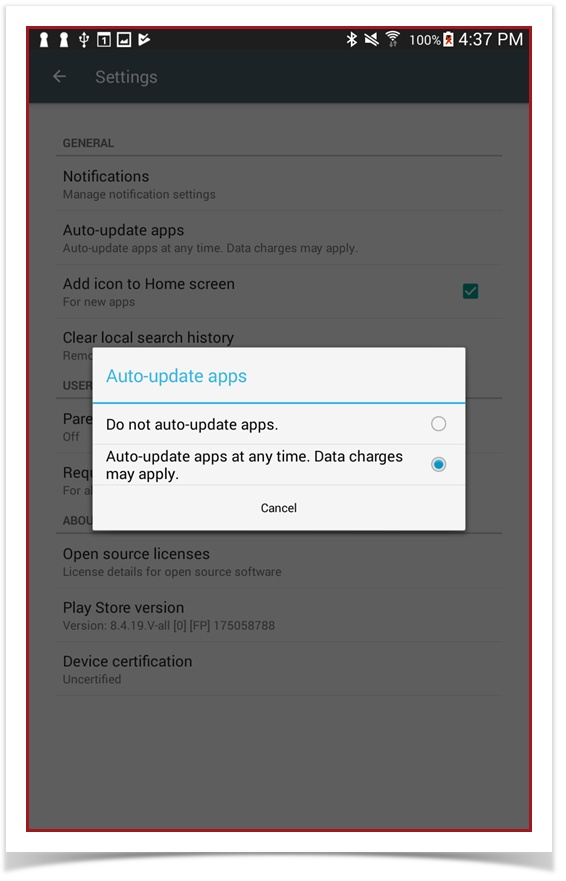
Toenableautomatic app updates, selectSelect Auto-update apps at any
time.timeDatatocharges may apply.Todisableenable automaticappupdates,updates,or select Do not auto-updateapps.apps
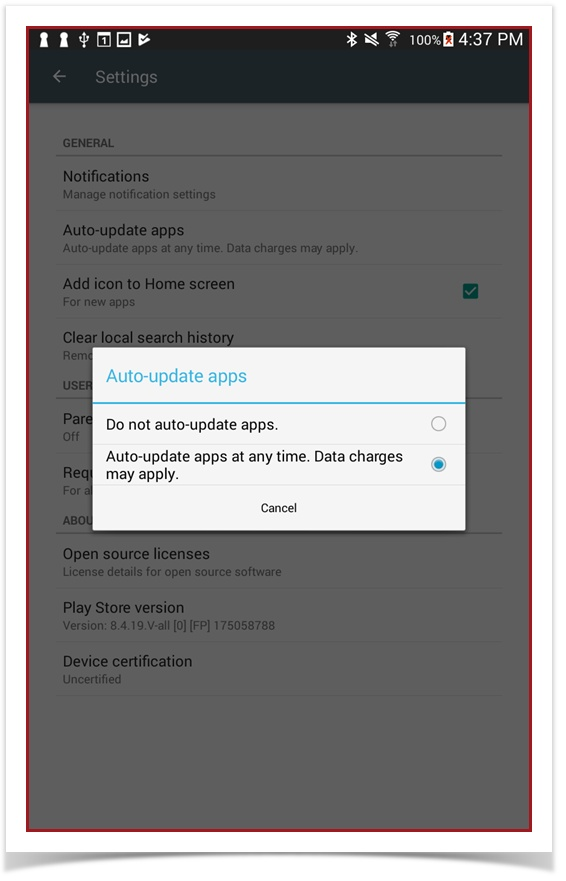

Data Charges and Connectivity When selecting the option to update apps at any time, be aware that the device will utilize whatever network connection is currently active. If the device is not on Wi-Fi, cellular data charges may apply based on your organization's mobile carrier plan.
Best Practices and Considerations
-
Maintain up-to-date software: Organizations should establish a business rule to keep auto-updates enabled whenever possible. Allowing the device to update automatically ensures field officers always benefit from the latest bug fixes, security patches, and feature enhancements for the OPS-COM application.
-
Monitor cellular data usage: If your organization uses strict or limited cellular data plans, consider using the Wi-Fi only update option if available on your device's Android version. This prevents large app updates from exhausting your monthly cellular data allowance while officers are actively patrolling.